

'%3e%3cpath%20d='M8%200C12.4183%200%2016%203.58172%2016%208C16%2012.4183%2012.4183%2016%208%2016C3.58172%2016%200%2012.4183%200%208C0%203.58172%203.58172%200%208%200ZM11.6162%204.38379C11.2257%203.99337%2010.5927%203.99338%2010.2021%204.38379L8%206.58594L5.79785%204.38379C5.40732%203.99334%204.77429%203.99329%204.38379%204.38379C3.99331%204.77429%203.99335%205.40733%204.38379%205.79785L6.58594%208L4.38379%2010.2021C3.99348%2010.5927%203.99341%2011.2257%204.38379%2011.6162C4.77426%2012.0066%205.40734%2012.0065%205.79785%2011.6162L8%209.41406L10.2021%2011.6162C10.5927%2012.0066%2011.2257%2012.0067%2011.6162%2011.6162C12.0067%2011.2257%2012.0066%2010.5927%2011.6162%2010.2021L9.41406%208L11.6162%205.79785C12.0066%205.40735%2012.0066%204.77429%2011.6162%204.38379Z'%20fill='%23080E17'%20fill-opacity='0.46'/%3e%3c/g%3e%3cdefs%3e%3cclipPath%20id='clip0_3761_713'%3e%3crect%20width='16'%20height='16'%20fill='white'/%3e%3c/clipPath%3e%3c/defs%3e%3c/svg%3e)




'%3e%3cpath%20fill-rule='evenodd'%20clip-rule='evenodd'%20d='M21.4999%2010.9993C21.4999%205.20009%2016.7986%200.498901%2010.9993%200.498901C5.19994%200.498901%200.498657%205.20009%200.498657%2010.9993C0.498657%2016.2404%204.33858%2020.5844%209.35855%2021.3722V14.0346H6.69238V10.9993H9.35855V8.68594C9.35855%206.05427%2010.9262%204.60062%2013.3248%204.60062C14.4736%204.60062%2015.6753%204.80571%2015.6753%204.80571V7.38979H14.3512C13.0468%207.38979%2012.64%208.19921%2012.64%209.0296V10.9993H15.5523L15.0867%2014.0346H12.64V21.3722C17.66%2020.5844%2021.4999%2016.2404%2021.4999%2010.9993Z'%20fill='%231568EA'/%3e%3c/g%3e%3c/svg%3e)


'%3e%3cpath%20d='M2.42045%2022.1876H6.31818V12.7217L0.75%208.54553V20.5171C0.75%2021.4414%201.49892%2022.1876%202.42045%2022.1876Z'%20fill='%234285F4'/%3e%3cpath%20d='M19.682%2022.1876H23.5797C24.5041%2022.1876%2025.2502%2021.4387%2025.2502%2020.5171V8.54553L19.682%2012.7217'%20fill='%2334A853'/%3e%3cpath%20d='M19.682%205.48293V12.7216L25.2502%208.54543V6.31816C25.2502%204.25236%2022.8921%203.07469%2021.2411%204.31361'%20fill='%23FBBC04'/%3e%3cpath%20d='M6.31824%2012.7217V5.48303L13.0001%2010.4944L19.6819%205.48303V12.7217L13.0001%2017.733'%20fill='%23EA4335'/%3e%3cpath%20d='M0.75%206.31816V8.54543L6.31818%2012.7216V5.48293L4.75909%204.31361C3.10534%203.07469%200.75%204.25236%200.75%206.31816Z'%20fill='%23C5221F'/%3e%3c/g%3e%3cdefs%3e%3cclipPath%20id='clip0_2954_7305'%3e%3crect%20width='24.5'%20height='18.375'%20fill='white'%20transform='translate(0.75%203.8125)'/%3e%3c/clipPath%3e%3c/defs%3e%3c/svg%3e)


Quick answer: For clickable boxes, turn on the Developer tab → insert a Check Box Content Control. For print-only lists, go to Insert → Symbol and pick an empty square (Wingdings 2).
Two Types of Check Boxes in Word
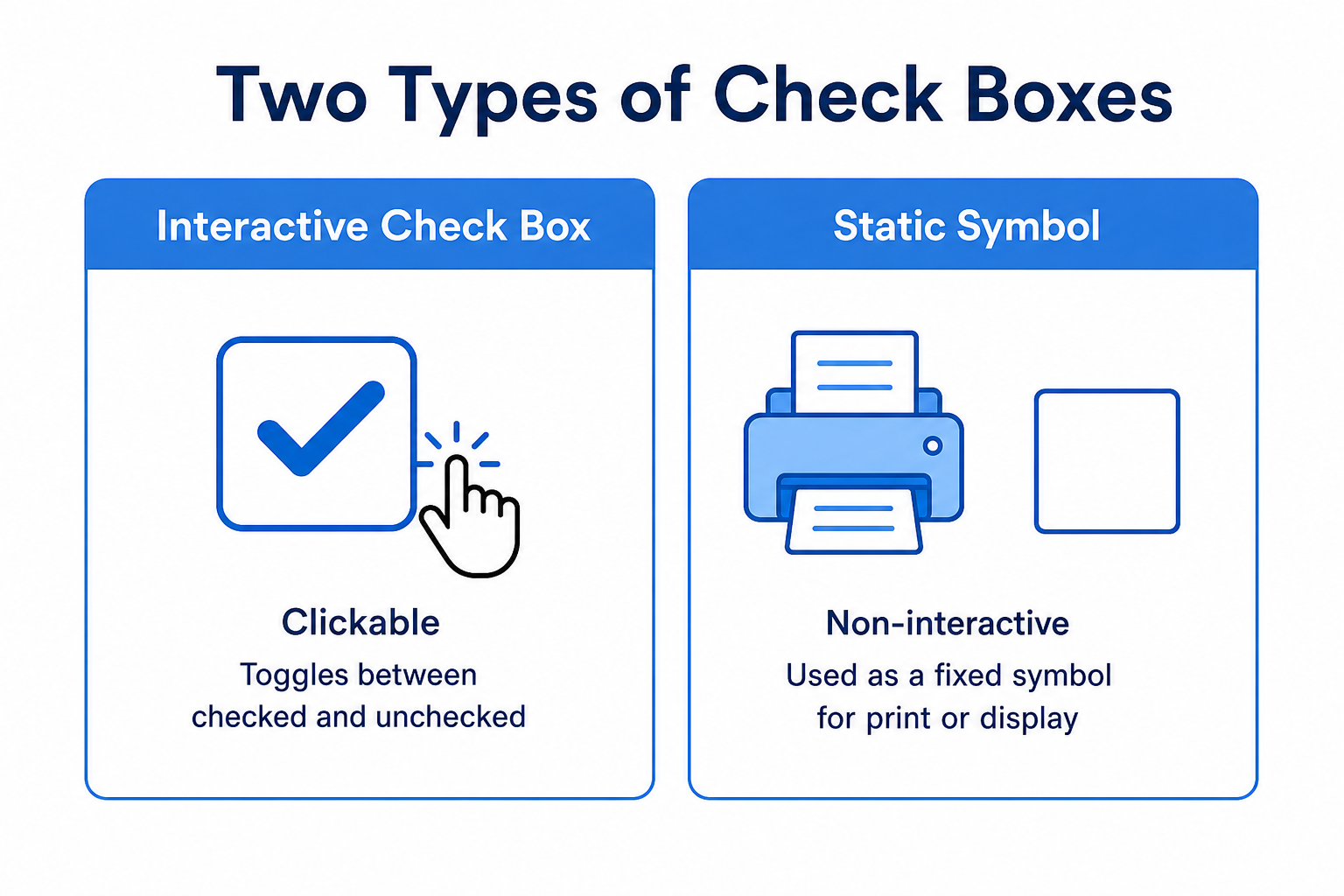
| Type | Best for | Clickable? |
|---|---|---|
| Interactive check box | Digital forms and on-screen checklists | Yes—toggle on screen |
| Static symbol check box | Printed lists you mark by hand | No—print only |
How to Insert Clickable Check Boxes in Word (Windows)
Interactive check boxes live on the Developer tab, which is hidden by default.
Step 1: Enable the Developer tab
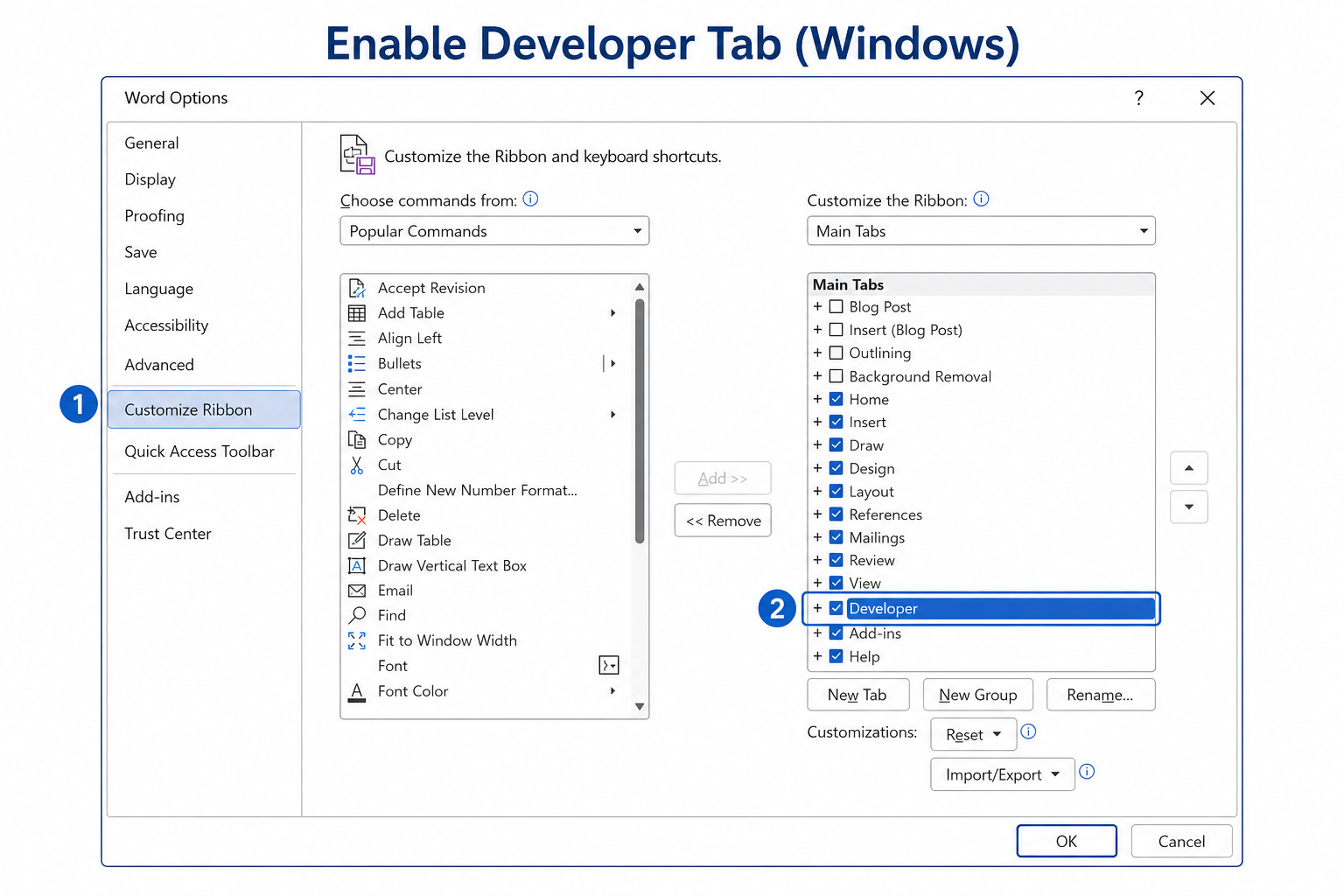
Go to File → Options → Customize Ribbon.
In the right column under Main Tabs, check Developer.
Click OK.
Step 2: Insert a check box control
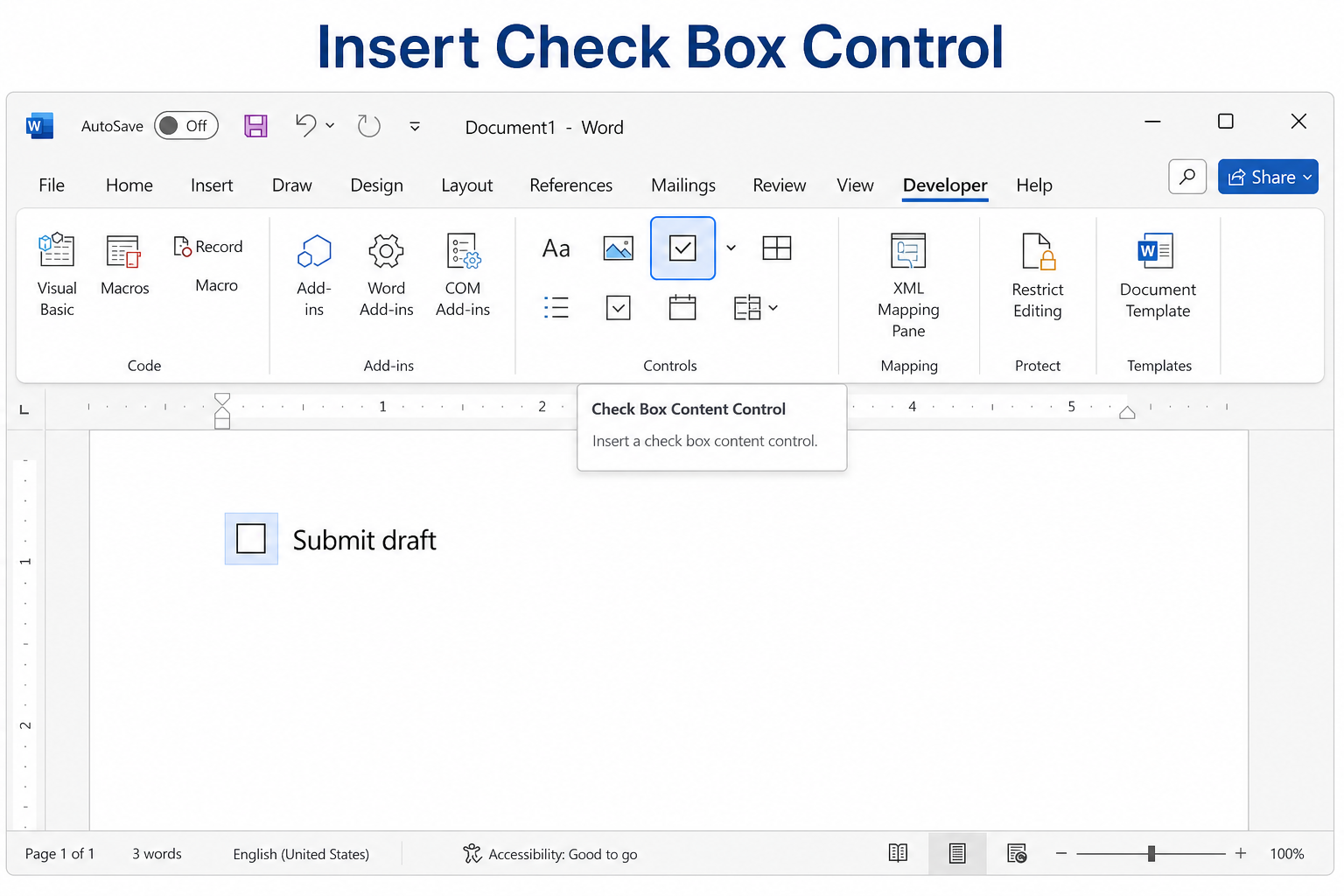
Place your cursor where the box should go.
Go to Developer → Controls → Check Box Content Control.
A clickable box appears. Click it to check or uncheck.
Tip: Type your label next to the box (for example, “Submit draft”), then copy both the box and text to build a longer list fast.
How to Insert Clickable Check Boxes in Word (Mac)
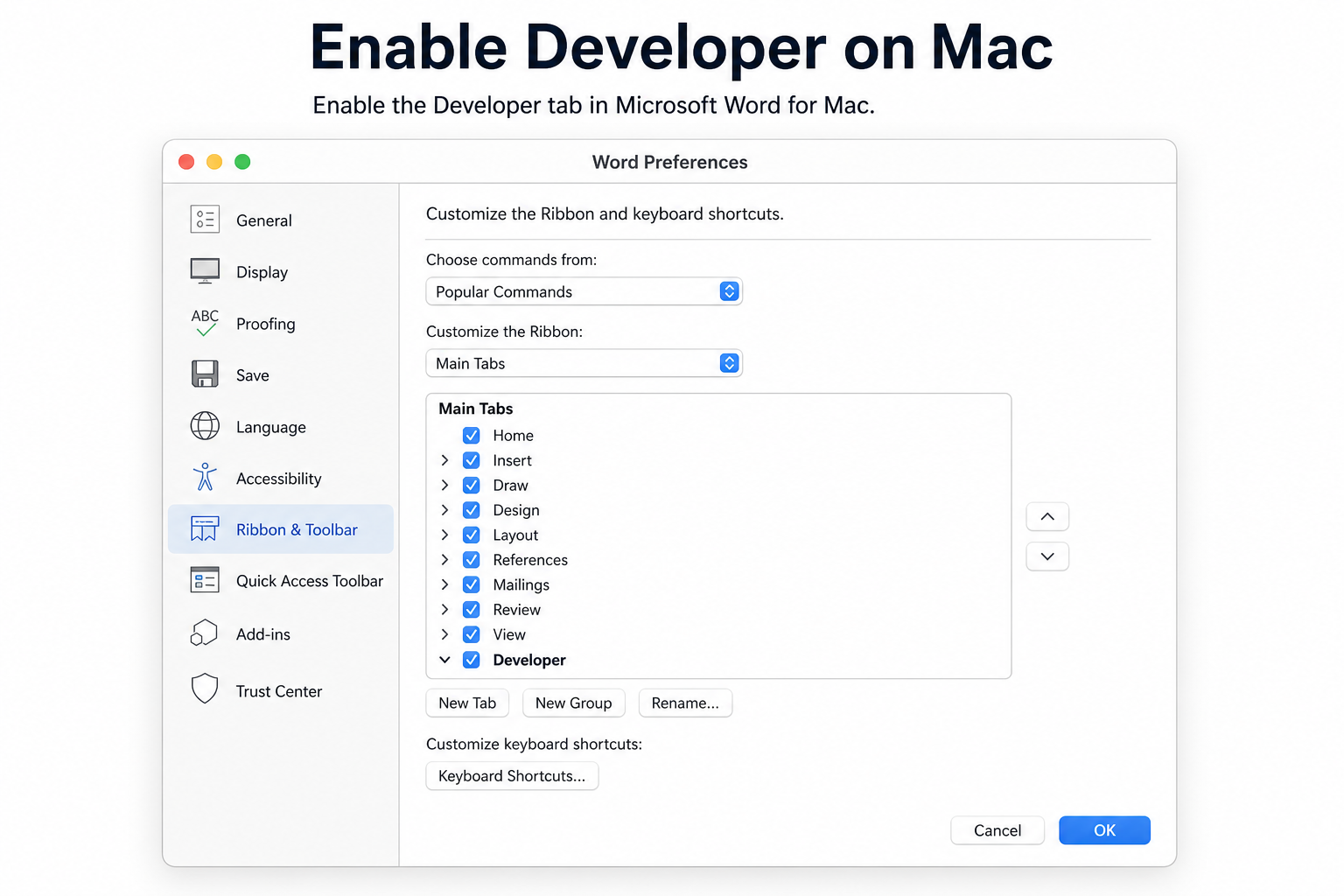
Open Word, then go to Word → Preferences → Ribbon & Toolbar.
Enable Developer and save.
Place your cursor, then go to Developer → Check Box.
Copy and paste to add more boxes.
How to Insert Static Printable Check Boxes
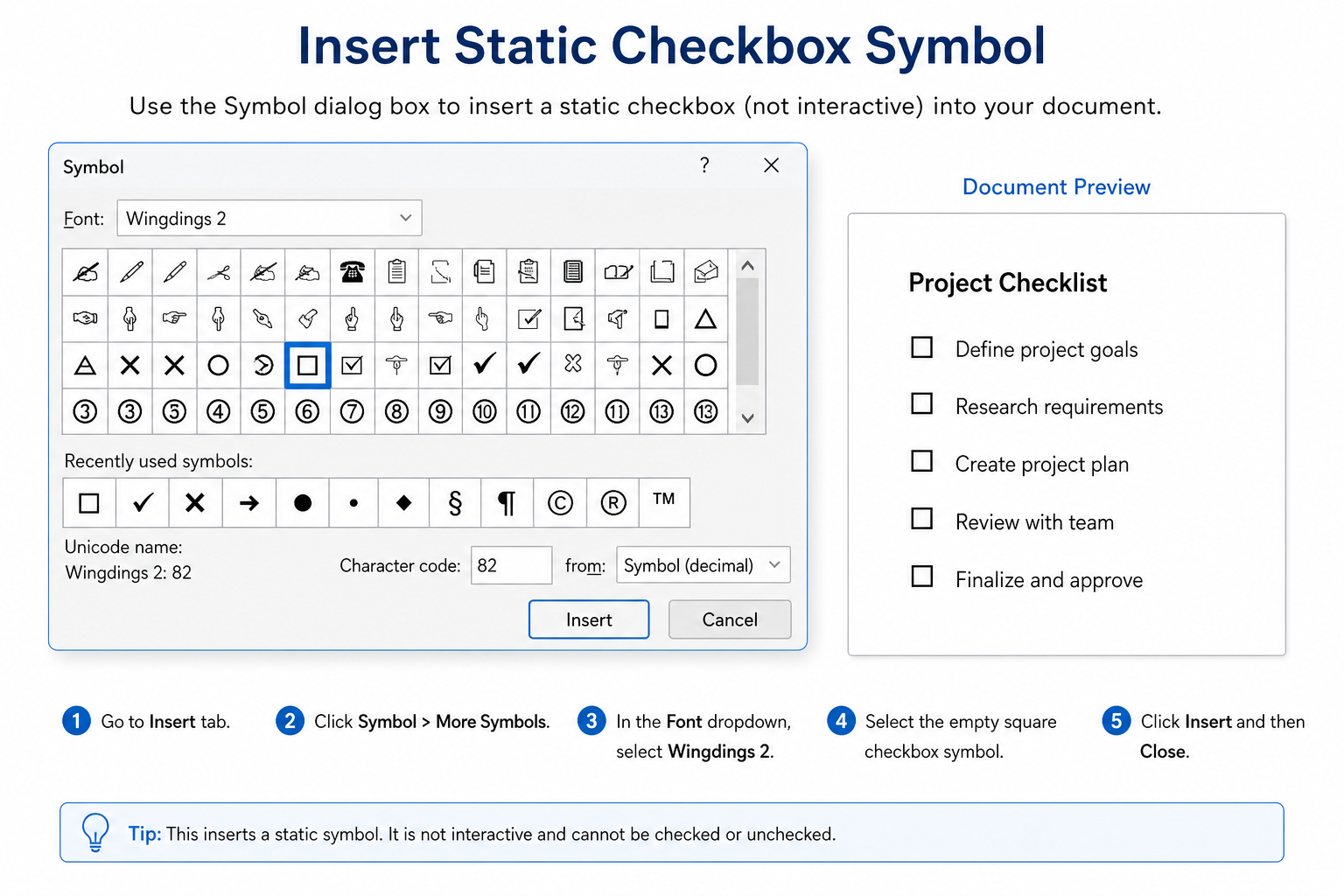
Use this when you only need a printed checklist—no clicking required.
Place your cursor where you want the box.
Go to Insert → Symbols → More Symbols.
Set the font to Wingdings 2 (or Wingdings).
Select an empty square check box symbol and click Insert.
Copy and paste to finish your list.
How to Customize Check Box Symbols
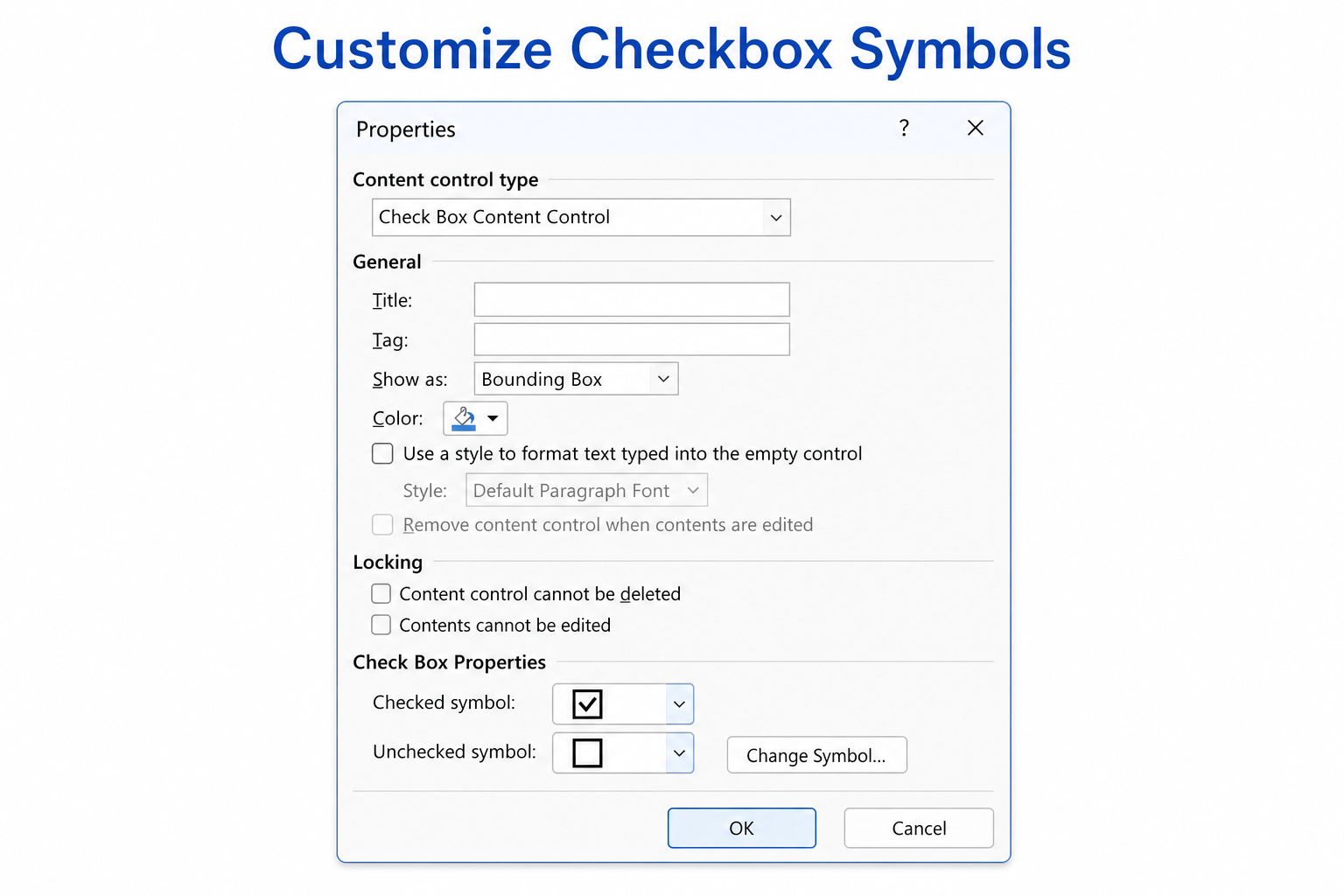
Select the interactive check box.
On the Developer tab, click Properties.
Change the checked and unchecked symbols if you want a different look.
Adjust size, color, or font to match your document.
Free Way to Insert and Edit Check Boxes Without Microsoft 365
If you cannot access Developer tools—or you do not want a paid Microsoft 365 plan—WPS Writer is a free, Word-compatible option for everyday checklists and forms.
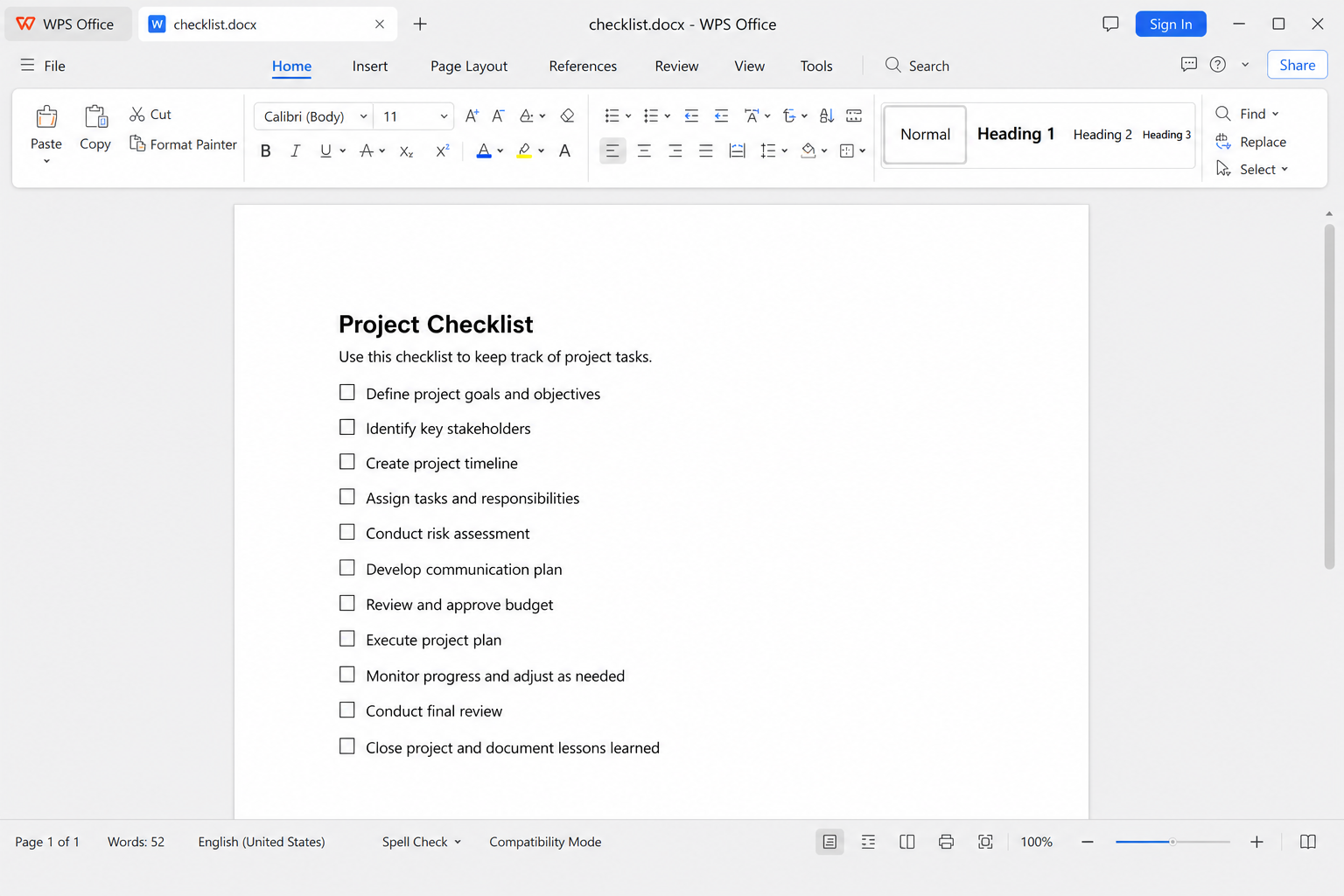
Open your document in WPS Writer, insert clickable or static check boxes, then save as .docx. Files stay compatible with Microsoft Word for sharing and review.
No paid subscription required — Core check box tools for daily use stay free
Strong Word compatibility — Open and share common .doc / .docx layouts
Straightforward workflow — Build lists and forms without digging through hidden menus
Cross-platform — Windows, Mac, Android, and iOS
Common Issues and Fixes
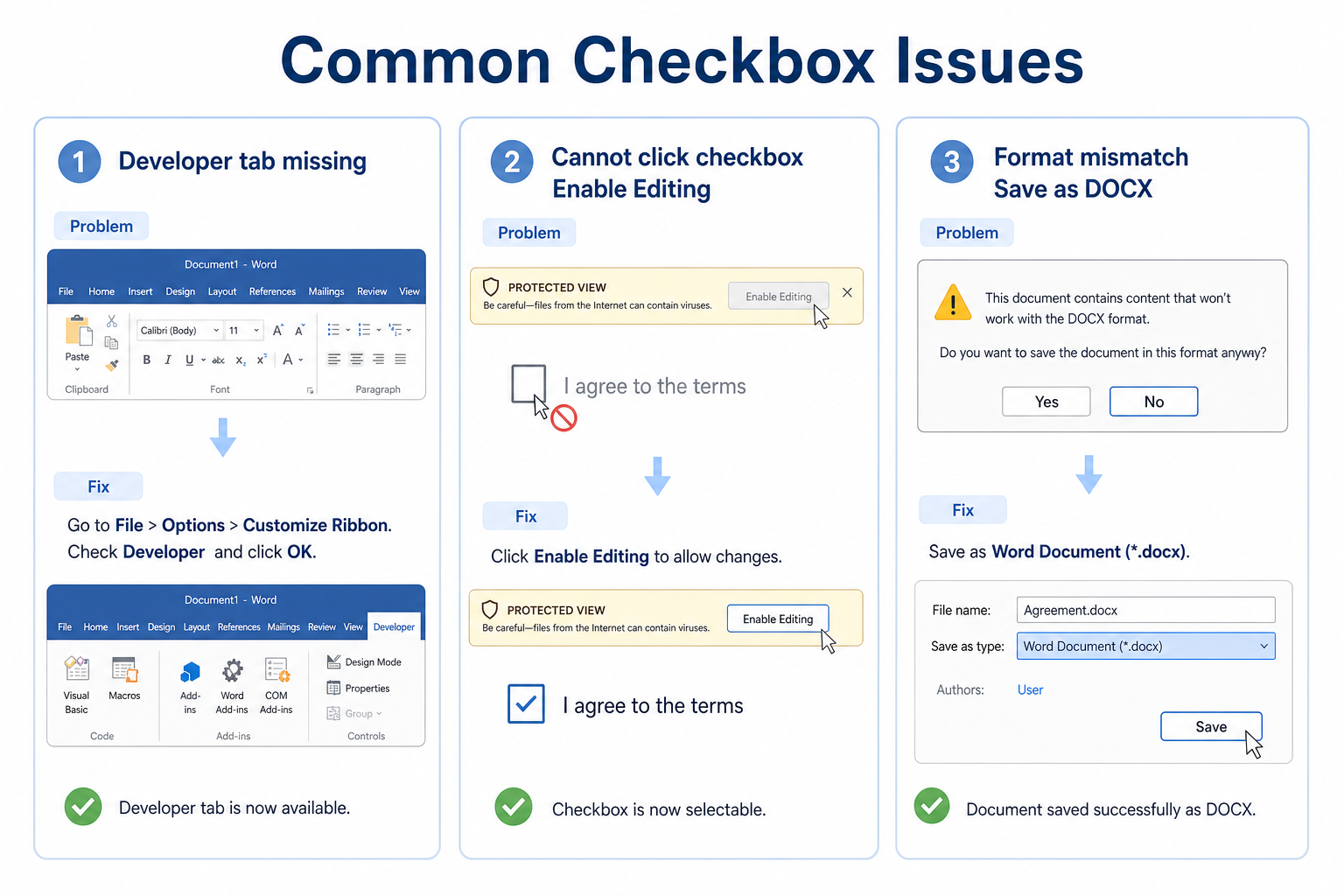
| Problem | What to try |
|---|---|
| No Developer tab | Enable it under Customize Ribbon (Windows) or Ribbon & Toolbar (Mac) |
| Cannot click the check box | Exit Protected View / turn on Enable Editing; make sure you used a content control, not a symbol |
| Layout looks different on another device | Save as .docx, keep fonts installed, and reopen in Word or WPS Writer |
FAQ
How do I insert a clickable check box in Word?
Enable the Developer tab, then insert a Check Box Content Control.
Can I add check boxes in Word for free?
Yes. Static symbol check boxes work in standard Word. For free interactive editing without Microsoft 365, use a compatible app such as WPS Writer.
Why is my Developer tab missing?
It is hidden by default. Turn it on in ribbon settings, then it stays available for form controls.
Do WPS check boxes work in Microsoft Word?
Yes—when you save as a standard Word format, recipients can usually open and review the file in Microsoft Word.
Conclusion
To insert a check box in Word, choose interactive controls for digital forms or symbol squares for printouts. Enable Developer on Windows or Mac for clickable boxes, or use Insert → Symbol for printable lists. If you need a free Word-compatible editor, WPS Writer covers everyday check box checklists without a Microsoft 365 subscription.

'%3e%3cpath%20d='M19.9911%204.11386V6.471H18.5894C18.0775%206.471%2017.7322%206.57814%2017.5536%206.79243C17.3751%207.00671%2017.2858%207.32814%2017.2858%207.75671V9.44421H19.9019L19.5536%2012.0871H17.2858V18.8639H14.5536V12.0871H12.2769V9.44421H14.5536V7.49779C14.5536%206.39064%2014.8632%205.53201%2015.4822%204.92189C16.1013%204.31177%2016.9257%204.00671%2017.9554%204.00671C18.8304%204.00671%2019.509%204.04243%2019.9911%204.11386Z'%20fill='%23333333'/%3e%3c/g%3e%3cdefs%3e%3cclipPath%20id='clip0_2938_8199'%3e%3crect%20width='16'%20height='16'%20fill='white'%20transform='translate(8%204.00671)'/%3e%3c/clipPath%3e%3c/defs%3e%3c/svg%3e)
'%3e%3cpath%20d='M17.5237%2010.7813L23.4811%204H22.0699L16.8949%209.88693L12.7648%204H8L14.2469%2012.9029L8%2020.0133H9.4112L14.8725%2013.7952L19.2352%2020.0133H24M9.92053%205.04213H12.0885L22.0688%2019.0224H19.9003'%20fill='%23333333'/%3e%3c/g%3e%3cdefs%3e%3cclipPath%20id='clip0_2938_8200'%3e%3crect%20width='16'%20height='16.0134'%20fill='white'%20transform='translate(8%204)'/%3e%3c/clipPath%3e%3c/defs%3e%3c/svg%3e)


