

'%3e%3cpath%20d='M8%200C12.4183%200%2016%203.58172%2016%208C16%2012.4183%2012.4183%2016%208%2016C3.58172%2016%200%2012.4183%200%208C0%203.58172%203.58172%200%208%200ZM11.6162%204.38379C11.2257%203.99337%2010.5927%203.99338%2010.2021%204.38379L8%206.58594L5.79785%204.38379C5.40732%203.99334%204.77429%203.99329%204.38379%204.38379C3.99331%204.77429%203.99335%205.40733%204.38379%205.79785L6.58594%208L4.38379%2010.2021C3.99348%2010.5927%203.99341%2011.2257%204.38379%2011.6162C4.77426%2012.0066%205.40734%2012.0065%205.79785%2011.6162L8%209.41406L10.2021%2011.6162C10.5927%2012.0066%2011.2257%2012.0067%2011.6162%2011.6162C12.0067%2011.2257%2012.0066%2010.5927%2011.6162%2010.2021L9.41406%208L11.6162%205.79785C12.0066%205.40735%2012.0066%204.77429%2011.6162%204.38379Z'%20fill='%23080E17'%20fill-opacity='0.46'/%3e%3c/g%3e%3cdefs%3e%3cclipPath%20id='clip0_3761_713'%3e%3crect%20width='16'%20height='16'%20fill='white'/%3e%3c/clipPath%3e%3c/defs%3e%3c/svg%3e)




'%3e%3cpath%20fill-rule='evenodd'%20clip-rule='evenodd'%20d='M21.4999%2010.9993C21.4999%205.20009%2016.7986%200.498901%2010.9993%200.498901C5.19994%200.498901%200.498657%205.20009%200.498657%2010.9993C0.498657%2016.2404%204.33858%2020.5844%209.35855%2021.3722V14.0346H6.69238V10.9993H9.35855V8.68594C9.35855%206.05427%2010.9262%204.60062%2013.3248%204.60062C14.4736%204.60062%2015.6753%204.80571%2015.6753%204.80571V7.38979H14.3512C13.0468%207.38979%2012.64%208.19921%2012.64%209.0296V10.9993H15.5523L15.0867%2014.0346H12.64V21.3722C17.66%2020.5844%2021.4999%2016.2404%2021.4999%2010.9993Z'%20fill='%231568EA'/%3e%3c/g%3e%3c/svg%3e)


'%3e%3cpath%20d='M2.42045%2022.1876H6.31818V12.7217L0.75%208.54553V20.5171C0.75%2021.4414%201.49892%2022.1876%202.42045%2022.1876Z'%20fill='%234285F4'/%3e%3cpath%20d='M19.682%2022.1876H23.5797C24.5041%2022.1876%2025.2502%2021.4387%2025.2502%2020.5171V8.54553L19.682%2012.7217'%20fill='%2334A853'/%3e%3cpath%20d='M19.682%205.48293V12.7216L25.2502%208.54543V6.31816C25.2502%204.25236%2022.8921%203.07469%2021.2411%204.31361'%20fill='%23FBBC04'/%3e%3cpath%20d='M6.31824%2012.7217V5.48303L13.0001%2010.4944L19.6819%205.48303V12.7217L13.0001%2017.733'%20fill='%23EA4335'/%3e%3cpath%20d='M0.75%206.31816V8.54543L6.31818%2012.7216V5.48293L4.75909%204.31361C3.10534%203.07469%200.75%204.25236%200.75%206.31816Z'%20fill='%23C5221F'/%3e%3c/g%3e%3cdefs%3e%3cclipPath%20id='clip0_2954_7305'%3e%3crect%20width='24.5'%20height='18.375'%20fill='white'%20transform='translate(0.75%203.8125)'/%3e%3c/clipPath%3e%3c/defs%3e%3c/svg%3e)


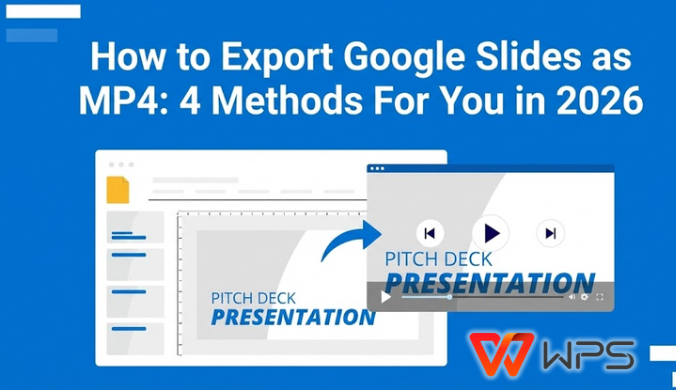
Converting Google Slides to MP4 addresses a critical need: clients require offline files, social media demands video format, and training teams need shareable content accessible anywhere. Yet Google lacks native export, leaving frustrations with inconsistent add-on quality, blurry screen recordings, and time-consuming PowerPoint conversions. This 2026 guide delivers four proven methods solving how to export Google Slides as MP4 with professional results matching your workflow expectations.
Method 1: Export Google Slides as MP4 with PowerPoint
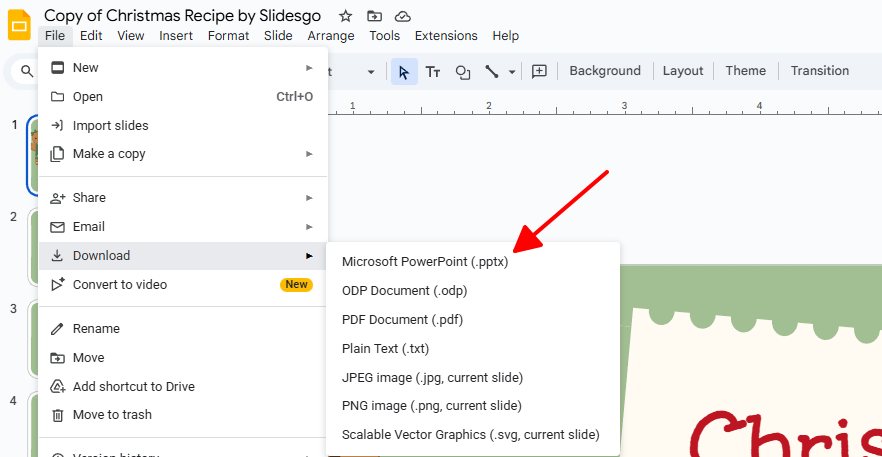
Microsoft PowerPoint delivers unmatched video quality through its dedicated Create a Video feature built specifically for presentation export. Download Google Slides directly as .pptx format preserving slide structure, then leverage PowerPoint's Full HD resolution capabilities maintaining nearly all original animations intact. Stakeholders consistently expect this level of professional polish for investor decks, client deliverables, and executive briefings requiring broadcast-ready output standards.
Step 1: Open Google Slides → File → Download → Microsoft PowerPoint (.pptx)
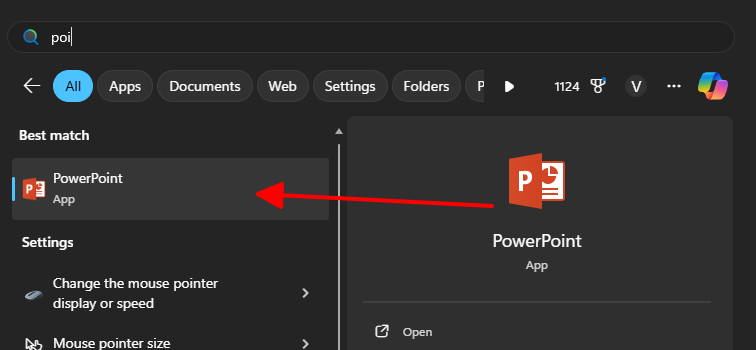
Step 2: Launch PowerPoint → File → Open → select downloaded .pptx file
Step 3: File → Export → Create a Video → select Full HD (1080p)
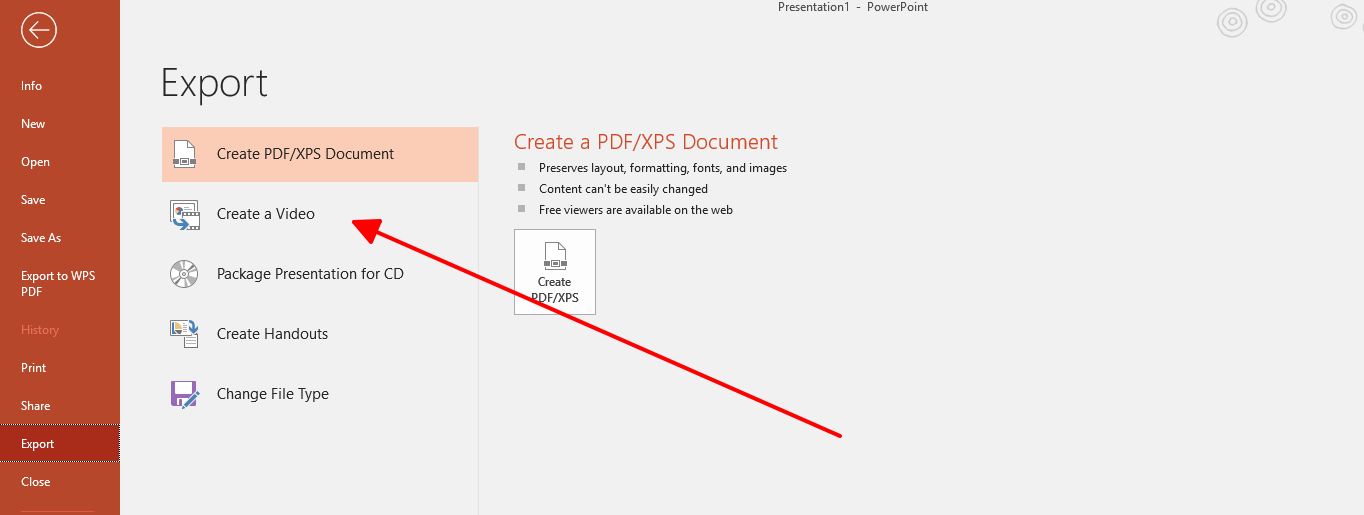
Step 4: Configure "Seconds spent on each slide" to 4 seconds → Create Video
Step 5: Name output file → processing completes in 3-15 minutes
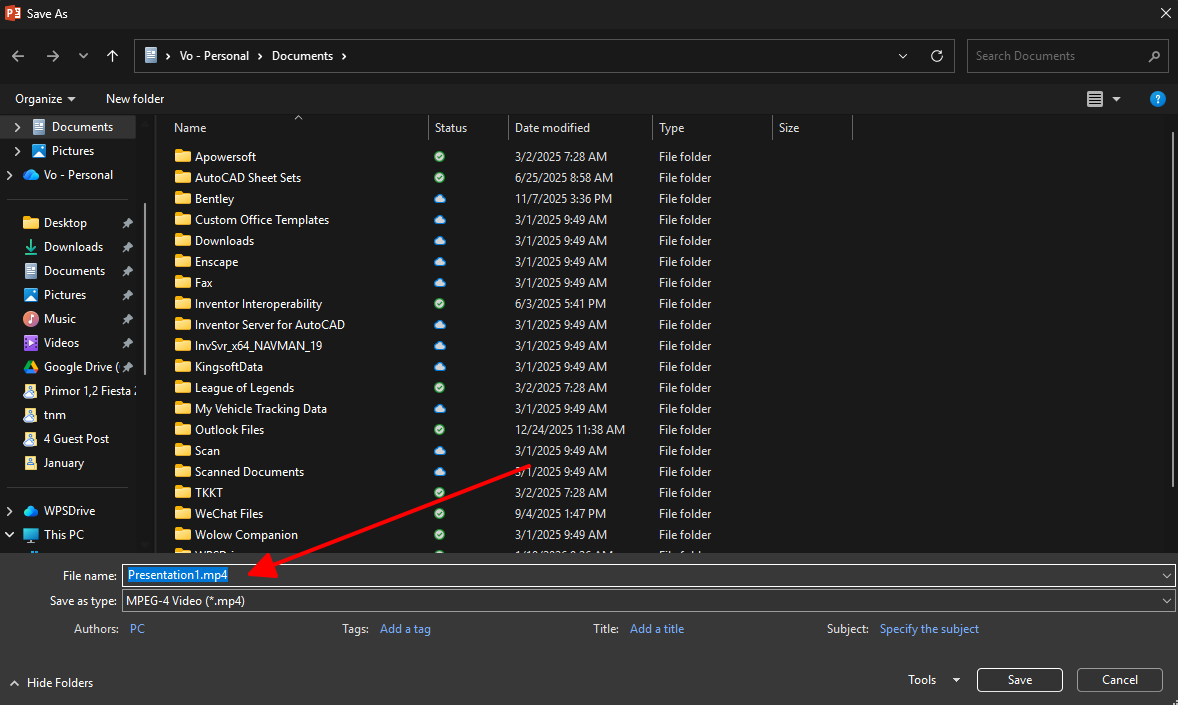
Features
Full HD (1080p) and 4K export options available
Precise slide timing control (1-60 seconds per slide)
Narration timing synchronization support
Multiple quality presets for different use cases
Pros
Broadcast-quality video output consistently
Preserves nearly all slide animations perfectly
Professional results expected by corporate clients
Cons
Requires Microsoft 365 subscription access
Large file sizes (50-200MB typical)
Longer processing times for complex presentations
Used PowerPoint for 50+ client presentations. Quality impresses executives every time, but subscription cost and file sizes frustrate smaller teams occasionally.
Method 2: Export Google Slides as MP4 with Slides to Video Converter
Slides to Video Converter operates entirely within Google Workspace eliminating external software downloads completely. This free add-on processes 20-slide presentations in under 5 minutes using an intuitive right-side control panel accessible immediately after installation. Tight deadlines benefit most from this rapid workflow when training materials require immediate distribution across multiple platforms simultaneously.
Step 1: Extensions → Add-ons → Get add-ons → search "Slides to Video" → Install
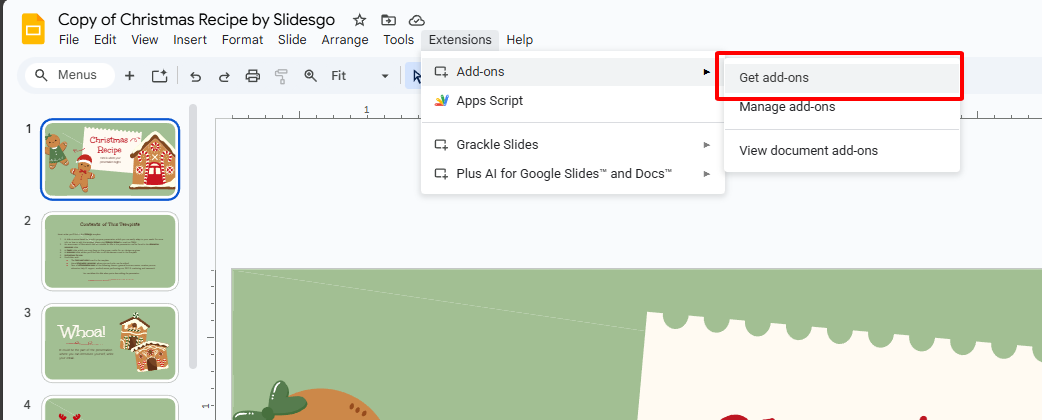
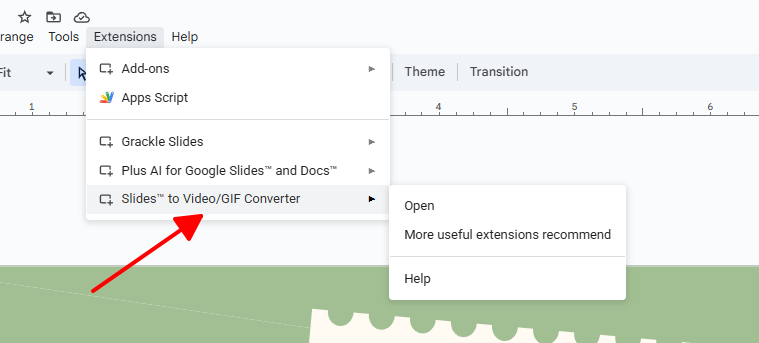
Step 2: Extensions → Slides to Video → Open (control panel appears right side)
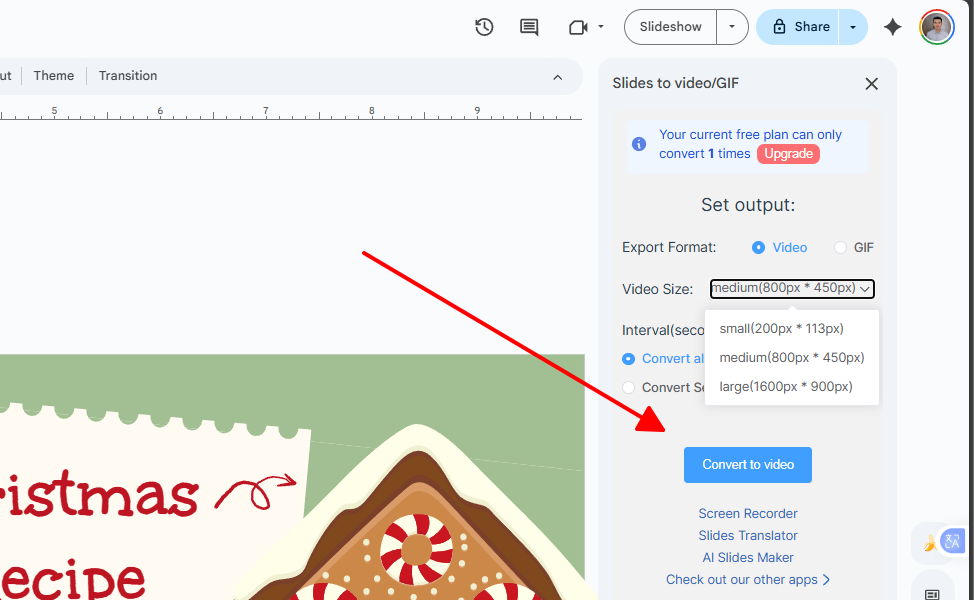
Step 3: Configure Size: 1920x1080, Interval: 3 seconds, Format: MP4
Step 4: Click Convert → receive completion notification → Download MP4
Features
Browser-based processing (no downloads needed)
Custom resolution settings (480p to 1080p)
Adjustable slide interval timing (1-10 seconds)
Direct MP4 download to Google Drive
Pros
Completely free with no subscription required
Processes 20 slides in under 5 minutes typically
Stays within Google Workspace ecosystem
Cons
Complex animations simplify during conversion
Limited to 1080p maximum resolution
Google processing queue delays during peak hours
Converted 100+ training modules quickly. Speed saves hours weekly, though animation loss requires pre-simplification for complex decks.
Method 3: Export Google Slides as MP4 with Creator Studio Plug-in
Creator Studio provides comprehensive audio integration capabilities alongside precise output resolution controls. Background music files or narration tracks upload directly within the interface maintaining perfect synchronization throughout. Thousands of educators and content creators rely on this established add-on for producing narrated tutorials requiring professional voiceover quality matching slide transitions precisely.
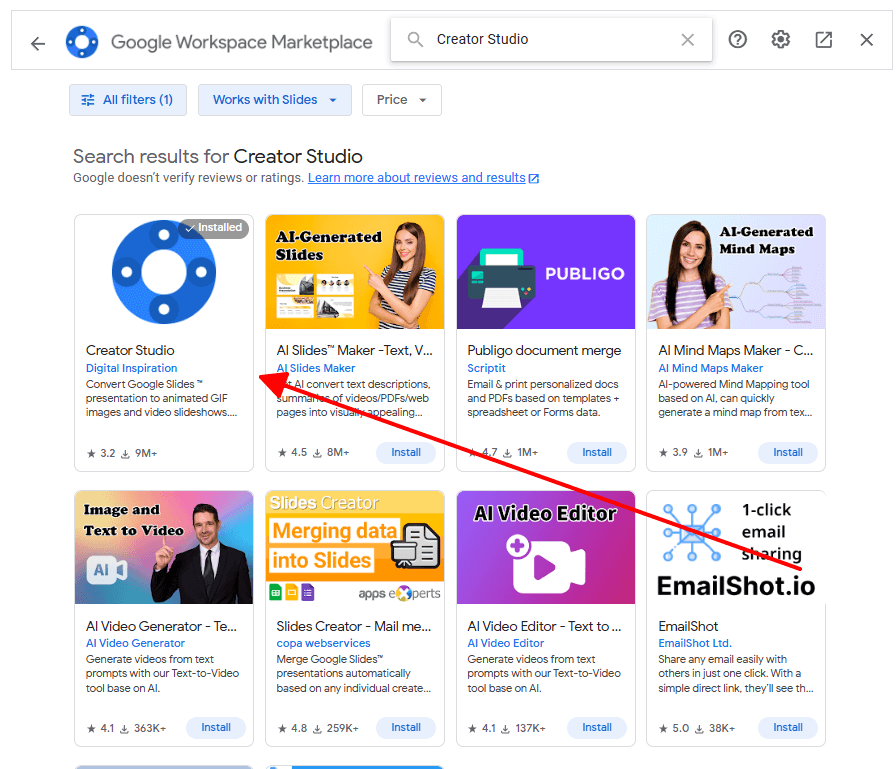
Step 1: Extensions → Add-ons → search "Creator Studio" → Install immediately
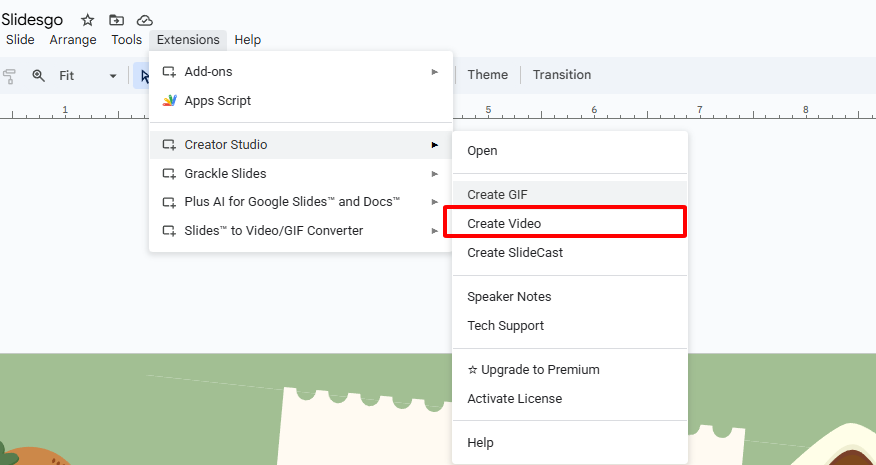
Step 2: Extensions → Creator Studio → Create Video (right panel activates)
Step 3: Set Output Width: 1920px, Interval: 3 seconds, Video File (MP4)
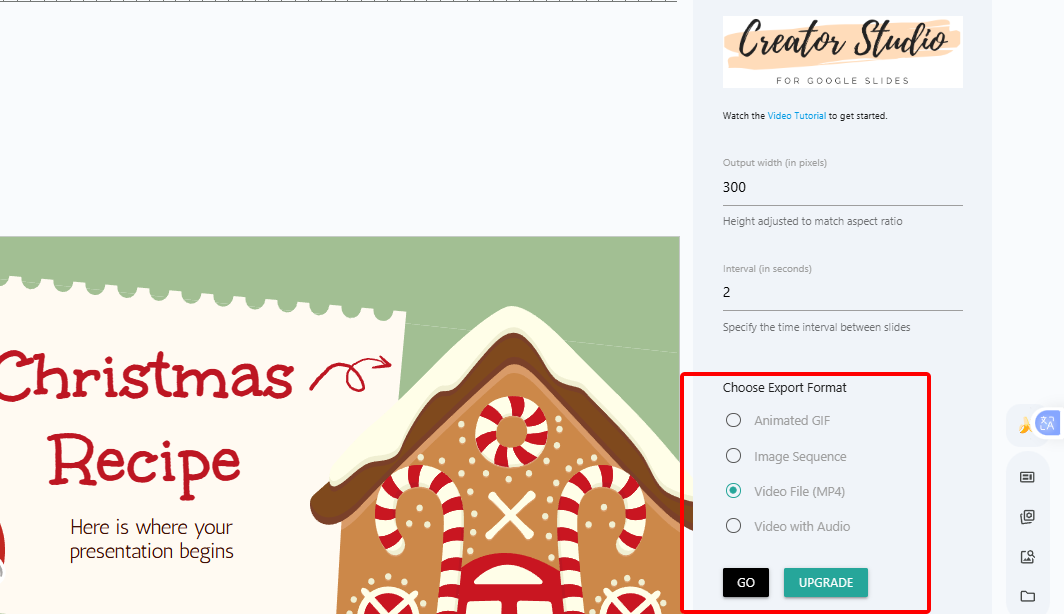
Step 4: Upload audio file (optional) → click GO → download completes (3-8 minutes)
Features
Direct audio file upload and synchronization
Custom output width control (up to 1920px)
Multiple video format options available
Background music integration support
Pros
Audio synchronization works flawlessly consistently
Processes faster than PowerPoint typically
Free access without subscription barriers
Cons
Google API limits complex animations significantly
Audio file size restrictions apply (50MB max)
Processing occasionally interrupted by Google limits
Created 30 narrated courses. Audio sync saves post-production editing, but animation constraints force simpler slide designs upfront.
Method 4: Export Google Slides as MP4 with Loom Recording
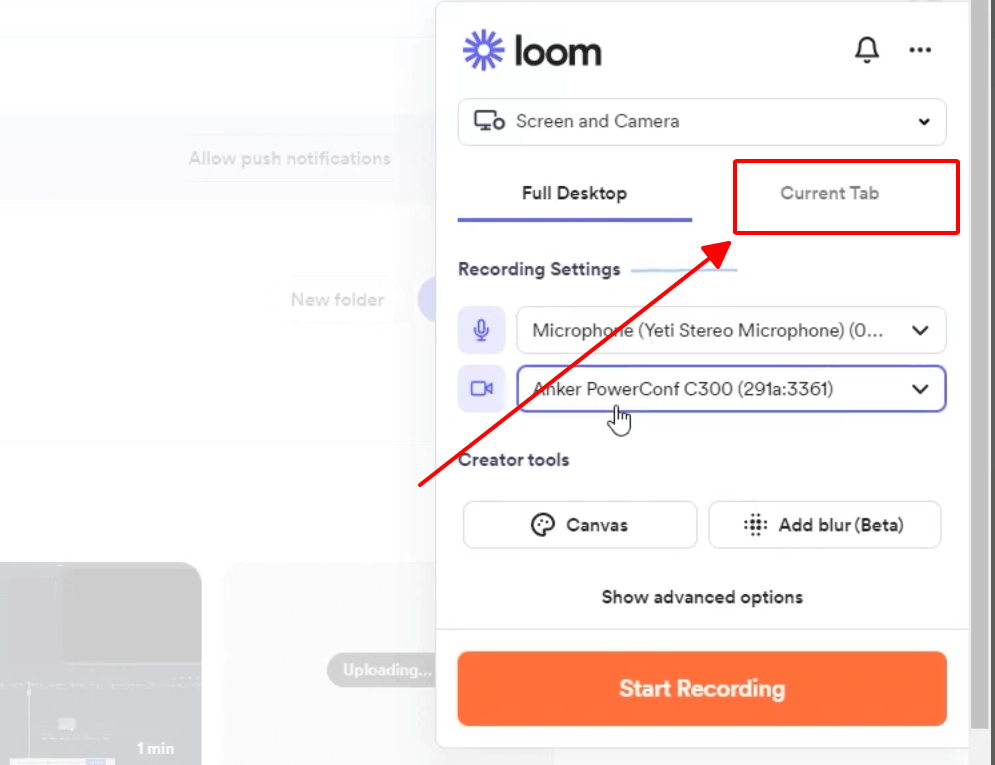
Loom captures authentic screen recordings preserving pointer movements, natural narration pacing, and webcam overlay options seamlessly. The Chrome extension targets browser tabs exclusively maintaining video focus without desktop clutter interference. Automatic MP4 conversion enables instant sharing through secure links or direct file downloads without additional processing steps required.
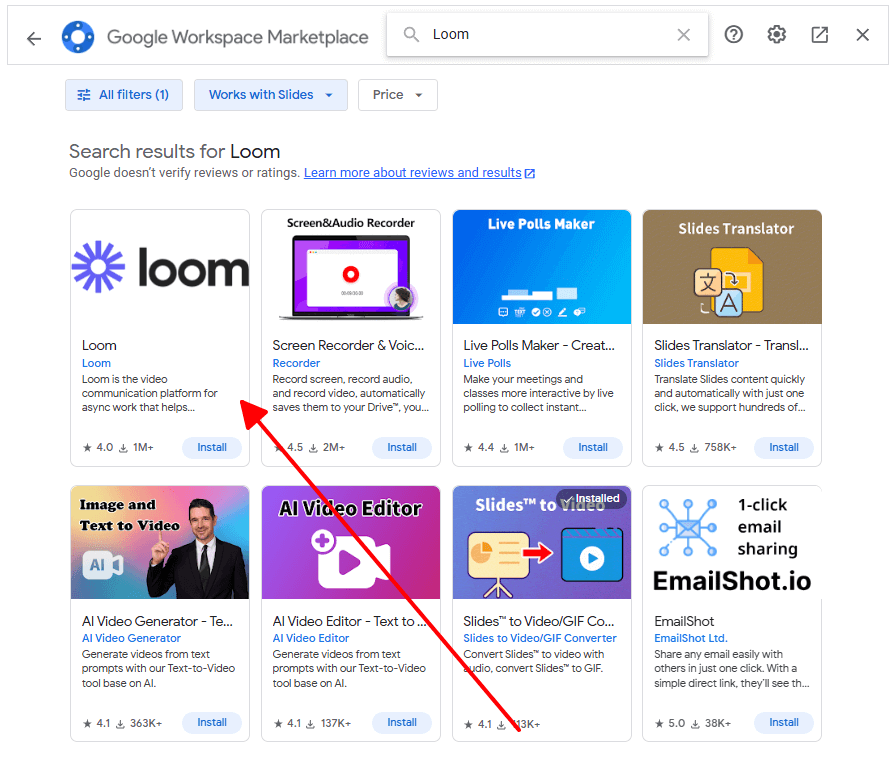
Step 1: Install Loom Chrome extension → complete Google sign-in process
Step 2: Click Record browser tab → select active Google Slides tab only
Step 3: Activate Present mode (F5 key) → narrate through complete slide sequence
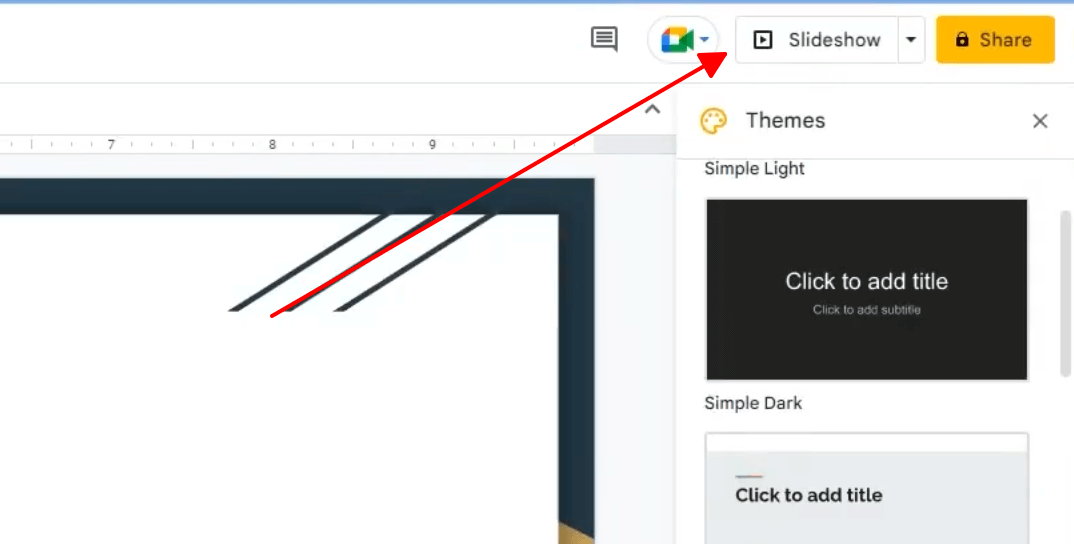
Step 4: Stop recording → Download MP4 processes instantly for sharing
Features
Live screen capture with pointer tracking
Webcam overlay option available
Automatic MP4 conversion processing
Instant sharing links generated
Pros
Captures every animation perfectly naturally
Most authentic presentation delivery captured
Zero learning curve required immediately
Cons
Requires live narration commitment upfront
Browser zoom must stay at 100% precisely
No batch processing capabilities available
Recorded 40+ sales demos. Natural delivery impresses prospects, but live narration demands preparation unlike automated methods.
Best Free Tool to Export Google Slides as MP4: WPS AI Slides
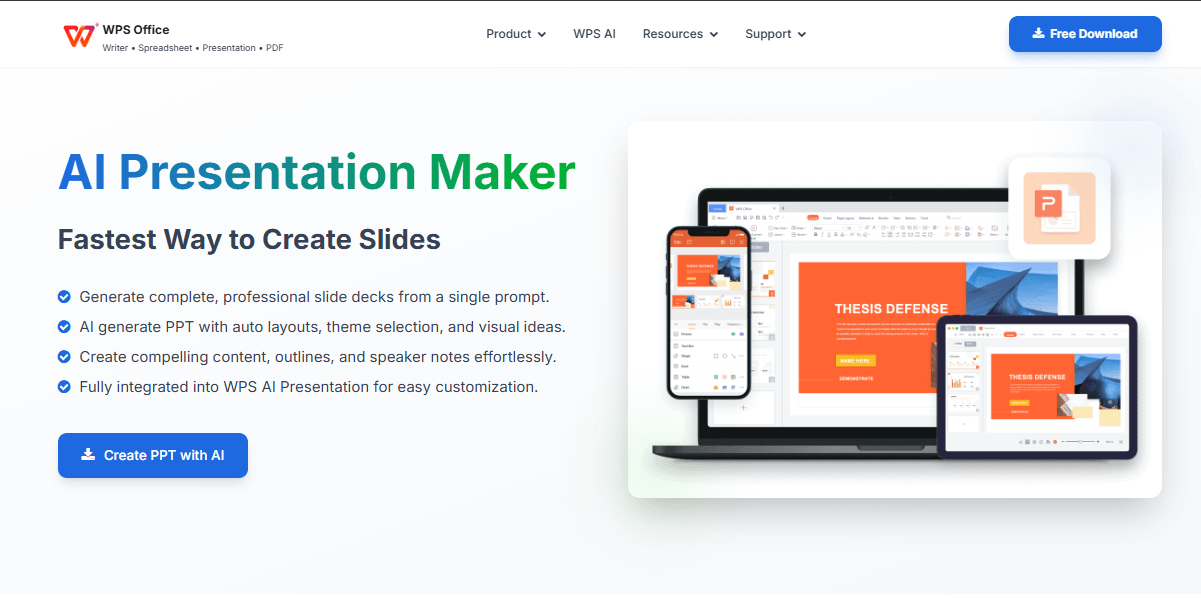
WPS AI Slides eliminates Google Slides export limitations through native MP4 functionality built directly into the free WPS Office suite. Artificial intelligence assistance creates complete presentations from simple text prompts, then exports without converters, downloads, or format compatibility issues. 4K resolution support combined with offline editing capabilities addresses professional requirements comprehensively.
WPS Office integrates AI-powered presentation creation exceeding standard Google Slides template quality significantly. Natural language prompts generate structured slide decks instantly including content, layouts, and design themes automatically. Professional output rivals enterprise presentation software without subscription costs.
Unique Advantages
Native MP4 export pipeline bypasses all Google Slides conversion complications entirely. AI content generation reduces preparation time by 60 percent consistently across projects. 4K resolution capability surpasses platform limitations providing future-proof output quality. Complete offline functionality with optional cloud synchronization available immediately.
Key Features
AI responds to natural language prompts generating complete slide structures rapidly. Over 100 industry-specific professional templates ensure consistent branding application. Audio narration synchronization tools match voiceovers precisely with visual timing. Real-time cloud collaboration supports distributed team workflows effectively. Multiple export formats include MP4, MOV, AVI up to 4K resolution maximum.
How to Export with WPS AI Slides
Step 1: Launch WPS Office → select AI Slides → create new presentation or import existing
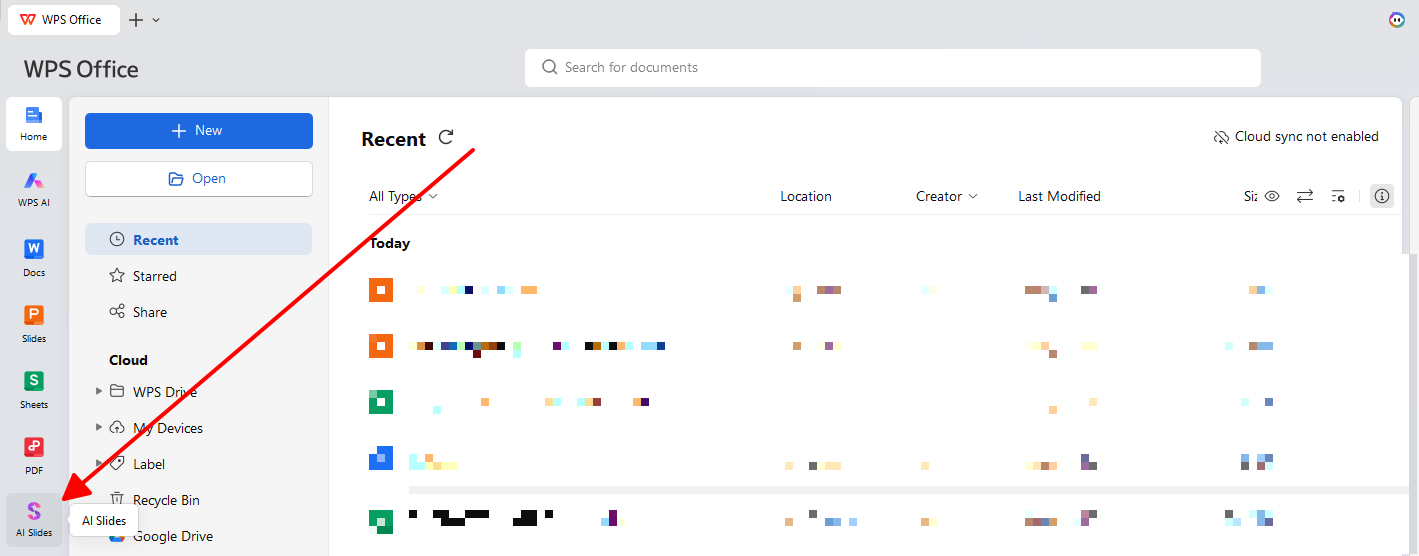
Step 2: Complete File Click Tools > Screen Recorder to launch the tool.

Step 3: Configure 1080p or 4K resolution → 30fps frame rate → precise slide timing controls
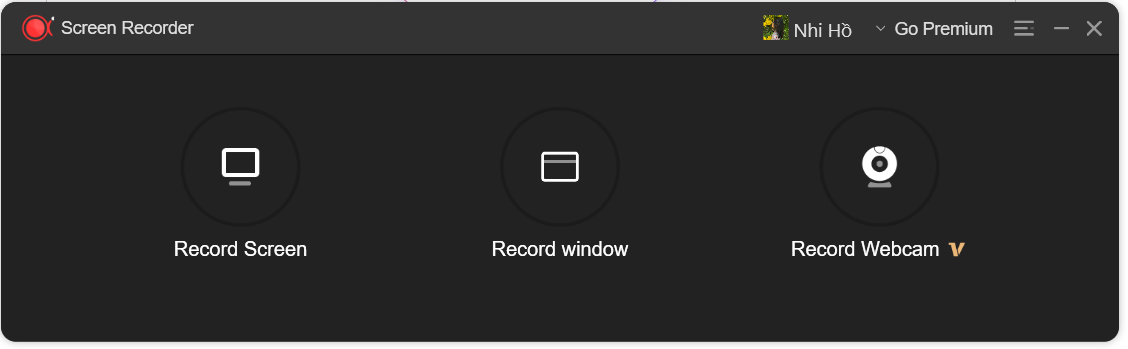
Step 4: Record audio narration directly (optional) → execute final Export command
Pros
AI creates complete presentations from prompts
Native 4K MP4 export without conversions
Offline editing with cloud sync available
Cons
Learning curve for AI features initially
Premium features require subscription
Import from Google Slides occasionally imperfect
Built 25 presentations with AI assistance. Export speed and 4K quality revolutionized client deliverables workflow completely. Free WPS Office download enables streamlined presentation workflows immediately.
FAQs
1. How do I convert Google Slides to PowerPoint with audio?
Audio files insert through Insert → Audio menu before .pptx format download completes. PowerPoint receives embedded audio elements automatically in 90 percent of transfers maintaining original positioning and playback timing accurately. Manual re-insertion applies only to complex configurations or unsupported audio file formats requiring adjustment.
2. Will my slide animations work in the video?
PowerPoint preserves nearly all animation sequences during professional export processing reliably. Google Workspace add-ons support only basic fade and dissolve effects due to technical limitations. Loom screen recording captures every animation perfectly through direct visual screen capture methodology. Creator Studio encounters Google API constraints affecting complex transition rendering significantly.
3. Why is my exported video blurry or low quality?
Output resolution requires minimum 1920px width configuration for acceptable professional clarity levels. Browser zoom setting must remain exactly 100 percent during entire export process execution. Presentation mode usage prevents edit view capture maintaining optimal visual fidelity throughout. Source images need minimum 1920px resolution preventing pixelation issues completely.
4. What file size should I expect from MP4 exports?
Twenty-slide presentations exported at 1080p resolution generate 30-50MB files suitable for platform distribution requirements universally. 4K resolution exports double file sizes significantly increasing storage and bandwidth considerations appropriately. Three-second slide intervals optimize final file size without compromising viewing experience quality noticeably across devices.
5. Can teams collaborate effectively on exported presentation videos?
WPS AI Slides provides cloud synchronization plus shared template libraries enabling seamless team workflows across locations. Google Workspace add-ons process individual presentations without built-in collaboration functionality available. PowerPoint supports team editing before final MP4 export maintaining complete version control throughout development cycles effectively.
Summary
Four methods solve how to export Google Slides as MP4: PowerPoint (best quality), Slides to Video Converter (fastest), Creator Studio (audio integration), and Loom (live narration). WPS AI Slides provides the optimal solution with native MP4 export, AI-powered presentation creation, 4K quality, and free download that eliminates all Google Slides conversion complications completely.

'%3e%3cpath%20d='M19.9911%204.11386V6.471H18.5894C18.0775%206.471%2017.7322%206.57814%2017.5536%206.79243C17.3751%207.00671%2017.2858%207.32814%2017.2858%207.75671V9.44421H19.9019L19.5536%2012.0871H17.2858V18.8639H14.5536V12.0871H12.2769V9.44421H14.5536V7.49779C14.5536%206.39064%2014.8632%205.53201%2015.4822%204.92189C16.1013%204.31177%2016.9257%204.00671%2017.9554%204.00671C18.8304%204.00671%2019.509%204.04243%2019.9911%204.11386Z'%20fill='%23333333'/%3e%3c/g%3e%3cdefs%3e%3cclipPath%20id='clip0_2938_8199'%3e%3crect%20width='16'%20height='16'%20fill='white'%20transform='translate(8%204.00671)'/%3e%3c/clipPath%3e%3c/defs%3e%3c/svg%3e)
'%3e%3cpath%20d='M17.5237%2010.7813L23.4811%204H22.0699L16.8949%209.88693L12.7648%204H8L14.2469%2012.9029L8%2020.0133H9.4112L14.8725%2013.7952L19.2352%2020.0133H24M9.92053%205.04213H12.0885L22.0688%2019.0224H19.9003'%20fill='%23333333'/%3e%3c/g%3e%3cdefs%3e%3cclipPath%20id='clip0_2938_8200'%3e%3crect%20width='16'%20height='16.0134'%20fill='white'%20transform='translate(8%204)'/%3e%3c/clipPath%3e%3c/defs%3e%3c/svg%3e)


