Feathering edges in Photoshop sounds simple, but if you’ve ever cut
out an object and ended up with sharp, unnatural borders, you know how
frustrating it can be. Many users want a fast, reliable way to soften
edges without digging through endless menus. In 2026, Photoshop still
offers quick and effective feathering tools; you just need to know where
to look and how to use them properly.
Part 1: What
Does “Feather Edges” Mean in Photoshop?
Feathering edges in Photoshop refers to the process of softening the
boundary of a selection so it blends more naturally into its surrounding
background. Instead of a hard, clearly defined edge, feathering creates
a gradual transition between the selected area and the rest of the
image.
This technique is especially useful when:
Cutting out people, products, or objects
Blending images together
Creating subtle shadows or soft highlights
Avoiding the “sticker-like” look in composites
From my experience, beginners often confuse feathering with blurring.
While both soften visuals, feathering works specifically on selection
edges, not the entire image. This makes it more controlled and far more
professional for compositing work.
The feather radius determines how soft the edge becomes. A small
radius creates a slight softness, while a larger value produces a
smoother fade. Choosing the right radius depends on image resolution and
how natural you want the transition to look.
Part 2: How to Feather
Edges in Photoshop
Feathering edges in Photoshop is straightforward once you know where
the controls are. In this section, I’ll walk through the most reliable
method I personally use when working with object cutouts, along with a
faster option using a shortcut key.
Step 1: Select the
Object You Want to Feather
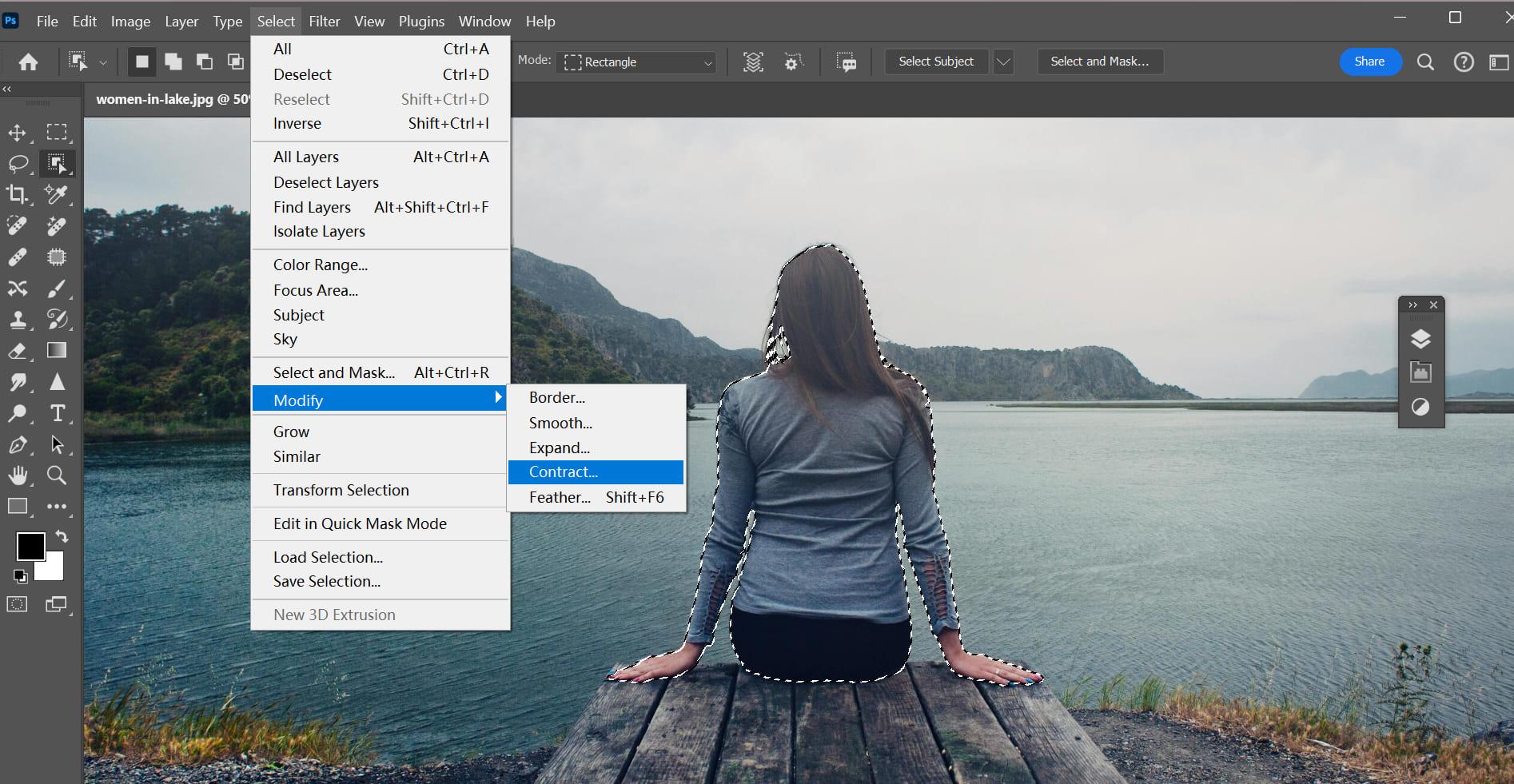
Open your image in Photoshop and choose a selection tool based on
your object:
Object Selection Tool
Quick Selection Tool
Lasso Tool
Carefully select the object whose edges you want to soften. Try to
keep the selection clean, as feathering enhances transitions but does
not fix inaccurate selections.
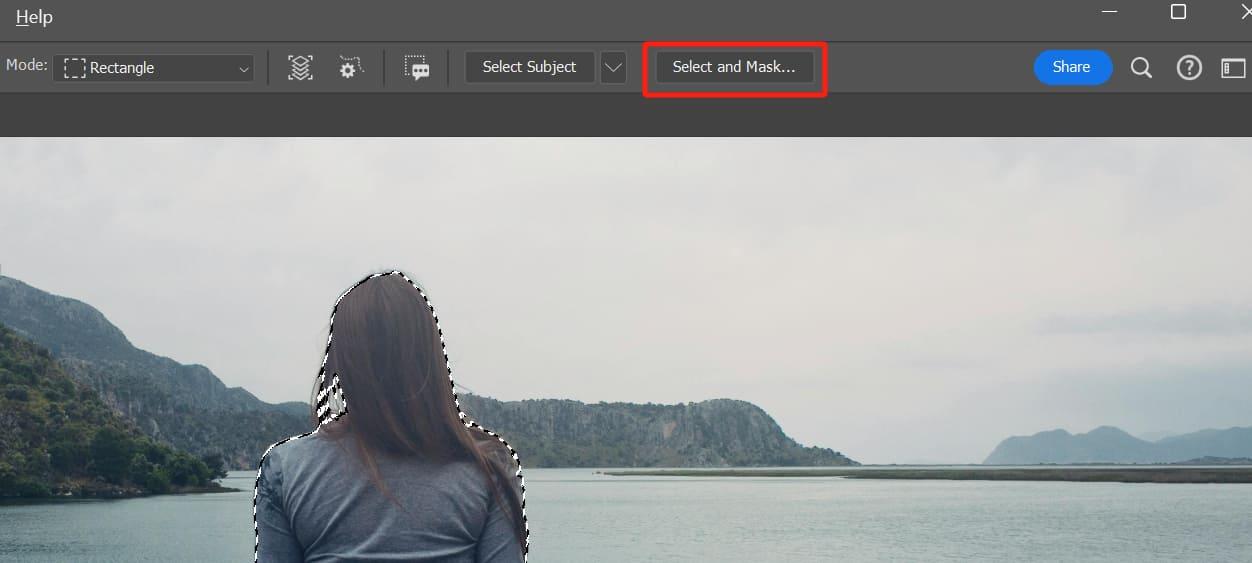
selecting the object before feathering edges in Photoshop
Step 2: Open the Feather
Dialog
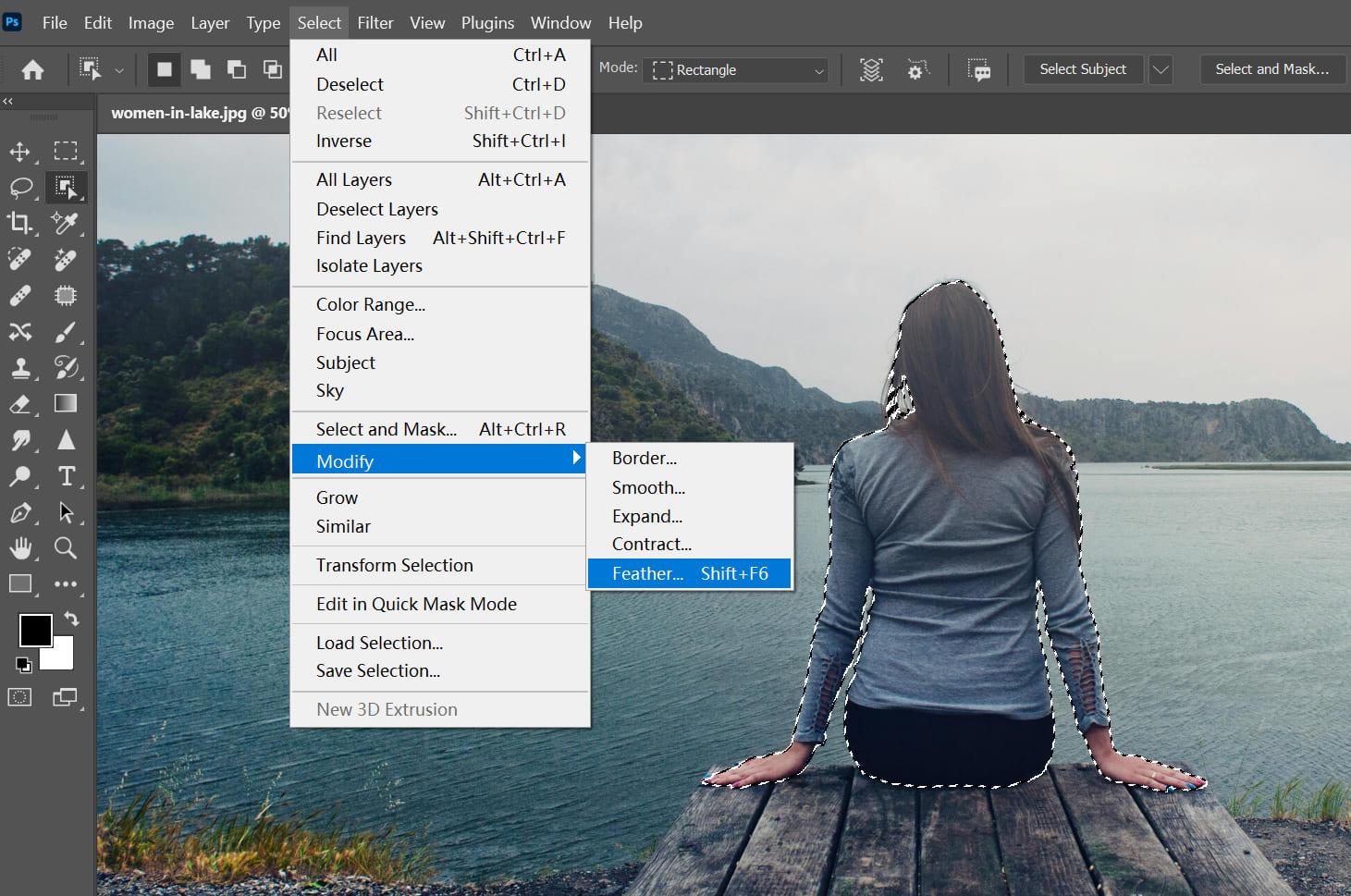
Once the object is selected, go to the top menu and click:
Select → Modify → Feather
Alternatively, if you want a faster workflow, use the how to
feather edges in Photoshop shortcut key:
Shift + F6
This shortcut opens the Feather dialog instantly, which saves time
when working on multiple images.
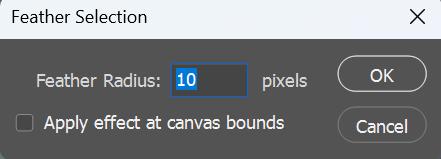
Feather selection dialog in Photoshop
Step 3: Adjust the Feather
Radius
In the Feather Selection dialog, enter a pixel value for the
radius.
Small values (1–3 px) work well for high-resolution
images
Medium values (5–10 px) are useful for portraits
Larger values create a stronger fade but may look unnatural if
overused
From my experience, it’s better to start small and adjust gradually.
Over-feathering is one of the most common mistakes beginners make.
Adjust the Feather Radius in Photoshop
Click OK to apply the feathering.
Step 4: Refine the Edge if
Needed
After feathering, you can:
Add a layer mask for non-destructive
editing
Fine-tune the selection using Select and
Mask
Combine feathering with slight opacity adjustments for smoother
blending
This method also works if you want to know how to feather an object
in Photoshop for collages or layered designs.
Select and Mask in Photoshop
Additional Notes on Photoshop Elements
If you are using Photoshop Elements, the process is similar but
slightly simplified. You can still feather selections using the Modify
menu, which is helpful for users searching for how to feather edges in
Photoshop element without switching to the full Photoshop version.
My Practical Tip
When I’m working on product images or portraits, I almost always
combine feathering with a layer mask. This gives me the flexibility to
undo or adjust softness later without damaging the original image. It’s
a small habit that makes a big difference in final image quality.
Part 3:
Enhanced Images After Feathering Edges – WPS Photo
After you feather edges in Photoshop, the cutout often looks
smoother, but the overall image may still feel slightly flat or
mismatched. This is where WPS Photo becomes useful. It helps refine
image quality, improve clarity, and balance tones so the feathered edges
blend naturally with the background.
From my experience, Photoshop is excellent for precision edge
control, while WPS Photo works well as a finishing tool, especially when
you want a clean, professional look without complex manual
adjustments.
Overview
WPS Photo uses AI-powered enhancement to improve image sharpness,
lighting, and color consistency. When working with feathered selections,
these adjustments reduce visible edge transitions and make the final
composition look more cohesive.
WPS Photo Editor enhancing a feathered image
Features
AI-powered photo enhancement
Automatic brightness and contrast adjustment
Noise reduction without edge distortion
Background tone balancing for smoother blends
Simple interface suitable for beginners
These features are particularly helpful after using Photoshop to
soften edges, as they help unify the subject and background
visually.
Price
WPS Photo is available as part of WPS Office:
Free version with core photo editing tools
Premium plans unlock advanced AI features
For most feathering-related edits, the free version is usually
sufficient.
Pros
Easy to use with a minimal learning curve
Preserves image resolution after editing
AI enhancement works well on feathered selections
Integrates smoothly with other WPS Office tools
Cons
Fewer manual controls compared to Photoshop
Advanced AI features require a premium plan
How to Enhance
a Feathered Image Using WPS Photo
Step 1: Open WPS Photo and import your feathered
image
image opened in WPS Photos
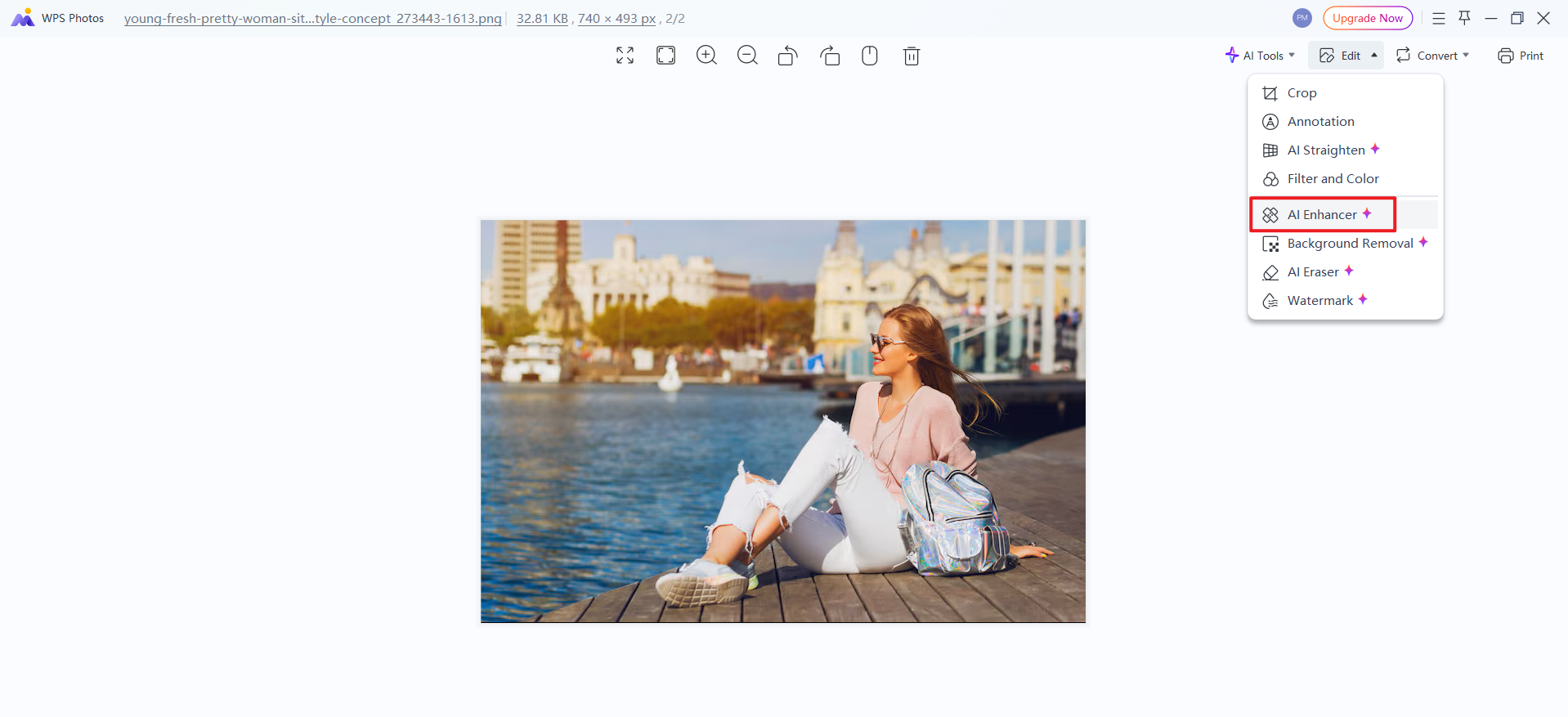
Step 2: Select the AI Enhanceoption
AI Enhancer in WPS Photos
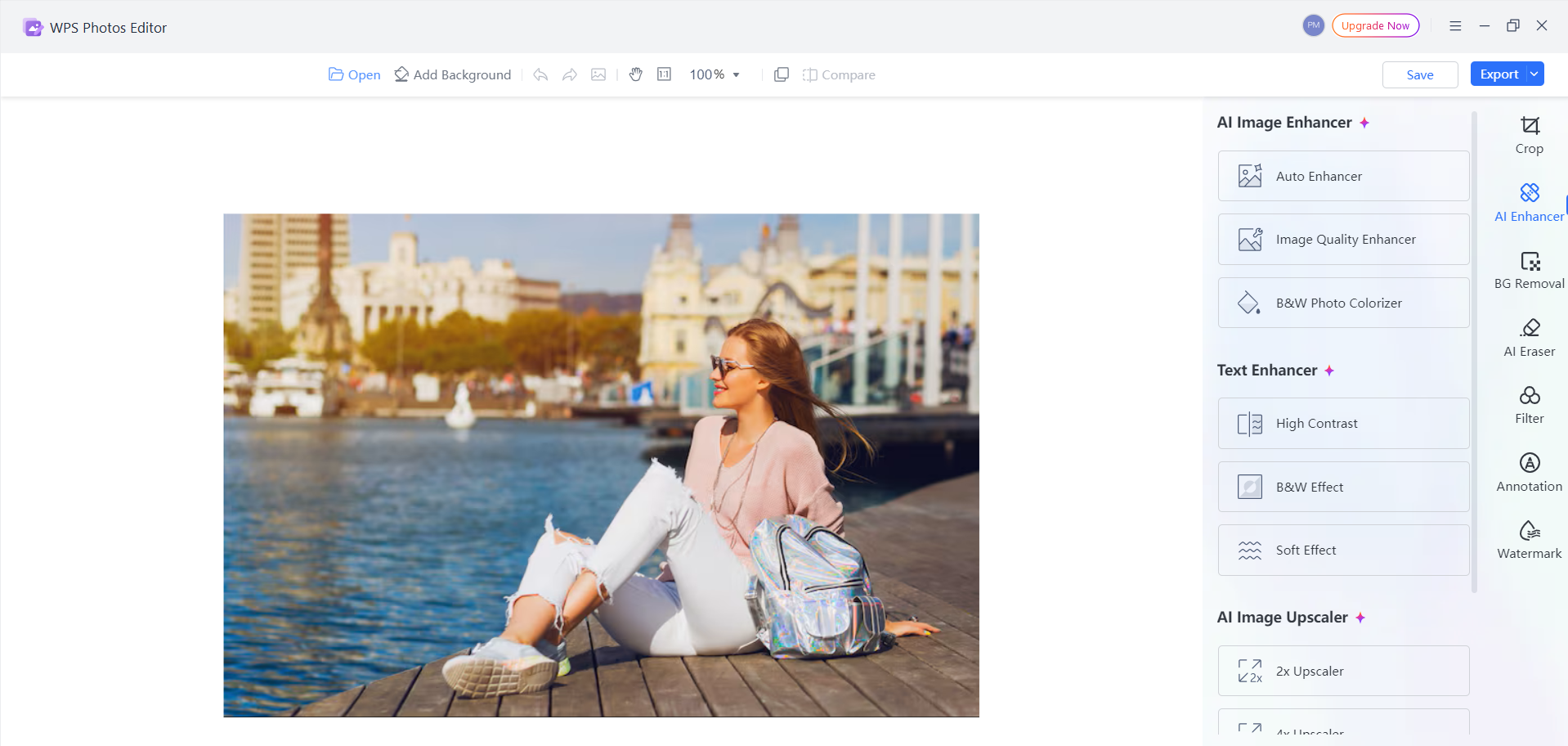
Step 3: Adjust brightness, clarity, or sharpness
as needed
AI Enhancer in WPS Photos
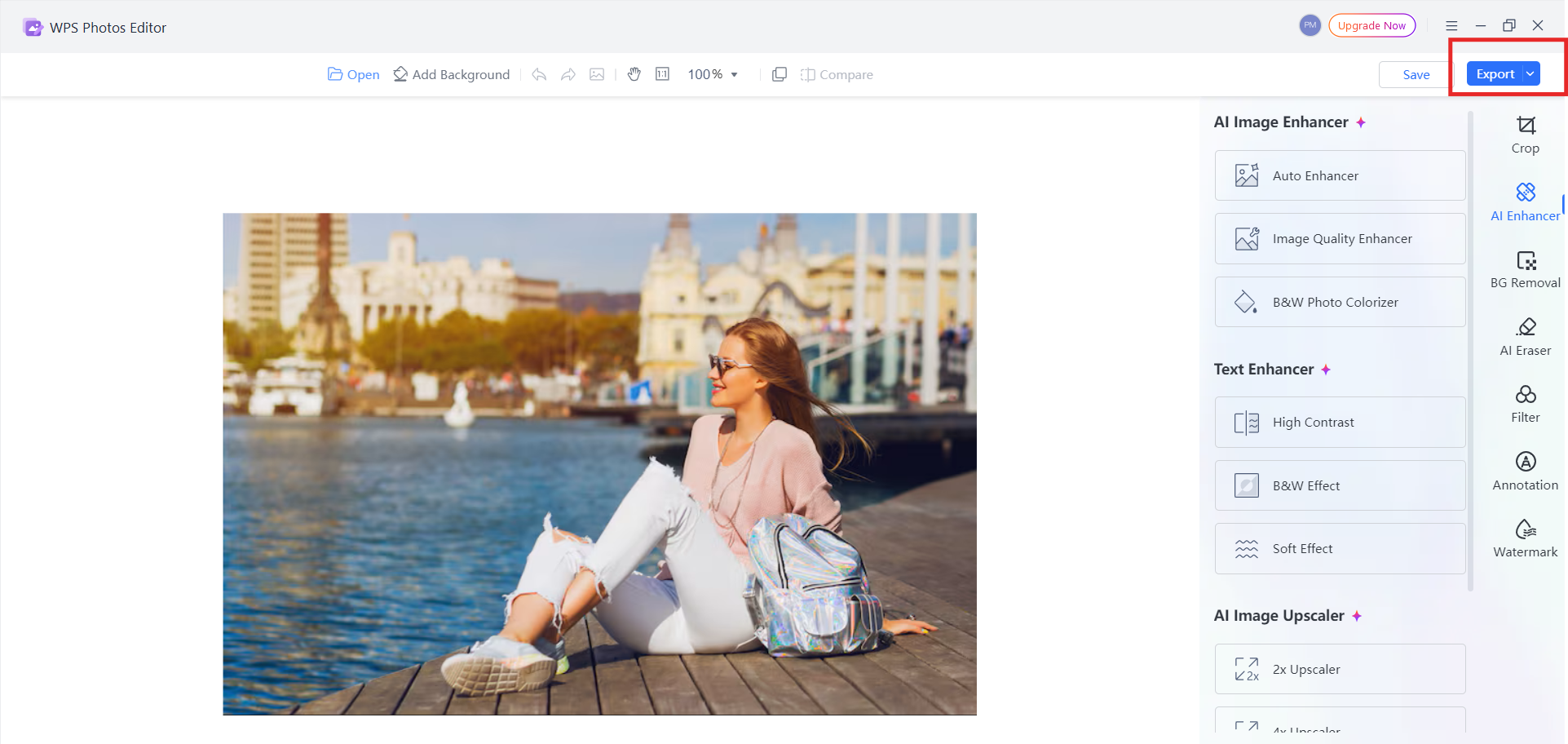
Step 4: Preview the result and export the final
image
Export in WPS Photos
I usually apply light enhancement only. Over-processing can undo the
subtle effect created when you feather edges in Photoshop.
My Experience Using WPS Photo After Feathering
When combining feathered objects into layouts or documents, I’ve
found that WPS Photo helps smooth tonal differences better than manual
adjustments alone. It’s especially useful when Photoshop cutouts look
technically correct but still feel slightly disconnected from the
background.
FAQs
Q1: Is there a shortcut key for feathering?
Yes. You can use Shift + F6, which opens the Feather dialog
instantly. This is the fastest option for users searching for how to
feather edges in Photoshop shortcut key without navigating through
menus.
Q2: Can I undo the feather if it looks too soft?
Yes. You can press Ctrl + Z (Undo) immediately after applying the
feather, or redo the selection and apply a smaller radius. If you used a
layer mask, you can refine the edge later without starting over.
Q3: Can I feather the edges of an object in Photoshop
Elements?
Yes. While Photoshop Elements has fewer advanced controls, you can
still soften selections using the Modify menu. This makes it a practical
option for users looking for how to feather edges in Photoshop elements
without upgrading to the full version.
Q4: What is the best way to soften edges without losing
quality?
Using feathering on selections instead of blurring the entire image
is the safest approach. After that, light enhancement in WPS Photo can
improve overall balance without damaging edge detail. This works well
alongside tools like a photo feather brush or subtle tonal
adjustments.
Summary
Feathering edges is a simple but powerful technique that helps images
look more natural and professional. In this guide, we covered what
feathering means, how to feather edges in Photoshop using both menu
options and shortcuts, and how to refine results for smoother
blending.
To take feathered images further, WPS Photooffers an easy way to enhance clarity, lighting, and tone without
over-editing. When used together, Photoshop handles precise edge
control, while WPS Photo helps finalize the image with clean, balanced
results, especially useful when you want polished visuals with minimal
effort.
Office software expert with 15+ years of experience since 2009. I specialize in tech tutorials, productivity tools, and digital solutions for everyday users. Passionate about making technology simple and accessible for everyone.


'%3e%3cpath%20d='M8%200C12.4183%200%2016%203.58172%2016%208C16%2012.4183%2012.4183%2016%208%2016C3.58172%2016%200%2012.4183%200%208C0%203.58172%203.58172%200%208%200ZM11.6162%204.38379C11.2257%203.99337%2010.5927%203.99338%2010.2021%204.38379L8%206.58594L5.79785%204.38379C5.40732%203.99334%204.77429%203.99329%204.38379%204.38379C3.99331%204.77429%203.99335%205.40733%204.38379%205.79785L6.58594%208L4.38379%2010.2021C3.99348%2010.5927%203.99341%2011.2257%204.38379%2011.6162C4.77426%2012.0066%205.40734%2012.0065%205.79785%2011.6162L8%209.41406L10.2021%2011.6162C10.5927%2012.0066%2011.2257%2012.0067%2011.6162%2011.6162C12.0067%2011.2257%2012.0066%2010.5927%2011.6162%2010.2021L9.41406%208L11.6162%205.79785C12.0066%205.40735%2012.0066%204.77429%2011.6162%204.38379Z'%20fill='%23080E17'%20fill-opacity='0.46'/%3e%3c/g%3e%3cdefs%3e%3cclipPath%20id='clip0_3761_713'%3e%3crect%20width='16'%20height='16'%20fill='white'/%3e%3c/clipPath%3e%3c/defs%3e%3c/svg%3e)




'%3e%3cpath%20fill-rule='evenodd'%20clip-rule='evenodd'%20d='M21.4999%2010.9993C21.4999%205.20009%2016.7986%200.498901%2010.9993%200.498901C5.19994%200.498901%200.498657%205.20009%200.498657%2010.9993C0.498657%2016.2404%204.33858%2020.5844%209.35855%2021.3722V14.0346H6.69238V10.9993H9.35855V8.68594C9.35855%206.05427%2010.9262%204.60062%2013.3248%204.60062C14.4736%204.60062%2015.6753%204.80571%2015.6753%204.80571V7.38979H14.3512C13.0468%207.38979%2012.64%208.19921%2012.64%209.0296V10.9993H15.5523L15.0867%2014.0346H12.64V21.3722C17.66%2020.5844%2021.4999%2016.2404%2021.4999%2010.9993Z'%20fill='%231568EA'/%3e%3c/g%3e%3c/svg%3e)


'%3e%3cpath%20d='M2.42045%2022.1876H6.31818V12.7217L0.75%208.54553V20.5171C0.75%2021.4414%201.49892%2022.1876%202.42045%2022.1876Z'%20fill='%234285F4'/%3e%3cpath%20d='M19.682%2022.1876H23.5797C24.5041%2022.1876%2025.2502%2021.4387%2025.2502%2020.5171V8.54553L19.682%2012.7217'%20fill='%2334A853'/%3e%3cpath%20d='M19.682%205.48293V12.7216L25.2502%208.54543V6.31816C25.2502%204.25236%2022.8921%203.07469%2021.2411%204.31361'%20fill='%23FBBC04'/%3e%3cpath%20d='M6.31824%2012.7217V5.48303L13.0001%2010.4944L19.6819%205.48303V12.7217L13.0001%2017.733'%20fill='%23EA4335'/%3e%3cpath%20d='M0.75%206.31816V8.54543L6.31818%2012.7216V5.48293L4.75909%204.31361C3.10534%203.07469%200.75%204.25236%200.75%206.31816Z'%20fill='%23C5221F'/%3e%3c/g%3e%3cdefs%3e%3cclipPath%20id='clip0_2954_7305'%3e%3crect%20width='24.5'%20height='18.375'%20fill='white'%20transform='translate(0.75%203.8125)'/%3e%3c/clipPath%3e%3c/defs%3e%3c/svg%3e)




'%3e%3cpath%20d='M19.9911%204.11386V6.471H18.5894C18.0775%206.471%2017.7322%206.57814%2017.5536%206.79243C17.3751%207.00671%2017.2858%207.32814%2017.2858%207.75671V9.44421H19.9019L19.5536%2012.0871H17.2858V18.8639H14.5536V12.0871H12.2769V9.44421H14.5536V7.49779C14.5536%206.39064%2014.8632%205.53201%2015.4822%204.92189C16.1013%204.31177%2016.9257%204.00671%2017.9554%204.00671C18.8304%204.00671%2019.509%204.04243%2019.9911%204.11386Z'%20fill='%23333333'/%3e%3c/g%3e%3cdefs%3e%3cclipPath%20id='clip0_2938_8199'%3e%3crect%20width='16'%20height='16'%20fill='white'%20transform='translate(8%204.00671)'/%3e%3c/clipPath%3e%3c/defs%3e%3c/svg%3e)
'%3e%3cpath%20d='M17.5237%2010.7813L23.4811%204H22.0699L16.8949%209.88693L12.7648%204H8L14.2469%2012.9029L8%2020.0133H9.4112L14.8725%2013.7952L19.2352%2020.0133H24M9.92053%205.04213H12.0885L22.0688%2019.0224H19.9003'%20fill='%23333333'/%3e%3c/g%3e%3cdefs%3e%3cclipPath%20id='clip0_2938_8200'%3e%3crect%20width='16'%20height='16.0134'%20fill='white'%20transform='translate(8%204)'/%3e%3c/clipPath%3e%3c/defs%3e%3c/svg%3e)


