



'%3e%3cpath%20fill-rule='evenodd'%20clip-rule='evenodd'%20d='M21.4999%2010.9993C21.4999%205.20009%2016.7986%200.498901%2010.9993%200.498901C5.19994%200.498901%200.498657%205.20009%200.498657%2010.9993C0.498657%2016.2404%204.33858%2020.5844%209.35855%2021.3722V14.0346H6.69238V10.9993H9.35855V8.68594C9.35855%206.05427%2010.9262%204.60062%2013.3248%204.60062C14.4736%204.60062%2015.6753%204.80571%2015.6753%204.80571V7.38979H14.3512C13.0468%207.38979%2012.64%208.19921%2012.64%209.0296V10.9993H15.5523L15.0867%2014.0346H12.64V21.3722C17.66%2020.5844%2021.4999%2016.2404%2021.4999%2010.9993Z'%20fill='%231568EA'/%3e%3c/g%3e%3c/svg%3e)


'%3e%3cpath%20d='M2.42045%2022.1876H6.31818V12.7217L0.75%208.54553V20.5171C0.75%2021.4414%201.49892%2022.1876%202.42045%2022.1876Z'%20fill='%234285F4'/%3e%3cpath%20d='M19.682%2022.1876H23.5797C24.5041%2022.1876%2025.2502%2021.4387%2025.2502%2020.5171V8.54553L19.682%2012.7217'%20fill='%2334A853'/%3e%3cpath%20d='M19.682%205.48293V12.7216L25.2502%208.54543V6.31816C25.2502%204.25236%2022.8921%203.07469%2021.2411%204.31361'%20fill='%23FBBC04'/%3e%3cpath%20d='M6.31824%2012.7217V5.48303L13.0001%2010.4944L19.6819%205.48303V12.7217L13.0001%2017.733'%20fill='%23EA4335'/%3e%3cpath%20d='M0.75%206.31816V8.54543L6.31818%2012.7216V5.48293L4.75909%204.31361C3.10534%203.07469%200.75%204.25236%200.75%206.31816Z'%20fill='%23C5221F'/%3e%3c/g%3e%3cdefs%3e%3cclipPath%20id='clip0_2954_7305'%3e%3crect%20width='24.5'%20height='18.375'%20fill='white'%20transform='translate(0.75%203.8125)'/%3e%3c/clipPath%3e%3c/defs%3e%3c/svg%3e)


Many people want clickable hyperlinks in Microsoft Word—website links, jumps to another section in the same file, or links to local files. If you only paste a URL, it can stay as plain text and not open when clicked. This guide covers the main ways to insert a link in Word on Windows and Mac, how to fix links that are not clickable, and a free option if you prefer a simpler workflow.
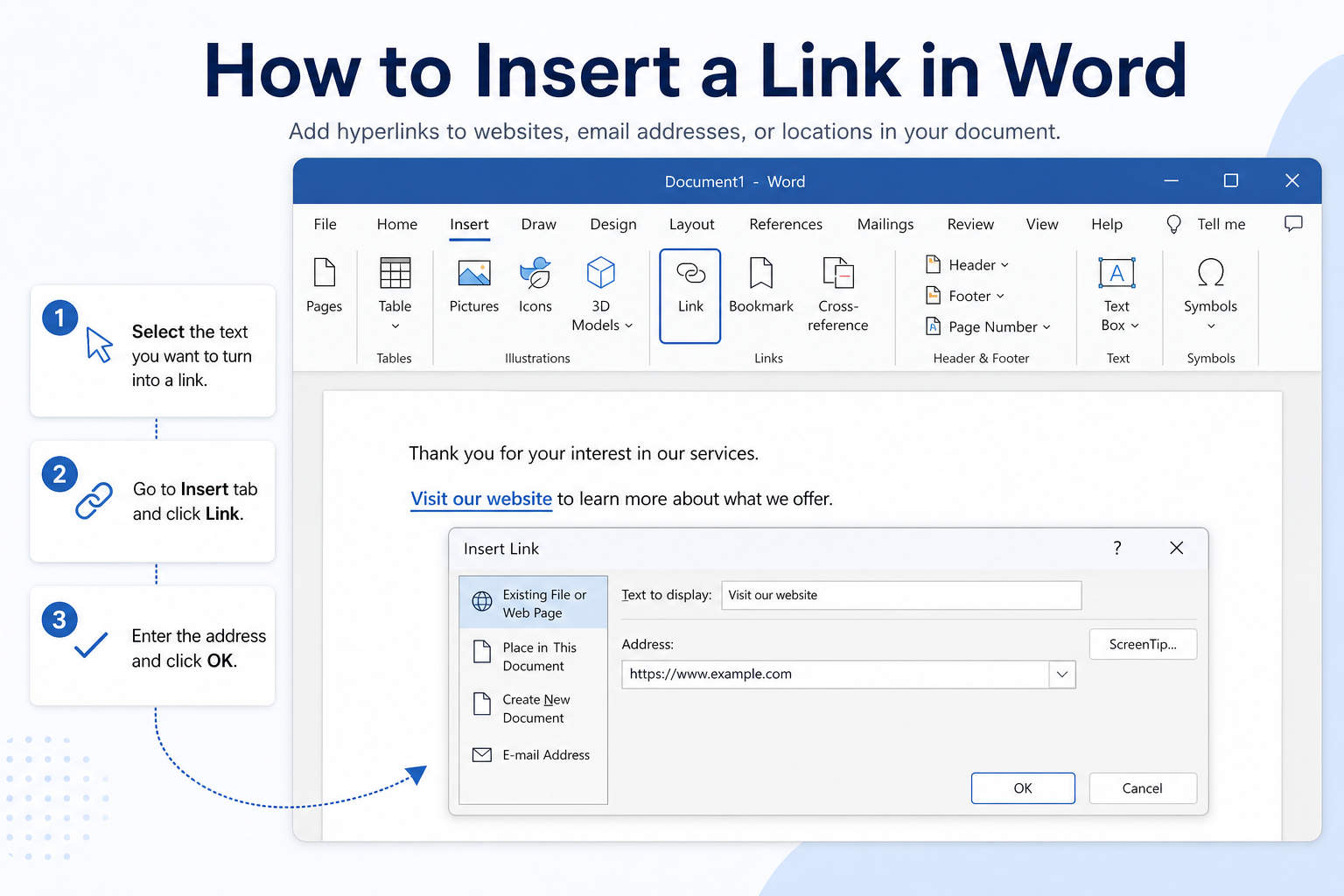
Quick answer: Select text → right-click Link / Hyperlink (or press Ctrl + K / Command + K) → paste the URL → OK. For a raw URL, paste it and press Space or Enter so Word auto-formats it. For in-document jumps, use a Bookmark or heading under Place in This Document.


Four Common Link Types in Word
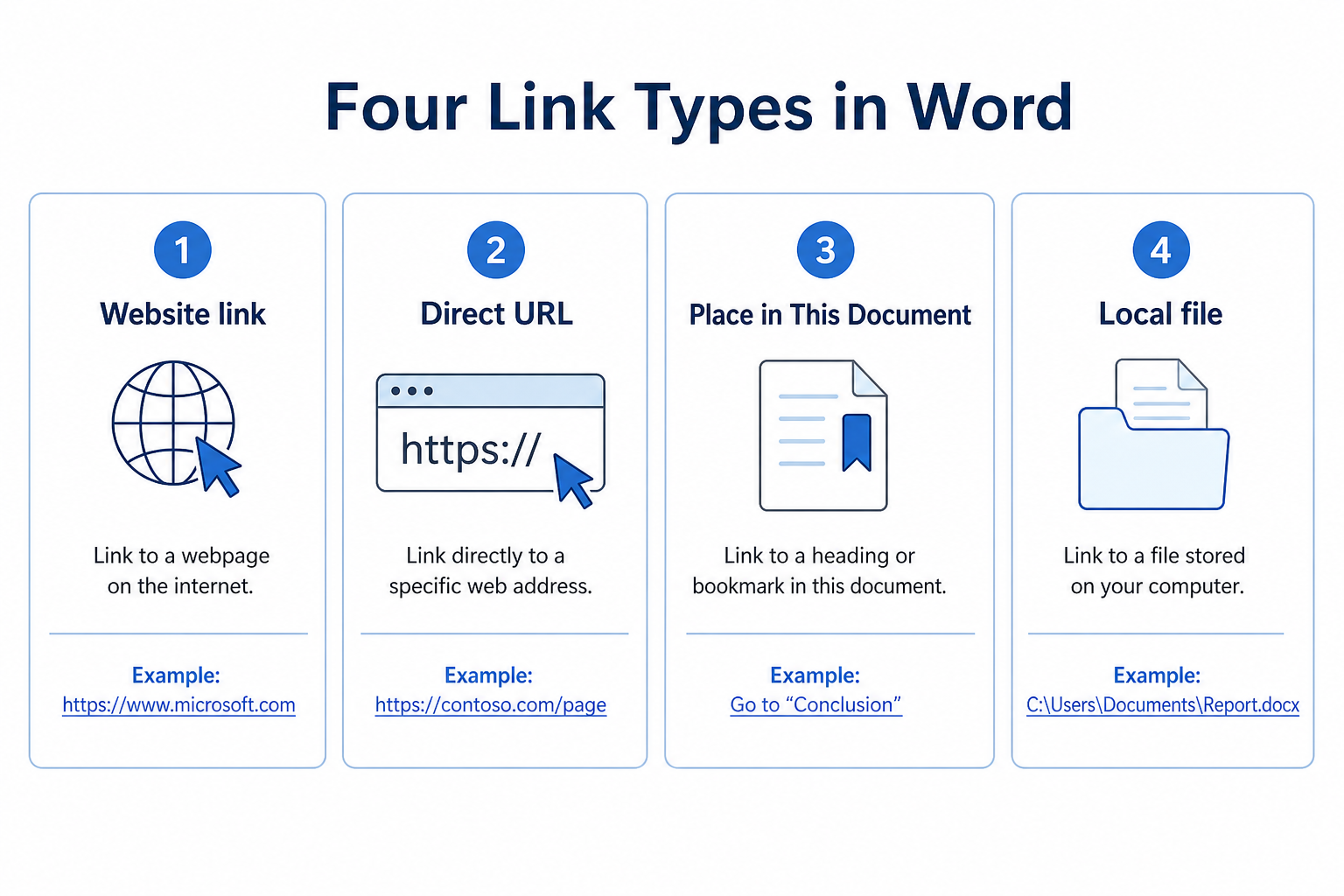
| Link type | Best for | Where to start |
|---|---|---|
| Website / web page | Clickable text that opens a site | Insert → Link or Ctrl + K |
| Direct URL | Showing the full address as the link | Paste URL + Space / Enter |
| Place in This Document | Jump to a heading or bookmark | Hyperlink → Place in This Document |
| Existing File or Web Page | Open a local PDF, image, or document | Hyperlink → pick a file on your device |
The Links cluster on the Insert Tab in Word is where Link/Hyperlink sits alongside related tools when you prefer the ribbon over a right-click.
How to Insert a Clickable Website Link
This is the most common way to turn regular text into a clickable web address.
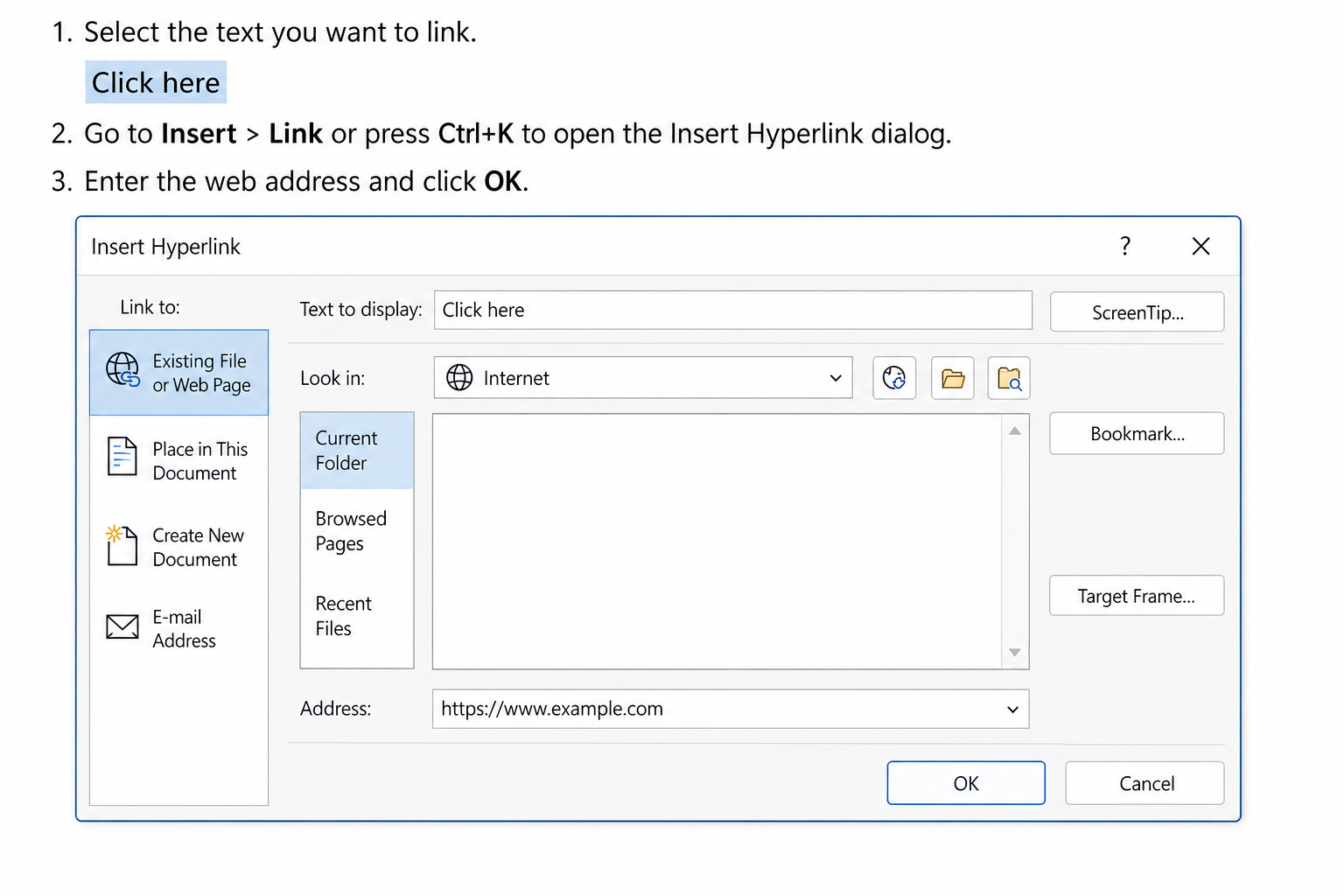
Select the text you want to display as the link.
Right-click and choose Link or Hyperlink (wording varies by Word version). Or press Ctrl + K.
In the address field, paste your target website URL (include
https://when possible).Click OK.
The selected text usually turns blue and underlined. Hold Ctrl and click (or follow your Word version’s click rule) to open the link.
How to Insert a Direct URL Link
Use this when you want the full website address visible in the document.
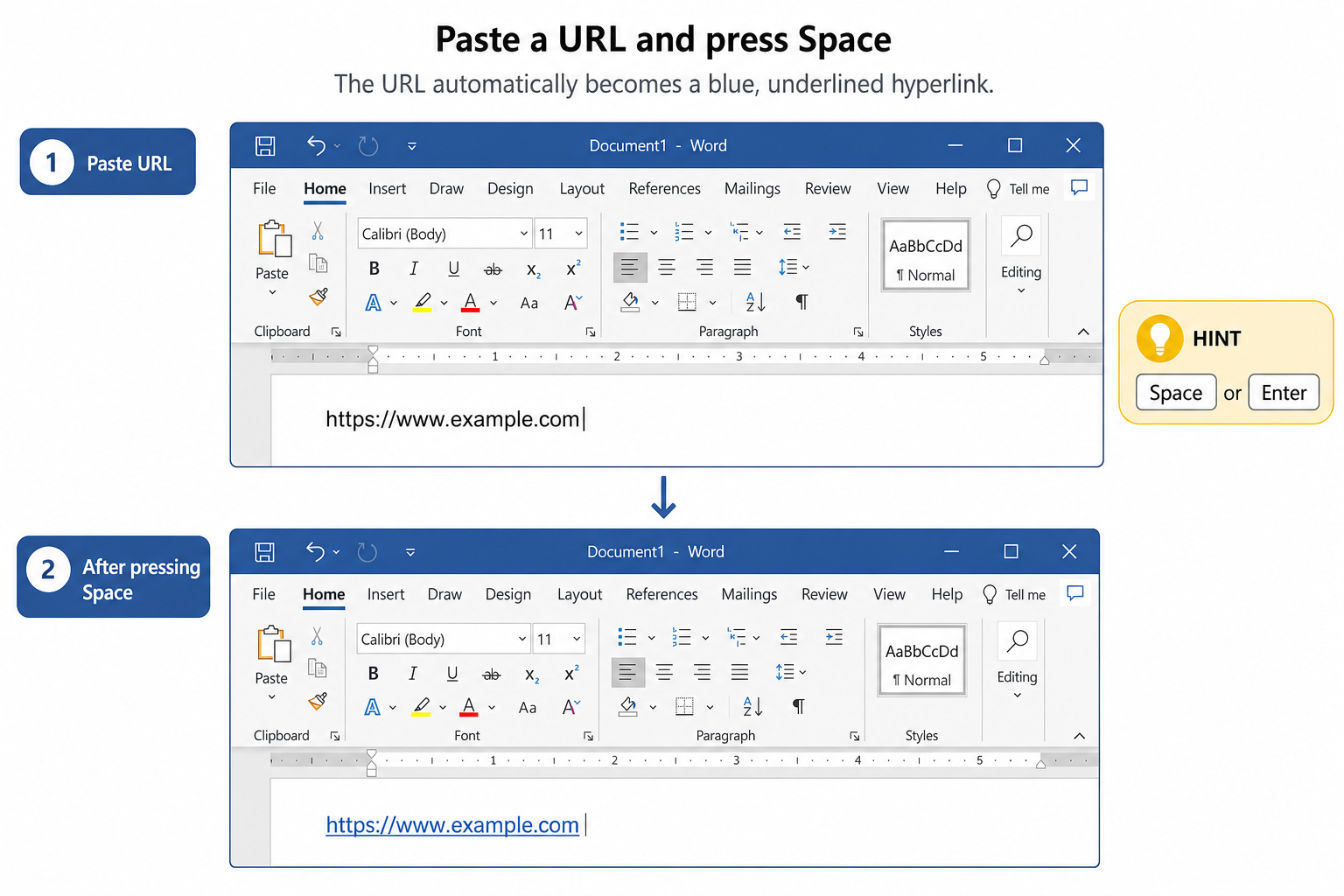
Copy the URL.
Paste it into your Word document.
Press Space or Enter.
Word should auto-convert the plain text into a clickable hyperlink. If it stays plain, use Ctrl + K and paste the URL into the address field manually.
How to Link to Another Section in the Same Document
You can create jump links to headings or specific spots using bookmarks.
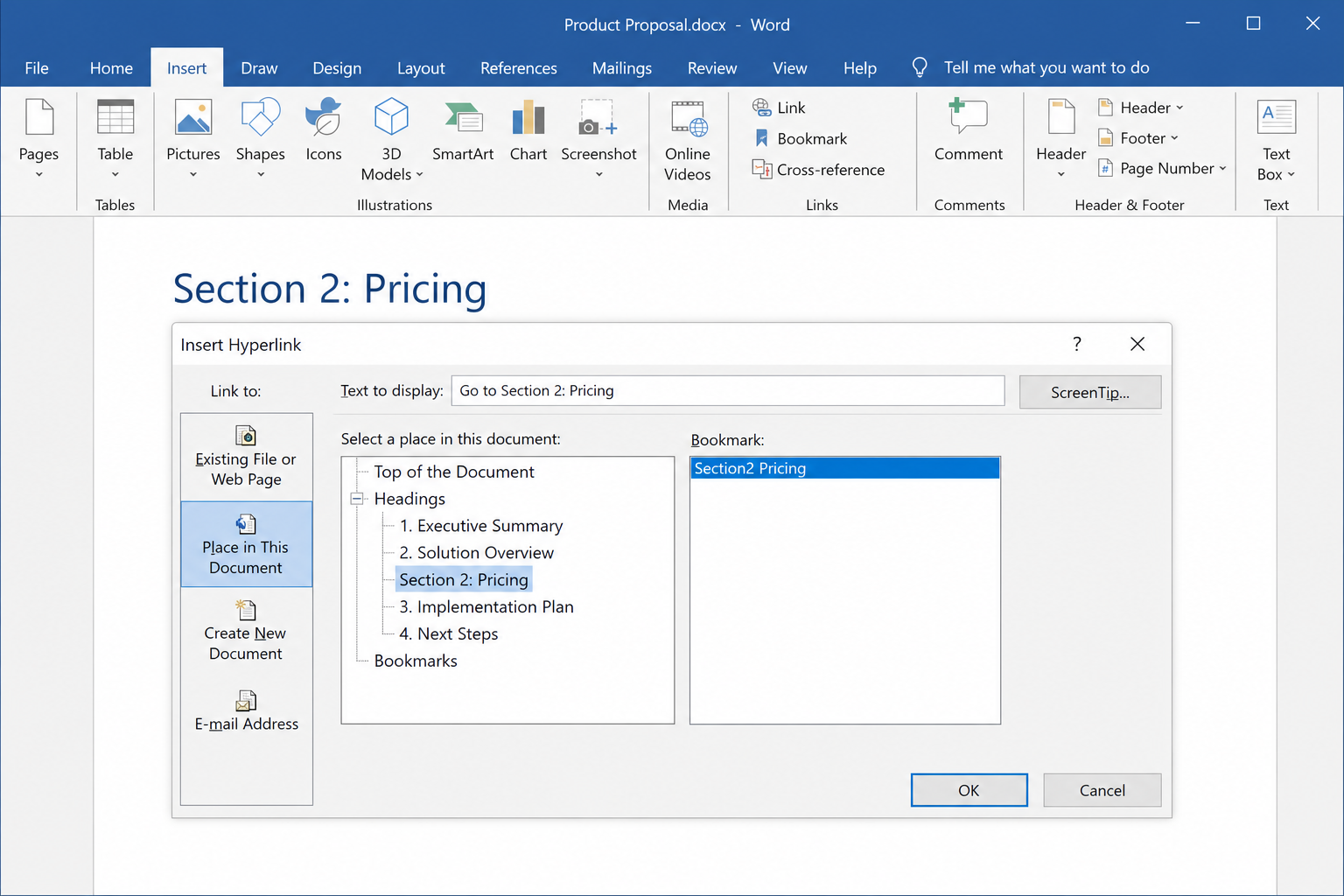
Place your cursor at the target location.
Go to Insert → Bookmark, name the bookmark, and click Add. (Or use an existing Heading style as the target.)
Select the text readers should click.
Press Ctrl + K, then choose Place in This Document.
Select the heading or bookmark and click OK.
Tip: Clear bookmark names (for example, Section2_Pricing) make long documents easier to manage later.
How to Insert a Link to a Local File
Word can link text to files on your computer, such as PDFs, images, or other documents.
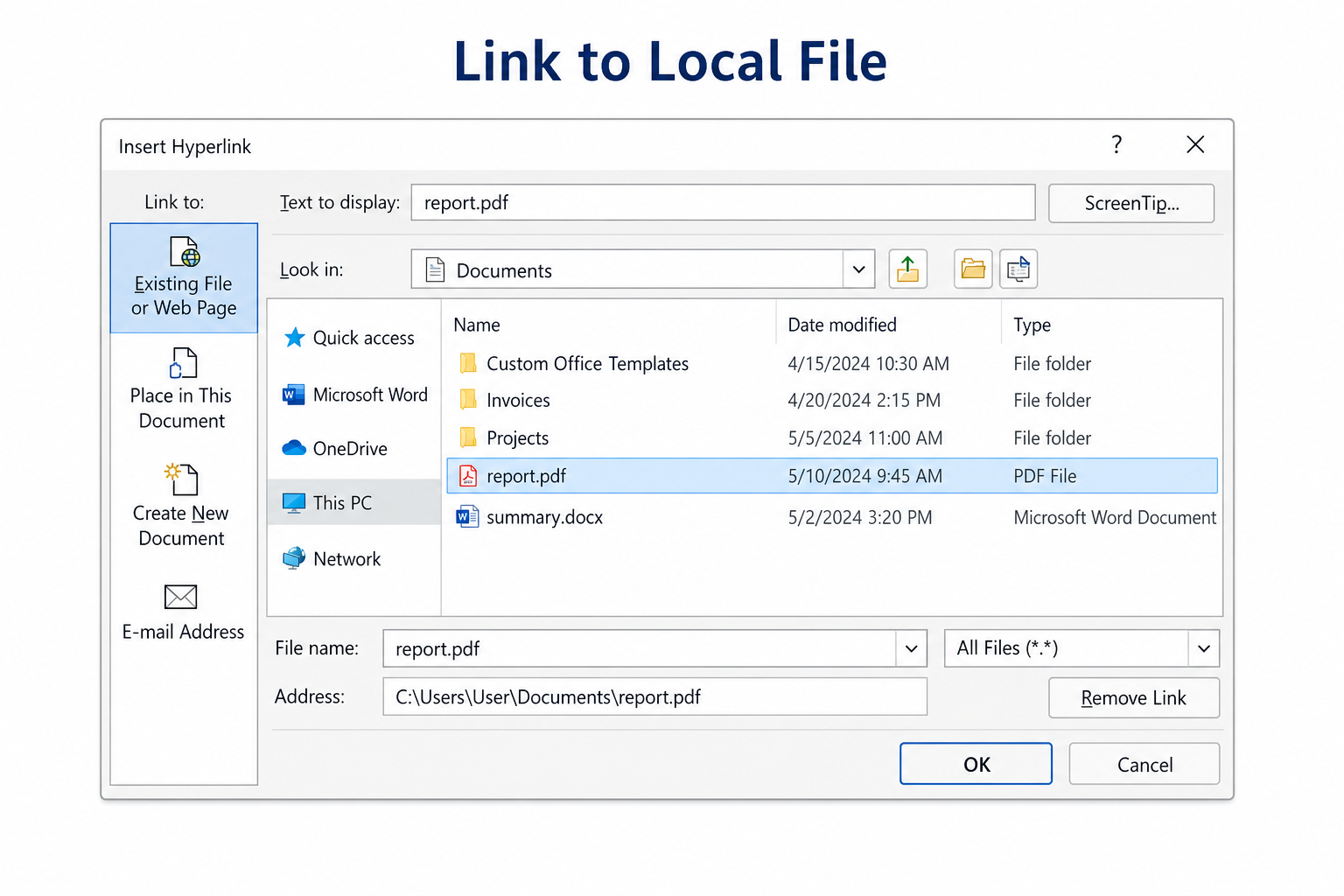
Select your display text and open the hyperlink dialog (Ctrl + K).
Choose Existing File or Web Page.
Browse to the target file on your device.
Click OK.
Note: Local file links work best when the recipient has the same file path available. For sharing with others, prefer a cloud URL or attach the file separately.
How to Insert Links in Word (Mac)
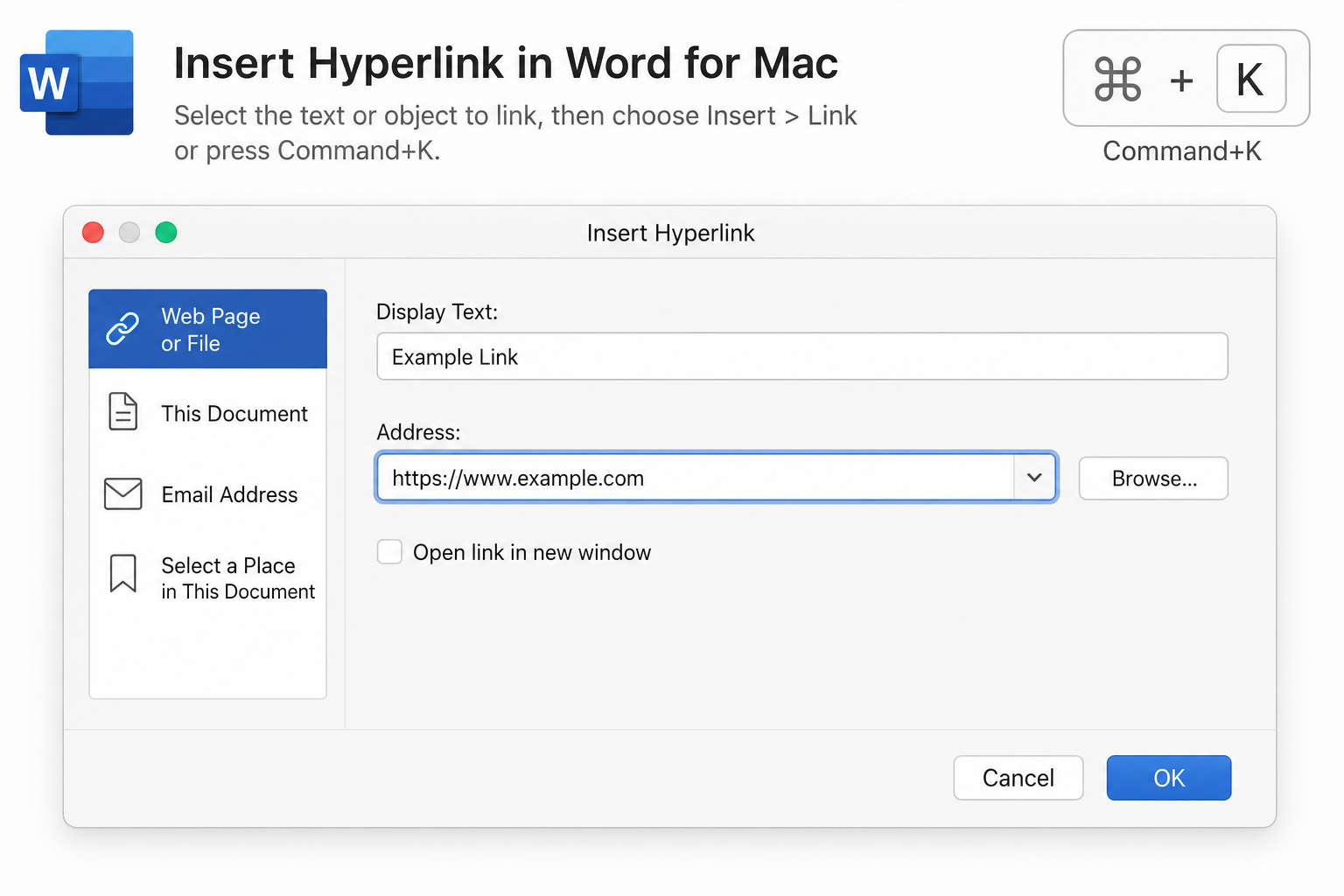
Highlight the text you want to link.
Press Command + K to open the hyperlink panel.
Paste a URL, pick This Document for an internal jump, or choose a local file.
Confirm to save the link.
| Action | Windows | Mac |
|---|---|---|
| Open Insert Hyperlink | Ctrl + K | Command + K |
| Open a link while editing | Often Ctrl + click | Often Command + click |
Common Issue: Links Not Clickable
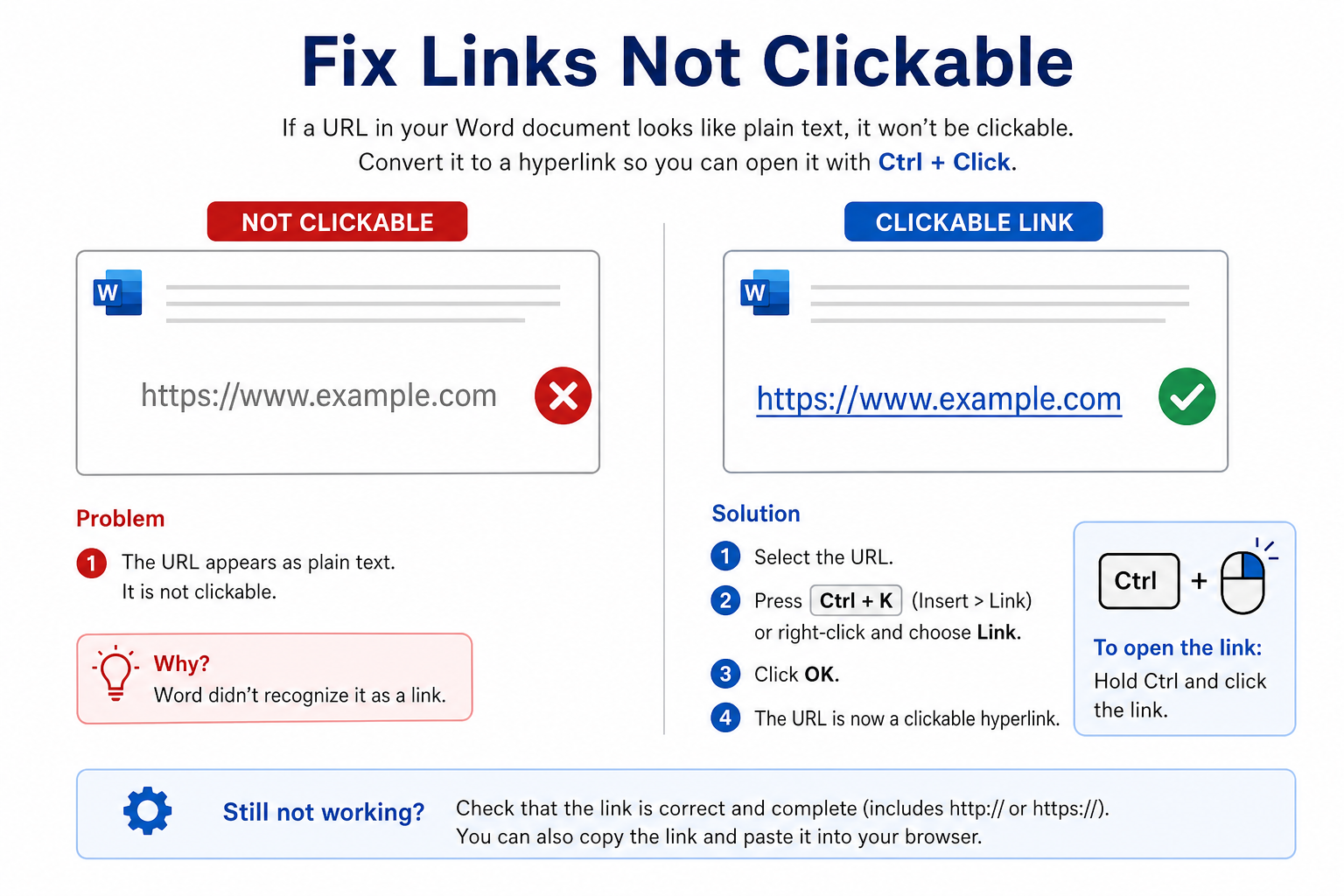
| Problem | What to try |
|---|---|
| URL looks like plain text | Select it → Ctrl + K → paste the address → OK |
| Paste does not auto-link | Press Space or Enter after pasting; check AutoCorrect / AutoFormat options |
| Click does nothing while editing | Use Ctrl + click (Windows) or Command + click (Mac) |
| Link broke after sharing | For local files, use a shared cloud link instead of a private drive path |
Free Method: Insert Links with WPS Writer
Word’s hyperlink dialog covers every link type, but the menus can feel dense for beginners. WPS Writer is a free, Word-compatible option with a straightforward hyperlink workflow for websites, bookmarks, and local files.
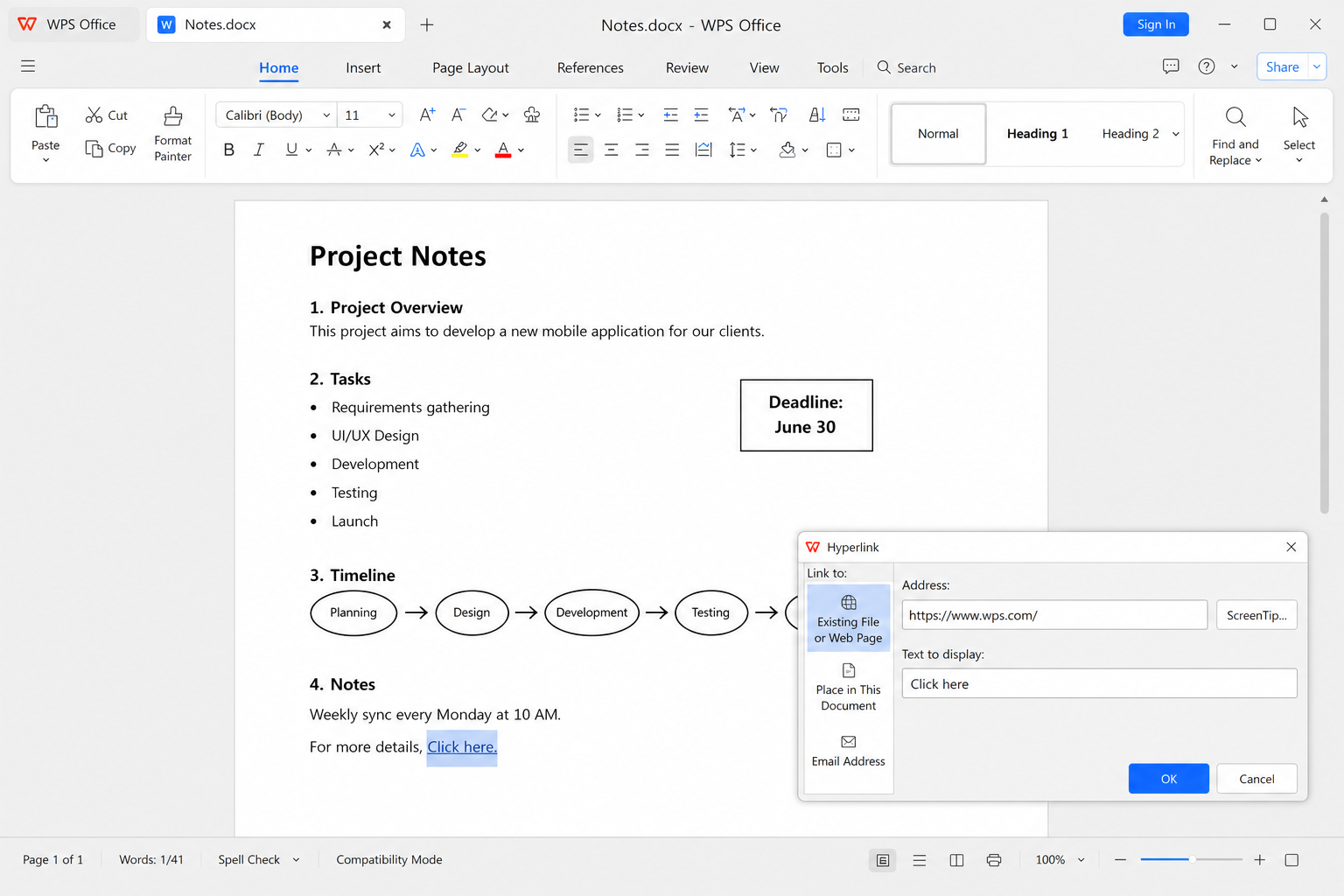
Open your document in WPS Writer.
Select the text you want to turn into a link.
Right-click and choose Hyperlink (or use the Insert hyperlink option).
Add a web URL, a local file, or an internal bookmark / document location.
Save as .docx when you need to share the file in Microsoft Word.
Clear hyperlink menus — Easy to pick web, file, or in-document targets
Supports common link types — Websites, internal jumps, and local files
No paid subscription required — Core linking tools for everyday documents
Strong Word compatibility — Share standard .docx files with Word users
FAQ
How do I make text clickable in Word?
Select the text, press Ctrl + K (Windows) or Command + K (Mac), paste the URL, and click OK.
Why are my pasted URLs not clickable?
They may still be plain text. Press Space or Enter after pasting, or insert a hyperlink manually with Ctrl + K.
Can I create internal page jumps in Word?
Yes. Insert a bookmark (or use a heading), then create a hyperlink with Place in This Document.
Do WPS hyperlinks work in Microsoft Word?
Yes—when you save as a standard Word format, links usually open normally in Microsoft Word.
Conclusion
Word supports four everyday hyperlink types: website links, direct URLs, in-document jumps, and local file links. Use Ctrl + K / Command + K for the fastest insert, and show AutoFormat or Ctrl-click behavior when a link will not open. If you want a simpler free workflow with Word-compatible .docx files, WPS Writer is a practical option for inserting and managing hyperlinks.

'%3e%3cpath%20d='M19.9911%204.11386V6.471H18.5894C18.0775%206.471%2017.7322%206.57814%2017.5536%206.79243C17.3751%207.00671%2017.2858%207.32814%2017.2858%207.75671V9.44421H19.9019L19.5536%2012.0871H17.2858V18.8639H14.5536V12.0871H12.2769V9.44421H14.5536V7.49779C14.5536%206.39064%2014.8632%205.53201%2015.4822%204.92189C16.1013%204.31177%2016.9257%204.00671%2017.9554%204.00671C18.8304%204.00671%2019.509%204.04243%2019.9911%204.11386Z'%20fill='%23333333'/%3e%3c/g%3e%3cdefs%3e%3cclipPath%20id='clip0_2938_8199'%3e%3crect%20width='16'%20height='16'%20fill='white'%20transform='translate(8%204.00671)'/%3e%3c/clipPath%3e%3c/defs%3e%3c/svg%3e)
'%3e%3cpath%20d='M17.5237%2010.7813L23.4811%204H22.0699L16.8949%209.88693L12.7648%204H8L14.2469%2012.9029L8%2020.0133H9.4112L14.8725%2013.7952L19.2352%2020.0133H24M9.92053%205.04213H12.0885L22.0688%2019.0224H19.9003'%20fill='%23333333'/%3e%3c/g%3e%3cdefs%3e%3cclipPath%20id='clip0_2938_8200'%3e%3crect%20width='16'%20height='16.0134'%20fill='white'%20transform='translate(8%204)'/%3e%3c/clipPath%3e%3c/defs%3e%3c/svg%3e)


