



'%3e%3cpath%20fill-rule='evenodd'%20clip-rule='evenodd'%20d='M21.4999%2010.9993C21.4999%205.20009%2016.7986%200.498901%2010.9993%200.498901C5.19994%200.498901%200.498657%205.20009%200.498657%2010.9993C0.498657%2016.2404%204.33858%2020.5844%209.35855%2021.3722V14.0346H6.69238V10.9993H9.35855V8.68594C9.35855%206.05427%2010.9262%204.60062%2013.3248%204.60062C14.4736%204.60062%2015.6753%204.80571%2015.6753%204.80571V7.38979H14.3512C13.0468%207.38979%2012.64%208.19921%2012.64%209.0296V10.9993H15.5523L15.0867%2014.0346H12.64V21.3722C17.66%2020.5844%2021.4999%2016.2404%2021.4999%2010.9993Z'%20fill='%231568EA'/%3e%3c/g%3e%3c/svg%3e)


'%3e%3cpath%20d='M2.42045%2022.1876H6.31818V12.7217L0.75%208.54553V20.5171C0.75%2021.4414%201.49892%2022.1876%202.42045%2022.1876Z'%20fill='%234285F4'/%3e%3cpath%20d='M19.682%2022.1876H23.5797C24.5041%2022.1876%2025.2502%2021.4387%2025.2502%2020.5171V8.54553L19.682%2012.7217'%20fill='%2334A853'/%3e%3cpath%20d='M19.682%205.48293V12.7216L25.2502%208.54543V6.31816C25.2502%204.25236%2022.8921%203.07469%2021.2411%204.31361'%20fill='%23FBBC04'/%3e%3cpath%20d='M6.31824%2012.7217V5.48303L13.0001%2010.4944L19.6819%205.48303V12.7217L13.0001%2017.733'%20fill='%23EA4335'/%3e%3cpath%20d='M0.75%206.31816V8.54543L6.31818%2012.7216V5.48293L4.75909%204.31361C3.10534%203.07469%200.75%204.25236%200.75%206.31816Z'%20fill='%23C5221F'/%3e%3c/g%3e%3cdefs%3e%3cclipPath%20id='clip0_2954_7305'%3e%3crect%20width='24.5'%20height='18.375'%20fill='white'%20transform='translate(0.75%203.8125)'/%3e%3c/clipPath%3e%3c/defs%3e%3c/svg%3e)


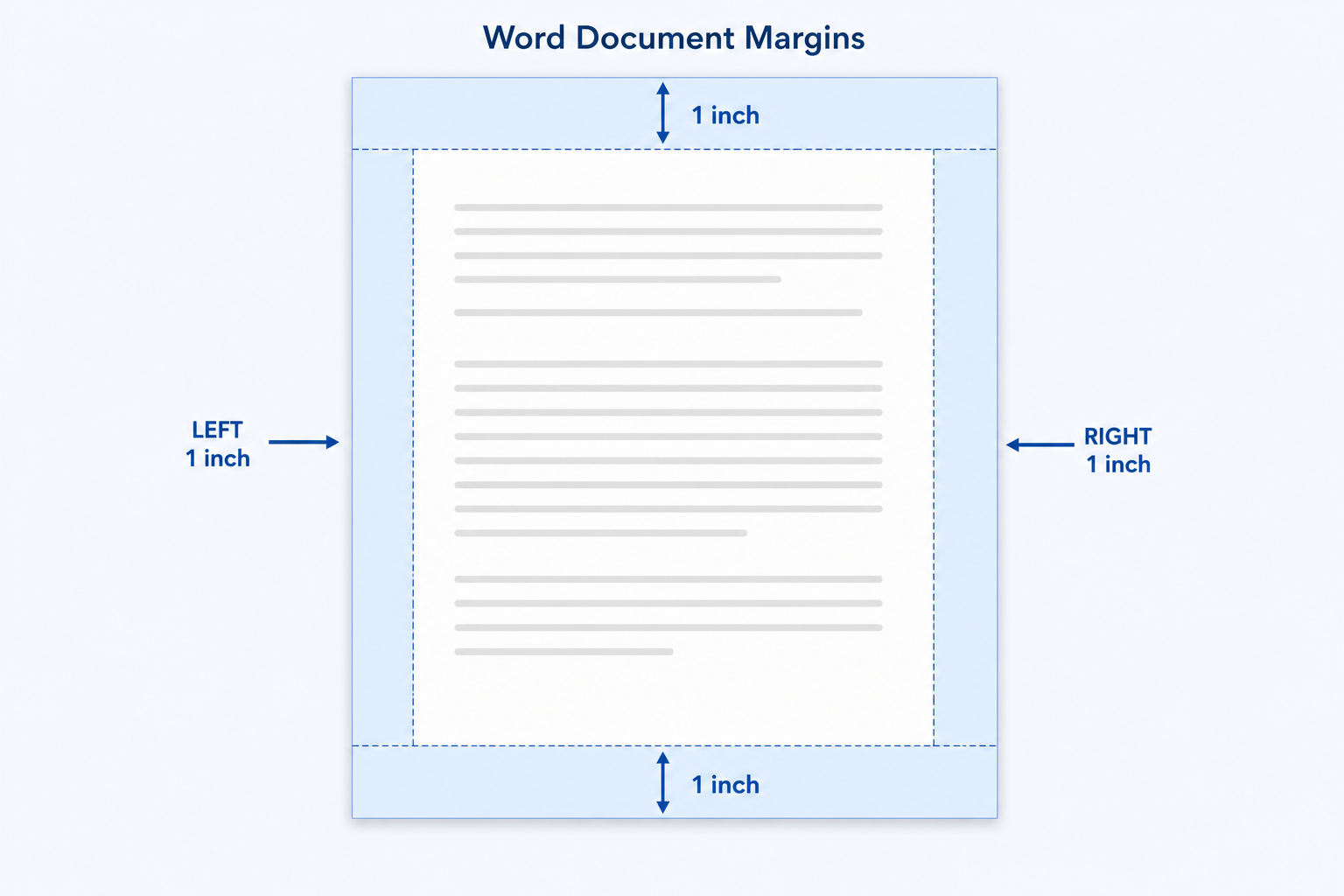
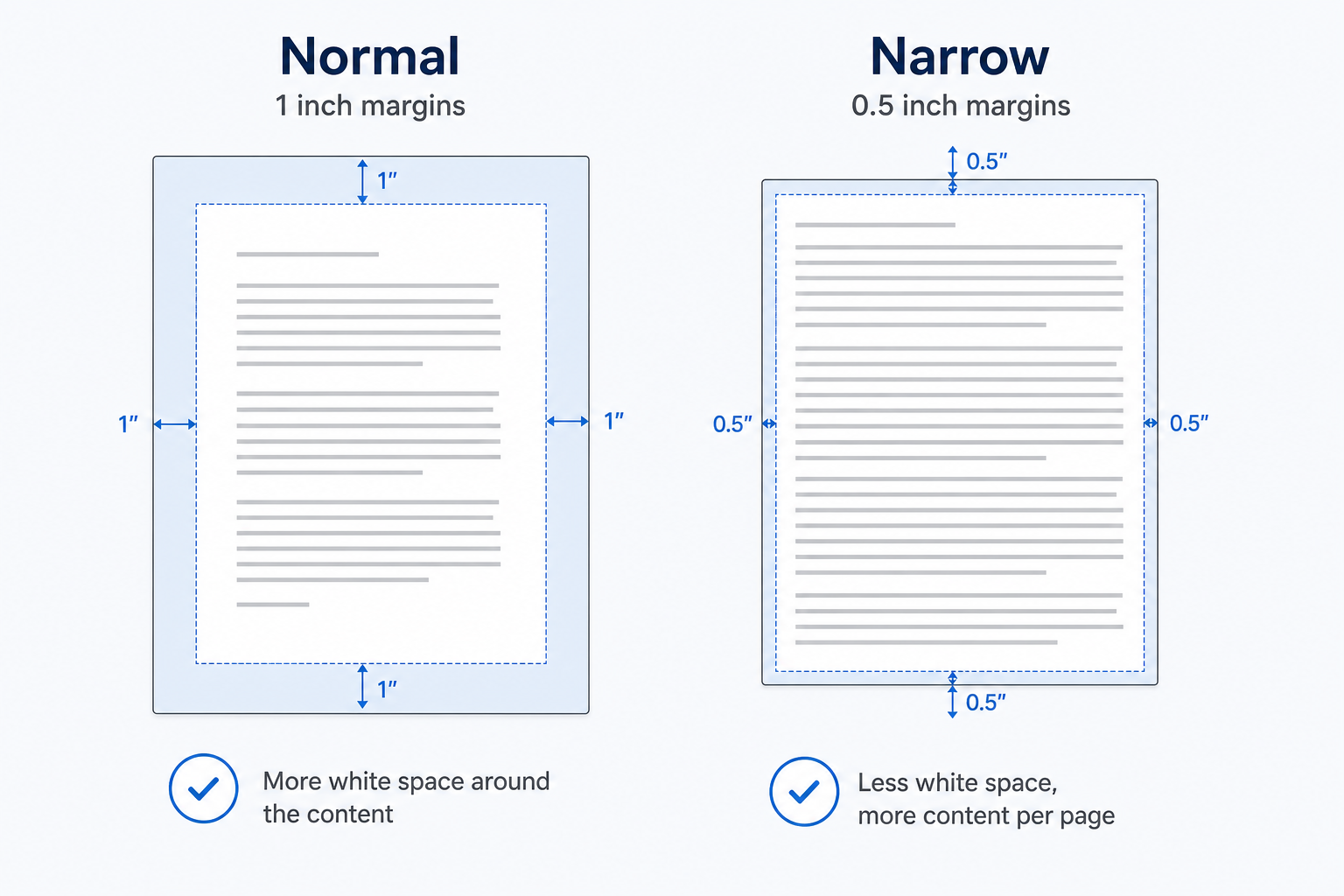
Margins control the white space around your text. Get them right, and your document reads better, prints cleanly, and meets school or work requirements. Word's default is 1 inch on all sides.
Quick answer: Go to Layout → Margins, pick a preset, or choose Custom Margins to set your own numbers.
Why It Matters
Readability — Too little space makes pages feel cramped
Printing — Narrow margins can get cut off by the printer
Rules — Many papers require 1" margins (MLA, APA, most offices)
Before You Start
Save your file first
Use View → Print Layout for an accurate preview
U.S. Word shows margins in inches by default
Method 1: Preset Margins (Fastest)
Best for everyday documents when a standard layout works.
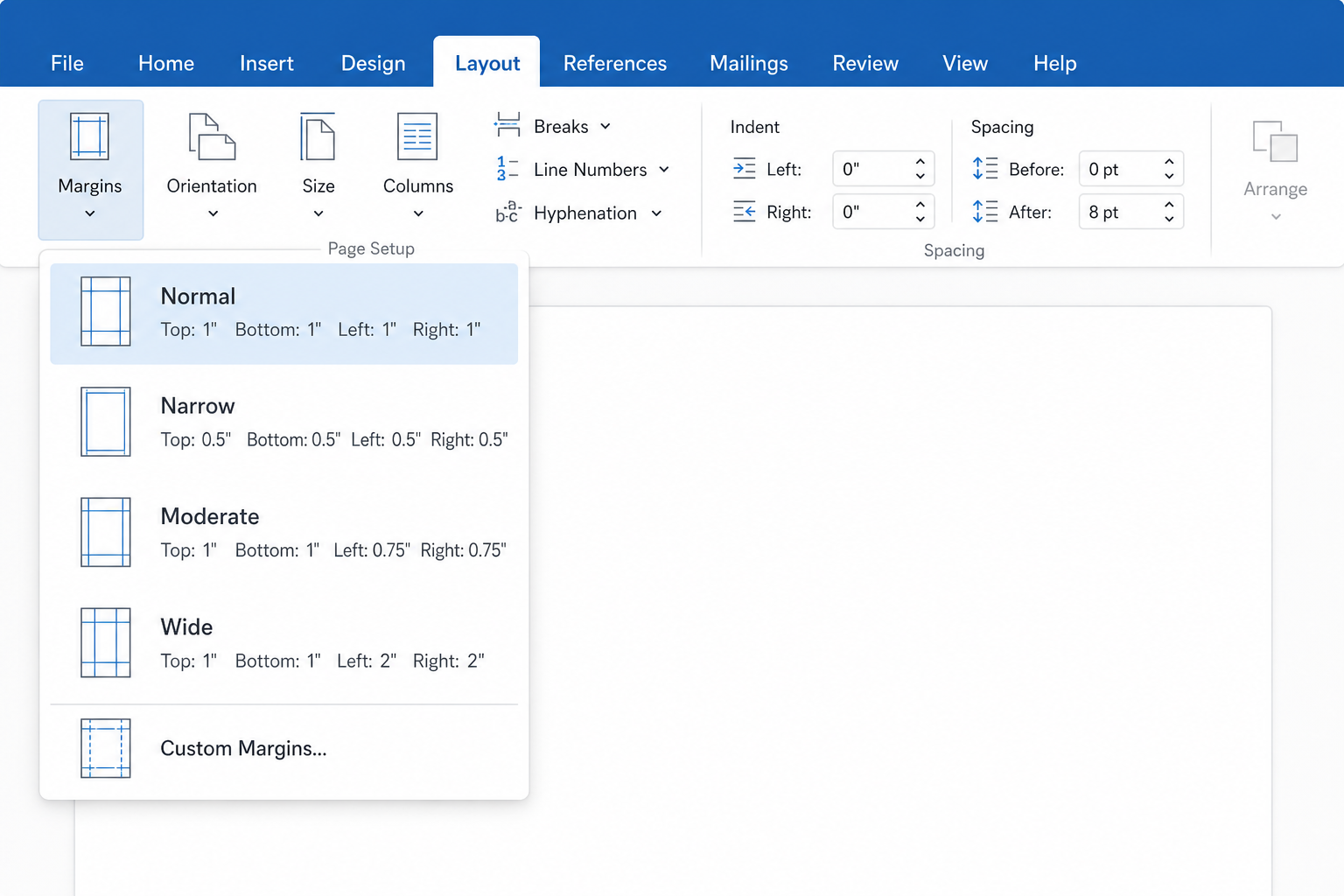
Open your document.
Click the Layout tab (or Page Layout in older Word).
Click Margins.
Pick a preset:
| Preset | Size |
|---|---|
| Normal | 1" all sides (default) |
| Narrow | 0.5" all sides |
| Moderate | 1" top/bottom, 0.75" left/right |
| Wide | 1" top/bottom, 2" left/right |
Changes apply to the whole document immediately.
Method 2: Custom Margins
Use this when you need exact numbers—for example, a wider left margin for binding.
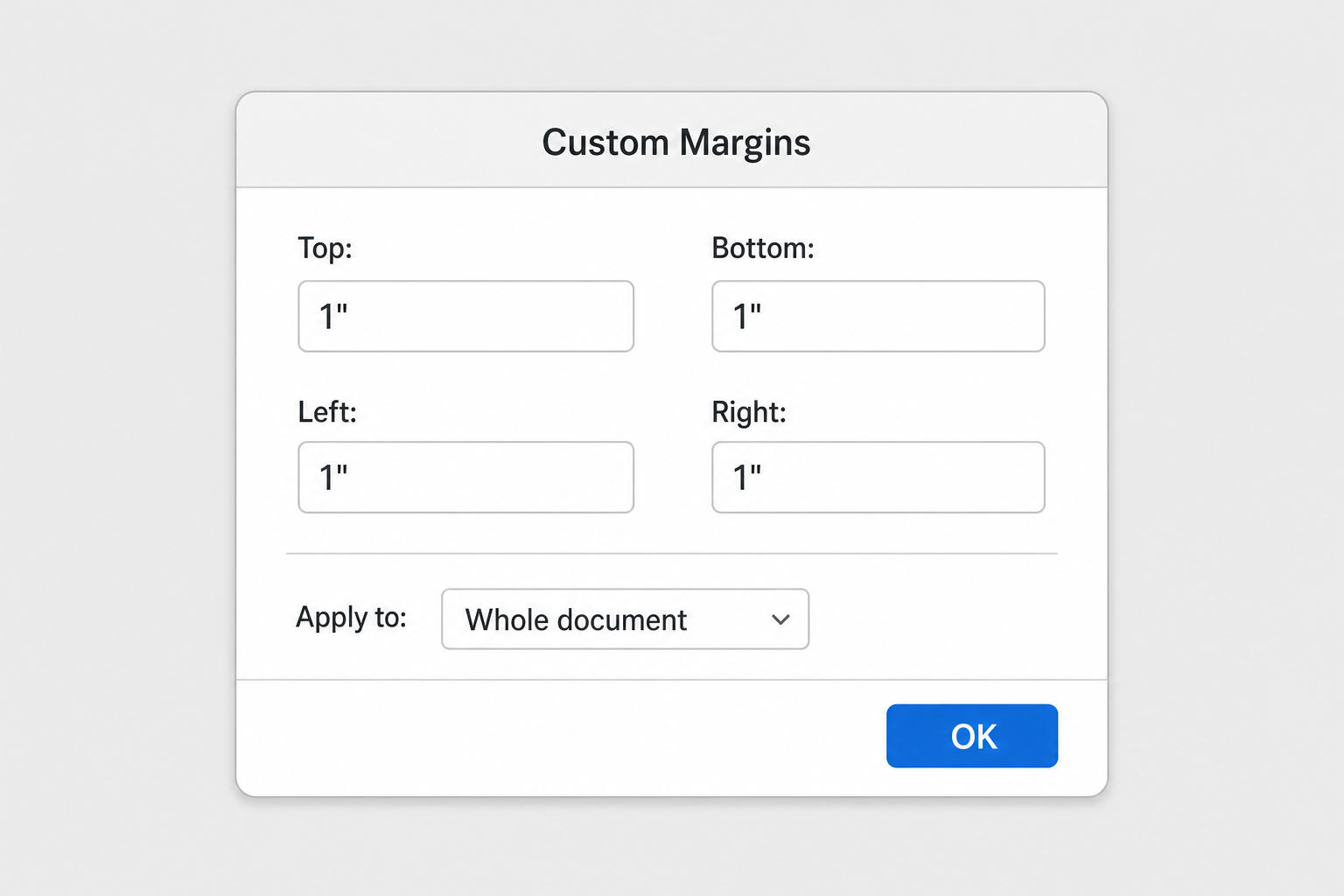
Go to Layout → Margins → Custom Margins.
Enter values for Top, Bottom, Left, and Right.
Under Apply to, choose Whole document or This point forward.
Click OK.
Example: Bound report → Left: 1.5", other sides 1".
Method 3: Drag the Ruler
Best for quick visual tweaks without opening a dialog box.
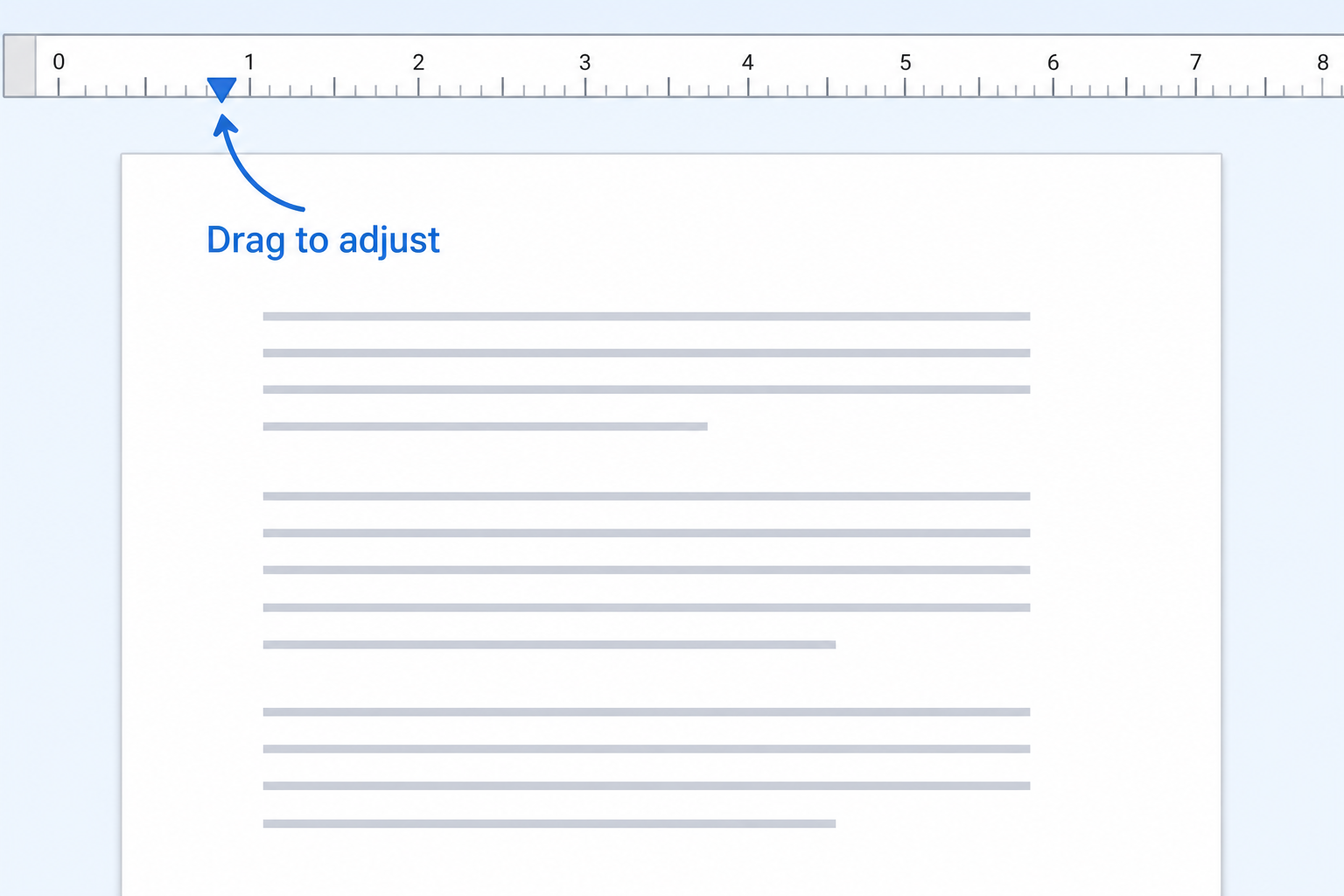
Turn on View → Ruler.
Hover over the gray/white edge on the top or left ruler.
Drag left, right, up, or down to adjust.
Note: This usually changes margins for the entire document unless you're working inside a specific section.
Method 4: One Section Only
Best for a cover page or appendix that needs different margins.
Click inside that section (or select the text).
Go to Layout → Margins → Custom Margins.
Set your values → Apply to: This section.
Click OK.
Quick Reference
| Document | Typical Margins |
|---|---|
| Office docs / school papers | 1" all sides |
| Resumes | 0.5"–0.75" |
| Bound reports | 1.5" left, 1" others |
Always check your instructor's or employer's rules before submitting.
Tips
Preview in File → Print before you print
Don't go below 0.5" — text may get clipped
Use Mirrored margins for double-sided printing
Click Set As Default in Custom Margins to save your preference for new files
Troubleshooting
| Problem | Fix |
|---|---|
| Can't change margins | Check Review → Restrict Editing |
| One page looks different | A section break may be in place — adjust per section |
| Pasted text has wrong margins | Layout → Margins to reset, or paste as Keep Text Only |
FAQ
How do I set 1-inch margins?
Go to Layout → Margins → Normal.
Can I change margins for just one page?
Yes. Add section breaks before and after that page, then set margins for This section.
What are Word's default margins?
1 inch on all four sides.
Can Word Online do custom margins?
Limited options. Use desktop Word or WPS Writer for full control.
Conclusion
Layout → Margins is all you need for most documents. Use presets for speed, Custom Margins for exact sizes, and section settings when one part of your file needs a different layout.



'%3e%3cpath%20d='M19.9911%204.11386V6.471H18.5894C18.0775%206.471%2017.7322%206.57814%2017.5536%206.79243C17.3751%207.00671%2017.2858%207.32814%2017.2858%207.75671V9.44421H19.9019L19.5536%2012.0871H17.2858V18.8639H14.5536V12.0871H12.2769V9.44421H14.5536V7.49779C14.5536%206.39064%2014.8632%205.53201%2015.4822%204.92189C16.1013%204.31177%2016.9257%204.00671%2017.9554%204.00671C18.8304%204.00671%2019.509%204.04243%2019.9911%204.11386Z'%20fill='%23333333'/%3e%3c/g%3e%3cdefs%3e%3cclipPath%20id='clip0_2938_8199'%3e%3crect%20width='16'%20height='16'%20fill='white'%20transform='translate(8%204.00671)'/%3e%3c/clipPath%3e%3c/defs%3e%3c/svg%3e)
'%3e%3cpath%20d='M17.5237%2010.7813L23.4811%204H22.0699L16.8949%209.88693L12.7648%204H8L14.2469%2012.9029L8%2020.0133H9.4112L14.8725%2013.7952L19.2352%2020.0133H24M9.92053%205.04213H12.0885L22.0688%2019.0224H19.9003'%20fill='%23333333'/%3e%3c/g%3e%3cdefs%3e%3cclipPath%20id='clip0_2938_8200'%3e%3crect%20width='16'%20height='16.0134'%20fill='white'%20transform='translate(8%204)'/%3e%3c/clipPath%3e%3c/defs%3e%3c/svg%3e)


