

'%3e%3cpath%20d='M8%200C12.4183%200%2016%203.58172%2016%208C16%2012.4183%2012.4183%2016%208%2016C3.58172%2016%200%2012.4183%200%208C0%203.58172%203.58172%200%208%200ZM11.6162%204.38379C11.2257%203.99337%2010.5927%203.99338%2010.2021%204.38379L8%206.58594L5.79785%204.38379C5.40732%203.99334%204.77429%203.99329%204.38379%204.38379C3.99331%204.77429%203.99335%205.40733%204.38379%205.79785L6.58594%208L4.38379%2010.2021C3.99348%2010.5927%203.99341%2011.2257%204.38379%2011.6162C4.77426%2012.0066%205.40734%2012.0065%205.79785%2011.6162L8%209.41406L10.2021%2011.6162C10.5927%2012.0066%2011.2257%2012.0067%2011.6162%2011.6162C12.0067%2011.2257%2012.0066%2010.5927%2011.6162%2010.2021L9.41406%208L11.6162%205.79785C12.0066%205.40735%2012.0066%204.77429%2011.6162%204.38379Z'%20fill='%23080E17'%20fill-opacity='0.46'/%3e%3c/g%3e%3cdefs%3e%3cclipPath%20id='clip0_3761_713'%3e%3crect%20width='16'%20height='16'%20fill='white'/%3e%3c/clipPath%3e%3c/defs%3e%3c/svg%3e)




'%3e%3cpath%20fill-rule='evenodd'%20clip-rule='evenodd'%20d='M21.4999%2010.9993C21.4999%205.20009%2016.7986%200.498901%2010.9993%200.498901C5.19994%200.498901%200.498657%205.20009%200.498657%2010.9993C0.498657%2016.2404%204.33858%2020.5844%209.35855%2021.3722V14.0346H6.69238V10.9993H9.35855V8.68594C9.35855%206.05427%2010.9262%204.60062%2013.3248%204.60062C14.4736%204.60062%2015.6753%204.80571%2015.6753%204.80571V7.38979H14.3512C13.0468%207.38979%2012.64%208.19921%2012.64%209.0296V10.9993H15.5523L15.0867%2014.0346H12.64V21.3722C17.66%2020.5844%2021.4999%2016.2404%2021.4999%2010.9993Z'%20fill='%231568EA'/%3e%3c/g%3e%3c/svg%3e)


'%3e%3cpath%20d='M2.42045%2022.1876H6.31818V12.7217L0.75%208.54553V20.5171C0.75%2021.4414%201.49892%2022.1876%202.42045%2022.1876Z'%20fill='%234285F4'/%3e%3cpath%20d='M19.682%2022.1876H23.5797C24.5041%2022.1876%2025.2502%2021.4387%2025.2502%2020.5171V8.54553L19.682%2012.7217'%20fill='%2334A853'/%3e%3cpath%20d='M19.682%205.48293V12.7216L25.2502%208.54543V6.31816C25.2502%204.25236%2022.8921%203.07469%2021.2411%204.31361'%20fill='%23FBBC04'/%3e%3cpath%20d='M6.31824%2012.7217V5.48303L13.0001%2010.4944L19.6819%205.48303V12.7217L13.0001%2017.733'%20fill='%23EA4335'/%3e%3cpath%20d='M0.75%206.31816V8.54543L6.31818%2012.7216V5.48293L4.75909%204.31361C3.10534%203.07469%200.75%204.25236%200.75%206.31816Z'%20fill='%23C5221F'/%3e%3c/g%3e%3cdefs%3e%3cclipPath%20id='clip0_2954_7305'%3e%3crect%20width='24.5'%20height='18.375'%20fill='white'%20transform='translate(0.75%203.8125)'/%3e%3c/clipPath%3e%3c/defs%3e%3c/svg%3e)


Need a few pages from a long report—not the whole file? Extracting pages from Word means pulling only the content you need into a new document or PDF so you can share, print, or archive it cleanly. Word treats “pages” as layout results, not fixed objects, so the practical workflows are copy-paste, print a page range to PDF, or use a dedicated splitter such as WPS Writer.
Why Extracting Pages from Word Helps Everyday Sharing
Long contracts, coursework, and research packs often include cover pages, appendices, or private notes you should not send. Extracting pages from Word keeps the original file intact while giving teammates or clients only the relevant section. It also shrinks attachments and reduces the chance someone edits the wrong draft of a 40-page file.
Pick a method by outcome:
Editable .docx → copy-paste or WPS Split or Merge
Fixed layout for review → print selected pages to PDF
Many pages / repeated splits → WPS Split or Merge by range, heading, or every page
Extracting Pages from Word with Copy and Paste
This is the fastest path for a single page or a short stretch of text when you still need to edit afterward.
Open the source document and scroll to the first page you want.
Click at the start of that page’s content.
Hold Shift and click at the end of the last page you need (or drag to select).
Press Ctrl + C (Windows) or Command + C (Mac).
Create a blank document, then paste with Ctrl + V / Command + V.
Save the new file with a clear name (for example, Proposal_pages_3-5.docx).
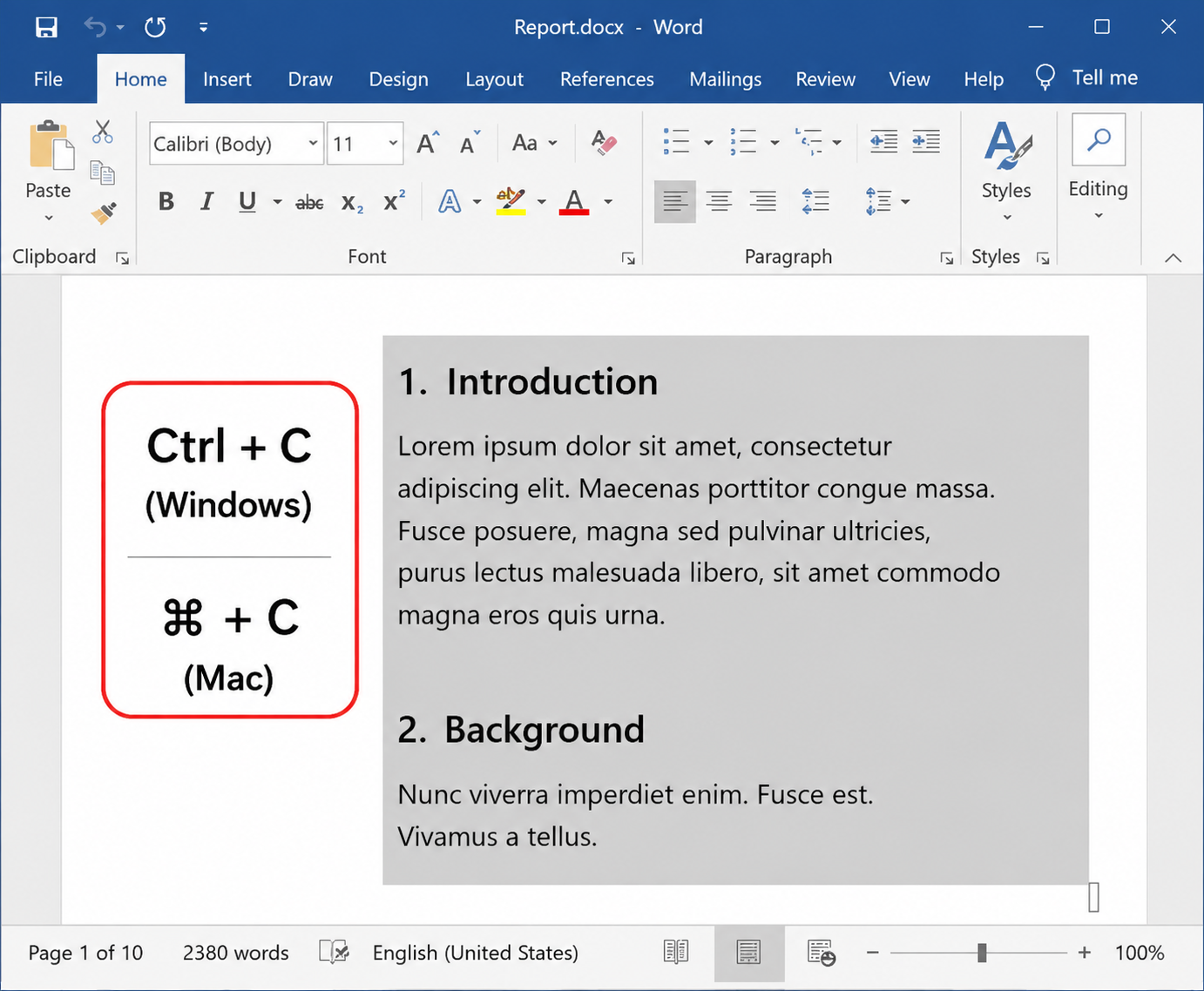
Tip: if floating images or text boxes disappear, include the paragraph that anchors them before you copy. For long selections, turn on the Navigation Pane to jump by heading first, then select.


Extracting Pages from Word by Printing to PDF
When the goal is a shareable snapshot—and layout must stay locked—print a custom page range to PDF. This is one of the most reliable approaches for extracting pages from Word without rewriting the document.
Open the document and choose File → Print (or Ctrl + P / Command + P).
Set the printer to a PDF option such as Microsoft Print to PDF, Save as PDF, or your system PDF printer.
Under Pages / Settings, choose a custom range (for example, 4-6 or 2,5,8 if your dialog allows lists).
Click Print / Save and pick a folder.
Use this when recipients only need to read or sign off. Keep the original .docx if you still plan to edit. Page numbers in Print refer to the current pagination—check Print Preview if headers or section breaks shifted the layout.
Faster Extracting Pages from Word in WPS Writer
WPS Office is a free-to-start suite with Writer for Word-compatible files, plus Spreadsheets, Presentation, and PDF tools. For extracting pages from Word at scale, Writer’s built-in Split or Merge tool can split by page range, by headings, or into one file per page—while aiming to keep fonts, images, and tables intact. Work stays offline on your PC, which helps with private documents.
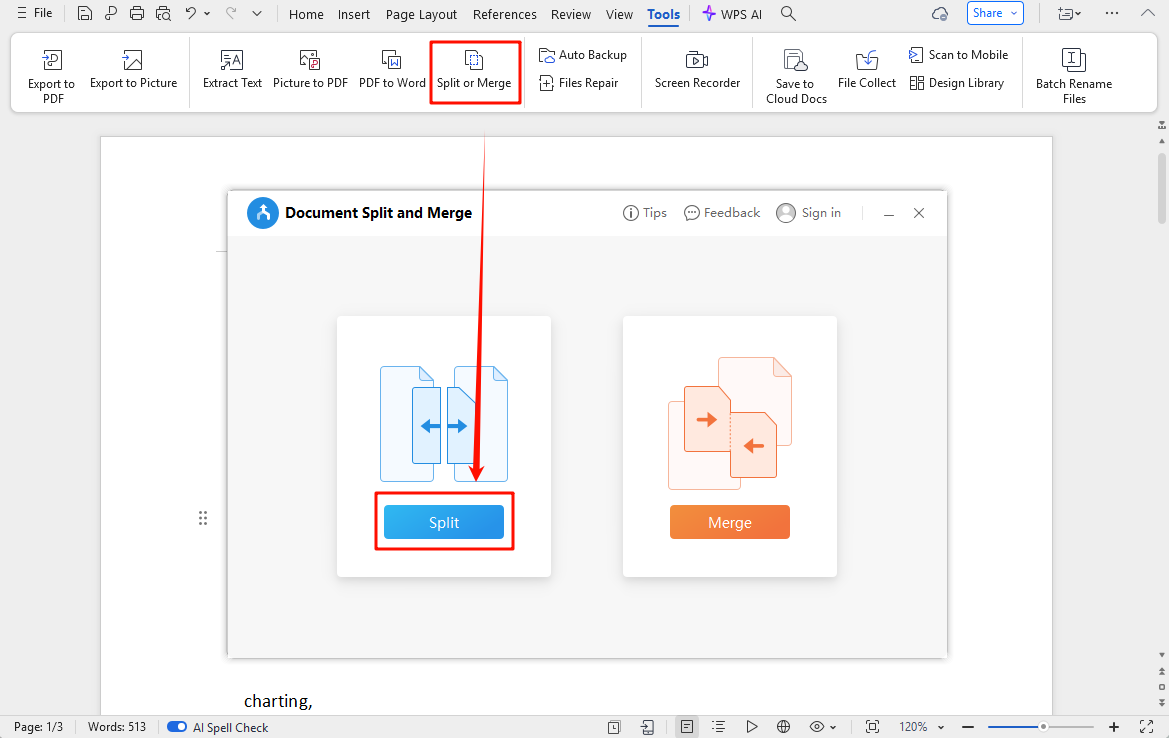
Open Split or Merge
Open your .docx in WPS Writer.
Go to the Tools tab.
Select Split or Merge.
Choose how to split
Pick a method: specific page range, fixed page chunks, every page as its own file, or split by heading styles when your document uses them.
Enter the pages you need (for example, from page 3 to page 7).
Confirm the output folder and file naming.
Click Split and open the new file(s) to verify.
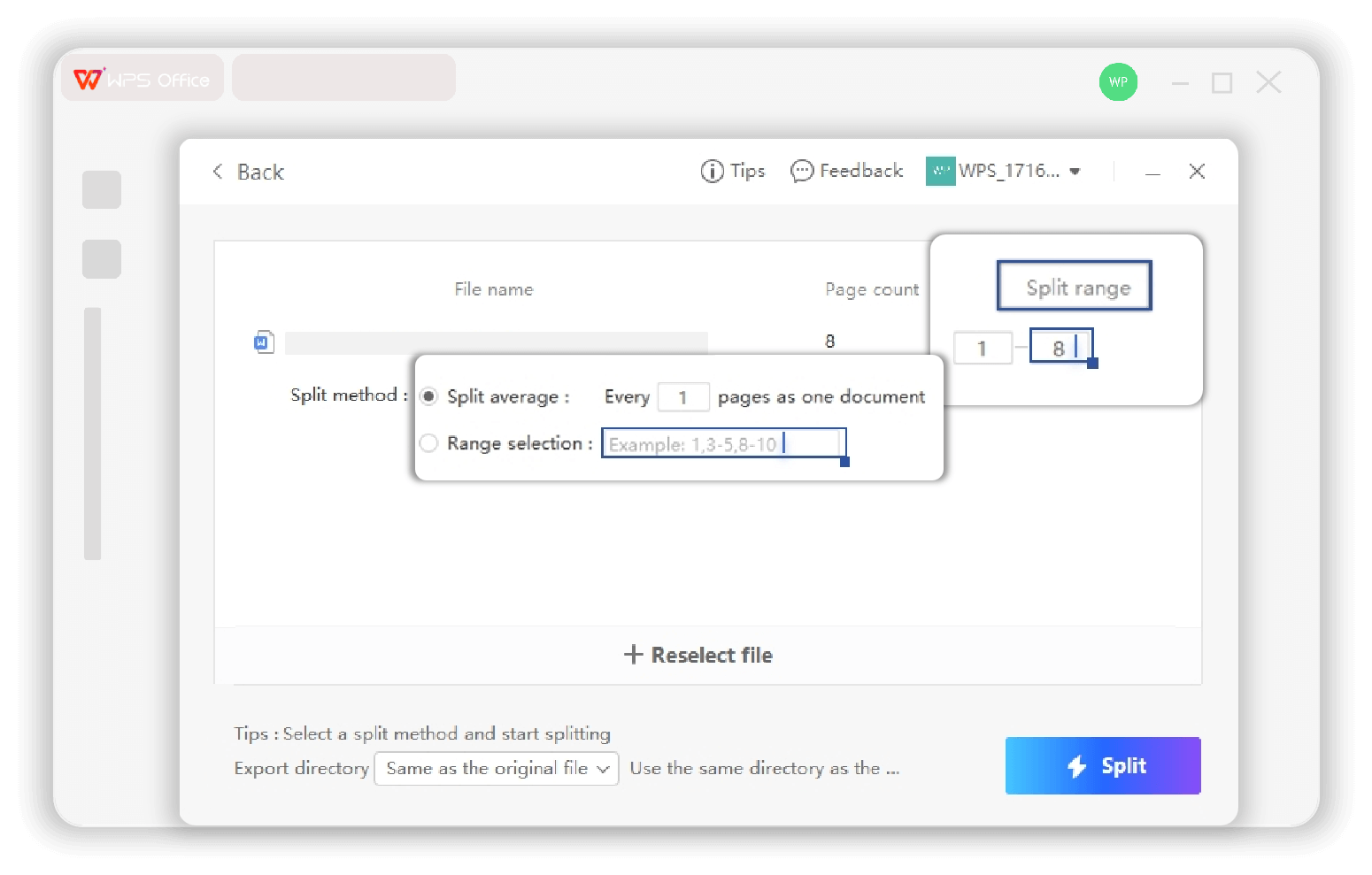
Official overview: WPS Split Word. Core splitting is available on the free desktop app; always confirm the dialog labels on your build, as menu names can vary slightly by version.
Tips After Extracting Pages from Word
A short checklist prevents broken layouts after extracting pages from Word:
Check anchors — include the paragraph that owns floating objects when you copy.
Watch section breaks — different headers/footers may not travel with a simple paste; PDF or a splitter is safer for mixed sections.
Rename clearly — add page ranges in the filename so the extracted file is not mistaken for the master.
Keep the master — extract into a new file; avoid cutting from the only copy unless you intend to remove content.
Re-open once — open the result in Writer (or Word) and scan images, tables, and page numbers before you send it.
FAQ About Extracting Pages from Word
Does Microsoft Word have a one-click Extract Pages button?
No dedicated Extract Pages command. Most workflows for extracting pages from Word use copy-paste, print-to-PDF, VBA, or a splitter such as WPS Split or Merge.
Will formatting stay intact?
Copy-paste keeps most styles. Print to PDF freezes the look. WPS Split or Merge is built to preserve fonts, images, tables, and layout in the new files.
Can I extract non-consecutive pages?
Many PDF print dialogs accept lists like 1,3,5-7. For editable Word output, copy sections separately or use a splitter that supports custom ranges.
Is WPS Split or Merge free and offline?
Yes—the core split feature works in the free WPS Office desktop app and processes files locally on your computer.
Copy-paste vs Split or Merge—which should I use?
Use copy-paste for one short selection. Use Split or Merge when you need page ranges, heading-based chapters, or many single-page files without manual selecting.

Summary
Extracting pages from Word is about choosing the right output: paste into a new .docx for editing, print a page range to PDF for locked sharing, or run Tools → Split or Merge in WPS Writer when you want faster, format-aware splits. Start with the smallest method that matches your goal, open the result once to verify, then send only what the reader needs.
Want the split workflow on your desktop? Download WPS Office, open your document in Writer, and try Split or Merge on a practice copy first.

'%3e%3cpath%20d='M19.9911%204.11386V6.471H18.5894C18.0775%206.471%2017.7322%206.57814%2017.5536%206.79243C17.3751%207.00671%2017.2858%207.32814%2017.2858%207.75671V9.44421H19.9019L19.5536%2012.0871H17.2858V18.8639H14.5536V12.0871H12.2769V9.44421H14.5536V7.49779C14.5536%206.39064%2014.8632%205.53201%2015.4822%204.92189C16.1013%204.31177%2016.9257%204.00671%2017.9554%204.00671C18.8304%204.00671%2019.509%204.04243%2019.9911%204.11386Z'%20fill='%23333333'/%3e%3c/g%3e%3cdefs%3e%3cclipPath%20id='clip0_2938_8199'%3e%3crect%20width='16'%20height='16'%20fill='white'%20transform='translate(8%204.00671)'/%3e%3c/clipPath%3e%3c/defs%3e%3c/svg%3e)
'%3e%3cpath%20d='M17.5237%2010.7813L23.4811%204H22.0699L16.8949%209.88693L12.7648%204H8L14.2469%2012.9029L8%2020.0133H9.4112L14.8725%2013.7952L19.2352%2020.0133H24M9.92053%205.04213H12.0885L22.0688%2019.0224H19.9003'%20fill='%23333333'/%3e%3c/g%3e%3cdefs%3e%3cclipPath%20id='clip0_2938_8200'%3e%3crect%20width='16'%20height='16.0134'%20fill='white'%20transform='translate(8%204)'/%3e%3c/clipPath%3e%3c/defs%3e%3c/svg%3e)


