



'%3e%3cpath%20fill-rule='evenodd'%20clip-rule='evenodd'%20d='M21.4999%2010.9993C21.4999%205.20009%2016.7986%200.498901%2010.9993%200.498901C5.19994%200.498901%200.498657%205.20009%200.498657%2010.9993C0.498657%2016.2404%204.33858%2020.5844%209.35855%2021.3722V14.0346H6.69238V10.9993H9.35855V8.68594C9.35855%206.05427%2010.9262%204.60062%2013.3248%204.60062C14.4736%204.60062%2015.6753%204.80571%2015.6753%204.80571V7.38979H14.3512C13.0468%207.38979%2012.64%208.19921%2012.64%209.0296V10.9993H15.5523L15.0867%2014.0346H12.64V21.3722C17.66%2020.5844%2021.4999%2016.2404%2021.4999%2010.9993Z'%20fill='%231568EA'/%3e%3c/g%3e%3c/svg%3e)


'%3e%3cpath%20d='M2.42045%2022.1876H6.31818V12.7217L0.75%208.54553V20.5171C0.75%2021.4414%201.49892%2022.1876%202.42045%2022.1876Z'%20fill='%234285F4'/%3e%3cpath%20d='M19.682%2022.1876H23.5797C24.5041%2022.1876%2025.2502%2021.4387%2025.2502%2020.5171V8.54553L19.682%2012.7217'%20fill='%2334A853'/%3e%3cpath%20d='M19.682%205.48293V12.7216L25.2502%208.54543V6.31816C25.2502%204.25236%2022.8921%203.07469%2021.2411%204.31361'%20fill='%23FBBC04'/%3e%3cpath%20d='M6.31824%2012.7217V5.48303L13.0001%2010.4944L19.6819%205.48303V12.7217L13.0001%2017.733'%20fill='%23EA4335'/%3e%3cpath%20d='M0.75%206.31816V8.54543L6.31818%2012.7216V5.48293L4.75909%204.31361C3.10534%203.07469%200.75%204.25236%200.75%206.31816Z'%20fill='%23C5221F'/%3e%3c/g%3e%3cdefs%3e%3cclipPath%20id='clip0_2954_7305'%3e%3crect%20width='24.5'%20height='18.375'%20fill='white'%20transform='translate(0.75%203.8125)'/%3e%3c/clipPath%3e%3c/defs%3e%3c/svg%3e)


Fastest method for Word on Windows
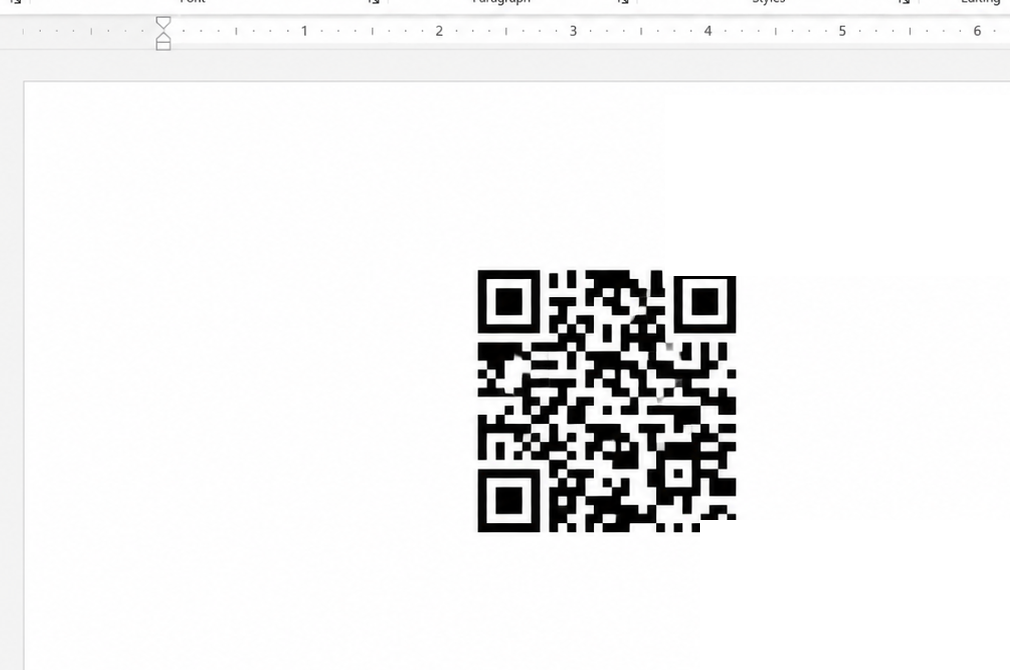
Generate a QR code directly in Word with the DisplayBarcode field.
- Press Ctrl + F9 to create Word field braces.
- Type the command below between the braces.
Type this in the Word field—not on this webpage:
DisplayBarcode "https://www.example.com" QR \q 3- Right-click the field, choose Toggle Field Codes, and Word generates the QR code.
Using Word on Mac or Word Online? Use a compatible QR code add-in. If an add-in is unavailable, create the code with an online generator and add the downloaded image as a fallback.
Two Ways to Generate a QR Code in Word
| Method | Best for | What happens |
|---|---|---|
| DisplayBarcode field | Word for Windows users who need a simple URL or text QR code | Word generates the QR code from a field command |
| Word QR code add-in | Users who prefer a visual panel instead of a field command | The add-in generates and places the QR code inside Word |
Generating a code online and inserting the downloaded image is a useful fallback, but it is not the primary method covered by this guide because the QR code is created outside Word.
Method 1: Create a QR Code Directly with DisplayBarcode
The DisplayBarcode field is the most direct way to generate a basic QR code inside Word for Windows. You can use it for a webpage URL or a short piece of text without installing a separate tool.
Step 1: Place the Cursor
Open the Word document and click where you want the generated QR code to appear. Leave enough space around it so the code will not overlap nearby text.
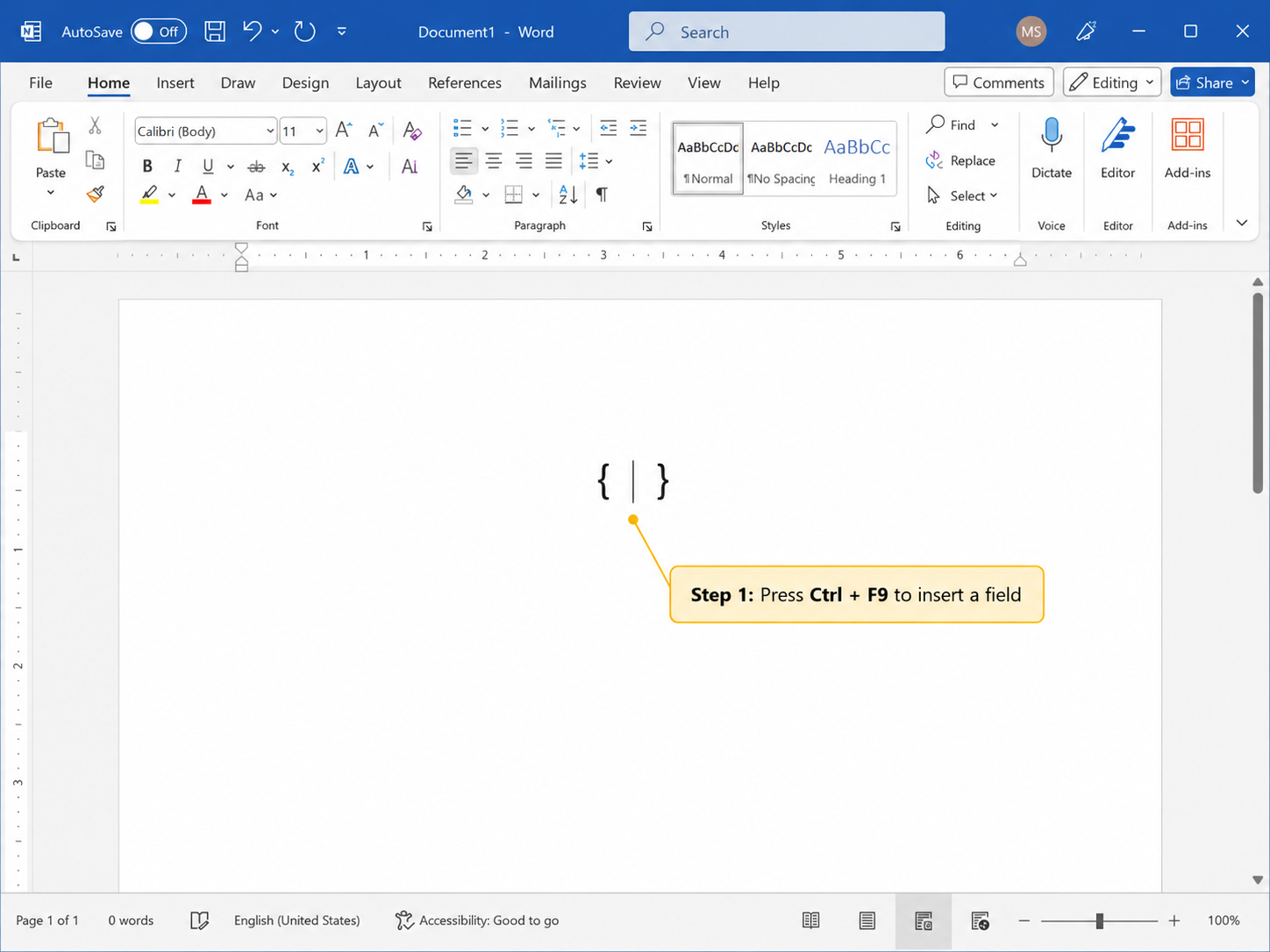
Step 2: Create a Word Field
Press Ctrl + F9. Word will create a pair of special field braces. On keyboards that use the function keys for media controls, you may need to press Ctrl + Fn + F9.
Step 3: Enter the QR Code Command
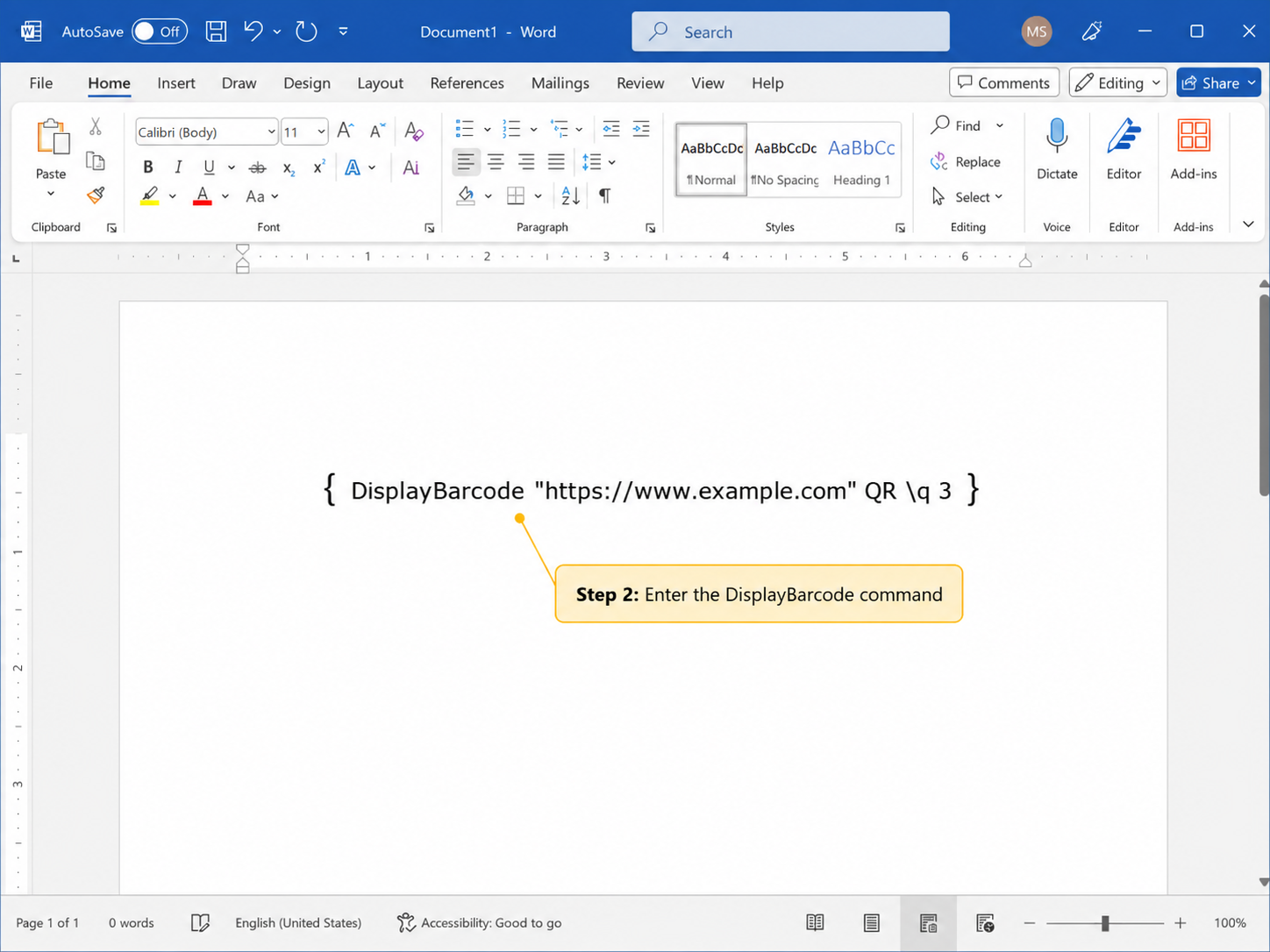
Type the following command between the braces:
DisplayBarcode "https://www.example.com" QR \q 3
Replace the example URL with the link you want the QR code to open. The complete field will appear as:
{ DisplayBarcode "https://www.example.com" QR \q 3 }
DisplayBarcodetells Word to generate a barcode.- The text inside quotation marks is the encoded destination.
QRselects the QR code format.\q 3applies a QR error-correction setting.
Step 4: Generate the QR Code
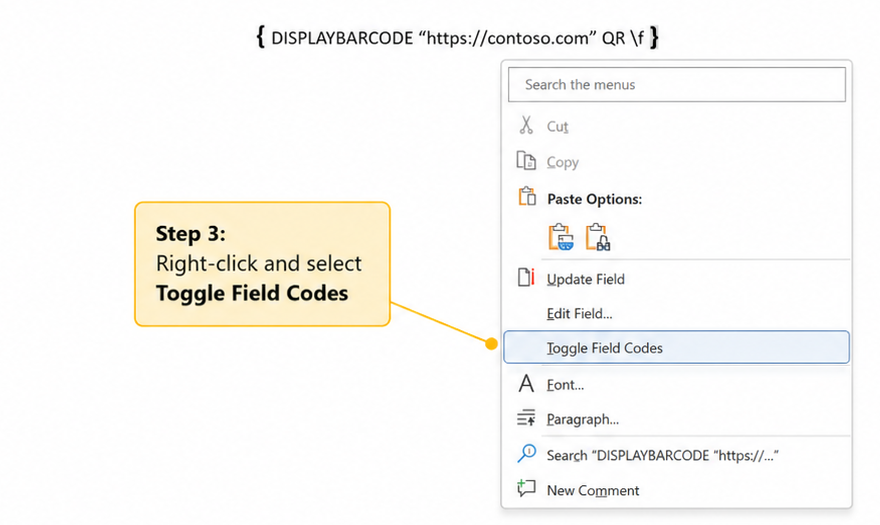
Right-click the field and select Toggle Field Codes. Word will replace the command with a generated QR code.
Word will replace the field command with the QR code shown in the quick answer at the top of this guide.
Step 5: Test the Generated Code
Scan the code with a phone before sharing or printing the document. Confirm that it opens the exact URL or content you entered.
How to Change the QR Code
- Right-click the generated QR code.
- Select Toggle Field Codes.
- Change the URL or text inside the quotation marks.
- Select the field and press F9 to update it.
- Toggle the field again and test the regenerated code.
How to Resize or Customize a QR Code in Word
You can add optional switches to the DisplayBarcode field when the default QR code is too small or you need a different correction level or color.
For example, this command generates the same URL at 150% scale:
DisplayBarcode "https://www.example.com" QR \q 3 \s 150| Switch | What it changes | Valid value or example |
|---|---|---|
\s | Scales the QR code | 10–1000, entered as a whole percentage |
\q | Sets QR error correction | 0–3 |
\f | Sets the foreground color | RGB value from 0 to 0xFFFFFF |
\b | Sets the background color | RGB value from 0 to 0xFFFFFF |
When DisplayBarcode Is the Best Method
Use DisplayBarcode when you are working in Word for Windows and need a simple QR code without logos, scan analytics, or a destination that can be changed through an external dashboard.
Method 2: Generate a QR Code with a Word Add-in
A compatible Office add-in can generate the QR code through a visual panel inside Word. This method is useful when you do not want to type a field command or want basic controls such as size and color.
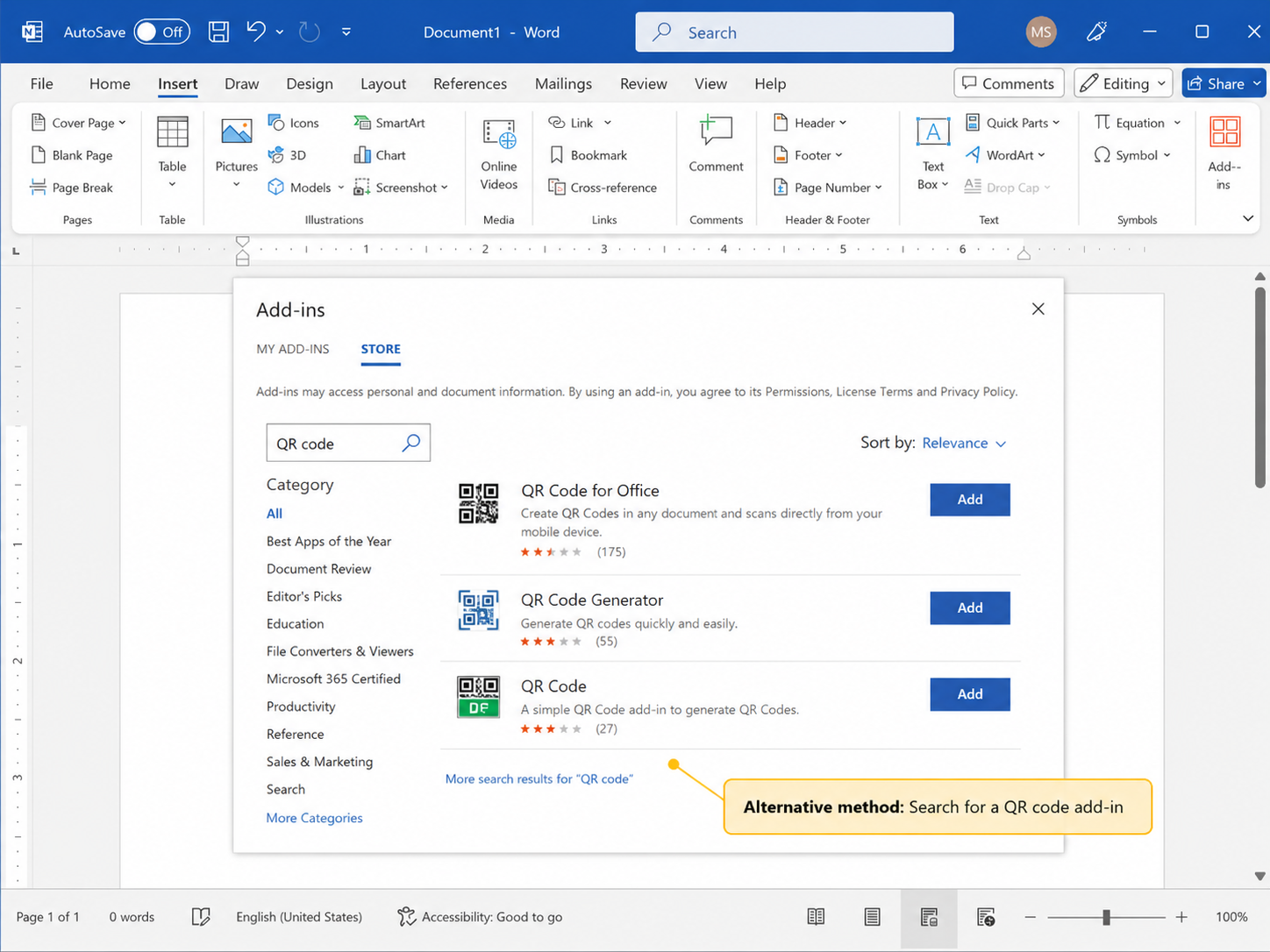
Step 1: Open the Add-ins Menu
Depending on your Word version, open Insert > Get Add-ins or Home > Add-ins > More Add-ins.
Step 2: Search for a QR Code Add-in
Search for QR code. Review the publisher, supported Word versions, required permissions, privacy information, and recent reviews before installing an add-in.
One current example is QR4Office in Microsoft Marketplace. It can embed QR code images in Office documents and provides controls for color, background, size, and error correction.
Step 3: Generate the Code
- Open the installed add-in inside Word.
- Enter the complete URL or content you want to encode.
- Adjust any available settings while keeping strong contrast.
- Select the add-in's generate or insert command.
- Scan the generated code to verify the destination.
Some business and education accounts block third-party add-ins or require administrator approval. Avoid entering confidential information until you have reviewed the add-in's permissions.
Need to Create Multiple QR Codes in Word?
For labels, tickets, certificates, or personalized letters, Word can create a different QR code for each record through Mail Merge. Store the destination URLs or IDs in an Excel column, connect that spreadsheet to Word, and use a MergeBarcode field that references the column heading.
For an Excel column named QR_Link, the field command can use:
MergeBarcode QR_Link QR \q 3- Prepare the URLs or IDs in one Excel column.
- In Word, go to Mailings and connect the Excel file as the recipient list.
- Insert a MergeBarcode field that uses the exact Excel column heading.
- Preview the results and test several generated QR codes before completing the merge.
For the full setup, see Microsoft's guide to adding barcodes to labels.
What If Your Version of Word Cannot Generate a QR Code?
When DisplayBarcode is unavailable and your account cannot install an add-in, create the QR code with an online generator and add the downloaded image to Word.
- Enter the URL in an online QR code generator.
- Generate and test the code.
- Download it as a clear PNG image.
- In Word, select Insert > Pictures.
- Select the image and resize it from a corner.
This is a compatibility fallback: the QR code is generated outside Word and then added to the document.
Need help selecting a suitable tool? Compare the best QR code generators without turning this Word tutorial into a full generator comparison.
How to Make a QR Code Created in Word Scan Correctly
- Use a dark code on a light background.
- Preserve the empty border around the QR code.
- Do not stretch the code vertically or horizontally.
- Test it after saving the Word document.
- Test it again after exporting to PDF or printing.
- Check that the destination is accessible to other users.
Creating a QR Code in Word vs. Creating One for a Word File
Creating a QR code in Word means Word generates or contains a QR code that links to a URL, form, portfolio, video, or other destination.
Creating a QR code for a Word document means the code opens the DOCX file itself. To do that, upload the file, create a shareable link, and generate a QR code for the link.
Use the separate guide to convert a PDF or Word document to a QR code when the complete file—not a webpage link inside the document—is the destination.
Troubleshooting QR Code Generation in Word
Word Shows the Command Instead of a QR Code
Right-click the field and select Toggle Field Codes.
The Command Does Not Generate a QR Code
Make sure Word created the braces with Ctrl + F9. Check that the destination is inside straight quotation marks and that QR appears after it.
The Generated QR Code Opens the Wrong Link
Toggle the field code, inspect the URL for spelling errors or extra spaces, update the field, and scan it again.
The QR Code Does Not Scan After Printing
Increase its printed size, keep the code square, use stronger contrast, preserve the empty border, and print another test page.
The Add-in Is Missing or Blocked
Use DisplayBarcode in Word for Windows or use the online-generator fallback when your account cannot install add-ins.
Frequently Asked Questions
Can Word generate a QR code without an add-in?
Yes. Word for Windows can generate a QR code through the DisplayBarcode field. Press Ctrl + F9, enter the command, and toggle the field code.
Does Microsoft Word have a QR code button?
Word does not provide a universal built-in QR Code button. Use DisplayBarcode or install a compatible QR code add-in.
Can I generate a QR code in Word on Mac?
DisplayBarcode is documented for Word desktop on Windows. On Mac, check for a compatible add-in; otherwise, use an external generator as a fallback.
Can I generate a QR code in Word Online?
Use a compatible Word add-in when available. Otherwise, generate the code externally and add the downloaded image to the online document.
Can I change a DisplayBarcode QR code later?
Yes. Toggle the field code, edit the encoded URL or text, update the field with F9, and generate the visible code again.
Does a QR code generated in Word expire?
A static code does not expire by itself, but it will stop working if the linked destination changes, is deleted, or becomes inaccessible.
Can Word generate multiple QR codes from Excel data?
Yes. Word can use Mail Merge with the MergeBarcode field to generate one QR code for each record in an Excel data source. The field name in the command must match the Excel column heading.


No Microsoft Word? Finish the QR Code Document in WPS Writer
The DisplayBarcode method requires Word for Windows. When Microsoft Word is not available, you can still complete the same document task by generating the QR code online and placing the downloaded image in WPS Writer.
WPS Writer can open and edit Word-compatible DOC and DOCX files, so you can continue working on an existing Word document or create a new one without changing the main file format.
How to Add the Generated QR Code in WPS Writer
- Generate the QR code with an online tool and download it as a clear PNG image.
- Open WPS Writer and create a new document or open the existing DOCX file.
- Select Insert > Picture and choose the downloaded QR code image.
- Resize the code from a corner so it remains square, then adjust the text-wrapping and position.
- Save the document as a Word-compatible file and scan the QR code again before sharing or printing.
Open DOCX files, insert the generated QR code image, adjust the page layout, and save the finished document.
Free Download

'%3e%3cpath%20d='M19.9911%204.11386V6.471H18.5894C18.0775%206.471%2017.7322%206.57814%2017.5536%206.79243C17.3751%207.00671%2017.2858%207.32814%2017.2858%207.75671V9.44421H19.9019L19.5536%2012.0871H17.2858V18.8639H14.5536V12.0871H12.2769V9.44421H14.5536V7.49779C14.5536%206.39064%2014.8632%205.53201%2015.4822%204.92189C16.1013%204.31177%2016.9257%204.00671%2017.9554%204.00671C18.8304%204.00671%2019.509%204.04243%2019.9911%204.11386Z'%20fill='%23333333'/%3e%3c/g%3e%3cdefs%3e%3cclipPath%20id='clip0_2938_8199'%3e%3crect%20width='16'%20height='16'%20fill='white'%20transform='translate(8%204.00671)'/%3e%3c/clipPath%3e%3c/defs%3e%3c/svg%3e)
'%3e%3cpath%20d='M17.5237%2010.7813L23.4811%204H22.0699L16.8949%209.88693L12.7648%204H8L14.2469%2012.9029L8%2020.0133H9.4112L14.8725%2013.7952L19.2352%2020.0133H24M9.92053%205.04213H12.0885L22.0688%2019.0224H19.9003'%20fill='%23333333'/%3e%3c/g%3e%3cdefs%3e%3cclipPath%20id='clip0_2938_8200'%3e%3crect%20width='16'%20height='16.0134'%20fill='white'%20transform='translate(8%204)'/%3e%3c/clipPath%3e%3c/defs%3e%3c/svg%3e)


