



'%3e%3cpath%20fill-rule='evenodd'%20clip-rule='evenodd'%20d='M21.4999%2010.9993C21.4999%205.20009%2016.7986%200.498901%2010.9993%200.498901C5.19994%200.498901%200.498657%205.20009%200.498657%2010.9993C0.498657%2016.2404%204.33858%2020.5844%209.35855%2021.3722V14.0346H6.69238V10.9993H9.35855V8.68594C9.35855%206.05427%2010.9262%204.60062%2013.3248%204.60062C14.4736%204.60062%2015.6753%204.80571%2015.6753%204.80571V7.38979H14.3512C13.0468%207.38979%2012.64%208.19921%2012.64%209.0296V10.9993H15.5523L15.0867%2014.0346H12.64V21.3722C17.66%2020.5844%2021.4999%2016.2404%2021.4999%2010.9993Z'%20fill='%231568EA'/%3e%3c/g%3e%3c/svg%3e)


'%3e%3cpath%20d='M2.42045%2022.1876H6.31818V12.7217L0.75%208.54553V20.5171C0.75%2021.4414%201.49892%2022.1876%202.42045%2022.1876Z'%20fill='%234285F4'/%3e%3cpath%20d='M19.682%2022.1876H23.5797C24.5041%2022.1876%2025.2502%2021.4387%2025.2502%2020.5171V8.54553L19.682%2012.7217'%20fill='%2334A853'/%3e%3cpath%20d='M19.682%205.48293V12.7216L25.2502%208.54543V6.31816C25.2502%204.25236%2022.8921%203.07469%2021.2411%204.31361'%20fill='%23FBBC04'/%3e%3cpath%20d='M6.31824%2012.7217V5.48303L13.0001%2010.4944L19.6819%205.48303V12.7217L13.0001%2017.733'%20fill='%23EA4335'/%3e%3cpath%20d='M0.75%206.31816V8.54543L6.31818%2012.7216V5.48293L4.75909%204.31361C3.10534%203.07469%200.75%204.25236%200.75%206.31816Z'%20fill='%23C5221F'/%3e%3c/g%3e%3cdefs%3e%3cclipPath%20id='clip0_2954_7305'%3e%3crect%20width='24.5'%20height='18.375'%20fill='white'%20transform='translate(0.75%203.8125)'/%3e%3c/clipPath%3e%3c/defs%3e%3c/svg%3e)


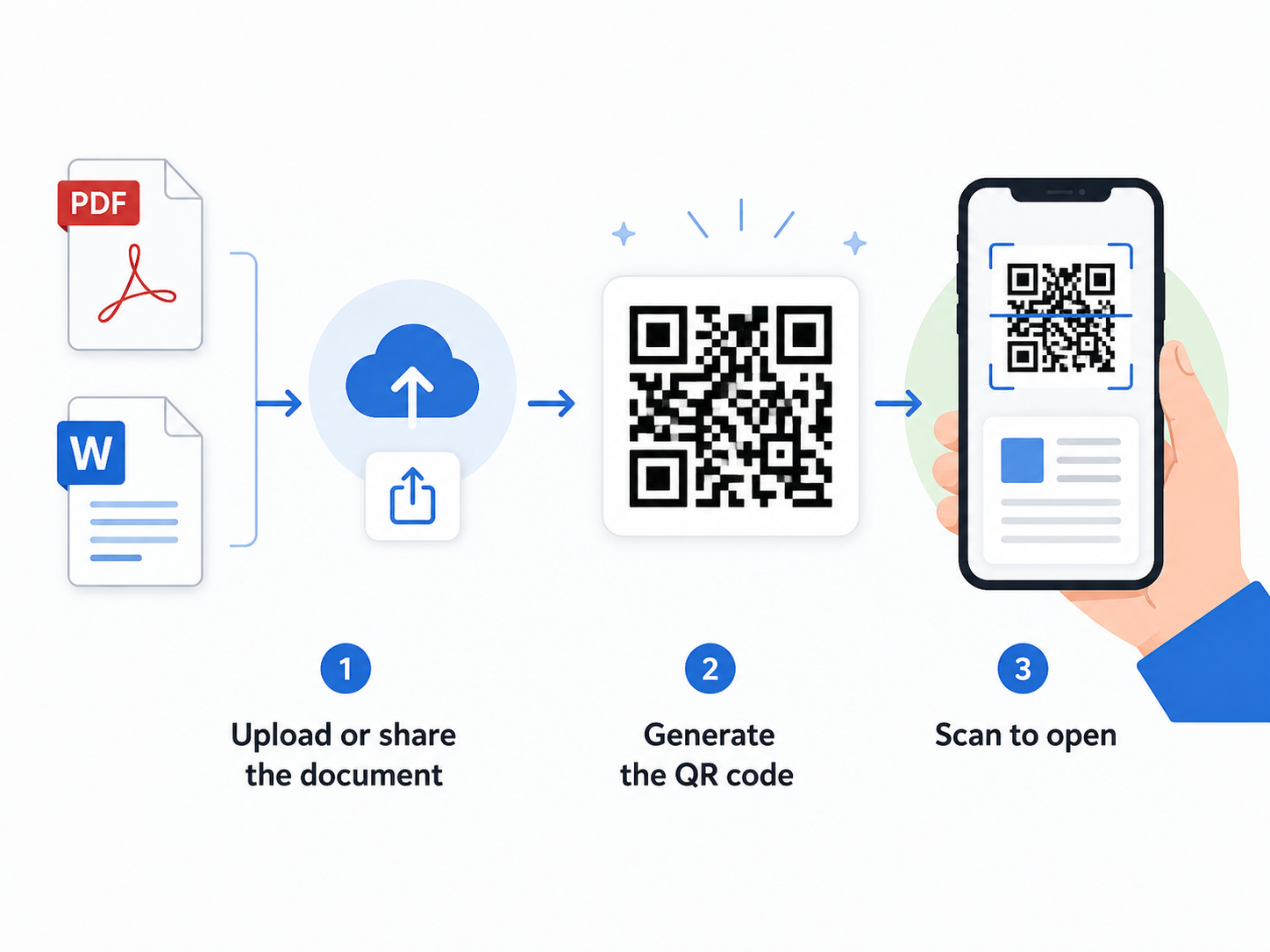
Create a QR code that people can scan to open your document. Upload a PDF directly, or use a supported Word file or shareable document link when you need to keep editing the file or control access.
Generate a QR Code for Your DocumentUpload the file → Generate the QR code → Download and test
This opens a third-party QR code generator. Check its current account, storage, and plan requirements before uploading sensitive documents.
Have a Word file or need access controls? Use WPS Office to edit the document, create a sharing link, and share it by QR code .
How to Convert a PDF or Word Document to a QR Code
The quickest way is to upload the finished document to a file QR code generator. The service hosts or links to the file and creates a QR code that opens the document when scanned. A document QR code usually points to an online file; it does not store the entire PDF or Word document inside the visible code.
- Open the document QR code generator. Use the button above to open the file upload page.
- Upload the PDF or supported Word file. Select the document from your device and wait for the upload to finish.
- Generate and save the QR code. Keep the design simple and give the code a recognizable name.
- Download and test it. Scan the code on another phone and make sure the correct file opens.
Method 1: Upload the PDF or Word Document Directly
Direct upload is the best starting point when the file is finished and recipients only need to open, read, or download it. It is especially straightforward for PDF files because their layout normally remains consistent across phones, tablets, and computers.
Step 1: Open the File QR Code Generator
Open the generator using the button at the top of this page. The linked QRCodeChimp page allows you to upload a PDF or use an existing file URL. Its documentation also states that other supported document formats, including Word files, can be converted into QR codes.
Step 2: Upload the Document
Select Upload/Choose from File Manager . Upload the document from your device, then select the uploaded file. If you are using a file that is already online, you can paste its public or permission-controlled URL instead.
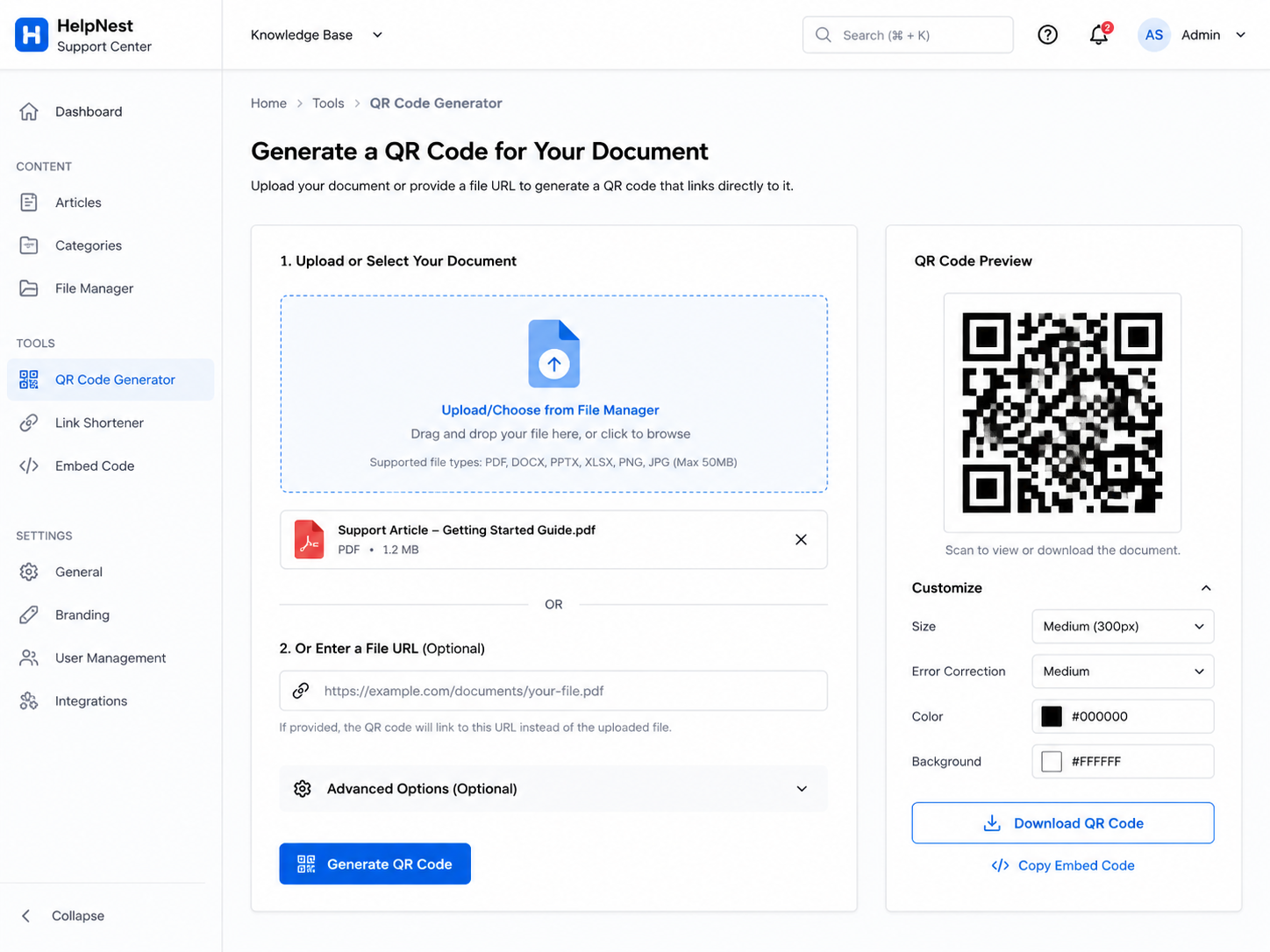
Check the file before continuing. A QR code can work perfectly while still opening the wrong document, so confirm the file name, version, and page content before saving the code.
Step 3: Customize the QR Code
QRCodeChimp provides a Design Color and Decorate QR Code option. Customization is optional. For reliable scanning, use a dark QR pattern on a light background, keep the clear margin around the code, and avoid covering too much of the pattern with a logo.
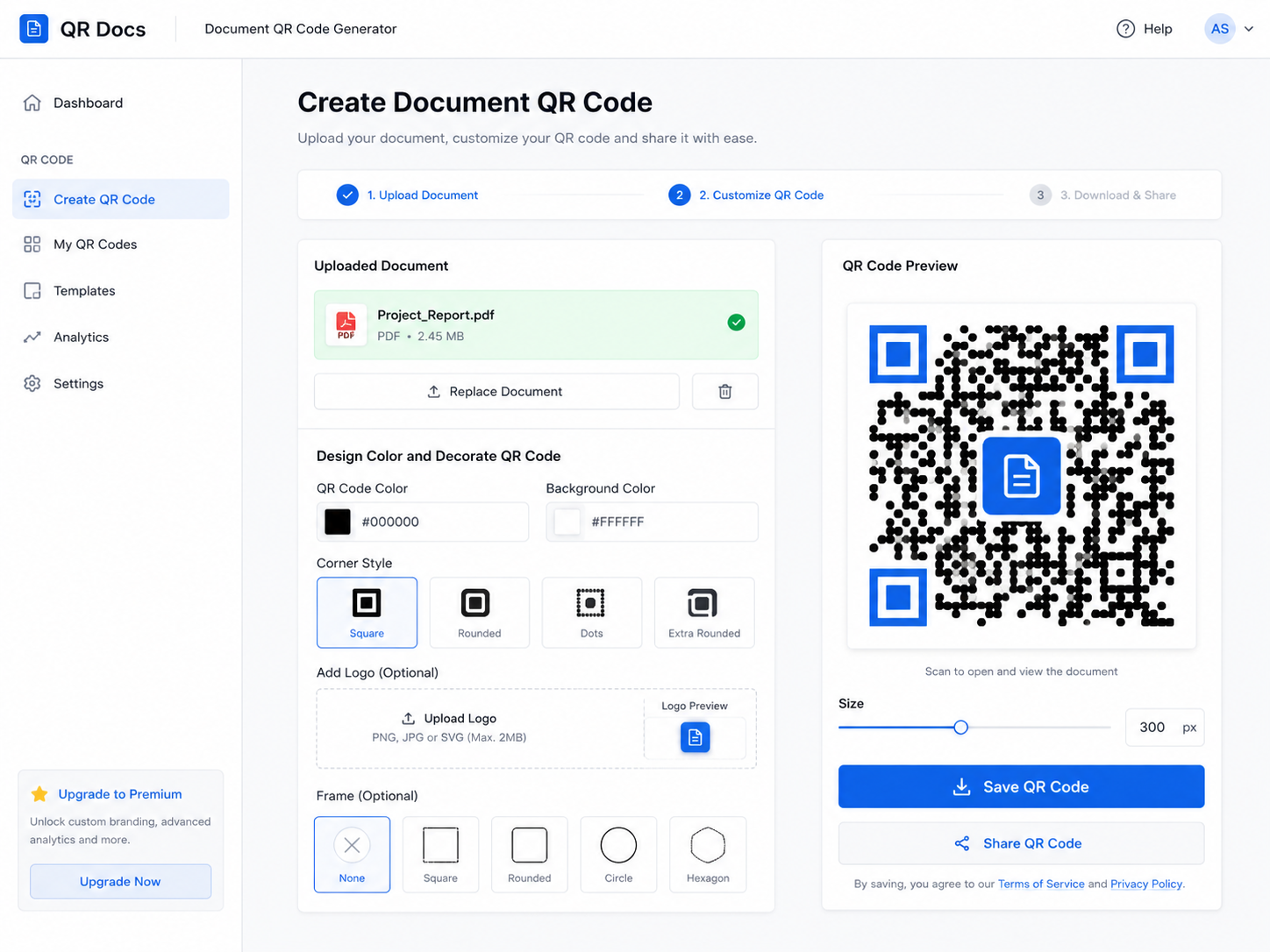
If the code will appear on a poster, menu, package, or printed handout, add a short instruction such as “Scan to View the Document.” This tells people what will happen before they scan.
Step 4: Save and Download the QR Code
Click Save QR Code , enter a recognizable QR code name, and save it. Download the available image or document format supplied by the tool. PNG is suitable for most websites, emails, presentations, and standard printed documents. Use the highest-quality option available when the code will be enlarged.
Step 5: Test the QR Code Before Sharing
Scan the downloaded QR code with a phone that is not signed in to the file owner's account. Confirm all of the following:
- The QR code opens the correct PDF or Word document.
- The file loads without a “Request access” or “Access denied” screen.
- The document is readable on a mobile display.
- The file name and version are correct.
- The code still scans at the size you plan to print or publish.
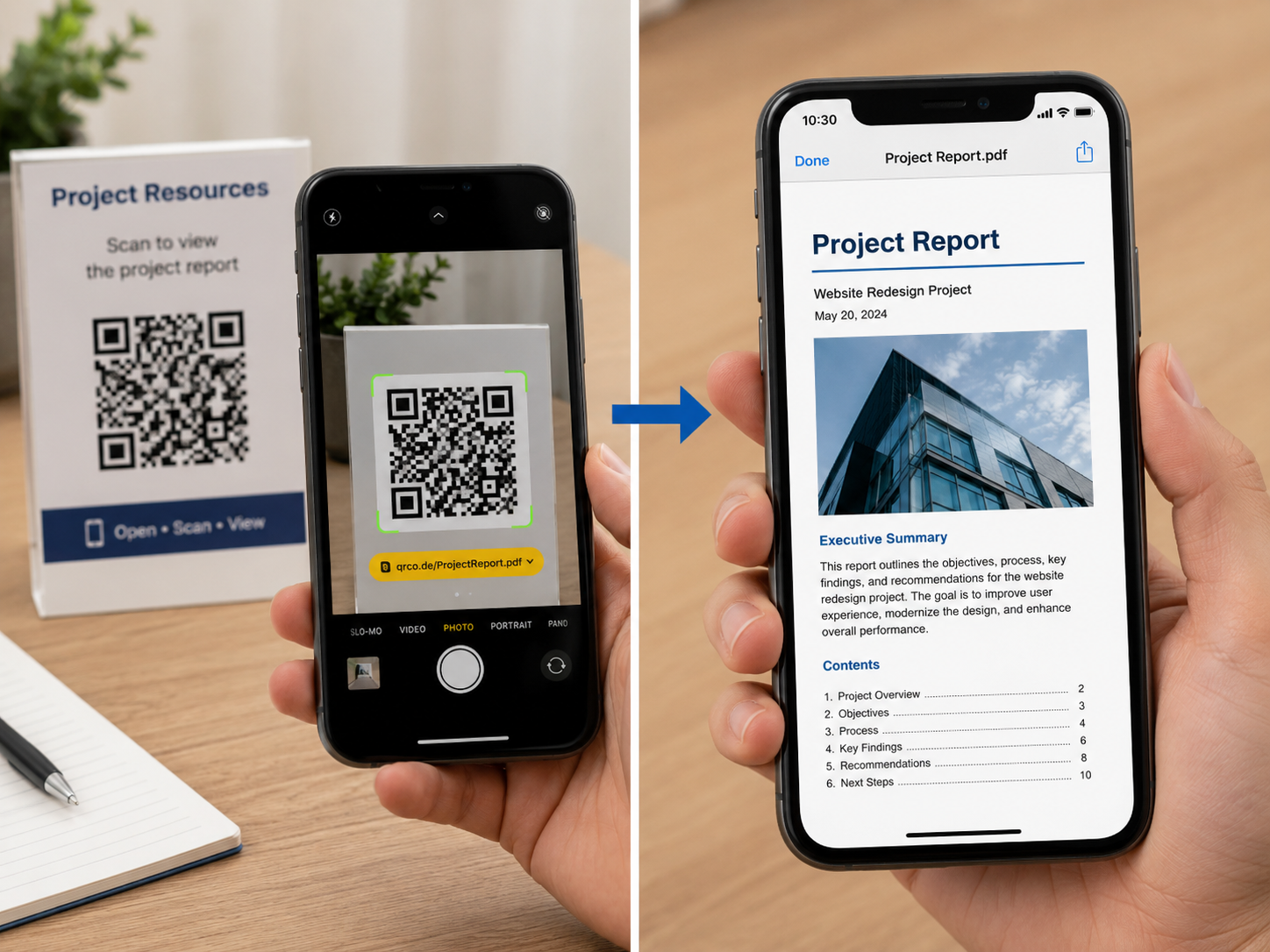
Testing on more than one device is useful before printing a large quantity of posters, brochures, menus, or product labels.
What If You Have a Word Document?
You can create a QR code for a Word document, but the best workflow depends on what recipients need to do after scanning. A finished file intended only for reading is usually easier to share as a PDF. A file that needs editing or collaboration should normally remain in Word and use a controlled sharing link.
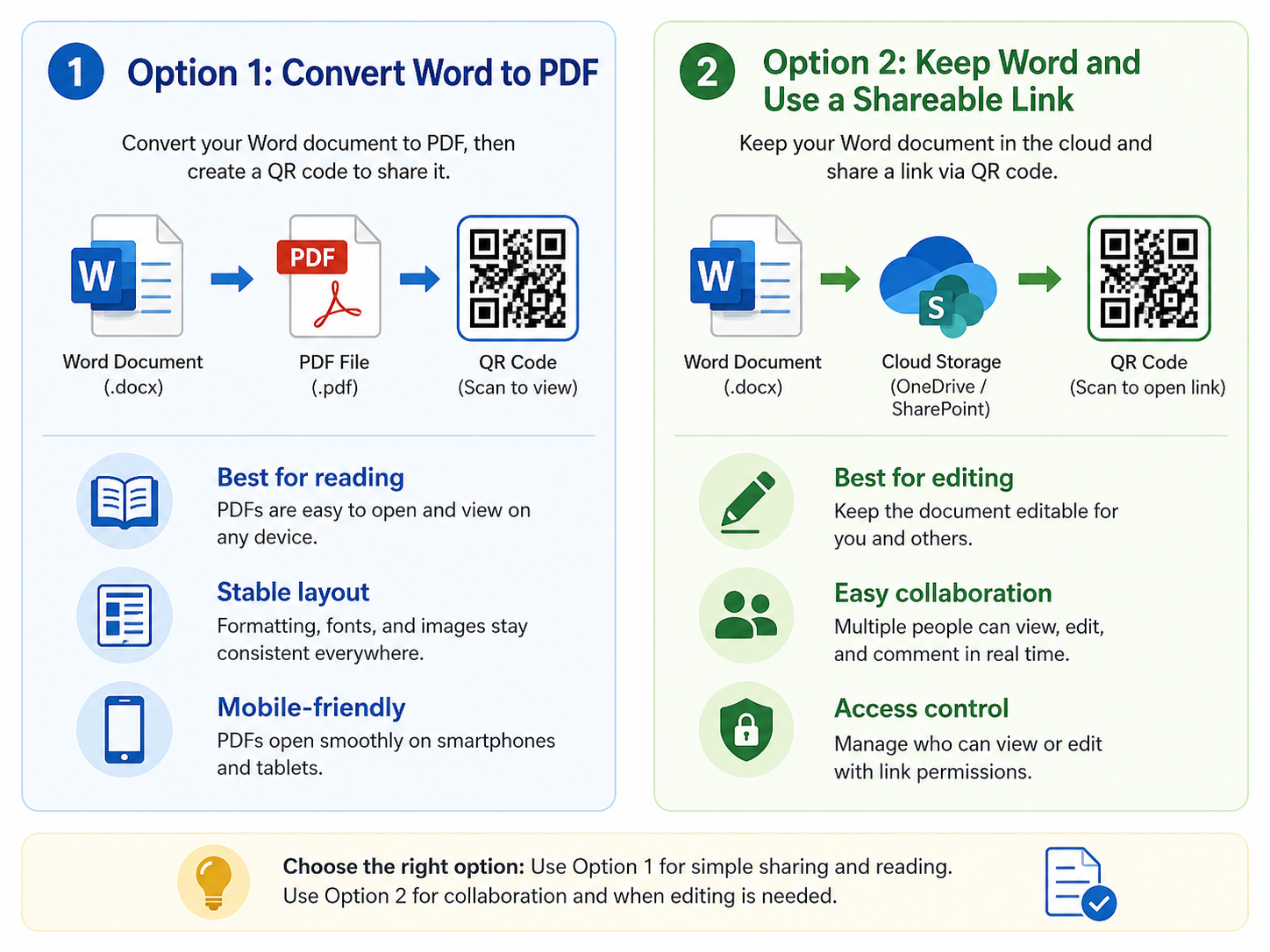
Convert Word to PDF for Easier Viewing
Convert the document to PDF when:
- Recipients only need to read or print the document.
- The fonts, spacing, images, and page breaks must remain fixed.
- Most people will open the document on a phone.
- The QR code generator does not accept DOC or DOCX uploads.
- You want broader compatibility across browsers and devices.
Before converting, check headings, page breaks, images, hyperlinks, and margins. Open the exported PDF once to make sure the layout did not change, then upload that PDF to the QR generator.
Keep the Word File for Editing or Collaboration
Keep the DOC or DOCX format when recipients need to edit text, add comments, work together, or see future revisions. Instead of uploading a final static copy, create a shareable document link in WPS Office or another cloud platform, and then share that link through a QR code.
This approach also gives you more control over whether recipients can only view the file or can make changes.
Method 2: Share a PDF or Word Document by QR Code with WPS Office
WPS Office is a better route when the document still needs editing, when you want to manage view or edit permissions, or when you prefer to keep the file in a controlled cloud-sharing environment. The QR code is part of the document-sharing workflow rather than a separate online file-to-QR generator.
Step 1: Open the Document in WPS Office
Open a PDF in WPS PDF or open a DOC or DOCX file in WPS Writer. Review the content and save the version you want recipients to access.
Step 2: Open Share & Collaborate
Click the Share button in the upper-right area of the interface. Select Share & Collaborate , then choose Get Link .
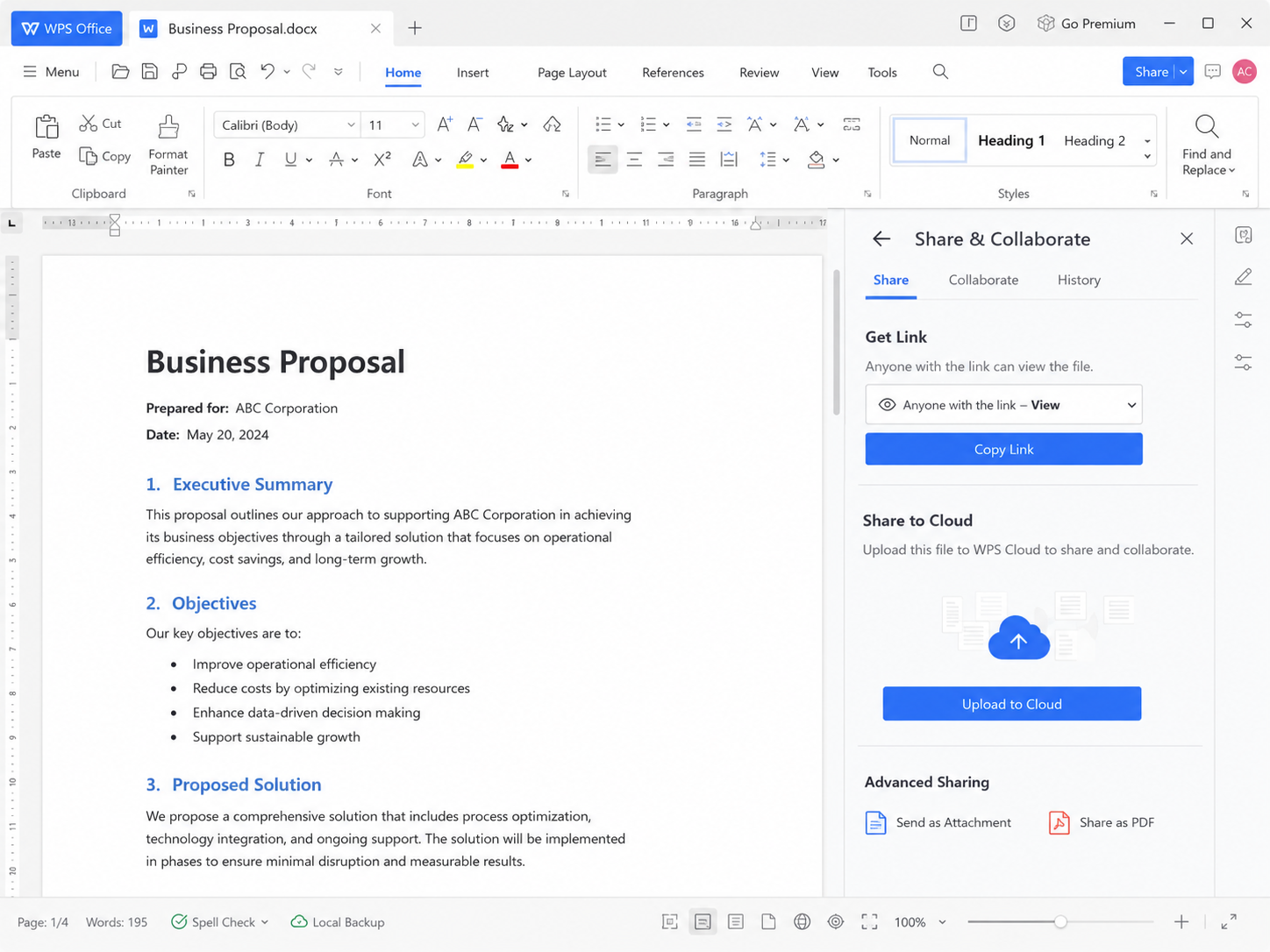
Step 3: Create the Sharing Link
If the file is still stored only on your device, allow WPS Office to upload it to WPS Cloud. After the upload, WPS creates a link that can be used to open the document.
Step 4: Choose the Correct Permission
Select read-only when recipients should only view the document. Choose editable only when they need to make changes or collaborate.
Depending on the available WPS sharing settings, you may also be able to choose a link validity period or disable downloading, printing, and copying. Use the most restrictive setting that still allows recipients to complete their task.
Step 5: Share the Document through QR Code
In the sharing options, choose QR Code . Recipients can scan the displayed code to open the shared file on a phone. You can also copy the link and paste it into a separate URL QR code generator when you need another QR design or download format.
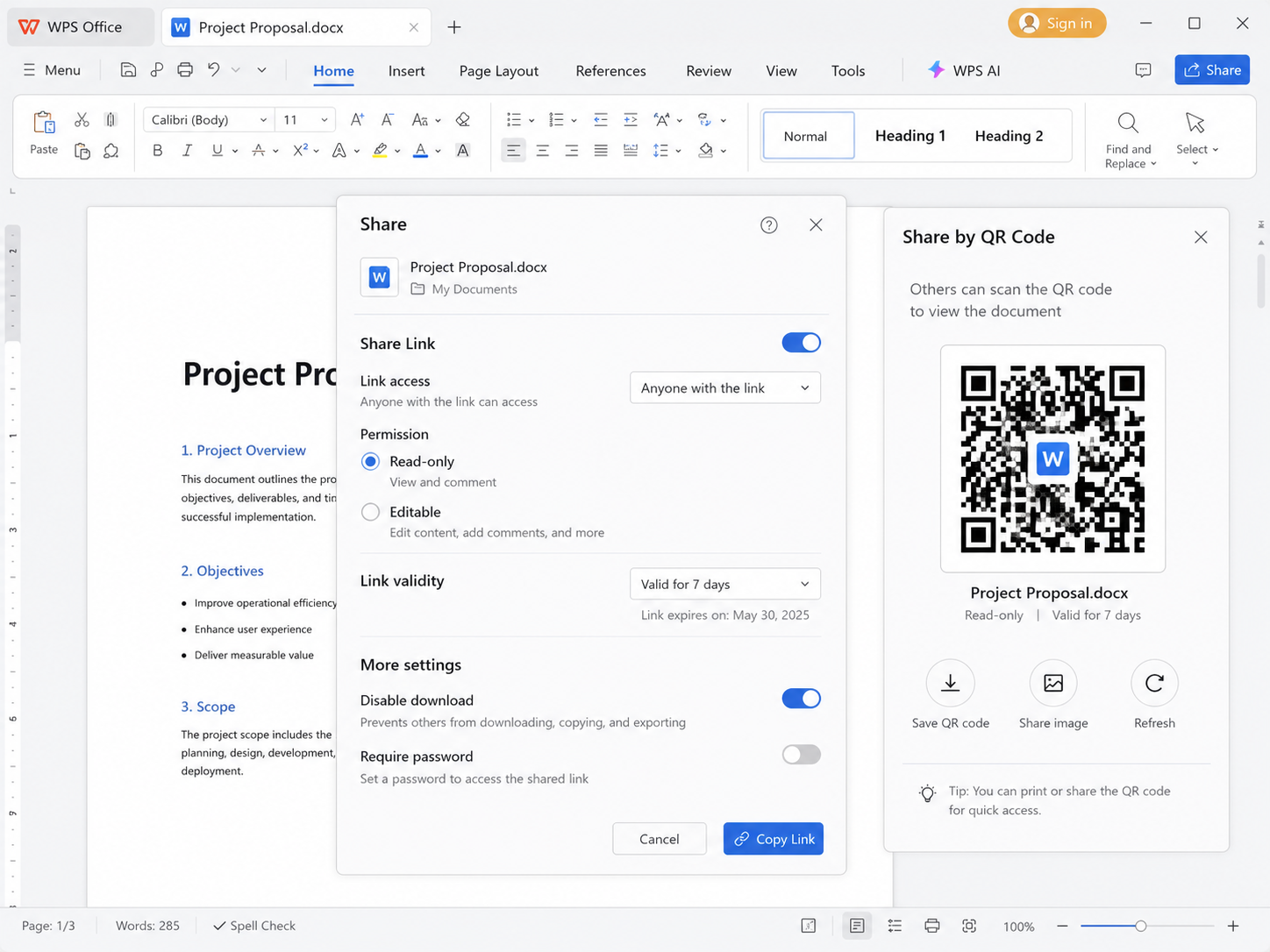
Step 6: Test Access as a Recipient
Test the QR code on another phone or open the sharing link in a private browser window. Make sure the recipient receives the permission you intended. A link that works while you are signed in may still be blocked for everyone else.
Already Have a Document Link?
If the file is already stored in WPS Cloud, Google Drive, OneDrive, Dropbox, or on your website, you do not have to upload it to another file-hosting platform. You can generate a QR code for the existing URL.
- Open the file's sharing settings.
- Copy the link that recipients are supposed to use.
- Open the link in a private browser and confirm that it works.
- Paste the link into a URL QR code generator.
- Generate, save, download, and test the QR code.
Why Is My Document QR Code Not Working?
The QR Code Opens an Access Denied Page
The document is probably private, limited to your organization, or restricted to your own account. Change the sharing permission and test the link again while signed out.
The QR Generator Does Not Accept DOC or DOCX
Convert the Word document to PDF, or upload the Word file to WPS Cloud or another trusted service and create a QR code for its sharing link.
The PDF Is Too Large to Upload
Compress the PDF before uploading it, or store the file in a cloud service and use its link. When compressing, check image quality and text readability before generating the QR code.
The QR Code Opens an Old Version of the Document
The QR code may still contain the URL of an older upload. Replace the file without changing the existing URL, update the destination through a dynamic QR code service, or generate a new QR code for the new link.
The QR Code Worked Before but Has Stopped Working
Check whether the document was deleted, the sharing link expired, the access permission changed, or the hosting or QR code account became inactive. The printed QR pattern may still scan correctly even when its destination is no longer available.
The QR Code Is Difficult to Scan
Increase its printed size, use stronger contrast, restore the clear white margin, and avoid stretching the image. Test the exact printed version rather than relying only on the large preview shown on a screen.
Prepare and Share Documents with WPS Office
WPS Office helps you open and edit PDF, DOC, and DOCX files, convert Word documents to PDF, create permission-controlled sharing links, and share documents through QR codes. It is useful when your document needs editing, format checking, collaboration, or access control before you distribute it.
Download WPS Office


Frequently Asked Questions
Can I create a QR code for a Word document?
Yes. Upload the Word document to a compatible file QR generator, or create a shareable DOC or DOCX link and generate a QR code for that link. If recipients only need to read the document, converting it to PDF usually provides more consistent mobile viewing.
Can I convert a PDF to a QR code for free?
Some QR code generators allow free PDF uploads or let you create a QR code for an existing PDF URL. Check the current account, file-size, hosting, storage, and plan rules before relying on the code for an important or long-term use.
Does the QR code contain the entire PDF or Word document?
Usually not. Most document QR codes contain a link to a hosted file or document-sharing page. The file must remain available at that destination for the QR code to keep working.
Can I update the document without changing the QR code?
Yes, when you can replace or update the file without changing its URL. A dynamic QR code service may also let you change the destination while keeping the same printed code. If the destination URL changes and the QR code is static, you normally need to generate a new code.
Will the document QR code expire?
The QR image itself may remain scannable, but the linked document can become unavailable if the file is removed, the sharing link expires, permissions change, or the hosting service disables access.

'%3e%3cpath%20d='M19.9911%204.11386V6.471H18.5894C18.0775%206.471%2017.7322%206.57814%2017.5536%206.79243C17.3751%207.00671%2017.2858%207.32814%2017.2858%207.75671V9.44421H19.9019L19.5536%2012.0871H17.2858V18.8639H14.5536V12.0871H12.2769V9.44421H14.5536V7.49779C14.5536%206.39064%2014.8632%205.53201%2015.4822%204.92189C16.1013%204.31177%2016.9257%204.00671%2017.9554%204.00671C18.8304%204.00671%2019.509%204.04243%2019.9911%204.11386Z'%20fill='%23333333'/%3e%3c/g%3e%3cdefs%3e%3cclipPath%20id='clip0_2938_8199'%3e%3crect%20width='16'%20height='16'%20fill='white'%20transform='translate(8%204.00671)'/%3e%3c/clipPath%3e%3c/defs%3e%3c/svg%3e)
'%3e%3cpath%20d='M17.5237%2010.7813L23.4811%204H22.0699L16.8949%209.88693L12.7648%204H8L14.2469%2012.9029L8%2020.0133H9.4112L14.8725%2013.7952L19.2352%2020.0133H24M9.92053%205.04213H12.0885L22.0688%2019.0224H19.9003'%20fill='%23333333'/%3e%3c/g%3e%3cdefs%3e%3cclipPath%20id='clip0_2938_8200'%3e%3crect%20width='16'%20height='16.0134'%20fill='white'%20transform='translate(8%204)'/%3e%3c/clipPath%3e%3c/defs%3e%3c/svg%3e)


