



'%3e%3cpath%20fill-rule='evenodd'%20clip-rule='evenodd'%20d='M21.4999%2010.9993C21.4999%205.20009%2016.7986%200.498901%2010.9993%200.498901C5.19994%200.498901%200.498657%205.20009%200.498657%2010.9993C0.498657%2016.2404%204.33858%2020.5844%209.35855%2021.3722V14.0346H6.69238V10.9993H9.35855V8.68594C9.35855%206.05427%2010.9262%204.60062%2013.3248%204.60062C14.4736%204.60062%2015.6753%204.80571%2015.6753%204.80571V7.38979H14.3512C13.0468%207.38979%2012.64%208.19921%2012.64%209.0296V10.9993H15.5523L15.0867%2014.0346H12.64V21.3722C17.66%2020.5844%2021.4999%2016.2404%2021.4999%2010.9993Z'%20fill='%231568EA'/%3e%3c/g%3e%3c/svg%3e)


'%3e%3cpath%20d='M2.42045%2022.1876H6.31818V12.7217L0.75%208.54553V20.5171C0.75%2021.4414%201.49892%2022.1876%202.42045%2022.1876Z'%20fill='%234285F4'/%3e%3cpath%20d='M19.682%2022.1876H23.5797C24.5041%2022.1876%2025.2502%2021.4387%2025.2502%2020.5171V8.54553L19.682%2012.7217'%20fill='%2334A853'/%3e%3cpath%20d='M19.682%205.48293V12.7216L25.2502%208.54543V6.31816C25.2502%204.25236%2022.8921%203.07469%2021.2411%204.31361'%20fill='%23FBBC04'/%3e%3cpath%20d='M6.31824%2012.7217V5.48303L13.0001%2010.4944L19.6819%205.48303V12.7217L13.0001%2017.733'%20fill='%23EA4335'/%3e%3cpath%20d='M0.75%206.31816V8.54543L6.31818%2012.7216V5.48293L4.75909%204.31361C3.10534%203.07469%200.75%204.25236%200.75%206.31816Z'%20fill='%23C5221F'/%3e%3c/g%3e%3cdefs%3e%3cclipPath%20id='clip0_2954_7305'%3e%3crect%20width='24.5'%20height='18.375'%20fill='white'%20transform='translate(0.75%203.8125)'/%3e%3c/clipPath%3e%3c/defs%3e%3c/svg%3e)


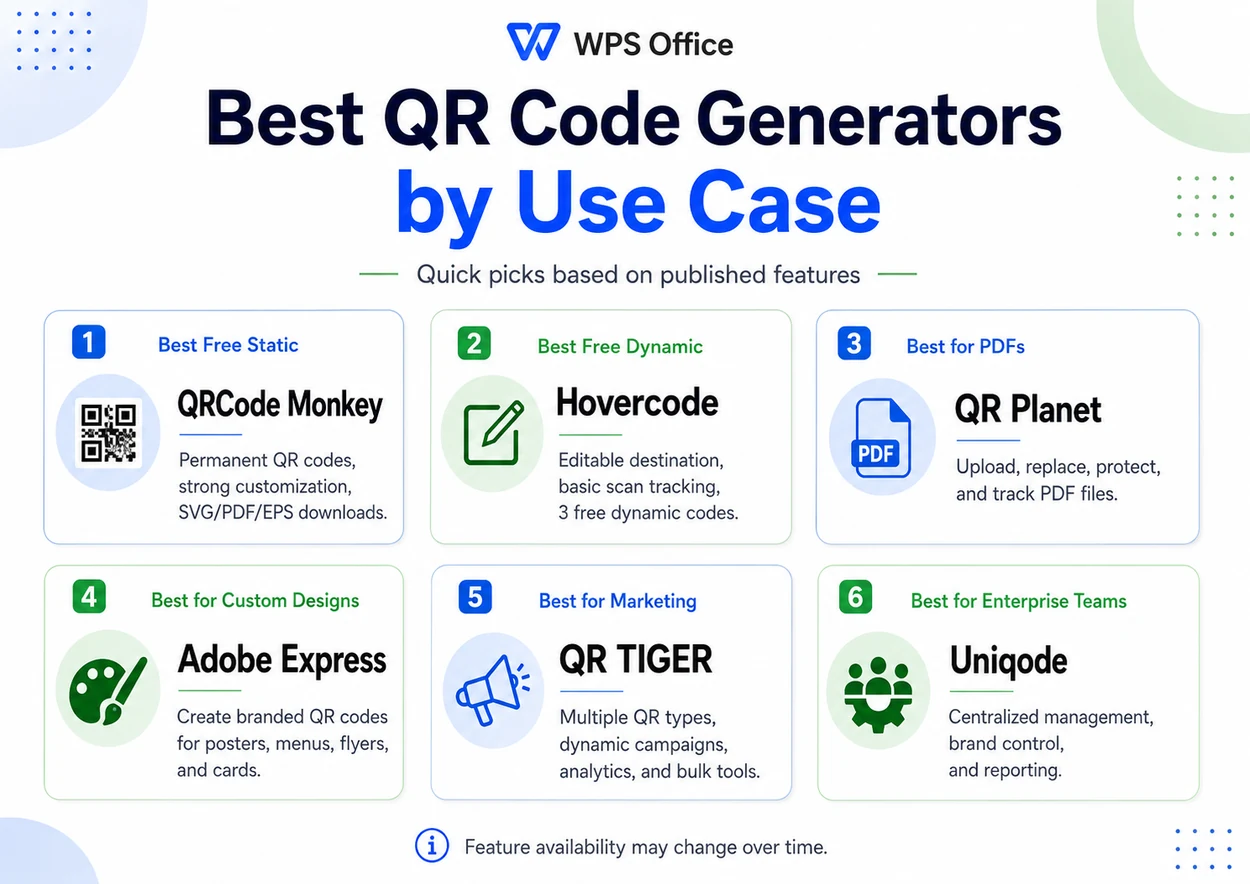
Best overall: QRCode Monkey for a free permanent static QR code. Choose Hovercode instead if you need an editable destination or scan tracking.
For PDFs, custom designs, marketing campaigns, and enterprise use, see the quick recommendations below.
Key Takeaways
- Best overall for most users: QRCode Monkey for permanent static QR codes, Word and PDF use, and print-ready downloads.
- Best free dynamic option: Hovercode for editable destinations and basic scan tracking.
- Best for PDF files: QR Planet for uploading, replacing, protecting, and tracking PDFs.
- Best for custom designs: Adobe Express for posters, menus, invitations, flyers, and business cards.
- Best for marketing: QR TIGER for multiple QR types, campaigns, analytics, and bulk generation.
- Best for enterprise teams: Uniqode for centralized management, permissions, brand controls, and reporting.
How We Selected These QR Code Generators
We compared the tools using the factors that matter most to someone searching for the best QR code generator: the usefulness of the free plan, static and dynamic support, destination editing, scan analytics, PDF and file support, Logo and design controls, available download formats, registration requirements, and suitability for long-term printed use.
The recommendations are based on publicly available product features and plan terms checked in July 2026. They do not claim that every feature was independently hands-on tested. Features, prices, and limits may change.
Best QR Code Generators at a Glance
The table below highlights the differences that matter most: whether the tool is free, supports static or dynamic codes, accepts PDFs, allows Logo customization, provides analytics, and lets you edit the destination later.
| Tool | Best for | Free option | Static | Dynamic | PDF/file | Logo | Analytics | Download formats | Main limitation |
|---|---|---|---|---|---|---|---|---|---|
| QRCode Monkey | Free permanent QR codes | Yes | Yes | No | Through a file link | Yes | No | PNG, SVG, PDF, EPS | Destination cannot be edited |
| Hovercode | Free editable QR codes | Yes | Yes | Yes | Yes | Yes | Yes | Image downloads available | Only 3 free dynamic codes |
| Adobe Express | Custom QR designs | Yes | Yes | No | Through a URL | Yes | No | PNG, JPEG, PDF | No dynamic editing or tracking |
| QR Planet | PDF QR codes | Limited | Yes | Yes | Direct upload | Yes | Yes | Downloadable QR image | Account and plan limits |
| QR TIGER | Marketing campaigns | Freemium | Yes | Yes | Yes | Yes | Yes | Multiple formats | Free dynamic codes have scan limits |
| Uniqode | Enterprise teams | Static codes free | Yes | Paid | Business workflows | Yes | Yes | Raster and vector options | Dynamic codes require payment |
The 6 Best QR Code Generators
1. QRCode Monkey
- Best for
- Permanent static QR codes
- Free plan
- Yes
- Main limitation
- The destination cannot be edited after creation
Best for users who need a free, permanent QR code for a fixed website, document link, business card, resume, poster, or printed handout.
QRCode Monkey focuses on static QR codes. The destination is encoded directly into the QR pattern, so the code does not rely on a third-party redirect each time it is scanned. That makes it a strong option when the link is unlikely to change.
The tool supports custom colors, gradients, corner styles, frames, and uploaded logos. It offers high-resolution PNG plus SVG, PDF, and EPS downloads. SVG is the most useful option for designs that must be enlarged without becoming pixelated.
Its key tradeoff is permanence: the destination cannot be changed after creation, and there is no built-in scan analytics dashboard.
Pros
- No registration for basic generation
- Strong free customization
- PNG and print-ready vector formats
- No dynamic redirect subscription
- Suitable for permanent public URLs
Cons
- Destination cannot be edited later
- No scan analytics
- Not suitable for changing files or campaigns
- Some export formats may simplify custom styling
Choose it for: a portfolio, LinkedIn page, company homepage, permanent landing page, fixed public PDF, Word document, resume, poster, or business card.
Create a Free Static QR Code
2. Hovercode
- Best for
- Editable dynamic QR codes
- Free plan
- Yes, with three free dynamic codes under the current plan
- Main limitation
- Advanced analytics and additional dynamic codes require payment
Best when you need to edit a QR code destination after printing or see how often the code is scanned.
A dynamic QR code points to a redirect URL managed by the provider. You can therefore change the final destination without replacing the QR image. Hovercode’s published free plan includes three dynamic codes, unlimited static codes, destination editing, Logo and color customization, and basic tracking.
The main disadvantage is platform dependency. Advanced analytics, longer history, custom domains, additional codes, and team features require a paid plan.
Pros
- Three free dynamic QR codes
- Editable destination
- Basic scan tracking
- Logo and color customization
- Useful for printed content that may change
Cons
- Limited number of free dynamic codes
- Free analytics history is limited
- Custom domains require payment
- Codes rely on the provider’s redirect service
Choose it for: event posters, restaurant menus, campaigns, property listings, product labels, or documents whose destination may change.
Create a Free Dynamic QR Code
3. Adobe Express
- Best for
- Custom-designed static QR codes
- Free plan
- Yes
- Main limitation
- No native dynamic destination editing or scan analytics
Best for users who want to create a QR code and place it directly into a polished poster, menu, invitation, flyer, or business card.
Adobe Express combines QR creation with a visual design editor. You can enter a URL, adjust colors and style, add a Logo, and download the result as PNG, JPEG, or PDF. The code can then be placed in a broader Adobe Express template.
Its standard generator creates static codes. That makes it less suitable for campaigns that require destination editing or scan analytics.
Pros
- Easy for non-designers
- Works with ready-made design templates
- Logo, color, and style customization
- Useful for branded print and social assets
Cons
- Static codes only in the standard generator
- No native destination editing
- No native scan analytics
- No SVG export from the standard workflow
Choose it for: menus, posters, invitations, business cards, classroom materials, and promotional graphics.
Design a Custom QR Code
4. QR Planet
- Best for
- PDF QR codes that may need updating
- Free plan
- Limited
- Main limitation
- Account, hosting, and plan limits apply
Best for users who need to upload a PDF, replace it later, and keep the same printed QR code.
QR Planet can create a dynamic code that opens a PDF on a smartphone. Because the QR code is dynamic, the file or final destination can be updated without reprinting the image. This is useful for menus, manuals, catalogs, reports, price lists, and frequently revised brochures.
Its capabilities include scan statistics, visual customization, and optional password protection. The key concern is third-party file hosting, so sensitive documents require careful privacy and access-control review.
Pros
- Direct PDF upload
- Replace the PDF without reprinting
- Scan statistics
- Optional password protection
- Designed for changing document content
Cons
- Account required
- Free-plan usage is limited
- Uploaded files depend on third-party hosting
- Large PDFs may load slowly on mobile
Choose it for: digital menus, manuals, catalogs, product guides, event programs, reports, and price lists.
Create a QR Code for a PDF
5. QR TIGER
- Best for
- Marketing campaigns and multiple QR types
- Free plan
- Freemium
- Main limitation
- Free dynamic codes have scan limits
Best for marketers and small businesses that need multiple QR code types, editable campaigns, tracking, bulk generation, and integrations.
QR TIGER supports static and dynamic QR codes for URLs, files, PDFs, vCards, social pages, apps, and other content types. Paid plans add bulk generation, custom domains, advanced analytics, campaign controls, and integrations.
Its broader feature set also makes it more complicated than a basic generator. The tool is most valuable when QR codes are part of a measurable marketing workflow.
Pros
- Many QR destination types
- Dynamic editing and analytics
- Strong brand customization
- Bulk-generation options
- Marketing integrations
Cons
- Free dynamic codes have scan limits
- More complex than basic static tools
- Advanced features require payment
- May be excessive for one permanent link
Choose it for: retail promotions, events, product packaging, lead-generation campaigns, and bulk QR code creation.
Create a Marketing QR Code
6. Uniqode
- Best for
- Enterprise QR code management
- Free plan
- Static codes are free; dynamic features are paid
- Main limitation
- Too complex and costly for a simple one-time code
Best for organizations that need centralized management, multiple user roles, brand controls, security features, and real-time reporting.
Uniqode is designed for companies that treat QR codes as managed digital assets. Teams can assign permissions, standardize designs, organize campaigns, export analytics, and maintain shared brand controls.
It is not the most economical choice for someone who needs only one code. Its strengths become relevant when multiple teams, locations, or clients need a governed QR code workflow.
Pros
- Centralized team management
- Role-based access
- Brand and template controls
- Real-time analytics
- Scalable campaign organization
Cons
- Dynamic codes require payment
- Higher complexity
- Unnecessary for occasional personal use
- Advanced controls are plan-dependent
Choose it for: multi-team, multi-location, agency, franchise, and enterprise deployments.
Explore Enterprise QR Management
Which QR Code Generator Should You Choose?
Choose QRCode Monkey for a permanent free code
Use it when the destination will not change, you do not need analytics, and you want a static code for Word, PDF, a resume, or print.
Choose Hovercode when the destination may change
Use it when a printed code may need a corrected URL, updated page, or basic scan tracking.
Choose QR Planet for an updateable PDF
Use it for menus, manuals, catalogs, reports, or other PDF files that may be replaced after printing.
Choose Adobe Express when design is the priority
Use it when the QR code needs to sit inside a branded poster, invitation, menu, flyer, or card.
Choose QR TIGER for marketing
Use it for multiple code types, campaigns, analytics, bulk generation, and integrations.
Choose Uniqode for enterprise governance
Use it for user permissions, shared brand rules, centralized reporting, and organization-wide deployment.
Static vs. Dynamic QR Codes: Which Is Better?
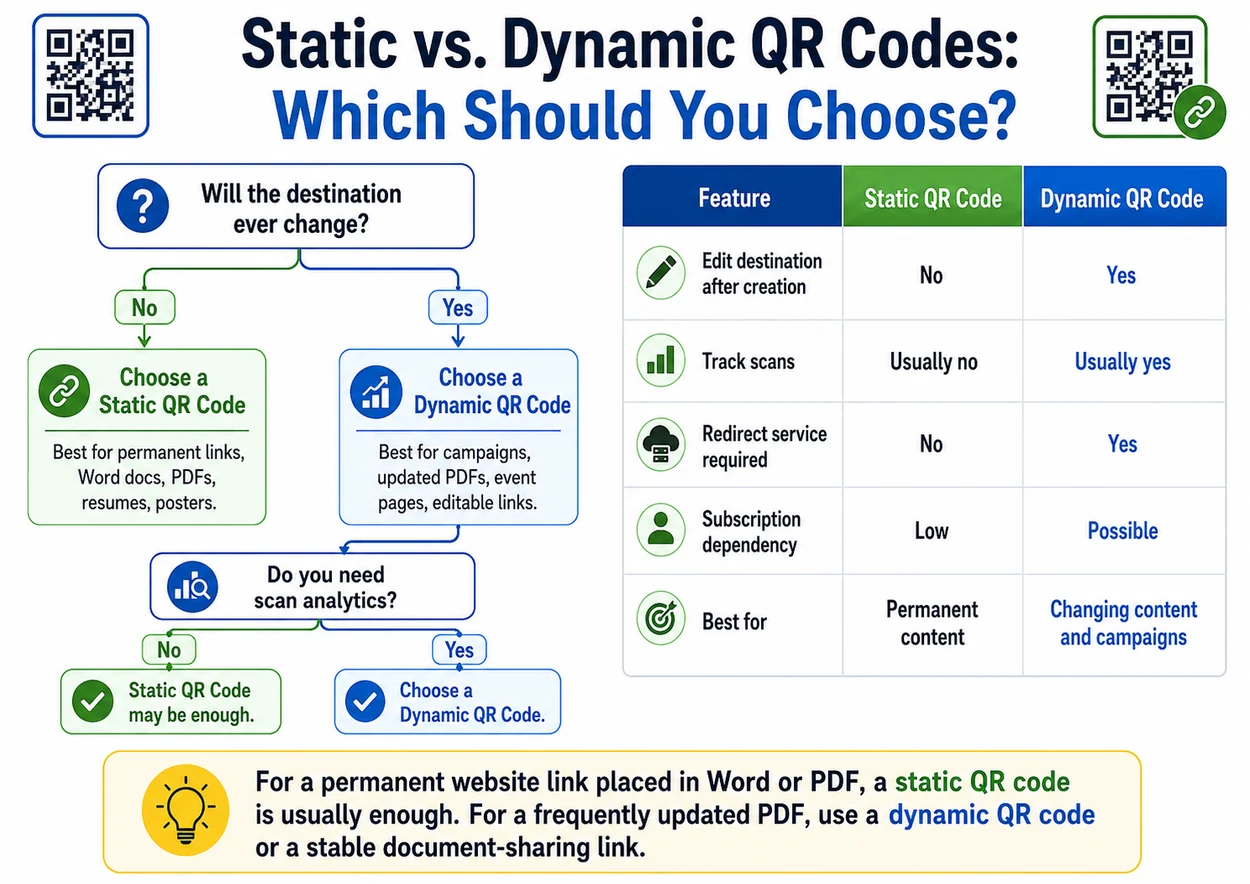
A static QR code stores the final destination directly in the pattern. A dynamic QR code usually stores a redirect URL controlled through a QR platform, which enables destination editing and analytics.
| Feature | Static QR code | Dynamic QR code |
|---|---|---|
| Edit destination after creation | No | Yes |
| Track scans | Usually no | Usually yes |
| Redirect service required | No | Yes |
| Subscription dependency | Low | Possible |
| Best for | Permanent content | Changing content and campaigns |
| Typical cost | Usually free | Often freemium or paid |
How to Generate a QR Code
Most QR code generators follow the same six-step workflow, even when their interfaces look different.
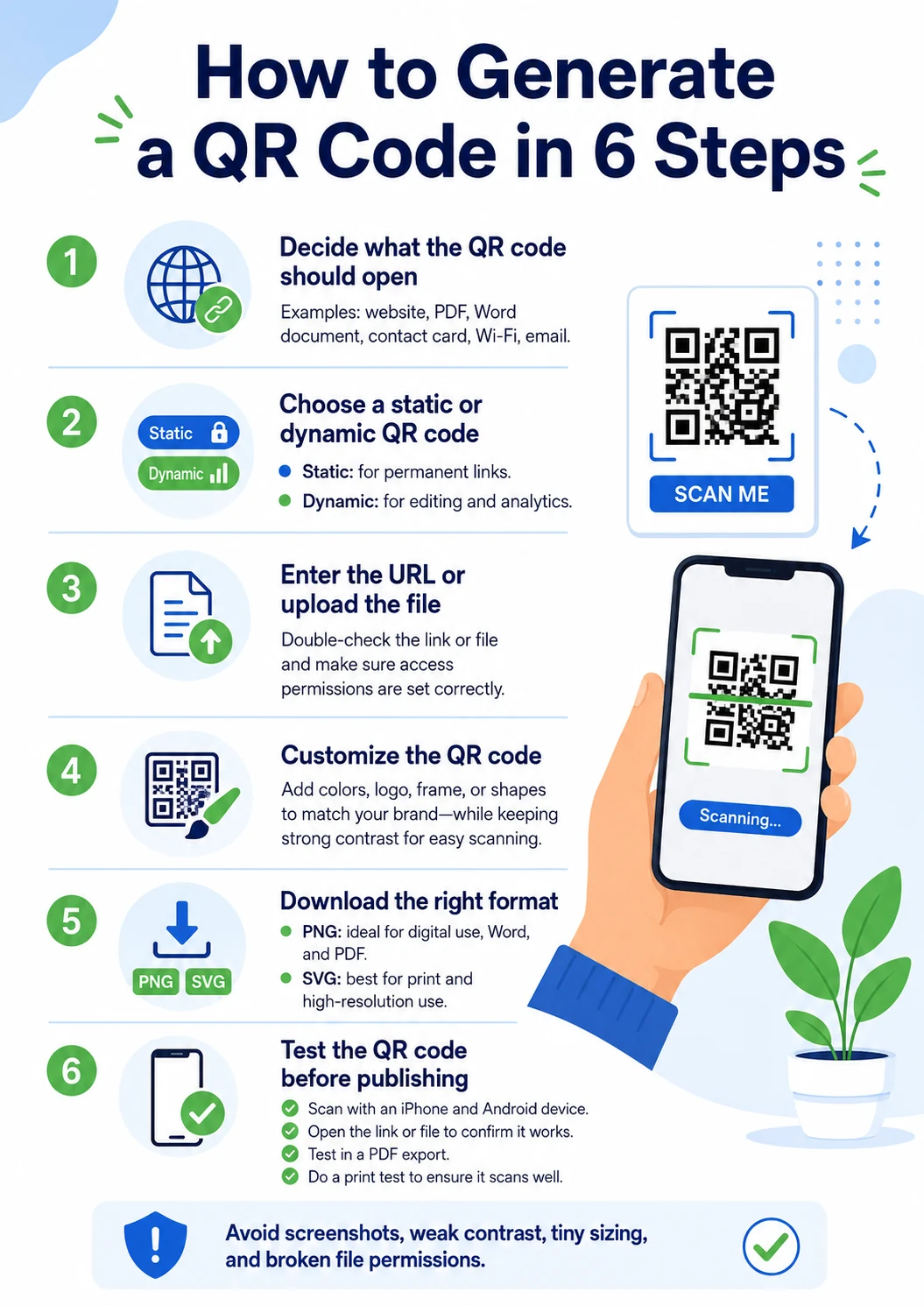
Decide what the QR code should open
Common destinations include a website, PDF, Word document, contact card, Wi-Fi network, email, social profile, app page, form, or landing page. For a Word or PDF file, the QR code usually stores a shareable web link rather than the complete document.
Choose a static or dynamic QR code
Use static for permanent content and dynamic for editing, analytics, changing files, and campaigns.
Enter the URL or upload the file
Paste a complete public URL, or upload a file to a platform that supports file QR codes. Test the link in a private browser window to confirm that other users can open it.
Customize the design
Adjust color, Logo, frame, corner style, and error correction without damaging scan reliability. Maintain strong contrast, protect the three corner markers, and leave a clear margin around the code.
Download the right format
Use PNG for Word, standard PDFs, presentations, websites, and small digital assets. Use SVG for posters, signs, packaging, and designs that will be enlarged.
Test before publishing
Scan the final code with iPhone and Android devices, test the intended size and distance, export the document to PDF, and scan a printed sample before mass distribution.
How to Add a QR Code to Word or PDF with WPS Office
Once you have generated and downloaded the QR code, WPS Office can be used to insert, position, resize, export, and share it in a document. WPS is the document-use stage of this workflow, not a replacement for a specialist general-purpose QR code generator.
How to Add a QR Code to a Word Document
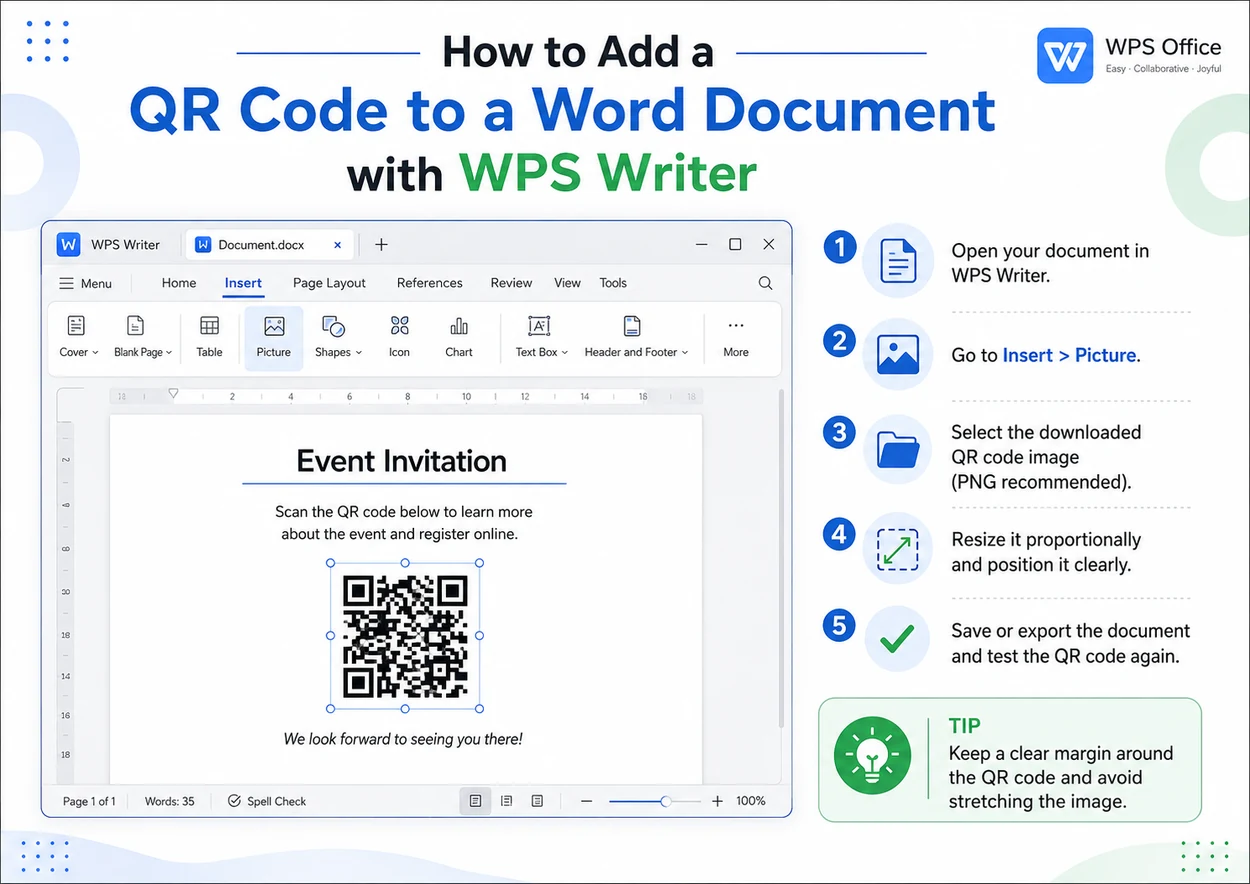
- Generate and download the QR code as a high-resolution PNG.
- Open the document in WPS Writer.
- Place the cursor where the QR code should appear.
- Choose Insert > Picture and select the downloaded file.
- Resize the image proportionally by dragging a corner handle.
- Adjust text wrapping and position.
- Save or export the document, then scan the code again.
Keep a clear margin around the code. Avoid placing it directly over a photograph, pattern, or dark background unless it has a clean light-colored container.
Download WPS OfficeHow to Add a QR Code to a PDF
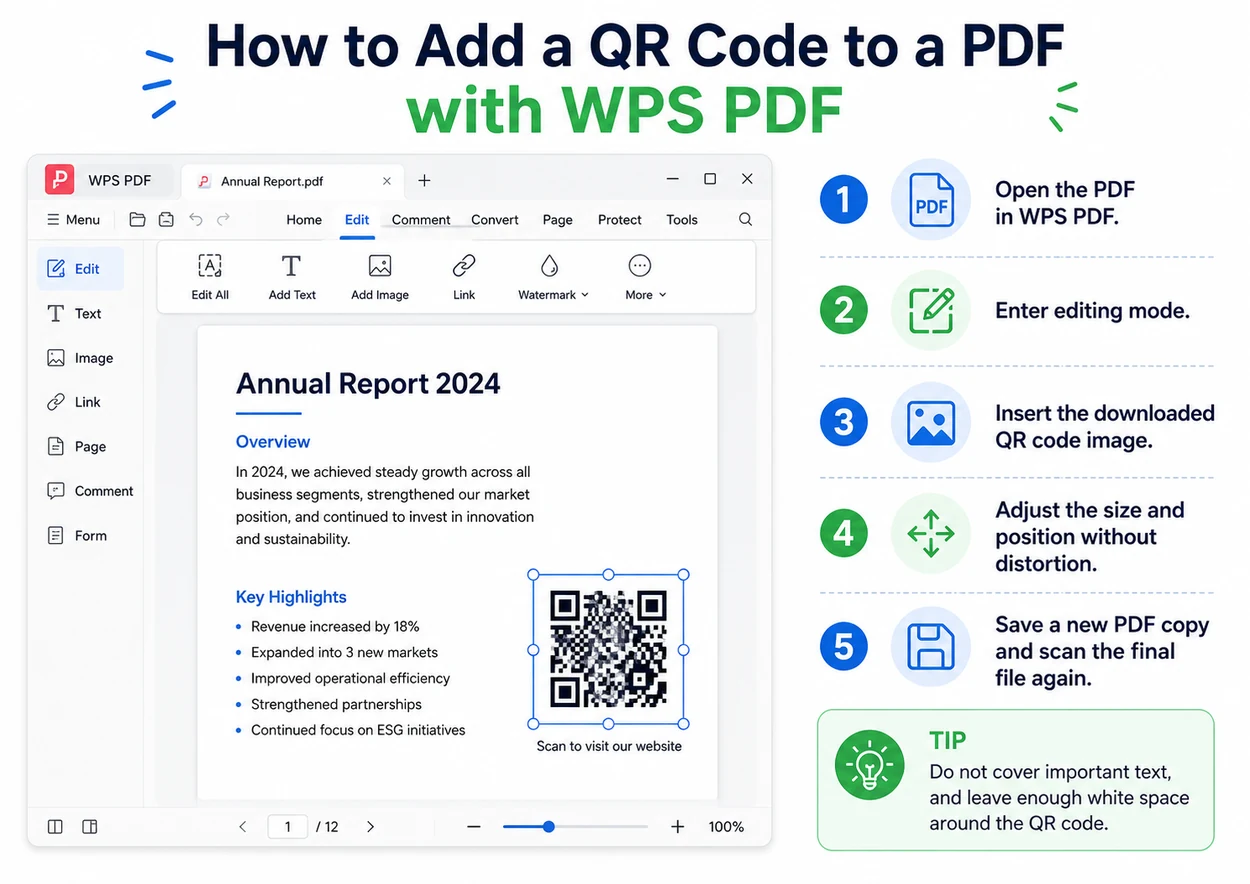
- Open the PDF in WPS PDF.
- Enter PDF editing mode.
- Use the image-insertion function to add the QR code.
- Position it away from important text and controls.
- Resize it without changing its proportions.
- Save the edited document as a new PDF copy.
- Open the final file and scan the code again.
How to Share a Word or PDF Document with a QR Code
Method 1: Create a QR code for a public document link
- Upload the document or create a shareable link.
- Confirm that the intended audience has access.
- Paste the link into a QR code generator.
- Choose a static or dynamic code.
- Download and test the result.
Method 2: Use WPS file sharing
WPS file-sharing workflows can provide a QR code that users scan to open a shared document on a phone. Before distributing it, confirm whether recipients need an account, whether the permission is view-only or editable, and whether the link has an expiration setting.
Common QR Code Mistakes to Avoid
Using a static code for content that will change
If the destination changes, a static QR image must be replaced. Use dynamic for changing menus, campaigns, event pages, or updateable documents.
Choosing a free dynamic code without checking the limits
Verify expiration, scan caps, the number of included codes, analytics history, advertisements, branding, subscription dependency, and cancellation behavior.
Uploading confidential files to an unknown platform
Use controlled storage for contracts, identity documents, employee data, financial records, confidential research, and internal company files.
Using a low-resolution image in print
Use a high-resolution PNG for ordinary office documents and SVG for large-format printing or repeated resizing.
Making the QR code too small
Readability depends on scanning distance, encoded data, print quality, color contrast, camera quality, and surface material. Test the actual printed size.
Forgetting document permissions
A QR code can scan successfully and still lead to an access-denied page. Test links while logged out or on another device.


Frequently Asked Questions
What is the best free QR code generator?
QRCode Monkey is the strongest free choice for a permanent static QR code with customization and print-ready formats. Hovercode is the better free option when you need an editable dynamic code and basic tracking. Adobe Express is preferable when design is the priority.
Do free QR codes expire?
Static QR codes generally do not expire by themselves, but the website or document they point to can be deleted, moved, restricted, or allowed to expire. Dynamic codes depend on the provider’s plan and service terms.
What is the best QR code generator for a PDF?
QR Planet is the most specialized option here because it supports PDF upload, file replacement, scan tracking, and optional password protection. For a fixed public PDF, a normal sharing link combined with a free static generator may be simpler.
Can I edit a QR code after creating it?
You cannot normally change the destination of a static QR code. A dynamic code can usually be edited through the provider’s dashboard because the QR image points to a managed redirect URL.
Is it safe to use a free QR code generator?
It can be safe for ordinary public links, but you should review file storage, redirect behavior, privacy policies, deletion controls, account permissions, and whether confidential information is involved.
Should I download a QR code as PNG or SVG?
Use PNG for Word documents, standard PDFs, presentations, websites, and small digital graphics. Use SVG for large print materials and designs that need to be resized without losing quality.
How do I create a QR code for a Word document?
Create a shareable document link, verify access permissions, paste the link into a generator, choose static or dynamic, download the image, and test it on another device.
How do I add a QR code to Word?
Download the generated code as PNG, open the document in WPS Writer, choose Insert > Picture, select the image, resize it proportionally, and scan it again after saving or exporting.
Final Recommendation
- QRCode Monkey: permanent free static codes.
- Hovercode: free editable and trackable dynamic codes.
- QR Planet: updateable PDF workflows.
- Adobe Express: design-first QR code projects.
- QR TIGER: marketing campaigns and multiple QR types.
- Uniqode: enterprise management and team controls.
The best tool is not the one with the longest feature list. It is the simplest option that matches whether your destination is permanent, editable, trackable, document-based, or managed at scale.
Editorial note: Tool recommendations are based on publicly available product information, not a claim that every feature was independently hands-on tested. The WPS interface illustrations are explanatory graphics rather than guaranteed pixel-perfect screenshots of every WPS version.

'%3e%3cpath%20d='M19.9911%204.11386V6.471H18.5894C18.0775%206.471%2017.7322%206.57814%2017.5536%206.79243C17.3751%207.00671%2017.2858%207.32814%2017.2858%207.75671V9.44421H19.9019L19.5536%2012.0871H17.2858V18.8639H14.5536V12.0871H12.2769V9.44421H14.5536V7.49779C14.5536%206.39064%2014.8632%205.53201%2015.4822%204.92189C16.1013%204.31177%2016.9257%204.00671%2017.9554%204.00671C18.8304%204.00671%2019.509%204.04243%2019.9911%204.11386Z'%20fill='%23333333'/%3e%3c/g%3e%3cdefs%3e%3cclipPath%20id='clip0_2938_8199'%3e%3crect%20width='16'%20height='16'%20fill='white'%20transform='translate(8%204.00671)'/%3e%3c/clipPath%3e%3c/defs%3e%3c/svg%3e)
'%3e%3cpath%20d='M17.5237%2010.7813L23.4811%204H22.0699L16.8949%209.88693L12.7648%204H8L14.2469%2012.9029L8%2020.0133H9.4112L14.8725%2013.7952L19.2352%2020.0133H24M9.92053%205.04213H12.0885L22.0688%2019.0224H19.9003'%20fill='%23333333'/%3e%3c/g%3e%3cdefs%3e%3cclipPath%20id='clip0_2938_8200'%3e%3crect%20width='16'%20height='16.0134'%20fill='white'%20transform='translate(8%204)'/%3e%3c/clipPath%3e%3c/defs%3e%3c/svg%3e)


