



'%3e%3cpath%20fill-rule='evenodd'%20clip-rule='evenodd'%20d='M21.4999%2010.9993C21.4999%205.20009%2016.7986%200.498901%2010.9993%200.498901C5.19994%200.498901%200.498657%205.20009%200.498657%2010.9993C0.498657%2016.2404%204.33858%2020.5844%209.35855%2021.3722V14.0346H6.69238V10.9993H9.35855V8.68594C9.35855%206.05427%2010.9262%204.60062%2013.3248%204.60062C14.4736%204.60062%2015.6753%204.80571%2015.6753%204.80571V7.38979H14.3512C13.0468%207.38979%2012.64%208.19921%2012.64%209.0296V10.9993H15.5523L15.0867%2014.0346H12.64V21.3722C17.66%2020.5844%2021.4999%2016.2404%2021.4999%2010.9993Z'%20fill='%231568EA'/%3e%3c/g%3e%3c/svg%3e)


'%3e%3cpath%20d='M2.42045%2022.1876H6.31818V12.7217L0.75%208.54553V20.5171C0.75%2021.4414%201.49892%2022.1876%202.42045%2022.1876Z'%20fill='%234285F4'/%3e%3cpath%20d='M19.682%2022.1876H23.5797C24.5041%2022.1876%2025.2502%2021.4387%2025.2502%2020.5171V8.54553L19.682%2012.7217'%20fill='%2334A853'/%3e%3cpath%20d='M19.682%205.48293V12.7216L25.2502%208.54543V6.31816C25.2502%204.25236%2022.8921%203.07469%2021.2411%204.31361'%20fill='%23FBBC04'/%3e%3cpath%20d='M6.31824%2012.7217V5.48303L13.0001%2010.4944L19.6819%205.48303V12.7217L13.0001%2017.733'%20fill='%23EA4335'/%3e%3cpath%20d='M0.75%206.31816V8.54543L6.31818%2012.7216V5.48293L4.75909%204.31361C3.10534%203.07469%200.75%204.25236%200.75%206.31816Z'%20fill='%23C5221F'/%3e%3c/g%3e%3cdefs%3e%3cclipPath%20id='clip0_2954_7305'%3e%3crect%20width='24.5'%20height='18.375'%20fill='white'%20transform='translate(0.75%203.8125)'/%3e%3c/clipPath%3e%3c/defs%3e%3c/svg%3e)


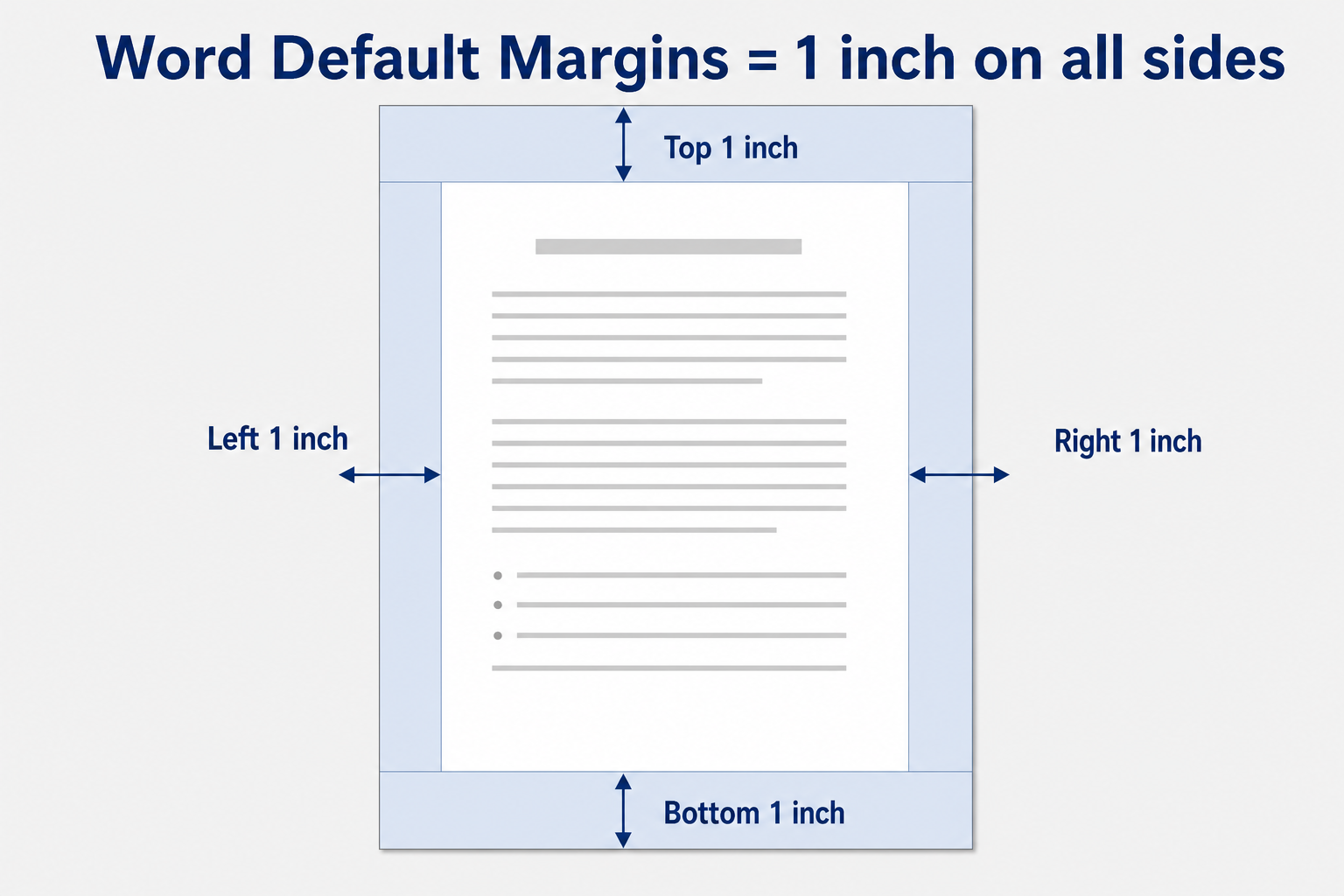
Every new Word document starts with margins already set — you do not have to add them yourself. In U.S. versions of Microsoft Word, the default margin size is 1 inch on the top, bottom, left, and right.
Quick answer: Open a blank document, go to Layout → Margins, and you will see Normal selected. That preset equals 1" on all four sides.
What Are Margins in Word?
Margins are the blank space between the edge of the page and your text. They keep your writing from sitting right against the paper edge — which helps with readability, hole punches, binding, and printer safety zones.
Think of margins as the frame around your content. Wider margins mean fewer words per line; narrower margins fit more text on each page.
Word's Default Margin Size (U.S.)
| Side | Default Size |
|---|---|
| Top | 1 inch |
| Bottom | 1 inch |
| Left | 1 inch |
| Right | 1 inch |
This applies to new blank documents in modern desktop Word (2007 and later), Word for Microsoft 365, and most U.S. English installs. Word labels this preset Normal under Layout → Margins.
How to Check Your Current Margins
Not sure what your file is using? Here are three fast ways to check.
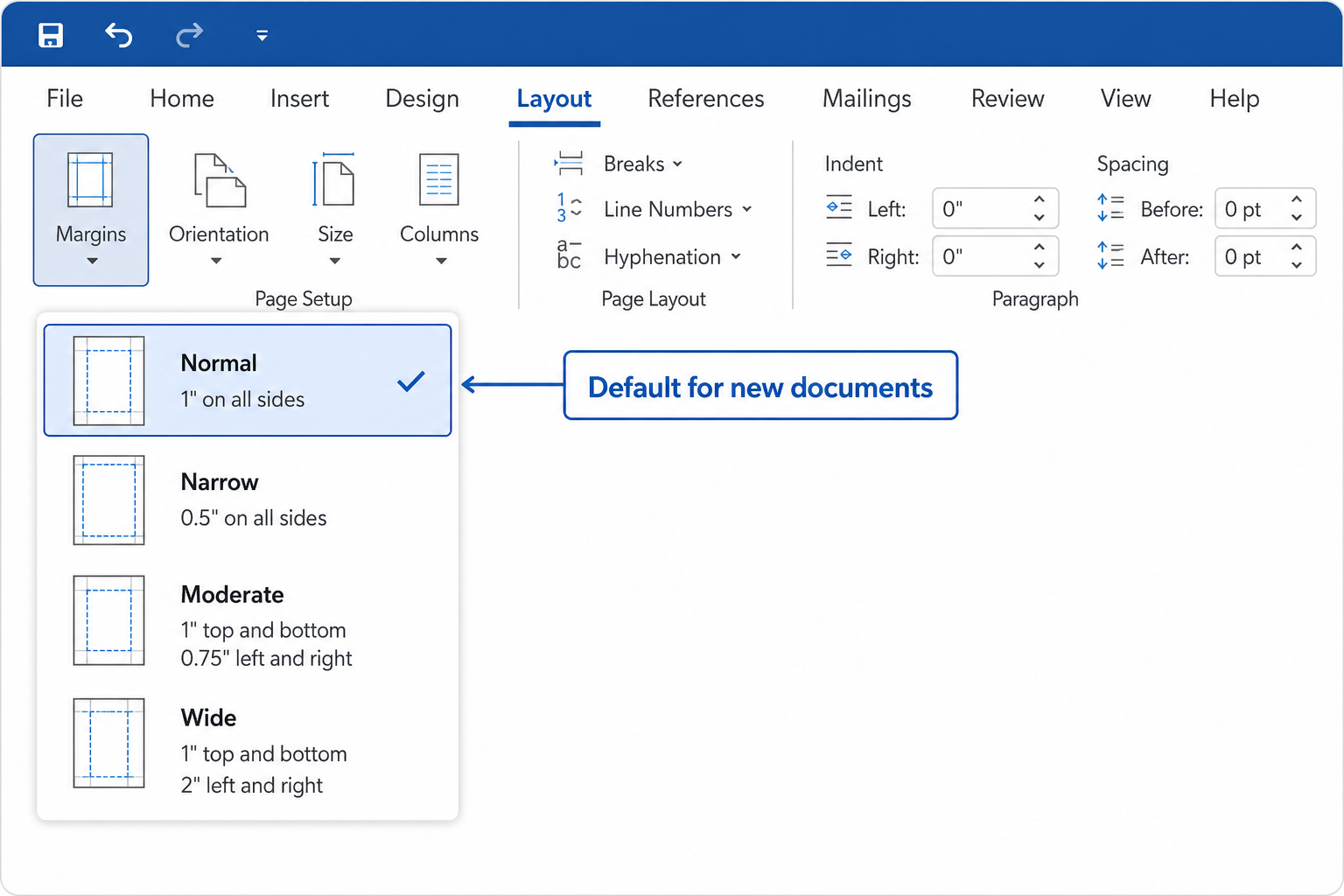
Method 1: Margins Menu
Open your document.
Click the Layout tab (called Page Layout in older Word versions).
Click Margins.
If Normal is highlighted, your margins are the default 1" on all sides.
Method 2: Custom Margins Dialog
Go to Layout → Margins → Custom Margins.
Look at the Top, Bottom, Left, and Right boxes.
Each should read 1" if you are on the default setting.
Method 3: Ruler
Turn on View → Ruler.
On a standard 8.5" × 11" page, the gray margin area on the ruler should measure 1 inch from each edge.
Default vs. Other Built-in Presets
Word ships with several margin presets. Only Normal is the default for new documents.
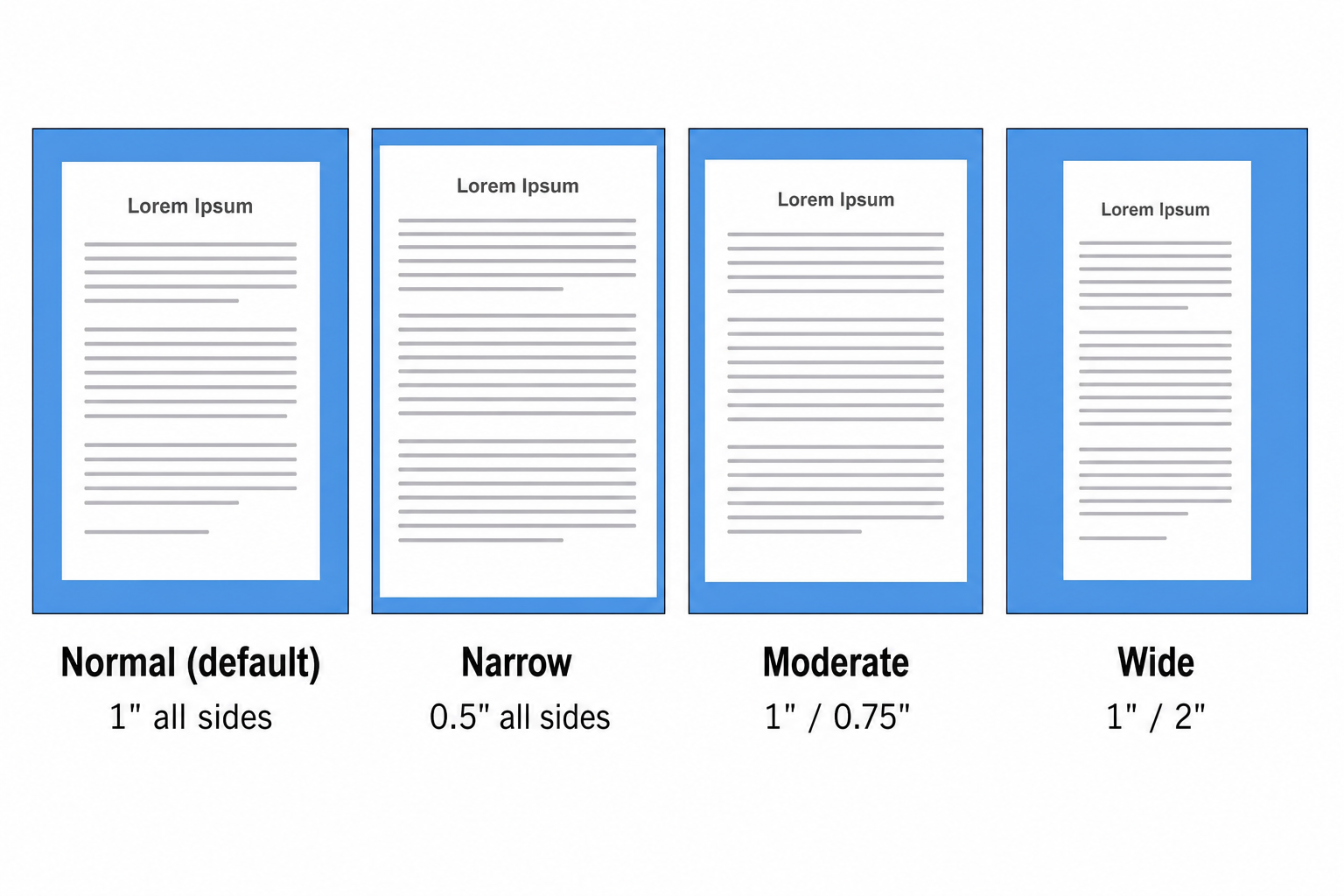
| Preset | Top / Bottom | Left / Right | Best For |
|---|---|---|---|
| Normal (default) | 1" | 1" | Everyday letters, essays, reports |
| Narrow | 0.5" | 0.5" | Dense notes, internal drafts |
| Moderate | 1" | 0.75" | A bit more text per line |
| Wide | 1" | 2" | Proposals, documents that need extra side space |
Why Word Uses 1-Inch Margins
One inch is a practical sweet spot for U.S. letter-size paper (8.5" × 11"):
Readable line length — Text does not stretch uncomfortably wide.
Printer-friendly — Most home and office printers need a small unprintable border; 1" keeps text safe.
Matches common style guides — MLA, APA, and many employers ask for 1" margins.
Easy to measure — Inches are the default unit in U.S. Word.
Did the Default Ever Change?
Yes — but only if you are working with very old files.
Word 2007 and later (U.S.): 1" on all four sides.
Word 2003 and earlier: Often 1" top and bottom, 1.25" left and right.
Opening an old document may still show the older margin values. A brand-new blank document in current Word always starts at 1" all around unless you or your organization changed the default.
Default Margins in Other Versions
| Platform | Default Margin | Notes |
|---|---|---|
| Word for Microsoft 365 (desktop) | 1" all sides | Same as Normal preset |
| Word on the web | 1" all sides | Fewer custom options than desktop |
| Word for Mac | 1" all sides (U.S. locale) | Metric locales may display centimeters |
| WPS Writer | 1" all sides (typical U.S. setup) | Compatible with Word margin settings |
If your Word is set to a metric region, the dialog may show 2.54 cm instead of 1". That is the same physical size.
When 1-Inch Margins Are Not Right
The default works for most tasks, but some situations call for a change:
Resumes — Often use 0.5"–0.75" to fit more on one page.
Bound reports — Extra left margin (e.g., 1.5") leaves room for binding.
School papers — Always follow your syllabus; many require exactly 1", which matches the default.
Legal or government forms — May specify different measurements; do not assume the default is accepted.
Need to adjust? See our guide on how to change margins in Word.
How to Reset Margins to Default
Go to Layout → Margins.
Click Normal.
That restores 1" on all four sides for the whole document (or the current section, depending on your setup).
Want every new document to open with your preferred margins? In Custom Margins, click Set As Default after entering your values.
FAQ
What is the default margin size in a Word document?
1 inch on the top, bottom, left, and right. In Word, this is the Normal preset.
Is the default margin 1 inch or 1.25 inches?
In current U.S. Word, it is 1 inch on all sides. The 1.25" left/right default applied to older versions (Word 2003 and earlier).
What are default margins in centimeters?
2.54 cm on each side — the metric equivalent of 1 inch.
Do MLA and APA use the Word default?
Both MLA and APA require 1" margins, which matches Word's default Normal setting. Still double-check your instructor's latest guidelines.
Why does my document not show 1-inch margins?
Common reasons: someone changed the margins, the file was created in an older Word version, content was pasted from another source, or a template uses custom spacing. Use Layout → Margins → Normal to reset.
Does Word Online use the same default?
Yes — new documents typically start with 1" margins. Desktop Word offers more fine-tuning through Custom Margins.
Conclusion
The default margin size in a Word document is 1 inch on every side — top, bottom, left, and right. Word calls this the Normal preset, and it works well for most school papers, business letters, and everyday documents on U.S. letter-size paper.
To confirm yours, open Layout → Margins. If you need a different size, pick another preset or open Custom Margins — but for most Americans, the out-of-the-box setting is already exactly what teachers and style guides expect.



'%3e%3cpath%20d='M19.9911%204.11386V6.471H18.5894C18.0775%206.471%2017.7322%206.57814%2017.5536%206.79243C17.3751%207.00671%2017.2858%207.32814%2017.2858%207.75671V9.44421H19.9019L19.5536%2012.0871H17.2858V18.8639H14.5536V12.0871H12.2769V9.44421H14.5536V7.49779C14.5536%206.39064%2014.8632%205.53201%2015.4822%204.92189C16.1013%204.31177%2016.9257%204.00671%2017.9554%204.00671C18.8304%204.00671%2019.509%204.04243%2019.9911%204.11386Z'%20fill='%23333333'/%3e%3c/g%3e%3cdefs%3e%3cclipPath%20id='clip0_2938_8199'%3e%3crect%20width='16'%20height='16'%20fill='white'%20transform='translate(8%204.00671)'/%3e%3c/clipPath%3e%3c/defs%3e%3c/svg%3e)
'%3e%3cpath%20d='M17.5237%2010.7813L23.4811%204H22.0699L16.8949%209.88693L12.7648%204H8L14.2469%2012.9029L8%2020.0133H9.4112L14.8725%2013.7952L19.2352%2020.0133H24M9.92053%205.04213H12.0885L22.0688%2019.0224H19.9003'%20fill='%23333333'/%3e%3c/g%3e%3cdefs%3e%3cclipPath%20id='clip0_2938_8200'%3e%3crect%20width='16'%20height='16.0134'%20fill='white'%20transform='translate(8%204)'/%3e%3c/clipPath%3e%3c/defs%3e%3c/svg%3e)


