

'%3e%3cpath%20d='M8%200C12.4183%200%2016%203.58172%2016%208C16%2012.4183%2012.4183%2016%208%2016C3.58172%2016%200%2012.4183%200%208C0%203.58172%203.58172%200%208%200ZM11.6162%204.38379C11.2257%203.99337%2010.5927%203.99338%2010.2021%204.38379L8%206.58594L5.79785%204.38379C5.40732%203.99334%204.77429%203.99329%204.38379%204.38379C3.99331%204.77429%203.99335%205.40733%204.38379%205.79785L6.58594%208L4.38379%2010.2021C3.99348%2010.5927%203.99341%2011.2257%204.38379%2011.6162C4.77426%2012.0066%205.40734%2012.0065%205.79785%2011.6162L8%209.41406L10.2021%2011.6162C10.5927%2012.0066%2011.2257%2012.0067%2011.6162%2011.6162C12.0067%2011.2257%2012.0066%2010.5927%2011.6162%2010.2021L9.41406%208L11.6162%205.79785C12.0066%205.40735%2012.0066%204.77429%2011.6162%204.38379Z'%20fill='%23080E17'%20fill-opacity='0.46'/%3e%3c/g%3e%3cdefs%3e%3cclipPath%20id='clip0_3761_713'%3e%3crect%20width='16'%20height='16'%20fill='white'/%3e%3c/clipPath%3e%3c/defs%3e%3c/svg%3e)




'%3e%3cpath%20fill-rule='evenodd'%20clip-rule='evenodd'%20d='M21.4999%2010.9993C21.4999%205.20009%2016.7986%200.498901%2010.9993%200.498901C5.19994%200.498901%200.498657%205.20009%200.498657%2010.9993C0.498657%2016.2404%204.33858%2020.5844%209.35855%2021.3722V14.0346H6.69238V10.9993H9.35855V8.68594C9.35855%206.05427%2010.9262%204.60062%2013.3248%204.60062C14.4736%204.60062%2015.6753%204.80571%2015.6753%204.80571V7.38979H14.3512C13.0468%207.38979%2012.64%208.19921%2012.64%209.0296V10.9993H15.5523L15.0867%2014.0346H12.64V21.3722C17.66%2020.5844%2021.4999%2016.2404%2021.4999%2010.9993Z'%20fill='%231568EA'/%3e%3c/g%3e%3c/svg%3e)


'%3e%3cpath%20d='M2.42045%2022.1876H6.31818V12.7217L0.75%208.54553V20.5171C0.75%2021.4414%201.49892%2022.1876%202.42045%2022.1876Z'%20fill='%234285F4'/%3e%3cpath%20d='M19.682%2022.1876H23.5797C24.5041%2022.1876%2025.2502%2021.4387%2025.2502%2020.5171V8.54553L19.682%2012.7217'%20fill='%2334A853'/%3e%3cpath%20d='M19.682%205.48293V12.7216L25.2502%208.54543V6.31816C25.2502%204.25236%2022.8921%203.07469%2021.2411%204.31361'%20fill='%23FBBC04'/%3e%3cpath%20d='M6.31824%2012.7217V5.48303L13.0001%2010.4944L19.6819%205.48303V12.7217L13.0001%2017.733'%20fill='%23EA4335'/%3e%3cpath%20d='M0.75%206.31816V8.54543L6.31818%2012.7216V5.48293L4.75909%204.31361C3.10534%203.07469%200.75%204.25236%200.75%206.31816Z'%20fill='%23C5221F'/%3e%3c/g%3e%3cdefs%3e%3cclipPath%20id='clip0_2954_7305'%3e%3crect%20width='24.5'%20height='18.375'%20fill='white'%20transform='translate(0.75%203.8125)'/%3e%3c/clipPath%3e%3c/defs%3e%3c/svg%3e)


Word version history helps you review earlier saves of a .docx file, compare what changed, and restore a safer copy when edits go wrong. It works best when the document lives in OneDrive or SharePoint with AutoSave on. This guide shows how to open and restore versions in Microsoft Word, then how to check the same history inside WPS Writer with real product screenshots.
Word version history restore guide
What Word Version History Needs Before You Start
Word version history is a cloud feature, not a local desktop backup. Save or move the file to OneDrive or SharePoint, sign in with the same Microsoft account, and turn AutoSave on. Local-only files in Desktop, Downloads, or a USB drive usually will not show Version History in Word.
Do not confuse it with Track Changes (line-by-line markup) or AutoRecover (crash drafts). Those tools solve different problems. Version history keeps dated snapshots of the whole file so you can reopen an earlier state.
How to Open Word Version History from the Title Bar
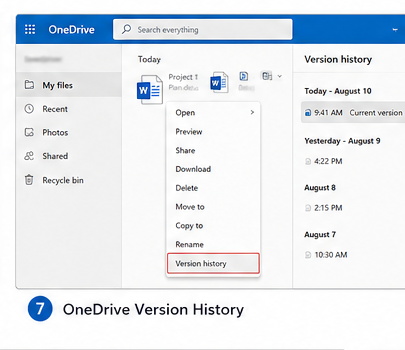
The fastest path to word version history is the file name at the top of the Word window.
Open the document from OneDrive or SharePoint.
Click the file name in the title bar.
Select Version History (or See all versions).
In the right-hand list, pick a date and time to preview that snapshot.
Word title bar version history
On Word for the web, the flow is similar: open the file, open the title menu, then choose Version History.


How to Open Word Version History from File Info
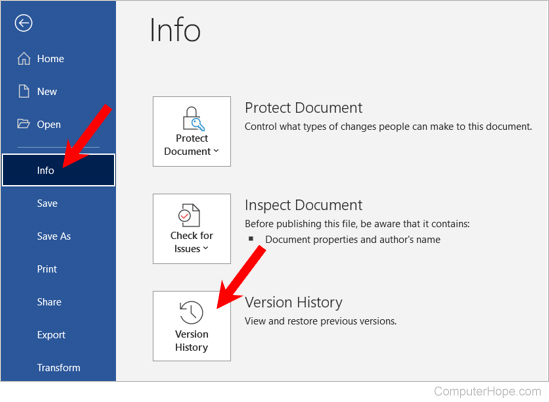
If the title menu looks different on your build, open word version history from the classic File path.
Go to File → Info.
Select Version History.
Choose a previous version from the pane.
Review it in a separate window before you restore anything.
Word File Info version history
Personal Microsoft accounts often keep a limited set of recent versions. Work or school libraries may keep more, depending on SharePoint settings.
How to Restore a File with Word Version History
Restoring replaces the current cloud copy with the snapshot you pick, so preview first.
Open word version history and select the version you want.
Read the content carefully—especially headings, tables, and comments.
Click Restore to make that version current, or save/copy it as a separate file if you want to keep both.
Rename the restored copy (for example, Report-restored-Aug12) until you confirm it is the right draft.
This is the safest fix after an accidental overwrite, a bad paste, or unwanted co-author edits.
Why Word Version History Might Be Missing
If word version history does not appear, check these common causes:
The file is saved only on this PC, not in OneDrive/SharePoint.
AutoSave is off, or OneDrive sync is paused.
You are signed into a different Microsoft account than the one that owns the file.
The file uses an older format (such as .doc) or was moved/renamed outside its original cloud folder.
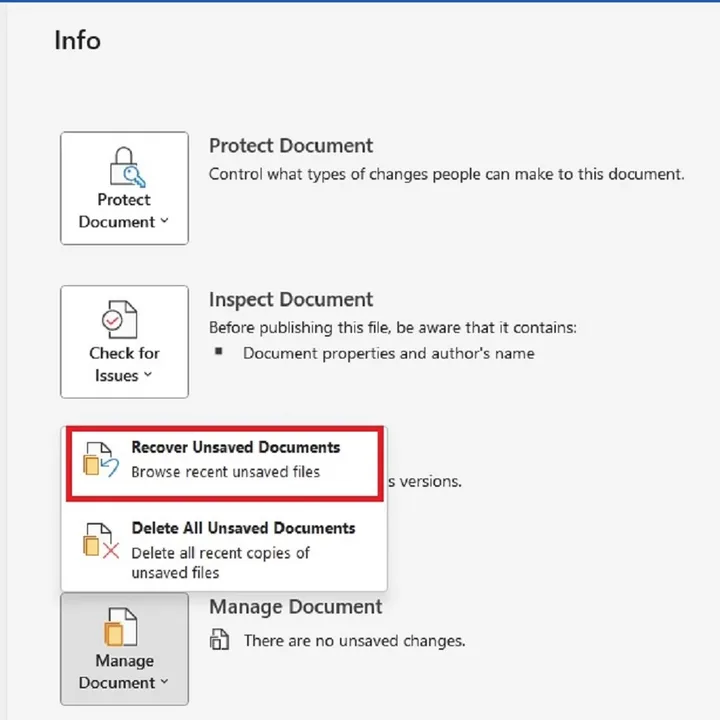
Fix: File → Save a Copy to OneDrive, reopen from that cloud location, enable AutoSave, then open Version History again.
Check Word Version History Faster in WPS Writer
If you want a free Word-compatible editor with built-in history controls, WPS Office is a practical alternative. WPS Writer opens and saves common .docx/.doc files, and its Version History panel lets you preview, name, restore, or Save As older snapshots without jumping to a separate website.
WPS Office is an all-in-one suite (Writer, Spreadsheets, Presentation, and PDF tools) with a Microsoft-like interface. Core editing is available on the free plan; some extras may need a paid upgrade depending on your region.
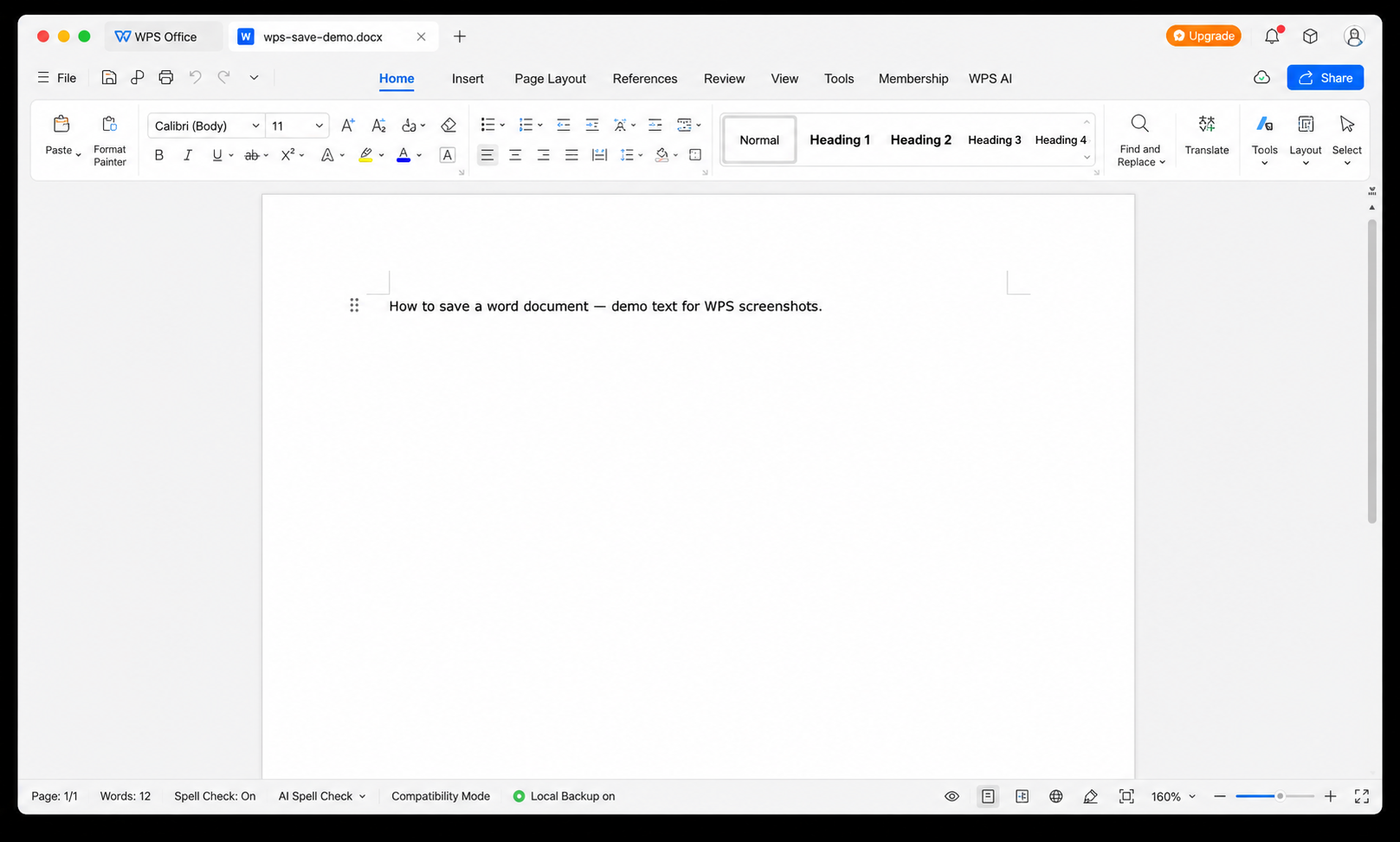
WPS Writer document editing view
Open version history in WPS
Open your Word document with WPS Office.
In the top-right title area, click the cloud / Version History icon (often shown with a sync checkmark).
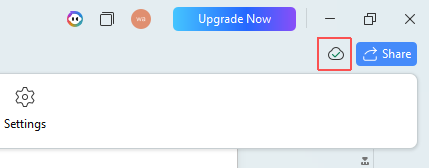
WPS cloud version history icon
In the Version History list, review time, size, and source for each snapshot.
Optional: click Naming to label the current version (for example, “Client draft”).
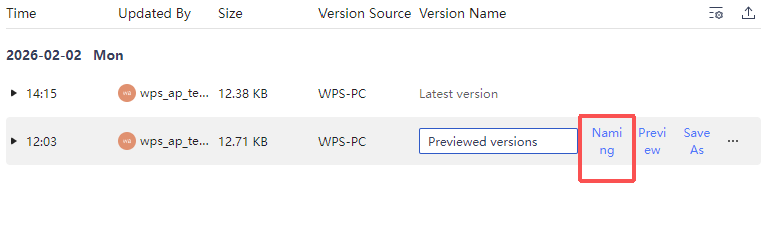
Naming WPS word version history
Select an older row and click Preview to open it read-only.
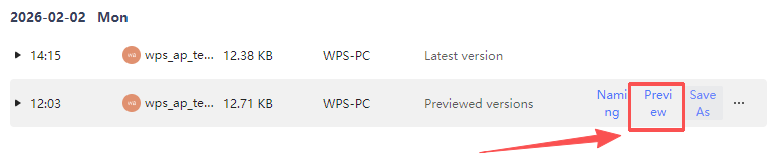
Preview WPS word version history
Choose Restore to roll back, or Save As / Save as Copy to keep a separate file.
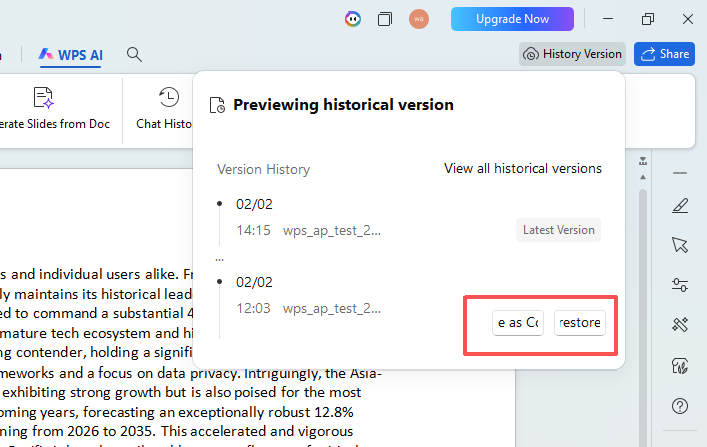
Restore WPS word version history

Save WPS word version history
WPS also keeps local Auto Backup copies under Menu → Backup and Recovery → Auto Backup, which helps when a document was never uploaded to the cloud. For cloud-synced files, prefer the Version History panel first.
FAQ
Does word version history work on local files?
Usually no. Store the document in OneDrive or SharePoint (or use WPS Version History / Auto Backup) if you need recoverable snapshots.
Will restore delete my current edits?
Restore makes the selected snapshot the current cloud version. If you need both, Save As a copy before or after restoring.
How is Track Changes different from word version history?
Track Changes shows insertions and deletions inside one draft. Version history opens earlier whole-file snapshots by date and time.
Can WPS open real Word .docx files for version recovery?
Yes. WPS Writer is built to open and save common Word formats, then preview or restore historical versions from its Version History panel.


'%3e%3cpath%20d='M19.9911%204.11386V6.471H18.5894C18.0775%206.471%2017.7322%206.57814%2017.5536%206.79243C17.3751%207.00671%2017.2858%207.32814%2017.2858%207.75671V9.44421H19.9019L19.5536%2012.0871H17.2858V18.8639H14.5536V12.0871H12.2769V9.44421H14.5536V7.49779C14.5536%206.39064%2014.8632%205.53201%2015.4822%204.92189C16.1013%204.31177%2016.9257%204.00671%2017.9554%204.00671C18.8304%204.00671%2019.509%204.04243%2019.9911%204.11386Z'%20fill='%23333333'/%3e%3c/g%3e%3cdefs%3e%3cclipPath%20id='clip0_2938_8199'%3e%3crect%20width='16'%20height='16'%20fill='white'%20transform='translate(8%204.00671)'/%3e%3c/clipPath%3e%3c/defs%3e%3c/svg%3e)
'%3e%3cpath%20d='M17.5237%2010.7813L23.4811%204H22.0699L16.8949%209.88693L12.7648%204H8L14.2469%2012.9029L8%2020.0133H9.4112L14.8725%2013.7952L19.2352%2020.0133H24M9.92053%205.04213H12.0885L22.0688%2019.0224H19.9003'%20fill='%23333333'/%3e%3c/g%3e%3cdefs%3e%3cclipPath%20id='clip0_2938_8200'%3e%3crect%20width='16'%20height='16.0134'%20fill='white'%20transform='translate(8%204)'/%3e%3c/clipPath%3e%3c/defs%3e%3c/svg%3e)


