

'%3e%3cpath%20d='M8%200C12.4183%200%2016%203.58172%2016%208C16%2012.4183%2012.4183%2016%208%2016C3.58172%2016%200%2012.4183%200%208C0%203.58172%203.58172%200%208%200ZM11.6162%204.38379C11.2257%203.99337%2010.5927%203.99338%2010.2021%204.38379L8%206.58594L5.79785%204.38379C5.40732%203.99334%204.77429%203.99329%204.38379%204.38379C3.99331%204.77429%203.99335%205.40733%204.38379%205.79785L6.58594%208L4.38379%2010.2021C3.99348%2010.5927%203.99341%2011.2257%204.38379%2011.6162C4.77426%2012.0066%205.40734%2012.0065%205.79785%2011.6162L8%209.41406L10.2021%2011.6162C10.5927%2012.0066%2011.2257%2012.0067%2011.6162%2011.6162C12.0067%2011.2257%2012.0066%2010.5927%2011.6162%2010.2021L9.41406%208L11.6162%205.79785C12.0066%205.40735%2012.0066%204.77429%2011.6162%204.38379Z'%20fill='%23080E17'%20fill-opacity='0.46'/%3e%3c/g%3e%3cdefs%3e%3cclipPath%20id='clip0_3761_713'%3e%3crect%20width='16'%20height='16'%20fill='white'/%3e%3c/clipPath%3e%3c/defs%3e%3c/svg%3e)




'%3e%3cpath%20fill-rule='evenodd'%20clip-rule='evenodd'%20d='M21.4999%2010.9993C21.4999%205.20009%2016.7986%200.498901%2010.9993%200.498901C5.19994%200.498901%200.498657%205.20009%200.498657%2010.9993C0.498657%2016.2404%204.33858%2020.5844%209.35855%2021.3722V14.0346H6.69238V10.9993H9.35855V8.68594C9.35855%206.05427%2010.9262%204.60062%2013.3248%204.60062C14.4736%204.60062%2015.6753%204.80571%2015.6753%204.80571V7.38979H14.3512C13.0468%207.38979%2012.64%208.19921%2012.64%209.0296V10.9993H15.5523L15.0867%2014.0346H12.64V21.3722C17.66%2020.5844%2021.4999%2016.2404%2021.4999%2010.9993Z'%20fill='%231568EA'/%3e%3c/g%3e%3c/svg%3e)


'%3e%3cpath%20d='M2.42045%2022.1876H6.31818V12.7217L0.75%208.54553V20.5171C0.75%2021.4414%201.49892%2022.1876%202.42045%2022.1876Z'%20fill='%234285F4'/%3e%3cpath%20d='M19.682%2022.1876H23.5797C24.5041%2022.1876%2025.2502%2021.4387%2025.2502%2020.5171V8.54553L19.682%2012.7217'%20fill='%2334A853'/%3e%3cpath%20d='M19.682%205.48293V12.7216L25.2502%208.54543V6.31816C25.2502%204.25236%2022.8921%203.07469%2021.2411%204.31361'%20fill='%23FBBC04'/%3e%3cpath%20d='M6.31824%2012.7217V5.48303L13.0001%2010.4944L19.6819%205.48303V12.7217L13.0001%2017.733'%20fill='%23EA4335'/%3e%3cpath%20d='M0.75%206.31816V8.54543L6.31818%2012.7216V5.48293L4.75909%204.31361C3.10534%203.07469%200.75%204.25236%200.75%206.31816Z'%20fill='%23C5221F'/%3e%3c/g%3e%3cdefs%3e%3cclipPath%20id='clip0_2954_7305'%3e%3crect%20width='24.5'%20height='18.375'%20fill='white'%20transform='translate(0.75%203.8125)'/%3e%3c/clipPath%3e%3c/defs%3e%3c/svg%3e)


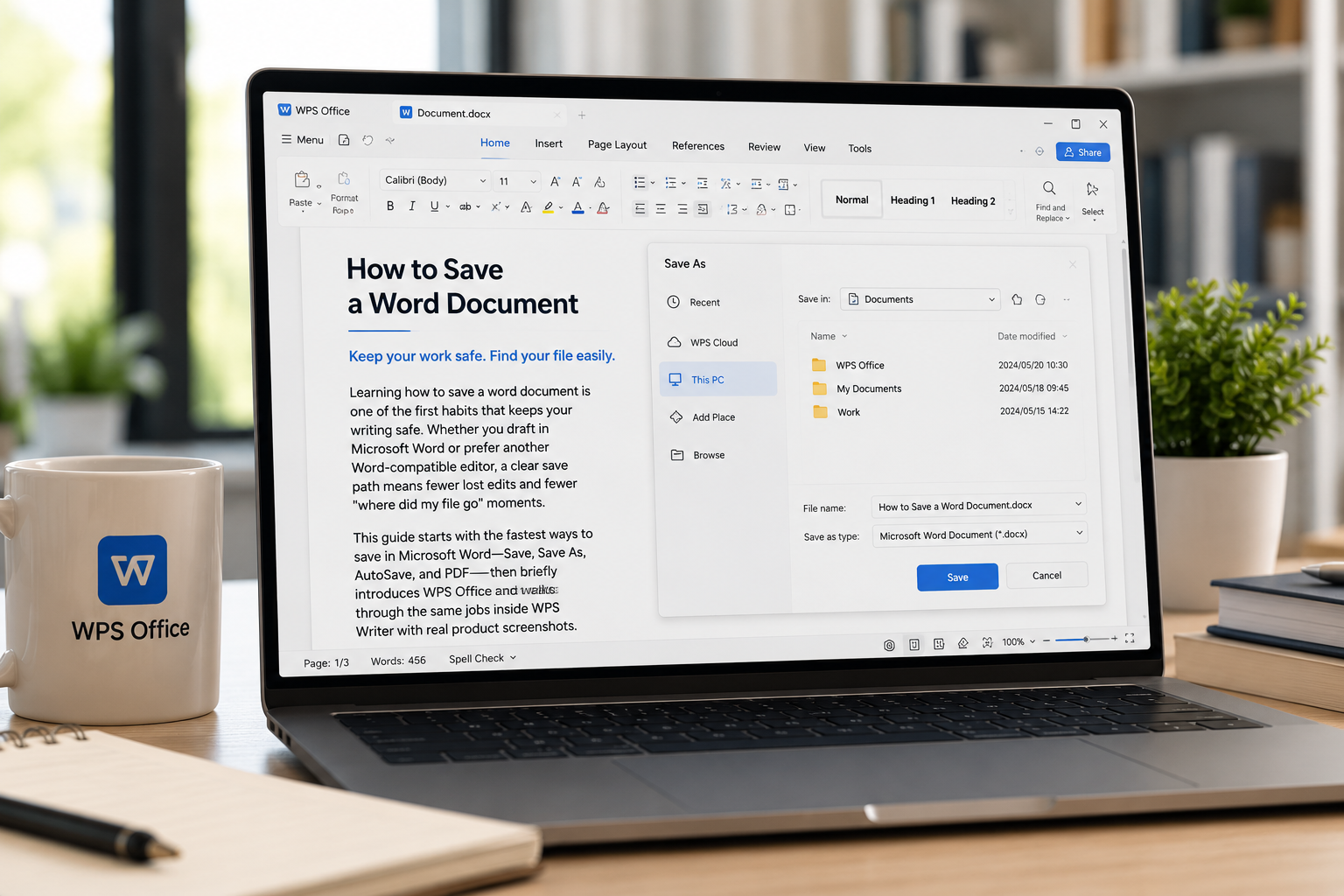
Learning how to save a word document is one of the first habits that keeps your writing safe. Whether you draft in Microsoft Word or prefer another Word-compatible editor, a clear save path means fewer lost edits and fewer “where did my file go” moments.
This guide starts with the fastest ways to save in Microsoft Word—Save, Save As, AutoSave, and PDF—then briefly introduces WPS Office and walks through the same jobs inside WPS Writer with real product screenshots. Use Ctrl/Cmd + S when the menu wording on your device looks different.
How to Save a Word Document Quickly in Microsoft Word
For everyday edits, you do not need a long workflow. These three paths cover most “how to save a word document” searches in desktop Word.
Method 1 — Save icon
Look at the Quick Access Toolbar in the top-left corner of Word.
Select the Save (disk) icon.
If the file is new, choose a location, type a file name, then select Save.
Method 2 — Keyboard shortcut
Press Ctrl + S on Windows, or Command + S on Mac.
On a new file, complete the Save dialog the same way as above.
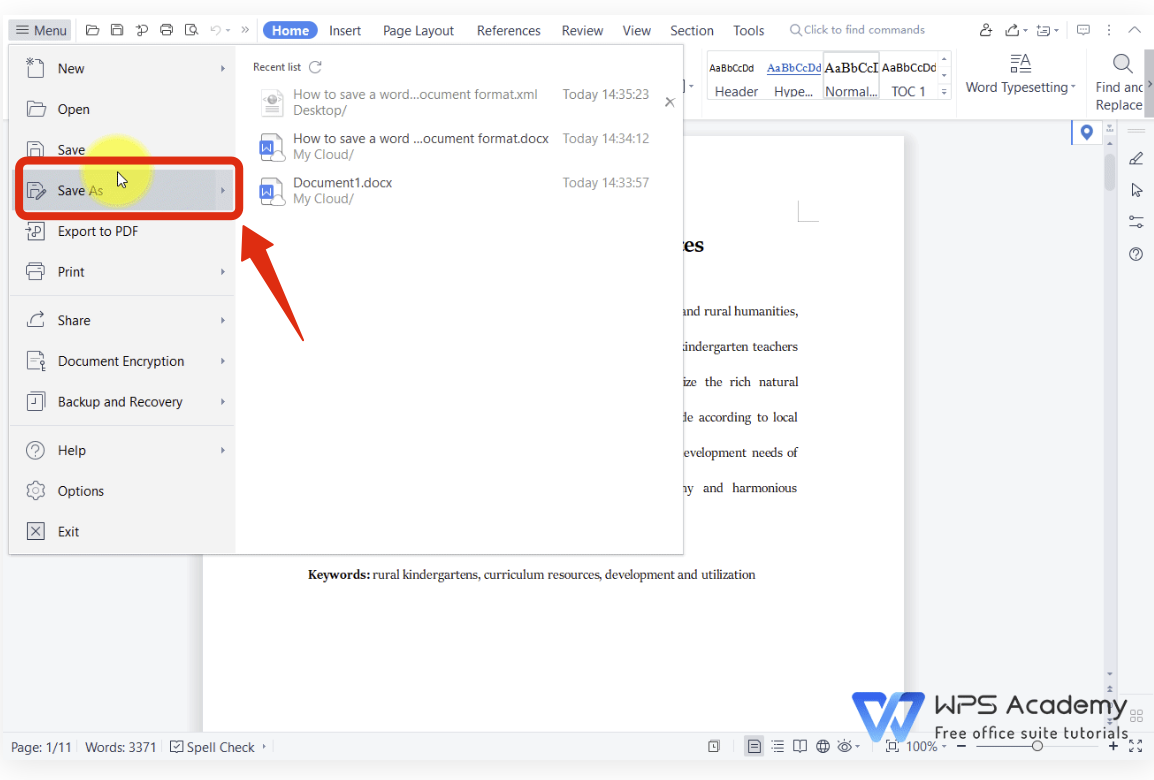
Method 3 — File menu
Select File.
Choose Save to update the current file, or Save As / Save a Copy when you need a new location or name.
After the first save, Ctrl/Cmd + S quietly overwrites the same path. That is the fastest habit while you write.


How to Save a Word Document With Save As and New Formats
Use Save As when you need a second copy, a USB path, or a format other people can open. This is still part of learning how to save a word document, just with more control.
Select File → Save As (or Save a Copy when the file already lives on OneDrive/SharePoint).
Pick This PC for a local folder, or OneDrive for cloud access.
Enter a clear file name.
Open the Save as type / File Format list if you need another format.
Select Save.
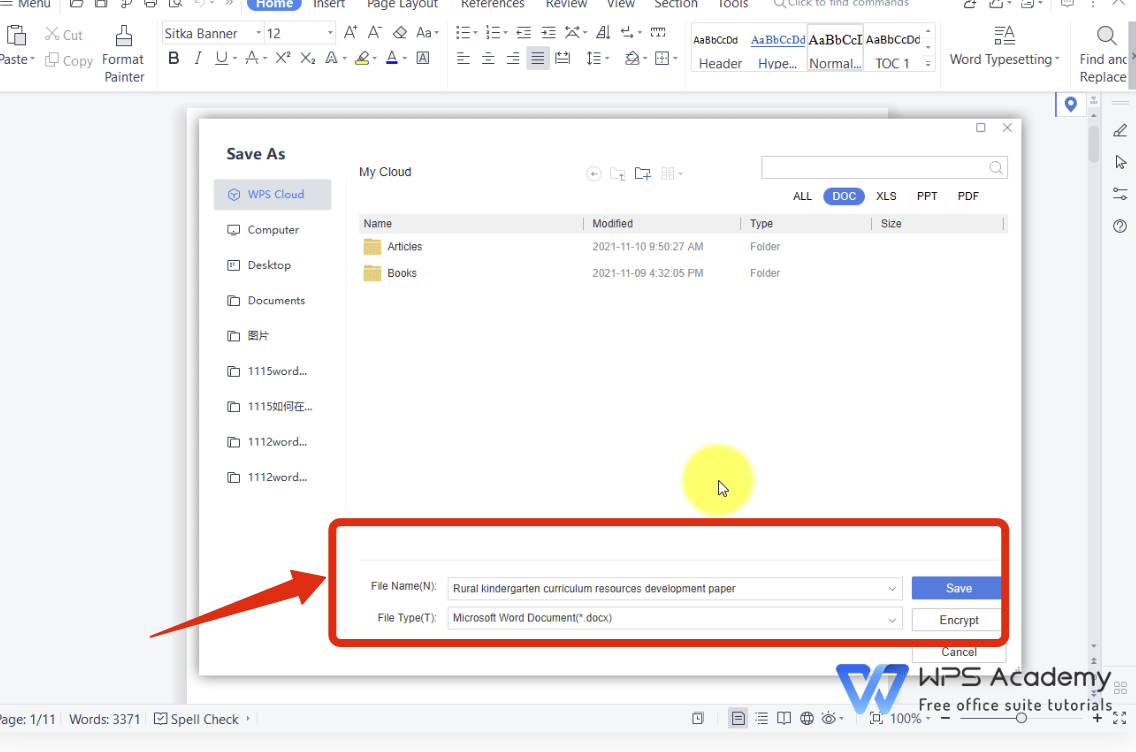
Common format choices:
Word Document (.docx) — default for current Word and most office suites
Word 97-2003 (.doc) — older compatibility
PDF (.pdf) — share a layout-stable copy that is harder to edit
Plain Text / OpenDocument — special sharing cases
Tip: when you export PDF, keep the original .docx if you still need to edit later.
How to Save a Word Document Automatically With AutoSave
AutoSave answers a different version of how to save a word document: “I do not want to click Save every minute.”
In Microsoft 365 Word, AutoSave works when the file is stored on OneDrive or SharePoint. After you save or open the file from the cloud, the AutoSave switch in the top-left area can stay On and keep changes as you type.
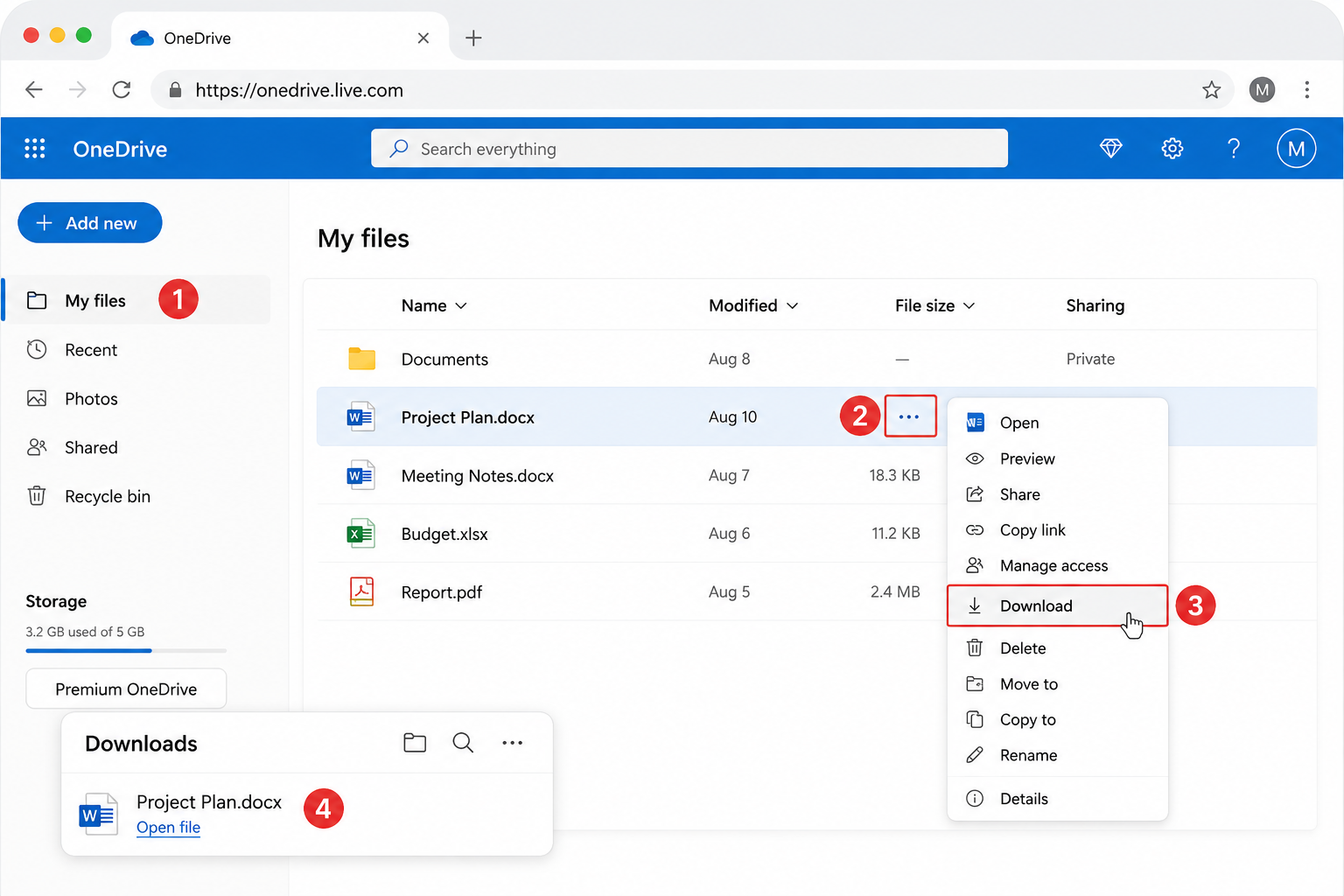
If the file lives only on your hard drive, AutoSave will not behave the same way. Keep using Ctrl/Cmd + S, or move a copy to OneDrive if you want continuous cloud saving. Storage location—not the editor theme—controls whether AutoSave stays available.
When Word closes unexpectedly, try File → Info → Manage Document → Recover Unsaved Documents before you rewrite the page.
A Free & Smart Alternative: Saving Word Documents in WPS Office
Looking for a free word processor with real-time auto-save and seamless Word format support? WPS Office offers an intuitive way to manage your docs.
WPS Office is a free-to-start office suite built for that everyday need. Writer opens and saves Word-compatible documents (.docx and .doc), sits alongside Spreadsheets, Presentation, and PDF tools in one lightweight install, and runs on Windows, Mac, Linux, Android, and iOS with Microsoft-like menus. Core editing and saving are available on the free plan for day-to-day work; advanced extras—such as deeper PDF tools, premium templates, or AI features, depending on your region and plan—may require a paid upgrade.
If you want familiar File/Save habits without relying on a full Microsoft subscription alone, WPS Writer is a practical place to apply the same “how to save a word document” workflow. The steps below walk through saving inside Writer.
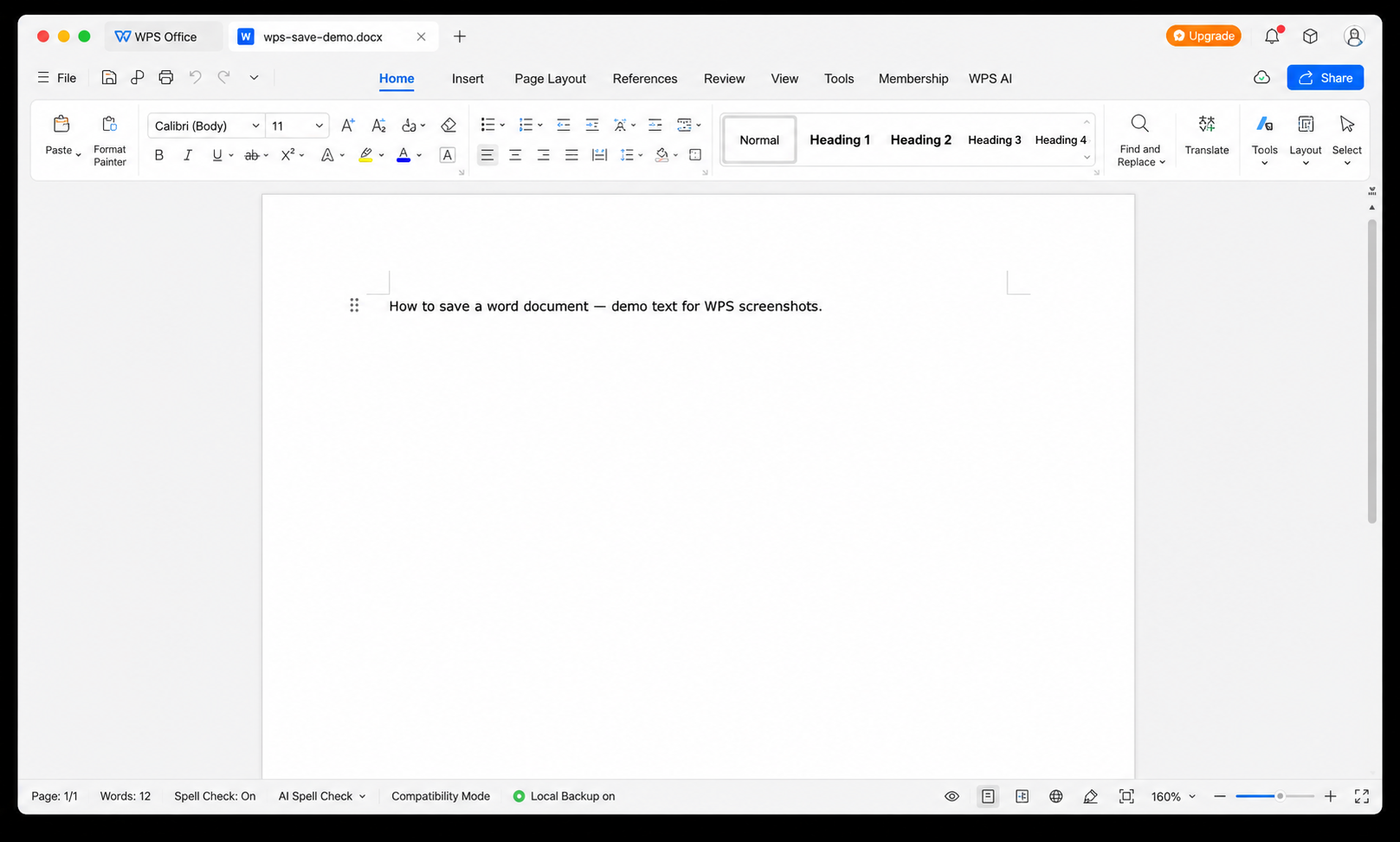
How to Save a Word Document in WPS Step by Step
WPS Writer can open and save Microsoft Word formats such as .docx and .doc. Use these way when you need how to save a word document inside WPS.
Open your file in WPS.
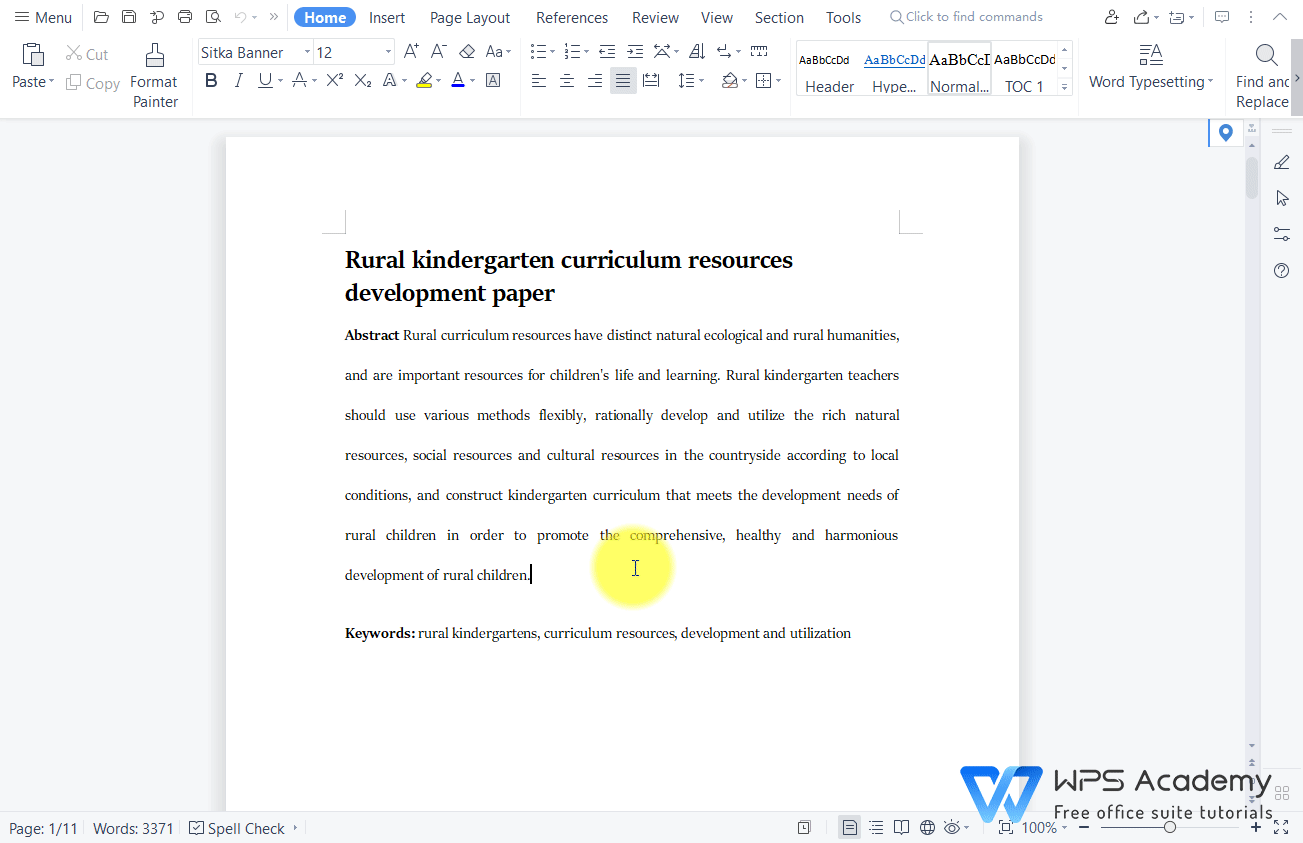
Open file in WPS Select the Save button in the upper-left corner.
Select the Save button For a new file, choose the folder, name, and type, then confirm Save.
choose the folder, name, and type
FAQ:
How to save a word document on Mac?
Use Command + S, the Save icon, or File → Save / Save As. Format choices appear in the Save dialog’s File Format list.
How to save a word document as a PDF?
In Word, use File → Save As and choose PDF. In WPS Writer, use File → Export to PDF (or the matching Save As option when PDF is listed).
Does AutoSave replace Save?
Only when the Microsoft Word file is on OneDrive or SharePoint with AutoSave On. Local-only files still need manual Save.
Where did my file go after I saved?
Check the path shown in the Save dialog, Word/WPS Recent lists, Documents, Desktop, and your OneDrive or WPS cloud folders.
Can WPS Writer save real Word files?
Yes. WPS Writer is built to open and save common Word formats such as .docx and .doc for everyday sharing.

'%3e%3cpath%20d='M19.9911%204.11386V6.471H18.5894C18.0775%206.471%2017.7322%206.57814%2017.5536%206.79243C17.3751%207.00671%2017.2858%207.32814%2017.2858%207.75671V9.44421H19.9019L19.5536%2012.0871H17.2858V18.8639H14.5536V12.0871H12.2769V9.44421H14.5536V7.49779C14.5536%206.39064%2014.8632%205.53201%2015.4822%204.92189C16.1013%204.31177%2016.9257%204.00671%2017.9554%204.00671C18.8304%204.00671%2019.509%204.04243%2019.9911%204.11386Z'%20fill='%23333333'/%3e%3c/g%3e%3cdefs%3e%3cclipPath%20id='clip0_2938_8199'%3e%3crect%20width='16'%20height='16'%20fill='white'%20transform='translate(8%204.00671)'/%3e%3c/clipPath%3e%3c/defs%3e%3c/svg%3e)
'%3e%3cpath%20d='M17.5237%2010.7813L23.4811%204H22.0699L16.8949%209.88693L12.7648%204H8L14.2469%2012.9029L8%2020.0133H9.4112L14.8725%2013.7952L19.2352%2020.0133H24M9.92053%205.04213H12.0885L22.0688%2019.0224H19.9003'%20fill='%23333333'/%3e%3c/g%3e%3cdefs%3e%3cclipPath%20id='clip0_2938_8200'%3e%3crect%20width='16'%20height='16.0134'%20fill='white'%20transform='translate(8%204)'/%3e%3c/clipPath%3e%3c/defs%3e%3c/svg%3e)


