

'%3e%3cpath%20d='M8%200C12.4183%200%2016%203.58172%2016%208C16%2012.4183%2012.4183%2016%208%2016C3.58172%2016%200%2012.4183%200%208C0%203.58172%203.58172%200%208%200ZM11.6162%204.38379C11.2257%203.99337%2010.5927%203.99338%2010.2021%204.38379L8%206.58594L5.79785%204.38379C5.40732%203.99334%204.77429%203.99329%204.38379%204.38379C3.99331%204.77429%203.99335%205.40733%204.38379%205.79785L6.58594%208L4.38379%2010.2021C3.99348%2010.5927%203.99341%2011.2257%204.38379%2011.6162C4.77426%2012.0066%205.40734%2012.0065%205.79785%2011.6162L8%209.41406L10.2021%2011.6162C10.5927%2012.0066%2011.2257%2012.0067%2011.6162%2011.6162C12.0067%2011.2257%2012.0066%2010.5927%2011.6162%2010.2021L9.41406%208L11.6162%205.79785C12.0066%205.40735%2012.0066%204.77429%2011.6162%204.38379Z'%20fill='%23080E17'%20fill-opacity='0.46'/%3e%3c/g%3e%3cdefs%3e%3cclipPath%20id='clip0_3761_713'%3e%3crect%20width='16'%20height='16'%20fill='white'/%3e%3c/clipPath%3e%3c/defs%3e%3c/svg%3e)




'%3e%3cpath%20fill-rule='evenodd'%20clip-rule='evenodd'%20d='M21.4999%2010.9993C21.4999%205.20009%2016.7986%200.498901%2010.9993%200.498901C5.19994%200.498901%200.498657%205.20009%200.498657%2010.9993C0.498657%2016.2404%204.33858%2020.5844%209.35855%2021.3722V14.0346H6.69238V10.9993H9.35855V8.68594C9.35855%206.05427%2010.9262%204.60062%2013.3248%204.60062C14.4736%204.60062%2015.6753%204.80571%2015.6753%204.80571V7.38979H14.3512C13.0468%207.38979%2012.64%208.19921%2012.64%209.0296V10.9993H15.5523L15.0867%2014.0346H12.64V21.3722C17.66%2020.5844%2021.4999%2016.2404%2021.4999%2010.9993Z'%20fill='%231568EA'/%3e%3c/g%3e%3c/svg%3e)


'%3e%3cpath%20d='M2.42045%2022.1876H6.31818V12.7217L0.75%208.54553V20.5171C0.75%2021.4414%201.49892%2022.1876%202.42045%2022.1876Z'%20fill='%234285F4'/%3e%3cpath%20d='M19.682%2022.1876H23.5797C24.5041%2022.1876%2025.2502%2021.4387%2025.2502%2020.5171V8.54553L19.682%2012.7217'%20fill='%2334A853'/%3e%3cpath%20d='M19.682%205.48293V12.7216L25.2502%208.54543V6.31816C25.2502%204.25236%2022.8921%203.07469%2021.2411%204.31361'%20fill='%23FBBC04'/%3e%3cpath%20d='M6.31824%2012.7217V5.48303L13.0001%2010.4944L19.6819%205.48303V12.7217L13.0001%2017.733'%20fill='%23EA4335'/%3e%3cpath%20d='M0.75%206.31816V8.54543L6.31818%2012.7216V5.48293L4.75909%204.31361C3.10534%203.07469%200.75%204.25236%200.75%206.31816Z'%20fill='%23C5221F'/%3e%3c/g%3e%3cdefs%3e%3cclipPath%20id='clip0_2954_7305'%3e%3crect%20width='24.5'%20height='18.375'%20fill='white'%20transform='translate(0.75%203.8125)'/%3e%3c/clipPath%3e%3c/defs%3e%3c/svg%3e)


A Word file that will not open, shows “unreadable content,” or crashes mid-edit is usually still salvageable. This guide shows practical ways to fix corrupted word document problems in Microsoft Word first, then in WPS Office—with clear steps and screenshots.
Before you start: copy the damaged DOC or DOCX file and work only on the duplicate. Do not overwrite the original until the recovered copy opens cleanly.
How to Fix a Corrupted Word Document in Microsoft Word
If the file still lives on your PC, start with Microsoft Word’s built-in repair and recovery tools. Work through these methods in order when you need to fix a corrupted Word document without installing extra software.
Use Open and Repair
Best for: one DOC/DOCX that refuses to open or triggers a corruption warning.
Do not open the file from Recent or by double-clicking in Explorer—you need the full Open dialog.
Open Microsoft Word with a blank document.
Go to File > Open > Browse.
Select the corrupted file once.
Click the arrow next to Open.
Choose Open and Repair.
If it opens, use Save As and store a new name such as
Report-Recovered.docx.
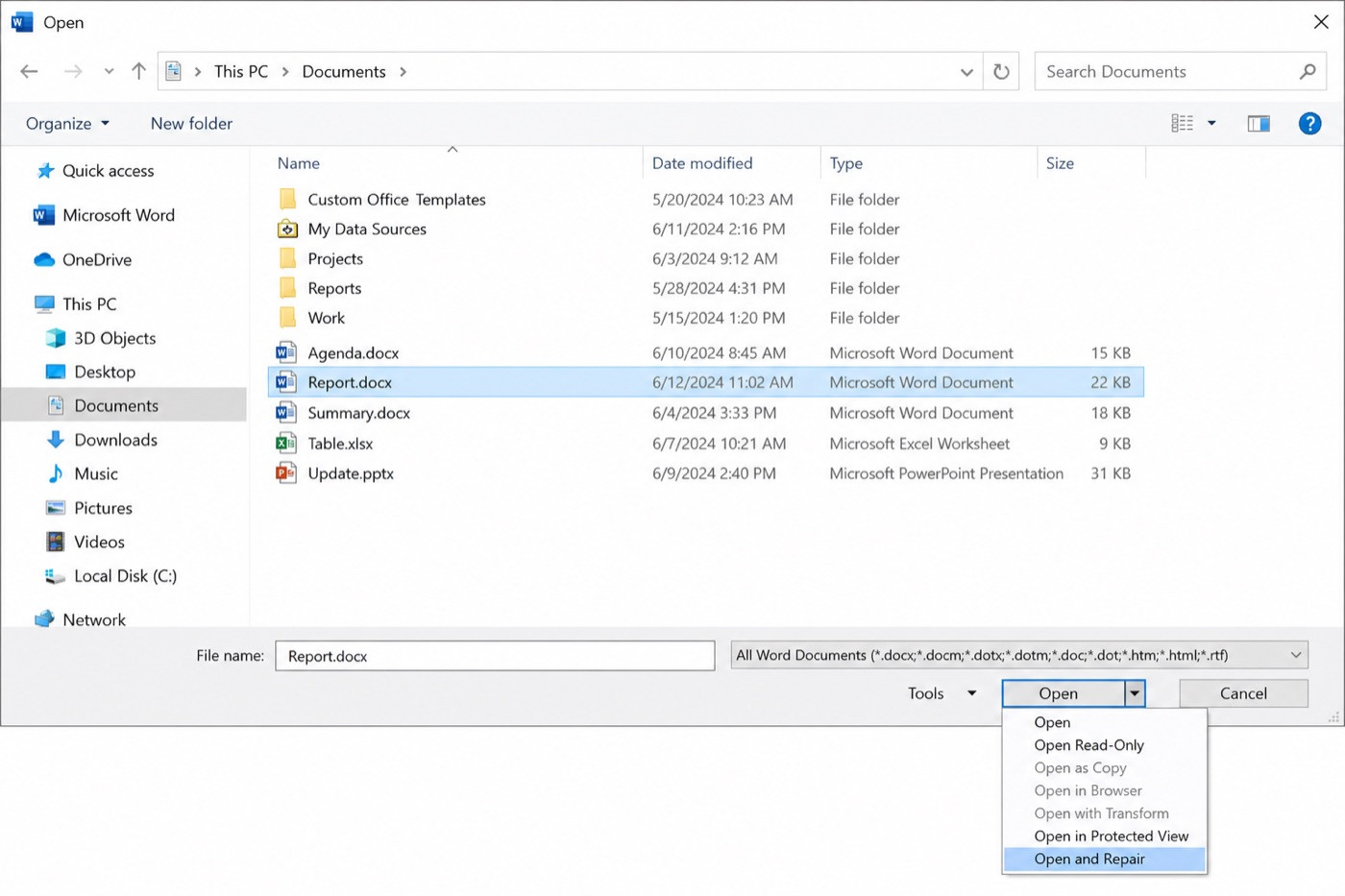
Reopen the new copy and check pages, tables, images, headers, and comments. Light damage often recovers well; severe layout or embedded-object damage may still leave gaps.
Recover Text from Any File
Best for: saving readable wording when formatting and images matter less.
In Word, go to File > Open > Browse.
Open the file-type dropdown (often set to All Word Documents).
Select Recover Text from Any File (*.*).
Open the damaged file.
Copy usable text into a new blank document and save as DOCX.
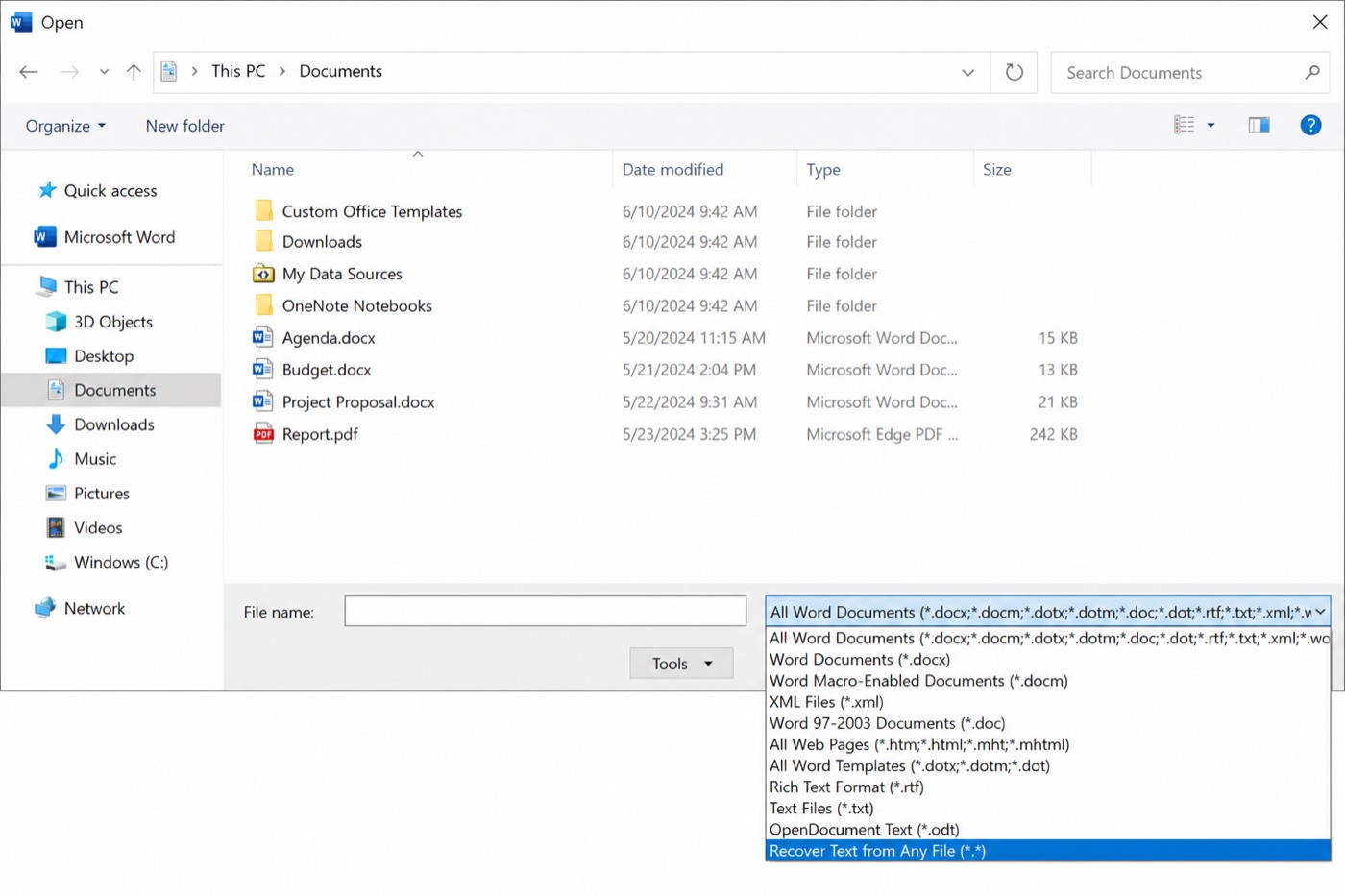
Expect leftover junk characters near the start or end. Delete them, then reapply styles manually. This path does not rebuild images, charts, or complex layout.
Restore an Earlier Copy
Best for: a file that worked earlier, then broke after a crash, sync conflict, or bad overwrite.
An older healthy copy can be cleaner than any repair attempt.
AutoRecover or unsaved drafts
Open Word and go to File > Info.
Open Manage Document.
Look for versions closed without saving, or choose Recover Unsaved Documents.
Open the best match and save it immediately under a new name.
If the draft never finished saving, walk through how to recover unsaved word documents for the full AutoRecover path on Windows and Android.
Cloud version history or last saved copies
In OneDrive, SharePoint, or another synced folder, right-click the file.
Open Version history.
Preview versions from before the corruption.
Restore or download the good copy separately.
For a deeper walkthrough of restoring prior edits, see word version history. If you only need the last successful save on disk, also check How to Open Last Saved Word.
On Windows, you can also right-click the folder, open Properties > Previous Versions, and copy out an earlier file when File History or restore points exist.
Insert Text From File
Best for: a file whose shell is damaged but whose body text may still import.
Create a blank Word document.
Go to Insert > Object > Text from File (wording can vary slightly by version).
Select the damaged document and click Insert.
Save the imported content as a new DOCX.
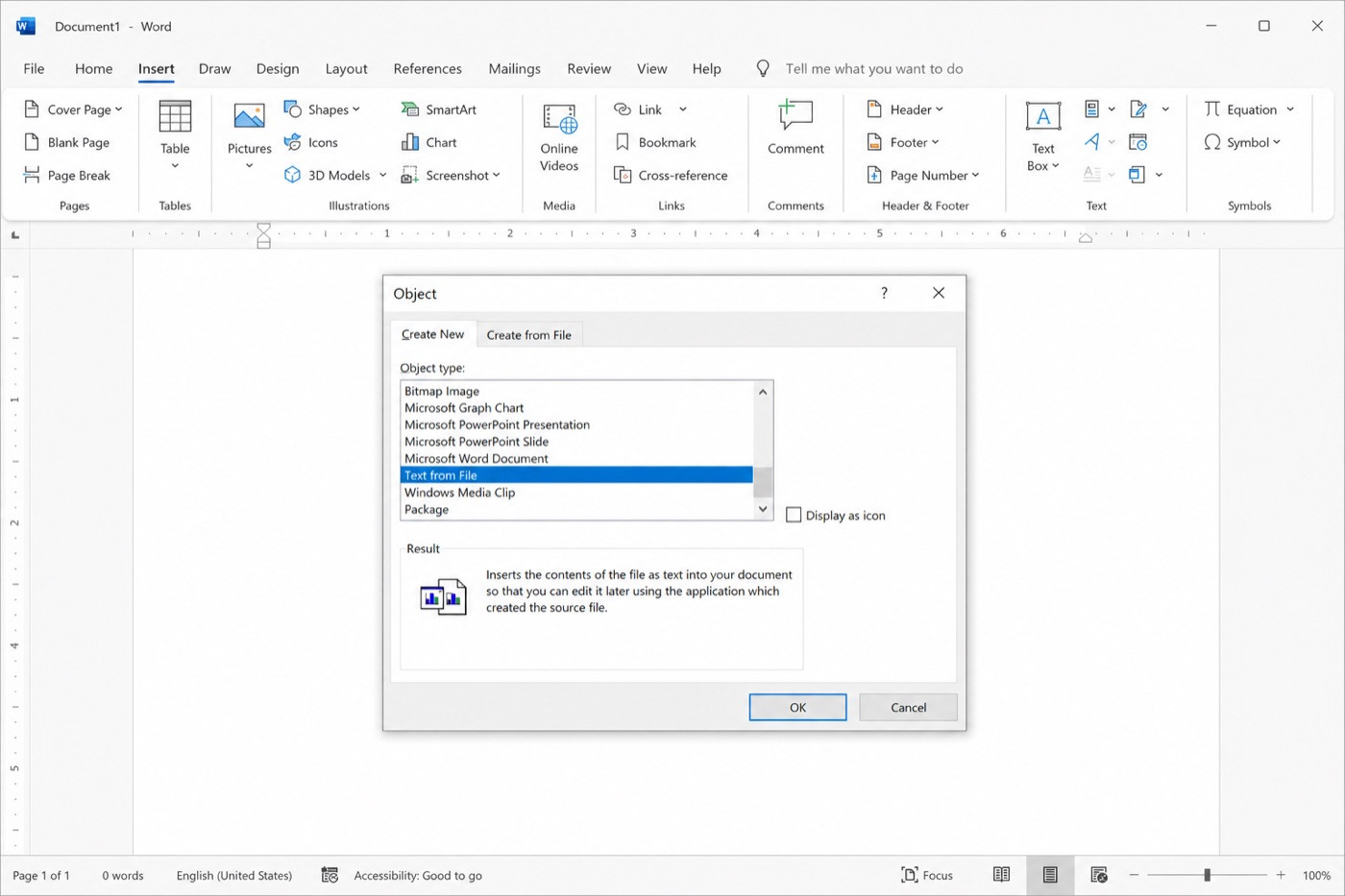
If the new file becomes unstable, copy content in smaller chunks into another blank document and save after each successful section.
Best Alternative to Microsoft Word: WPS Office
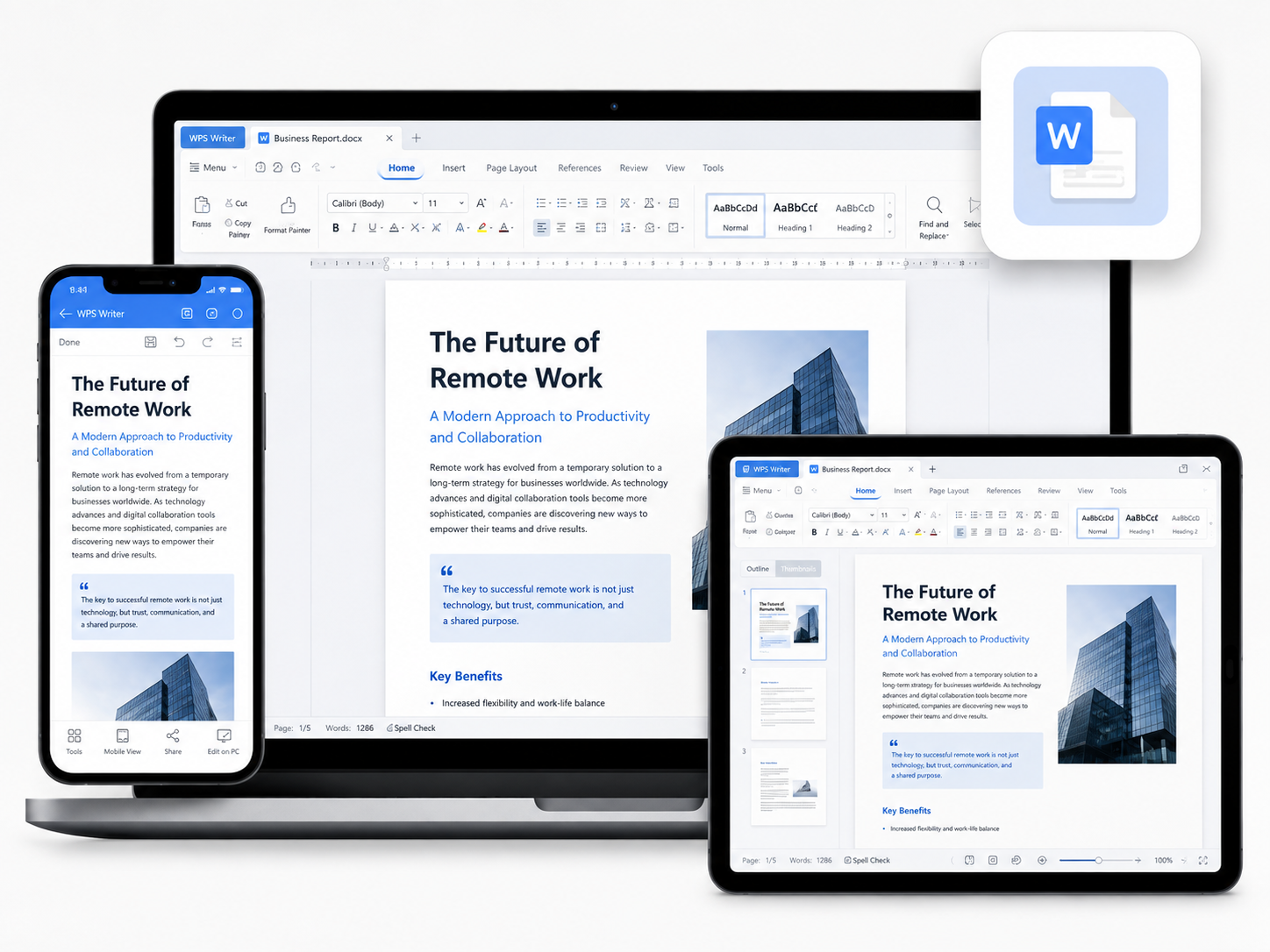
When Microsoft Word cannot open or rebuild a damaged DOC/DOCX file, a different editor can still help. WPS Office is a free, Microsoft-compatible office suite with Writer, Spreadsheets, Presentation, and PDF tools.
WPS Writer opens and edits Word files with a familiar ribbon layout. Beyond everyday editing, WPS Office also includes an offline Files Repair tool that scans damaged Word documents and lets you preview recoverable content before saving—useful when built-in Word repair options fail.
If you do not already have it installed, download WPS Office, then use the recovery steps below on a copy of your damaged file.
How to Fix a Corrupted Word Document in WPS Office
Use WPS Writer first for a second parse of the file. If that is not enough, run WPS File Repair to rebuild what is still readable.
Open the File in WPS Writer
Best for: a DOC/DOCX that Microsoft Word cannot parse cleanly, even though the file still has readable data.
Open WPS Writer.
Choose Open and browse to your duplicate copy.
Select the DOC or DOCX file and wait for it to load.
Review text, tables, and layout.
Use Save As to export a fresh recovered file.
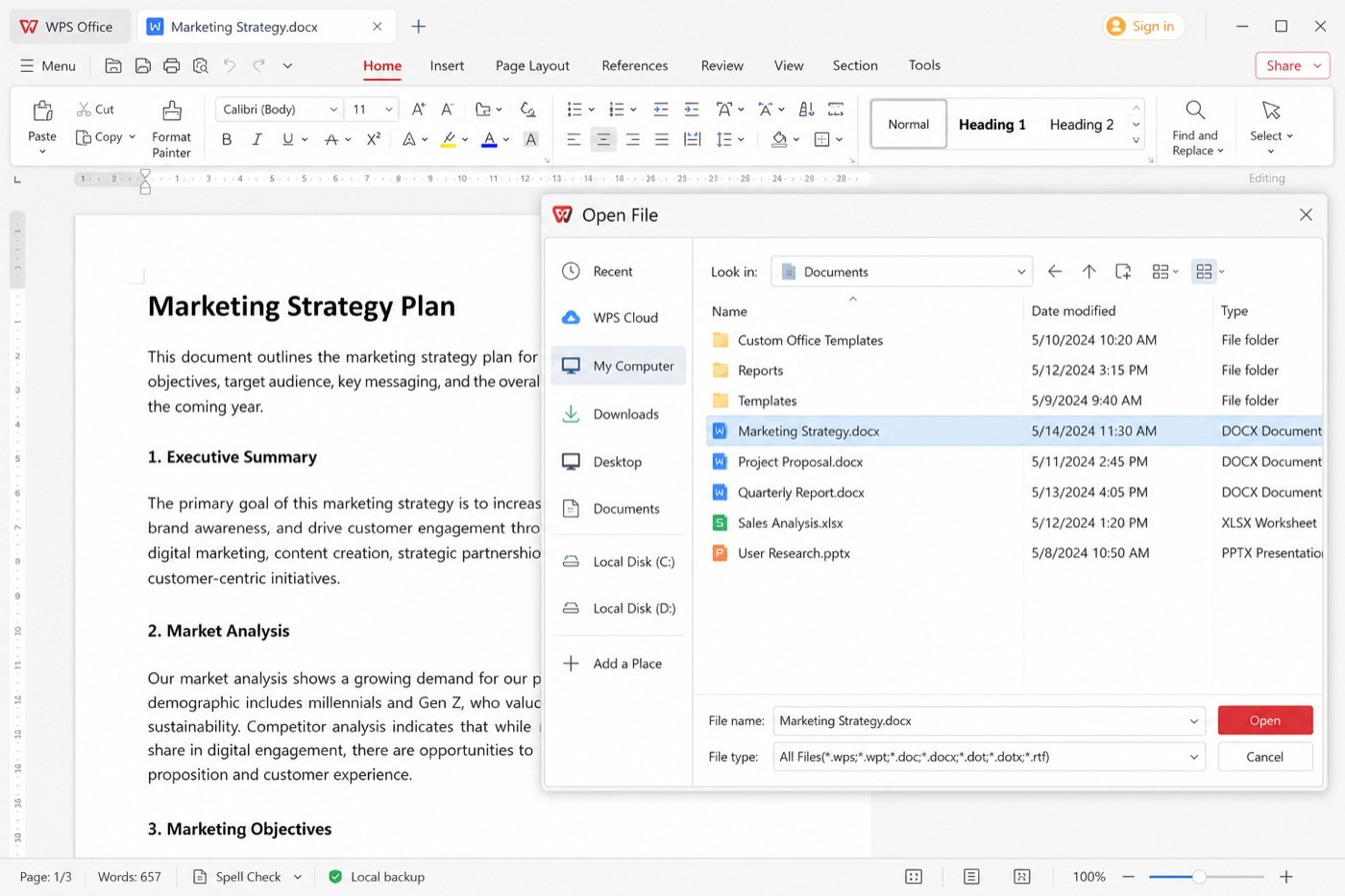
Close and reopen the saved copy to confirm stability. This helps with compatibility and parsing issues; it cannot recreate content that is missing from the binary.
Repair With WPS File Repair
Best for: stubborn DOCX damage after Open and Repair, text recovery, and alternate editors fail.
WPS File Repair scans damaged Word, Excel, and PowerPoint files locally, then lets you preview recoverable content before saving.
Open WPS Office and go to the Home page.
Open Tools (or Productivity Tools) and select Files Repair.
Add the copied corrupted Word document.
Start the repair scan and wait for results.
Preview the recovered content.
Save the repaired file under a new name.
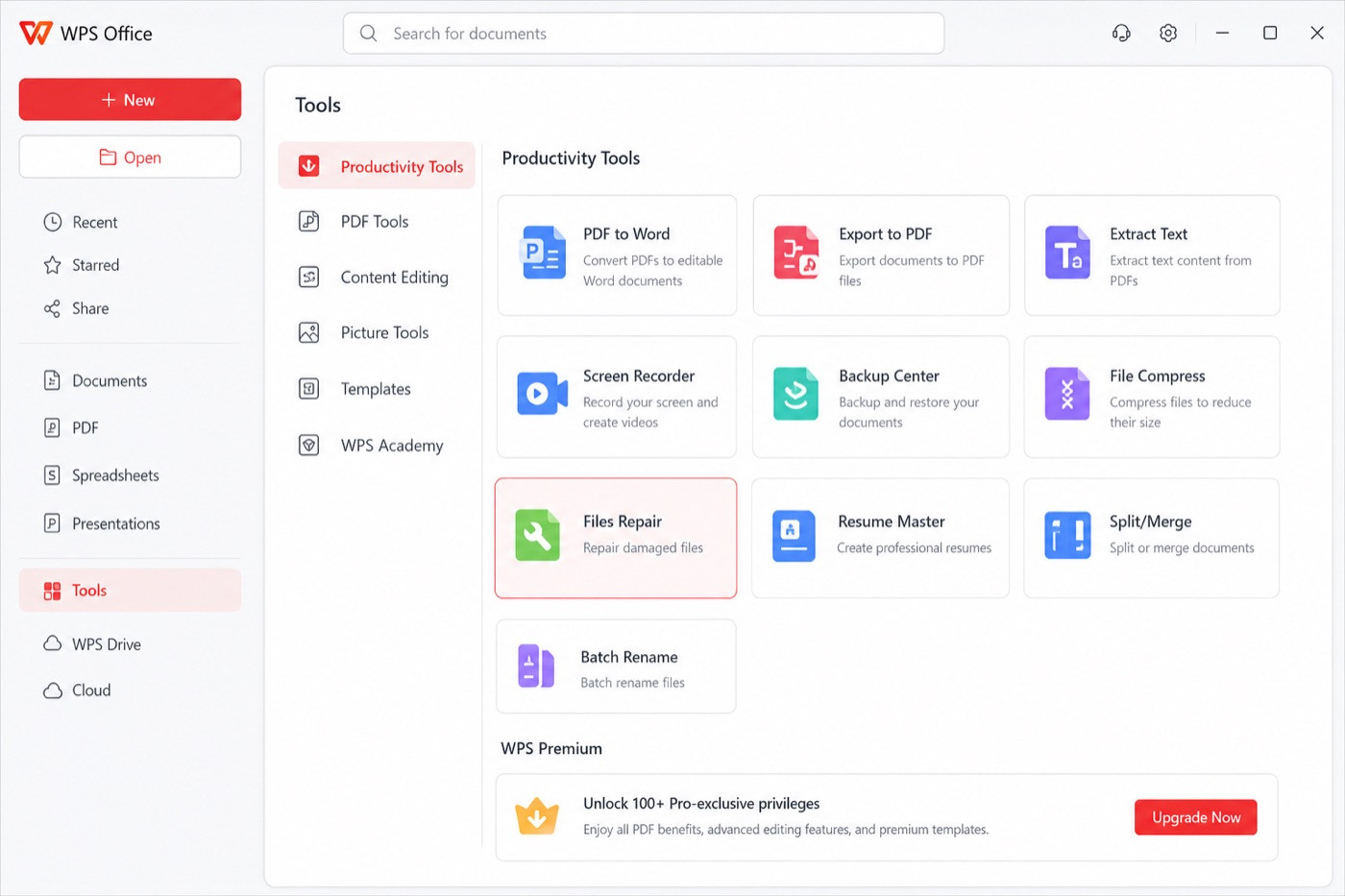
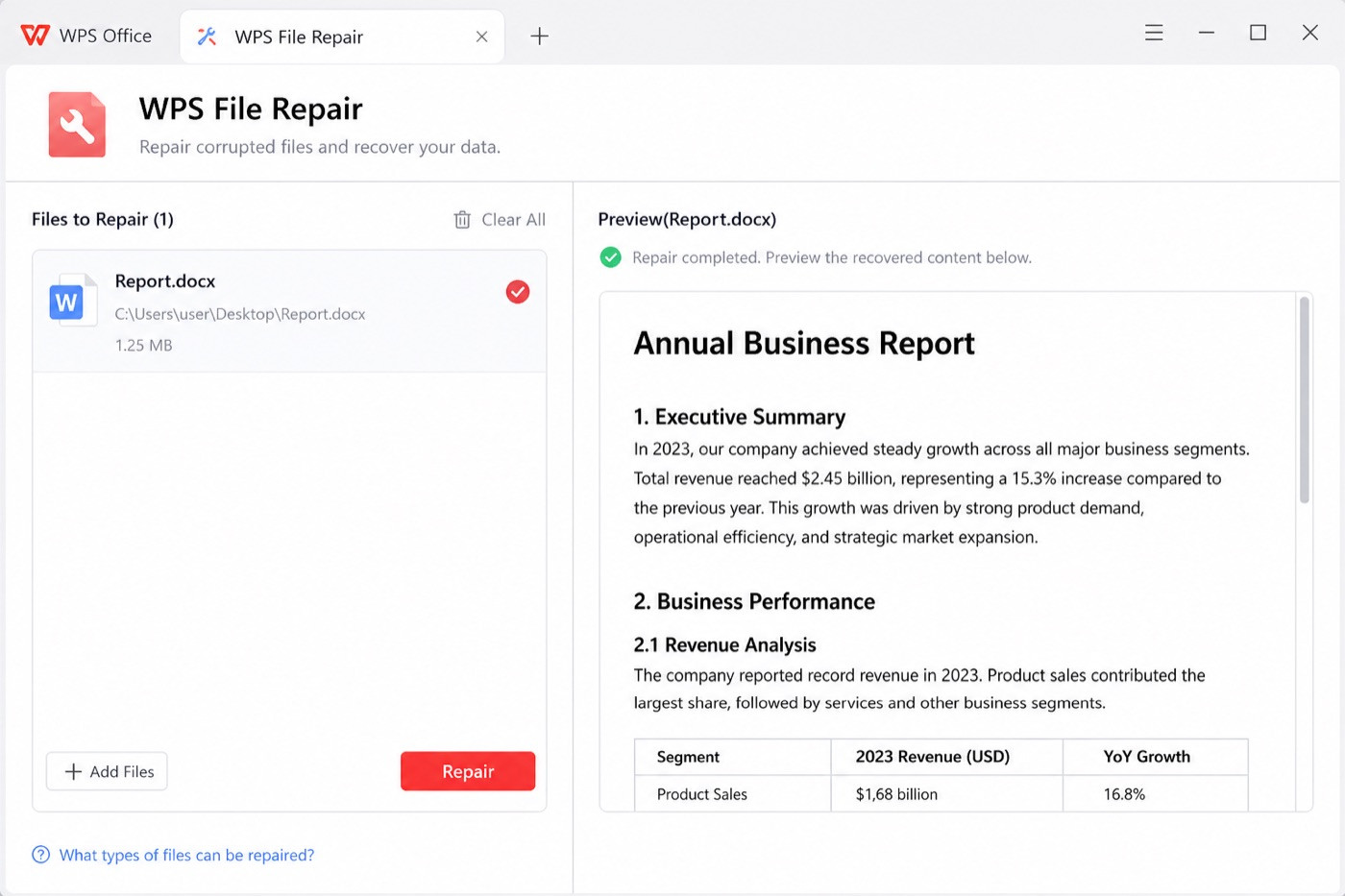
Confirm body text, tables, and key images in the preview before you keep the new file. Keep the original damaged copy until you are sure nothing important is missing.


Prevent the Need to Fix a Corrupted Word Document Again
Corruption often follows interrupted saves, unsafe USB removal, sync conflicts, or editing temporary email attachments. A few habits reduce how often you need to fix corrupted word document files:
Wait until saving finishes before closing Word or ejecting a drive.
Use the system’s safe-remove option for USB storage.
Turn on AutoRecover and keep cloud version history when you collaborate.
Download attachments to a normal folder before editing.
Keep a working copy, a backup, and a milestone copy after major revisions.
If you are still building solid save habits, start with this guide to save word document files cleanly. When you compare recovered copies, how to see when a word document was created helps you pick the right version by date metadata.
If the file disappeared from a phone instead of merely failing to open, follow how to recover deleted word documents on android before you attempt repair on an incomplete recovered file.
FAQ:
Can you fix a corrupted Word document for free?
Yes. Open and Repair, Recover Text from Any File, AutoRecover, cloud version history, Text from File, WPS Writer, and WPS File Repair are all free starting points.
What does “Word found unreadable content” mean?
Word detected structural problems in the file. Click Yes once to let Word attempt recovery, then save under a new name. If that fails, use Open and Repair next.
Why is Open and Repair not working?
The file may be severely damaged, 0 KB, only partially copied, or recovered from a bad disk. Try text recovery, an earlier version, another editor, or WPS File Repair on the most complete copy you have.
Will repair keep my original formatting?
Earlier versions usually keep the most formatting. Open and Repair may keep most recoverable layout. Recover Text mainly returns plain wording.
Should I upload sensitive files to online repair sites?
Prefer desktop repair for contracts, financial data, or client documents. WPS File Repair processes files locally inside WPS Office.
Summary

'%3e%3cpath%20d='M19.9911%204.11386V6.471H18.5894C18.0775%206.471%2017.7322%206.57814%2017.5536%206.79243C17.3751%207.00671%2017.2858%207.32814%2017.2858%207.75671V9.44421H19.9019L19.5536%2012.0871H17.2858V18.8639H14.5536V12.0871H12.2769V9.44421H14.5536V7.49779C14.5536%206.39064%2014.8632%205.53201%2015.4822%204.92189C16.1013%204.31177%2016.9257%204.00671%2017.9554%204.00671C18.8304%204.00671%2019.509%204.04243%2019.9911%204.11386Z'%20fill='%23333333'/%3e%3c/g%3e%3cdefs%3e%3cclipPath%20id='clip0_2938_8199'%3e%3crect%20width='16'%20height='16'%20fill='white'%20transform='translate(8%204.00671)'/%3e%3c/clipPath%3e%3c/defs%3e%3c/svg%3e)
'%3e%3cpath%20d='M17.5237%2010.7813L23.4811%204H22.0699L16.8949%209.88693L12.7648%204H8L14.2469%2012.9029L8%2020.0133H9.4112L14.8725%2013.7952L19.2352%2020.0133H24M9.92053%205.04213H12.0885L22.0688%2019.0224H19.9003'%20fill='%23333333'/%3e%3c/g%3e%3cdefs%3e%3cclipPath%20id='clip0_2938_8200'%3e%3crect%20width='16'%20height='16.0134'%20fill='white'%20transform='translate(8%204)'/%3e%3c/clipPath%3e%3c/defs%3e%3c/svg%3e)


