

'%3e%3cpath%20d='M8%200C12.4183%200%2016%203.58172%2016%208C16%2012.4183%2012.4183%2016%208%2016C3.58172%2016%200%2012.4183%200%208C0%203.58172%203.58172%200%208%200ZM11.6162%204.38379C11.2257%203.99337%2010.5927%203.99338%2010.2021%204.38379L8%206.58594L5.79785%204.38379C5.40732%203.99334%204.77429%203.99329%204.38379%204.38379C3.99331%204.77429%203.99335%205.40733%204.38379%205.79785L6.58594%208L4.38379%2010.2021C3.99348%2010.5927%203.99341%2011.2257%204.38379%2011.6162C4.77426%2012.0066%205.40734%2012.0065%205.79785%2011.6162L8%209.41406L10.2021%2011.6162C10.5927%2012.0066%2011.2257%2012.0067%2011.6162%2011.6162C12.0067%2011.2257%2012.0066%2010.5927%2011.6162%2010.2021L9.41406%208L11.6162%205.79785C12.0066%205.40735%2012.0066%204.77429%2011.6162%204.38379Z'%20fill='%23080E17'%20fill-opacity='0.46'/%3e%3c/g%3e%3cdefs%3e%3cclipPath%20id='clip0_3761_713'%3e%3crect%20width='16'%20height='16'%20fill='white'/%3e%3c/clipPath%3e%3c/defs%3e%3c/svg%3e)




'%3e%3cpath%20fill-rule='evenodd'%20clip-rule='evenodd'%20d='M21.4999%2010.9993C21.4999%205.20009%2016.7986%200.498901%2010.9993%200.498901C5.19994%200.498901%200.498657%205.20009%200.498657%2010.9993C0.498657%2016.2404%204.33858%2020.5844%209.35855%2021.3722V14.0346H6.69238V10.9993H9.35855V8.68594C9.35855%206.05427%2010.9262%204.60062%2013.3248%204.60062C14.4736%204.60062%2015.6753%204.80571%2015.6753%204.80571V7.38979H14.3512C13.0468%207.38979%2012.64%208.19921%2012.64%209.0296V10.9993H15.5523L15.0867%2014.0346H12.64V21.3722C17.66%2020.5844%2021.4999%2016.2404%2021.4999%2010.9993Z'%20fill='%231568EA'/%3e%3c/g%3e%3c/svg%3e)


'%3e%3cpath%20d='M2.42045%2022.1876H6.31818V12.7217L0.75%208.54553V20.5171C0.75%2021.4414%201.49892%2022.1876%202.42045%2022.1876Z'%20fill='%234285F4'/%3e%3cpath%20d='M19.682%2022.1876H23.5797C24.5041%2022.1876%2025.2502%2021.4387%2025.2502%2020.5171V8.54553L19.682%2012.7217'%20fill='%2334A853'/%3e%3cpath%20d='M19.682%205.48293V12.7216L25.2502%208.54543V6.31816C25.2502%204.25236%2022.8921%203.07469%2021.2411%204.31361'%20fill='%23FBBC04'/%3e%3cpath%20d='M6.31824%2012.7217V5.48303L13.0001%2010.4944L19.6819%205.48303V12.7217L13.0001%2017.733'%20fill='%23EA4335'/%3e%3cpath%20d='M0.75%206.31816V8.54543L6.31818%2012.7216V5.48293L4.75909%204.31361C3.10534%203.07469%200.75%204.25236%200.75%206.31816Z'%20fill='%23C5221F'/%3e%3c/g%3e%3cdefs%3e%3cclipPath%20id='clip0_2954_7305'%3e%3crect%20width='24.5'%20height='18.375'%20fill='white'%20transform='translate(0.75%203.8125)'/%3e%3c/clipPath%3e%3c/defs%3e%3c/svg%3e)


An RTF file is a plain-text document that keeps bold text, fonts, tables, and images, which is why it still opens on an old office PC, a Mac, and apps that refuse a DOCX. Here is how to open one, edit it, and convert it to DOCX or PDF without losing the layout you already have.
Start with the short version:
Open: double-click the .rtf file, or in WPS Writer choose File > Open and select it.
Edit: type on the page as usual, then press Ctrl + S (Cmd + S on Mac) to keep the same .rtf file.
Convert: choose File > Save As, then pick Word Document (*.docx) for editing or PDF Document (*.pdf) for sending.

What Is an RTF File? How to Open, Edit, and Convert It
Open an RTF File in WPS Writer
RTF needs no converter and no add-in. WPS Writer reads the format directly, so the document opens as an editable page with headings, tables, and bold text already in place.
Save the .rtf file somewhere you can find it, such as Downloads or your Desktop.
Double-click the file. If it opens in a text editor instead, right-click it, choose Open With, then pick WPS Office.
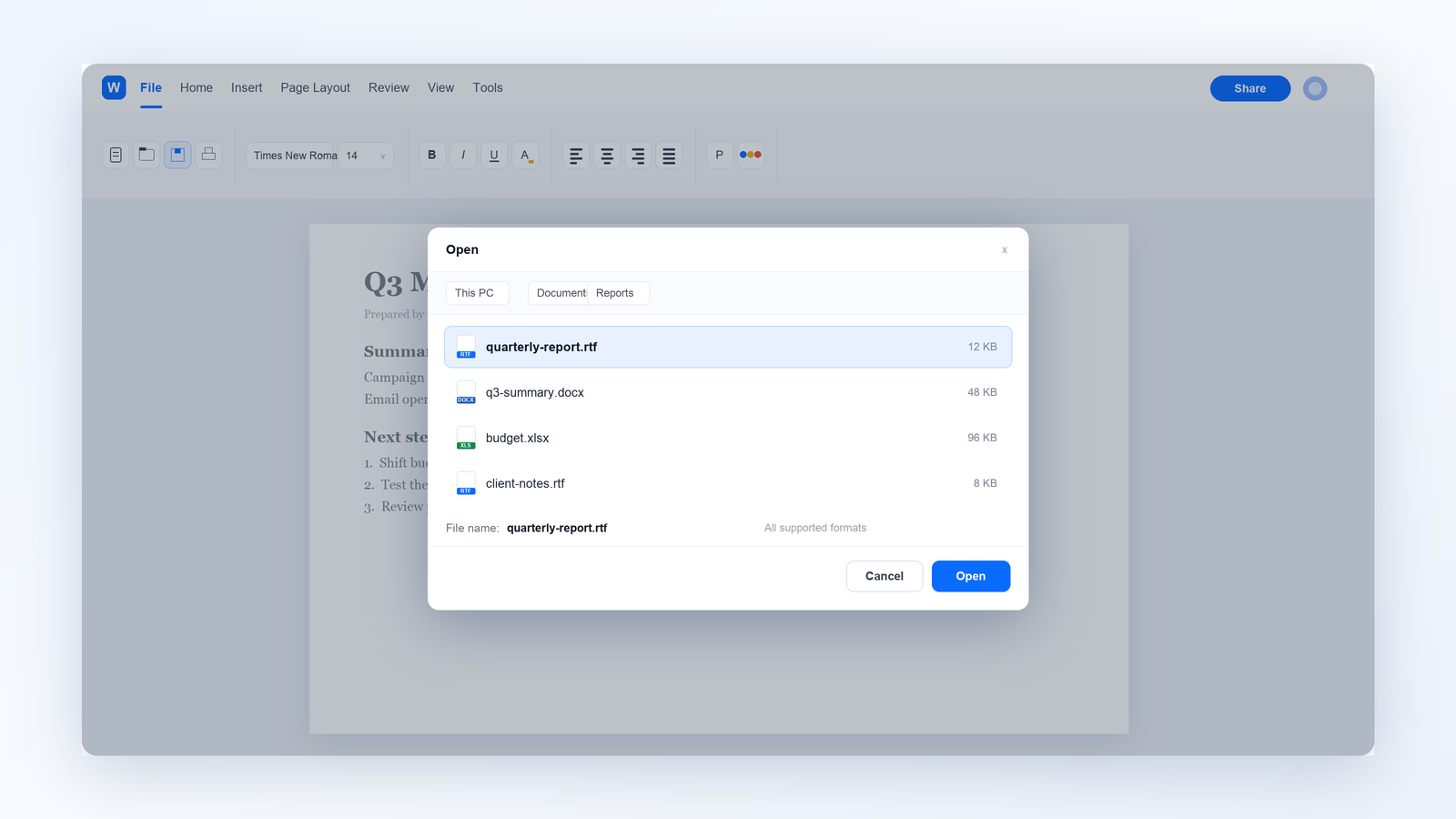
Open RTF file in WPS Writer
Check the page before you edit: headings are bold, tables have borders, and images sit where they should. If you see a wall of code that starts with {\rtf1, you opened the raw file in Notepad or TextEdit — close it and reopen it in Writer.
The file name stays visible in the title bar, so you always know you are editing the .rtf copy and not a converted file.


Edit an RTF File Without Breaking the Formatting
Everyday formatting survives an RTF edit: bold, italic, underline, font and size, text colour, alignment, bullet lists, tables, images, margins, and headers or footers. RTF stores those as plain text codes, so another word processor can rebuild the page.
Click into the text and edit as usual — the page is not read-only and nothing is locked.
Use the Home tab for font, size, bold, and alignment changes. A quick-format bar also appears beside the text when you need one change fast.
Press Ctrl + S to save back into the .rtf file, or use File > Save As if you want to keep an untouched original.
If the job needs comments, tracked changes, or a table of contents, save a DOCX copy first — those features belong to DOCX and behave poorly in the exchange format.
Keep the structure simple while you work: one font family, standard heading levels, and no floating text boxes. RTF handles clean structure well and gets unpredictable with layered objects.

Edit RTF file formatting in Writer
Convert an RTF File to DOCX or PDF
Convert when the next person expects a modern Word file or a fixed page. Both routes start in the same dialog.
Open the .rtf file in WPS Writer.
Choose File > Save As.
Set the file name, then open Save as type and select Word Document (*.docx) to keep editing or PDF Document (*.pdf) to freeze the layout.
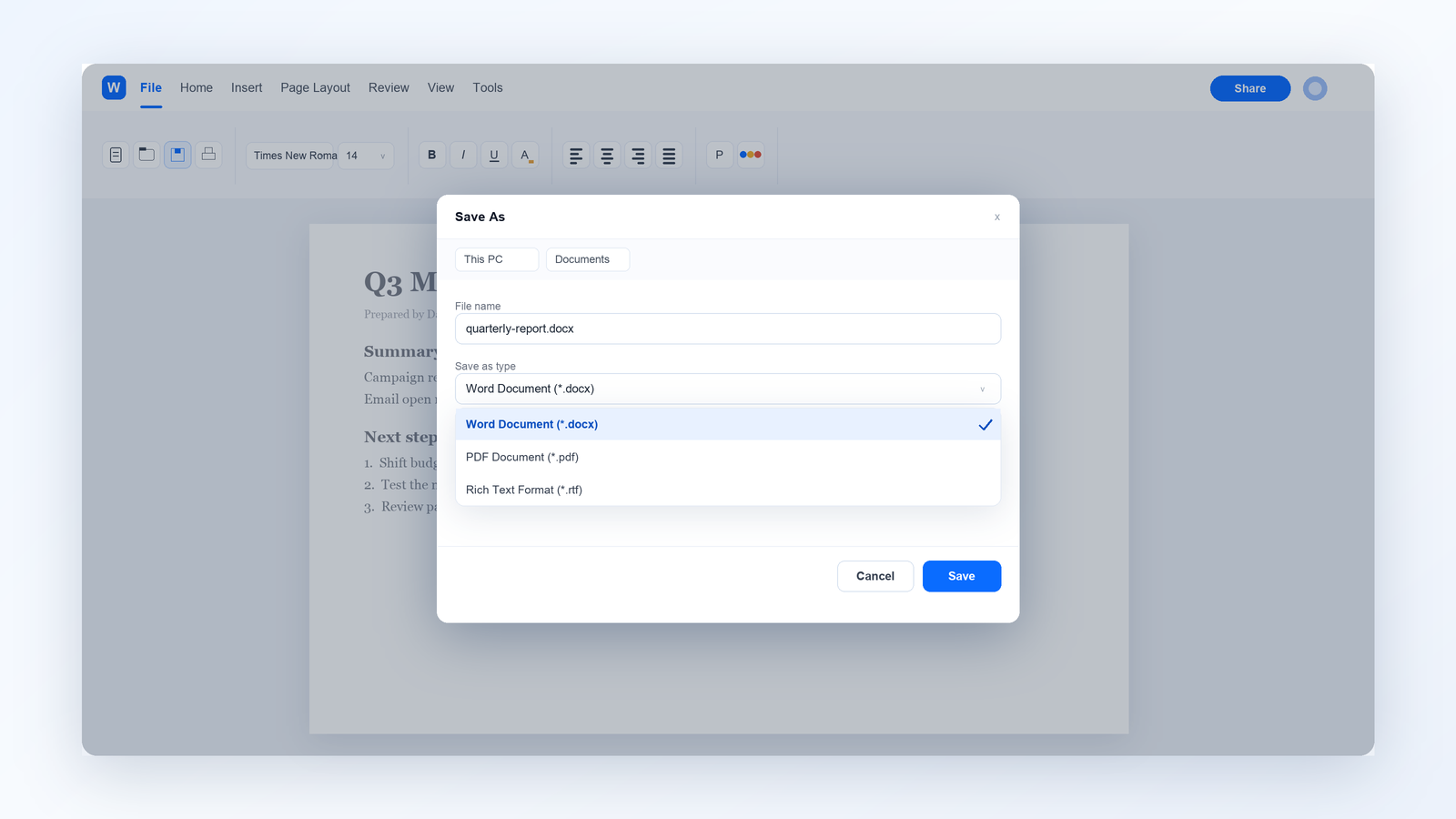
Save RTF file as DOCX
Save, reopen the new file, and compare headings, tables, images, and page breaks with the original before you send it.
Treat the converted file as a copy. Keep the .rtf until the review is done, and delete it only after the DOCX or PDF passes that check.
RTF File vs. DOCX vs. PDF: Which One Should You Send?
Pick the format for what the recipient needs to do next, not for which one looks more modern.
| Format | Editing | What survives | Best for |
|---|---|---|---|
| RTF | Fully editable text | Basic formatting, tables, images; advanced objects may drop | Older software, cross-platform handoff, plain-text-friendly uploads |
| DOCX | Fully editable | Comments, tracked changes, styles, charts, macros (DOCM) | Everyday editing and review cycles |
| Limited editing | Exact layout, fonts, and print output | Final copies, contracts, printing |
If you are still choosing between the three, this guide to common file formats walks through the same trade-offs for DOCX, XLSX, PPTX, and CSV. Two rules cover most of the working day:
Send DOCX when someone has to edit, comment, or approve the text.
Send PDF when nothing should move after you hit send.
Keep RTF for the case it was built for: older software, cross-platform handoff, and uploads that prefer plain, machine-readable text. Many applicant tracking systems and AI readers still extract an RTF file more reliably than a heavily styled DOCX.

RTF vs DOCX vs PDF formats
When an RTF File Is the Wrong Choice
Microsoft stopped updating the RTF specification in 2008, so a few modern expectations simply do not apply.
Comments and tracked changes can flatten or disappear when the file reopens in another app.
No password protection. RTF is readable text, so anyone holding the file can read it — never send contracts, payroll, or ID scans this way.
No macros. An automated form or template stops working once it is saved as RTF.
Layout drift. Multi-column pages, floating images, SmartArt, and some chart types may reflow.
For those jobs, keep a DOCX master and export a PDF for the final handoff. If an older system forces RTF, send a test copy first and check how it looks on the other side.

RTF file limitations for sharing
The Free Way to Handle Every RTF File: WPS Office
WPS Office opens the .rtf file directly in Writer, keeps the formatting you can see on screen, and converts to DOCX or PDF from the same Save As dialog. No add-in, and no upload to a converter site you do not know.
One app for the whole job: open, edit, and convert, then compress or sign the PDF without switching tools.
Your file stays on your device, which matters for contracts, invoices, and internal reports.
Free across platforms: Windows, macOS, Linux, Android, and iOS share the same Writer layout, so the RTF you open on a phone matches the file on your laptop.
Install it once and RTF stops being a format you have to think about. The WPS file opener also handles DOCX, PDF, and dozens of other formats, so a client who sends the wrong file does not stop your day.
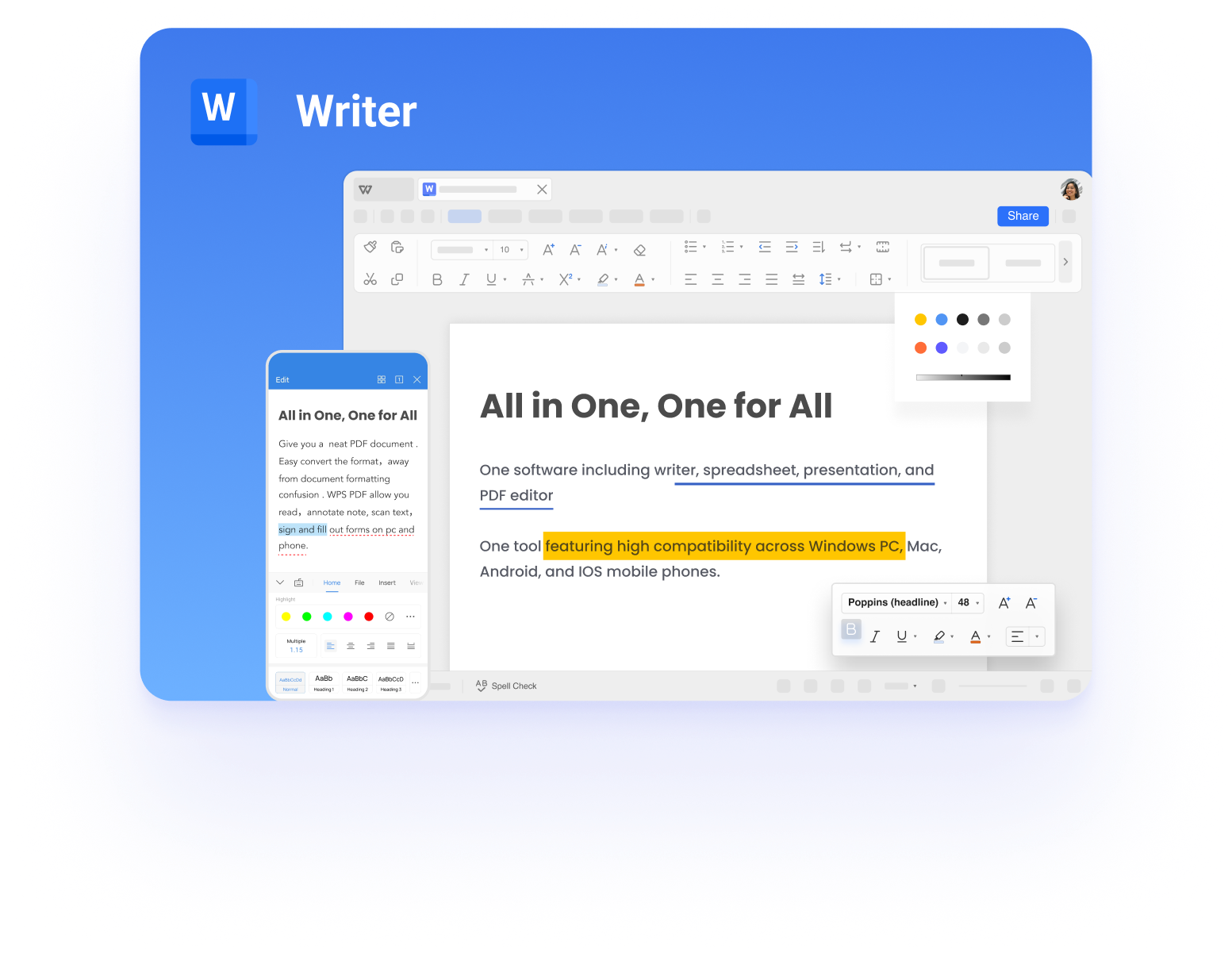
WPS Writer opens RTF files
FAQs
Is an RTF file the same as a Word document?
No. Both hold formatted text, but DOCX is the modern Word format with comments, styles, charts, and macros, while RTF is an older exchange format built to open in almost any word processor.
Can I open an RTF file in Google Docs or Microsoft Word?
Yes. In Google Docs, use File > Open > Upload; in Word, use File > Open. Simple formatting usually survives, but custom fonts, complex tables, and embedded objects can shift.
Why does my RTF file open as a block of code?
Your system opened it in Notepad or TextEdit, which show the raw RTF codes instead of the page. Close it, right-click the file, choose Open With, and select WPS Writer or Word.
Does converting RTF to PDF change the layout?
Usually only slightly. Margins, fonts, and tables stay, but an unusual font may be substituted on the receiving device. Open the PDF before sending and check the pages that matter.
Can an RTF file contain images and tables?
Yes, basic images and tables are supported. SmartArt, charts, and layered objects are not, so keep those documents as DOCX or PDF.



'%3e%3cpath%20d='M19.9911%204.11386V6.471H18.5894C18.0775%206.471%2017.7322%206.57814%2017.5536%206.79243C17.3751%207.00671%2017.2858%207.32814%2017.2858%207.75671V9.44421H19.9019L19.5536%2012.0871H17.2858V18.8639H14.5536V12.0871H12.2769V9.44421H14.5536V7.49779C14.5536%206.39064%2014.8632%205.53201%2015.4822%204.92189C16.1013%204.31177%2016.9257%204.00671%2017.9554%204.00671C18.8304%204.00671%2019.509%204.04243%2019.9911%204.11386Z'%20fill='%23333333'/%3e%3c/g%3e%3cdefs%3e%3cclipPath%20id='clip0_2938_8199'%3e%3crect%20width='16'%20height='16'%20fill='white'%20transform='translate(8%204.00671)'/%3e%3c/clipPath%3e%3c/defs%3e%3c/svg%3e)
'%3e%3cpath%20d='M17.5237%2010.7813L23.4811%204H22.0699L16.8949%209.88693L12.7648%204H8L14.2469%2012.9029L8%2020.0133H9.4112L14.8725%2013.7952L19.2352%2020.0133H24M9.92053%205.04213H12.0885L22.0688%2019.0224H19.9003'%20fill='%23333333'/%3e%3c/g%3e%3cdefs%3e%3cclipPath%20id='clip0_2938_8200'%3e%3crect%20width='16'%20height='16.0134'%20fill='white'%20transform='translate(8%204)'/%3e%3c/clipPath%3e%3c/defs%3e%3c/svg%3e)


