

'%3e%3cpath%20d='M8%200C12.4183%200%2016%203.58172%2016%208C16%2012.4183%2012.4183%2016%208%2016C3.58172%2016%200%2012.4183%200%208C0%203.58172%203.58172%200%208%200ZM11.6162%204.38379C11.2257%203.99337%2010.5927%203.99338%2010.2021%204.38379L8%206.58594L5.79785%204.38379C5.40732%203.99334%204.77429%203.99329%204.38379%204.38379C3.99331%204.77429%203.99335%205.40733%204.38379%205.79785L6.58594%208L4.38379%2010.2021C3.99348%2010.5927%203.99341%2011.2257%204.38379%2011.6162C4.77426%2012.0066%205.40734%2012.0065%205.79785%2011.6162L8%209.41406L10.2021%2011.6162C10.5927%2012.0066%2011.2257%2012.0067%2011.6162%2011.6162C12.0067%2011.2257%2012.0066%2010.5927%2011.6162%2010.2021L9.41406%208L11.6162%205.79785C12.0066%205.40735%2012.0066%204.77429%2011.6162%204.38379Z'%20fill='%23080E17'%20fill-opacity='0.46'/%3e%3c/g%3e%3cdefs%3e%3cclipPath%20id='clip0_3761_713'%3e%3crect%20width='16'%20height='16'%20fill='white'/%3e%3c/clipPath%3e%3c/defs%3e%3c/svg%3e)




'%3e%3cpath%20fill-rule='evenodd'%20clip-rule='evenodd'%20d='M21.4999%2010.9993C21.4999%205.20009%2016.7986%200.498901%2010.9993%200.498901C5.19994%200.498901%200.498657%205.20009%200.498657%2010.9993C0.498657%2016.2404%204.33858%2020.5844%209.35855%2021.3722V14.0346H6.69238V10.9993H9.35855V8.68594C9.35855%206.05427%2010.9262%204.60062%2013.3248%204.60062C14.4736%204.60062%2015.6753%204.80571%2015.6753%204.80571V7.38979H14.3512C13.0468%207.38979%2012.64%208.19921%2012.64%209.0296V10.9993H15.5523L15.0867%2014.0346H12.64V21.3722C17.66%2020.5844%2021.4999%2016.2404%2021.4999%2010.9993Z'%20fill='%231568EA'/%3e%3c/g%3e%3c/svg%3e)


'%3e%3cpath%20d='M2.42045%2022.1876H6.31818V12.7217L0.75%208.54553V20.5171C0.75%2021.4414%201.49892%2022.1876%202.42045%2022.1876Z'%20fill='%234285F4'/%3e%3cpath%20d='M19.682%2022.1876H23.5797C24.5041%2022.1876%2025.2502%2021.4387%2025.2502%2020.5171V8.54553L19.682%2012.7217'%20fill='%2334A853'/%3e%3cpath%20d='M19.682%205.48293V12.7216L25.2502%208.54543V6.31816C25.2502%204.25236%2022.8921%203.07469%2021.2411%204.31361'%20fill='%23FBBC04'/%3e%3cpath%20d='M6.31824%2012.7217V5.48303L13.0001%2010.4944L19.6819%205.48303V12.7217L13.0001%2017.733'%20fill='%23EA4335'/%3e%3cpath%20d='M0.75%206.31816V8.54543L6.31818%2012.7216V5.48293L4.75909%204.31361C3.10534%203.07469%200.75%204.25236%200.75%206.31816Z'%20fill='%23C5221F'/%3e%3c/g%3e%3cdefs%3e%3cclipPath%20id='clip0_2954_7305'%3e%3crect%20width='24.5'%20height='18.375'%20fill='white'%20transform='translate(0.75%203.8125)'/%3e%3c/clipPath%3e%3c/defs%3e%3c/svg%3e)


Upload portals reject oversized PDFs before anything else on your form gets checked. To make a PDF less than 500KB, run it through a compressor with a target size or a strong quality level, then verify the result in Finder or File Explorer before you retry the upload — text stays sharp because compression only re-encodes the images inside the file.
How to Make a PDF Less Than 500KB: Free Methods That Work
Why So Many Portals Demand a PDF Less Than 500KB
Visa applications, scholarship forms, job portals, and government submission systems converge on 500KB because thousands of users upload at once and small files keep their servers responsive. A scanned application form, a stamped certificate, or a photo-heavy report regularly lands between 3MB and 20MB, so the gap you need to close is large — but achievable, because in most oversized PDFs the weight is in the scanned images, not the text.
Compression works by re-encoding those images at a lower resolution and stripping redundant data. The text layer either stays vector-sharp or is rendered at a readable quality, which is why a compressed form still passes document verification even when the file is ten times smaller. If your target limit is a different size, the same workflow applies — the guides to compress PDF to 1000KB and shrink files under 2MB walk through the same steps at other thresholds.
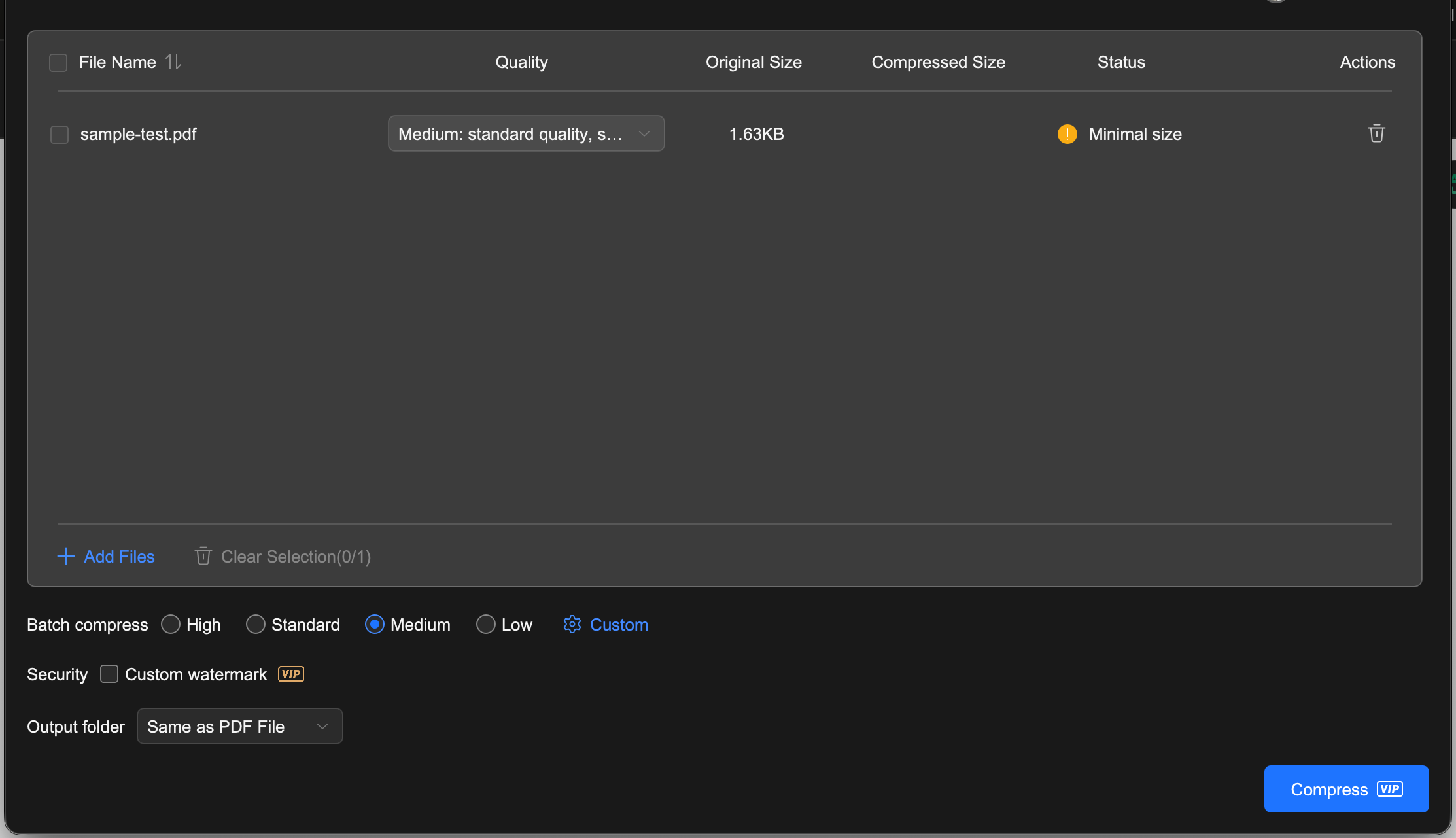
WPS PDF batch compressor with quality levels for shrinking a PDF under a portal limit
How to Make a PDF Less Than 500KB Online with WPS PDF
The browser compressor is the fastest route when you need the file once, right now — no install, works the same on Windows, Mac, and mobile:
Open the WPS PDF compressor in your browser and click the upload area or drag your file in.
Select your PDF from your device and wait for the upload to finish.
Choose a compression level. Start with the recommended level; if the result stays above 500KB, run it again with a stronger setting.
Click Compress and wait for processing to complete.
Download and check the size. Right-click the file (or check the download bar) and confirm it is under 500KB before you upload it anywhere.
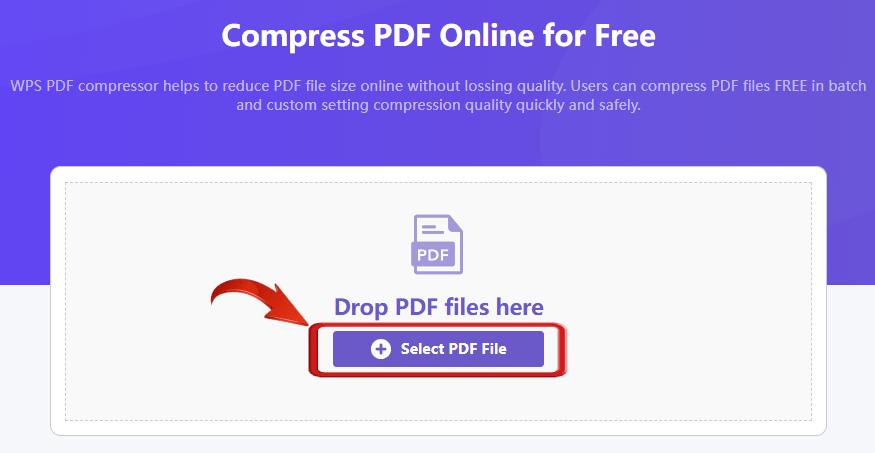
WPS PDF compressor online upload page


How to Make a PDF Less Than 500KB Offline in WPS Office
For contracts, ID scans, or anything sensitive, compress locally so the file never leaves your device. WPS Office includes a built-in compressor with three quality levels — enough control to land exactly under 500KB:
Open the PDF in WPS Office and switch to the Home tab.
Click Compress in the toolbar to open the compression dialog.
Pick a compression level: HD keeps quality close to the original, Standard balances size and clarity, and Extreme produces the smallest file.
Click Compress and save the output somewhere easy to find.
Check the file size in File Explorer or Finder. Still above 500KB? Compress the output again at Extreme, or use the rescue tactics below.
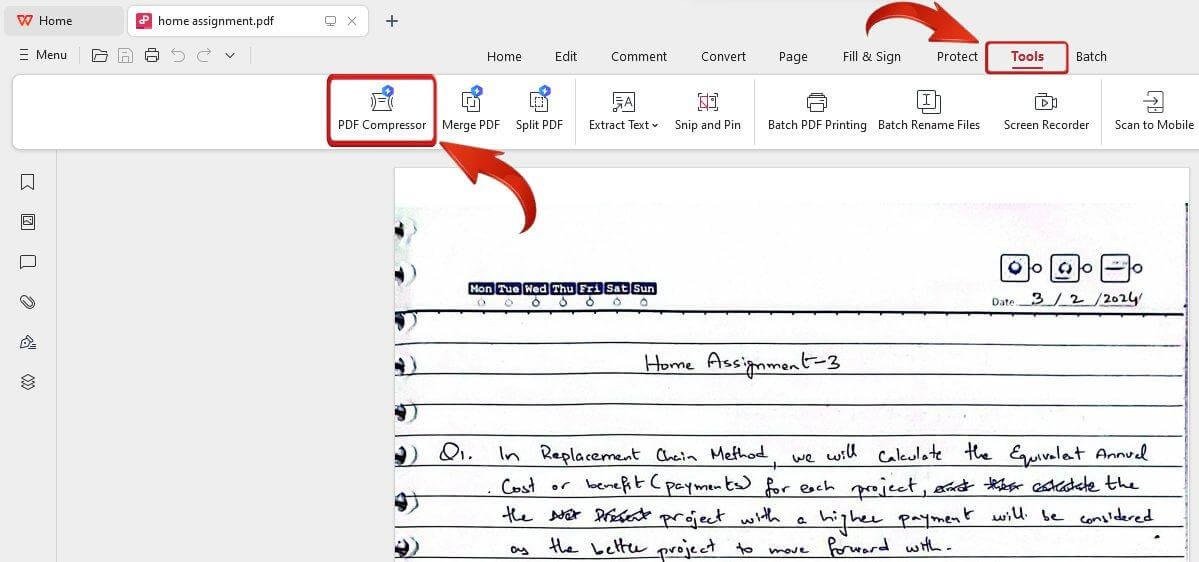
WPS PDF Compressor in Tools menu
For a scanned application form, Standard is usually enough to pass a 500KB check while keeping stamps and signatures readable. Keep Extreme as the second move, not the first, because every step down in quality is a step you cannot undo — always compress a copy and keep the original.
What to Do When the File Still Exceeds 500KB
If the compressed output stubbornly stays above the limit, the file is fighting back for a structural reason. These four moves close the gap:
Lower the resolution at the source. Rescan at 150 dpi instead of 300–600 dpi, or export from Word with images set to screen quality — this attacks the problem before compression even starts.
Compress in two passes. Run Standard first, check the size, then apply Extreme only if the last few hundred KB refuse to go.
Split very long files. A 100-page scan may not fit under 500KB at readable quality no matter what; split it and upload the section the portal actually asks for.
Drop color on text-only scans. Converting grayscale-friendly documents from color to gray removes channel data that compression cannot fully squeeze.
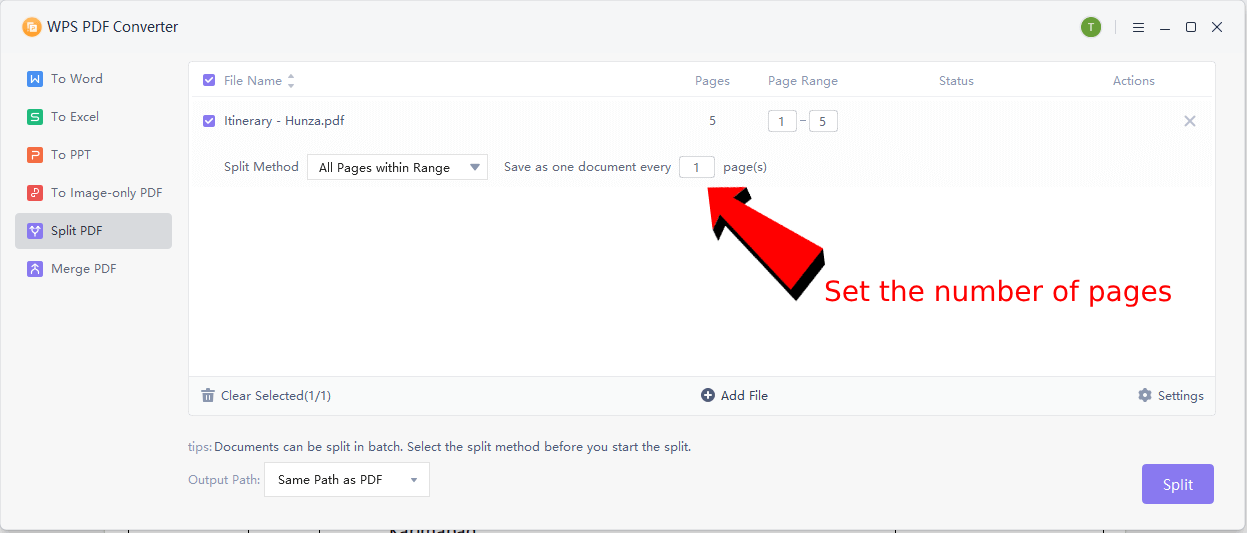
WPS PDF Split dialog: split a long file into smaller parts
Balancing Size and Readability in a 500KB PDF
Every compression level trades image fidelity for bytes, and the right trade-off depends on what the receiving end does with the file. A text-only contract survives aggressive compression invisibly; a scanned ID photo does not.
Text-heavy forms: compress freely — the text layer is untouched, so the file looks identical after shrinking.
Scanned documents: prefer Standard first, and zoom to 100% after compressing to confirm signatures, stamps, and fine print are still legible.
Photo portfolios: consider resizing images in the source document before compression, which keeps detail far better than squeezing alone.
Whatever you choose, open the compressed file once before submitting it. A portal will accept a soft-looking scan, but it will not accept an unreadable one.
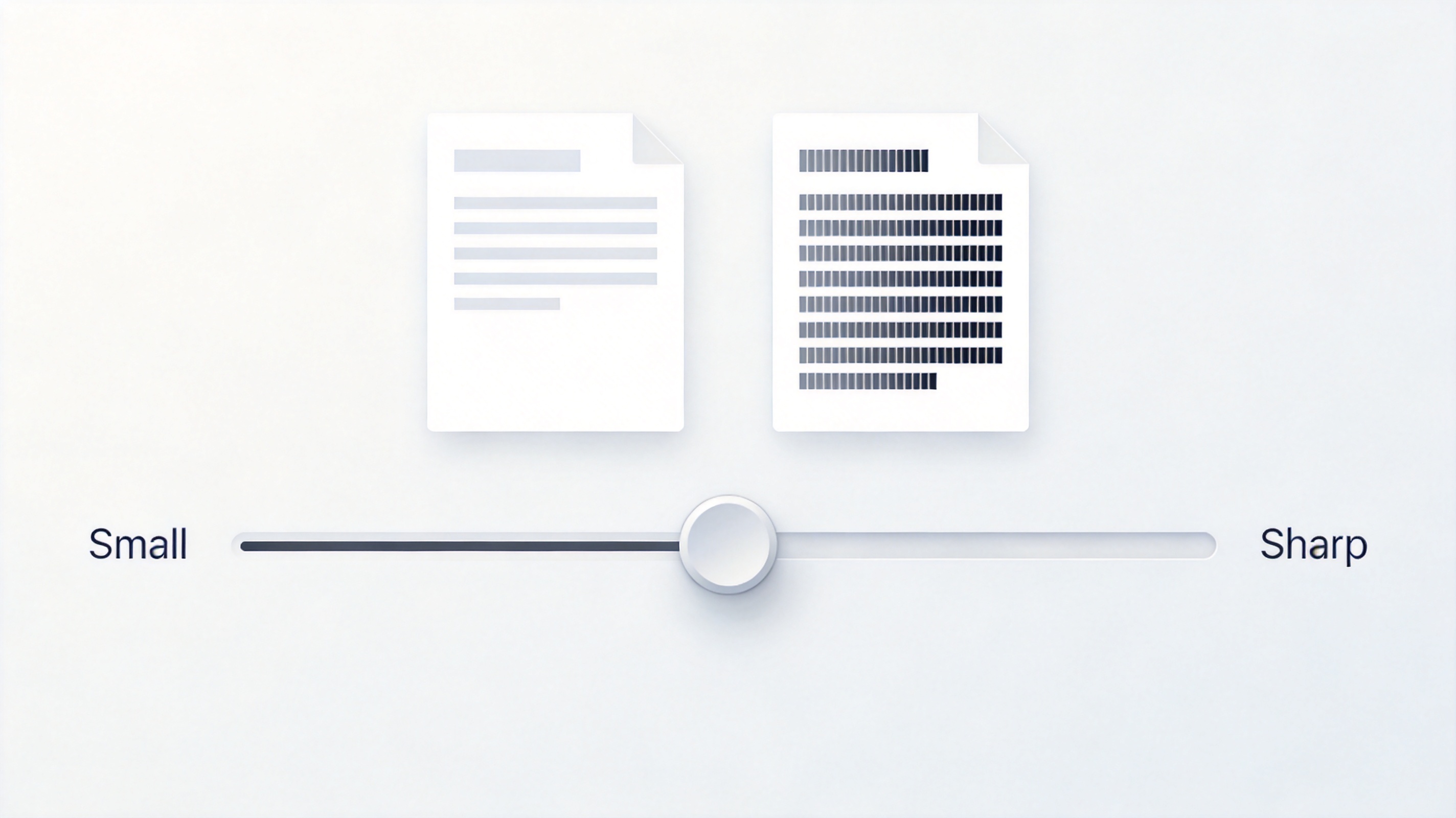
Trade off file size against text sharpness
The Best Free Alternative: WPS Office
Dedicated compressor websites handle one file at a time and often cap the free quota. WPS Office puts the compressor, the editor, and the whole office suite in one free download:
Compress PDFs offline with three quality levels, batch after batch, with no per-file limits.
Edit, annotate, merge, and split the same PDF in one window when the portal asks for exactly one file.
Convert PDF to Word or Excel when the form demands editable content instead of a flat scan.
Handle Word, Excel, and PowerPoint with a familiar Microsoft-like interface, free on Windows, Mac, iOS, and Android.
For recurring upload deadlines — exam forms, visa renewals, grant applications — having the compressor a keyboard shortcut away beats re-uploading your documents to a different website every time.
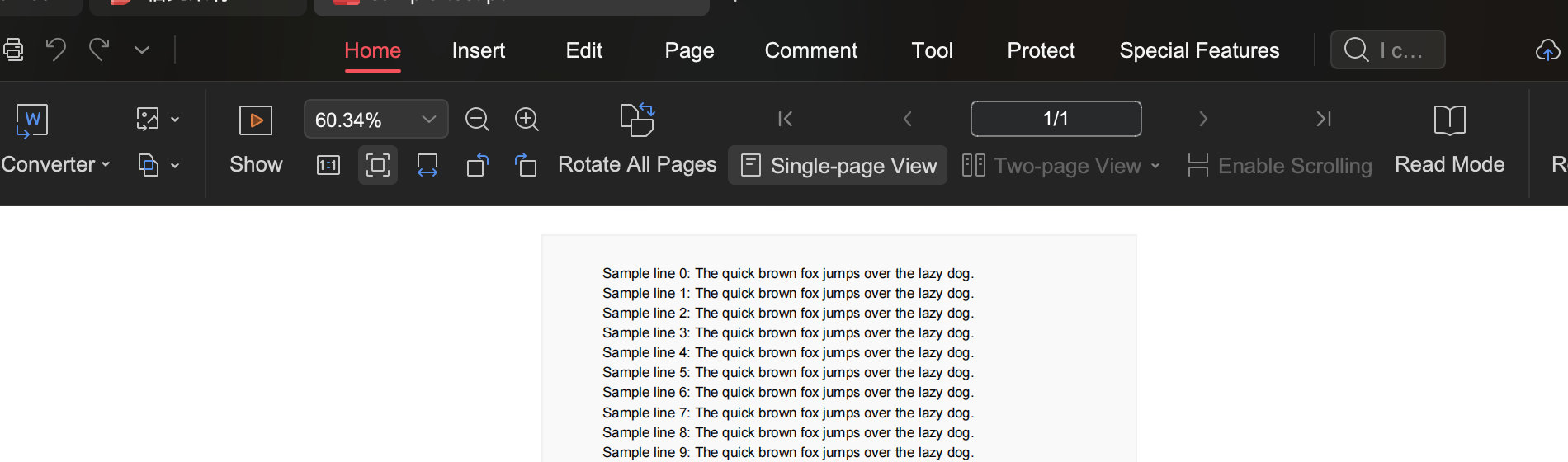
WPS PDF with Home tools ready for editing
FAQs
Can every PDF be compressed below 500KB?
Most can, but a text-only PDF that is already 900KB has almost nothing left to squeeze, and a 200-page high-resolution scan may stay above 500KB even at the strongest level. In that case, split the file or rescan at a lower resolution first.
Does compressing a PDF to 500KB reduce quality?
The text layer stays sharp because compression mainly re-encodes images. Scanned pages and photos may look softer at stronger levels, so zoom in and check signatures and fine print before you submit.
Is it safe to upload a PDF to an online compressor?
Reputable services delete files after processing, but for contracts, ID scans, or financial documents the safer route is an offline compressor like the one built into WPS Office, where the file never leaves your device.
Why is my PDF still large after compressing it twice?
Repeated compression has diminishing returns because the first pass already re-encoded the images. Go after the source instead: rescan at lower dpi, resize photos, or split the document into parts.
What compression level should I choose for a 500KB limit?
Start with the recommended or Standard level, check the size, and only escalate to Extreme if the file remains above 500KB. Escalating only when needed keeps the best possible readability.

'%3e%3cpath%20d='M19.9911%204.11386V6.471H18.5894C18.0775%206.471%2017.7322%206.57814%2017.5536%206.79243C17.3751%207.00671%2017.2858%207.32814%2017.2858%207.75671V9.44421H19.9019L19.5536%2012.0871H17.2858V18.8639H14.5536V12.0871H12.2769V9.44421H14.5536V7.49779C14.5536%206.39064%2014.8632%205.53201%2015.4822%204.92189C16.1013%204.31177%2016.9257%204.00671%2017.9554%204.00671C18.8304%204.00671%2019.509%204.04243%2019.9911%204.11386Z'%20fill='%23333333'/%3e%3c/g%3e%3cdefs%3e%3cclipPath%20id='clip0_2938_8199'%3e%3crect%20width='16'%20height='16'%20fill='white'%20transform='translate(8%204.00671)'/%3e%3c/clipPath%3e%3c/defs%3e%3c/svg%3e)
'%3e%3cpath%20d='M17.5237%2010.7813L23.4811%204H22.0699L16.8949%209.88693L12.7648%204H8L14.2469%2012.9029L8%2020.0133H9.4112L14.8725%2013.7952L19.2352%2020.0133H24M9.92053%205.04213H12.0885L22.0688%2019.0224H19.9003'%20fill='%23333333'/%3e%3c/g%3e%3cdefs%3e%3cclipPath%20id='clip0_2938_8200'%3e%3crect%20width='16'%20height='16.0134'%20fill='white'%20transform='translate(8%204)'/%3e%3c/clipPath%3e%3c/defs%3e%3c/svg%3e)


