

'%3e%3cpath%20d='M8%200C12.4183%200%2016%203.58172%2016%208C16%2012.4183%2012.4183%2016%208%2016C3.58172%2016%200%2012.4183%200%208C0%203.58172%203.58172%200%208%200ZM11.6162%204.38379C11.2257%203.99337%2010.5927%203.99338%2010.2021%204.38379L8%206.58594L5.79785%204.38379C5.40732%203.99334%204.77429%203.99329%204.38379%204.38379C3.99331%204.77429%203.99335%205.40733%204.38379%205.79785L6.58594%208L4.38379%2010.2021C3.99348%2010.5927%203.99341%2011.2257%204.38379%2011.6162C4.77426%2012.0066%205.40734%2012.0065%205.79785%2011.6162L8%209.41406L10.2021%2011.6162C10.5927%2012.0066%2011.2257%2012.0067%2011.6162%2011.6162C12.0067%2011.2257%2012.0066%2010.5927%2011.6162%2010.2021L9.41406%208L11.6162%205.79785C12.0066%205.40735%2012.0066%204.77429%2011.6162%204.38379Z'%20fill='%23080E17'%20fill-opacity='0.46'/%3e%3c/g%3e%3cdefs%3e%3cclipPath%20id='clip0_3761_713'%3e%3crect%20width='16'%20height='16'%20fill='white'/%3e%3c/clipPath%3e%3c/defs%3e%3c/svg%3e)




'%3e%3cpath%20fill-rule='evenodd'%20clip-rule='evenodd'%20d='M21.4999%2010.9993C21.4999%205.20009%2016.7986%200.498901%2010.9993%200.498901C5.19994%200.498901%200.498657%205.20009%200.498657%2010.9993C0.498657%2016.2404%204.33858%2020.5844%209.35855%2021.3722V14.0346H6.69238V10.9993H9.35855V8.68594C9.35855%206.05427%2010.9262%204.60062%2013.3248%204.60062C14.4736%204.60062%2015.6753%204.80571%2015.6753%204.80571V7.38979H14.3512C13.0468%207.38979%2012.64%208.19921%2012.64%209.0296V10.9993H15.5523L15.0867%2014.0346H12.64V21.3722C17.66%2020.5844%2021.4999%2016.2404%2021.4999%2010.9993Z'%20fill='%231568EA'/%3e%3c/g%3e%3c/svg%3e)


'%3e%3cpath%20d='M2.42045%2022.1876H6.31818V12.7217L0.75%208.54553V20.5171C0.75%2021.4414%201.49892%2022.1876%202.42045%2022.1876Z'%20fill='%234285F4'/%3e%3cpath%20d='M19.682%2022.1876H23.5797C24.5041%2022.1876%2025.2502%2021.4387%2025.2502%2020.5171V8.54553L19.682%2012.7217'%20fill='%2334A853'/%3e%3cpath%20d='M19.682%205.48293V12.7216L25.2502%208.54543V6.31816C25.2502%204.25236%2022.8921%203.07469%2021.2411%204.31361'%20fill='%23FBBC04'/%3e%3cpath%20d='M6.31824%2012.7217V5.48303L13.0001%2010.4944L19.6819%205.48303V12.7217L13.0001%2017.733'%20fill='%23EA4335'/%3e%3cpath%20d='M0.75%206.31816V8.54543L6.31818%2012.7216V5.48293L4.75909%204.31361C3.10534%203.07469%200.75%204.25236%200.75%206.31816Z'%20fill='%23C5221F'/%3e%3c/g%3e%3cdefs%3e%3cclipPath%20id='clip0_2954_7305'%3e%3crect%20width='24.5'%20height='18.375'%20fill='white'%20transform='translate(0.75%203.8125)'/%3e%3c/clipPath%3e%3c/defs%3e%3c/svg%3e)


If you lost your PDF password, the recovery path depends on which type of password is blocking you: a permissions password that restricts printing and copying can always be cleared without knowing it, while an open password that locks the file itself can only be recovered through places where that password legitimately lives — password managers, browser-saved logins, or the sender. Here is how to tell which one you have and the exact steps for each recovery path.
Lost My PDF Password: How to Recover Access and Save an Unlocked Copy
First, Tell Which Type of Password Is Blocking You
Every recovery decision flows from this one distinction, and it takes ten seconds to test:
Open password (user password). The PDF demands a password before it shows anything at all. The content is genuinely encrypted, and no legitimate tool can remove this password without knowing it.
Permissions password (owner password). The file opens freely, but print, copy, and edit buttons are greyed out. The content is fully readable — the restriction is a flag stored in the file, and a tool can clear it.
Test it now: double-click the PDF. A password prompt before any page appears means an open password; a document that opens with restricted menus means a permissions password.
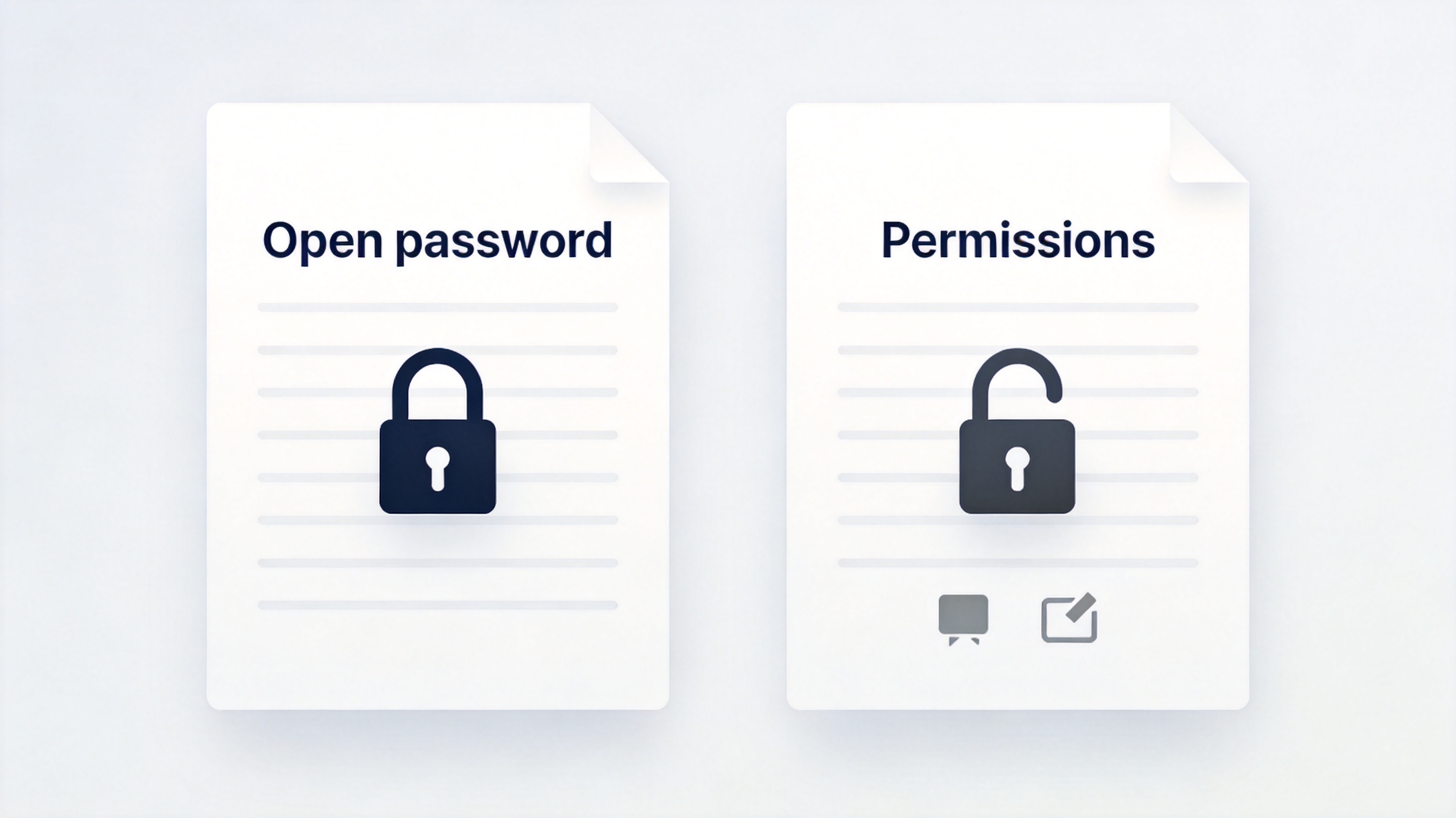
Open password versus permissions password
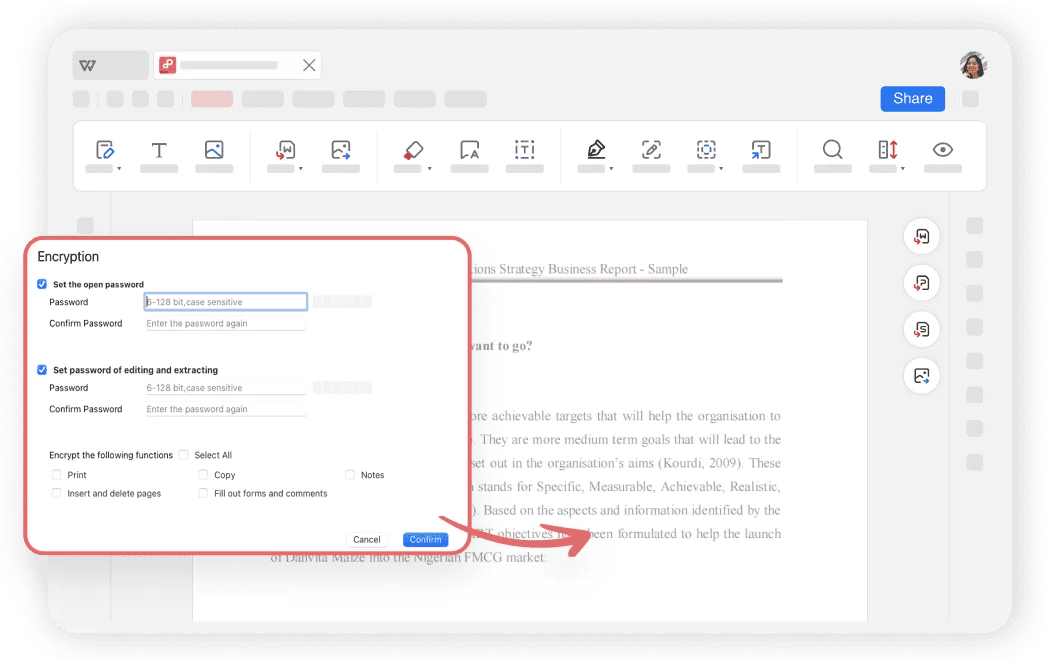
WPS Office PDF encryption dialog with open password and permission options
Remove a Permissions Password Without Knowing It
If the PDF opens but restricts actions, you can produce a restriction-free copy with the browser print dialog — nothing extra to install:
Open the PDF in Chrome, Edge, or any browser that shows the toolbar buttons greyed out.
Press Ctrl+P on Windows or Cmd+P on Mac to open the print dialog.
Choose "Save as PDF" as the destination printer.
Save the new file. The copy has no permission restrictions — it prints, copies, and edits normally.
The same result works inside WPS Office: open the file, and the restricted actions become available once you save the document through the PDF editor. Keep the unlocked copy private, since it is no longer protected.
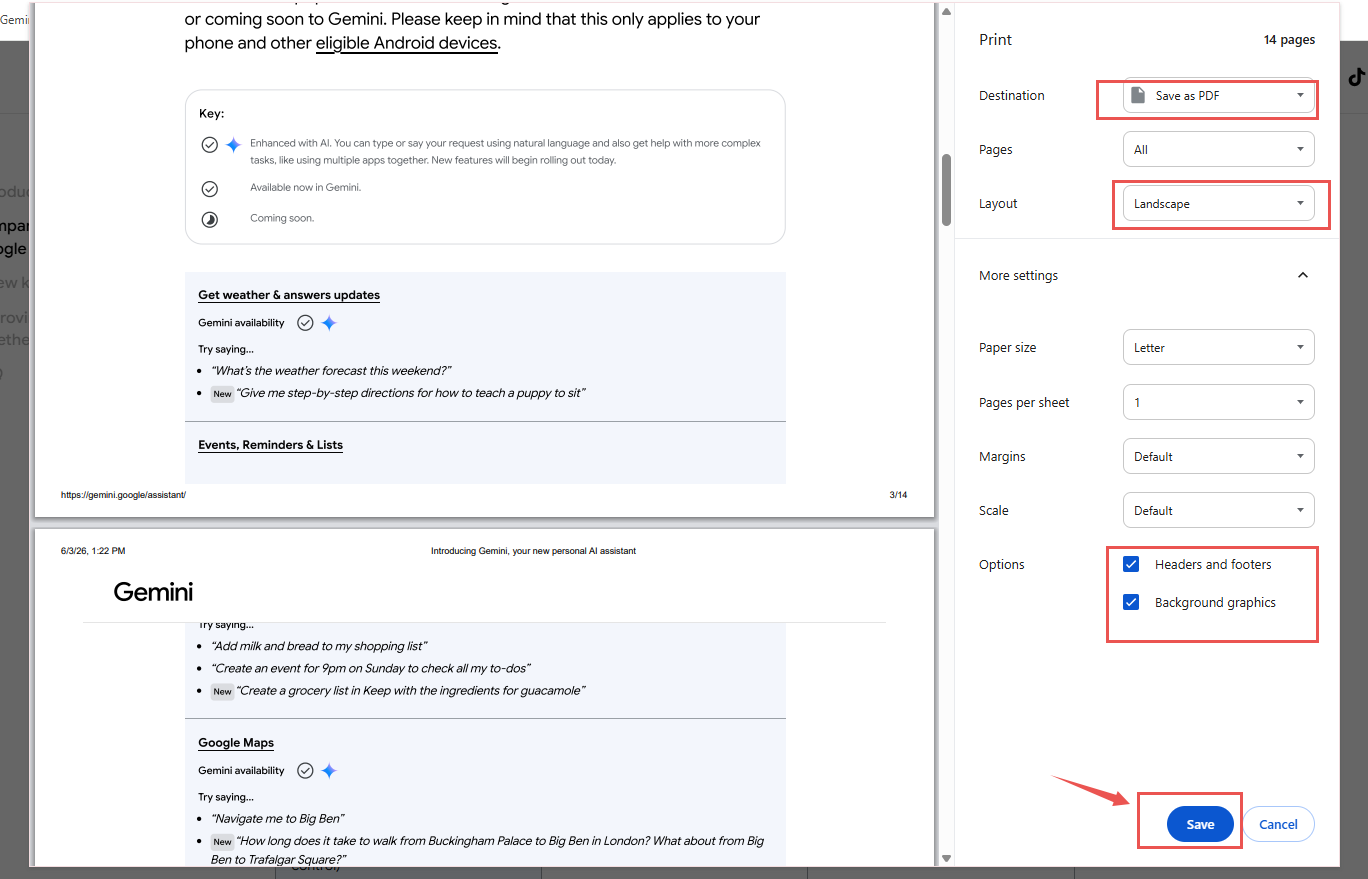
Browser print dialog with Save as PDF destination


Where a Lost Open Password Hides
If the PDF refuses to open at all, the password exists in more places than you think. Work down this list in order — most people stop at step two:
Your password manager. Search it for the file name, the sender's name, or the word "PDF". 1Password, Bitwarden, and browser password stores often hold entries you forgot existed.
The original email thread. Senders routinely put the password in the same email, the next email, or an SMS that followed the attachment.
Browser-saved passwords. If you opened the PDF once before on that computer, Chrome or Edge may have stored the password in its built-in manager.
Your own patterns. Passwords you set yourself are usually variations of passwords you still use elsewhere — try them with the usual numbering and symbol tweaks.
The sender. Ask for a fresh copy or the password again. For bank statements and official documents, customer support verifies your identity and resends both.
Stop guessing after a few tries. Some PDF apps lock up after repeated wrong attempts, and none of these recovery paths benefit from brute force.
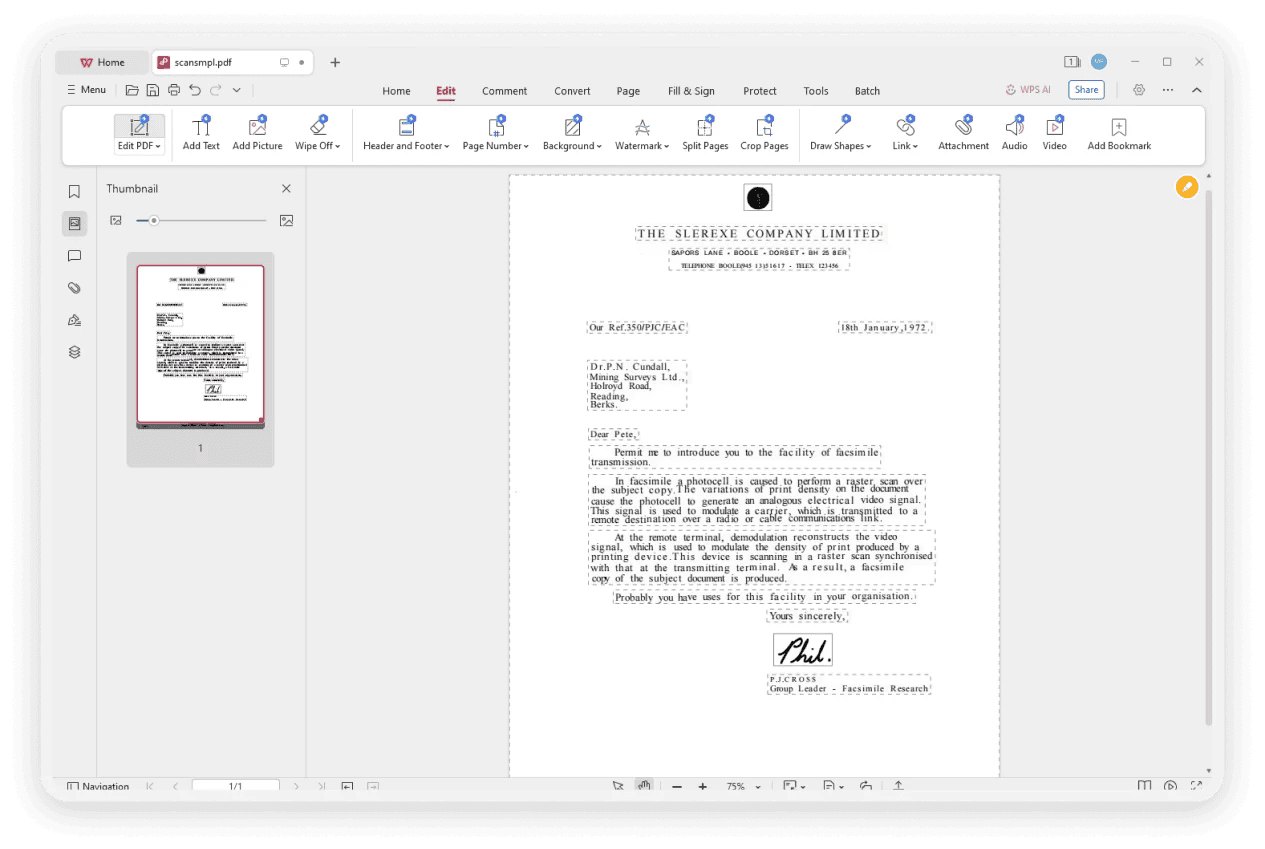
PDF opened in WPS Office
Save an Unlocked Copy Once You Are In
Once the password is recovered — or the restrictions cleared — save a copy that will not lock you out again. In WPS Office:
Open the PDF and enter the recovered password when prompted.
Use the Protect or security settings to change or remove the open password on the file.
Save the document under a new name, for example contract-unlocked.pdf, so the original stays as your protected archive.
Decide deliberately which version becomes your working copy. The protected original is the one to archive or share; the unlocked copy is the one to keep on your own device for quick access — and if you re-protect it, use a password you have stored in a manager this time.
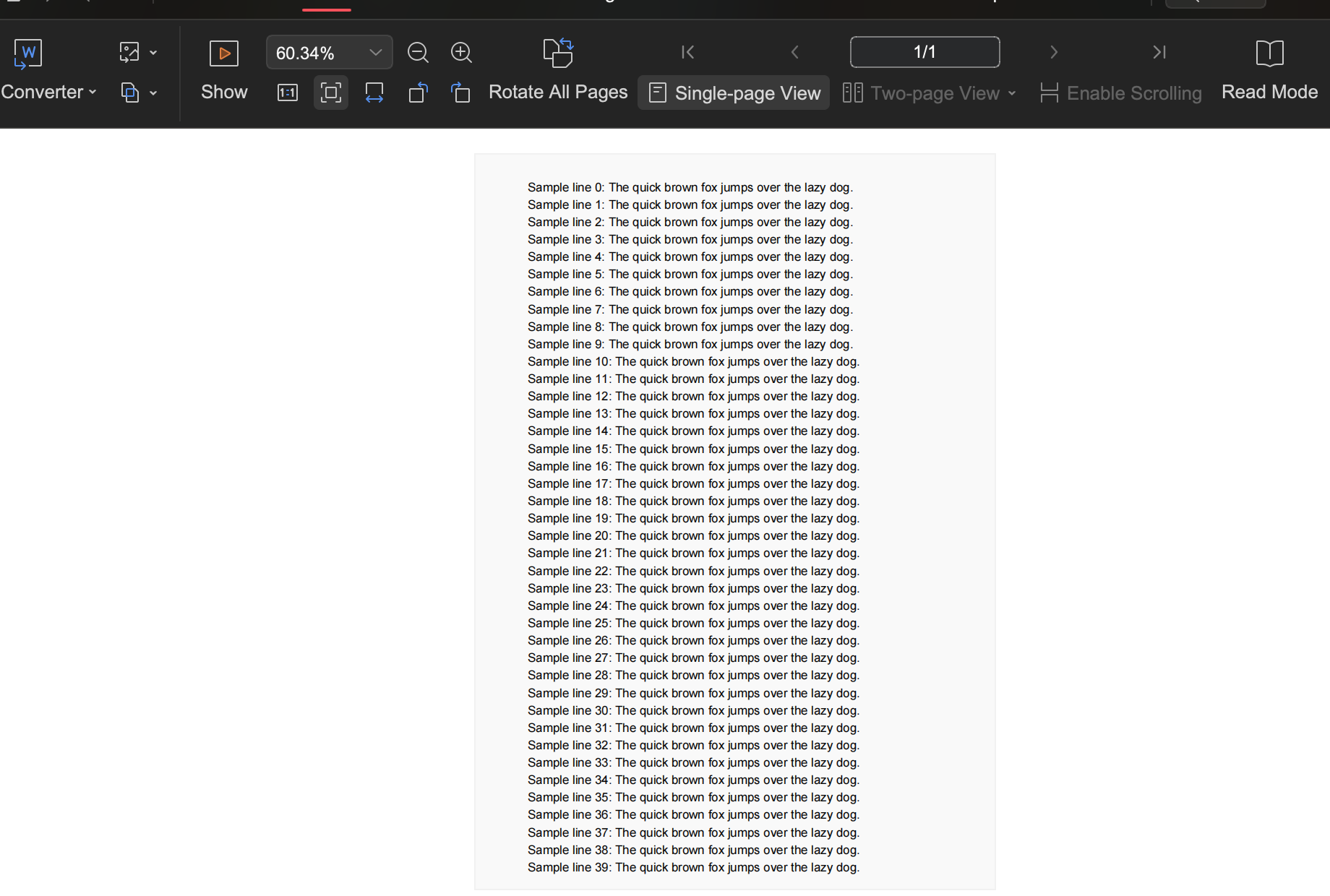
Open the PDF in WPS Office and save an unlocked copy
What Not to Do With a Lost PDF Password
Lost-password panic feeds a whole industry of sketchy services. A few lines that keep you safe:
Do not upload sensitive files to random unlock sites. A bank statement, contract, or ID scan uploaded to an unknown server is a bigger problem than a forgotten password.
Do not trust "crack any PDF" tools. Against a genuine open password with modern encryption, they simply do not work — that is the point of encryption.
Do not unlock documents you do not own. Clearing restrictions on your own files is routine maintenance; opening someone else's protected document without permission is not.
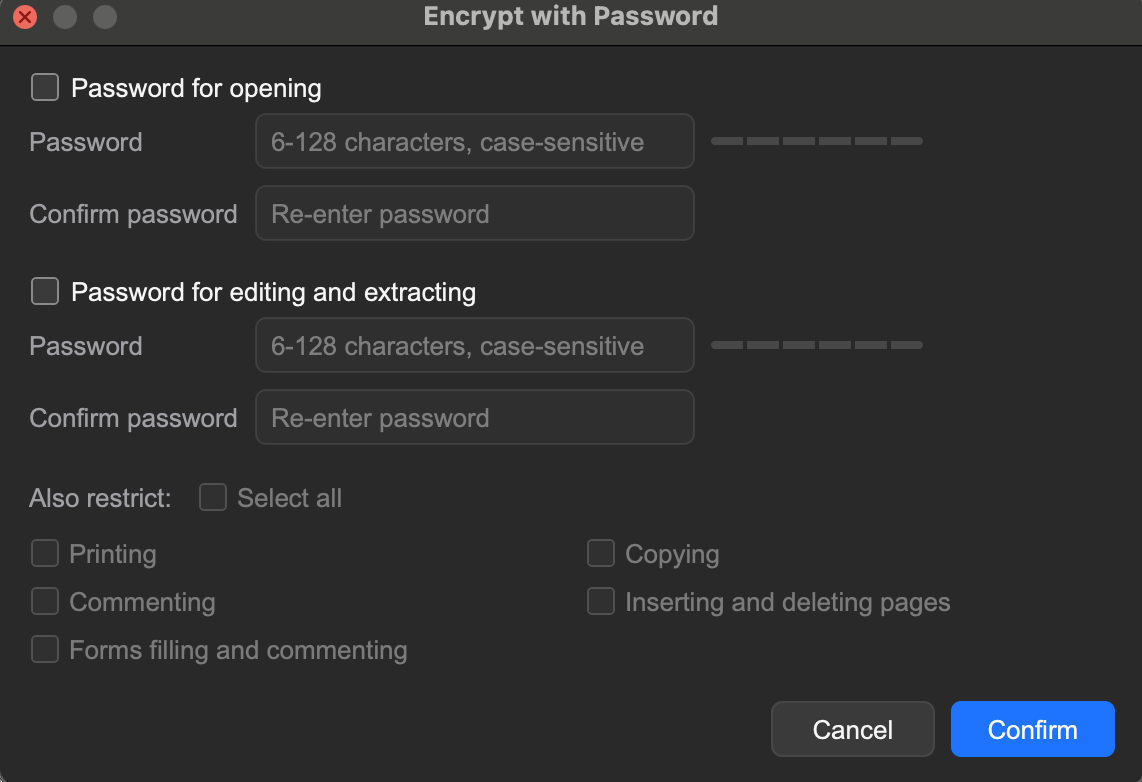
WPS Office Encrypt with Password dialog: set the passwords yourself, from software you trust
The Best Free Alternative: WPS Office
Recovering access is only half the job — the other half is reading, editing, and re-securing the file, and that is where a full PDF suite earns its place:
Open password-protected PDFs with the password you recovered, then change or remove the protection in the security settings.
Edit text and images directly in the PDF when a form needs updating, without converting formats.
Re-protect with your own password before sharing, so an unlocked copy never sits unprotected on disk.
Handle Word, Excel, and PowerPoint in the same free suite, on Windows, Mac, iOS, and Android.
WPS Office is free to download and keeps every document type
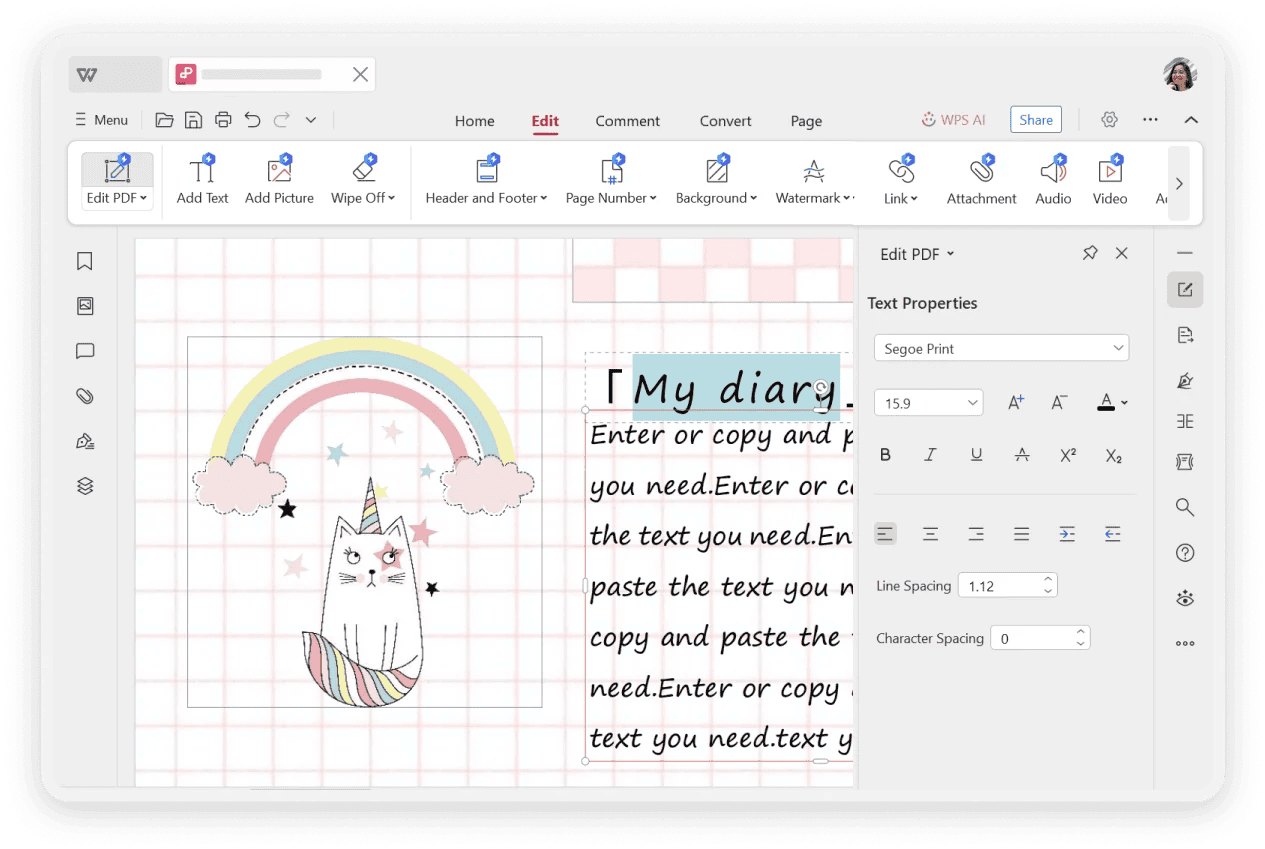
WPS PDF text editing panel
— including the protected ones — in one familiar interface.FAQs
Can I open a PDF without the password at all?
Not if it is a genuine open password — the content is encrypted, and no legitimate tool bypasses that. Recover the password from password managers, the original email, browser-saved logins, or the sender. If the file only restricts printing and copying, the print-to-PDF method above clears it without any password.
How do I remove a password from a PDF if I know it?
Open the file, enter the password, then use the security or protect settings in your PDF app to remove the password and save. In WPS Office this is a few clicks in the Protect menu.
Are online PDF password removers safe?
For a permissions-restricted file with nothing sensitive inside, they are acceptable. For bank statements, contracts, or ID documents, use an offline tool — uploading those to an unknown server is a bigger risk than the locked file itself.
Why can some PDFs be unlocked and others cannot?
Permissions passwords are flags stored in an otherwise readable file, so tools can clear them. Open passwords encrypt the actual content, so without the password there is nothing to unlock legitimately.
How do I avoid losing a PDF password again?
Store every document password in a password manager the moment you set it, name the entry after the file, and when you create protected PDFs in WPS Office, save the password in the manager before you close the save dialog.

'%3e%3cpath%20d='M19.9911%204.11386V6.471H18.5894C18.0775%206.471%2017.7322%206.57814%2017.5536%206.79243C17.3751%207.00671%2017.2858%207.32814%2017.2858%207.75671V9.44421H19.9019L19.5536%2012.0871H17.2858V18.8639H14.5536V12.0871H12.2769V9.44421H14.5536V7.49779C14.5536%206.39064%2014.8632%205.53201%2015.4822%204.92189C16.1013%204.31177%2016.9257%204.00671%2017.9554%204.00671C18.8304%204.00671%2019.509%204.04243%2019.9911%204.11386Z'%20fill='%23333333'/%3e%3c/g%3e%3cdefs%3e%3cclipPath%20id='clip0_2938_8199'%3e%3crect%20width='16'%20height='16'%20fill='white'%20transform='translate(8%204.00671)'/%3e%3c/clipPath%3e%3c/defs%3e%3c/svg%3e)
'%3e%3cpath%20d='M17.5237%2010.7813L23.4811%204H22.0699L16.8949%209.88693L12.7648%204H8L14.2469%2012.9029L8%2020.0133H9.4112L14.8725%2013.7952L19.2352%2020.0133H24M9.92053%205.04213H12.0885L22.0688%2019.0224H19.9003'%20fill='%23333333'/%3e%3c/g%3e%3cdefs%3e%3cclipPath%20id='clip0_2938_8200'%3e%3crect%20width='16'%20height='16.0134'%20fill='white'%20transform='translate(8%204)'/%3e%3c/clipPath%3e%3c/defs%3e%3c/svg%3e)


