

'%3e%3cpath%20d='M8%200C12.4183%200%2016%203.58172%2016%208C16%2012.4183%2012.4183%2016%208%2016C3.58172%2016%200%2012.4183%200%208C0%203.58172%203.58172%200%208%200ZM11.6162%204.38379C11.2257%203.99337%2010.5927%203.99338%2010.2021%204.38379L8%206.58594L5.79785%204.38379C5.40732%203.99334%204.77429%203.99329%204.38379%204.38379C3.99331%204.77429%203.99335%205.40733%204.38379%205.79785L6.58594%208L4.38379%2010.2021C3.99348%2010.5927%203.99341%2011.2257%204.38379%2011.6162C4.77426%2012.0066%205.40734%2012.0065%205.79785%2011.6162L8%209.41406L10.2021%2011.6162C10.5927%2012.0066%2011.2257%2012.0067%2011.6162%2011.6162C12.0067%2011.2257%2012.0066%2010.5927%2011.6162%2010.2021L9.41406%208L11.6162%205.79785C12.0066%205.40735%2012.0066%204.77429%2011.6162%204.38379Z'%20fill='%23080E17'%20fill-opacity='0.46'/%3e%3c/g%3e%3cdefs%3e%3cclipPath%20id='clip0_3761_713'%3e%3crect%20width='16'%20height='16'%20fill='white'/%3e%3c/clipPath%3e%3c/defs%3e%3c/svg%3e)




'%3e%3cpath%20fill-rule='evenodd'%20clip-rule='evenodd'%20d='M21.4999%2010.9993C21.4999%205.20009%2016.7986%200.498901%2010.9993%200.498901C5.19994%200.498901%200.498657%205.20009%200.498657%2010.9993C0.498657%2016.2404%204.33858%2020.5844%209.35855%2021.3722V14.0346H6.69238V10.9993H9.35855V8.68594C9.35855%206.05427%2010.9262%204.60062%2013.3248%204.60062C14.4736%204.60062%2015.6753%204.80571%2015.6753%204.80571V7.38979H14.3512C13.0468%207.38979%2012.64%208.19921%2012.64%209.0296V10.9993H15.5523L15.0867%2014.0346H12.64V21.3722C17.66%2020.5844%2021.4999%2016.2404%2021.4999%2010.9993Z'%20fill='%231568EA'/%3e%3c/g%3e%3c/svg%3e)


'%3e%3cpath%20d='M2.42045%2022.1876H6.31818V12.7217L0.75%208.54553V20.5171C0.75%2021.4414%201.49892%2022.1876%202.42045%2022.1876Z'%20fill='%234285F4'/%3e%3cpath%20d='M19.682%2022.1876H23.5797C24.5041%2022.1876%2025.2502%2021.4387%2025.2502%2020.5171V8.54553L19.682%2012.7217'%20fill='%2334A853'/%3e%3cpath%20d='M19.682%205.48293V12.7216L25.2502%208.54543V6.31816C25.2502%204.25236%2022.8921%203.07469%2021.2411%204.31361'%20fill='%23FBBC04'/%3e%3cpath%20d='M6.31824%2012.7217V5.48303L13.0001%2010.4944L19.6819%205.48303V12.7217L13.0001%2017.733'%20fill='%23EA4335'/%3e%3cpath%20d='M0.75%206.31816V8.54543L6.31818%2012.7216V5.48293L4.75909%204.31361C3.10534%203.07469%200.75%204.25236%200.75%206.31816Z'%20fill='%23C5221F'/%3e%3c/g%3e%3cdefs%3e%3cclipPath%20id='clip0_2954_7305'%3e%3crect%20width='24.5'%20height='18.375'%20fill='white'%20transform='translate(0.75%203.8125)'/%3e%3c/clipPath%3e%3c/defs%3e%3c/svg%3e)


Ever dealt with messy backgrounds that just kill your photo's vibe? Folks hunting for a photopea black background tutorial usually want quick, clean black backdrops for products, portraits, or designs, without fumbling through confusing layers or losing those tricky edges around hair and fur. Photopea is awesome as a free Photoshop stand-in, but it can feel clunky at first with all the panels and shortcuts. This guide walks you through simple fixes plus a dead-easy AI option that nails it in seconds, no sweat. Whether you're prepping e-commerce shots or social posts, you'll get pro results fast.
How to Make Background Black in Photopea
Fill Layers are your best friend here, super simple for slapping a solid black behind anything, from white-heavy shots to see-through PNGs. Keeps everything editable too, so no regrets later if you want to swap colors or adjust. Great for that instant pro pop in product pics or moody portraits without needing extra software.
Make sure your image is the right size first, like Image > Image Size for social media squares. Helps avoid stretchy issues down the line.
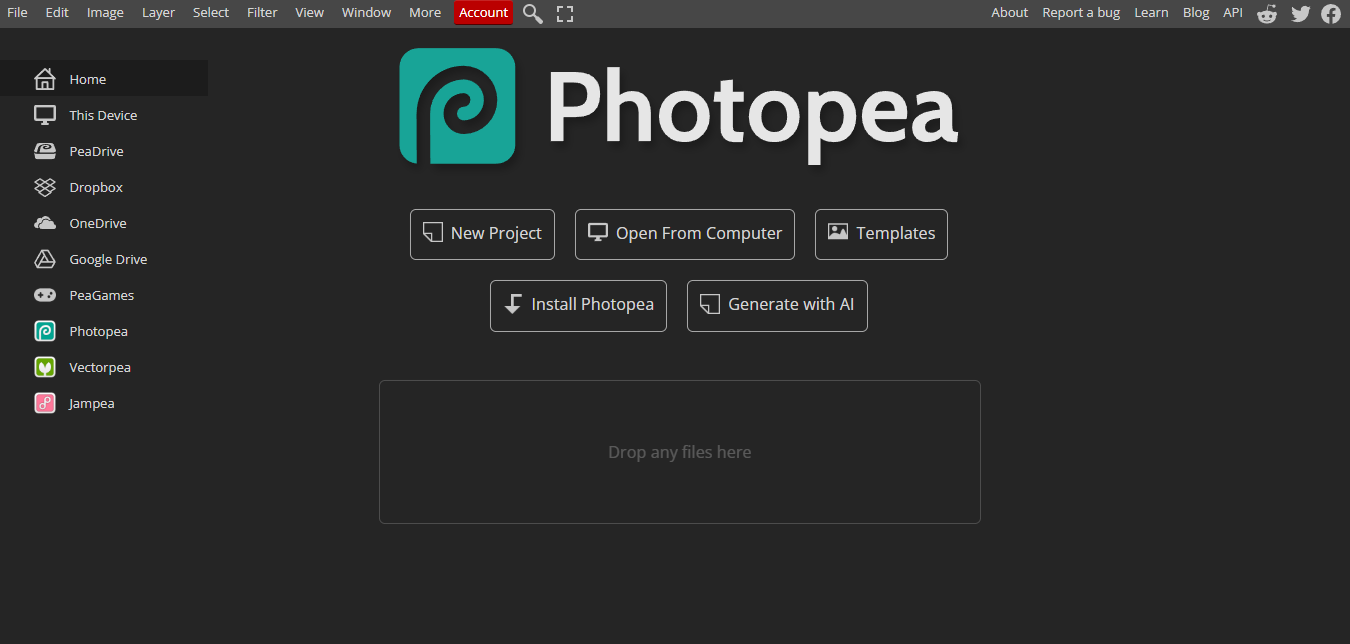
Step 1: Fire up Photopea | Online Photo Editor, drag your image in or hit File > Open. Easy start, no install needed.
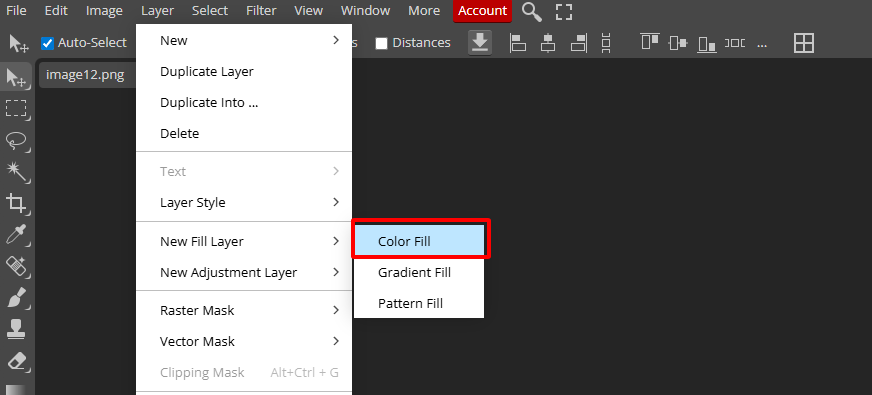
Step 2: Layer > New Fill Layer > Solid Color. Click the square, grab #000000 black, name it "Black BG," hit OK.
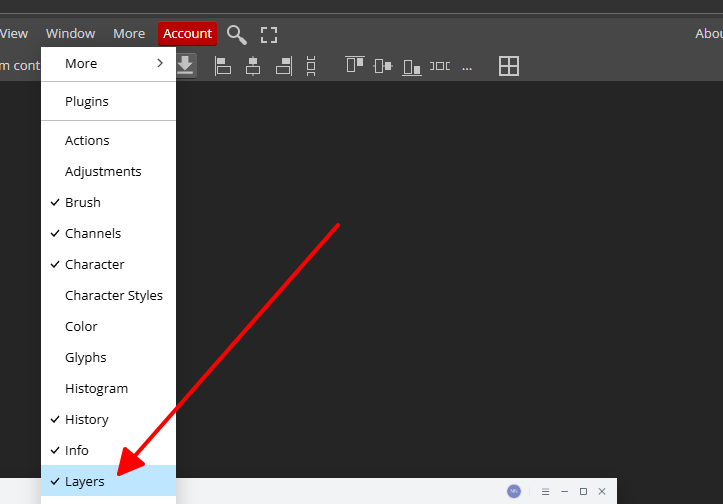
Step 3: Layers panel (Window > Layers), drag black layer under your subject. Boom, black shows up nice and even.
Step 4: White background? Magic Wand (W), click white bits (tolerance 25), Layer > Layer Mask > Reveal Selection. Feather edges 3px via Select > Modify > Feather for smooth look.
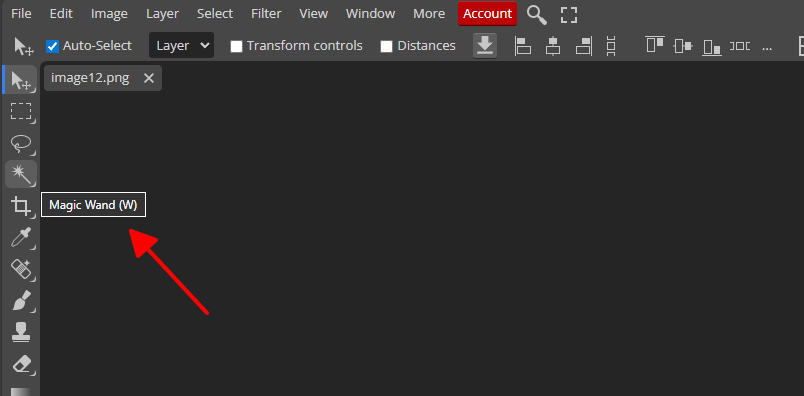
Step 5: Toggle eyes in Layers to preview, maybe duplicate layer (Ctrl+J) for safety. Export PNG/JPG via File > Export As.
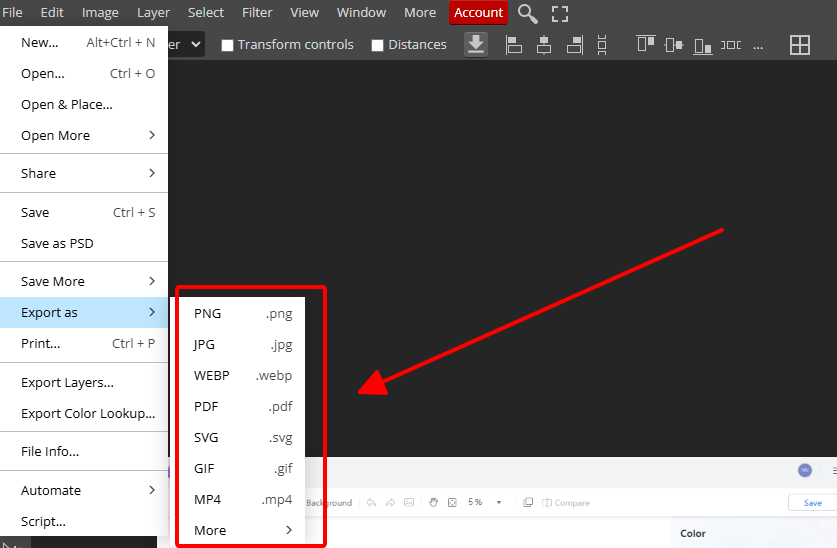
Nails make white background black photopea jobs fast. If it looks too flat, tweak to #010101 gray or Filter > Noise > Add Noise 1% for texture. Readers dig this for no-fuss daily edits, especially beginners dodging tutorials that overcomplicate things. For hairy edges, Quick Selection tool beats Wand sometimes, just paint over the subject roughly.
A User-Friendly Alternative: WPS Photo
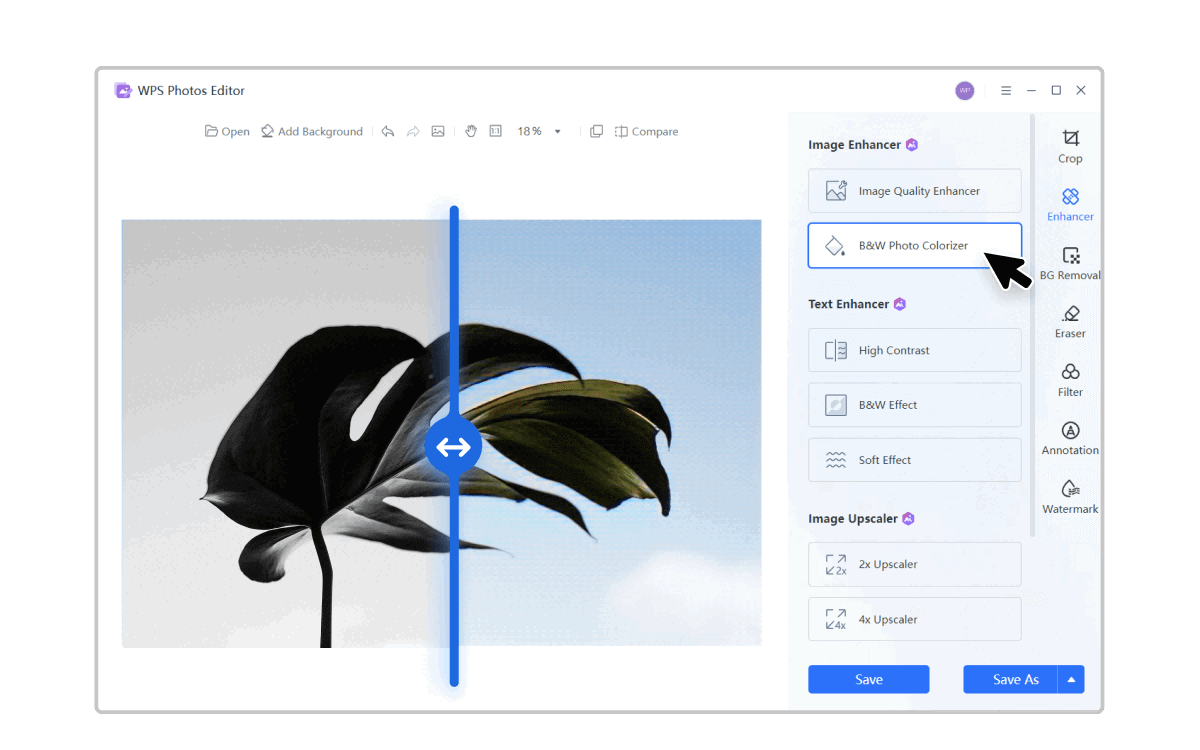
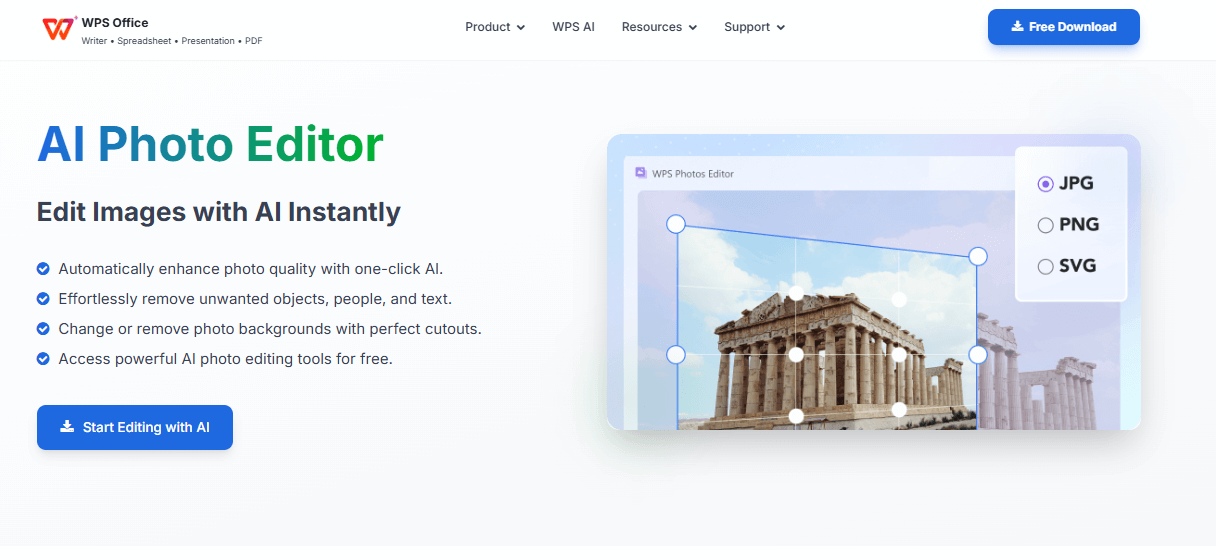
WPS Photo cuts the Photopea hassle with AI that zaps backgrounds and slaps black on in a blink, baked right into free WPS Office for docs and slides. Perfect when you're juggling reports and pics, no app hopping or browser tabs. Handles fuzzy edges like hair way better automatically.
Key Advantages
AI removes backdrops sharp, even fuzzy edges or busy patterns.
One-click black swap, pure or textured.
Drops right into WPS Writer/Sheets/PDFs.
Syncs mobile/desktop via cloud.
Seconds, not minutes of fiddling.
Step-by-Step Tutorial
Step 1: Open WPS Office > Photo Tools
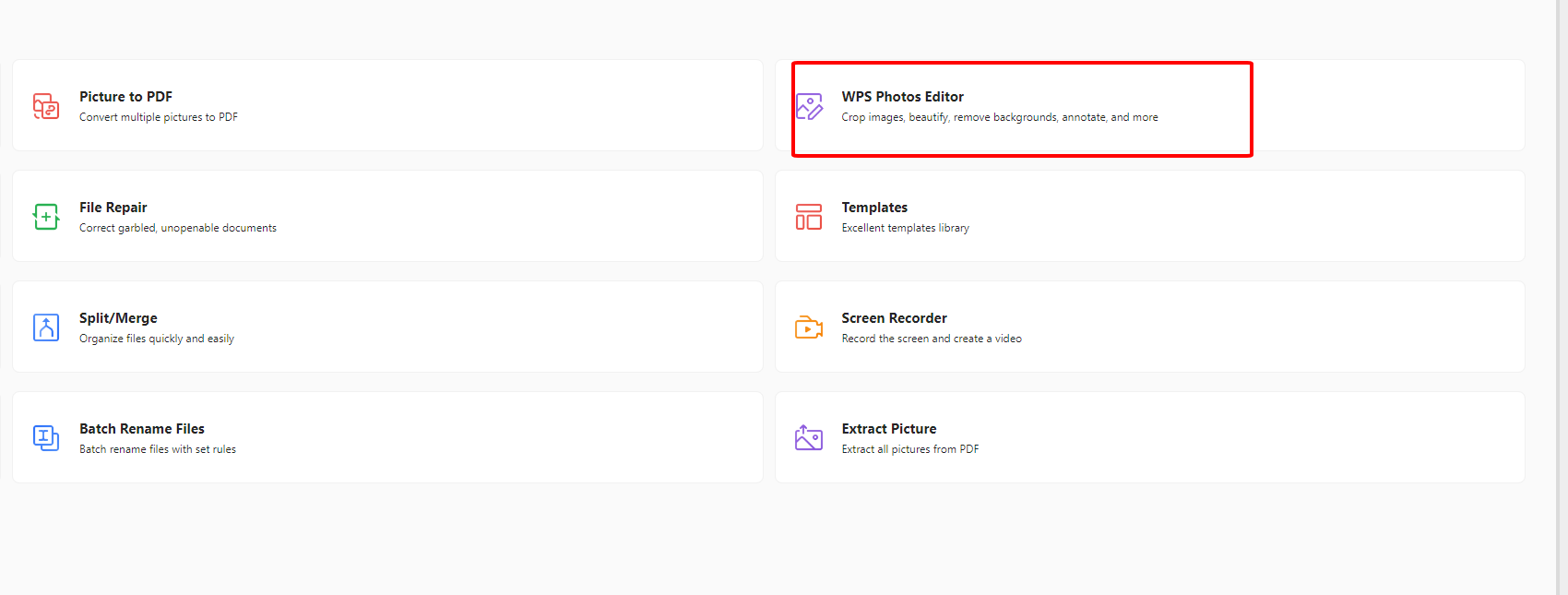
Step 2: Hit AI Background Removal, it auto-strips in 2-3 seconds.
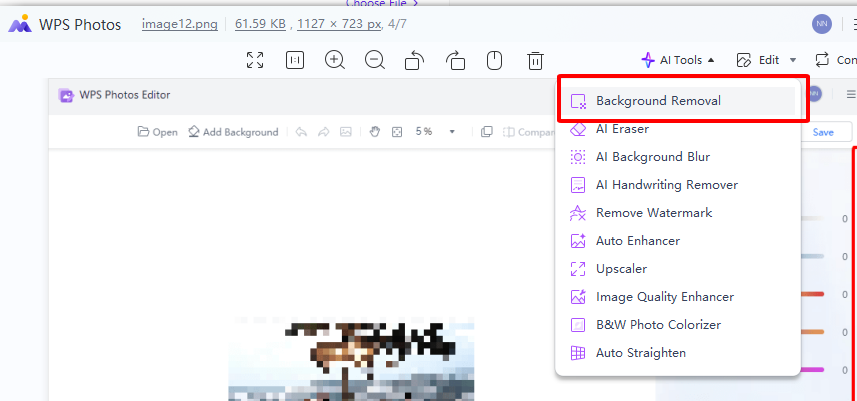
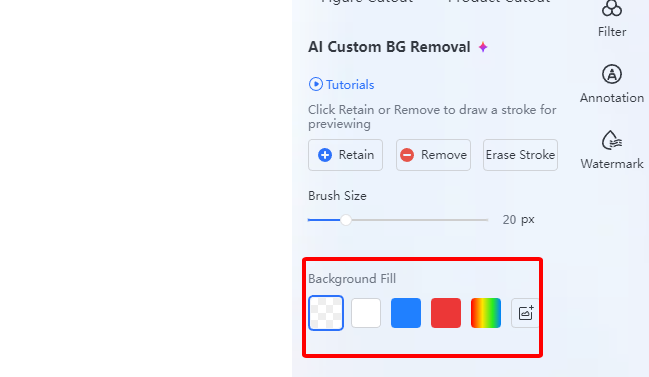
Step 3: Solid Color > Black preset > Apply. Instant change background to black in photopea style.
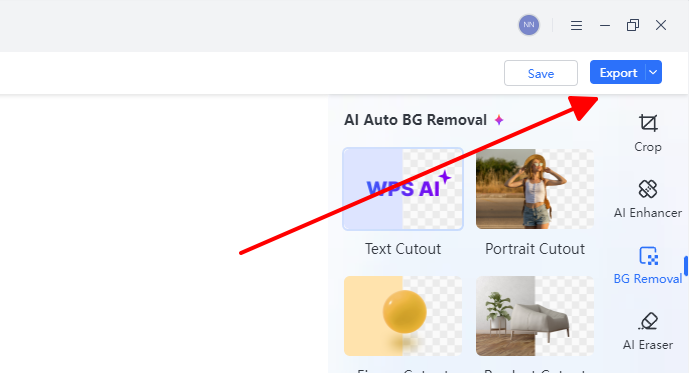
Step 4: Tweak edges if needed, export PNG/JPG or insert direct to doc.
change background to black in photopea? This does it smoother for busy folks, no layer stacks to manage. Bulk mode handles 10+ images too, gold for catalogs.
Why Choose WPS AI for Integrated Background Editing
While Photopea offers complete control over background creation with its powerful layers and masks, WPS AI provides a practical solution that solves the core problem: making professional background editing accessible to everyone, no matter their skill level. Readers after a photopea black background tutorial often get stuck on tricky selections, but WPS AI turns that frustration into one-click wins, perfect for quick product visuals or document embeds.
Democratized Background Editing
WPS AI removes the technical barrier to creating perfect black backgrounds, enabling anyone to achieve professional results without design skills or hours of tutorials. Upload any photo, hit remove, pick black, done, edges handled automatically even on hair or fur.
Workflow Efficiency
The integration with WPS Office allows seamless movement between photo editing and document creation, so you edit a background to black then drop it straight into Writer reports or slides without exports or app switches that kill momentum.
Intelligent Automation
AI-powered background detection provides accurate results that would require manual precision in Photopea, nailing complex edges like translucent fabrics or blowing hair in seconds flat.
From real use, Photopea shines for custom control on complex client jobs, like layering textures over black fills for high-end mocks where every pixel counts. But for everyday speed, like batching 20 e-commerce shots directly into a WPS catalog, AI crushes it, finishing in minutes what takes an hour manually. Last project, I rough-cut in WPS then polished one outlier in Photopea, hybrid win every time.
| Feature | Photopea (Layers & Masks) | WPS AI (Automatic) |
| Primary Method | Manual (Layers & Masks) | Automatic (AI Detection) |
| Best For | Detail, complex edges (e.g., hair, fur) | Speed, office workflows, simple images |
| Ease of Use | Medium (Requires Learning) | Very Easy (One-click) |
| Control & Precision | High (Pixel-level control) | Medium (Depends on AI accuracy) |
| Speed | Slower (Minutes) | Faster (Seconds) |
| Cost | Free | Free/Premium (May require subscription) |
| In short | Choose Photopea for full control and high quality, especially on complex images, for free. | Choose WPS AI for speed and convenience on simple images directly in your office documents. |
FAQs
How can I make a white background black in Photopea without affecting the subject?
Grab Magic Wand on pure white spots first (tolerance 25 to catch variations), mask your subject quick via Layer > Layer Mask > Reveal Selection for protection. Slide a black fill layer below, then brush on the mask (B key, soft white foreground) for any tweaks. Feathers via Select > Modify make blends seamless, keeping the subject crisp and totally untouched every time.
Why does my black background look artificial and flat?
Pure black washes out realism, so swap to #0A0A0A deep gray and layer Filter > Noise > 1% Gaussian for that subtle cloth-like grit. Toss on a gradient adjustment (black center fading to darker edges at 15% opacity) for depth. Transforms flat amateur shots to pro studio vibes in one quick pass.
What's the quickest method to create a black background in Photopea?
For ready transparent PNGs, Ctrl+Shift+N new layer at bottom stack, Edit > Fill > Black contents, drag under image, done. Opaque ones: Magic Wand click-delete old background, add same fill layer. Clocks under 10 seconds flat, perfect for thumbnails, previews, or rapid tests.
Can I save black background presets in Photopea for reuse?
Build a PSD template with your black fill, mask setup, and any extras like noise, save as BlackBG.psd via File > Save As. New project? Open template, Ctrl+V paste fresh image on top, mask as usual. Speeds repeats like product lines or client portfolios to minutes.
Is WPS AI free for black background changes?
Totally, core AI removal, black swaps, and exports free forever in WPS Office for personal use, handles most needs no limits. Premium just adds batch for huge loads and fancy effects. Hit wps.com download, zero watermarks or sneaky costs.
Does Photopea lag on big files during black background edits?
Nah, it's surprisingly zippy browser-based, but close extra tabs and use Chrome for max speed on high-res stuff. Window > History tracks 100 undos safe, so experiment wild without fear.
Summary
Master photopea how to make background black in Photopea through versatile Fill Layers and precise masks for hands-on control, or switch to WPS Photo for lightning-fast AI precision on change background to black in photopea jobs that demand speed. WPS AI edges ahead overall for everyday efficiency, seamless integration, and accessibility, turning anyone into a background pro. Download WPS today at wps.com and simplify your entire editing workflow from start to finish.

'%3e%3cpath%20d='M19.9911%204.11386V6.471H18.5894C18.0775%206.471%2017.7322%206.57814%2017.5536%206.79243C17.3751%207.00671%2017.2858%207.32814%2017.2858%207.75671V9.44421H19.9019L19.5536%2012.0871H17.2858V18.8639H14.5536V12.0871H12.2769V9.44421H14.5536V7.49779C14.5536%206.39064%2014.8632%205.53201%2015.4822%204.92189C16.1013%204.31177%2016.9257%204.00671%2017.9554%204.00671C18.8304%204.00671%2019.509%204.04243%2019.9911%204.11386Z'%20fill='%23333333'/%3e%3c/g%3e%3cdefs%3e%3cclipPath%20id='clip0_2938_8199'%3e%3crect%20width='16'%20height='16'%20fill='white'%20transform='translate(8%204.00671)'/%3e%3c/clipPath%3e%3c/defs%3e%3c/svg%3e)
'%3e%3cpath%20d='M17.5237%2010.7813L23.4811%204H22.0699L16.8949%209.88693L12.7648%204H8L14.2469%2012.9029L8%2020.0133H9.4112L14.8725%2013.7952L19.2352%2020.0133H24M9.92053%205.04213H12.0885L22.0688%2019.0224H19.9003'%20fill='%23333333'/%3e%3c/g%3e%3cdefs%3e%3cclipPath%20id='clip0_2938_8200'%3e%3crect%20width='16'%20height='16.0134'%20fill='white'%20transform='translate(8%204)'/%3e%3c/clipPath%3e%3c/defs%3e%3c/svg%3e)


