

'%3e%3cpath%20d='M8%200C12.4183%200%2016%203.58172%2016%208C16%2012.4183%2012.4183%2016%208%2016C3.58172%2016%200%2012.4183%200%208C0%203.58172%203.58172%200%208%200ZM11.6162%204.38379C11.2257%203.99337%2010.5927%203.99338%2010.2021%204.38379L8%206.58594L5.79785%204.38379C5.40732%203.99334%204.77429%203.99329%204.38379%204.38379C3.99331%204.77429%203.99335%205.40733%204.38379%205.79785L6.58594%208L4.38379%2010.2021C3.99348%2010.5927%203.99341%2011.2257%204.38379%2011.6162C4.77426%2012.0066%205.40734%2012.0065%205.79785%2011.6162L8%209.41406L10.2021%2011.6162C10.5927%2012.0066%2011.2257%2012.0067%2011.6162%2011.6162C12.0067%2011.2257%2012.0066%2010.5927%2011.6162%2010.2021L9.41406%208L11.6162%205.79785C12.0066%205.40735%2012.0066%204.77429%2011.6162%204.38379Z'%20fill='%23080E17'%20fill-opacity='0.46'/%3e%3c/g%3e%3cdefs%3e%3cclipPath%20id='clip0_3761_713'%3e%3crect%20width='16'%20height='16'%20fill='white'/%3e%3c/clipPath%3e%3c/defs%3e%3c/svg%3e)




'%3e%3cpath%20fill-rule='evenodd'%20clip-rule='evenodd'%20d='M21.4999%2010.9993C21.4999%205.20009%2016.7986%200.498901%2010.9993%200.498901C5.19994%200.498901%200.498657%205.20009%200.498657%2010.9993C0.498657%2016.2404%204.33858%2020.5844%209.35855%2021.3722V14.0346H6.69238V10.9993H9.35855V8.68594C9.35855%206.05427%2010.9262%204.60062%2013.3248%204.60062C14.4736%204.60062%2015.6753%204.80571%2015.6753%204.80571V7.38979H14.3512C13.0468%207.38979%2012.64%208.19921%2012.64%209.0296V10.9993H15.5523L15.0867%2014.0346H12.64V21.3722C17.66%2020.5844%2021.4999%2016.2404%2021.4999%2010.9993Z'%20fill='%231568EA'/%3e%3c/g%3e%3c/svg%3e)


'%3e%3cpath%20d='M2.42045%2022.1876H6.31818V12.7217L0.75%208.54553V20.5171C0.75%2021.4414%201.49892%2022.1876%202.42045%2022.1876Z'%20fill='%234285F4'/%3e%3cpath%20d='M19.682%2022.1876H23.5797C24.5041%2022.1876%2025.2502%2021.4387%2025.2502%2020.5171V8.54553L19.682%2012.7217'%20fill='%2334A853'/%3e%3cpath%20d='M19.682%205.48293V12.7216L25.2502%208.54543V6.31816C25.2502%204.25236%2022.8921%203.07469%2021.2411%204.31361'%20fill='%23FBBC04'/%3e%3cpath%20d='M6.31824%2012.7217V5.48303L13.0001%2010.4944L19.6819%205.48303V12.7217L13.0001%2017.733'%20fill='%23EA4335'/%3e%3cpath%20d='M0.75%206.31816V8.54543L6.31818%2012.7216V5.48293L4.75909%204.31361C3.10534%203.07469%200.75%204.25236%200.75%206.31816Z'%20fill='%23C5221F'/%3e%3c/g%3e%3cdefs%3e%3cclipPath%20id='clip0_2954_7305'%3e%3crect%20width='24.5'%20height='18.375'%20fill='white'%20transform='translate(0.75%203.8125)'/%3e%3c/clipPath%3e%3c/defs%3e%3c/svg%3e)


Looking up multiple pages per sheet usually means you want two things at once: save paper and money, and get clean handouts or lecture notes onto fewer sheets. N-up printing (2-up, 4-up, 6-up, 8-up) solves that—but only if the layout stays readable and consistent.
This guide shows three practical ways to print multiple pages per sheet with WPS: WPS Desktop, WPS Mobile, and browser print. Unlike tools that only shrink pages at print time, WPS also lets you export a new PDF already laid out with multiple pages per sheet—so you can share the handout without relying on anyone else’s printer settings.
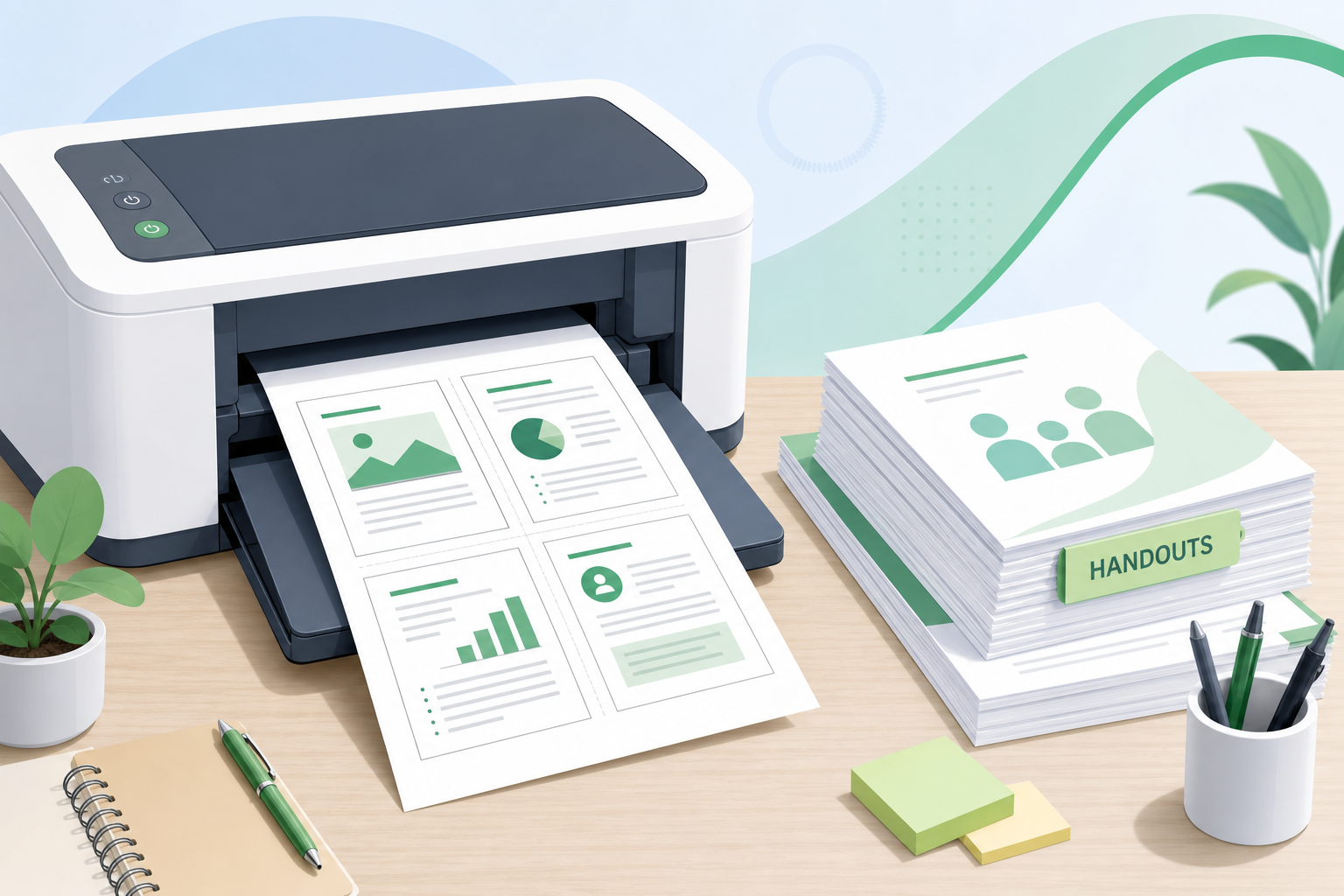
Save paper by printing multiple pages per sheet
What “multiple pages per sheet” really means
When people search print multiple pages on one page or n-up printing, they usually want a concrete result: 2, 4, 6, or 8 document pages neatly fitted on one physical sheet (or one PDF page), not cut off, and still readable for class or meeting use.
Typical questions include:
Where is the pages per sheet control—app print dialog, PDF export, browser, or printer driver?
Do Word and PDF both support it?
How do I avoid tiny text or cropped edges?
Can I create a fixed multi-page layout for digital sharing, not only for printing?
Method 1: WPS Desktop — print multiple pages on one page (N-up)
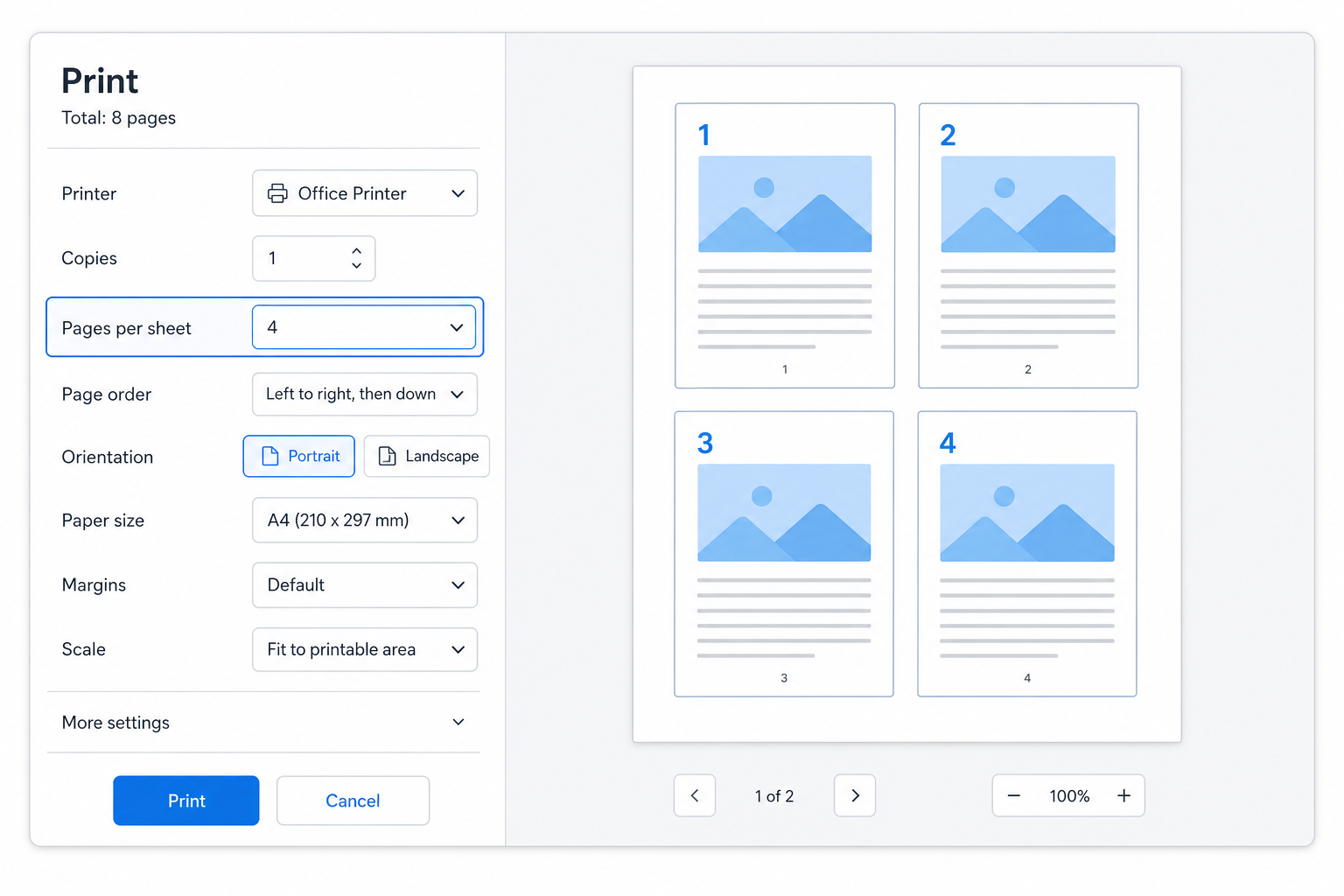
WPS Desktop: choose pages per sheet in Print
Best for: immediate classroom handouts, lecture packs, and meeting printouts where you need print multiple pages on one page right now.
Open your document in WPS Office (Desktop).
Go to File → Print.
In print settings, find Pages per sheet (or equivalent N-up layout control).
Choose 2, 4, 6, or 8 pages per sheet.
Confirm paper size and orientation (Portrait/Landscape).
Check the print preview—if text looks too small or edges are cut off, lower the N-up value or adjust scale/margins.
Print.
Tip for lecture notes: Start with 2-up or 4-up. Higher density saves more paper, but only if students can still read the text.
Method 2: WPS Desktop — export a PDF with multiple pages per sheet (no printing required)
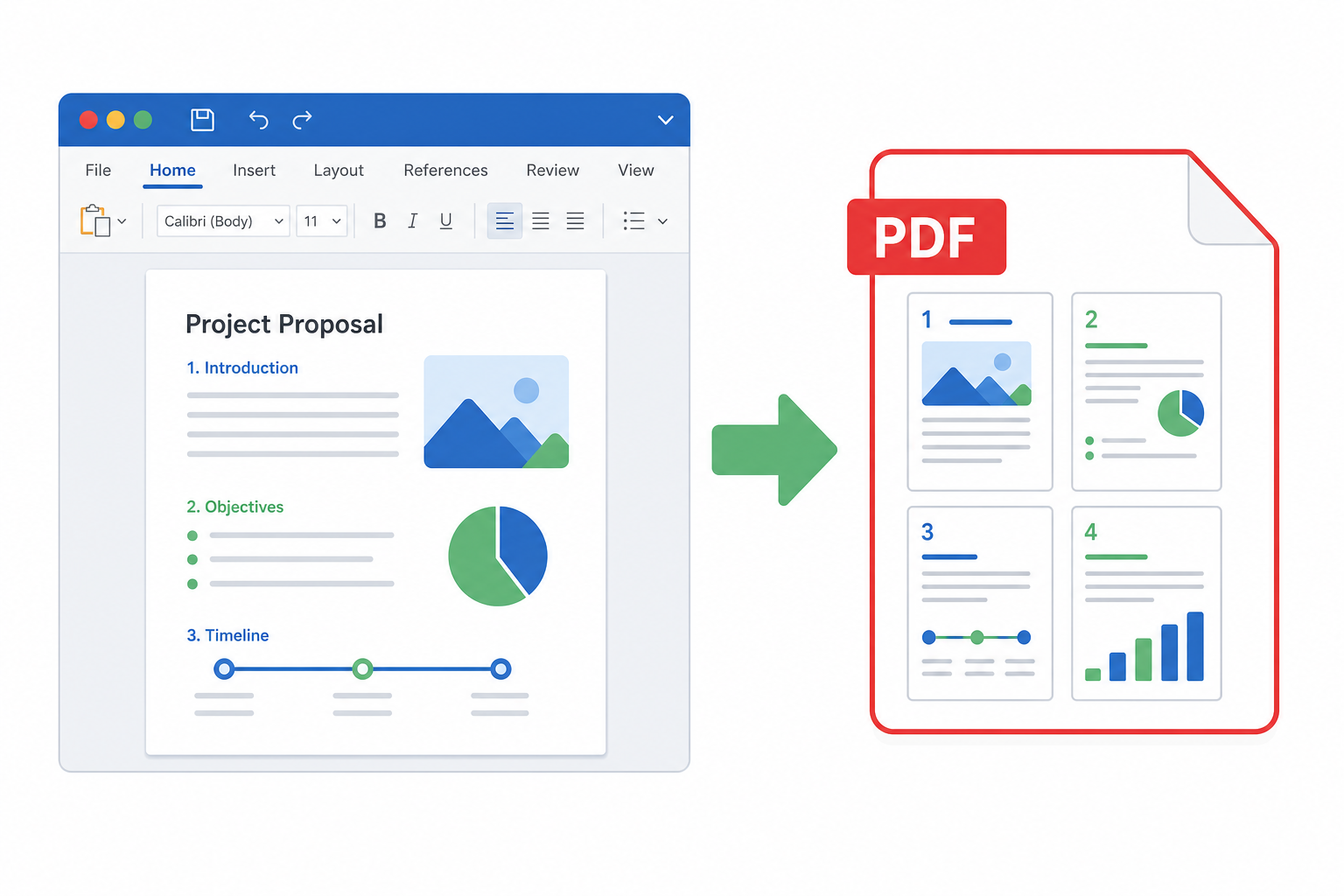
Export a PDF already laid out with multiple pages per sheet
This is WPS’s key differentiator: you can output a new multi-page-layout PDF instead of only changing print-time settings. Ideal when you email handouts to students or colleagues whose printer dialog you cannot control.
Open the source file in WPS Desktop.
Choose File → Export / Save as PDF (or Print to PDF with layout options, depending on your WPS version).
Look for layout options that arrange multiple pages per sheet in the exported file.
Select your N-up value (for example, 4 pages per sheet).
Confirm page size and orientation.
Export the PDF, then reopen it to verify the multi-page layout looks correct.
With a PDF multiple pages per sheet file, the handout layout is baked in—same look on every device, whether or not someone prints it. If you already have several separate PDF notes or worksheets, you can merge PDF files into one document in WPS first, then apply your pages-per-sheet layout for a cleaner handout pack.
Method 3A: WPS Mobile — quick N-up when you’re away from a PC
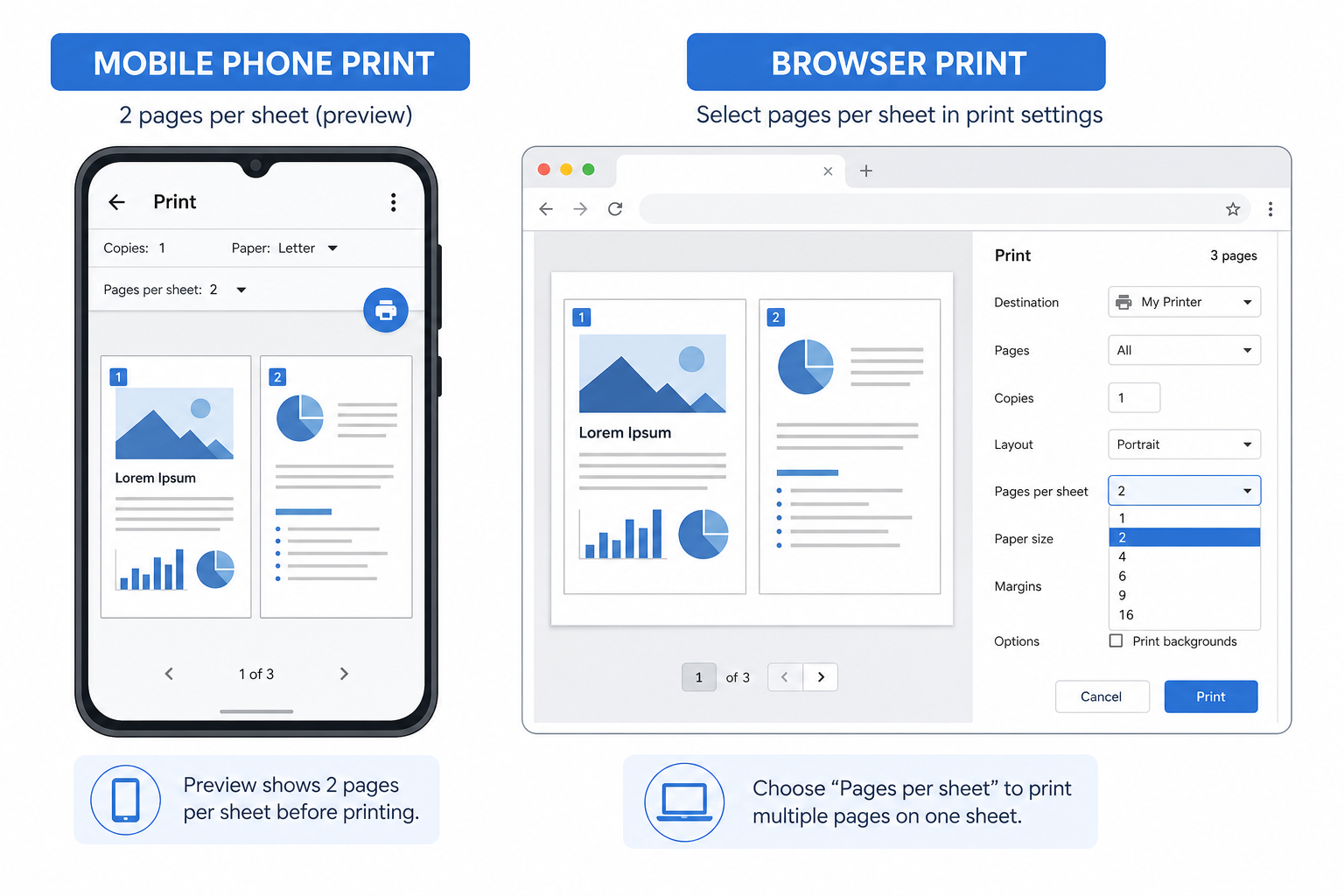
WPS Mobile and browser print for quick N-up output
Open the document in WPS Mobile.
Tap Share / Print (labels vary by OS).
Open print settings and select pages per sheet / N-up if available.
Preview when possible, then print.
Note: Mobile N-up options depend on the OS and printer. Do one test page before a large lecture handout run.
Method 3B: Browser print — for web pages and quick workarounds
Open the webpage in your browser.
Open Print (Ctrl/Cmd + P).
Look for Pages per sheet / layout options.
Choose your N-up value, adjust scale/margins if the preview shows cropping.
Print—or save to PDF if you only need a file.
Browser print is fast, but results vary by browser and OS. For consistent lecture handouts, prefer WPS Desktop print or PDF export.
Why choose WPS for multiple pages per sheet?
Troubleshooting common N-up problems
| Symptom | Likely cause | Fix |
|---|---|---|
| Text too small | N-up density too high (e.g., 8-up) | Use 2-up or 4-up; increase scale; check preview |
| Edges cut off | Paper size / margin mismatch | Match paper size; adjust margins; switch orientation |
| PDF layout wrong | Multi-page layout not applied on export | Re-export with pages-per-sheet options; open PDF to verify |
| Browser results inconsistent | Browser/OS print dialog limits | Use WPS Desktop for reliable multiple pages per sheet output |
FAQs
How do I print multiple pages on one page?
In WPS Desktop, open File → Print, set Pages per sheet, preview, then print.
What is the difference between n-up printing and a PDF with multiple pages per sheet?
N-up printing rearranges pages at print time. A multi-page-layout PDF is a permanent file layout you can share—printing is optional.
Can I create a multi-page PDF without printing?
Yes. Export/save as PDF with multi-page layout options in WPS Desktop.
Does browser print always support multiple pages per sheet?
Not always. Options depend on the browser, OS, and printer pipeline.
What’s best for lecture note handouts?
Print immediately in class? Use Desktop N-up. Share digitally? Export a PDF with multiple pages per sheet so everyone sees the same layout.

'%3e%3cpath%20d='M19.9911%204.11386V6.471H18.5894C18.0775%206.471%2017.7322%206.57814%2017.5536%206.79243C17.3751%207.00671%2017.2858%207.32814%2017.2858%207.75671V9.44421H19.9019L19.5536%2012.0871H17.2858V18.8639H14.5536V12.0871H12.2769V9.44421H14.5536V7.49779C14.5536%206.39064%2014.8632%205.53201%2015.4822%204.92189C16.1013%204.31177%2016.9257%204.00671%2017.9554%204.00671C18.8304%204.00671%2019.509%204.04243%2019.9911%204.11386Z'%20fill='%23333333'/%3e%3c/g%3e%3cdefs%3e%3cclipPath%20id='clip0_2938_8199'%3e%3crect%20width='16'%20height='16'%20fill='white'%20transform='translate(8%204.00671)'/%3e%3c/clipPath%3e%3c/defs%3e%3c/svg%3e)
'%3e%3cpath%20d='M17.5237%2010.7813L23.4811%204H22.0699L16.8949%209.88693L12.7648%204H8L14.2469%2012.9029L8%2020.0133H9.4112L14.8725%2013.7952L19.2352%2020.0133H24M9.92053%205.04213H12.0885L22.0688%2019.0224H19.9003'%20fill='%23333333'/%3e%3c/g%3e%3cdefs%3e%3cclipPath%20id='clip0_2938_8200'%3e%3crect%20width='16'%20height='16.0134'%20fill='white'%20transform='translate(8%204)'/%3e%3c/clipPath%3e%3c/defs%3e%3c/svg%3e)


