

'%3e%3cpath%20d='M8%200C12.4183%200%2016%203.58172%2016%208C16%2012.4183%2012.4183%2016%208%2016C3.58172%2016%200%2012.4183%200%208C0%203.58172%203.58172%200%208%200ZM11.6162%204.38379C11.2257%203.99337%2010.5927%203.99338%2010.2021%204.38379L8%206.58594L5.79785%204.38379C5.40732%203.99334%204.77429%203.99329%204.38379%204.38379C3.99331%204.77429%203.99335%205.40733%204.38379%205.79785L6.58594%208L4.38379%2010.2021C3.99348%2010.5927%203.99341%2011.2257%204.38379%2011.6162C4.77426%2012.0066%205.40734%2012.0065%205.79785%2011.6162L8%209.41406L10.2021%2011.6162C10.5927%2012.0066%2011.2257%2012.0067%2011.6162%2011.6162C12.0067%2011.2257%2012.0066%2010.5927%2011.6162%2010.2021L9.41406%208L11.6162%205.79785C12.0066%205.40735%2012.0066%204.77429%2011.6162%204.38379Z'%20fill='%23080E17'%20fill-opacity='0.46'/%3e%3c/g%3e%3cdefs%3e%3cclipPath%20id='clip0_3761_713'%3e%3crect%20width='16'%20height='16'%20fill='white'/%3e%3c/clipPath%3e%3c/defs%3e%3c/svg%3e)




'%3e%3cpath%20fill-rule='evenodd'%20clip-rule='evenodd'%20d='M21.4999%2010.9993C21.4999%205.20009%2016.7986%200.498901%2010.9993%200.498901C5.19994%200.498901%200.498657%205.20009%200.498657%2010.9993C0.498657%2016.2404%204.33858%2020.5844%209.35855%2021.3722V14.0346H6.69238V10.9993H9.35855V8.68594C9.35855%206.05427%2010.9262%204.60062%2013.3248%204.60062C14.4736%204.60062%2015.6753%204.80571%2015.6753%204.80571V7.38979H14.3512C13.0468%207.38979%2012.64%208.19921%2012.64%209.0296V10.9993H15.5523L15.0867%2014.0346H12.64V21.3722C17.66%2020.5844%2021.4999%2016.2404%2021.4999%2010.9993Z'%20fill='%231568EA'/%3e%3c/g%3e%3c/svg%3e)


'%3e%3cpath%20d='M2.42045%2022.1876H6.31818V12.7217L0.75%208.54553V20.5171C0.75%2021.4414%201.49892%2022.1876%202.42045%2022.1876Z'%20fill='%234285F4'/%3e%3cpath%20d='M19.682%2022.1876H23.5797C24.5041%2022.1876%2025.2502%2021.4387%2025.2502%2020.5171V8.54553L19.682%2012.7217'%20fill='%2334A853'/%3e%3cpath%20d='M19.682%205.48293V12.7216L25.2502%208.54543V6.31816C25.2502%204.25236%2022.8921%203.07469%2021.2411%204.31361'%20fill='%23FBBC04'/%3e%3cpath%20d='M6.31824%2012.7217V5.48303L13.0001%2010.4944L19.6819%205.48303V12.7217L13.0001%2017.733'%20fill='%23EA4335'/%3e%3cpath%20d='M0.75%206.31816V8.54543L6.31818%2012.7216V5.48293L4.75909%204.31361C3.10534%203.07469%200.75%204.25236%200.75%206.31816Z'%20fill='%23C5221F'/%3e%3c/g%3e%3cdefs%3e%3cclipPath%20id='clip0_2954_7305'%3e%3crect%20width='24.5'%20height='18.375'%20fill='white'%20transform='translate(0.75%203.8125)'/%3e%3c/clipPath%3e%3c/defs%3e%3c/svg%3e)


When you first start working with Adobe Illustrator, the Pen Tool feels like it should behave like a simple drawing pen. Instead, Illustrator often surprises you by filling your paths with color, turning what you thought was a line into a solid shape. Adobe Illustrator is a powerful vector-based design tool used by designers, illustrators, and students worldwide. The problem is that Illustrator thinks in shapes and appearances, not strokes alone.In this guide, I’ll show you how to remove Illustrator Pen Tool fill, switch to stroke-only paths, and stop unwanted fills from appearing while you draw.
Why People Want to Remove Illustrator Pen Tool Fill
Most users looking for Illustrator Pen Tool no fill are beginners who expect the Pen Tool to behave like a pencil. Instead, they run into filled shapes that block visibility and disrupt their workflow. In Illustrator, every line is technically a shape with an appearance attached to it. If you don’t understand that early on, the Pen Tool can feel unpredictable or even broken. When a path suddenly fills itself with color, beginners often assume they made a mistake, when in reality Illustrator is simply applying logic that hasn’t been explained yet.
Common situations where this issue appears:
Beginners want clean line paths, not shapes:Many users are creating line art, outlines, or technical drawings and don’t expect Illustrator to treat lines as fillable objects.
Illustrator auto-applies previous fill settings:It will reuse the last object you created without warning, which is why it’s important to disable auto fill Illustrator to maintain stroke-only paths.
Confusion between open vs. closed paths:Accidentally closing a path causes Illustrator to assume you want a shape, triggering a fill.
Difficulty editing when fill blocks visibility:Solid fills can hide anchor points and strokes, making precise edits harder.
These frustrations all point to the same issue: misunderstanding Illustrator’s filland stroke logic and why Pen Tool creates filled shapes even when you expect just a line.
How to Remove Illustrator Pen Tool Fill – Step-by-Step Guide
In practice, removing Illustrator Pen Tool fill is about setting the correct defaults before you start drawing and knowing where Illustrator hides those controls. I’ve seen many users repeatedly delete fills afterdrawing, not realizing they can prevent the issue entirely. The steps below focus on stopping unwanted fills at the source, so every new path behaves the way you expect from the first anchor point onward. Here’s how to remove Illustrator Pen Tool fill so you can achieve Illustrator Pen Tool stroke only drawing with confidence.
Step 1: Open Adobe Illustrator and select the object you want to adjust.
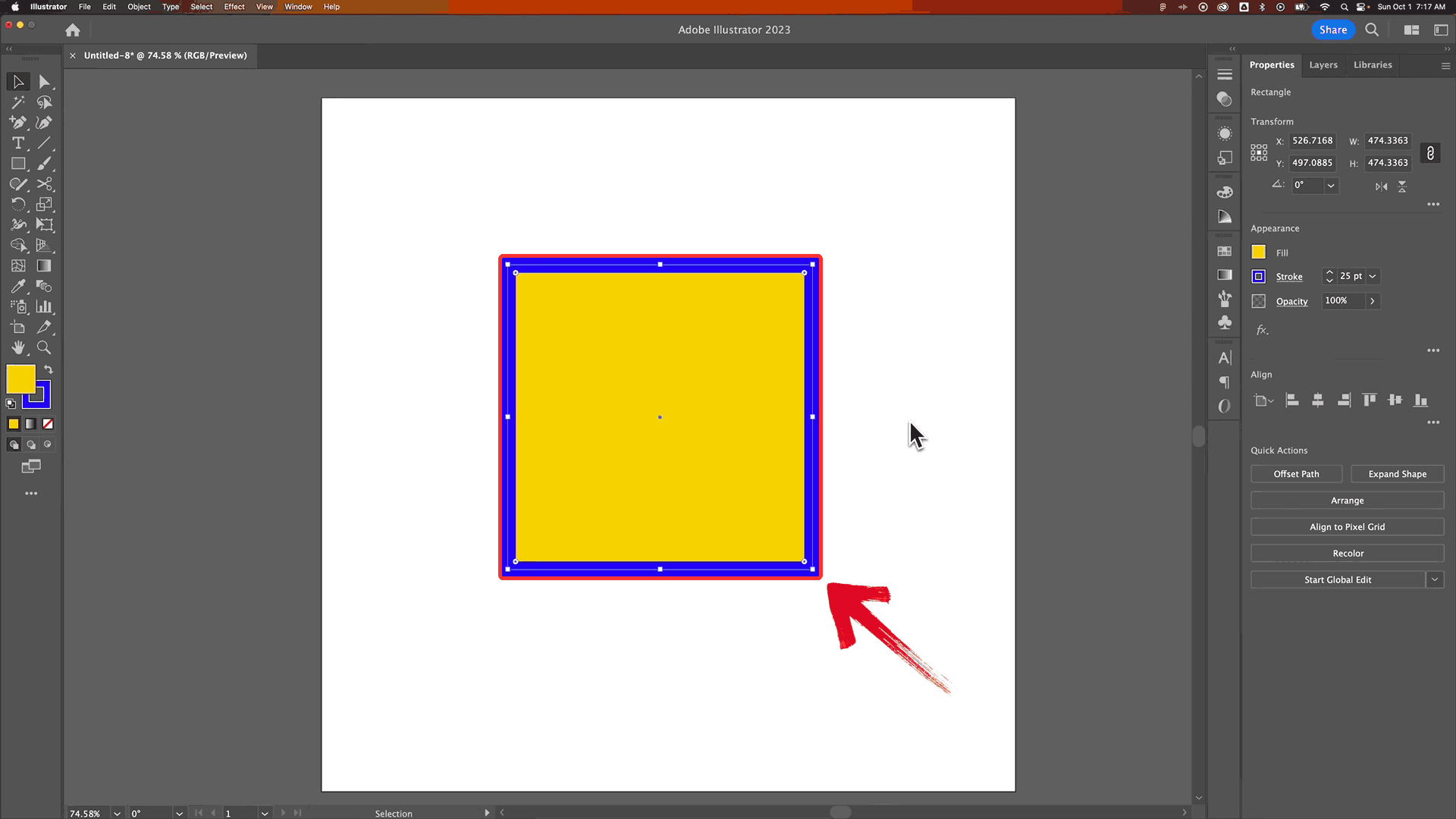
Note: If you want to set defaultsfor new paths, make sure nothing is selected.
Step 2: Click on the “Fill” box in the Toolbar or Properties panel on the left side.
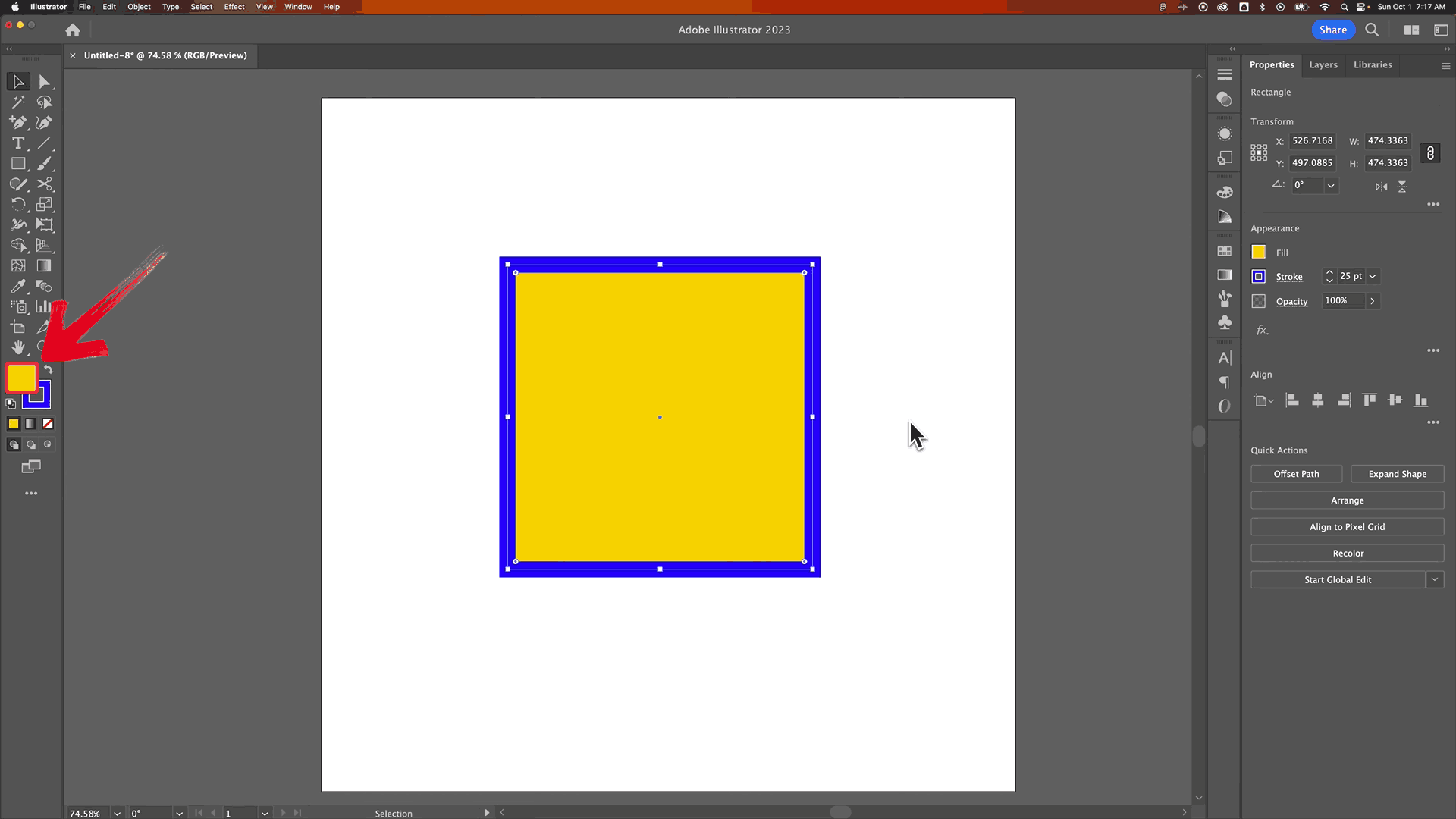
Step 3: Choose “None”, which looks like a white box with a red slash, or press the “/” key on your keyboard.
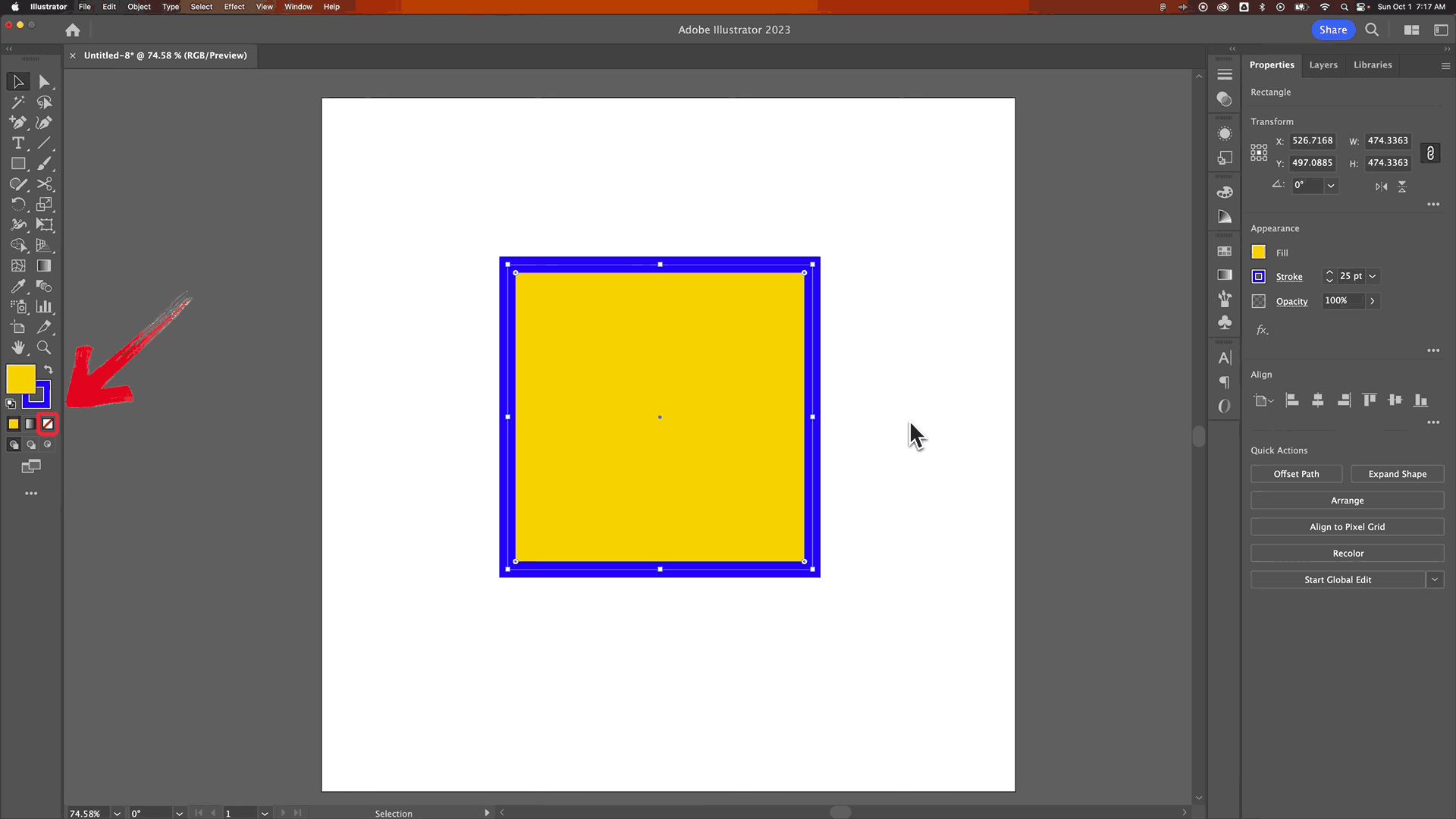
Step 4: Your path is now see-through, with no fill applied.
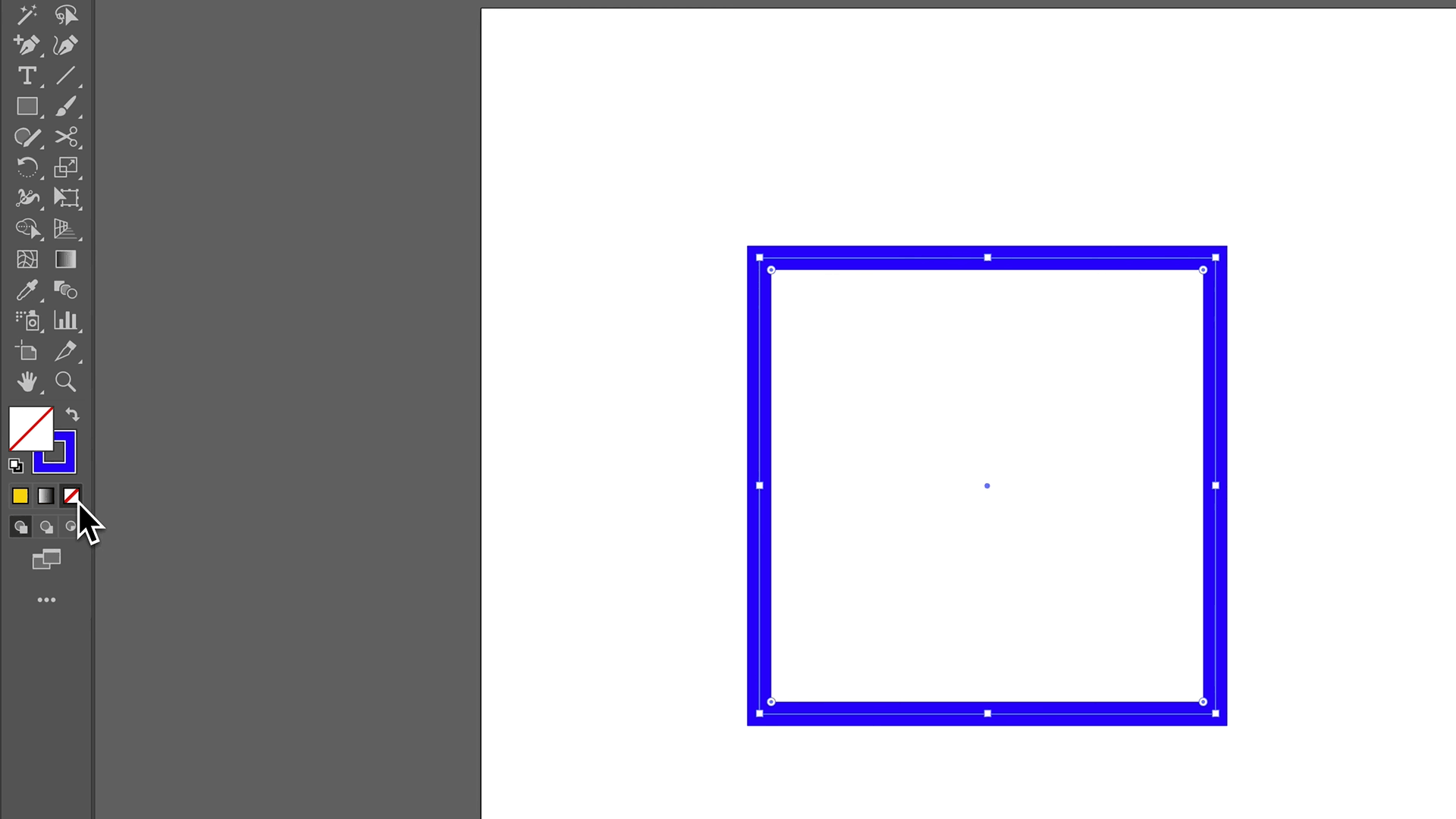
These steps resolve nearly all issues related to remove fill when drawing paths Illustrator.
Another AI Photo Solution – WPS Photos
Even when you’ve mastered stroke-only paths in Illustrator, starting with messy sketches, scanned drawings, or low-resolution reference images can slow you down. WPS Photos provides a fast, AI-powered way to clean up and enhance those images before you trace or import them into Illustrator. It can remove backgrounds, sharpen lines, correct colors, reduce noise, and even upscale low-resolution sketches so your paths are easier to follow and your work stays smooth. Anyone working with scanned sketches, reference photos, or exported PNGs before bringing them into Illustrator will find it a tool that helps prep visuals efficiently without interrupting their creative flow.
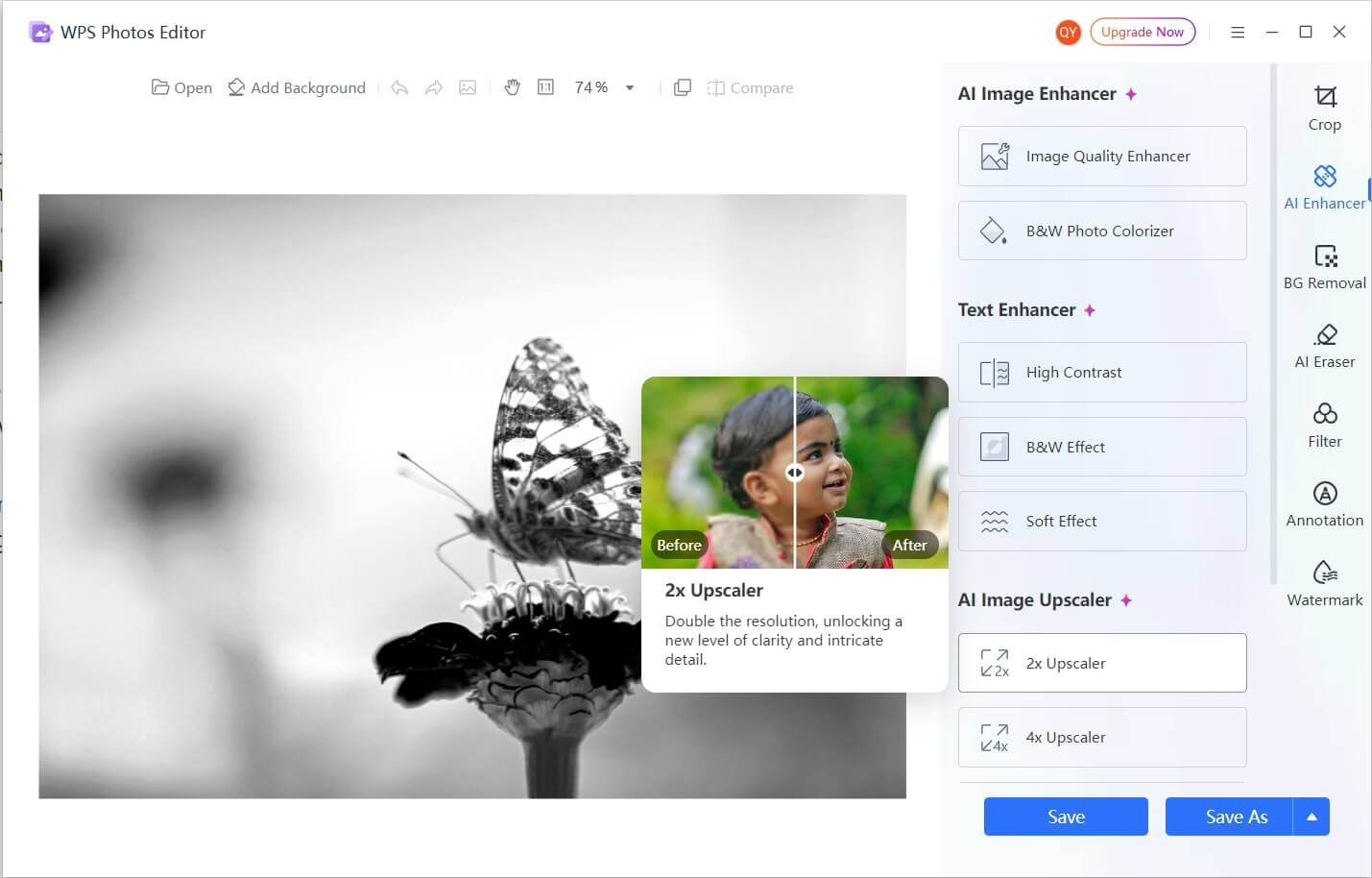
Features:
AI automatic enhancement: Quickly improves clarity, contrast, and color balance for scanned sketches or photos.
Background removal: Cleanly isolates subjects or line art for easier tracing in Illustrator.
Noise reduction & clarity boosting:Eliminates grain and sharpens lines for low-resolution or scanned images.
Color and exposure correction: Adjusts brightness, saturation, and exposure to match your desired style.
High-resolution upscaling: Enlarges sketches or reference images without losing detail, making tracing precise and effortless.
Quick export options: Save in multiple formats like PNG or JPEG, ready for import into Illustrator.
Now that you know the key features of WPS Photos and how it can improve your sketches or reference images, let’s walk through the process of using it. The steps are simple and designed to get your images ready for Illustrator quickly.
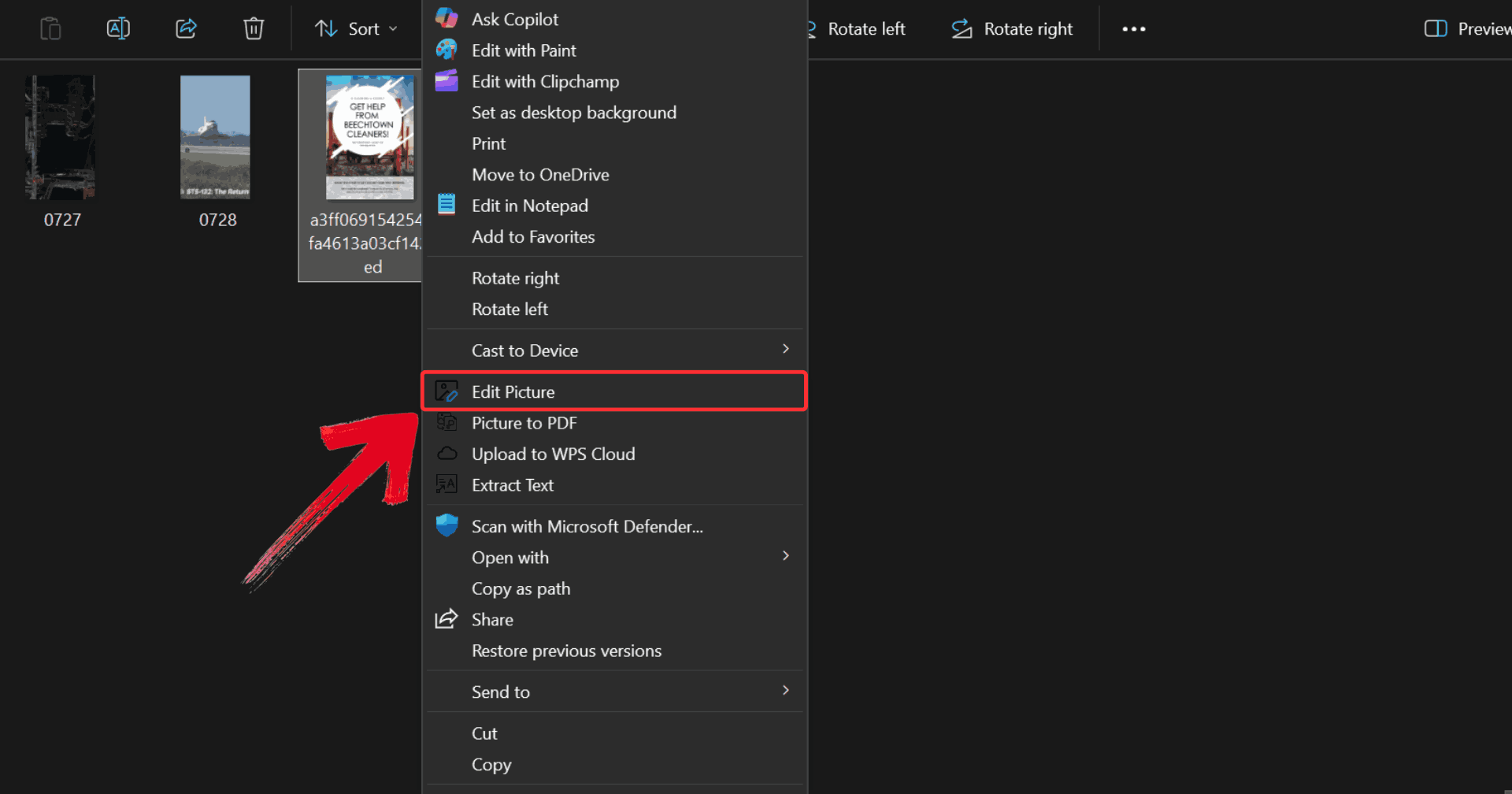
Step 1: Right-click on the photo you want to edit, then click on “Edit Picture” to open it in WPS Photo Editor.
Step 2: Click on “AI Enhancer” and make any adjustments you prefer before moving to the auto removal tool.
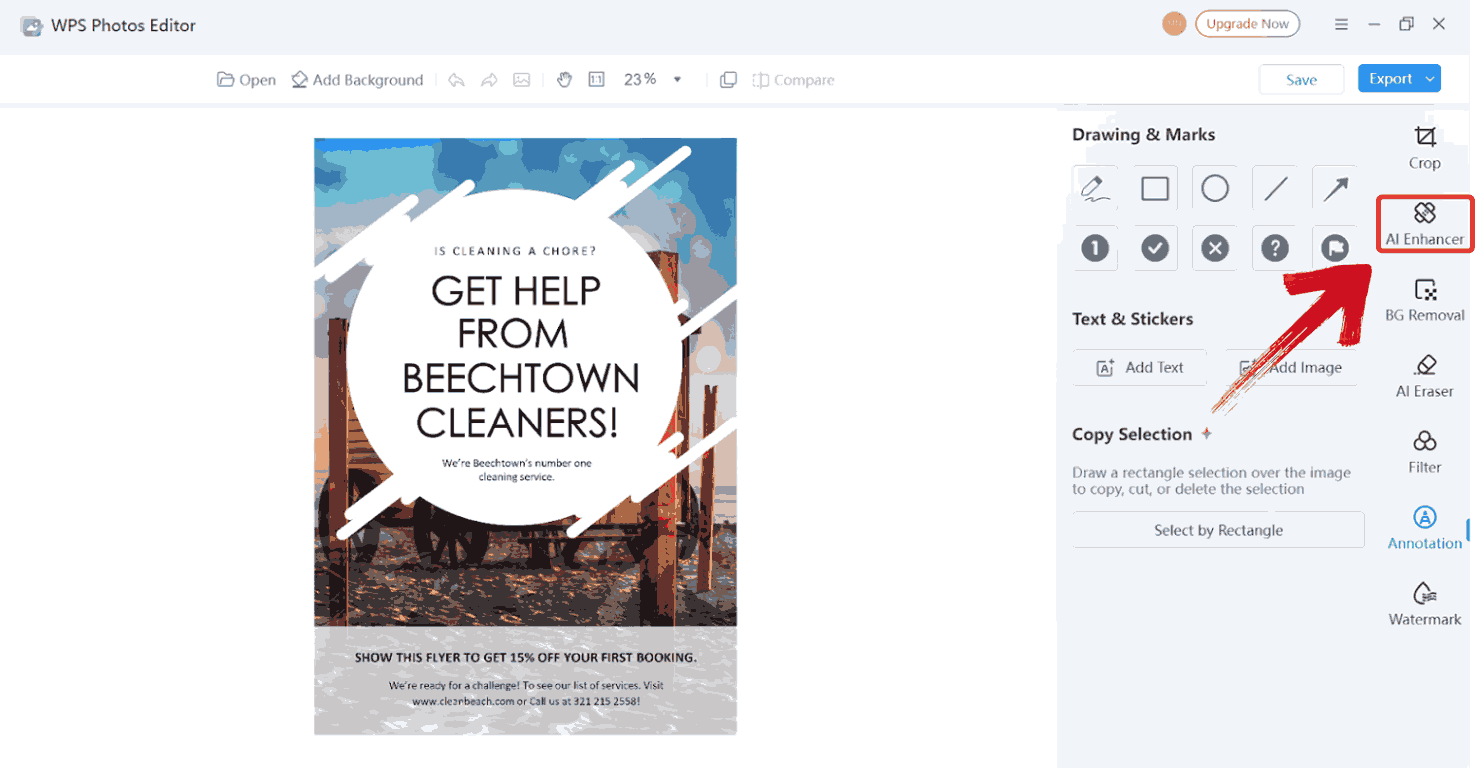
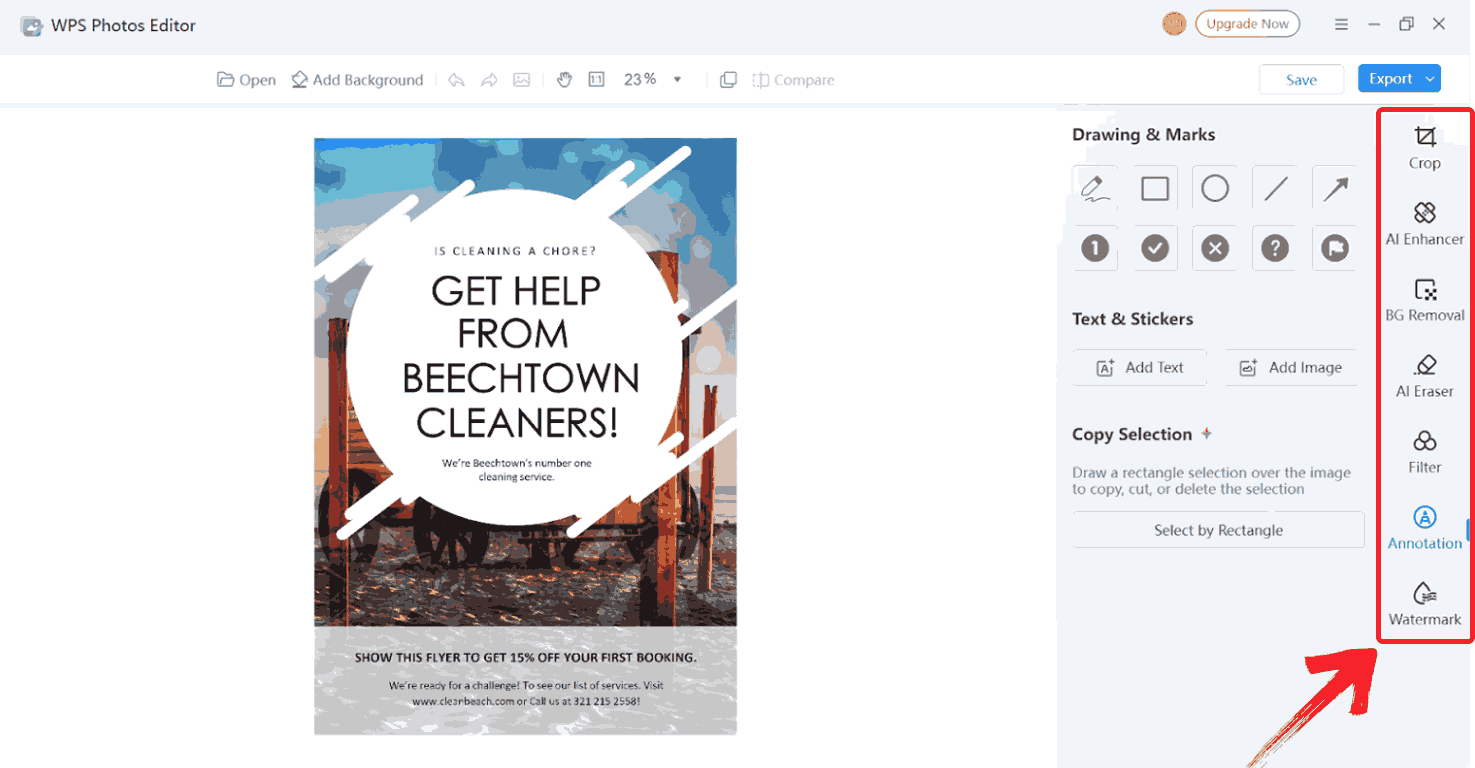
Step 3: You can also explore the tools in the right-side menu to further refine your image whether you want to remove the background, smooth out details, or make additional enhancements.
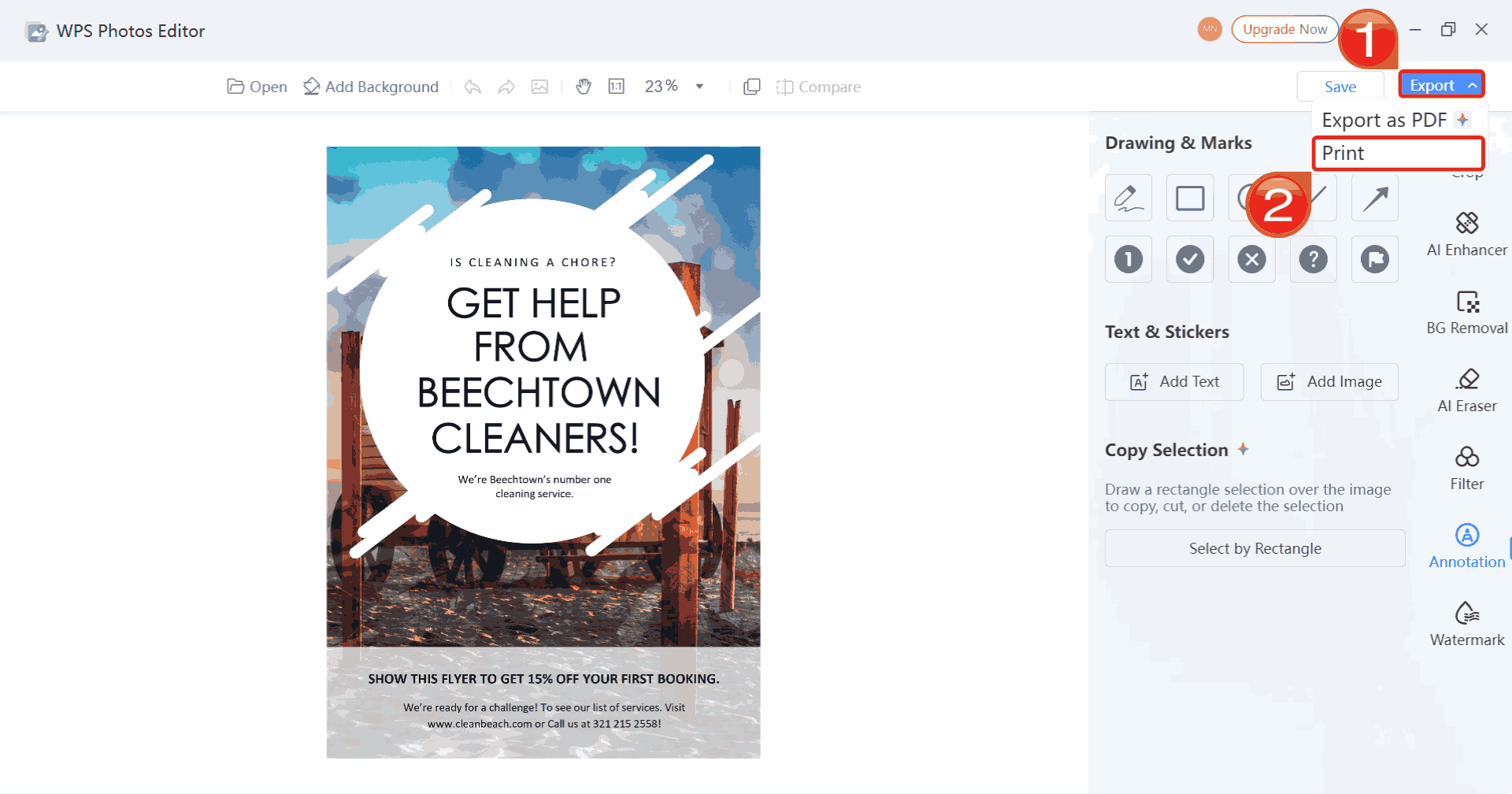
Step 4: Click on “Export”, then select “Print” to save your changes and print your edited photo.
While WPS Photos does not replace Illustrator, it complements your work by handling image-based tasks quickly and efficiently.
FAQs
1. Why does Illustrator keep adding fill to my Pen Tool paths?
Illustrator remembers the last-used appearance settings. If your previous object had a fill, the Pen Tool will reuse it.
2. How do I permanently disable fill for Pen Tool drawing?
Deselect all objects, set the fill to None, and keep the stroke active. Illustrator will save this as the default.
3. Why does my path still look filled even after removing fill?
You may be closing the path or using a very thin stroke that appears hidden.
4. Can Illustrator draw lines without closing shapes?
Yes. End the path with Esc or Ctrl/Cmd-click to keep it open.
5. How is WPS Photos different from Illustrator?
Illustrator is for vector drawing, while WPS Photos focuses on AI-powered image enhancement and cleanup.
Fill to Flow with WPS
Understanding how to remove Illustrator Pen Tool fill comes down to managing fill and stroke settings and knowing the difference between open and closed paths. Once you disable auto fill in Illustrator and switch to stroke-only drawing, the Pen Tool starts to feel far more intuitive and predictable. If you often begin with hand-drawn sketches or reference images, WPS Photos can handle the prep work before you open Illustrator. It cleans up backgrounds, sharpens lines, and improves image quality, making tracing and outlining much easier. Combined with the right Pen Tool settings, your lines stay clean, your work stays smooth, and the learning curve feels far less intimidating.

'%3e%3cpath%20d='M19.9911%204.11386V6.471H18.5894C18.0775%206.471%2017.7322%206.57814%2017.5536%206.79243C17.3751%207.00671%2017.2858%207.32814%2017.2858%207.75671V9.44421H19.9019L19.5536%2012.0871H17.2858V18.8639H14.5536V12.0871H12.2769V9.44421H14.5536V7.49779C14.5536%206.39064%2014.8632%205.53201%2015.4822%204.92189C16.1013%204.31177%2016.9257%204.00671%2017.9554%204.00671C18.8304%204.00671%2019.509%204.04243%2019.9911%204.11386Z'%20fill='%23333333'/%3e%3c/g%3e%3cdefs%3e%3cclipPath%20id='clip0_2938_8199'%3e%3crect%20width='16'%20height='16'%20fill='white'%20transform='translate(8%204.00671)'/%3e%3c/clipPath%3e%3c/defs%3e%3c/svg%3e)
'%3e%3cpath%20d='M17.5237%2010.7813L23.4811%204H22.0699L16.8949%209.88693L12.7648%204H8L14.2469%2012.9029L8%2020.0133H9.4112L14.8725%2013.7952L19.2352%2020.0133H24M9.92053%205.04213H12.0885L22.0688%2019.0224H19.9003'%20fill='%23333333'/%3e%3c/g%3e%3cdefs%3e%3cclipPath%20id='clip0_2938_8200'%3e%3crect%20width='16'%20height='16.0134'%20fill='white'%20transform='translate(8%204)'/%3e%3c/clipPath%3e%3c/defs%3e%3c/svg%3e)


