

'%3e%3cpath%20d='M8%200C12.4183%200%2016%203.58172%2016%208C16%2012.4183%2012.4183%2016%208%2016C3.58172%2016%200%2012.4183%200%208C0%203.58172%203.58172%200%208%200ZM11.6162%204.38379C11.2257%203.99337%2010.5927%203.99338%2010.2021%204.38379L8%206.58594L5.79785%204.38379C5.40732%203.99334%204.77429%203.99329%204.38379%204.38379C3.99331%204.77429%203.99335%205.40733%204.38379%205.79785L6.58594%208L4.38379%2010.2021C3.99348%2010.5927%203.99341%2011.2257%204.38379%2011.6162C4.77426%2012.0066%205.40734%2012.0065%205.79785%2011.6162L8%209.41406L10.2021%2011.6162C10.5927%2012.0066%2011.2257%2012.0067%2011.6162%2011.6162C12.0067%2011.2257%2012.0066%2010.5927%2011.6162%2010.2021L9.41406%208L11.6162%205.79785C12.0066%205.40735%2012.0066%204.77429%2011.6162%204.38379Z'%20fill='%23080E17'%20fill-opacity='0.46'/%3e%3c/g%3e%3cdefs%3e%3cclipPath%20id='clip0_3761_713'%3e%3crect%20width='16'%20height='16'%20fill='white'/%3e%3c/clipPath%3e%3c/defs%3e%3c/svg%3e)




'%3e%3cpath%20fill-rule='evenodd'%20clip-rule='evenodd'%20d='M21.4999%2010.9993C21.4999%205.20009%2016.7986%200.498901%2010.9993%200.498901C5.19994%200.498901%200.498657%205.20009%200.498657%2010.9993C0.498657%2016.2404%204.33858%2020.5844%209.35855%2021.3722V14.0346H6.69238V10.9993H9.35855V8.68594C9.35855%206.05427%2010.9262%204.60062%2013.3248%204.60062C14.4736%204.60062%2015.6753%204.80571%2015.6753%204.80571V7.38979H14.3512C13.0468%207.38979%2012.64%208.19921%2012.64%209.0296V10.9993H15.5523L15.0867%2014.0346H12.64V21.3722C17.66%2020.5844%2021.4999%2016.2404%2021.4999%2010.9993Z'%20fill='%231568EA'/%3e%3c/g%3e%3c/svg%3e)


'%3e%3cpath%20d='M2.42045%2022.1876H6.31818V12.7217L0.75%208.54553V20.5171C0.75%2021.4414%201.49892%2022.1876%202.42045%2022.1876Z'%20fill='%234285F4'/%3e%3cpath%20d='M19.682%2022.1876H23.5797C24.5041%2022.1876%2025.2502%2021.4387%2025.2502%2020.5171V8.54553L19.682%2012.7217'%20fill='%2334A853'/%3e%3cpath%20d='M19.682%205.48293V12.7216L25.2502%208.54543V6.31816C25.2502%204.25236%2022.8921%203.07469%2021.2411%204.31361'%20fill='%23FBBC04'/%3e%3cpath%20d='M6.31824%2012.7217V5.48303L13.0001%2010.4944L19.6819%205.48303V12.7217L13.0001%2017.733'%20fill='%23EA4335'/%3e%3cpath%20d='M0.75%206.31816V8.54543L6.31818%2012.7216V5.48293L4.75909%204.31361C3.10534%203.07469%200.75%204.25236%200.75%206.31816Z'%20fill='%23C5221F'/%3e%3c/g%3e%3cdefs%3e%3cclipPath%20id='clip0_2954_7305'%3e%3crect%20width='24.5'%20height='18.375'%20fill='white'%20transform='translate(0.75%203.8125)'/%3e%3c/clipPath%3e%3c/defs%3e%3c/svg%3e)


When users search for how to smooth the edges of PNGs in Photopea, they often struggle with rough or pixelated outlines after removing backgrounds or making quick selections. Photopea offers powerful tools for edge refinement, but many beginners do not know where to start or which settings matter most. In this guide, I explain the essential workflow to achieve soft, natural edges without losing detail.
Part 1: Overview of Photopea
Photopea is a browser-based editor that mirrors many core functions of professional desktop software. Users often choose it when they need control over selections, masking, and edge refinement, especially while learning how to smooth the edges of PNG in Photopea for cleaner cutouts. Because it runs entirely online, it becomes a reliable option for quick and accessible editing tasks.
Photopea provides a complete set of tools that help users refine the edges of PNGs with precision. These tools allow beginners to correct jagged outlines, reduce pixelation, and achieve a smoother finish.
Key Features
Selection tools: Quick Selection, Magic Wand, Lasso variations
Refine Edge panel: Smooth, Feather, Contrast, and Shift Edge settings
Anti-alias options: Reduce stair-stepping on curves and diagonals
Brush and Mask editing: Non-destructive cleanup using soft brushes
Format support: PNG, PSD, JPG, and more
These features make Photopea suitable for improving PNG cutouts, especially when working with thumbnails, product images, digital illustrations, or marketing graphics.
Pricing Structure
Free version: Full functionality with ads
Premium version: Ad-free experience with faster processing for €15
Pros
No installation required
Accessible on any browser
Strong edge-refinement workflow
Effective for correcting rough PNG selections
Cons
Performance varies with device speed
Some tools require a learning curve
Ads can distract in the free version
Photopea stands out because its tools make it possible for beginners to improve edge clarity without needing complex software. By understanding how to smooth the edges of PNGs in Photopea using these features, users can quickly produce cleaner, more professional-quality images.
Part 2: How to Smooth Edges of PNG in Photopea – Step-by-Step Guide
This section provides a practical, beginner-friendly workflow for how to smooth the edges of PNGs in Photopea. These steps address common issues such as jagged selections, uneven outlines, and pixelated cutouts. By following this sequence, you can soften jagged edges that Photopea users often struggle with and achieve a cleaner, more polished result.
Before starting, ensure your PNG has transparency or an isolated subject. This method also works when you need to fix pixelated PNG edges online without additional software.
Step 1: Open your PNG in Photopea
You can begin by dragging your PNG directly into the browser window, or by selecting File → Open.
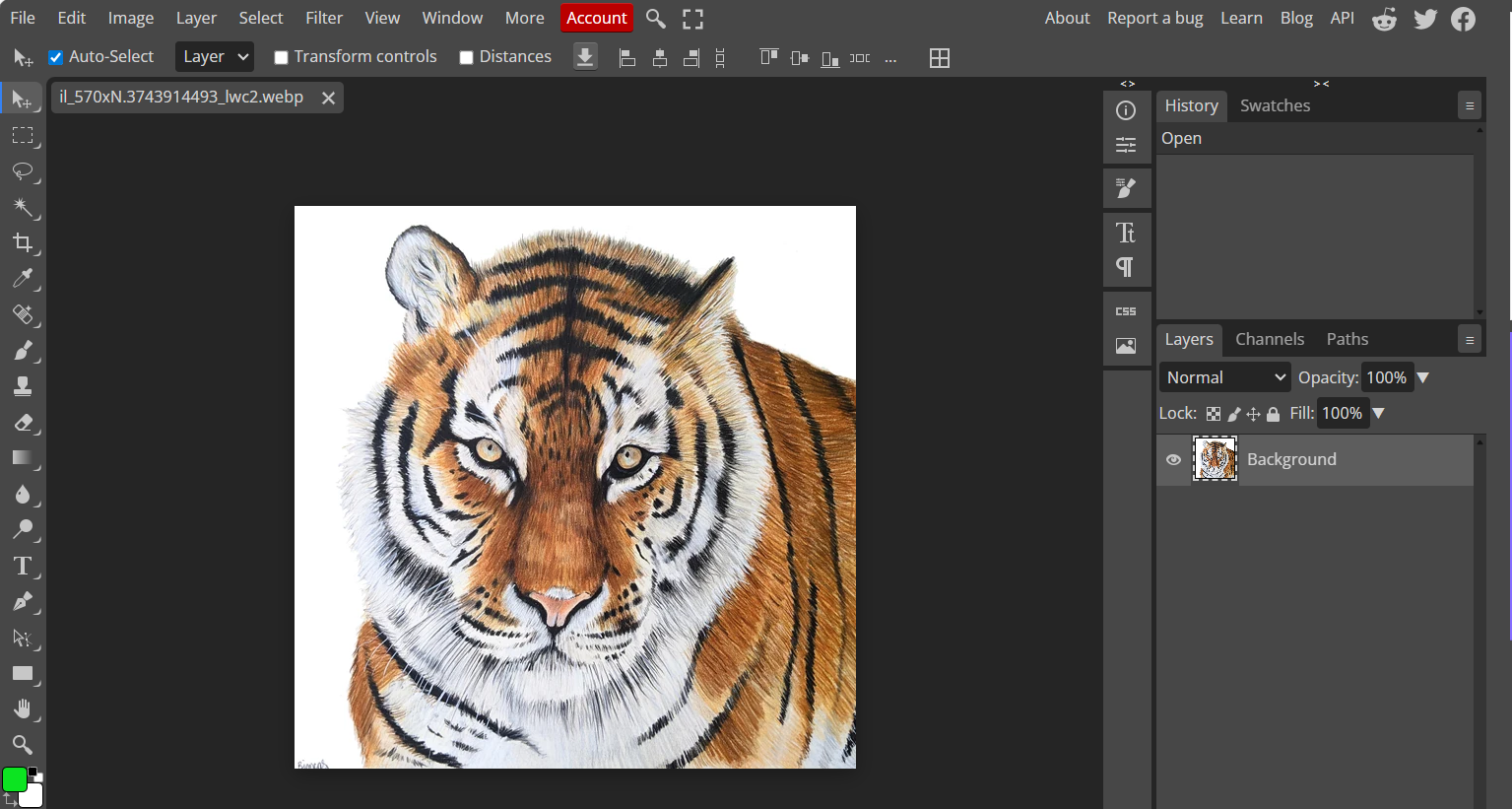
This loads the image into the workspace and allows you to prepare the selection needed for edge refinement. If you already removed the background earlier, the transparency will appear as a checkerboard pattern.
Step 2: Create a selection around the subject
Use any of Photopea’s selection tools depending on the shape and complexity of your subject. The Quick Selection toolworks well for objects with clear boundaries, while the Magic Wand can isolate areas based on color similarity. You can also use Select → Load Selection to automatically select the non-transparent pixels of your PNG.
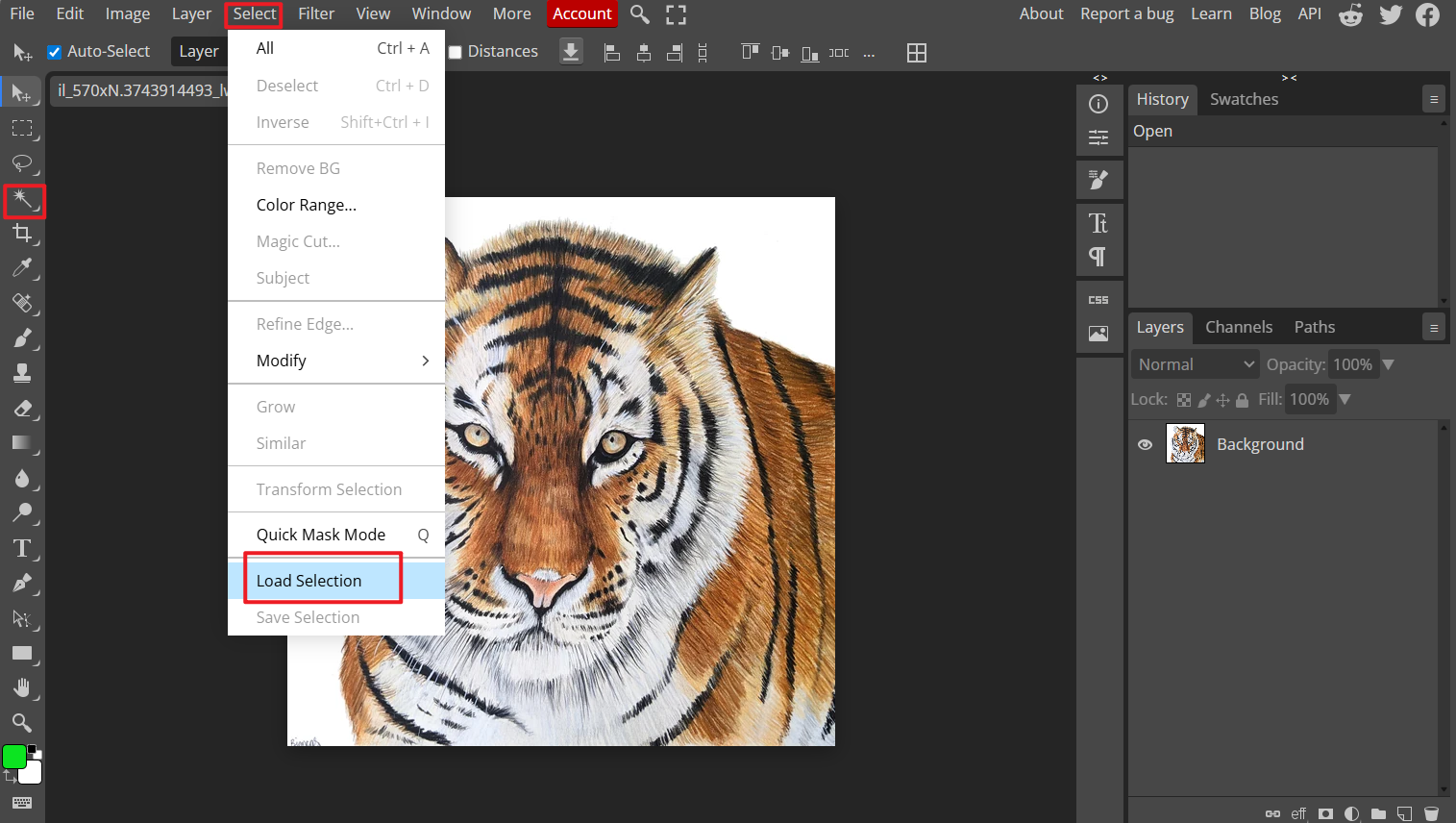
This step sets up the base area that you will refine in the next stage of the Photopea refine edge tutorial. A cleaner initial selection reduces the amount of manual cleanup later.
Step 3: Open the Refine Edge panel
Go to Select → Refine Edge.
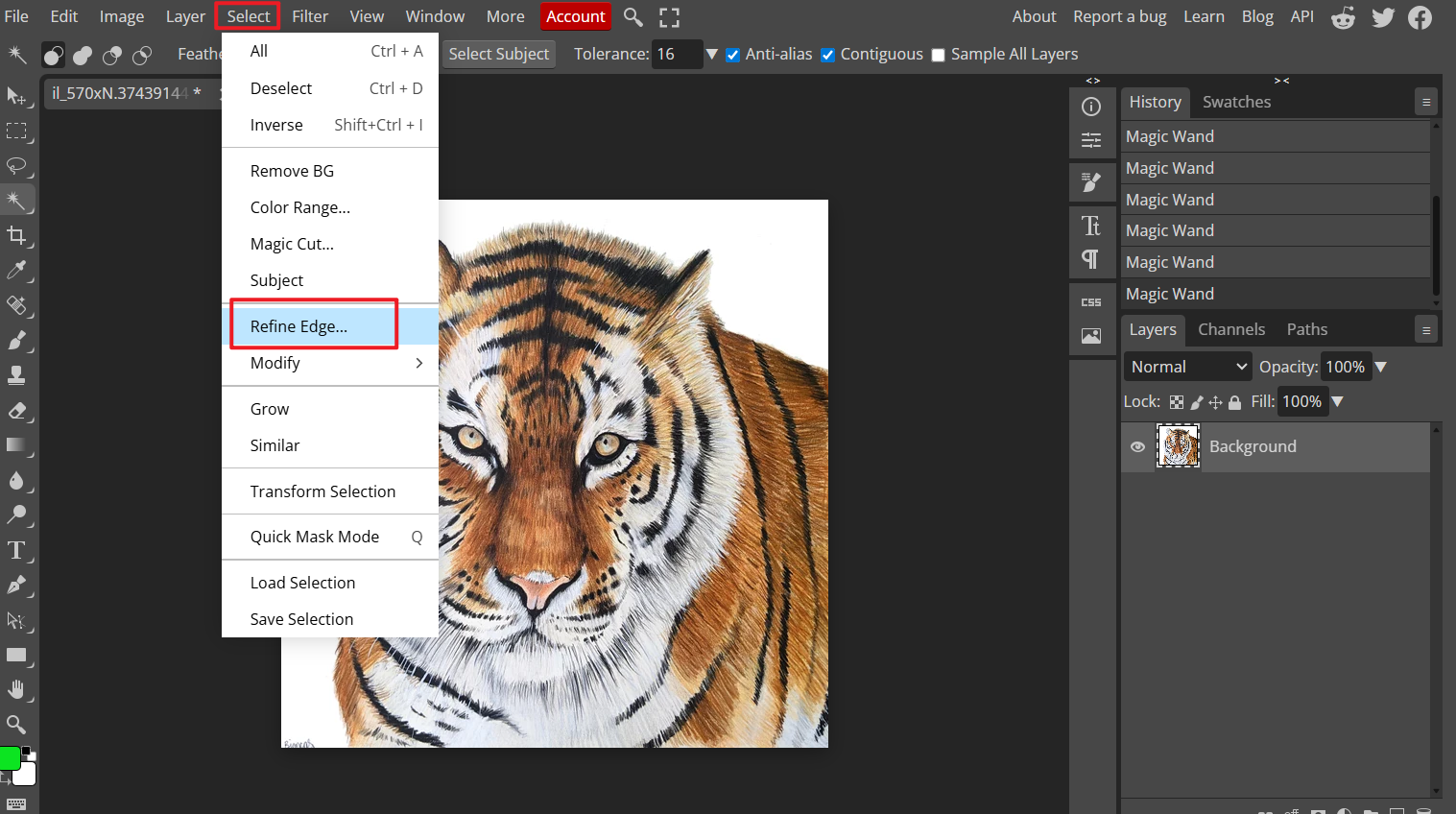
The panel will appear with several sliders and preview modes that help you adjust the quality of your selection. This tool is essential when learning how to smooth the edges of PNG in Photopea because it provides direct control over softness, edge contrast, and the transition between subject and background.
Step 4: Adjust Smooth, Feather, and Contrast sliders
These three settings determine how natural your PNG edges will appear.
Smooth: Softens harsh points and reduces angular edges.
Feather: Creates a gentle transition at the border.
Contrast: Sharpens the feathered edge so it doesn’t look foggy.
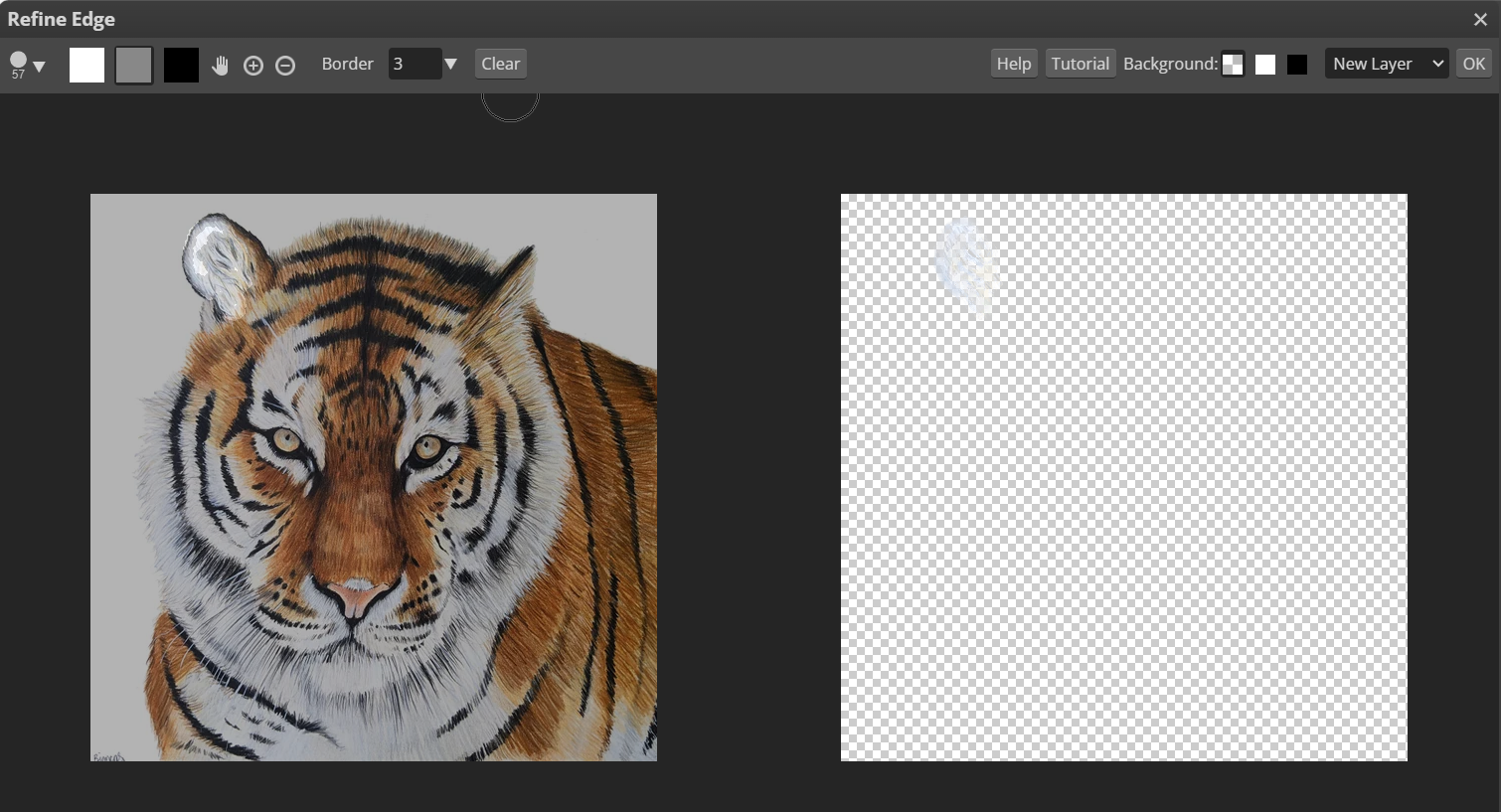
Recommended starting values:
Smooth: 3–10
Feather: 0.5–2 px
Contrast: 5–15 percent
These adjustments help smooth cutout edges in Photopea while maintaining clarity. If your cutout appears overly sharp or stair-stepped, enabling anti-alias PNG edges, the Photopea options can further reduce harshness.
Step 5: Output the refined selection as a Raster Mask
In the Output section, choose Raster Mask.
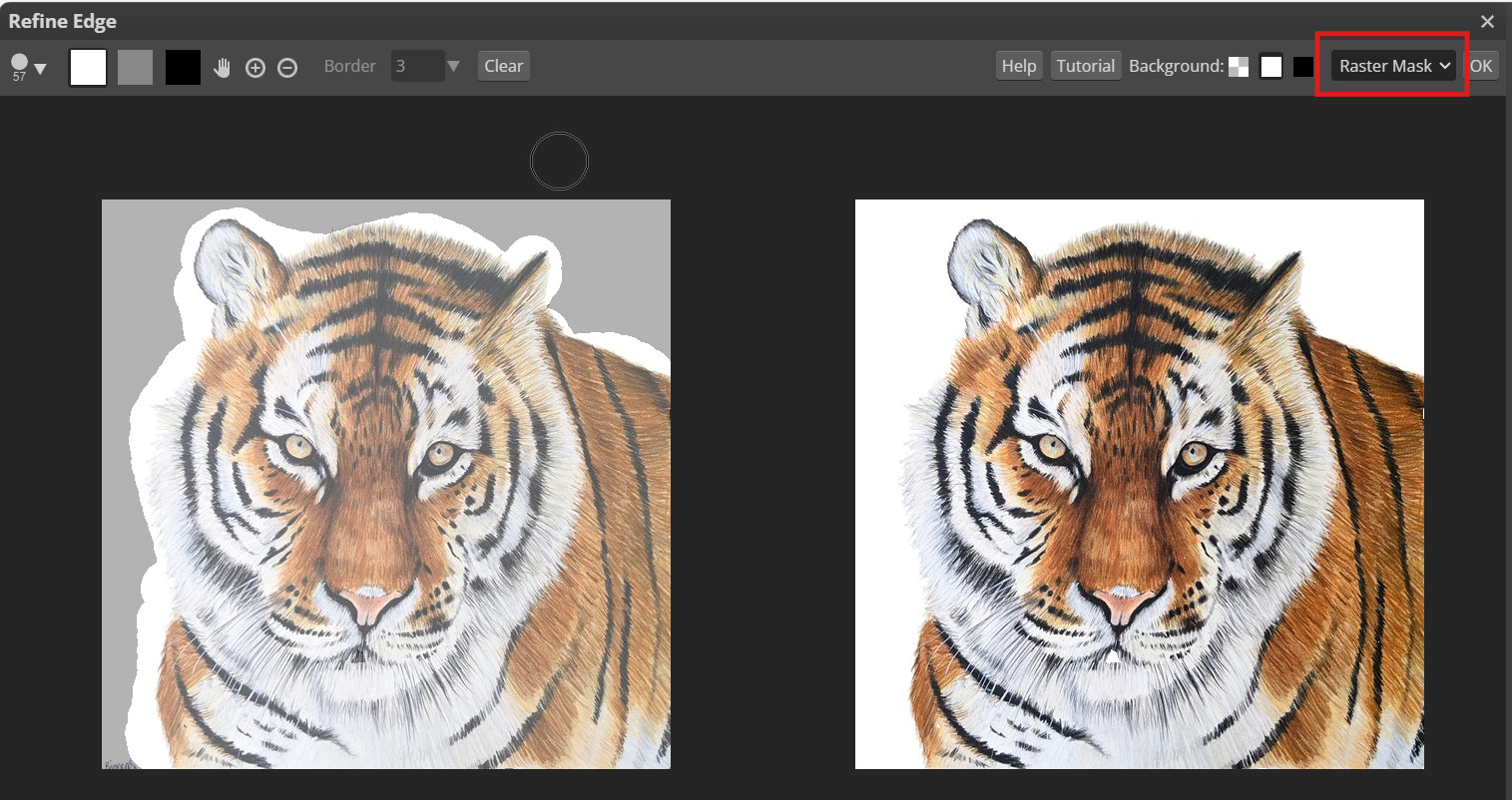
This keeps the refinement non-destructive, allowing you to adjust or reverse changes at any time. Using a mask instead of deleting pixels gives more flexibility when correcting leftover artifacts or reworking edges later.
This workflow also helps if you plan to remove background smooth edges online in other tools, since masks preserve detail more effectively.
Step 6: Use a soft brush on the mask for manual clean-up
Select the Brush tool, set hardness to 0 percent, and paint gently on the mask to refine any irregularities.
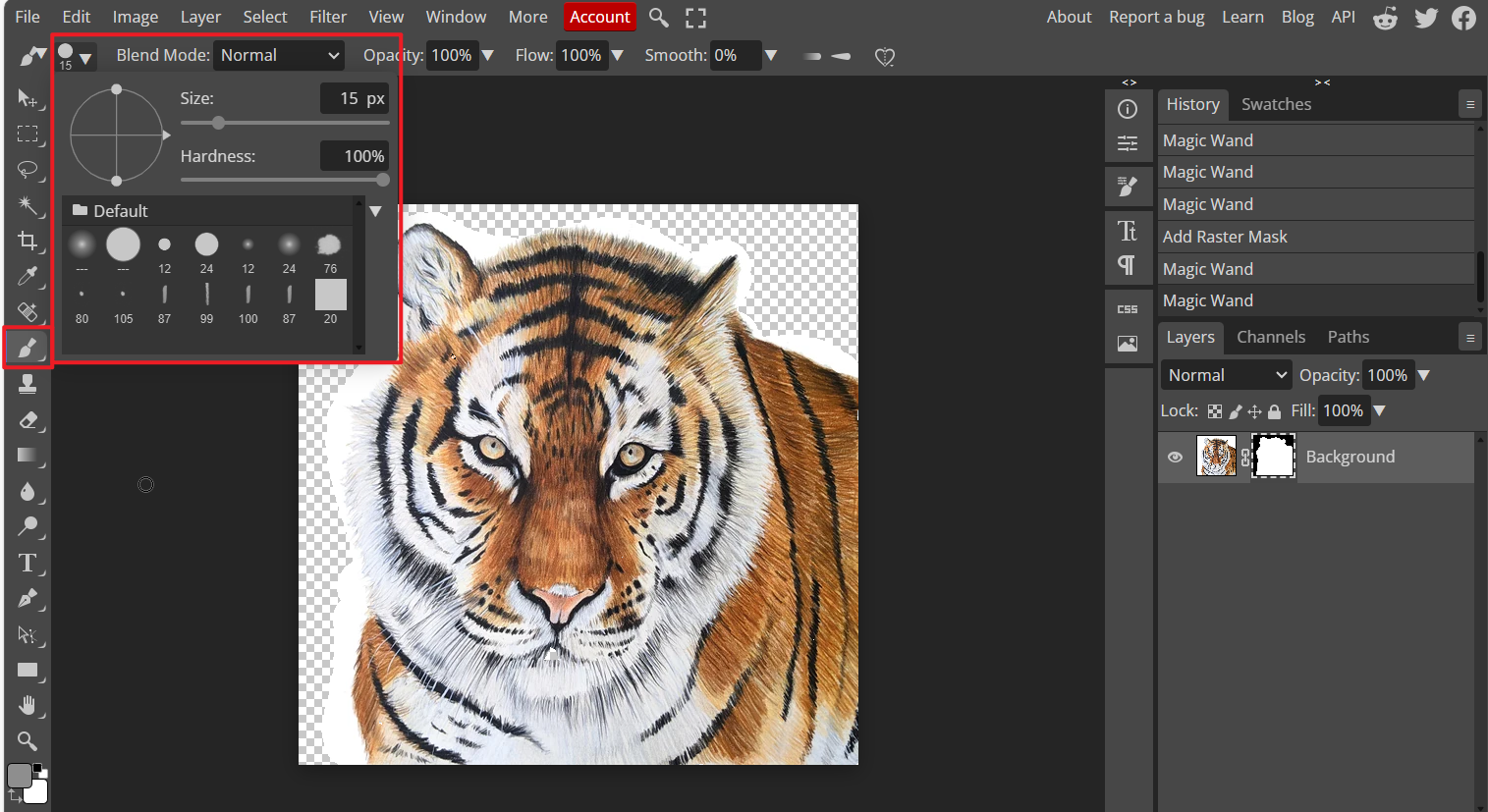
A soft brush helps blend the transition between subject and transparency, which is often necessary for hair, curves, or shadows. Small strokes usually work better than large ones when targeting delicate areas.
This method offers more control than automated smoothing and complements the adjustments made in the Refine Edge panel.
Step 7: Export the final PNG
Once the edges look clean and consistent, go to File → Export As → PNG.
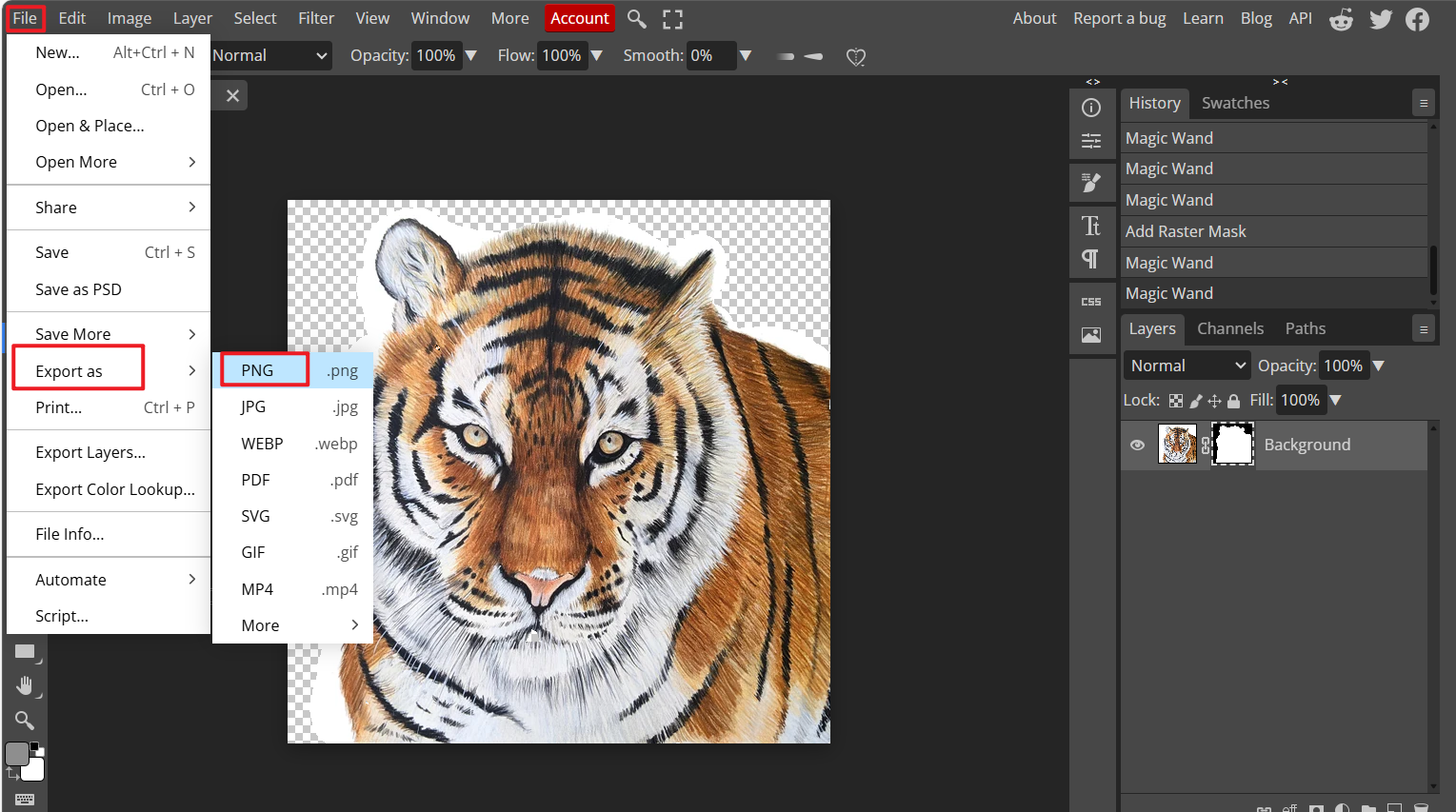
Ensure transparency is preserved and review the final outline at full resolution. This completes the sharpening and cleanup process used when learning how to smooth edges of PNGs in Photopea for high-quality design output.
Part 3: Best Tool for Optimizing Your PNG – WPS Photos
While Photopea offers detailed manual control, some users prefer a faster, automated way to clean and refine PNG edges. WPS Photos serves this purpose well. It uses AI-driven enhancement to smooth edges, sharpen details, and correct common artifacts without requiring manual feathering or mask adjustments. This makes it a helpful alternative for users who want consistent results with minimal effort.
Key Features
AI edge smoothing: Automatically reduces jagged or uneven outlines.
Automatic background removal: Produces cleaner transparency around the subject.
Smart sharpening and noise reduction: Improves clarity in low-resolution images.
Color and lighting correction: Adjusts exposure, tone, and vibrancy.
One-click enhancement: Offers quick, reliable results for beginners and non-designers.
These capabilities are especially useful when you need a polished PNG but do not have time to follow a full refine-edge workflow manually.
How to Use WPS Photos
Follow this simple sequence to enhance PNG edges efficiently. Screenshots can be added for each step.
Step 1: Open WPS Photos
Launch WPS Photos from your desktop or through the WPS Office suite. The interface loads quickly and displays all image-editing tools in the sidebar.
Step 2: Import your PNG
Click Open and select your PNG file. WPS Photos supports transparent images and maintains their quality during enhancement.
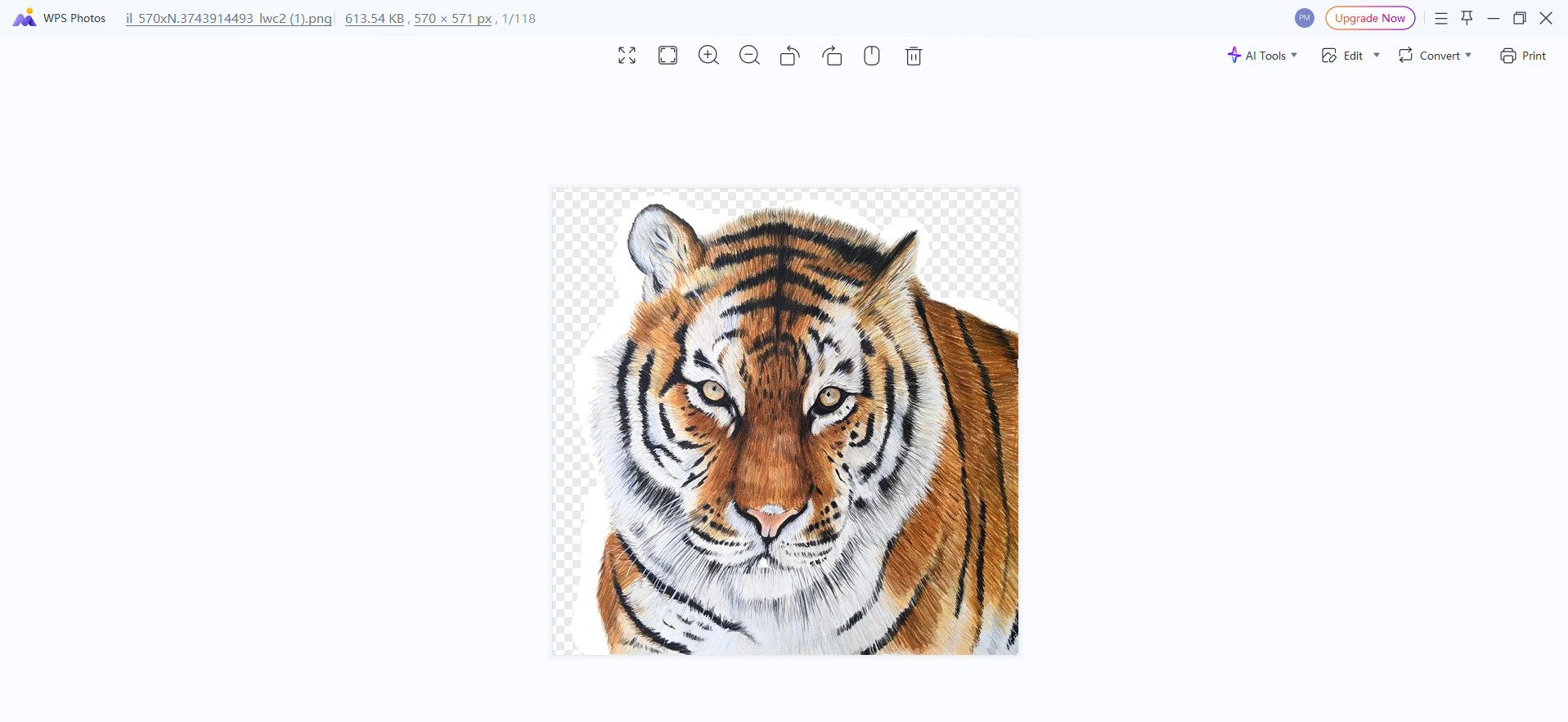
Step 3: Apply AI Enhancement
Select the Enhance tool. The AI engine analyzes the subject and applies smoothing, sharpening, and color adjustments automatically. This step often fixes rough outlines more consistently than manual curves or masks.
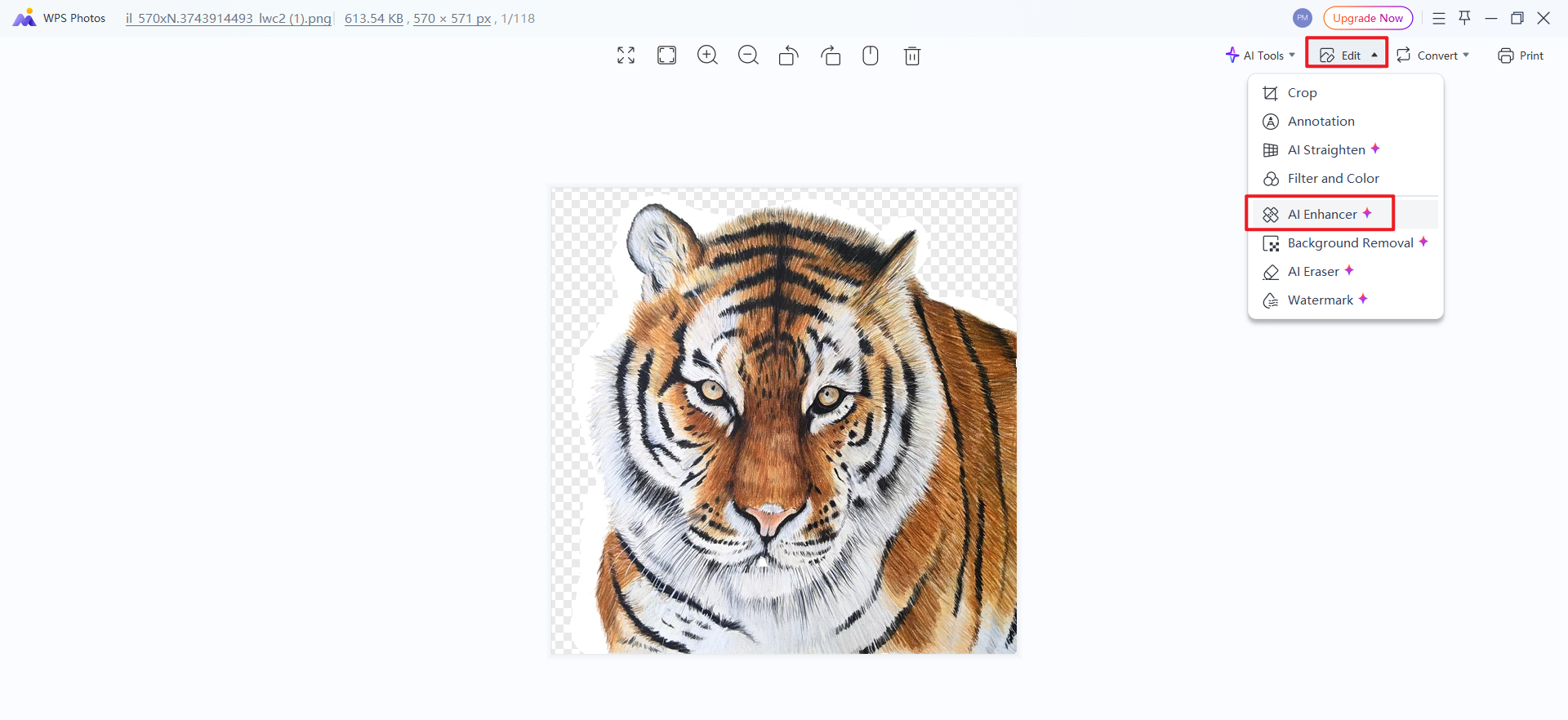
Step 4: Review and Save
Adjust intensity if necessary, then click Save. Export your enhanced PNG in high quality for design projects, thumbnails, or product images.
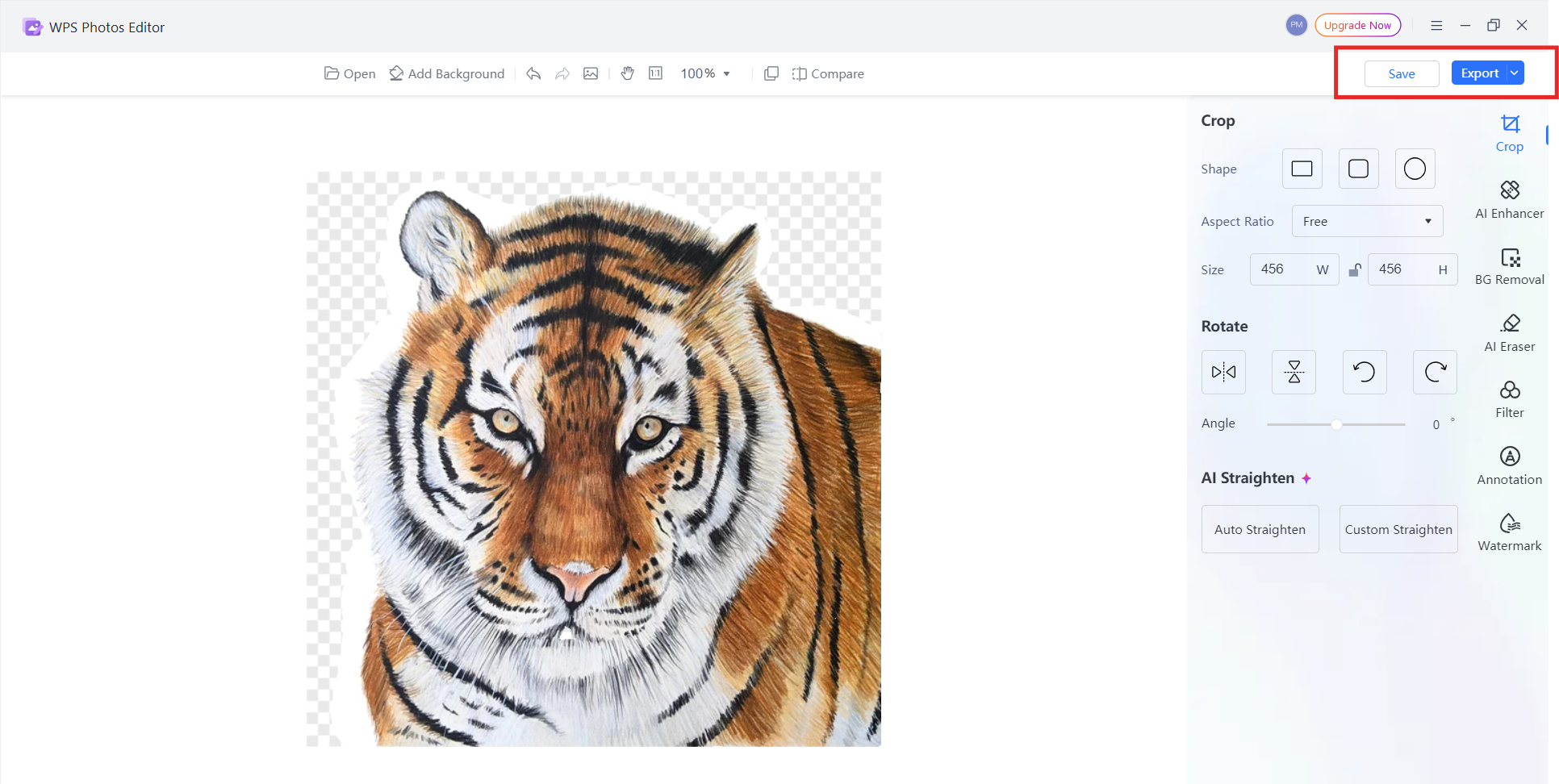
WPS Photos is especially helpful when you want refined PNG edges but do not want to adjust smoothing sliders manually. It serves as a straightforward complement to methods used in Photopea, offering a balance between speed and polish.
FAQs
Q1: Why are my PNG edges jagged in Photopea?
Jagged PNG edges usually occur when the selection was made with low-resolution edges, hard transitions, or without anti-aliasing enabled. Tools like the Magic Wand may also create rough outlines if the tolerance is too low or if the image contains strong color contrast. These issues often become noticeable when learning how to smooth the edges of PNGs in Photopea for detailed cutouts.
Q2: Does Photopea have a Refine Edge tool like Photoshop?
Yes. Photopea includes a full Refine Edge panel that functions similarly to Photoshop. It allows you to adjust Smooth, Feather, Contrast, and Shift Edge values, which are essential when following a Photopea refine edge tutorial. This tool helps users correct jagged outlines and improve the accuracy of their selections.
Q3: Can I smooth PNG edges without losing detail?
Yes. The best approach is to combine light feathering with a soft-edge selection mask. This method softens the border without blurring the subject. You can also use manual brush cleanup to correct only the areas that need refinement. This technique is helpful when you want to preserve detail while working to smooth cutout edges in Photopea.
Q4: Why is feathering making my edges blurry?
Feathering becomes blurry when the value is set too high. A small radius, such as 0.5–2 pixels, works better for most PNG cutouts. If the image becomes too soft, reduce the feather amount and increase edge contrast instead. Balancing these two settings helps soften jagged edges that Photopea users often notice without sacrificing clarity.
Q5: What is the difference between Photopea and WPS Photos?
Photopea provides manual control with tools such as masks, sliders, and brushes, making it suitable for users who want precise adjustment when learning how to smooth edges of PNGs in Photopea. WPS Photos focuses on automation and uses AI to enhance edges, remove backgrounds, and correct color or clarity issues quickly. It is a practical option for users who want consistent results with minimal steps.
Summary
Smoothing PNG edges in Photopea becomes much easier once you understand how selection tools, the Refine Edge panel, and layer masks work together. By adjusting Smooth, Feather, and Contrast settings, and using soft-brush masking for small corrections, you can control how to smooth the edges of PNG in Photopea with clarity and precision. These steps help reduce jagged outlines, fix pixelated cutouts, and produce clean results suitable for thumbnails, product images, and design work.
For users who prefer a faster, automated method, WPS Photos provides AI-powered edge enhancement and background cleanup with minimal effort. Together, these tools offer both manual precision and quick optimization for any PNG editing task.

'%3e%3cpath%20d='M19.9911%204.11386V6.471H18.5894C18.0775%206.471%2017.7322%206.57814%2017.5536%206.79243C17.3751%207.00671%2017.2858%207.32814%2017.2858%207.75671V9.44421H19.9019L19.5536%2012.0871H17.2858V18.8639H14.5536V12.0871H12.2769V9.44421H14.5536V7.49779C14.5536%206.39064%2014.8632%205.53201%2015.4822%204.92189C16.1013%204.31177%2016.9257%204.00671%2017.9554%204.00671C18.8304%204.00671%2019.509%204.04243%2019.9911%204.11386Z'%20fill='%23333333'/%3e%3c/g%3e%3cdefs%3e%3cclipPath%20id='clip0_2938_8199'%3e%3crect%20width='16'%20height='16'%20fill='white'%20transform='translate(8%204.00671)'/%3e%3c/clipPath%3e%3c/defs%3e%3c/svg%3e)
'%3e%3cpath%20d='M17.5237%2010.7813L23.4811%204H22.0699L16.8949%209.88693L12.7648%204H8L14.2469%2012.9029L8%2020.0133H9.4112L14.8725%2013.7952L19.2352%2020.0133H24M9.92053%205.04213H12.0885L22.0688%2019.0224H19.9003'%20fill='%23333333'/%3e%3c/g%3e%3cdefs%3e%3cclipPath%20id='clip0_2938_8200'%3e%3crect%20width='16'%20height='16.0134'%20fill='white'%20transform='translate(8%204)'/%3e%3c/clipPath%3e%3c/defs%3e%3c/svg%3e)


