

'%3e%3cpath%20d='M8%200C12.4183%200%2016%203.58172%2016%208C16%2012.4183%2012.4183%2016%208%2016C3.58172%2016%200%2012.4183%200%208C0%203.58172%203.58172%200%208%200ZM11.6162%204.38379C11.2257%203.99337%2010.5927%203.99338%2010.2021%204.38379L8%206.58594L5.79785%204.38379C5.40732%203.99334%204.77429%203.99329%204.38379%204.38379C3.99331%204.77429%203.99335%205.40733%204.38379%205.79785L6.58594%208L4.38379%2010.2021C3.99348%2010.5927%203.99341%2011.2257%204.38379%2011.6162C4.77426%2012.0066%205.40734%2012.0065%205.79785%2011.6162L8%209.41406L10.2021%2011.6162C10.5927%2012.0066%2011.2257%2012.0067%2011.6162%2011.6162C12.0067%2011.2257%2012.0066%2010.5927%2011.6162%2010.2021L9.41406%208L11.6162%205.79785C12.0066%205.40735%2012.0066%204.77429%2011.6162%204.38379Z'%20fill='%23080E17'%20fill-opacity='0.46'/%3e%3c/g%3e%3cdefs%3e%3cclipPath%20id='clip0_3761_713'%3e%3crect%20width='16'%20height='16'%20fill='white'/%3e%3c/clipPath%3e%3c/defs%3e%3c/svg%3e)




'%3e%3cpath%20fill-rule='evenodd'%20clip-rule='evenodd'%20d='M21.4999%2010.9993C21.4999%205.20009%2016.7986%200.498901%2010.9993%200.498901C5.19994%200.498901%200.498657%205.20009%200.498657%2010.9993C0.498657%2016.2404%204.33858%2020.5844%209.35855%2021.3722V14.0346H6.69238V10.9993H9.35855V8.68594C9.35855%206.05427%2010.9262%204.60062%2013.3248%204.60062C14.4736%204.60062%2015.6753%204.80571%2015.6753%204.80571V7.38979H14.3512C13.0468%207.38979%2012.64%208.19921%2012.64%209.0296V10.9993H15.5523L15.0867%2014.0346H12.64V21.3722C17.66%2020.5844%2021.4999%2016.2404%2021.4999%2010.9993Z'%20fill='%231568EA'/%3e%3c/g%3e%3c/svg%3e)


'%3e%3cpath%20d='M2.42045%2022.1876H6.31818V12.7217L0.75%208.54553V20.5171C0.75%2021.4414%201.49892%2022.1876%202.42045%2022.1876Z'%20fill='%234285F4'/%3e%3cpath%20d='M19.682%2022.1876H23.5797C24.5041%2022.1876%2025.2502%2021.4387%2025.2502%2020.5171V8.54553L19.682%2012.7217'%20fill='%2334A853'/%3e%3cpath%20d='M19.682%205.48293V12.7216L25.2502%208.54543V6.31816C25.2502%204.25236%2022.8921%203.07469%2021.2411%204.31361'%20fill='%23FBBC04'/%3e%3cpath%20d='M6.31824%2012.7217V5.48303L13.0001%2010.4944L19.6819%205.48303V12.7217L13.0001%2017.733'%20fill='%23EA4335'/%3e%3cpath%20d='M0.75%206.31816V8.54543L6.31818%2012.7216V5.48293L4.75909%204.31361C3.10534%203.07469%200.75%204.25236%200.75%206.31816Z'%20fill='%23C5221F'/%3e%3c/g%3e%3cdefs%3e%3cclipPath%20id='clip0_2954_7305'%3e%3crect%20width='24.5'%20height='18.375'%20fill='white'%20transform='translate(0.75%203.8125)'/%3e%3c/clipPath%3e%3c/defs%3e%3c/svg%3e)


Photopea has turned out to be an excellent free alternative to Photoshop. However, unless you’re a professional, its interface can be pretty confusing. Distinguishing between Distort, Perspective, and Puppet Warp often leads to confusion and unnatural-looking edits. So in this Photopea warp tool tutorial, we’ll show you how to warp an image in Photopea and introduce a streamlined AI-powered alternative so you don't have to go through this entire long process in the first place.
How to Warp an Image in Photopea
If you’re seeking to bend, stretch, or reshapeimages without investing in complex software, Photopea is a solid pick as it is completely free, accessible right from your browser. Before jumping into advanced manipulation, it is worth getting familiar with the Free Transform tool, which serves as the foundation for most distortion tasks.
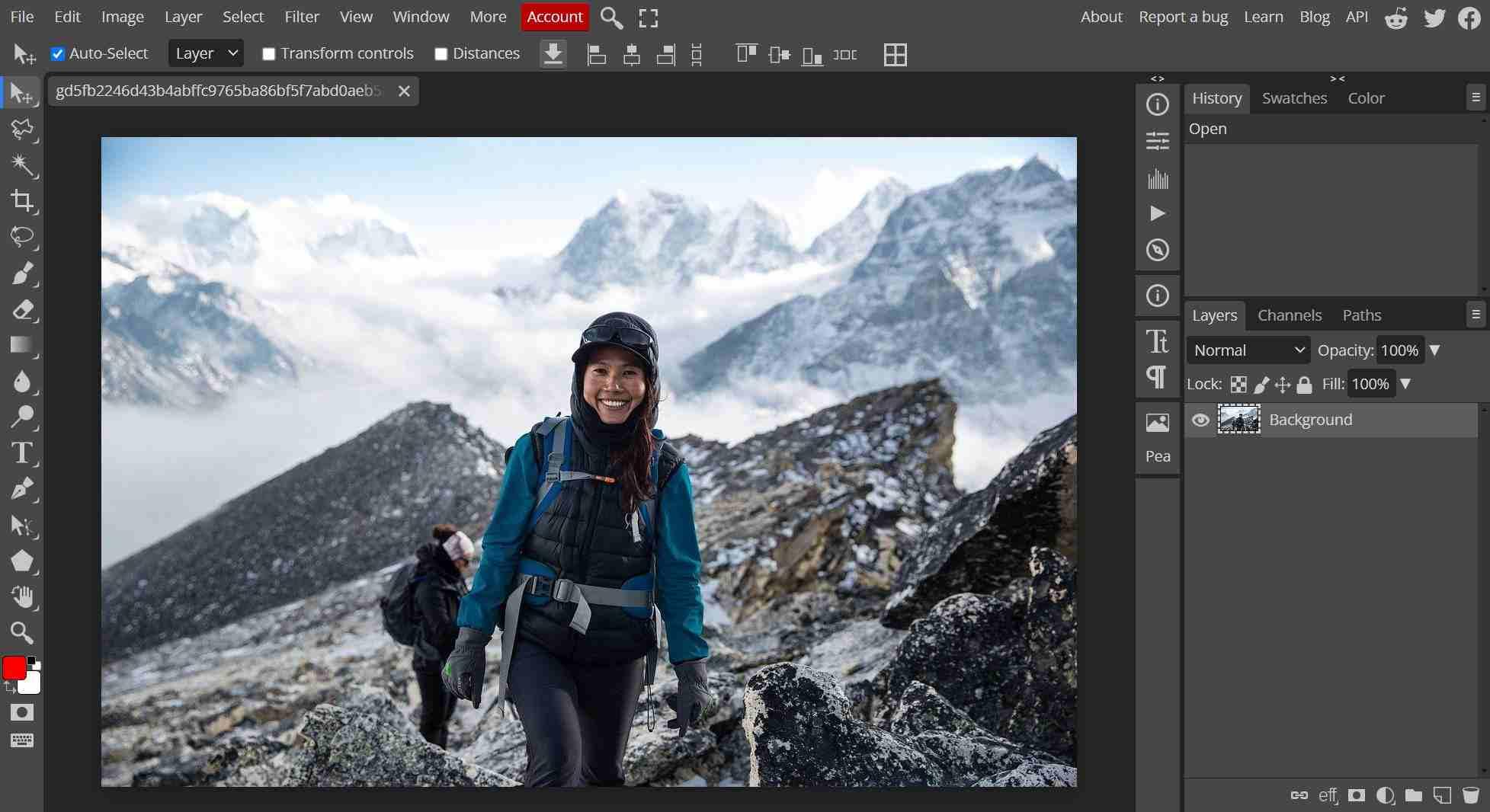
Free Transform is designed to accommodate both simple changes and artistic distortions, making it versatile for everything from correcting perspective to fitting a screenshot onto a device screen. It allows you to skew, distort, and transform images intuitively by manipulating the bounding box surrounding your layer.
The Different Transform Modes:
Scale: Resizes the image proportionally or disproportionally.
Rotate: Spins the image around a central anchor point.
Skew: Slants the image vertically or horizontally, useful for creating 2D shadow effects.
Distort: Stretches the image freely by moving the four corner handles independently.
Perspective: Pulls corners to create the illusion of depth, perfect for matching angles.
Warp: Adds a grid over the image with handles that allow you to bend and curve specific internal sections.
Step-by-Step Guide to Basic Warping:
Now let’s see how you can warp your image, whether you want to simply transform your image or want to learn how to distort image in Photopea. It will all be covered below. Here’s how to warp an image in Photopea using the basic warping tools:
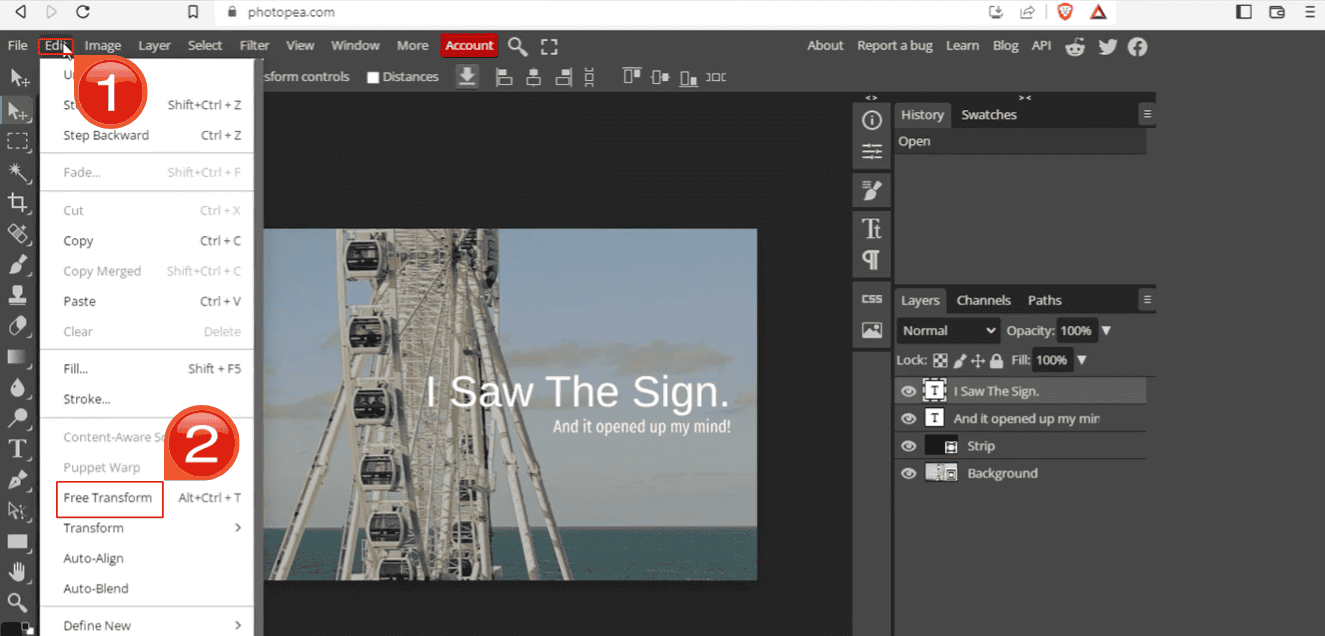
Step 1: First, click “Edit” then“Free Transform” or hit “Ctrl+T”(Cmd+T on Mac). You will see the bounding box appear around your image.
Step 2: To Distort the image, hold "Ctrl" (Cmd) and drag a corner handle. This allows you to push or pull the image"s perspective freely in any direction.
Step 3: To Skew the image, hold"Ctrl + Shift" (Cmd + Shift) while dragging a side handle. This will slant the image vertically or horizontally, preserving parallel lines.
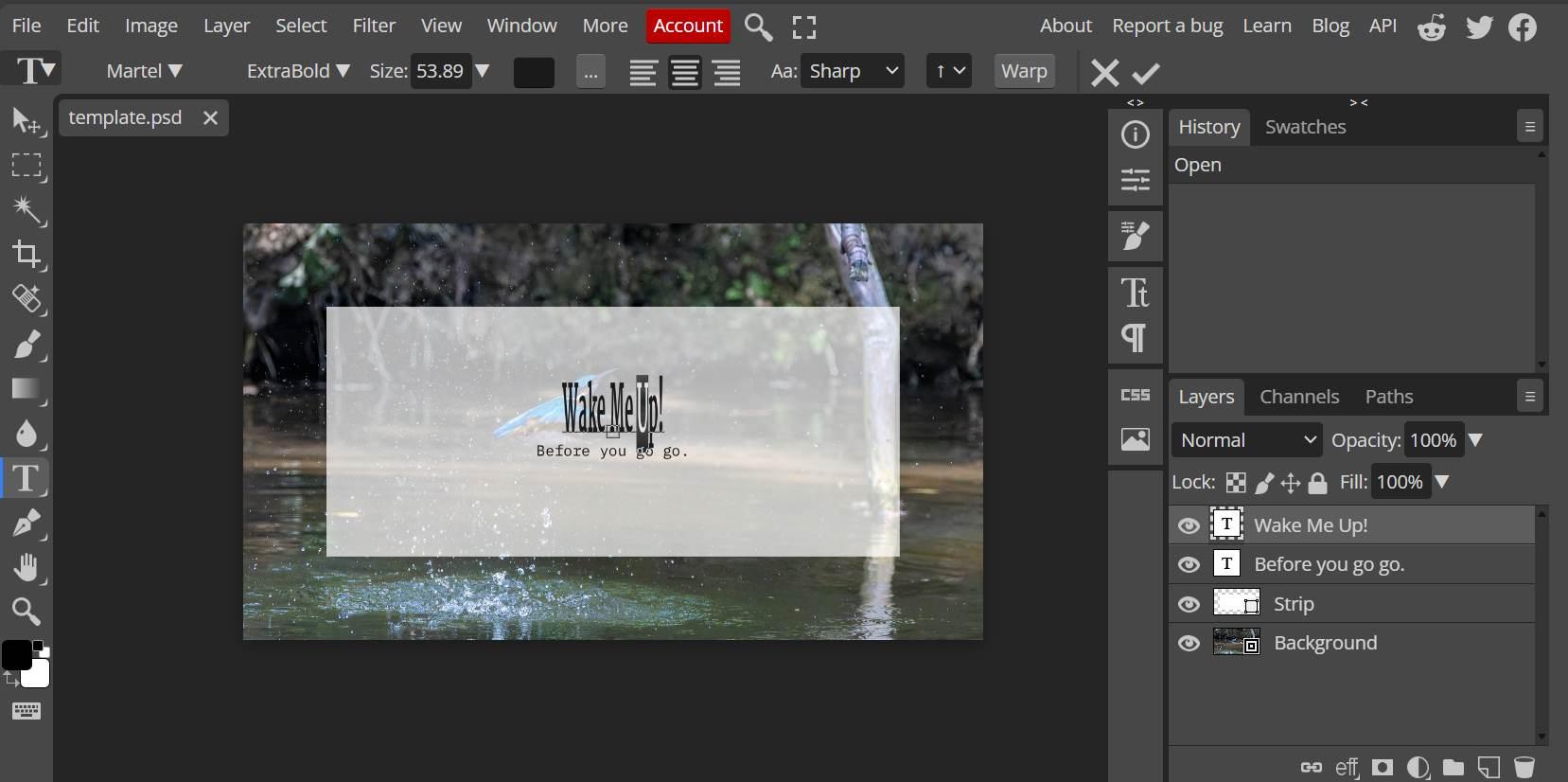
Step 4: To apply Perspective, hold"Ctrl + Alt" (Cmd + Option) and drag a corner handle. This mirrors the movement on the opposite side, making it perfect for creating the illusion of objects disappearing into the distance.
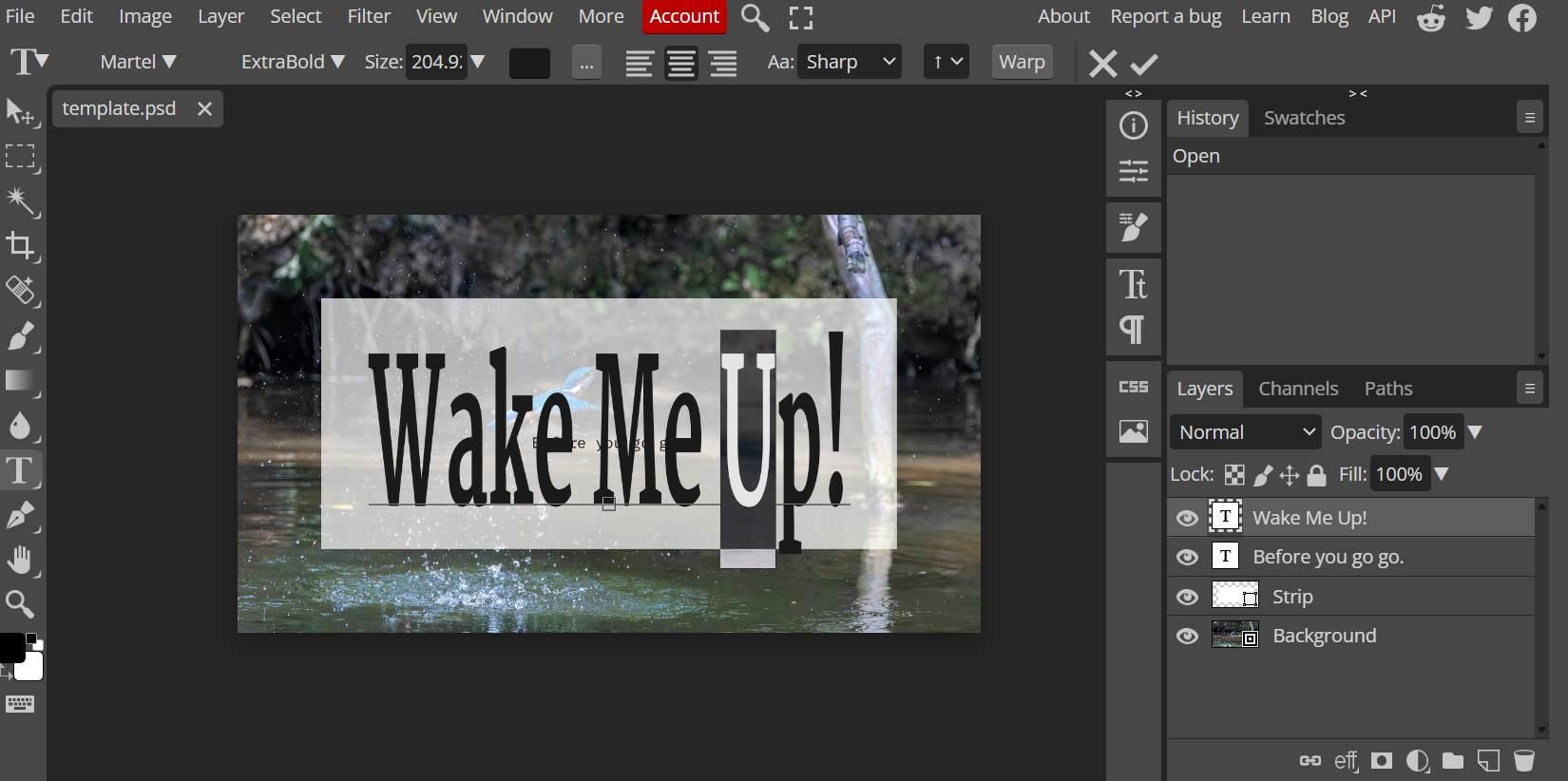
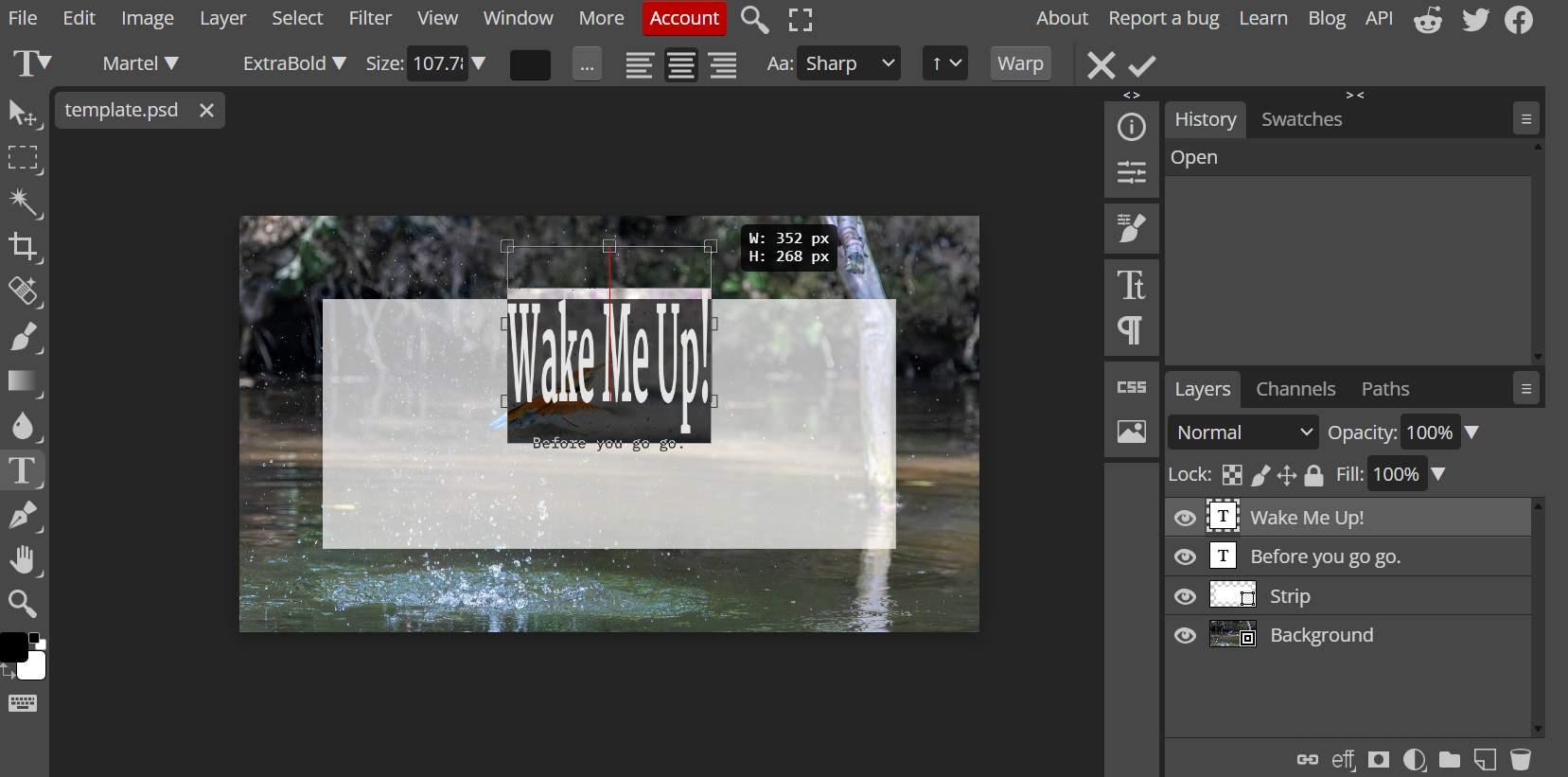
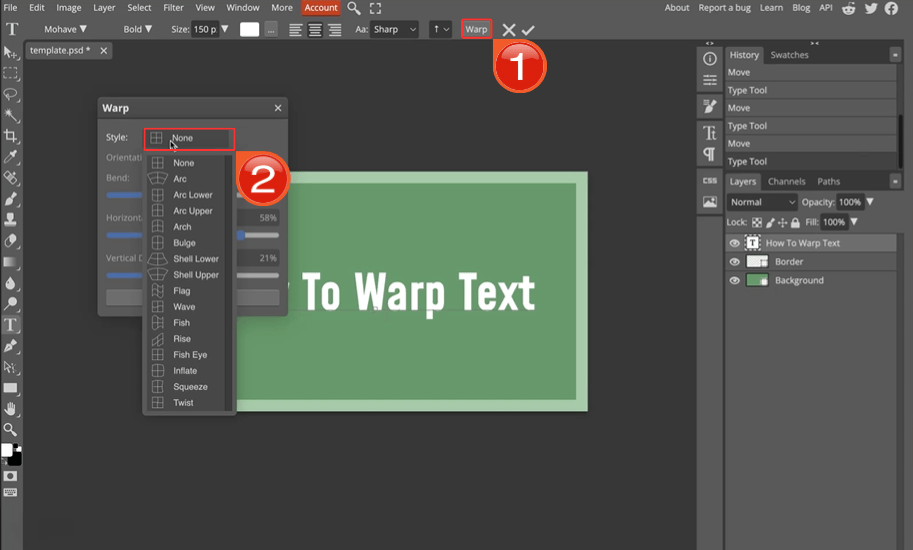
Step 5: You could warp text directly using the warp mode. Just click on the “Warp” on the top. Then in style select the style you want your text to warp into.
Step 6: Hit "Enter" when you’re happy with the change to confirm the transformation.
Comparison of Transform Tools:
Here’s how each of the different transform tools pit against each other and what they are best for:
| Tool | Movement Control | Best For | Complexity |
|---|---|---|---|
| Skew | Slants edges | Shadows, italics | Low |
| Distort | Moves corners | Fitting screens | Medium |
| Perspective | Mirrors corners | Depth effects | Medium |
| Warp | Bends grid | Curved surfaces | High |
How to Master Advanced Warping in Photopea: Puppet Warp & Beyond
Although standard warping moves the whole image, Puppet Warp allows you to move specific parts of an image while keeping other parts anchored in place. This is Photopea's most advanceddistortion tool, ideal for organic edits like bending a person's arm, adjusting the posture of a model, or reshaping a complex object without distorting the background.
Step-by-Step Guide to Puppet Warp:
Here’s how to warp an image in Photopea using the Puppet warp tool in this Photopea puppet warp guide:
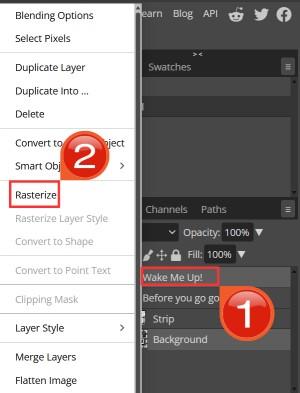
Step 1: Select your layer. Right-click the layer name and select “Rasterize” (Puppet Warp does not work on Smart Objects).
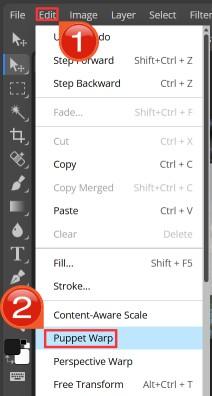
Step 2: Go to “Edit” and select“Puppet Warp”. You will see a mesh overlay cover your object.
Step 3: Click on the image to add pins (anchors). Click and drag a pin to move that specific part of the image. The mesh will stretch and compress naturally around it.
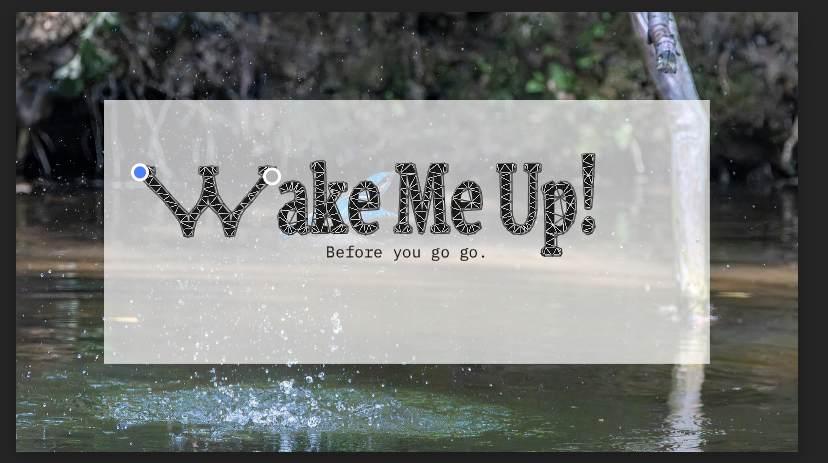
Step 4: Press “Enter” to apply the transformation.
Comparison: Advanced Warping Methods
Here’s where each of these methods are useful at:
| Method | Precision Level | Learning Curve | Ideal Use Case |
|---|---|---|---|
| Puppet Warp | High | Moderate | Organic shapes, body adjustments |
| Mesh Warp | Very High | Steep | Complex surface distortions |
| Liquify Tools | Medium | Easy | Facial features, subtle adjustments |
Better Alternative: WPS AI for Quick Image Adjustments
Unless you’re a professional designer, using Photopea for basic tasks is unnecessary and time consuming. If the goal is simply to resize, crop, or adjust an image for a document or presentation, navigating complex mesh grids is inefficient. WPS AI offers a user-friendly alternative that focuses on speed and integration. It bypasses the manual labor of pixel manipulation, using AIto handle adjustments directly within your office workflow.
WPS AI is embedded within the WPS Office suite. It is designed for business owners, students, and writers who need to edit images quickly while working on reports or slides. Instead of switching to a separate browser tab for Photopea, you can perform essential edits instantly.
Features:
One-Click Optimization: Automatically adjusts lighting and color balance without manual sliders.
Smart Cropping: Uses AI to identify the subject and suggest the best crop ratios.
Background Removal: Instantly isolates the subject, which is often a prerequisite for warping in other tools.
Document Integration: Edited images are immediately ready for use in Word, Excel, or PowerPoint files.
How to Use WPS AI for Image Editing:
Here is how you can start editing your images using WPS Photos using the WPS AI:
Step 1: First, upload your photo into WPS Photos.

Step 2: Then choose an AI editing tool from the menu on the right-hand side.
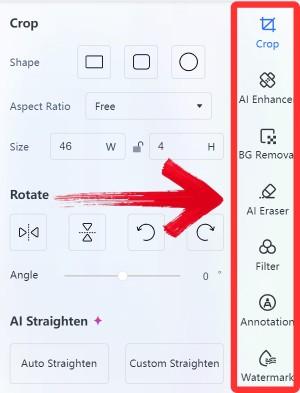
Step 3: Finally, click on “Export”to download and use your enhanced image.

I use WPS AI primarily when I'm building slide decks. The ability to remove a background and adjust the image size without leaving the presentation software saves me significantly more time than round-tripping files through Photopea.
Choosing Your Image Editing Tool: A Balanced Look
Selecting the right editing tool depends entirely on your specific needs. For complex, layer-based graphic design projects where you need to bend reality, Photopea remains a powerful option. However, for quick, AI-powered enhancements that integrate seamlessly into an office workflow, a modern solution like WPS Photo shines.
| Feature | Photopea | WPS AI | Best Choice For |
|---|---|---|---|
| Cost | Free | Freemium | Budget-conscious users |
| Learning Curve | Steep | Gentle | Beginners/Office users |
| Warping Precision | High | Medium | Professional designers |
| Workflow Integration | Limited | Excellent | Document preparation |
| AI Assistance | None | Advanced | Quick, automated edits |
While Photopea is an impressive clone of Photoshop, it requires a designer mindset. You must understand layers, rasterization, and anchor points. WPS Photo, on the other hand, is built for people who need quick and high quality results. It removes the technical barriers, allowing users to achieve professional-looking results, like crisp, well-lit, background-free images, with a single click. For 90% of office and school tasks, the speed of WPS outweighs the granular control of Photopea.
FAQs
Q1: Why does my warped image look pixelated in Photopea?
This usually happens when working with low-resolution images or applying extreme distortions that stretch the pixels too far. Always start with high-resolution source files. Additionally, after applying the transform, check the top menu to ensure the interpolation is set to Bicubic or Smooth for better results.
Q2: Can I warp text in Photopea like I can warp images?
Yes, but there is a catch. You cannot warp editable text directly using the standard Transform tool. You must first right-click the text layer and select Rasterize. Be aware that this converts the text into pixels, meaning you can no longer correct typos or change the font after this step.
Q3: Is Photopea really free for commercial use?
Yes, Photopea is completely free for both personal and commercial use. The platform is supported by ads on the sidebar, but these do not watermark your images or restrict the licensing of the work you create.
Q4: How do I save my warped image without losing quality?
To preserve transparency (if you removed the background), you should export as PNG. For photographs, export as JPEG with the quality slider set to 100%. Avoid repeatedly opening and saving the same JPEG file, as the compression will degrade the quality over time.
Q5: How do I undo a pin in Puppet Warp if I made a mistake?
If you place a pin in the wrong spot during Puppet Warp, you don't have to cancel the whole action. Simply click on the specific pin to select it, and then press the Delete or Backspace key on your keyboard to remove just that one anchor point.
Choosing the Right Tool
Mastering how to warp an image in Photopea unlocks a new level of creative control, allowing you to bend visuals to your will using tools like Distort and Puppet Warp. It is the perfect free solution for complex, detailed manipulation. However, for users who prioritize efficiency and ease of use over manual control, WPS AI offers a superior workflow, automating the editing process to produce polished images instantly.

'%3e%3cpath%20d='M19.9911%204.11386V6.471H18.5894C18.0775%206.471%2017.7322%206.57814%2017.5536%206.79243C17.3751%207.00671%2017.2858%207.32814%2017.2858%207.75671V9.44421H19.9019L19.5536%2012.0871H17.2858V18.8639H14.5536V12.0871H12.2769V9.44421H14.5536V7.49779C14.5536%206.39064%2014.8632%205.53201%2015.4822%204.92189C16.1013%204.31177%2016.9257%204.00671%2017.9554%204.00671C18.8304%204.00671%2019.509%204.04243%2019.9911%204.11386Z'%20fill='%23333333'/%3e%3c/g%3e%3cdefs%3e%3cclipPath%20id='clip0_2938_8199'%3e%3crect%20width='16'%20height='16'%20fill='white'%20transform='translate(8%204.00671)'/%3e%3c/clipPath%3e%3c/defs%3e%3c/svg%3e)
'%3e%3cpath%20d='M17.5237%2010.7813L23.4811%204H22.0699L16.8949%209.88693L12.7648%204H8L14.2469%2012.9029L8%2020.0133H9.4112L14.8725%2013.7952L19.2352%2020.0133H24M9.92053%205.04213H12.0885L22.0688%2019.0224H19.9003'%20fill='%23333333'/%3e%3c/g%3e%3cdefs%3e%3cclipPath%20id='clip0_2938_8200'%3e%3crect%20width='16'%20height='16.0134'%20fill='white'%20transform='translate(8%204)'/%3e%3c/clipPath%3e%3c/defs%3e%3c/svg%3e)


