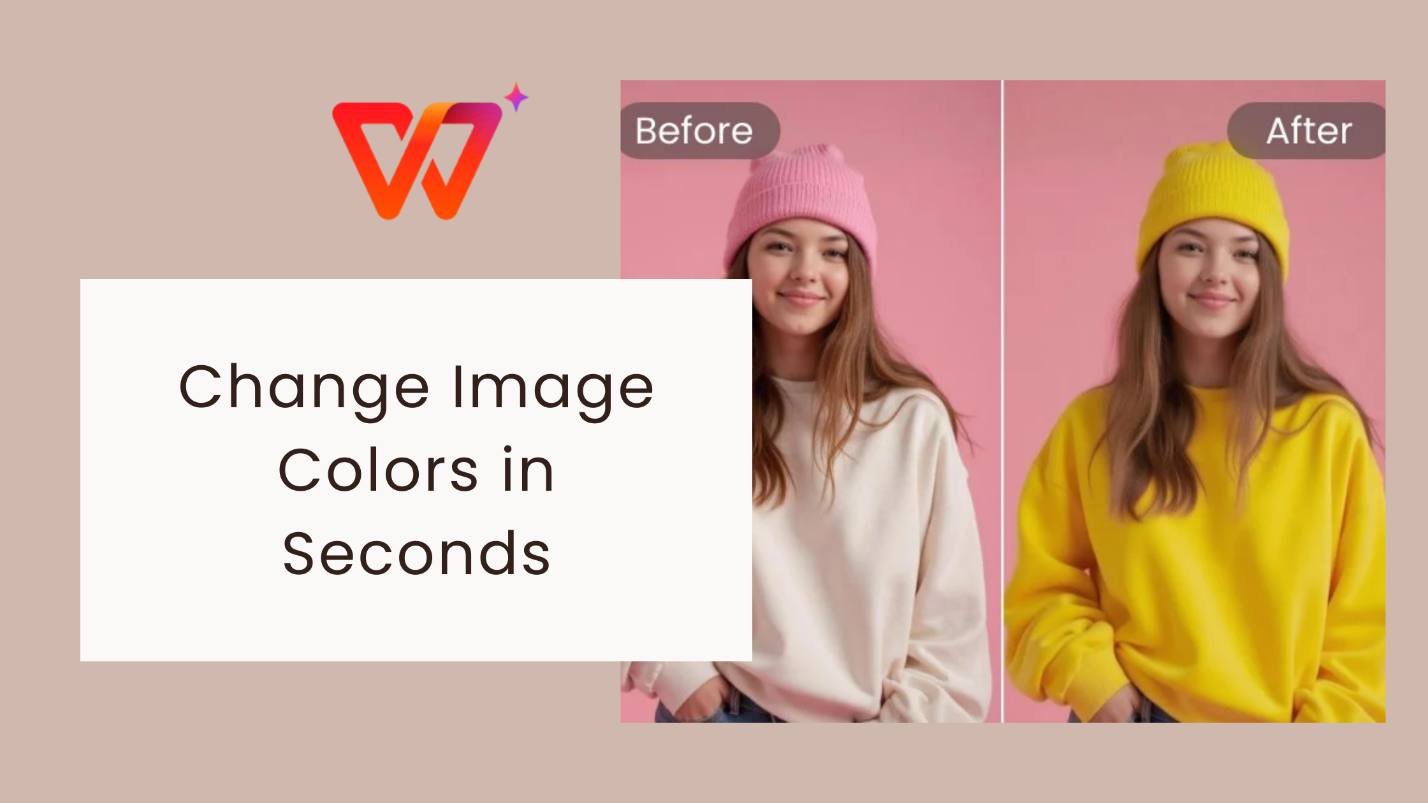
Changing colors in photos, icons, and PNG graphics is now a common
task, especially when users need visuals that match brand colors or
specific design themes. But many people quickly discover that recoloring
is harder than expected.
So how can someone change the colors of an image easily, accurately,
and without needing design expertise? In this guide, I will walk through
practical, reliable methods anyone can use right now. The goal is to
help you recolor images cleanly, without losing quality or wasting
time.
Instantly Change Colors of Image
Part 1: Top
5 Tools to Change the Colors of an Image
1. Canva
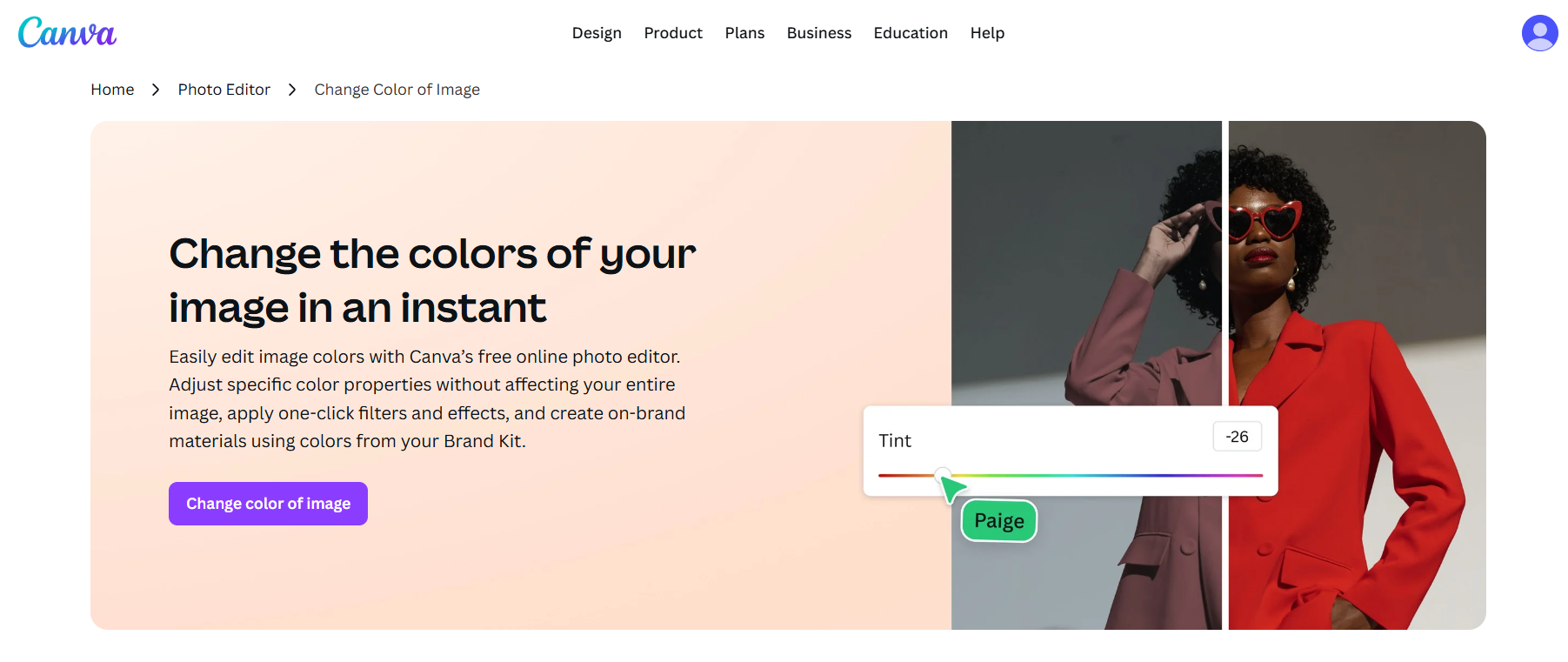
Canva remains one of the most accessible editors for users who want
to change the colors of an image without learning advanced design tools.
Its recolor features are especially useful for icons, shapes, and
high-contrast PNG graphics. Many users searching for change colors of
online image free also rely on Canva because of its quick editing
workflow.
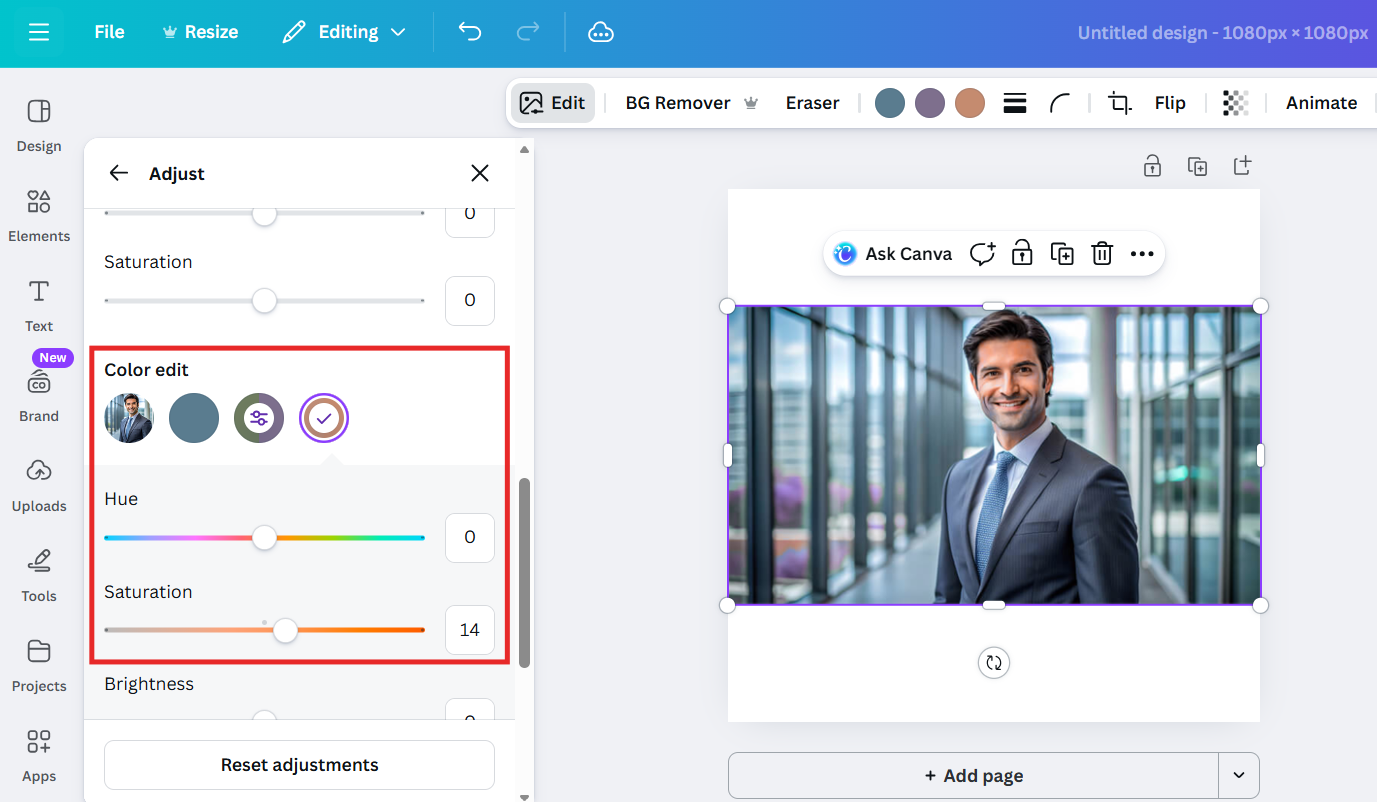
Canva image color adjustment
Canva’s
color adjustment system lets you swap hues, modify saturation,
target individual elements, or apply filters that shift color tones.
While it does not support every image type, it performs well for most
simple recoloring needs.
Features
Color replacement for icons, shapes, and supported PNGs
Filters for tone, warmth, and saturation adjustments
Brush tool for localized edits
Supports transparent backgrounds
Accessible from any browser and mobile app
Price
Free version available
Pro version starts at $12.99/month with more advanced editing
options
Pros
Beginner-friendly
Works well for icons and flat graphics
Clean interface with quick export options
Ideal for social media graphics
Cons
Limited selective recoloring for detailed photos
Some PNGs may not support direct color replacement
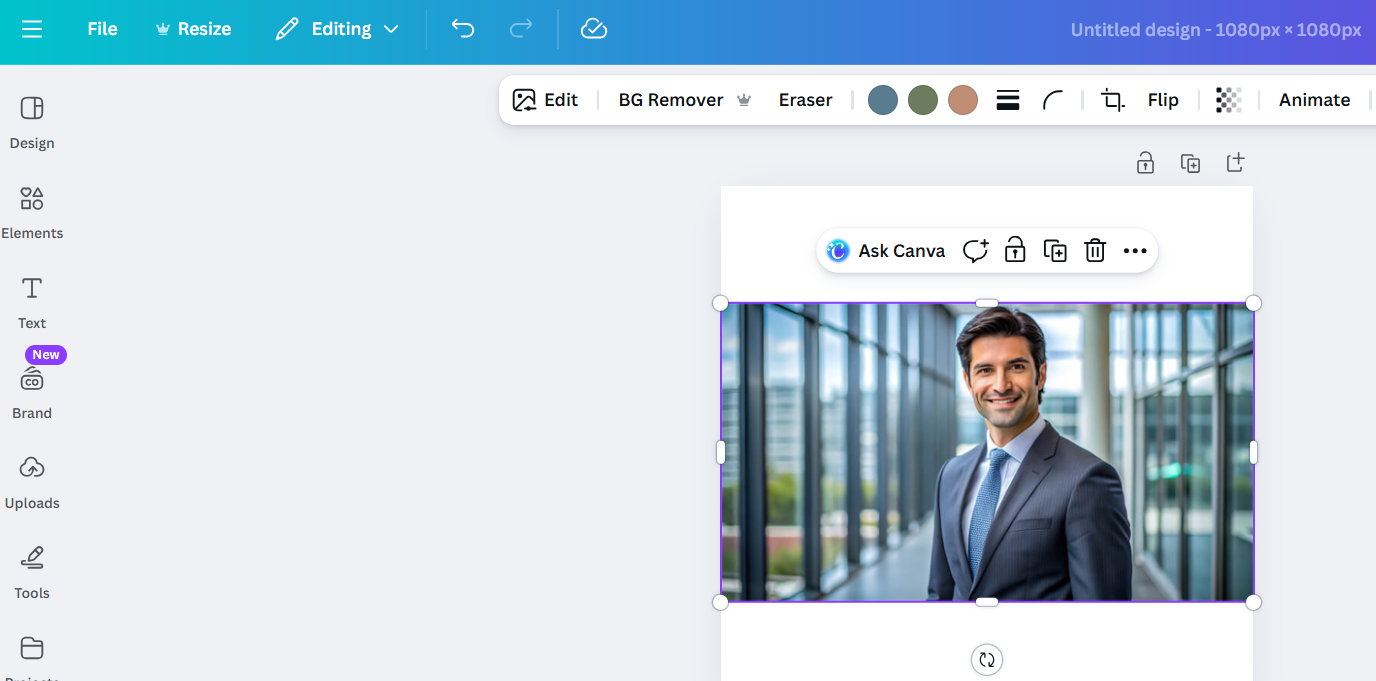
Step 2: Select the element or image you want to
recolor.
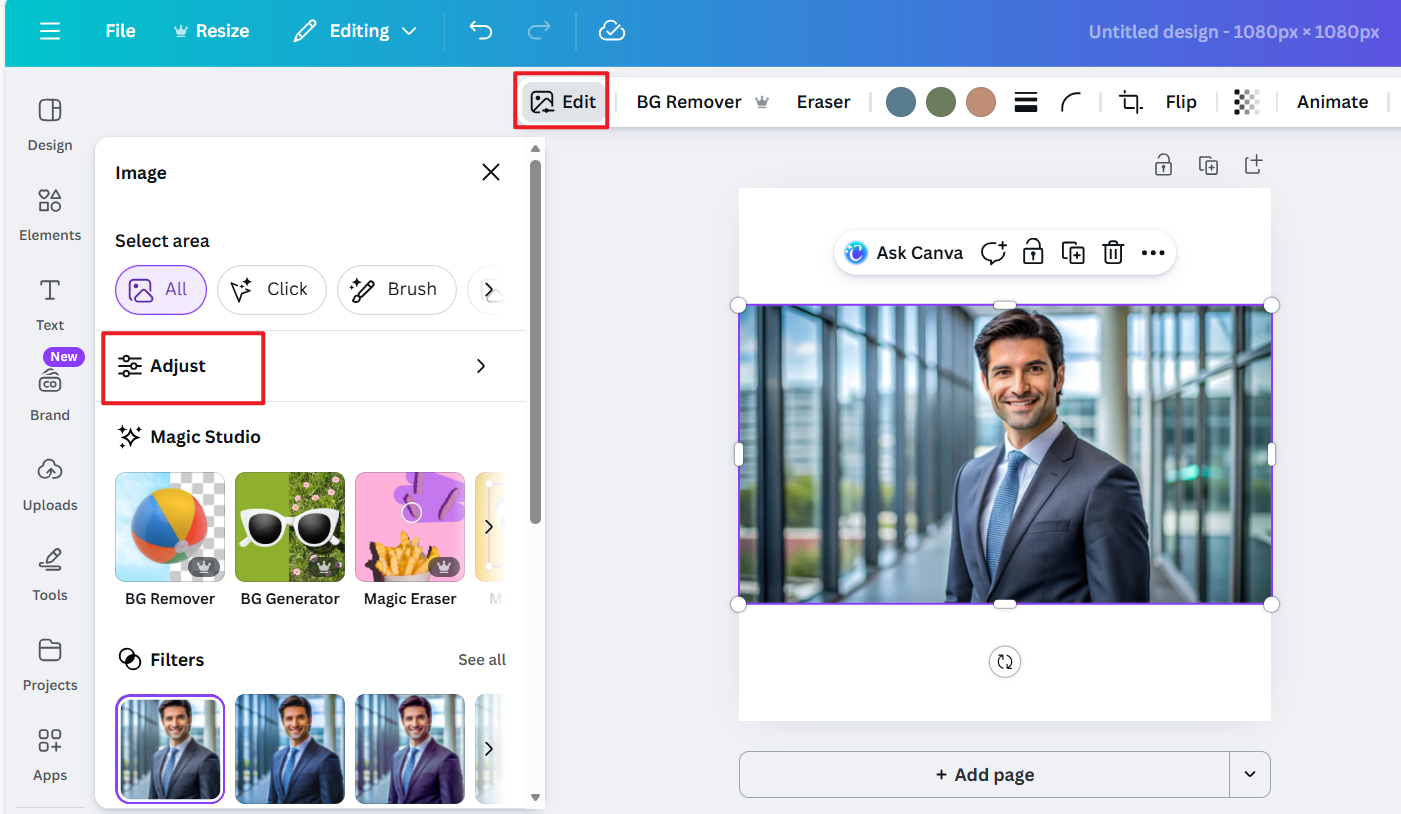
Step 3: Click Edit Image, then choose Adjust or
Color tools.
Canva image color adjustment
Step 4: Modify hue, saturation, or apply filters
to shift color tones.
Modify hue, saturation
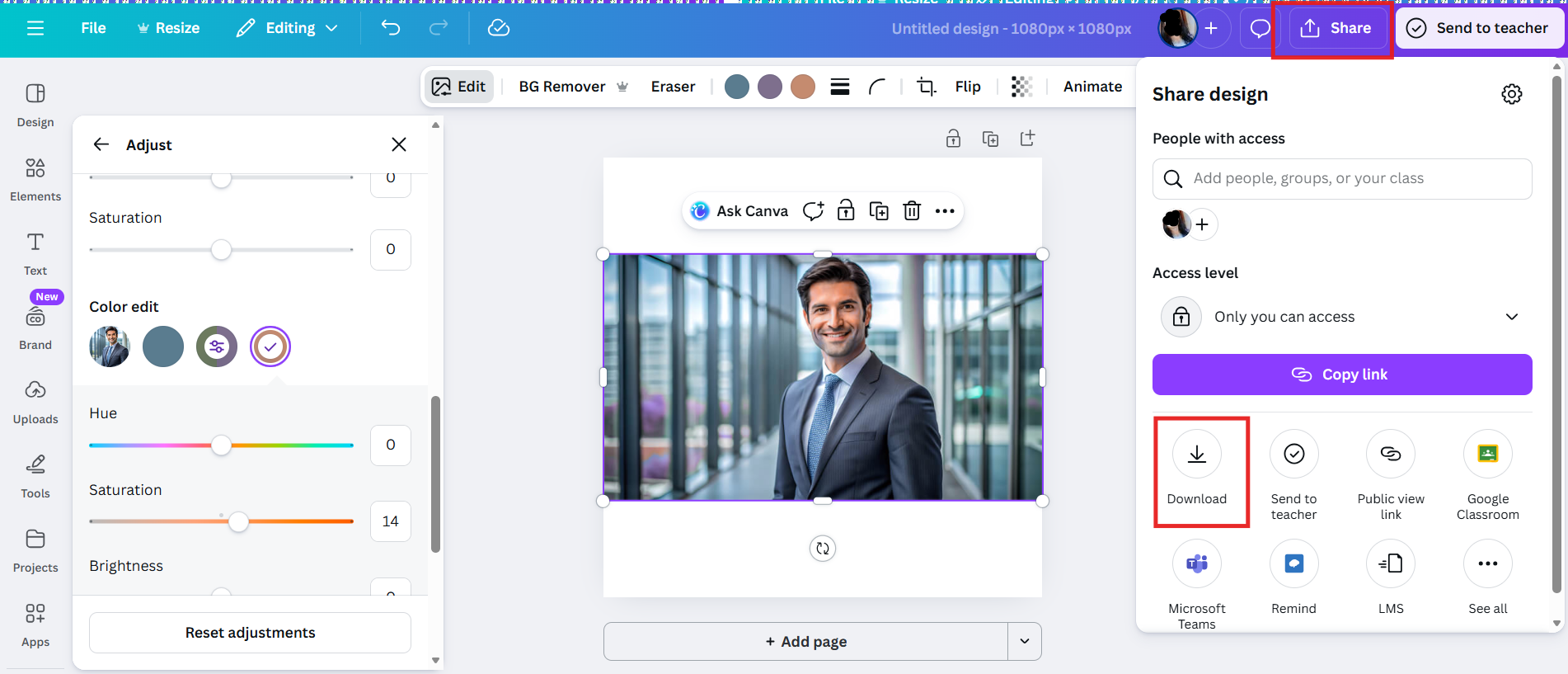
Step 5: Export the final version in PNG or
JPG.
Export the final version
2. Online PNG Tools
Online PNG Tools is one of the most precise utilities for users who
want to change the colors of an image for free and prefer direct,
pixel-based control. It is especially effective for PNG graphics with
transparent backgrounds.
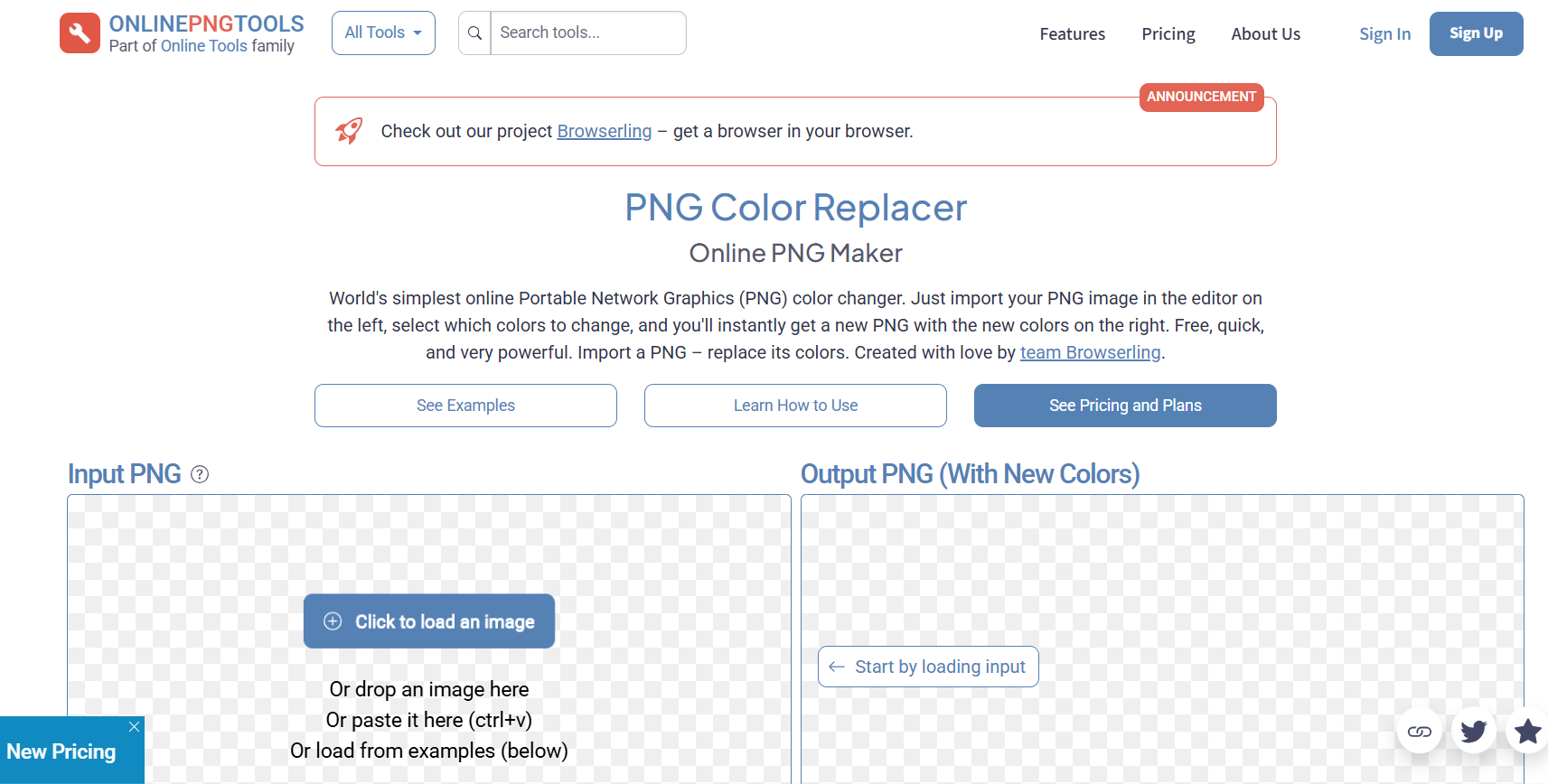
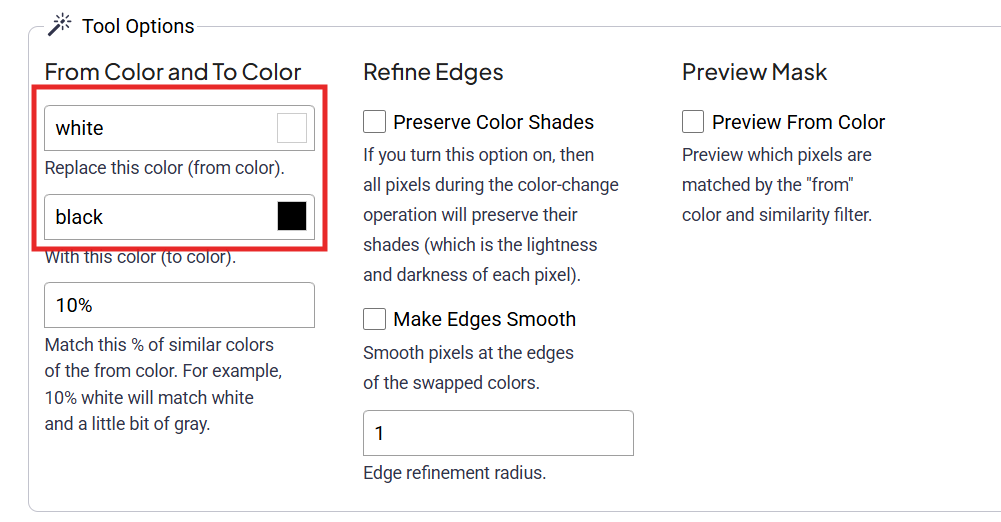
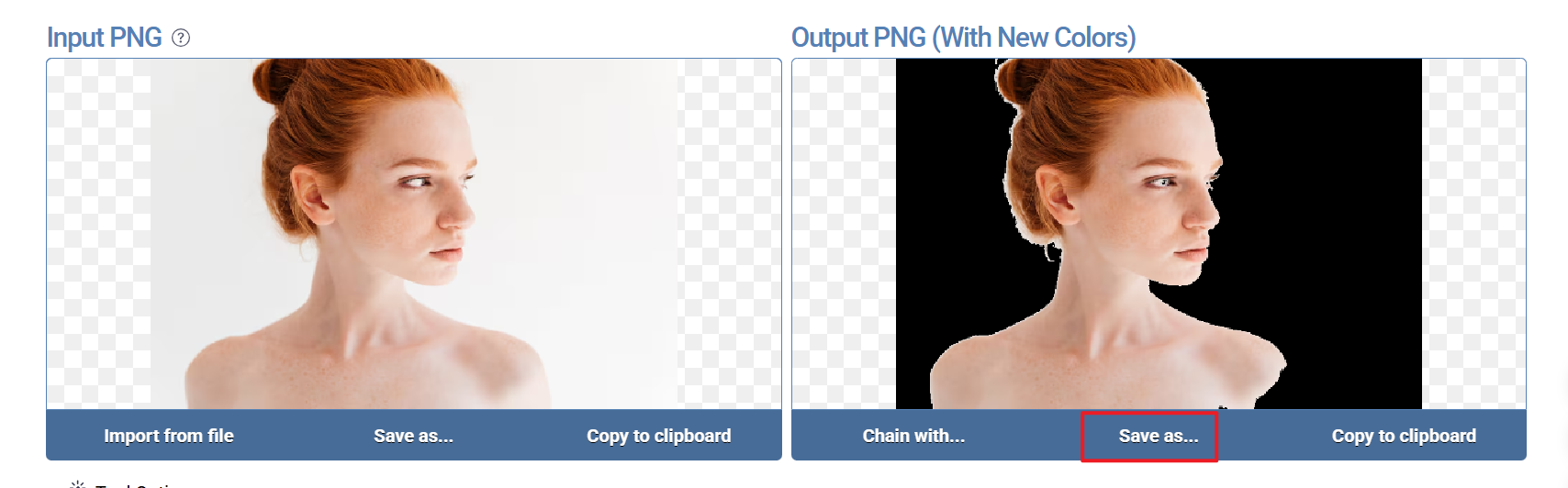
Online PNG Tools color replacement interface
This tool replaces specific colors pixel by pixel, making it ideal
when you need exact color matching. It also supports multiple recolor
rules in one session.
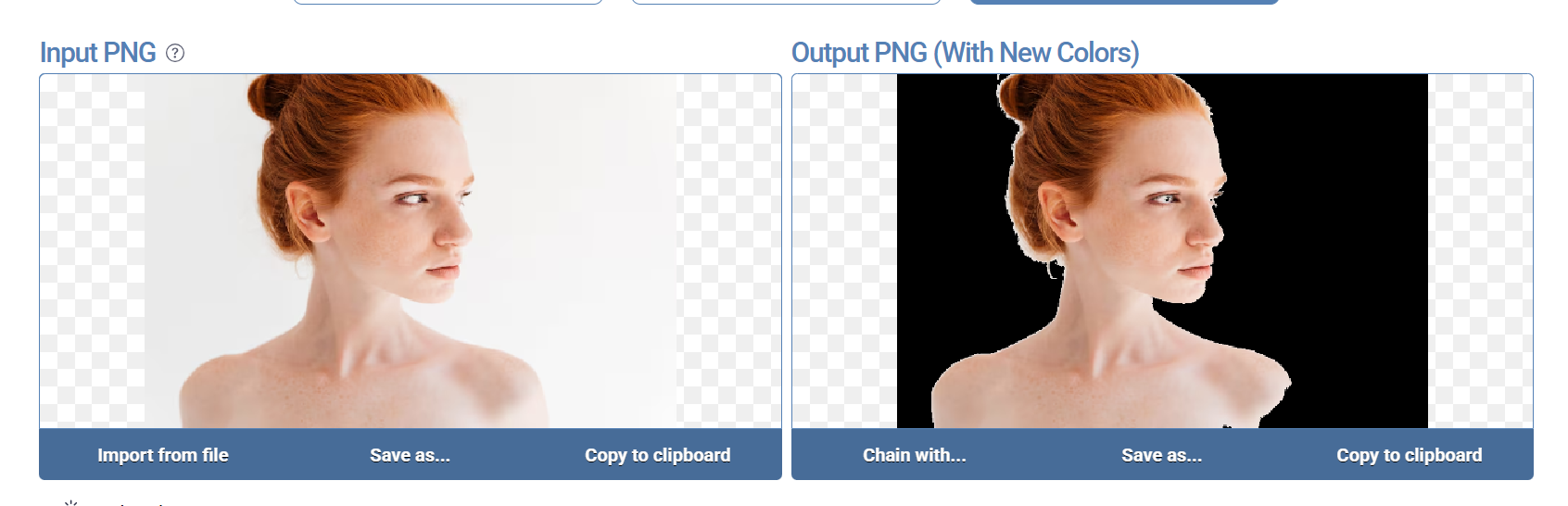
Step 3: Select the original color and choose
your target color.
Select the original color and target color
Step 4: Apply the replacement and download the
updated file.
Apply replacement
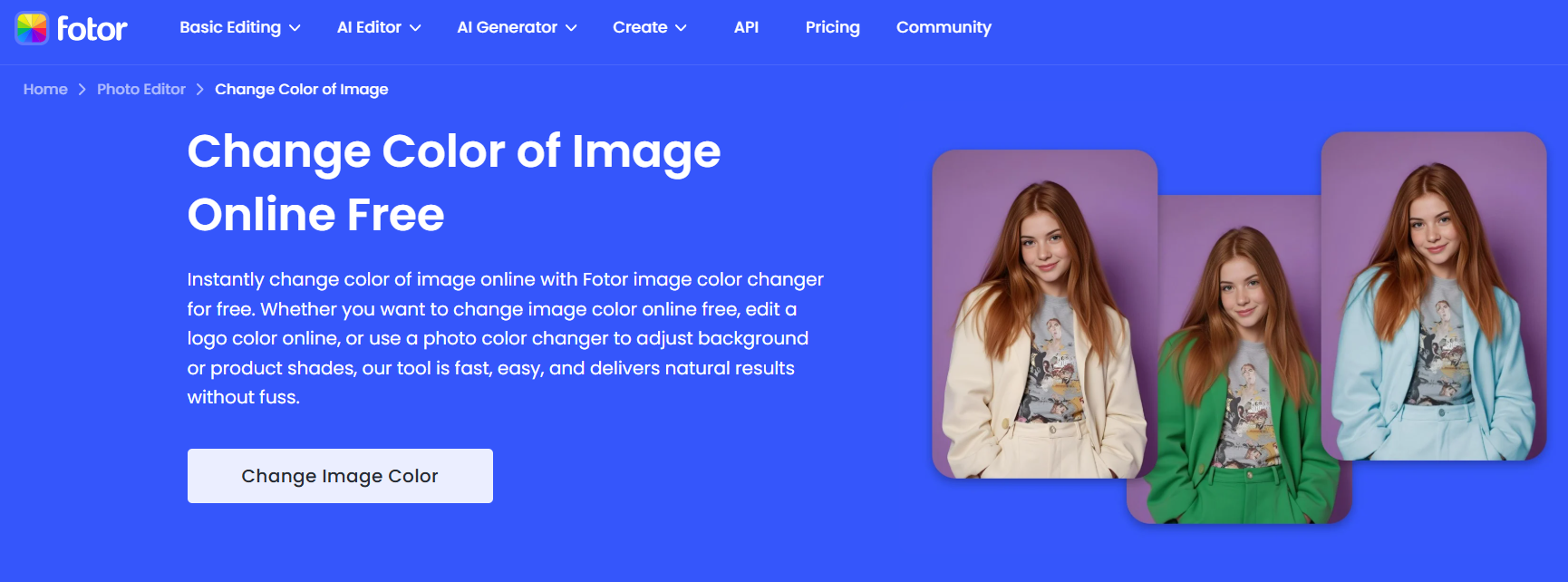
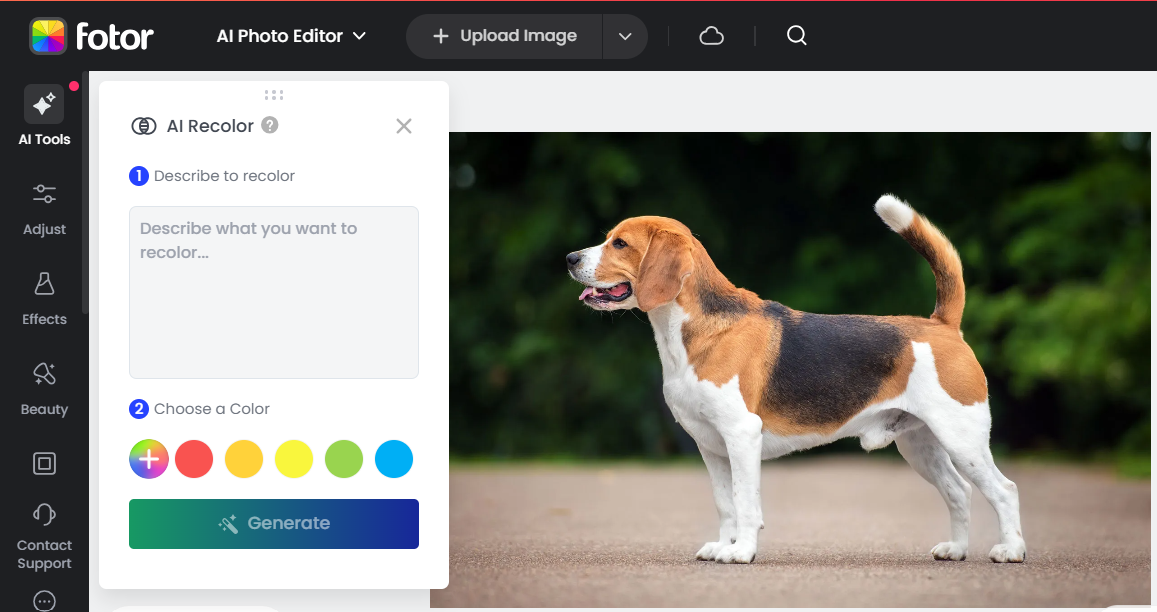
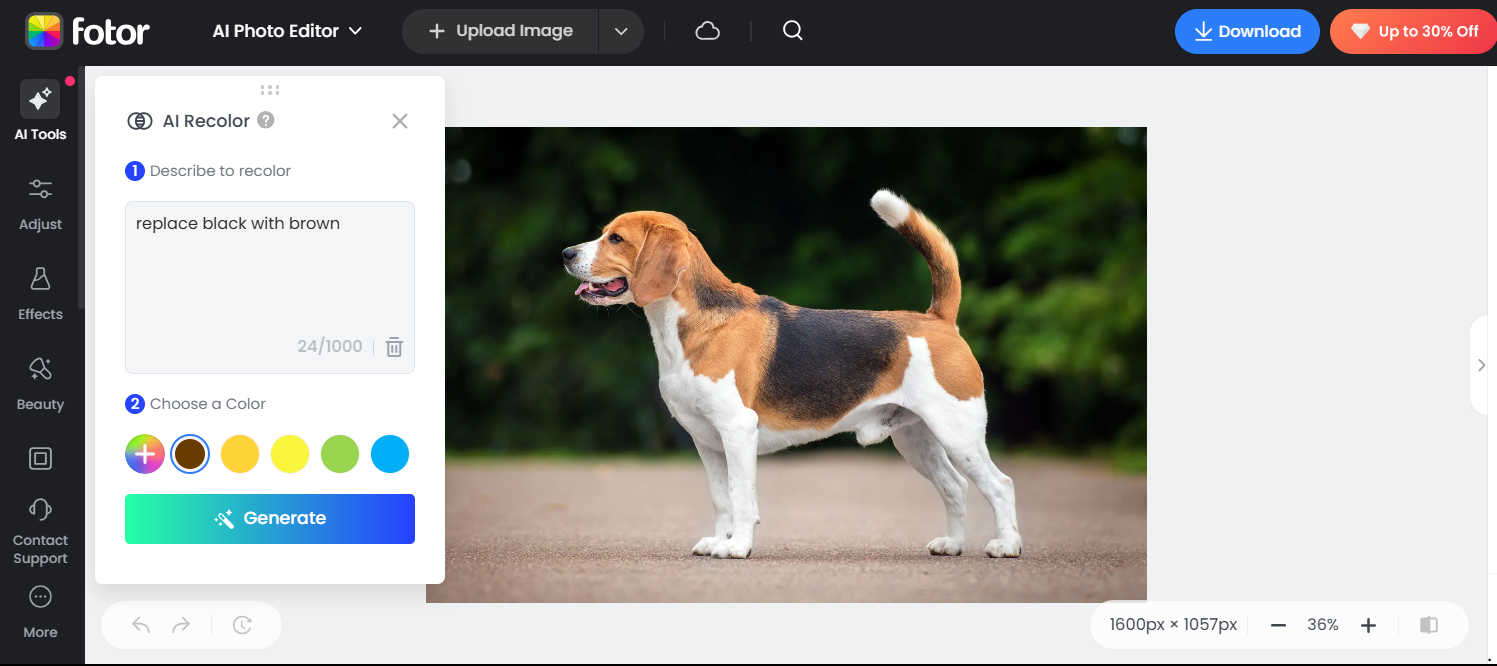
3. Fotor
Fotor offers an intuitive solution for users who want to change the
colors of an image online with a mix of manual and automatic tools. It
handles both photos and graphics, making it versatile.
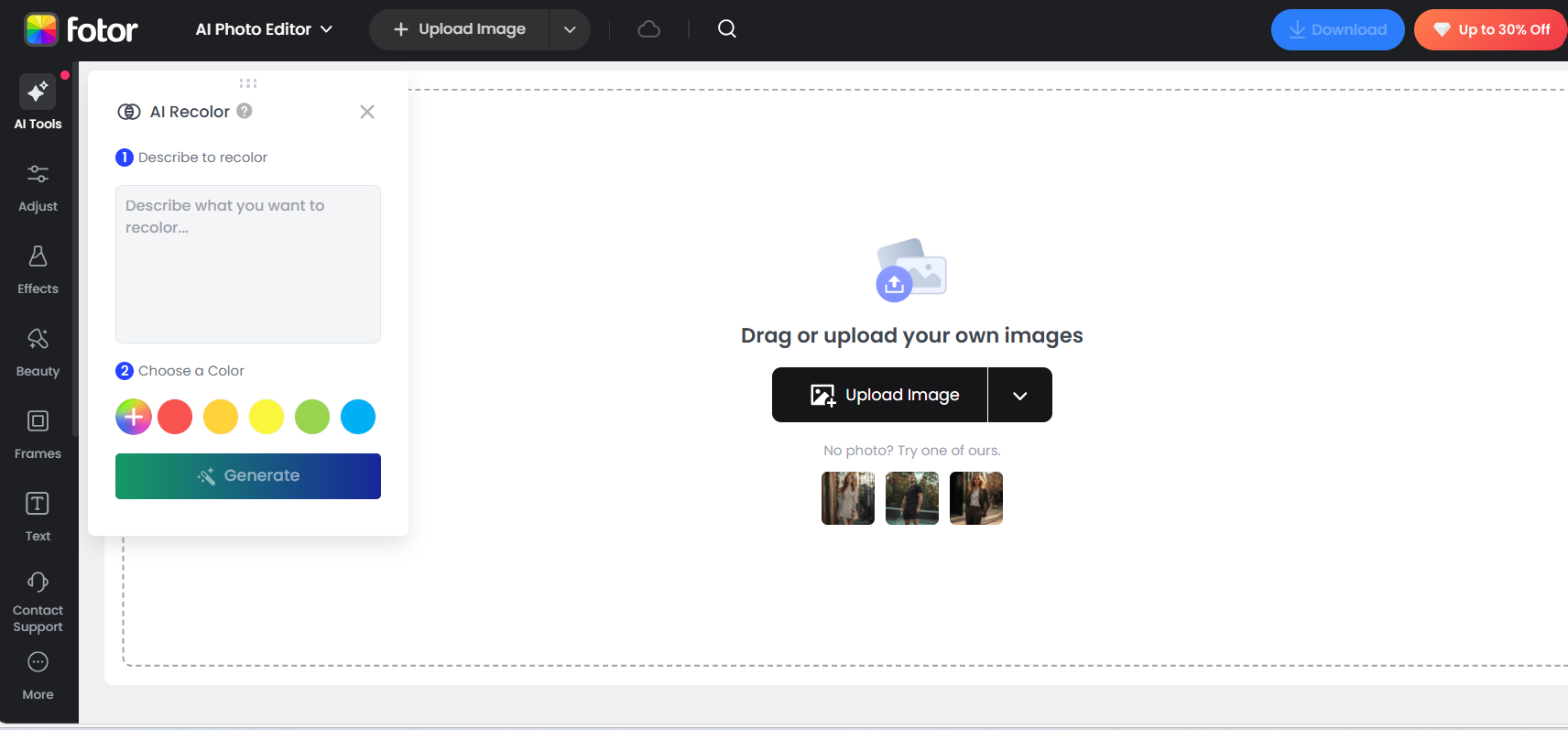
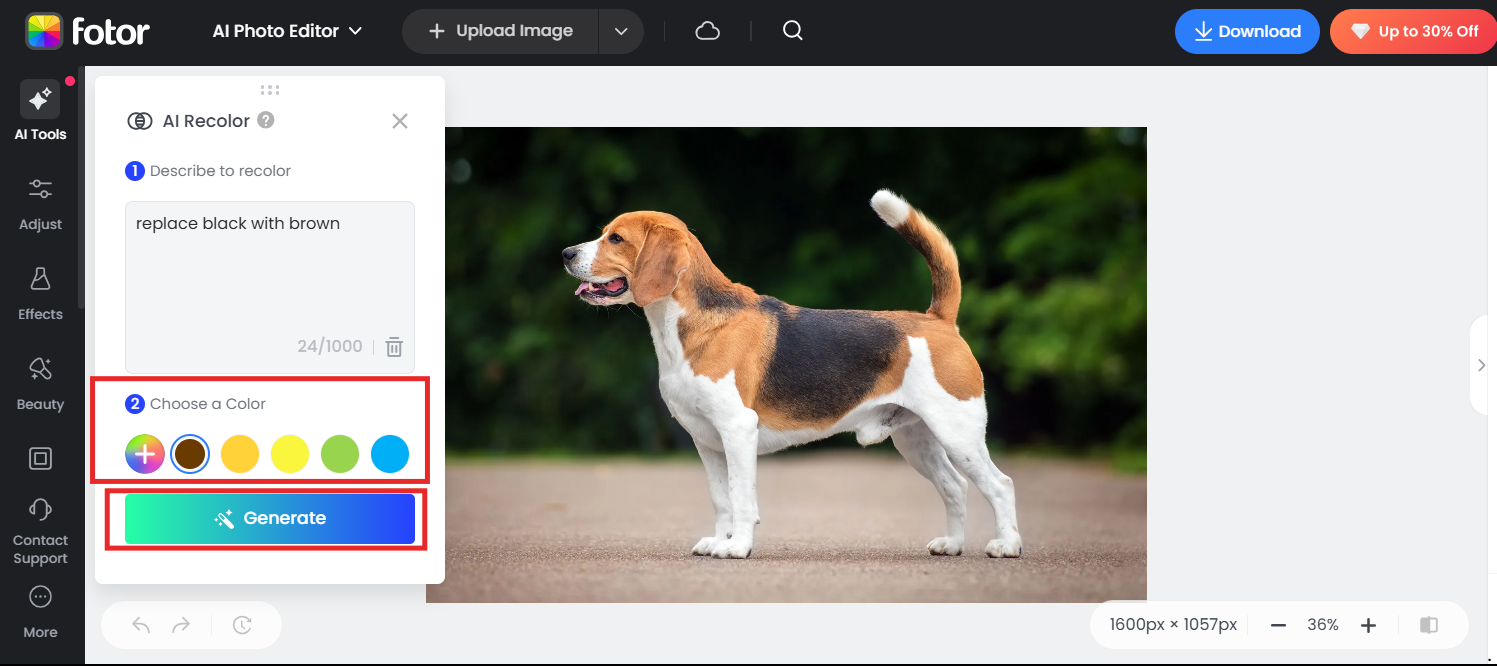
Fotor color replacement
With its color replacement brush and global adjustment sliders, Fotor
balances simplicity with control. It is also one of the common tools
people try when looking to change the colors of an image AI, because of
its smart detection features.
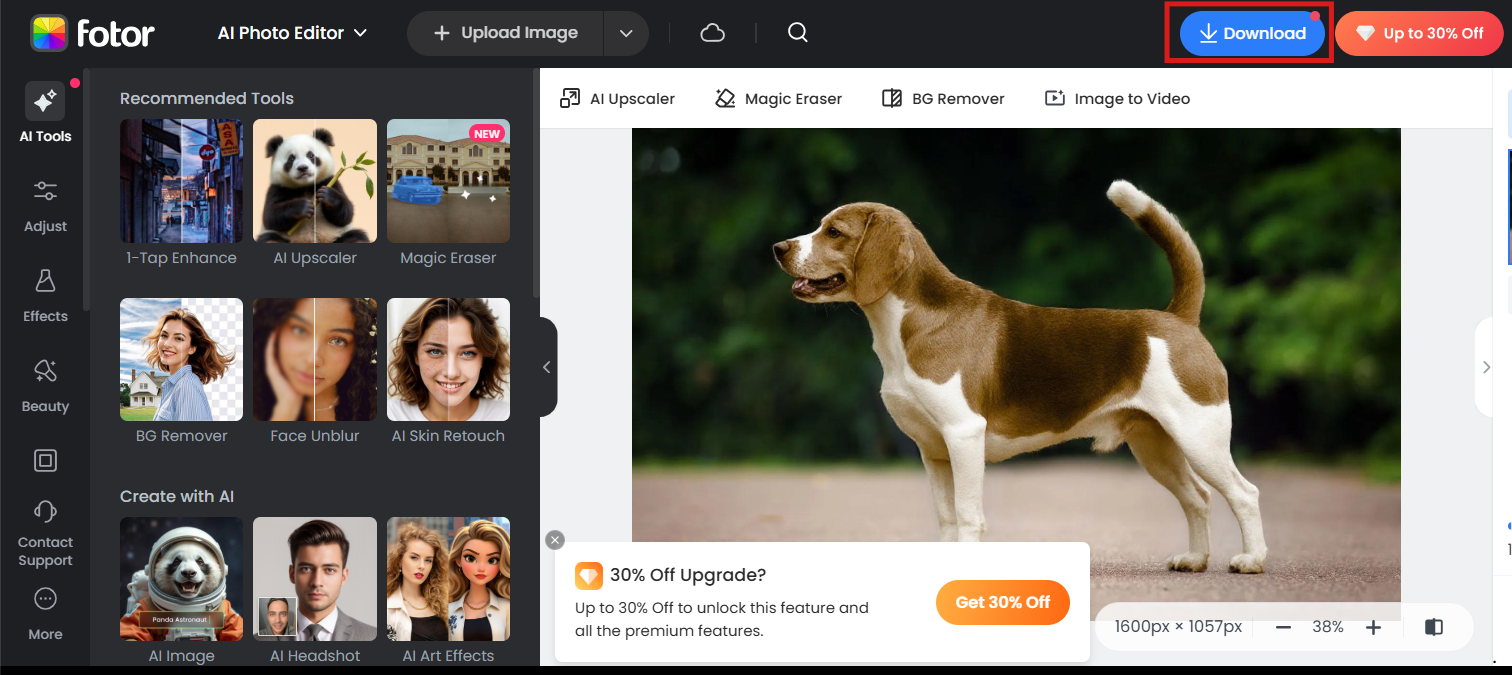
Step 5: Click apply once satisfied with the
recolor and save the image.
Save the image
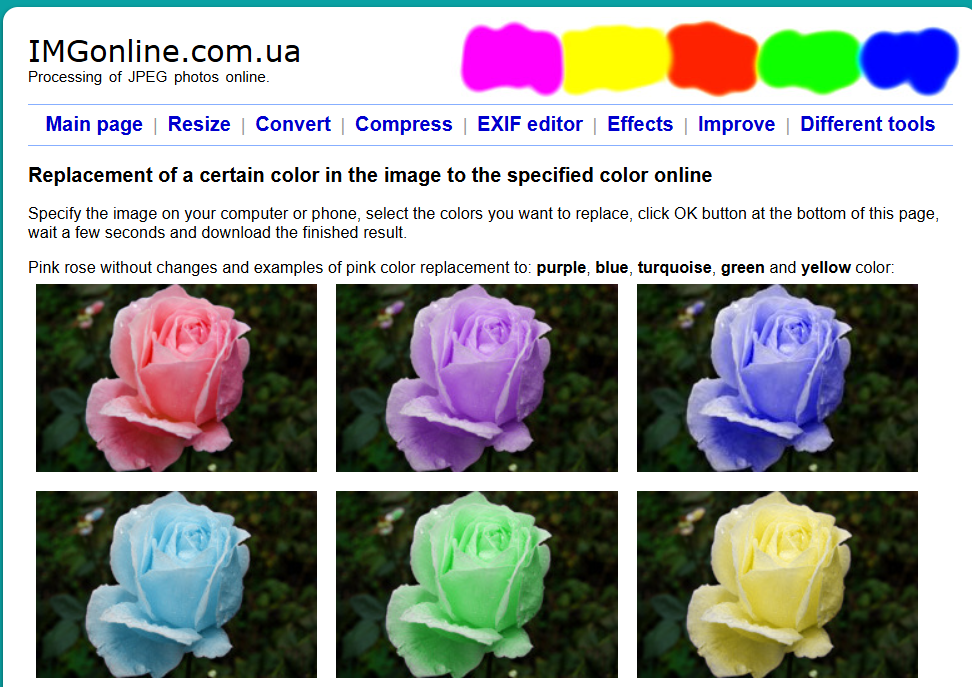
4. IMGonline.com
IMGonline is a powerful choice for users who prefer technical
precision when they need to change the colors of images for graphics,
scanned files, or text-heavy visuals.
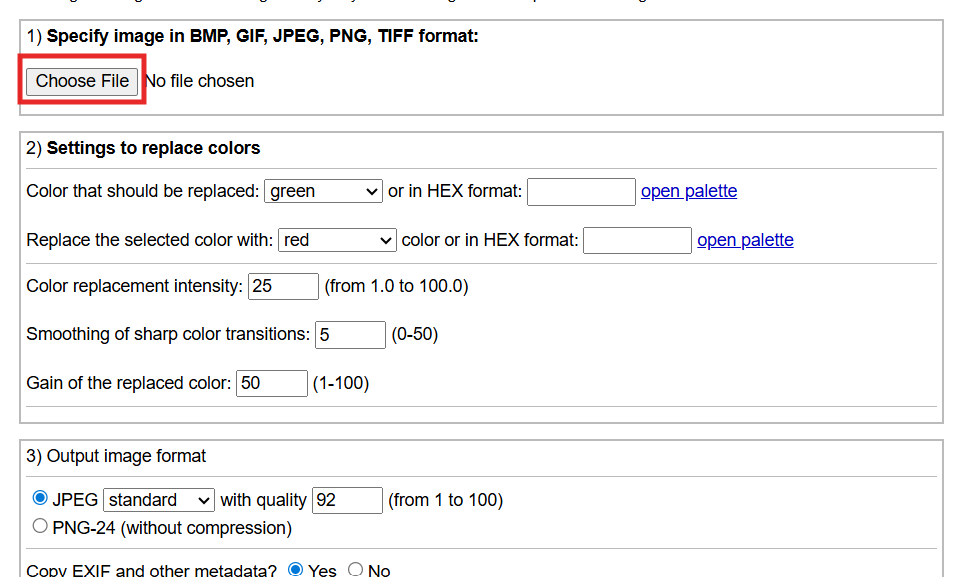
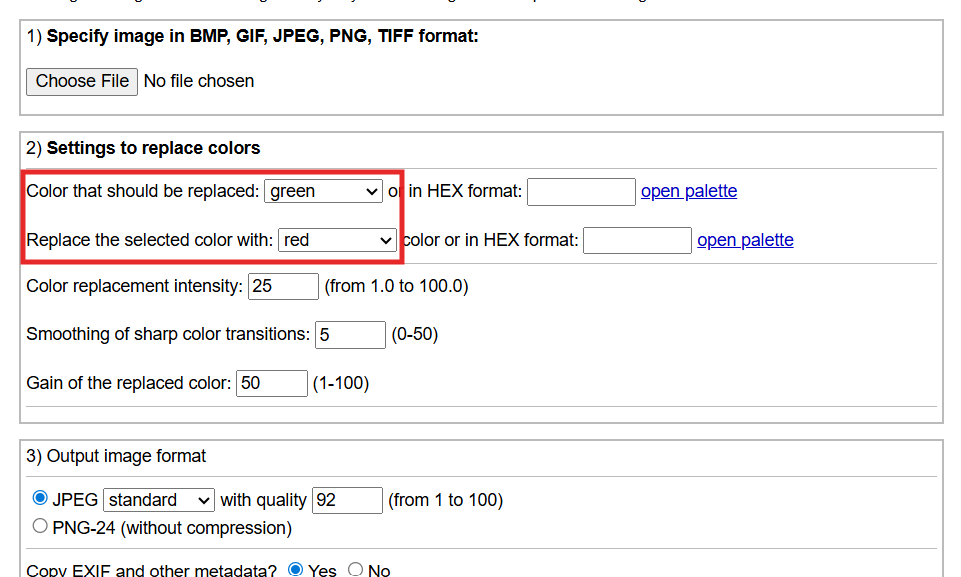
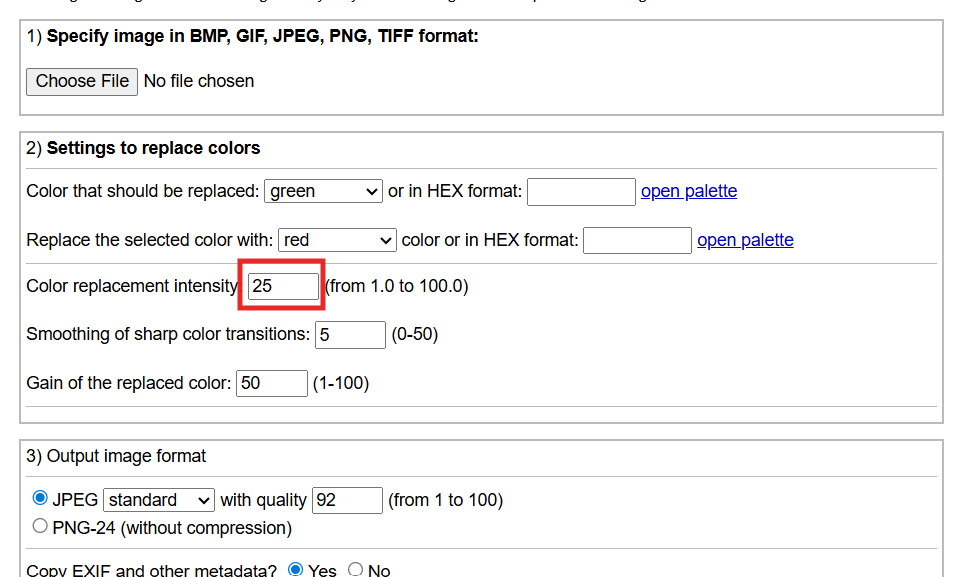
IMGonline replace color tool
Although the interface is simple, its color replacement engine is
quite advanced, enabling users to target narrow ranges of tones or
replace colors fully.
Features
Replace one color with another using precise thresholds
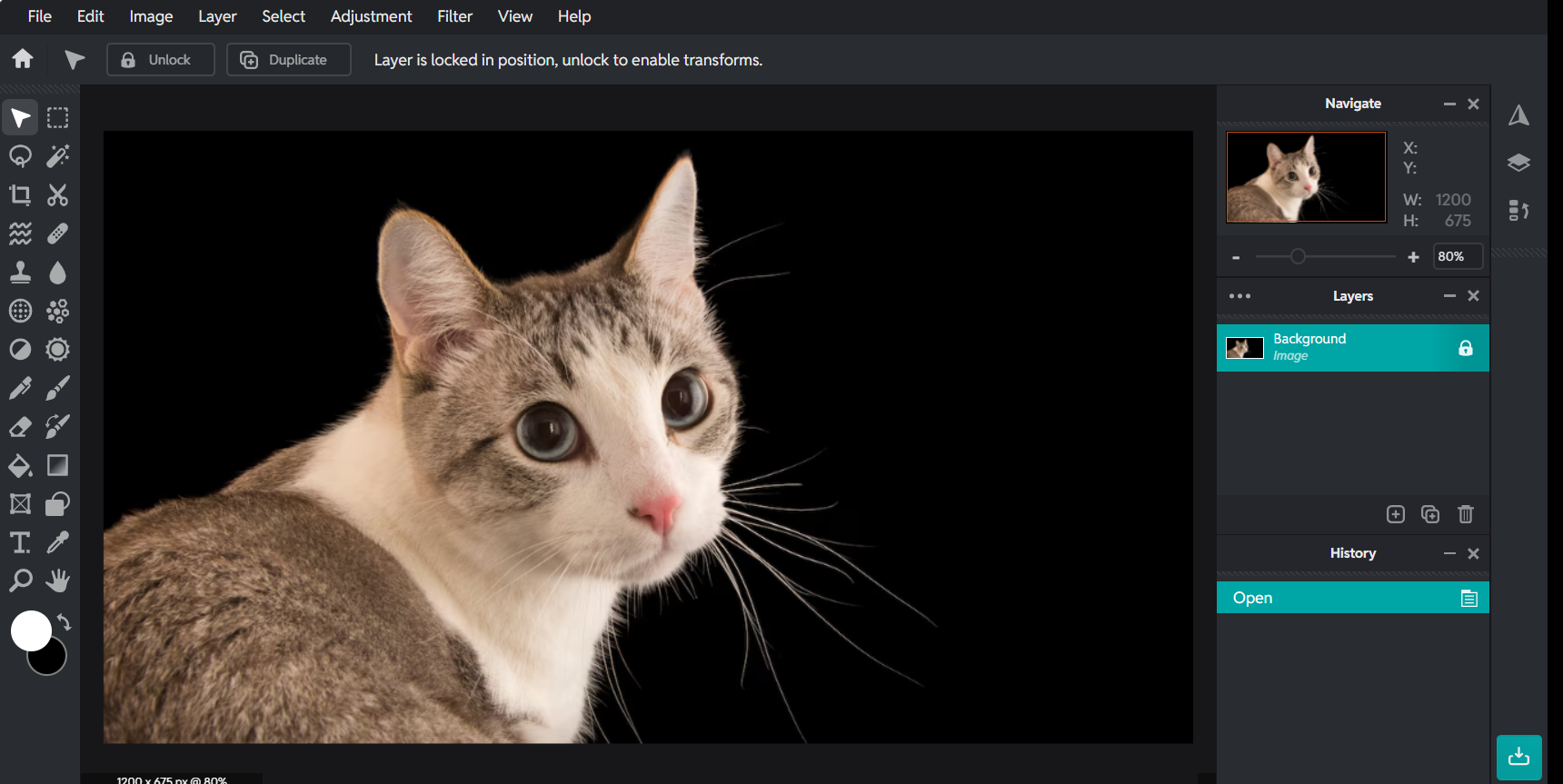
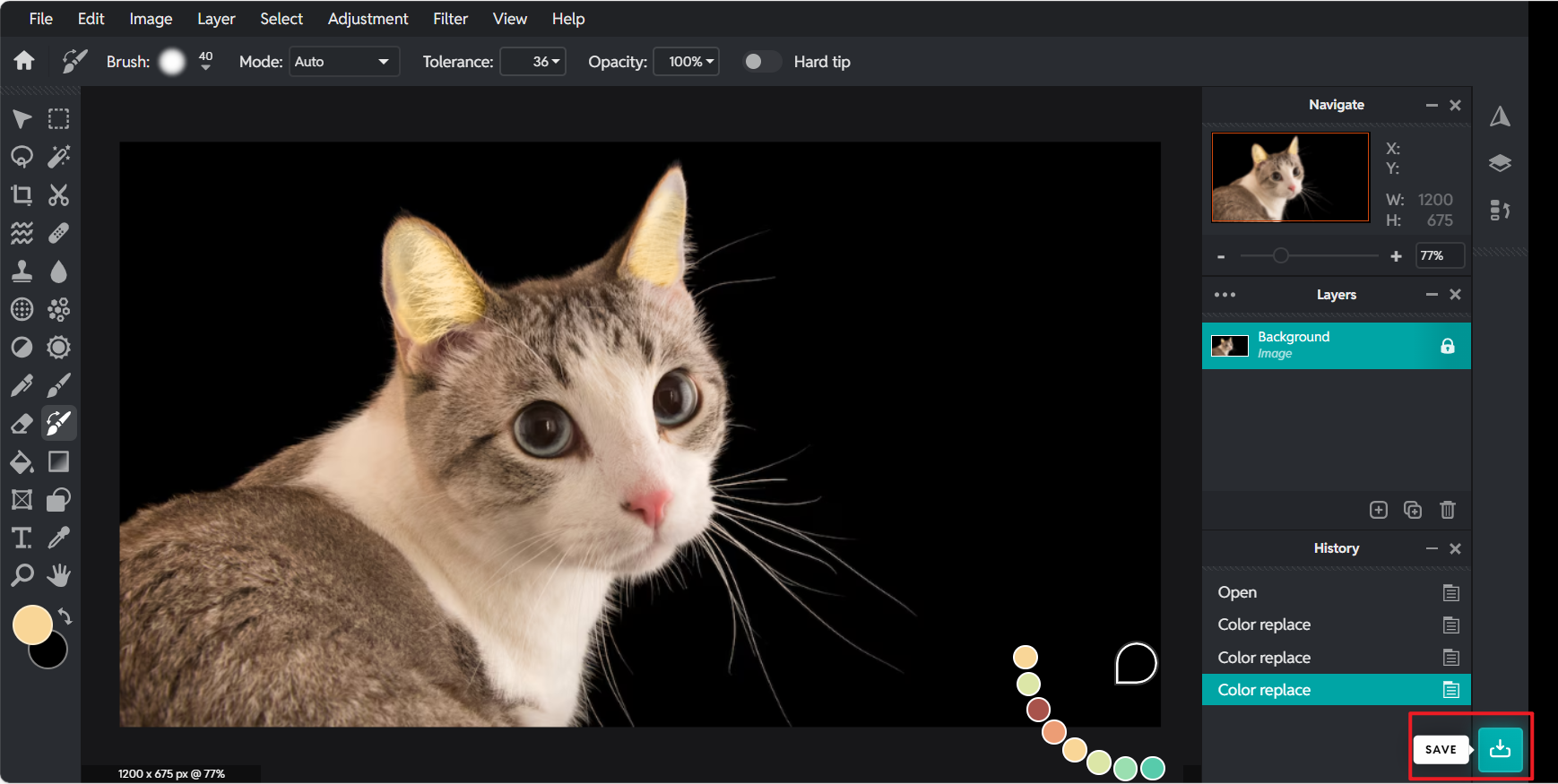
Pixlr combines manual editing tools with automated effects, making it
suitable for users wanting a flexible, browser-based way to change the
colors of an image.
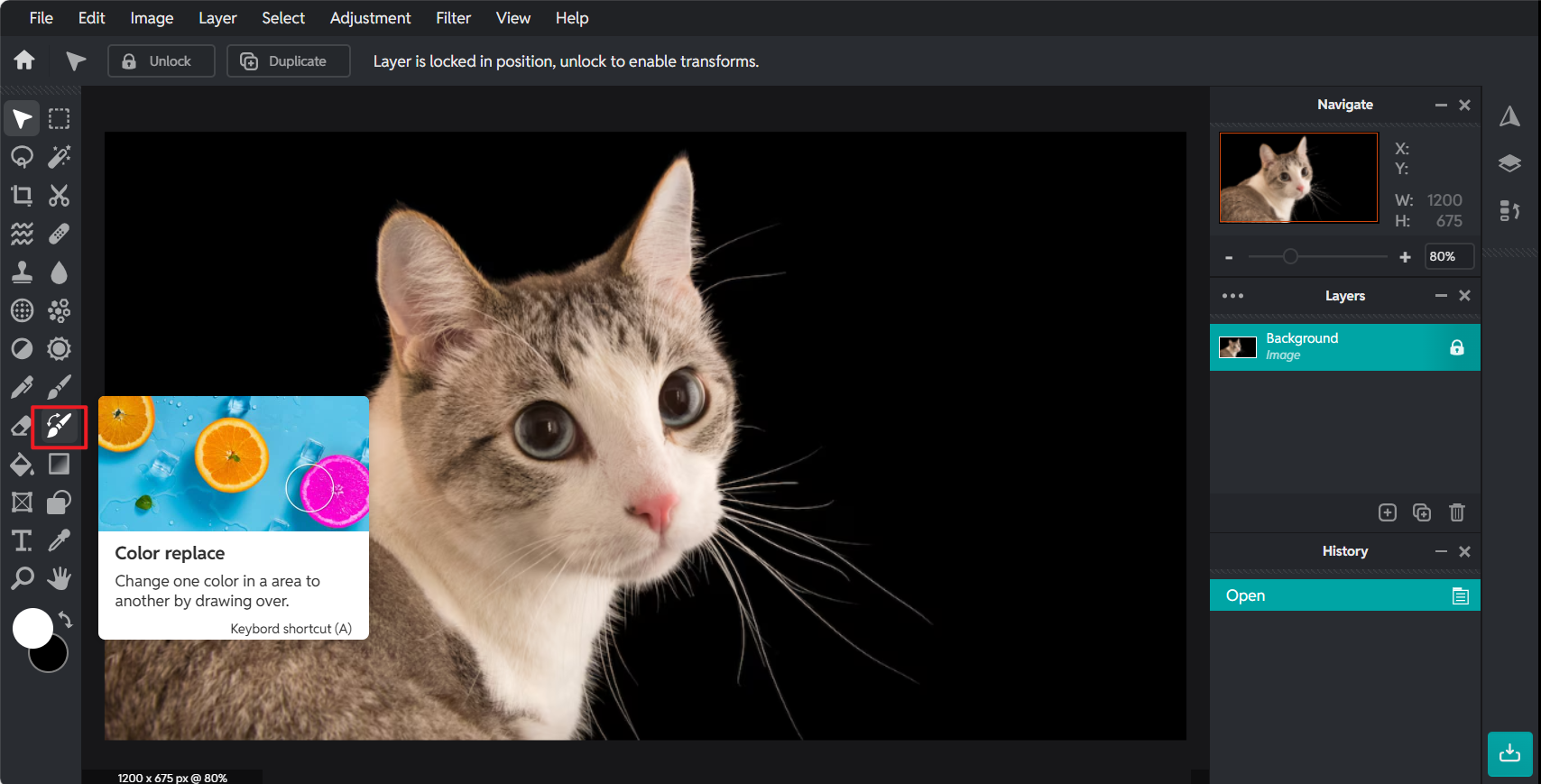
Pixlr color replace tool
Its Color Replace tool is strong enough to handle selective
recoloring in photos, while sliders let users adjust intensity and
blend.
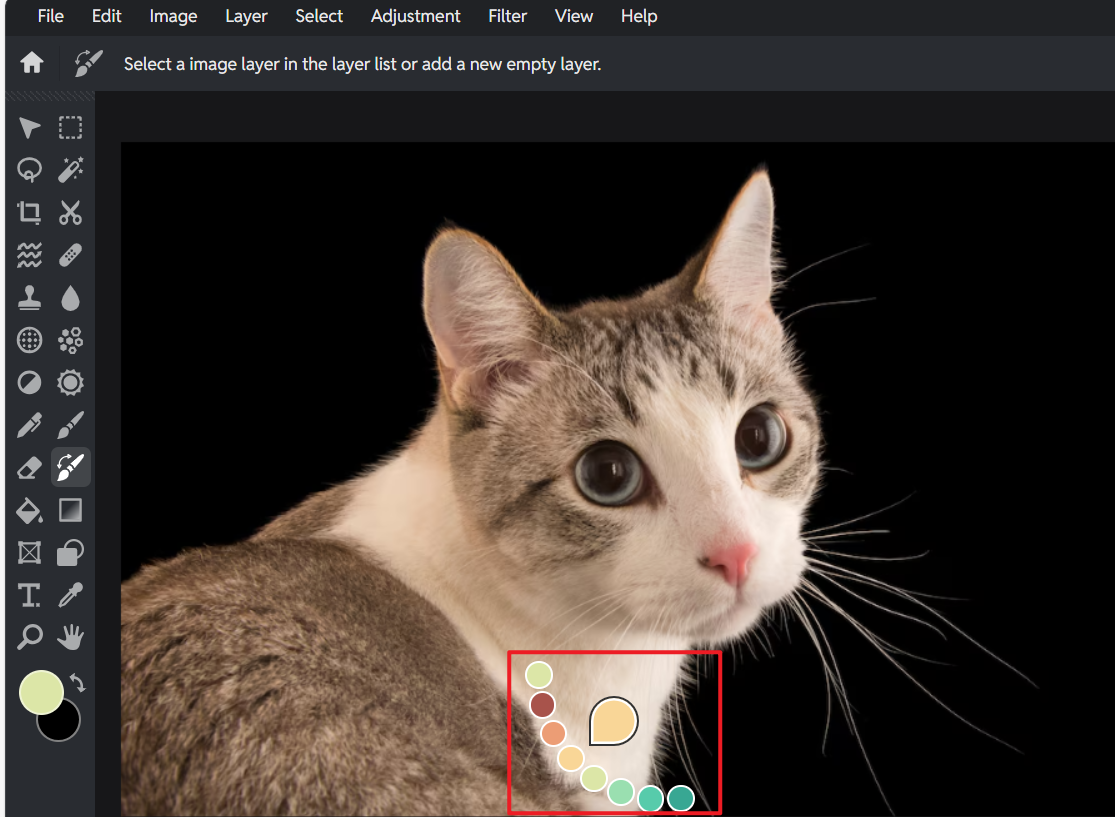
Step 4: Press Ctrl and select a new tone and
brush over the area.
select a new tone and brush
Step 5: Export after fine-tuning hue and
intensity.
Export your image
Part 2:
Comparison of Image Color Changer Tools
Tool
Best For
Recolor Method
Supports PNG
Transparency
AI Features
Ease of Use
Price
Canva
Icons, shapes, simple graphics
Filters, hue shift, and limited direct
recolor
Yes
Minimal AI
Very easy
Free; Pro starts at $12.99/mo
Online PNG Tools
Precise PNG recoloring
Direct color replacement
Yes
No
Easy for basic tasks
Free
Fotor
Photos + graphics
Brush-based, AI color detection
Yes
Yes
Easy
Free; Pro starts at $8.99/mo
IMGonline
Technical and detailed color
replacement
Exact value substitution
Yes
No
Moderate learning curve
Free
Pixlr
Versatile edits for photos &
icons
Color replace brush, adjustments
Yes
Some automated adjustments
Moderate
Free; Premium starts at $1.99/mo
My Experience Using These Tools
Working with these tools side by side highlights how different
recoloring workflows suit different image types. Canva remains the
simplest for quick edits when dealing with icons or flat illustrations,
but it becomes less reliable for selective recoloring in photos. Online
PNG Tools surprised me with its precision; for small UI elements or
logos, it performs better than many advanced editors, even though it
looks minimal.
Fotor’s AI detection tends to make recoloring smoother, especially
when objects have soft edges. It reduces the cleanup work that usually
happens with manual brushes. IMGonline performs exceptionally well when
I need controlled recoloring, especially for scanned files where tones
vary slightly. Its interface may look outdated, but its accuracy stands
out. Pixlr sits comfortably in the middle, more flexible than Canva,
more modern than IMGonline, and easier to control manually compared to
Fotor’s AI-driven approach.
Part
3: WPS Photos, the Best Supplement Tool to Image Color Changer
Tools
People often need to change colors in images to match a brand
palette, adjust social media graphics, or recolor PNG icons for cleaner
visual consistency. While the tools in the earlier section can handle
the core job, many of them focus only on simple color swapping. After
recoloring, images may look flat, uneven, or slightly distorted,
especially when dealing with soft shadows, gradients, or small text
elements.
WPS Photos
This is where many common color changers fall short. They help you
change the colors of the image, but they do not refine the output. Users
working with transparent PNGs, photos, or mixed graphics frequently
notice issues like banding, low contrast, or inconsistent tones.
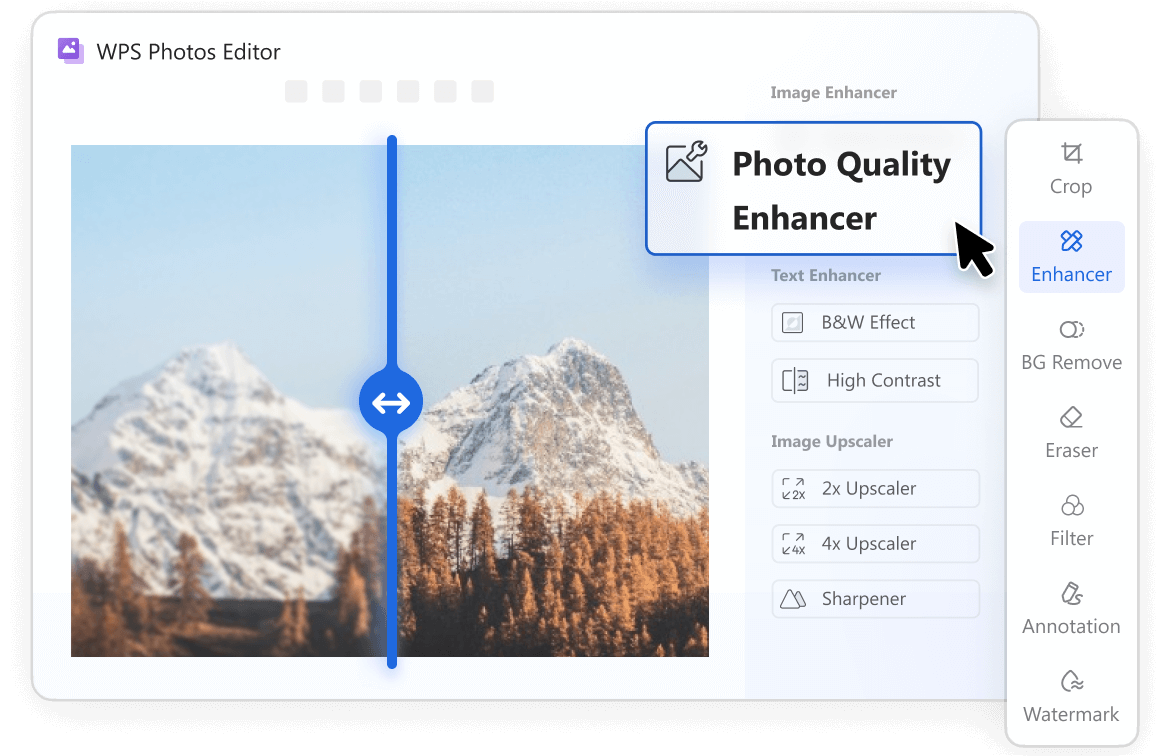
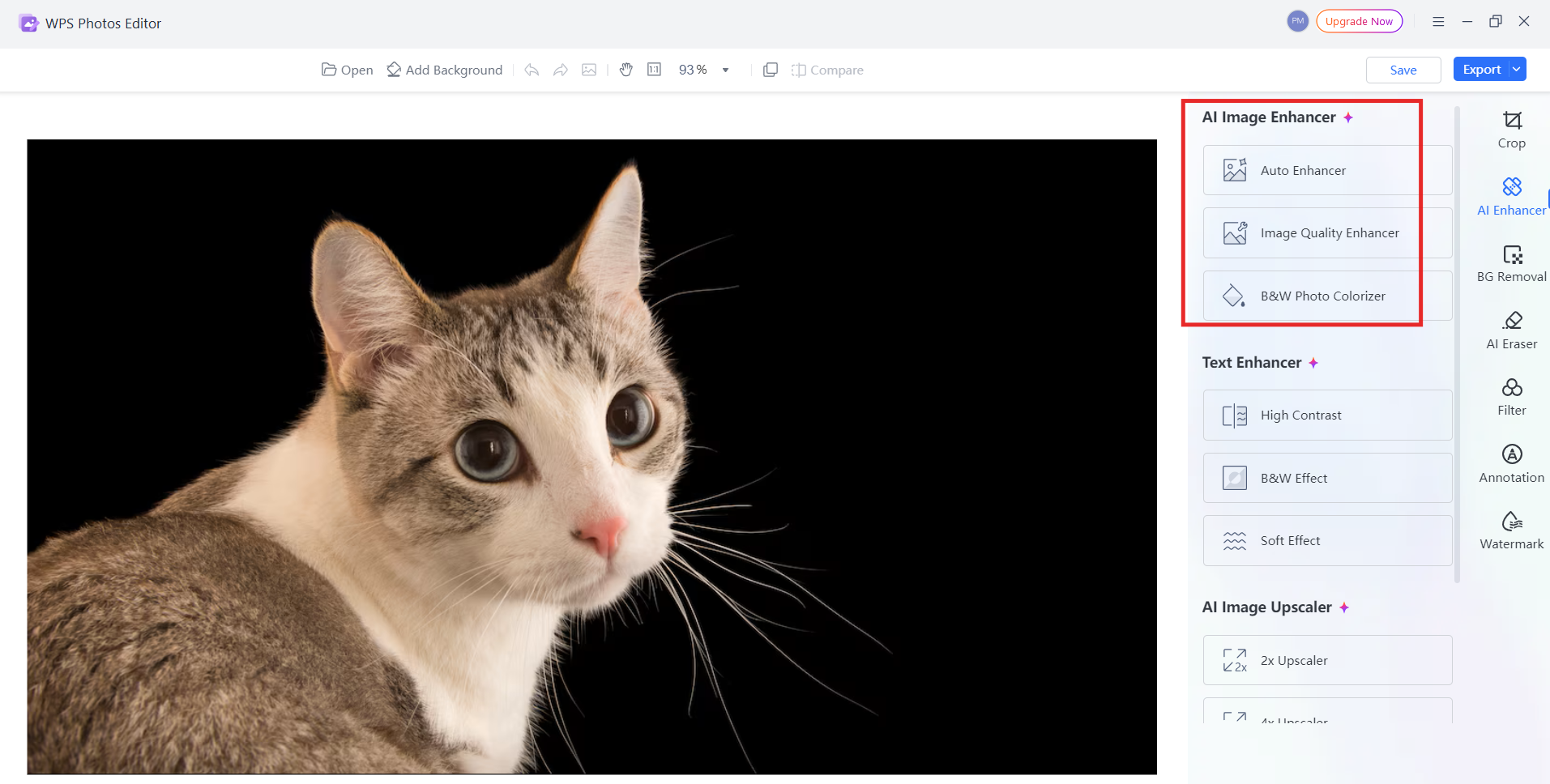
WPS Photo fills this gap by offering smart enhancement tools that
finish the recoloring process cleanly. Instead of replacing your main
editing tool, it works as the perfect add-on, improving image clarity,
balancing tones, and correcting imperfections that appear after
recoloring.
How to
Use WPS Photo to Optimize a Color-Changed Image
Even after using tools to change the colors of an image online for
free, your output may need sharpening, noise reduction, or tonal
adjustments. WPS Photo helps resolve these issues through its guided
editing tools.
Step-by-step guide
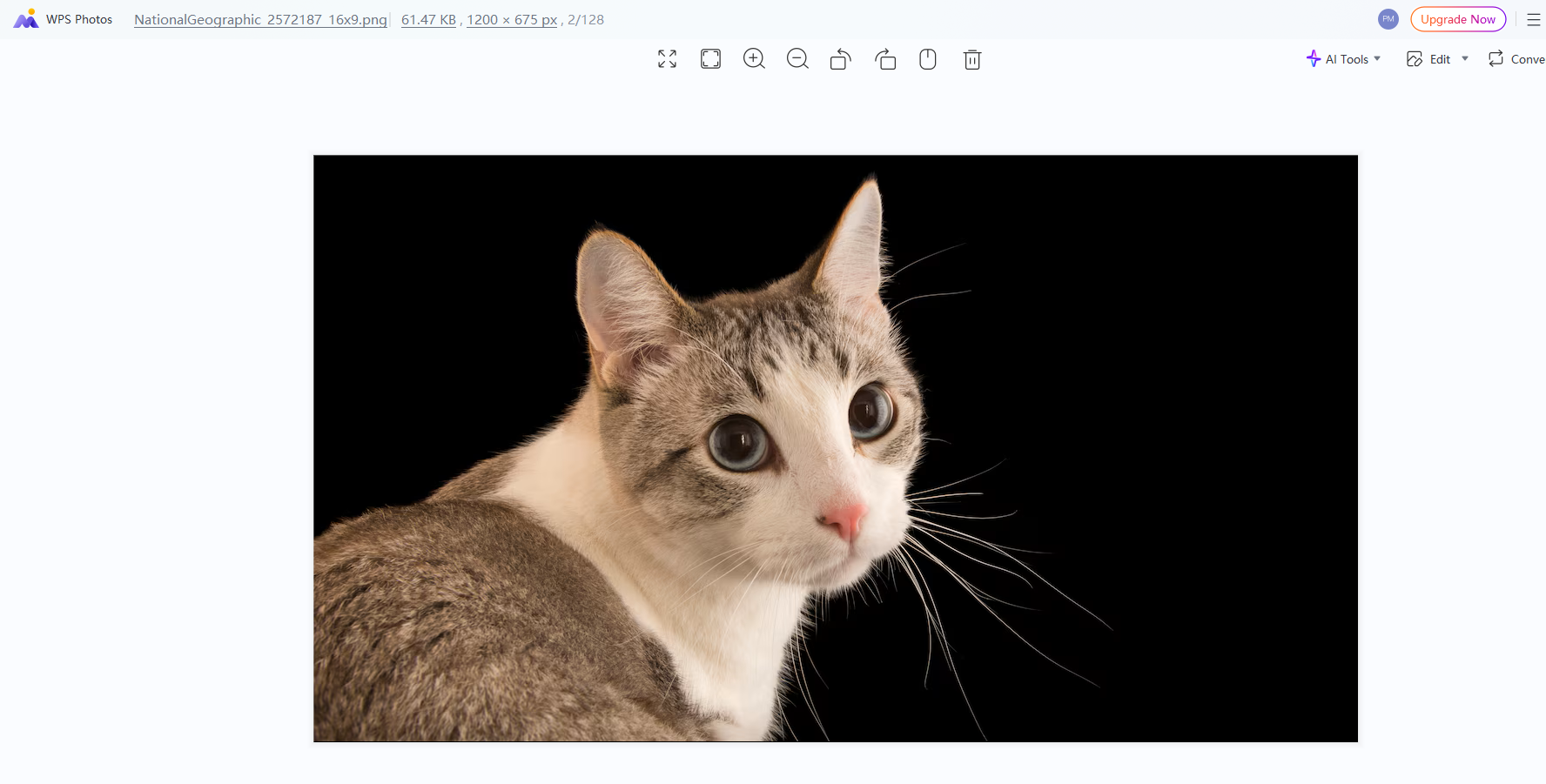
Step 1: Open the recolored image with WPS
Photos.
Open the recolored image with WPS Photos
Step 2: Go to the Enhance panel to adjust
brightness, contrast, and clarity.
Enhance image with WPS Photos
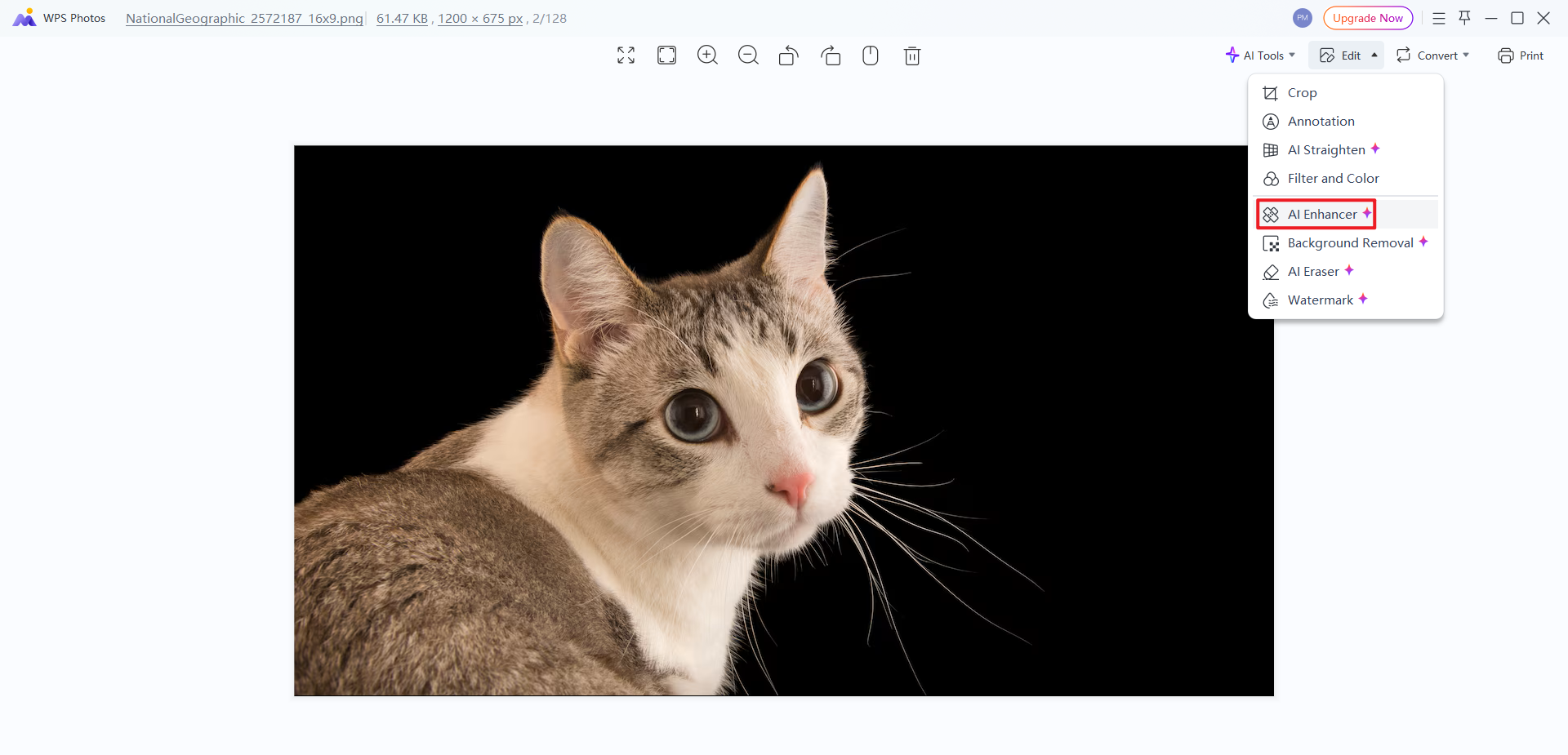
Step 3: Apply AI enhancement if the recolored
image looks blurry or uneven.
Enhance image with WPS Photos
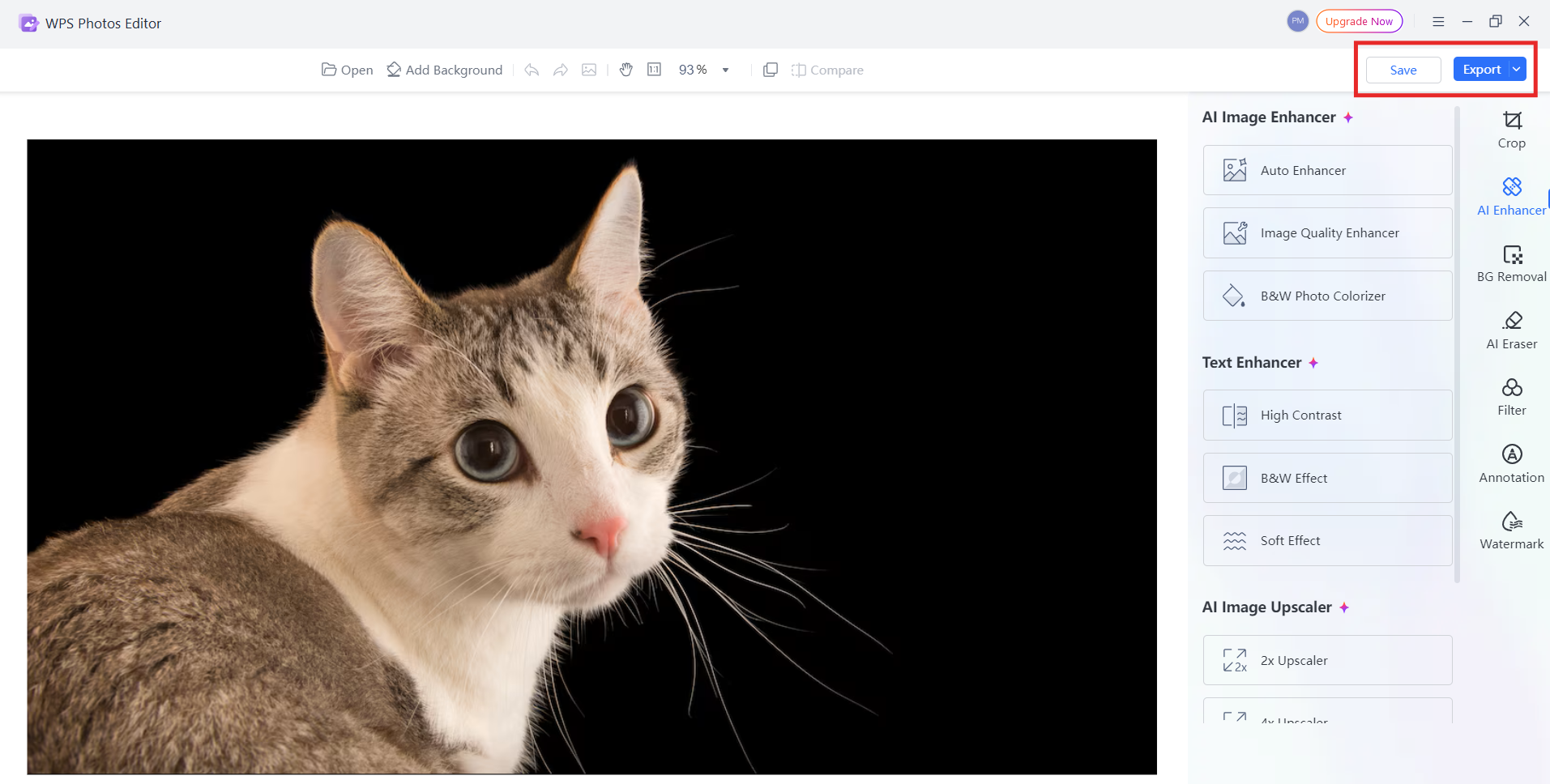
Step 4: Export your optimized image in PNG or
JPG without losing resolution.
Export image with WPS Photos
These extra adjustments give recolored graphics a more polished and
natural finish, especially when dealing with gradients or mixed
lighting.
What Standard
Image Color Changers Usually Lack
Even though many tools promise an easy way to change the colors of an
image, they often cannot complete the workflow. These are the most
common limitations:
Minimal tone, saturation, or brightness control after
recoloring
Difficulty recoloring text pixels or objects inside transparent
PNGs
Lack of enhancement tools to fix noise or quality loss
Reduced accuracy when handling screenshots or scanned
images
Limited options to balance colors when integrating images into
documents
Users often fix the initial color but end up with an image that still
needs visual refinement.
Why WPS Photo
Complements These Tools Perfectly
WPS Photo is not just a finishing tool; it improves the entire
recoloring result. It pairs well with online editors, AI recolor tools,
and free utilities used to change the colors of an image free or to
change the colors of an image using AI features.
Here is why it fits naturally into the workflow:
AI-powered recognition enhances recolored areas without creating
harsh edges
Precision tools help adjust hue, warmth, contrast, and shadows
more accurately
Corrects common problems after recoloring, such as blur, uneven
tones, and noise
Maintains transparency when editing PNGs, icons, and
drawings
Works seamlessly inside WPS Office for fast editing and document
placement
This combination makes WPS Photo ideal for anyone who wants both
speed and professional polish after recoloring an image.
FAQs
Q1: What does it mean to change the colors of an
image?
It refers to replacing or adjusting specific colors in a photo or
graphic. This may involve recoloring objects, updating text color, or
changing background tones for design consistency.
Q2: Can I change image colors online for free?
Yes. Many editors allow you to change the colors of an image online
for free without installing software. These tools offer quick color
replacement and simple adjustments.
Q3: Is AI good for changing image colors?
AI works well when images contain complex shapes or blended edges.
Tools that provide color changes to image AI features usually detect
objects more accurately than manual methods.
Q4: How do I change text color inside an image?
Once text becomes part of an image, it turns into pixels. You will
need a recolor tool, brush, or color replacement feature to manually
adjust the text color unless you still have the original editable
file.
Q5: Can I change the color of a PNG with
transparency?
Yes. Many tools support changing the colors of a PNG image while
preserving transparency. This is especially helpful for icons, logos,
and cutout graphics.
Q6: Can I use Canva to change colors in an
image?
Canva supports recoloring for many icons, shapes, and selected PNGs.
It also offers filters and global adjustments that shift the overall
color tone.
Q7: Will changing colors reduce image quality?
A reliable editor will maintain image clarity. Issues like patchy
areas or banding usually come from low-quality recolor tools or
aggressive adjustments.
Q8: Can I selectively change only one color in an
image?
Yes. Many editors let you target a specific color and replace it
while keeping the rest of the image unchanged.
Q9: How can WPS AI improve my color-changed
images?
WPS AI can enhance quality, remove backgrounds, and match tones
between images. This helps recolored images blend naturally when used in
documents or layouts.
Q10: Will editing an image in WPS affect
quality?
No. WPS Photo preserves resolution when editing and exporting,
ensuring the recolored image remains clear and suitable for
printing.
Summary
Changing colors in images is no longer a task limited to design
experts. Whether users want to change the colors of an image online,
rely on AI to automate detection, or use a simple free tool for quick
adjustments, there are now reliable options for every skill level.
Canva, Online PNG Tools, Fotor, IMGonline, and Pixlr each offer unique
strengths, from pixel-level precision to AI-assisted recoloring.
However, most recolor tools stop at basic color replacement. This is
where WPS
Photos becomes essential. It enhances recolored images with
better tone, clarity, and balance, ensuring the final result looks
polished and professional. With its AI-powered improvements and precise
adjustment controls, WPS Photos is the ideal companion for anyone who
frequently needs to refine images after recoloring.
With over 13 years of hands-on experience in office software and tech, I help users navigate the digital world with ease. From mastering Excel to exploring cutting-edge productivity tools, I break down complex features into simple, actionable steps.


'%3e%3cpath%20d='M8%200C12.4183%200%2016%203.58172%2016%208C16%2012.4183%2012.4183%2016%208%2016C3.58172%2016%200%2012.4183%200%208C0%203.58172%203.58172%200%208%200ZM11.6162%204.38379C11.2257%203.99337%2010.5927%203.99338%2010.2021%204.38379L8%206.58594L5.79785%204.38379C5.40732%203.99334%204.77429%203.99329%204.38379%204.38379C3.99331%204.77429%203.99335%205.40733%204.38379%205.79785L6.58594%208L4.38379%2010.2021C3.99348%2010.5927%203.99341%2011.2257%204.38379%2011.6162C4.77426%2012.0066%205.40734%2012.0065%205.79785%2011.6162L8%209.41406L10.2021%2011.6162C10.5927%2012.0066%2011.2257%2012.0067%2011.6162%2011.6162C12.0067%2011.2257%2012.0066%2010.5927%2011.6162%2010.2021L9.41406%208L11.6162%205.79785C12.0066%205.40735%2012.0066%204.77429%2011.6162%204.38379Z'%20fill='%23080E17'%20fill-opacity='0.46'/%3e%3c/g%3e%3cdefs%3e%3cclipPath%20id='clip0_3761_713'%3e%3crect%20width='16'%20height='16'%20fill='white'/%3e%3c/clipPath%3e%3c/defs%3e%3c/svg%3e)




'%3e%3cpath%20fill-rule='evenodd'%20clip-rule='evenodd'%20d='M21.4999%2010.9993C21.4999%205.20009%2016.7986%200.498901%2010.9993%200.498901C5.19994%200.498901%200.498657%205.20009%200.498657%2010.9993C0.498657%2016.2404%204.33858%2020.5844%209.35855%2021.3722V14.0346H6.69238V10.9993H9.35855V8.68594C9.35855%206.05427%2010.9262%204.60062%2013.3248%204.60062C14.4736%204.60062%2015.6753%204.80571%2015.6753%204.80571V7.38979H14.3512C13.0468%207.38979%2012.64%208.19921%2012.64%209.0296V10.9993H15.5523L15.0867%2014.0346H12.64V21.3722C17.66%2020.5844%2021.4999%2016.2404%2021.4999%2010.9993Z'%20fill='%231568EA'/%3e%3c/g%3e%3c/svg%3e)


'%3e%3cpath%20d='M2.42045%2022.1876H6.31818V12.7217L0.75%208.54553V20.5171C0.75%2021.4414%201.49892%2022.1876%202.42045%2022.1876Z'%20fill='%234285F4'/%3e%3cpath%20d='M19.682%2022.1876H23.5797C24.5041%2022.1876%2025.2502%2021.4387%2025.2502%2020.5171V8.54553L19.682%2012.7217'%20fill='%2334A853'/%3e%3cpath%20d='M19.682%205.48293V12.7216L25.2502%208.54543V6.31816C25.2502%204.25236%2022.8921%203.07469%2021.2411%204.31361'%20fill='%23FBBC04'/%3e%3cpath%20d='M6.31824%2012.7217V5.48303L13.0001%2010.4944L19.6819%205.48303V12.7217L13.0001%2017.733'%20fill='%23EA4335'/%3e%3cpath%20d='M0.75%206.31816V8.54543L6.31818%2012.7216V5.48293L4.75909%204.31361C3.10534%203.07469%200.75%204.25236%200.75%206.31816Z'%20fill='%23C5221F'/%3e%3c/g%3e%3cdefs%3e%3cclipPath%20id='clip0_2954_7305'%3e%3crect%20width='24.5'%20height='18.375'%20fill='white'%20transform='translate(0.75%203.8125)'/%3e%3c/clipPath%3e%3c/defs%3e%3c/svg%3e)



'%3e%3cpath%20d='M19.9911%204.11386V6.471H18.5894C18.0775%206.471%2017.7322%206.57814%2017.5536%206.79243C17.3751%207.00671%2017.2858%207.32814%2017.2858%207.75671V9.44421H19.9019L19.5536%2012.0871H17.2858V18.8639H14.5536V12.0871H12.2769V9.44421H14.5536V7.49779C14.5536%206.39064%2014.8632%205.53201%2015.4822%204.92189C16.1013%204.31177%2016.9257%204.00671%2017.9554%204.00671C18.8304%204.00671%2019.509%204.04243%2019.9911%204.11386Z'%20fill='%23333333'/%3e%3c/g%3e%3cdefs%3e%3cclipPath%20id='clip0_2938_8199'%3e%3crect%20width='16'%20height='16'%20fill='white'%20transform='translate(8%204.00671)'/%3e%3c/clipPath%3e%3c/defs%3e%3c/svg%3e)
'%3e%3cpath%20d='M17.5237%2010.7813L23.4811%204H22.0699L16.8949%209.88693L12.7648%204H8L14.2469%2012.9029L8%2020.0133H9.4112L14.8725%2013.7952L19.2352%2020.0133H24M9.92053%205.04213H12.0885L22.0688%2019.0224H19.9003'%20fill='%23333333'/%3e%3c/g%3e%3cdefs%3e%3cclipPath%20id='clip0_2938_8200'%3e%3crect%20width='16'%20height='16.0134'%20fill='white'%20transform='translate(8%204)'/%3e%3c/clipPath%3e%3c/defs%3e%3c/svg%3e)


