

'%3e%3cpath%20d='M8%200C12.4183%200%2016%203.58172%2016%208C16%2012.4183%2012.4183%2016%208%2016C3.58172%2016%200%2012.4183%200%208C0%203.58172%203.58172%200%208%200ZM11.6162%204.38379C11.2257%203.99337%2010.5927%203.99338%2010.2021%204.38379L8%206.58594L5.79785%204.38379C5.40732%203.99334%204.77429%203.99329%204.38379%204.38379C3.99331%204.77429%203.99335%205.40733%204.38379%205.79785L6.58594%208L4.38379%2010.2021C3.99348%2010.5927%203.99341%2011.2257%204.38379%2011.6162C4.77426%2012.0066%205.40734%2012.0065%205.79785%2011.6162L8%209.41406L10.2021%2011.6162C10.5927%2012.0066%2011.2257%2012.0067%2011.6162%2011.6162C12.0067%2011.2257%2012.0066%2010.5927%2011.6162%2010.2021L9.41406%208L11.6162%205.79785C12.0066%205.40735%2012.0066%204.77429%2011.6162%204.38379Z'%20fill='%23080E17'%20fill-opacity='0.46'/%3e%3c/g%3e%3cdefs%3e%3cclipPath%20id='clip0_3761_713'%3e%3crect%20width='16'%20height='16'%20fill='white'/%3e%3c/clipPath%3e%3c/defs%3e%3c/svg%3e)



'%3e%3cpath%20fill-rule='evenodd'%20clip-rule='evenodd'%20d='M21.4999%2010.9993C21.4999%205.20009%2016.7986%200.498901%2010.9993%200.498901C5.19994%200.498901%200.498657%205.20009%200.498657%2010.9993C0.498657%2016.2404%204.33858%2020.5844%209.35855%2021.3722V14.0346H6.69238V10.9993H9.35855V8.68594C9.35855%206.05427%2010.9262%204.60062%2013.3248%204.60062C14.4736%204.60062%2015.6753%204.80571%2015.6753%204.80571V7.38979H14.3512C13.0468%207.38979%2012.64%208.19921%2012.64%209.0296V10.9993H15.5523L15.0867%2014.0346H12.64V21.3722C17.66%2020.5844%2021.4999%2016.2404%2021.4999%2010.9993Z'%20fill='%231568EA'/%3e%3c/g%3e%3c/svg%3e)


'%3e%3cpath%20d='M2.42045%2022.1876H6.31818V12.7217L0.75%208.54553V20.5171C0.75%2021.4414%201.49892%2022.1876%202.42045%2022.1876Z'%20fill='%234285F4'/%3e%3cpath%20d='M19.682%2022.1876H23.5797C24.5041%2022.1876%2025.2502%2021.4387%2025.2502%2020.5171V8.54553L19.682%2012.7217'%20fill='%2334A853'/%3e%3cpath%20d='M19.682%205.48293V12.7216L25.2502%208.54543V6.31816C25.2502%204.25236%2022.8921%203.07469%2021.2411%204.31361'%20fill='%23FBBC04'/%3e%3cpath%20d='M6.31824%2012.7217V5.48303L13.0001%2010.4944L19.6819%205.48303V12.7217L13.0001%2017.733'%20fill='%23EA4335'/%3e%3cpath%20d='M0.75%206.31816V8.54543L6.31818%2012.7216V5.48293L4.75909%204.31361C3.10534%203.07469%200.75%204.25236%200.75%206.31816Z'%20fill='%23C5221F'/%3e%3c/g%3e%3cdefs%3e%3cclipPath%20id='clip0_2954_7305'%3e%3crect%20width='24.5'%20height='18.375'%20fill='white'%20transform='translate(0.75%203.8125)'/%3e%3c/clipPath%3e%3c/defs%3e%3c/svg%3e)


The recent shift towards "Microsoft Office removes Copilot" is a response to widespread user feedback regarding workspace clutter. As highlighted by reports from The Verge, a major pain point for users—particularly in Excel—has been a floating button that obstructs cells, making it difficult to interact with data. This lack of control has led many to seek ways to hide or permanently delete the AI integration.
Microsoft’s aggressive integration of Copilot has transformed a 'productivity tool' into an inescapable workspace obstruction, with users describing the removal process as a frustrating game of 'whack-a-mole' where the feature frequently reappears after updates. According to Reddit discussions, the AI has 'ruined the office suite' by cluttering blank documents with intrusive banners and interrupting the creative flow with prompts that appear after nearly every sentence. For professionals bound by strict confidentiality agreements, these persistent UI 'decorations' are more than just a distraction; they represent a significant liability because Microsoft provides no simple, permanent way to opt out.

Copilot operates at two distinct levels
Before following the steps below, it is essential to understand that Copilot operates at two distinct levels:
· App Level: This refers to the AI features built directly into Word, Excel, PowerPoint, and Outlook. Disabling it here removes the icons and prevents the AI from scanning your document content.
· Hardware/System Level: This involves the standalone Copilot app integrated into Windows 11. Even if you hide it in Word, the app may still run in the background or reinstall itself after a system update. Part 3 of this guide addresses how to perform a permanent "purge" at this level.
Part 1: App-Level Removal (Office Desktop Apps)
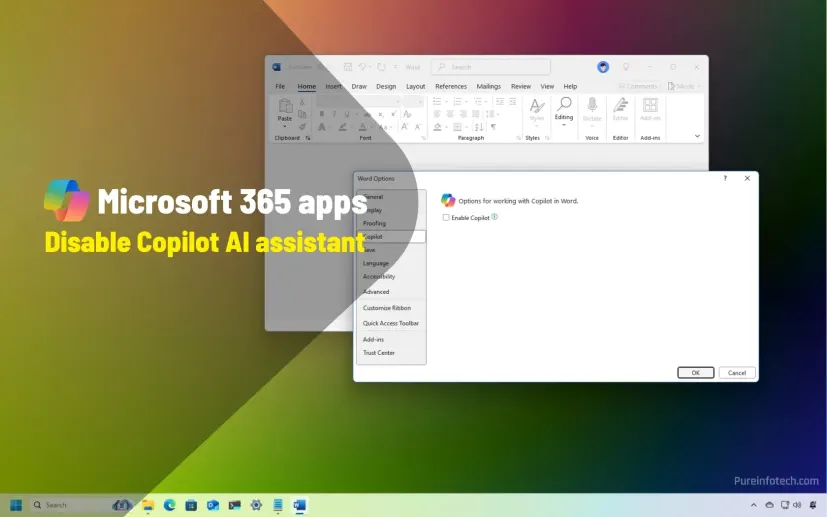
Background: Microsoft has introduced a dedicated "Enable Copilot" checkbox in the latest versions of Office to address user complaints. Disabling this checkbox is the most direct way to remove the Copilot icon from the ribbon and stop all AI capabilities within that specific application.
1. Moving the Floating Button (Excel & Word)
If the floating "Dynamic Action Button" is your only frustration, you can dock it to the toolbar instead of disabling the whole service.
· Step 1: Locate and Right-Click. Find the floating Copilot icon in the bottom right of your document, right-click it, and select the option to move the button back to the ribbon. This clears the obstruction from your spreadsheet cells while keeping the tool accessible.
2. Disabling Copilot in Word, Excel, and PowerPoint
This method turns off the service entirely for the individual app you are using.
· Step 1: Navigate to Copilot Options. On Windows, go to File > Options > Copilot. On a Mac, select the App Menu (e.g., Word) > Preferences > Copilot.
· Step 2: Disable and Restart. Uncheck the "Enable Copilot" box. You must close and restart the application for the interface to update and remove the AI icons. Note that you must repeat this for each app (Word, Excel, etc.) individually.
3. Disabling Copilot in Outlook (Universal Sync)
Unlike other apps, Outlook uses a toggle that syncs your preference across the Web, Windows, Mac, and Mobile versions.
· Step 1: Adjust Account Settings. Go to Settings (gear icon) > Copilot and switch the "Turn on Copilot" toggle to Off. Once changed, this setting will automatically apply to your account on all other devices, such as your iPhone or Android tablet.
Part 2: The Privacy "Brute Force" Method
Background: If you are using an older version of Office (prior to Windows Version 2412 or Mac Version 16.93) that lacks the dedicated "Enable Copilot" checkbox, you must use your Account Privacy settings to block the AI.
· Step 1: Access Connected Experiences. Go to File > Account > Account Privacy > Manage Settings. On Mac, this is under Preferences > Privacy > Manage Connected Experiences.
· Step 2: Disable Content Analysis. Uncheck the box for "Turn on experiences that analyze your content" and "Turn on experiences that downloaded online content", then restart your app.
· ⚠️ The Risk: This is a broad setting. Disabling it will also turn off helpful non-AI features like Word's text predictions, Outlook's suggested replies, and PowerPoint Designer.
Part 3: Permanent Hardware & System Level Removal
Background: Many users find that Copilot feels like "nagware" because it often reappears after a fresh Windows update. This advanced phase is for users who want to tell the Windows operating system that the app is unwanted on a hardware level, preventing it from running in the background or auto-reinstalling.
Method A: Group Policy (For Windows Pro/Enterprise Users)
This is the most reliable way to "scrub" the app from the system for good.
· Step 1: Access the Policy Editor. Press Win + R, type gpedit.msc, and navigate to: User Configuration > Administrative Templates > Windows Components > Windows AI.
· Step 2: Enable the Removal Policy. Double-click "Remove Microsoft Copilot app" and set it to Enabled.
· Crucial Detail: The system will automatically uninstall the app only if it hasn't been launched in the last 28 days. Once applied, it also removes the Copilot integration from Microsoft 365 apps.
Method B: Registry Editor (For Windows Home Users)
Since Windows Home lacks the Group Policy tool, you must manually create the instruction in the registry.
· Step 1: Create the WindowsAI Key. Press Win + R, type regedit, and navigate to: HKEY_CURRENT_USER\Software\Policies\Microsoft\Windows. Right-click Windows, select New > Key, and name it WindowsAI.
· Step 2: Set the Removal Value. Inside the new WindowsAI folder, right-click and select New > DWORD (32-bit) Value. Name it RemoveMicrosoftCopilotApp, double-click it, and change the value to 1. Restart your computer to finalize the removal.
Summary
By following these steps, you can tailor your level of removal—from simply moving a distracting button in Excel to performing a full system "purge" using the Registry. Microsoft’s 2026 updates represent a significant concession, finally giving users the "off" switch they have requested.


'%3e%3cpath%20d='M19.9911%204.11386V6.471H18.5894C18.0775%206.471%2017.7322%206.57814%2017.5536%206.79243C17.3751%207.00671%2017.2858%207.32814%2017.2858%207.75671V9.44421H19.9019L19.5536%2012.0871H17.2858V18.8639H14.5536V12.0871H12.2769V9.44421H14.5536V7.49779C14.5536%206.39064%2014.8632%205.53201%2015.4822%204.92189C16.1013%204.31177%2016.9257%204.00671%2017.9554%204.00671C18.8304%204.00671%2019.509%204.04243%2019.9911%204.11386Z'%20fill='%23333333'/%3e%3c/g%3e%3cdefs%3e%3cclipPath%20id='clip0_2938_8199'%3e%3crect%20width='16'%20height='16'%20fill='white'%20transform='translate(8%204.00671)'/%3e%3c/clipPath%3e%3c/defs%3e%3c/svg%3e)
'%3e%3cpath%20d='M17.5237%2010.7813L23.4811%204H22.0699L16.8949%209.88693L12.7648%204H8L14.2469%2012.9029L8%2020.0133H9.4112L14.8725%2013.7952L19.2352%2020.0133H24M9.92053%205.04213H12.0885L22.0688%2019.0224H19.9003'%20fill='%23333333'/%3e%3c/g%3e%3cdefs%3e%3cclipPath%20id='clip0_2938_8200'%3e%3crect%20width='16'%20height='16.0134'%20fill='white'%20transform='translate(8%204)'/%3e%3c/clipPath%3e%3c/defs%3e%3c/svg%3e)


