I still remember the thrill of my first AI image generation. But that excitement usually faded the second I zoomed in: the text was gibberish, the layouts were chaotic, and the designs made zero logical sense. It was ok for weekend experiments, but when I needed a real presentation cover, I usually had to shelve the AI results.
That’s why ChatGPT Images 2.0 feels like such a breath of fresh air—it finally bridges the gap between "pretty" and "practical."
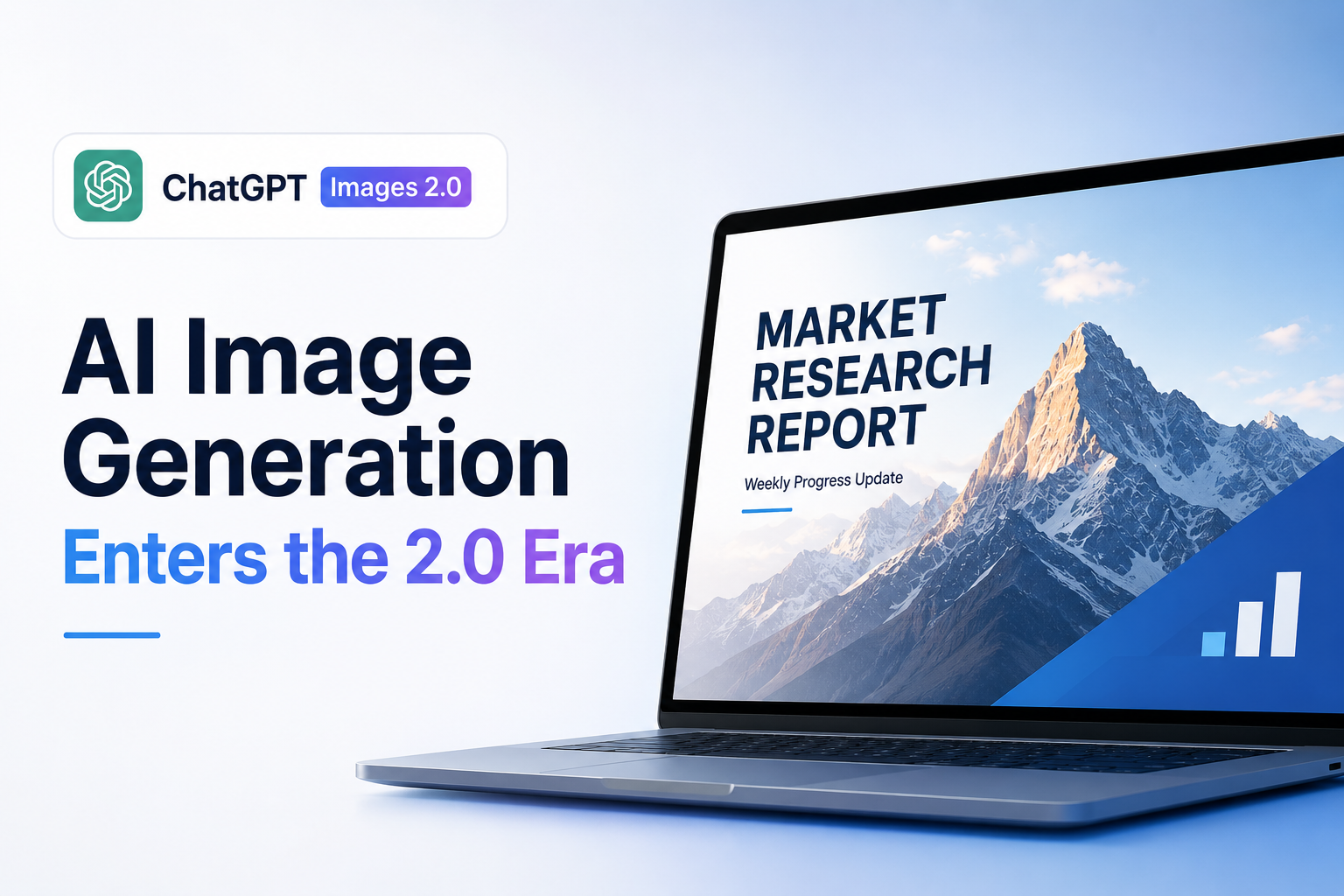
In my workflow, beauty is only half the job. When I am rushing to prep market research for my weekly progress meetings, or coordinating visuals with my team of freelance writers, I don’t have time to fight with an AI over basic formatting. I need clear text, a logical hierarchy, and assets that work on the first or second try.
Instead of just splashing colors on a canvas, this new version actually understands what an image is for. Here are the five biggest shifts I've noticed that finally make AI image generation a reliable part of my daily workflow.
Five Ways ChatGPT Images 2.0 Makes AI Image Generation Actually Useful
1. Text Rendering Is Finally Becoming Useful
If you’ve ever tried to generate an AI poster with actual words on it, you know the struggle. Text has historically been one of the biggest weaknesses of AI-generated images.
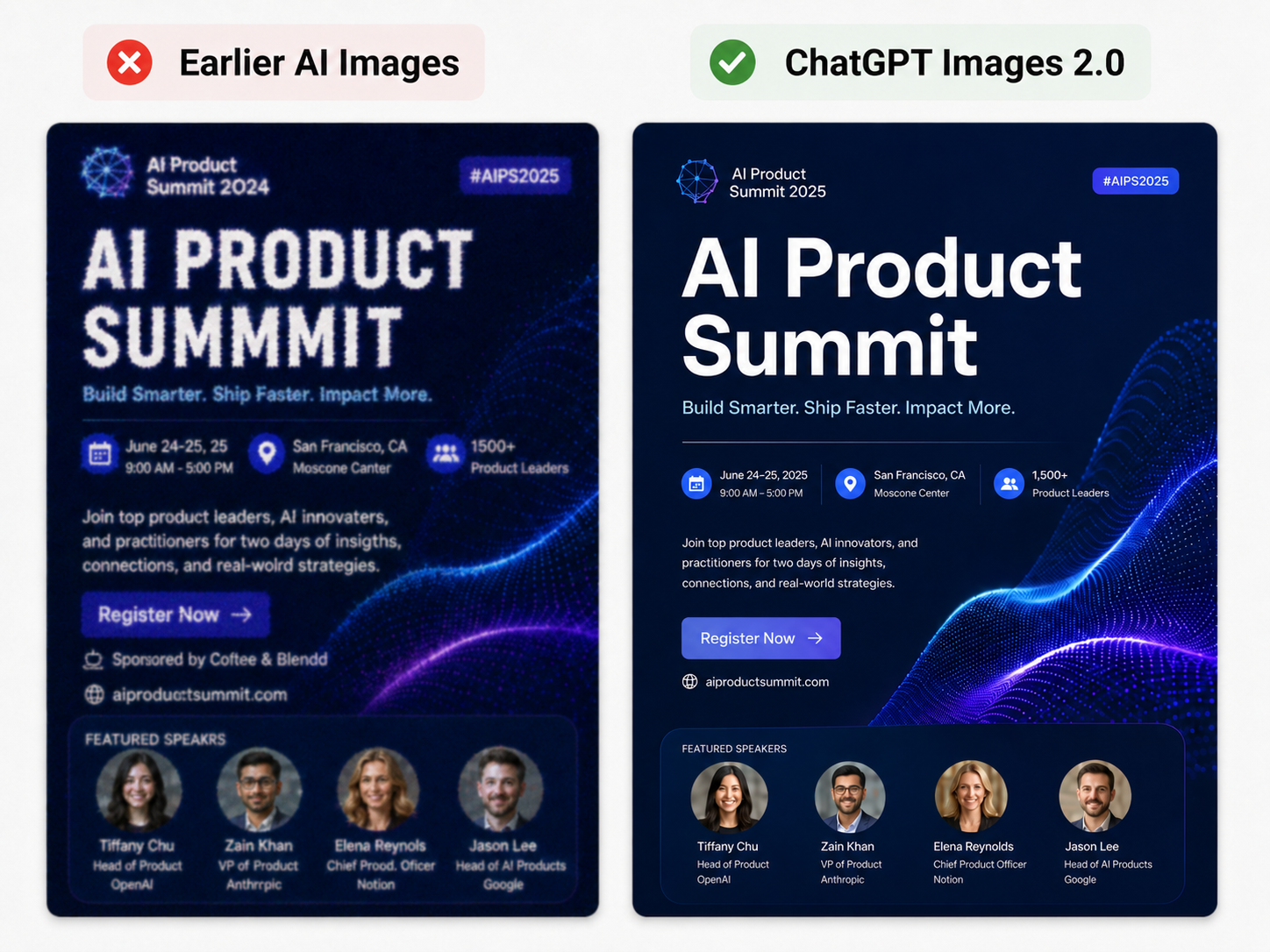
In earlier tools, asking for a simple headline often led to bizarre results. Letters were distorted, words were hilariously misspelled, and non-English characters were practically impossible. Even basic labels turned into unreadable alien languages. Naturally, this made AI-generated images almost impossible to use in real business scenarios.
ChatGPT Images 2.0 changes this experience completely. I’ve found it to be incredibly reliable at rendering readable text inside images, which is an absolute game-changer for things like:
Marketing posters and event banners
Restaurant menus
Social media covers
Presentation title slides
Product promotion images
Infographics and UI-style screenshots
This matters because, in business, text isn't just decoration—it carries the main message. A beautiful poster with unreadable text belongs in the trash; a simple poster with clear, accurate text drives results. For marketers, creators, and team managers, this single improvement is going to save hours of manual editing.
Earlier AI image text rendering and clearer text rendering in ChatGPT Images 2.0
2. It Actually Understands Layout
We've all seen AI-generated visuals that look stunning at first glance but completely fall apart as a functional design. The subject is awkwardly centered, text covers the actual product, or there’s zero visual hierarchy.
ChatGPT Images 2.0 is noticeably better at following specific spatial instructions. You can actually ask it to place a product on the left, reserve breathing room for text on the right, keep the background minimal, and add a headline at the top. It understands these spatial relationships and generates a layout you can actually work with.
For example, instead of a vague prompt like "Create a coffee poster," you can now give the model a real job to do:
"Create a vertical 3:4 social media poster for a new iced latte. Place the product in the lower center. Use a warm beige background with soft morning light. Add the headline “Spring Latte” at the top and a short subtitle below it. Keep the layout clean, modern, and suitable for Instagram."
You aren't just asking for a picture anymore; you are art-directing a usable visual asset.
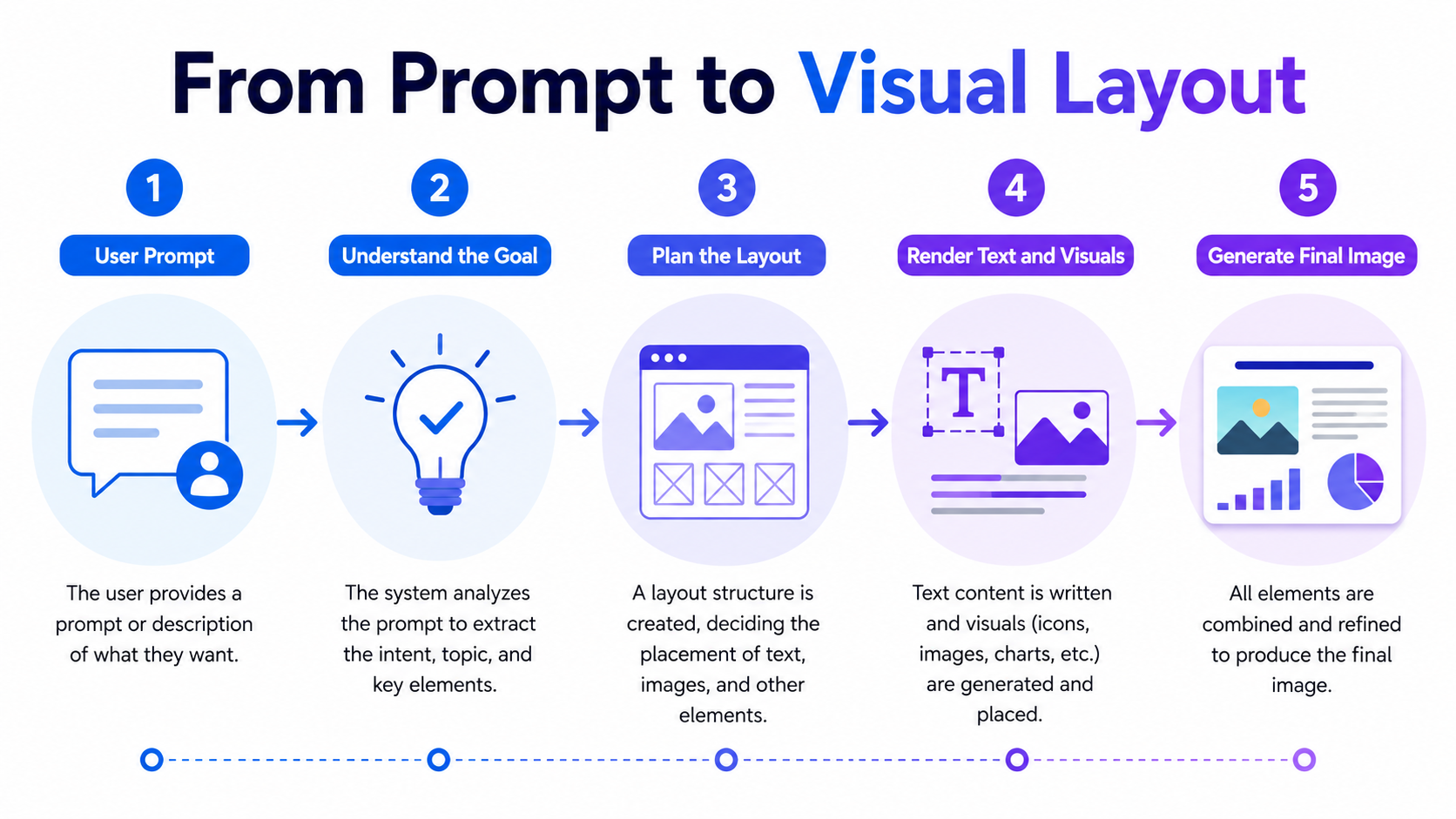
Infographic showing how ChatGPT Images 2.0 turns a prompt into a planned visual layout.
3. Commercial Posters Look Professional, Not Just "Pretty"
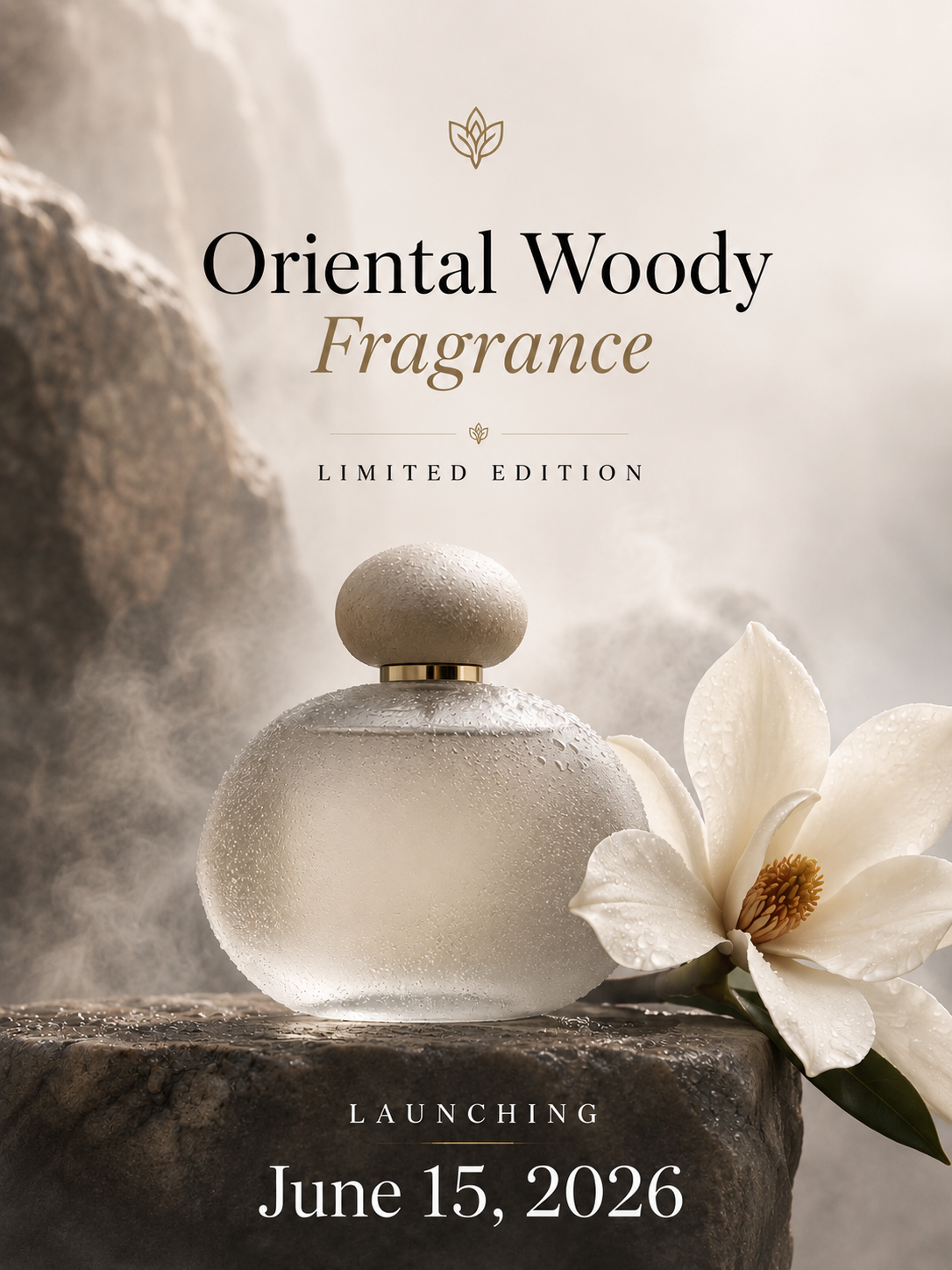
Think about a standard product launch poster. It needs more than just aesthetic appeal—it requires a clear product focus, a headline, subtitle, brand feeling, realistic material textures, and enough negative space for copy.
Earlier AI tools could give you a gorgeous product photo, but if you tried to make it a poster, it felt amateurish. ChatGPT Images 2.0 is built for this. I've been using it to generate highly polished mockups for:
Product launch posters and brand campaigns
Seasonal promotion graphics
Beauty, fashion, and food advertisements
E-commerce banners
For lean teams, this is massive. It doesn't replace the refined eye of a professional designer, but it drastically speeds up the first-draft phase. You can quickly generate several distinct visual directions in minutes, pick the winner, and refine it from there.
ChatGPT Images 2.0 generated luxury perfume poster with clear product focus and readable typography.
4. Infographics and Diagrams Become Practical
Sometimes, you don't just need a pretty picture; you need to explain something complex. This is where AI image generation is moving beyond mere decoration and into actual communication.
In the past, asking an AI for a workflow diagram resulted in overlapping lines, nonsensical structures, and gibberish labels. Now, thanks to the upgraded text and layout logic, you can generate genuinely useful:
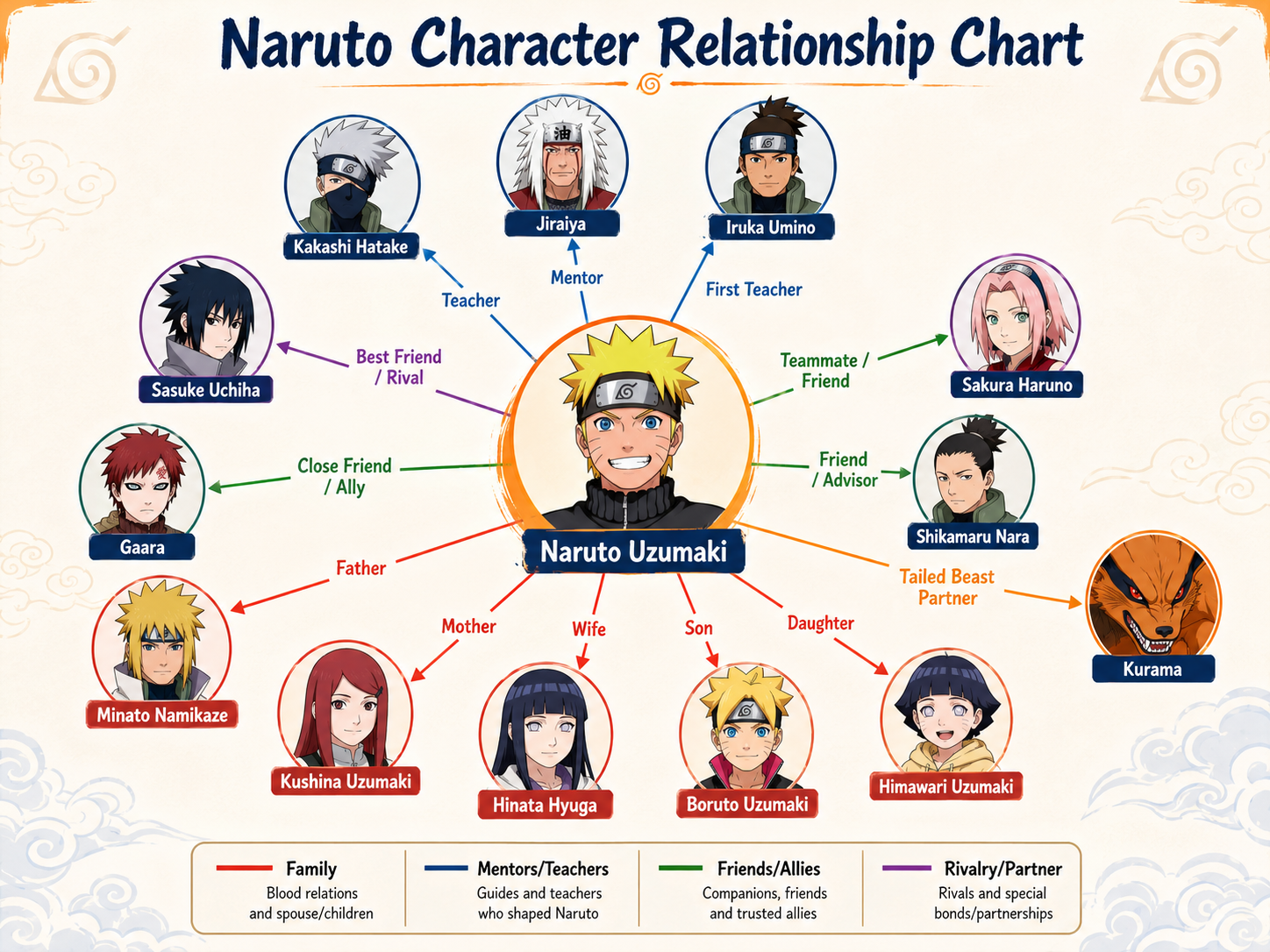
Relationship diagrams and knowledge maps
Workflow visuals and timeline graphics
Product feature diagrams
For consultants, educators, or anyone trying to distill a long document into a visual summary, this is a highly practical upgrade. A complex idea instantly becomes a digestible visual map.
GPT 2.0 generated a character relationship diagram of the main characters in Naruto
5. Consistency Across Multiple Images
Generating one perfect image is great. But in reality, we rarely just need one image.
Whether you are building a brand campaign, drafting presentation visuals, or designing an e-commerce product gallery, you need a visualsystem. Previously, keeping a consistent style, character face, or color palette across multiple generations felt like pulling teeth.
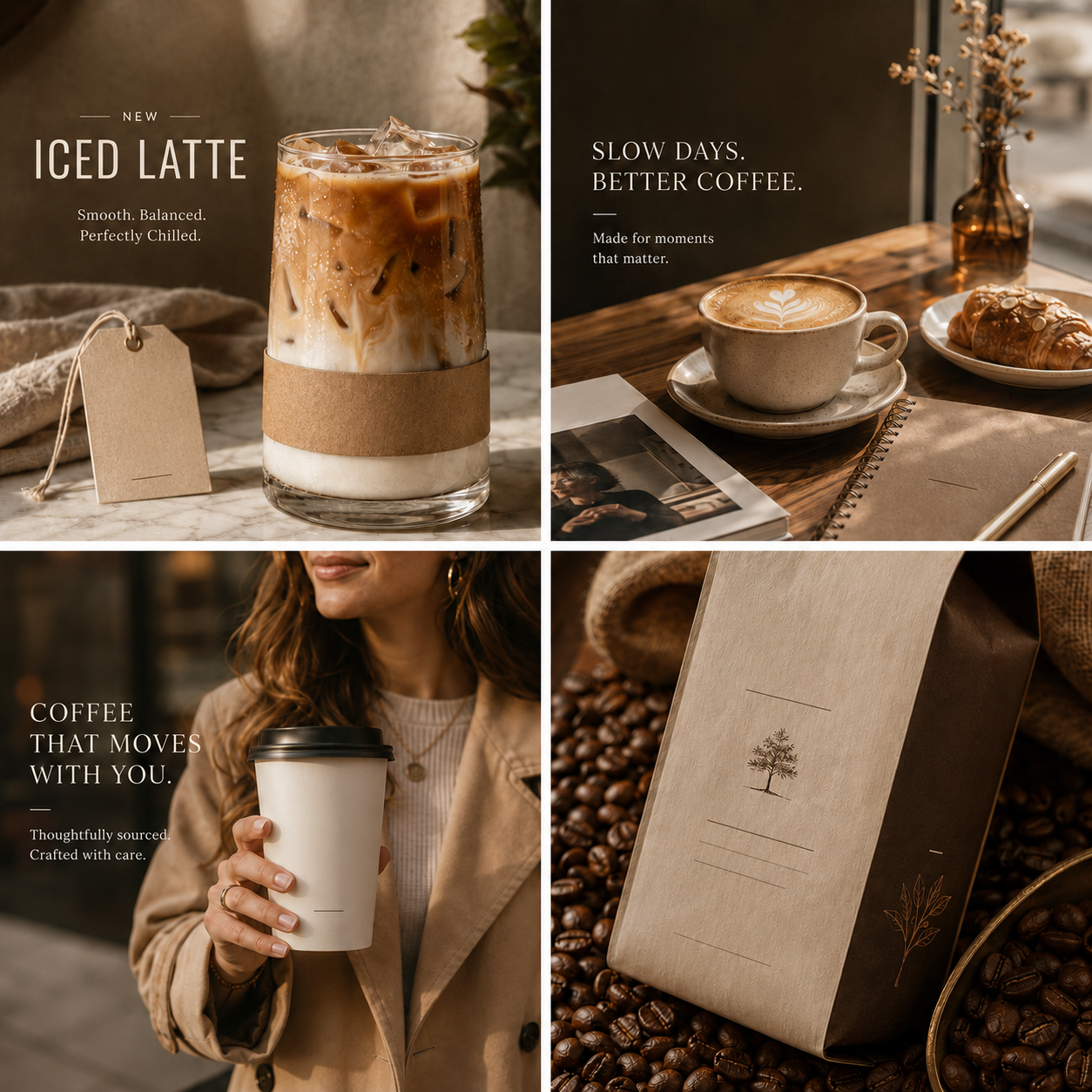
ChatGPT Images 2.0 significantly tightens this up. It is now much easier to create a batch of images that actually look like they belong to the same family. Your online store can have a consistent product gallery. Your course can have a unified set of slides.
When you can rely on consistency, AI image generation stops being a neat trick and finally steps into its role as a serious productivity tool.
Four consistent AI-generated brand visuals for a coffee product campaign.
Image Prompt Trends Worth Trying Right Now
Beyond productivity and business design, ChatGPT Images 2.0 is also shaping how people play with identity, nostalgia, and storytelling online. The most viral prompts are not just about making a polished picture. They usually start with a personal detail, a specific visual flaw, or a scene that feels impossible to shoot in real life. Here are three prompt styles that fit especially well with the strengths discussed above.
1. The “Roast Me” Caricature
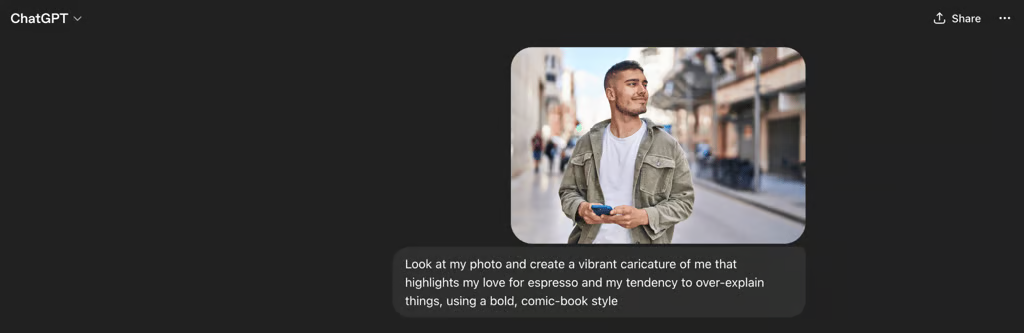
This trend turns the model into a visual comedian. Instead of asking for a generic cartoon version of yourself, users invite ChatGPT to exaggerate small personality clues from previous conversations and turn them into a playful parody. When it works, the result feels less like a filter and more like a joke made by someone who actually knows your habits.
Why it works: It combines personalization with humor, which makes the final image feel shareable, specific, and surprisingly accurate.
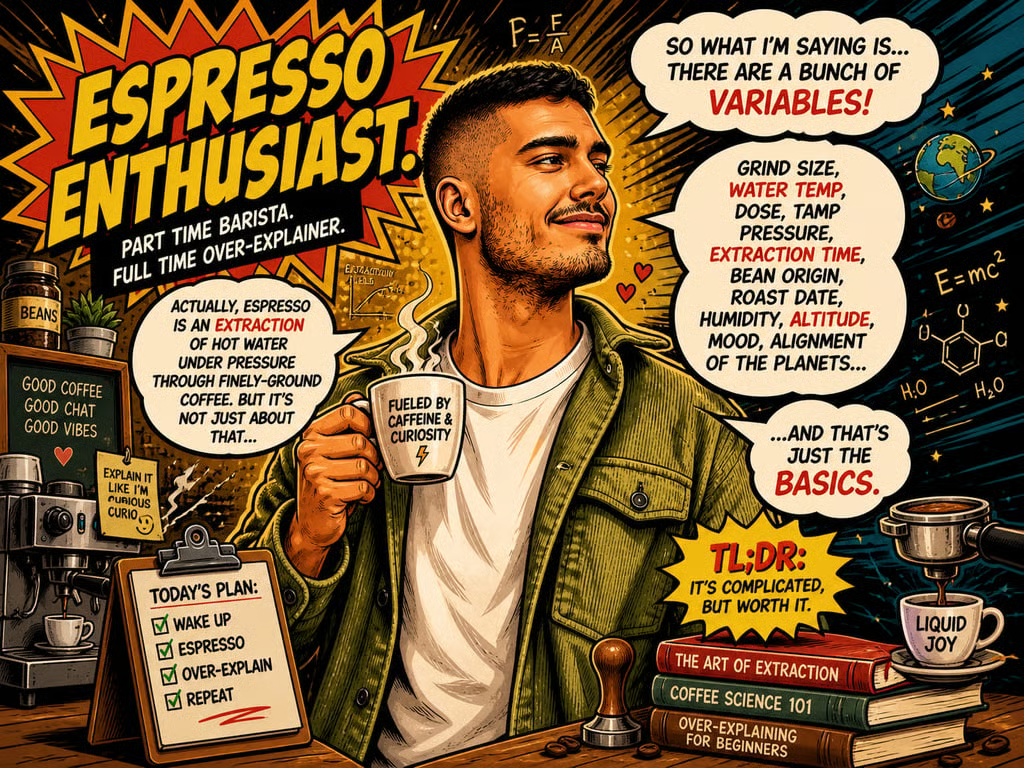
Prompt: “Look at my photo and create a vibrant caricature of me that highlights my love for espresso and my tendency to over-explain things, using a bold, comic-book style.”
2. The Anti-AI Aesthetic: Authentic Imperfection
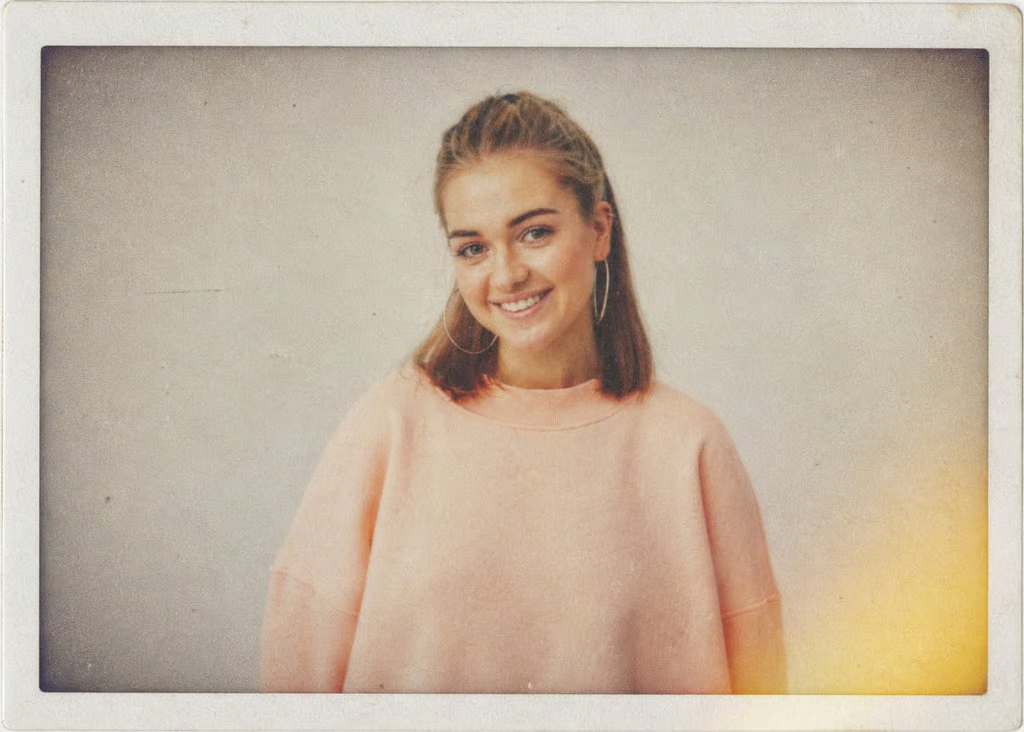
After a long wave of glossy, over-polished AI visuals, many creators are now moving in the opposite direction. They deliberately ask for grain, blur, faded color, light leaks, and small imperfections so the image feels less machine-made. This style works especially well for lifestyle photos, creator portraits, album-cover concepts, and social posts that need a more emotional, lived-in mood.
Why it works: It recreates the accidental charm of film photography and gives digital images a warmer, more human feeling.
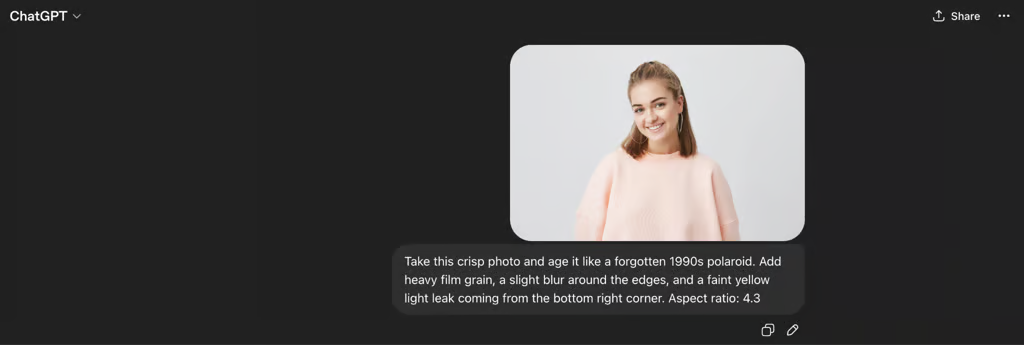
Prompt: “Take this crisp photo and age it like a forgotten 1990s Polaroid. Add heavy film grain, a slight blur around the edges, and a faint yellow light leak coming from the bottom right corner.”
3. Cinematic History Hopping
This prompt style is popular because it does more than swap a background. A strong image model can adjust clothing, lighting, material texture, and atmosphere so the subject actually belongs in another era. That makes it useful for educators, history channels, storytellers, and anyone who wants to turn a regular portrait into a scene with cinematic context.
Why it works: It feels more immersive than a simple costume edit because the whole scene supports the time period.
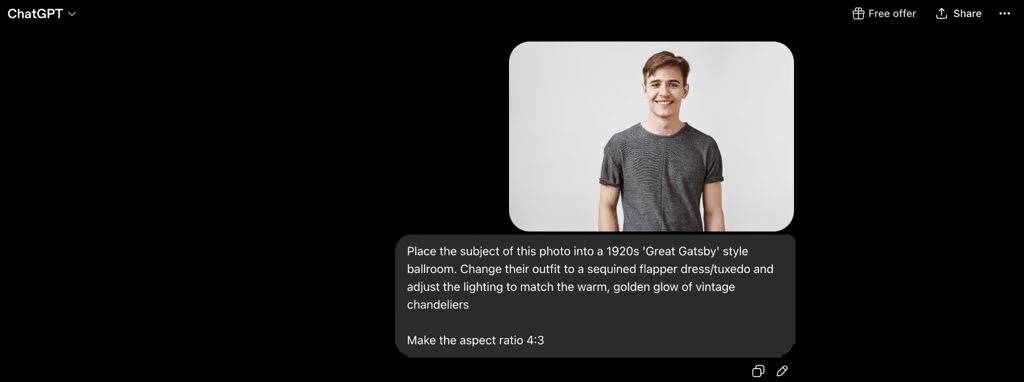
Prompt: “Place the subject of this photo into a 1920s ‘Great Gatsby’ style ballroom. Change their outfit to a sequined flapper dress/tuxedo and adjust the lighting to match the warm, golden glow of vintage chandeliers.”
How to Use ChatGPT Images 2.0?
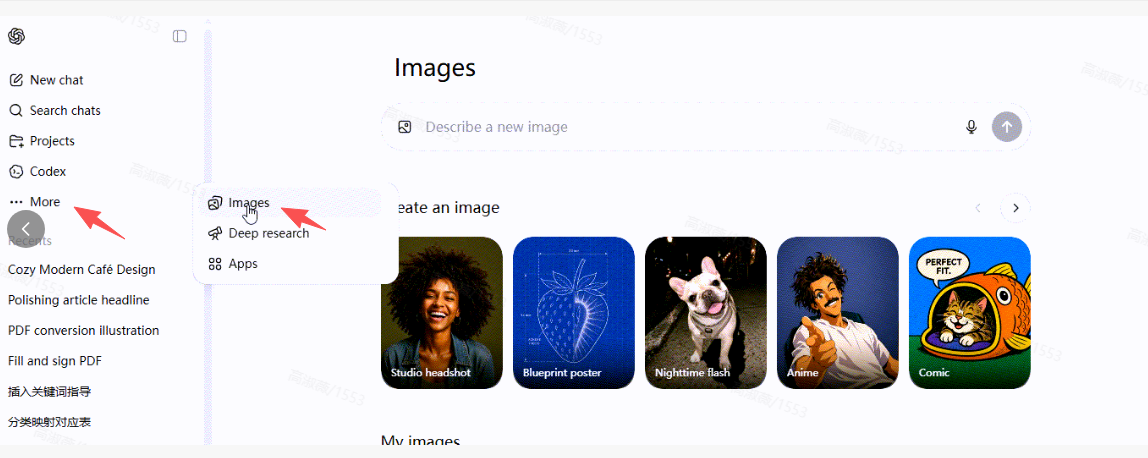
Step 1: Access ChatGPT Images 2.0 and Open the Image Generator
Open browser and go to the ChatGPT website: https://chatgpt.com/, then log in. Click on “More” and “Image”.
Access ChatGPT Images 2.0
Step 2: Write a Clear Prompt & Generate
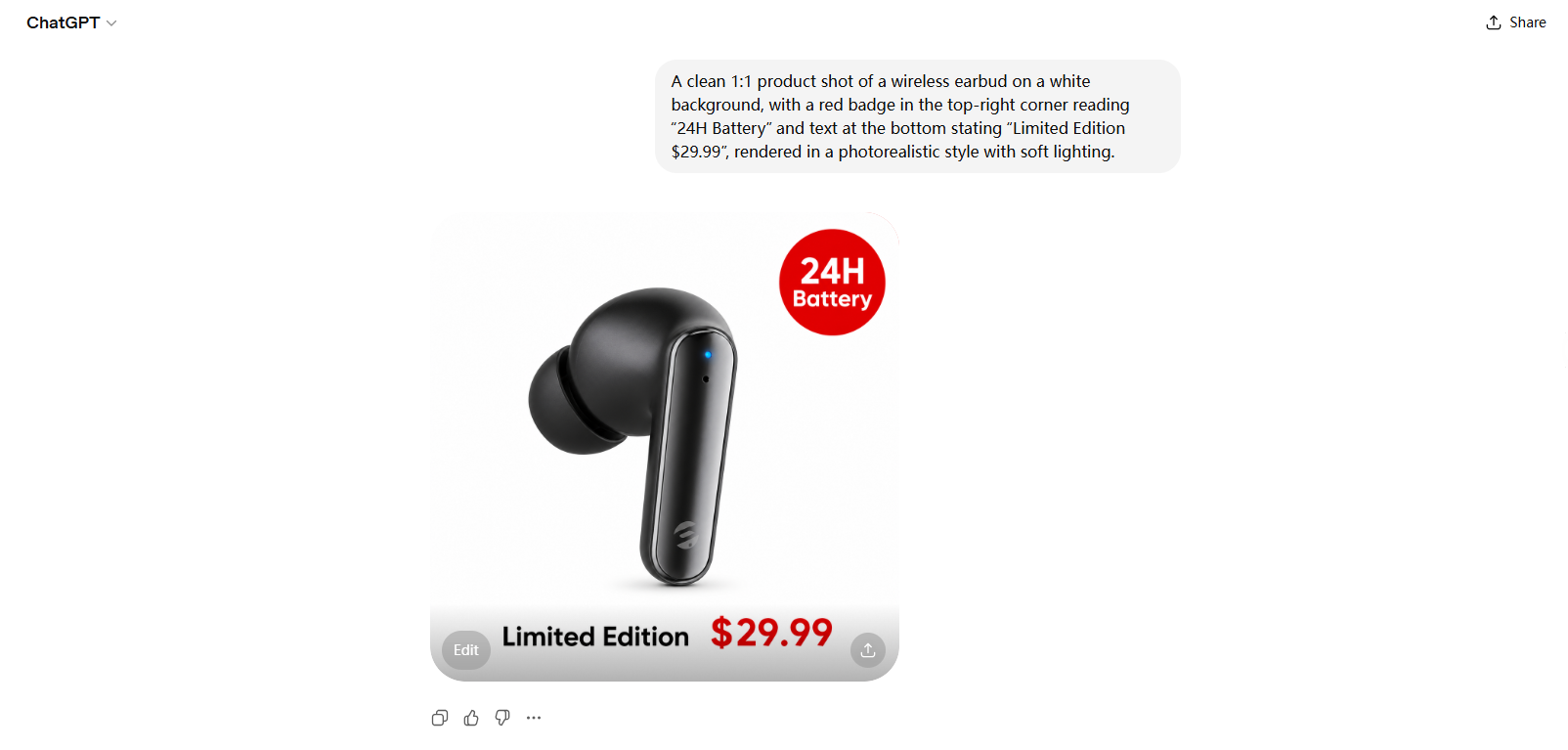
A clear prompt Include subject + scene + style + text + composition for best results.
Example: A clean 1:1 product shot of a wireless earbud on a white background, top-right red badge with "24H Battery," bottom text "Limited Edition $29.99," photorealistic, soft lighting.
Please wait a moment and the image is being generated.
Write a prompt and generate the image
Step 3: Edit & Export
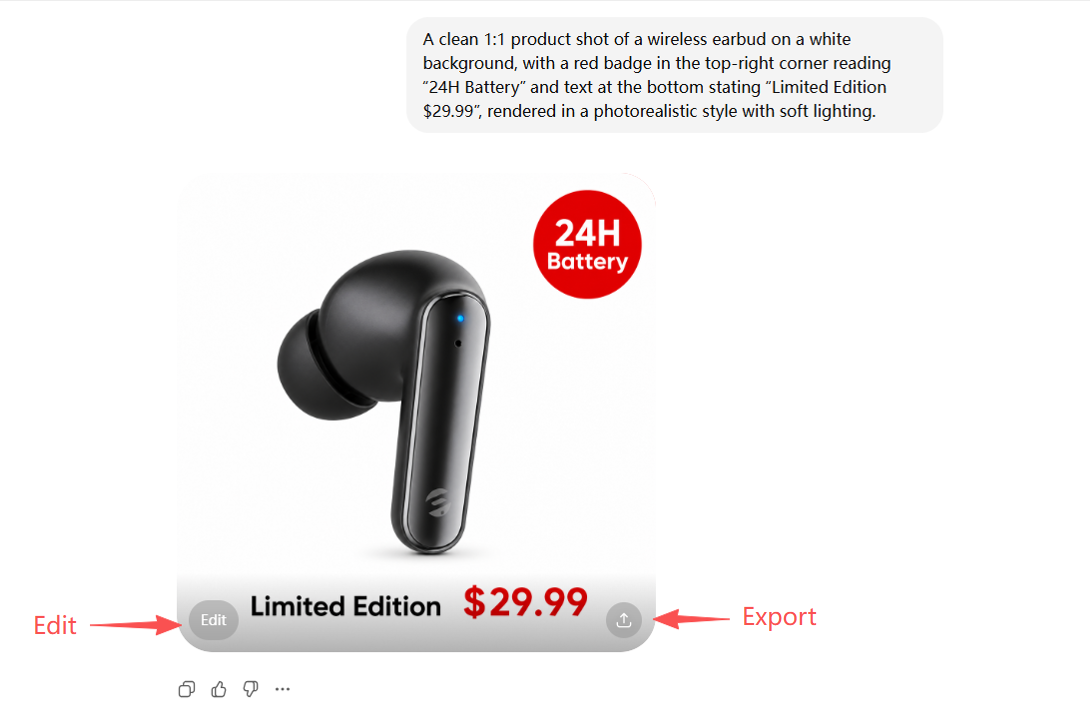
Click on the generated image to open the editing panel, where you can adjust the aspect ratio , make localised optimisations (e.g., "Make the text bigger"), or generate a new image.
Edit and export the image
A Quick Side Note: OpenAI Codex Shows Where AI Productivity Is Heading
While ChatGPT Images 2.0 makes visual work feel more usable, OpenAI Codex points to the same shift on the coding side. Codex is not really about asking for a cute code snippet and hoping it runs. It is built more like a software engineering agent that can read a codebase, make edits, run tests, explain unfamiliar logic, and help prepare changes for review.
What I like about this idea is that it matches the way real work actually happens. A small website update is rarely just one line of code. You need to check the existing structure, adjust the copy or layout, avoid breaking old pages, and sometimes fix little bugs you only notice after testing. Codex makes that process feel less like starting from zero and more like delegating a clear task to a technical teammate.
For creators and marketers, this matters even if we are not full-time developers. Landing pages, campaign microsites, tracking scripts, and product docs all sit somewhere between content and code now. Image generation handles the visual layer. Codex helps with the build layer. Together, they show where AI tools are going: not just producing outputs, but helping move an idea from rough draft to something people can actually use.
Beyond Standalone Tools: Why I Switched to WPS AI for an All-in-One Flow
Creating the perfect image is a huge win, but let's be honest—my workflow rarely stops at a standalone graphic. Usually, that image needs to drop into a slide deck for my weekly progress meetings, or get embedded into a brief for my team of freelance writers.
Bouncing between a dedicated image generator, a word processor, and a presentation app used to completely break my focus. It usually required juggling multiple premium subscriptions, too. I realized I didn't just need a better image tool; I needed a cohesive ecosystem. That’s where I stumbled onto WPS AI Copilot, and it honestly changed how I manage my daily deliverables.
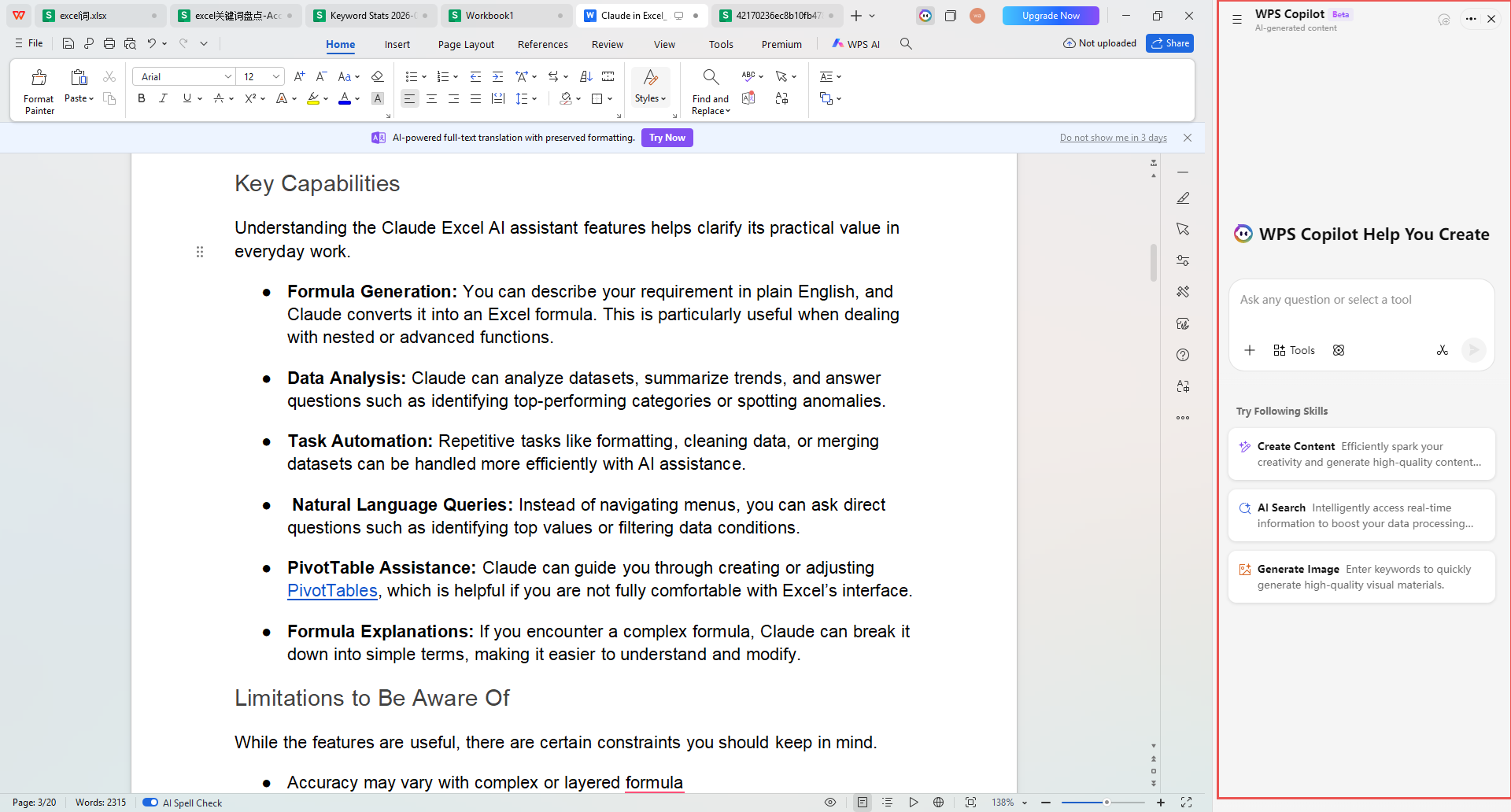
WPS AI Copilot
If you’ve ever felt that same exhaustion from constant context-switching, here is how bringing everything into one ecosystem completely smoothed out my daily routine:
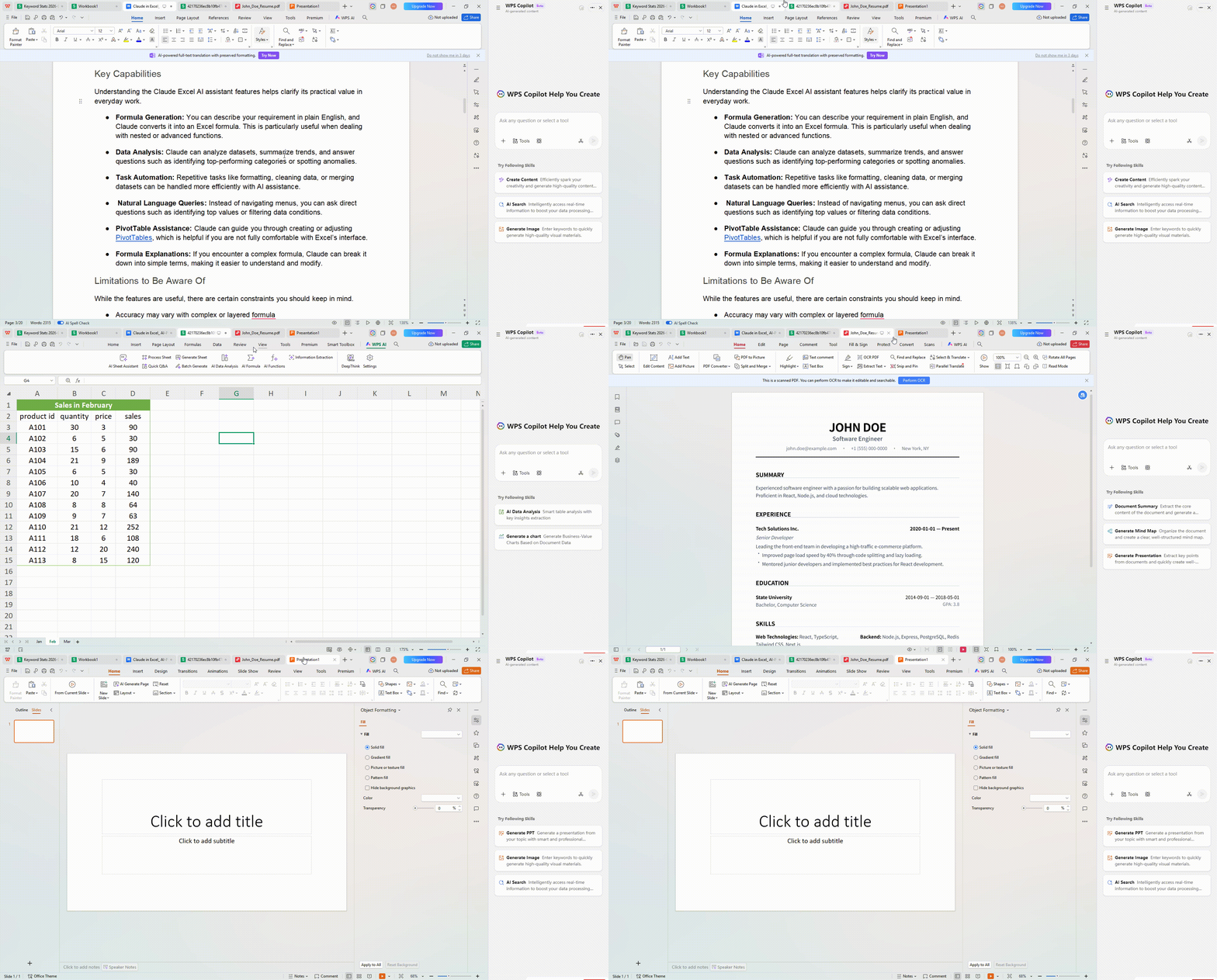
1. An AI That Actually Lives Where You Work I used to get so frustrated constantly copying and pasting text from a browser window into my documents. It felt incredibly clunky and disruptive. In WPS Office, the AI isn't some detached chatbot living in a separate tab; it’s baked right into the Docs, Slides, Sheets, and PDFs I'm already using. It feels less like a tacked-on accessory and more like a smart collaborator sitting right beside me as I draft.
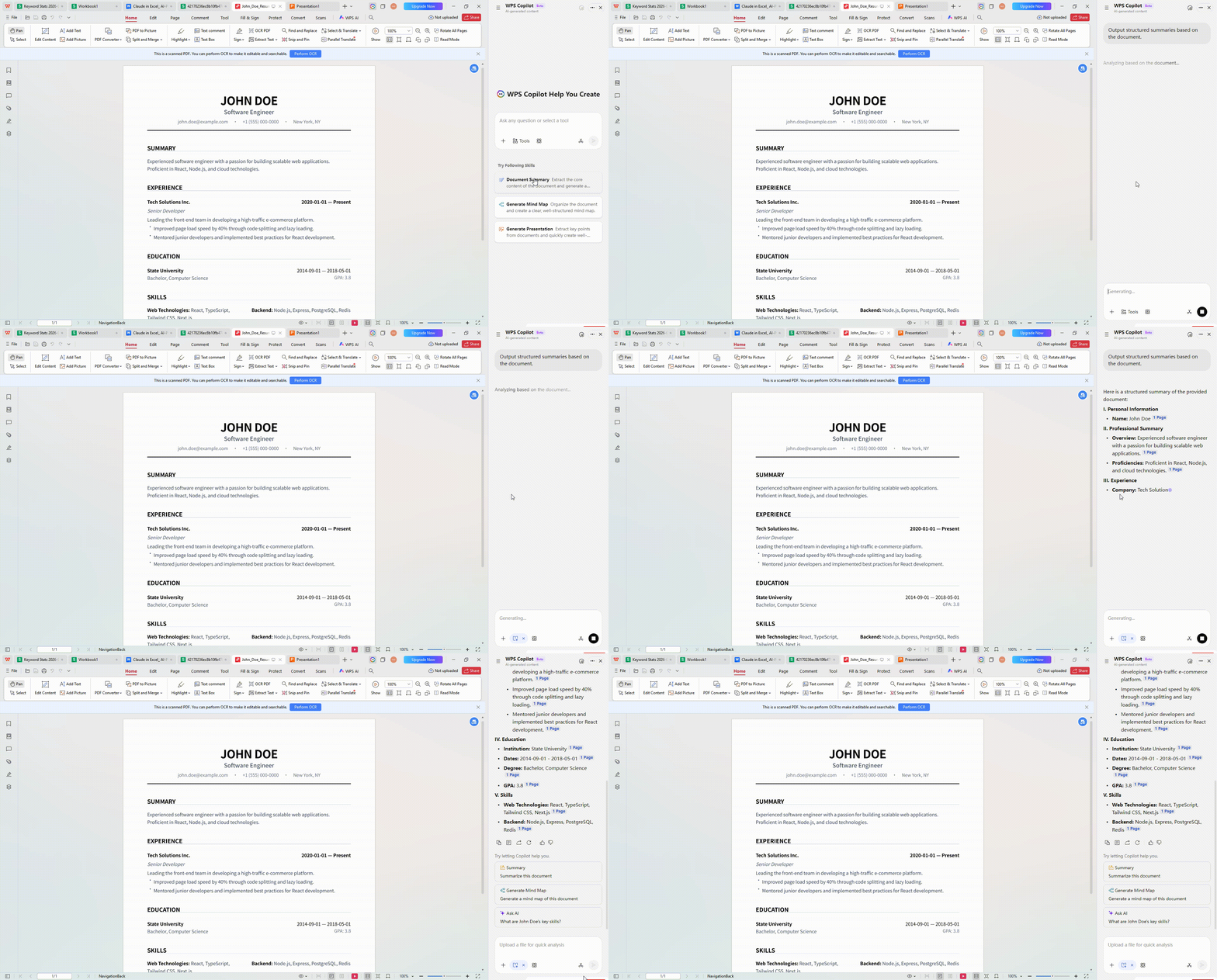
2. Finally, a PDF Reader That Pulls Its Weight We’ve all experienced the headache of receiving a locked, text-heavy PDF when you desperately need to extract data for a market research report. While a lot of standard word processor plugins tend to struggle with fixed formats, WPS AI handles them beautifully. I can ask it to summarize a dense 50-page report, pull out specific data points, or even help rewrite sections directly from scanned documents. It takes the friction completely out of the research phase.
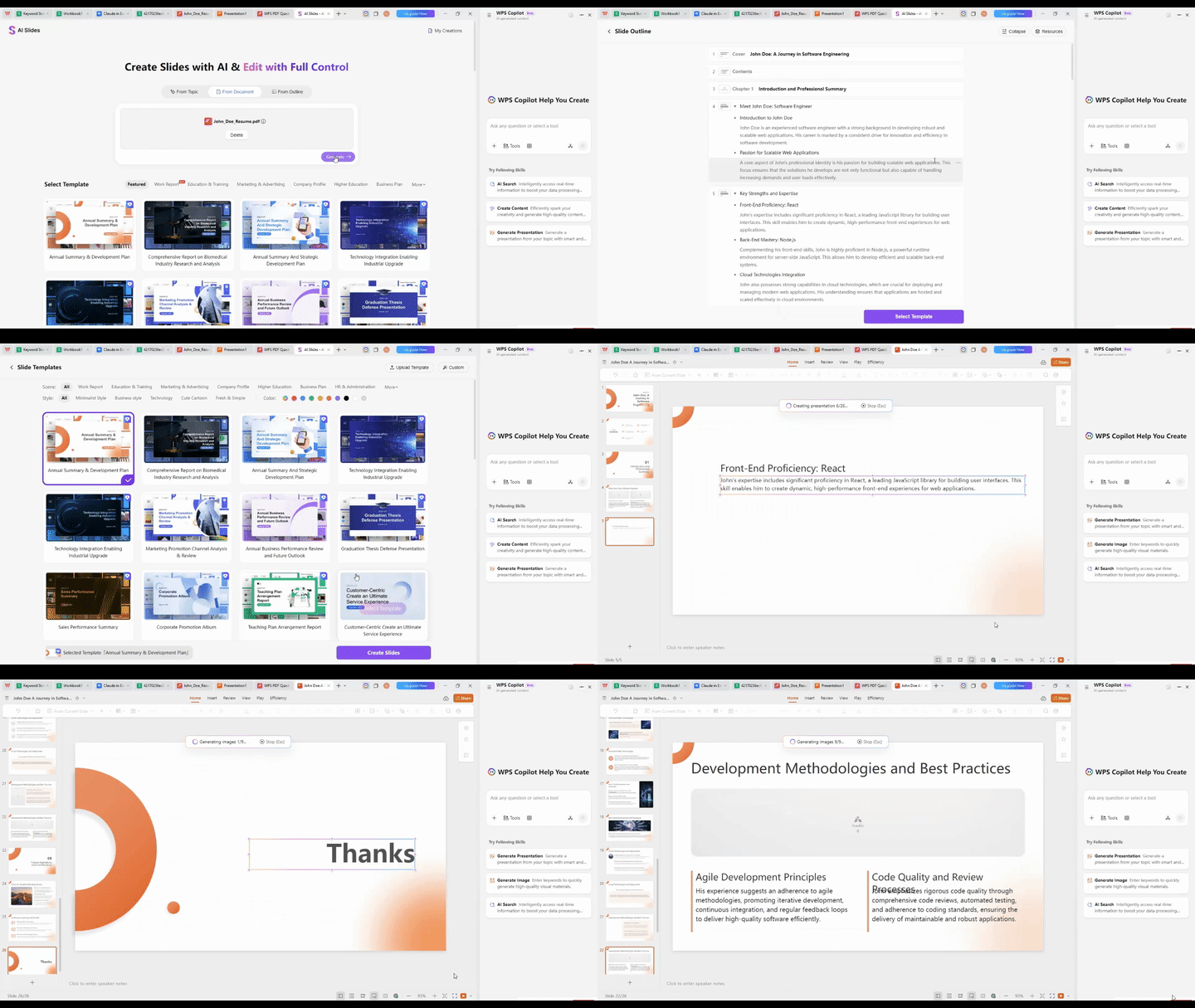
3. From Document to Deck in Seconds This is perhaps my favorite little piece of magic. There are days when I’ve written out a comprehensive plan, but suddenly realize I need to present it visually. Instead of spending two hours manually building slides and aligning text boxes, WPS AI can generate an entire presentation deck directly from my Word content almost instantly. It’s the kind of seamless creative flow that other popular AI assistants haven't quite mastered yet, saving me from so much eleventh-hour panic.
15 years of office industry experience, tech lover and copywriter. Follow me for product reviews, comparisons, and recommendations for new apps and software.


'%3e%3cpath%20d='M8%200C12.4183%200%2016%203.58172%2016%208C16%2012.4183%2012.4183%2016%208%2016C3.58172%2016%200%2012.4183%200%208C0%203.58172%203.58172%200%208%200ZM11.6162%204.38379C11.2257%203.99337%2010.5927%203.99338%2010.2021%204.38379L8%206.58594L5.79785%204.38379C5.40732%203.99334%204.77429%203.99329%204.38379%204.38379C3.99331%204.77429%203.99335%205.40733%204.38379%205.79785L6.58594%208L4.38379%2010.2021C3.99348%2010.5927%203.99341%2011.2257%204.38379%2011.6162C4.77426%2012.0066%205.40734%2012.0065%205.79785%2011.6162L8%209.41406L10.2021%2011.6162C10.5927%2012.0066%2011.2257%2012.0067%2011.6162%2011.6162C12.0067%2011.2257%2012.0066%2010.5927%2011.6162%2010.2021L9.41406%208L11.6162%205.79785C12.0066%205.40735%2012.0066%204.77429%2011.6162%204.38379Z'%20fill='%23080E17'%20fill-opacity='0.46'/%3e%3c/g%3e%3cdefs%3e%3cclipPath%20id='clip0_3761_713'%3e%3crect%20width='16'%20height='16'%20fill='white'/%3e%3c/clipPath%3e%3c/defs%3e%3c/svg%3e)



'%3e%3cpath%20fill-rule='evenodd'%20clip-rule='evenodd'%20d='M21.4999%2010.9993C21.4999%205.20009%2016.7986%200.498901%2010.9993%200.498901C5.19994%200.498901%200.498657%205.20009%200.498657%2010.9993C0.498657%2016.2404%204.33858%2020.5844%209.35855%2021.3722V14.0346H6.69238V10.9993H9.35855V8.68594C9.35855%206.05427%2010.9262%204.60062%2013.3248%204.60062C14.4736%204.60062%2015.6753%204.80571%2015.6753%204.80571V7.38979H14.3512C13.0468%207.38979%2012.64%208.19921%2012.64%209.0296V10.9993H15.5523L15.0867%2014.0346H12.64V21.3722C17.66%2020.5844%2021.4999%2016.2404%2021.4999%2010.9993Z'%20fill='%231568EA'/%3e%3c/g%3e%3c/svg%3e)


'%3e%3cpath%20d='M2.42045%2022.1876H6.31818V12.7217L0.75%208.54553V20.5171C0.75%2021.4414%201.49892%2022.1876%202.42045%2022.1876Z'%20fill='%234285F4'/%3e%3cpath%20d='M19.682%2022.1876H23.5797C24.5041%2022.1876%2025.2502%2021.4387%2025.2502%2020.5171V8.54553L19.682%2012.7217'%20fill='%2334A853'/%3e%3cpath%20d='M19.682%205.48293V12.7216L25.2502%208.54543V6.31816C25.2502%204.25236%2022.8921%203.07469%2021.2411%204.31361'%20fill='%23FBBC04'/%3e%3cpath%20d='M6.31824%2012.7217V5.48303L13.0001%2010.4944L19.6819%205.48303V12.7217L13.0001%2017.733'%20fill='%23EA4335'/%3e%3cpath%20d='M0.75%206.31816V8.54543L6.31818%2012.7216V5.48293L4.75909%204.31361C3.10534%203.07469%200.75%204.25236%200.75%206.31816Z'%20fill='%23C5221F'/%3e%3c/g%3e%3cdefs%3e%3cclipPath%20id='clip0_2954_7305'%3e%3crect%20width='24.5'%20height='18.375'%20fill='white'%20transform='translate(0.75%203.8125)'/%3e%3c/clipPath%3e%3c/defs%3e%3c/svg%3e)




'%3e%3cpath%20d='M19.9911%204.11386V6.471H18.5894C18.0775%206.471%2017.7322%206.57814%2017.5536%206.79243C17.3751%207.00671%2017.2858%207.32814%2017.2858%207.75671V9.44421H19.9019L19.5536%2012.0871H17.2858V18.8639H14.5536V12.0871H12.2769V9.44421H14.5536V7.49779C14.5536%206.39064%2014.8632%205.53201%2015.4822%204.92189C16.1013%204.31177%2016.9257%204.00671%2017.9554%204.00671C18.8304%204.00671%2019.509%204.04243%2019.9911%204.11386Z'%20fill='%23333333'/%3e%3c/g%3e%3cdefs%3e%3cclipPath%20id='clip0_2938_8199'%3e%3crect%20width='16'%20height='16'%20fill='white'%20transform='translate(8%204.00671)'/%3e%3c/clipPath%3e%3c/defs%3e%3c/svg%3e)
'%3e%3cpath%20d='M17.5237%2010.7813L23.4811%204H22.0699L16.8949%209.88693L12.7648%204H8L14.2469%2012.9029L8%2020.0133H9.4112L14.8725%2013.7952L19.2352%2020.0133H24M9.92053%205.04213H12.0885L22.0688%2019.0224H19.9003'%20fill='%23333333'/%3e%3c/g%3e%3cdefs%3e%3cclipPath%20id='clip0_2938_8200'%3e%3crect%20width='16'%20height='16.0134'%20fill='white'%20transform='translate(8%204)'/%3e%3c/clipPath%3e%3c/defs%3e%3c/svg%3e)


