


'%3e%3cpath%20fill-rule='evenodd'%20clip-rule='evenodd'%20d='M21.4999%2010.9993C21.4999%205.20009%2016.7986%200.498901%2010.9993%200.498901C5.19994%200.498901%200.498657%205.20009%200.498657%2010.9993C0.498657%2016.2404%204.33858%2020.5844%209.35855%2021.3722V14.0346H6.69238V10.9993H9.35855V8.68594C9.35855%206.05427%2010.9262%204.60062%2013.3248%204.60062C14.4736%204.60062%2015.6753%204.80571%2015.6753%204.80571V7.38979H14.3512C13.0468%207.38979%2012.64%208.19921%2012.64%209.0296V10.9993H15.5523L15.0867%2014.0346H12.64V21.3722C17.66%2020.5844%2021.4999%2016.2404%2021.4999%2010.9993Z'%20fill='%231568EA'/%3e%3c/g%3e%3c/svg%3e)


'%3e%3cpath%20d='M2.42045%2022.1876H6.31818V12.7217L0.75%208.54553V20.5171C0.75%2021.4414%201.49892%2022.1876%202.42045%2022.1876Z'%20fill='%234285F4'/%3e%3cpath%20d='M19.682%2022.1876H23.5797C24.5041%2022.1876%2025.2502%2021.4387%2025.2502%2020.5171V8.54553L19.682%2012.7217'%20fill='%2334A853'/%3e%3cpath%20d='M19.682%205.48293V12.7216L25.2502%208.54543V6.31816C25.2502%204.25236%2022.8921%203.07469%2021.2411%204.31361'%20fill='%23FBBC04'/%3e%3cpath%20d='M6.31824%2012.7217V5.48303L13.0001%2010.4944L19.6819%205.48303V12.7217L13.0001%2017.733'%20fill='%23EA4335'/%3e%3cpath%20d='M0.75%206.31816V8.54543L6.31818%2012.7216V5.48293L4.75909%204.31361C3.10534%203.07469%200.75%204.25236%200.75%206.31816Z'%20fill='%23C5221F'/%3e%3c/g%3e%3cdefs%3e%3cclipPath%20id='clip0_2954_7305'%3e%3crect%20width='24.5'%20height='18.375'%20fill='white'%20transform='translate(0.75%203.8125)'/%3e%3c/clipPath%3e%3c/defs%3e%3c/svg%3e)


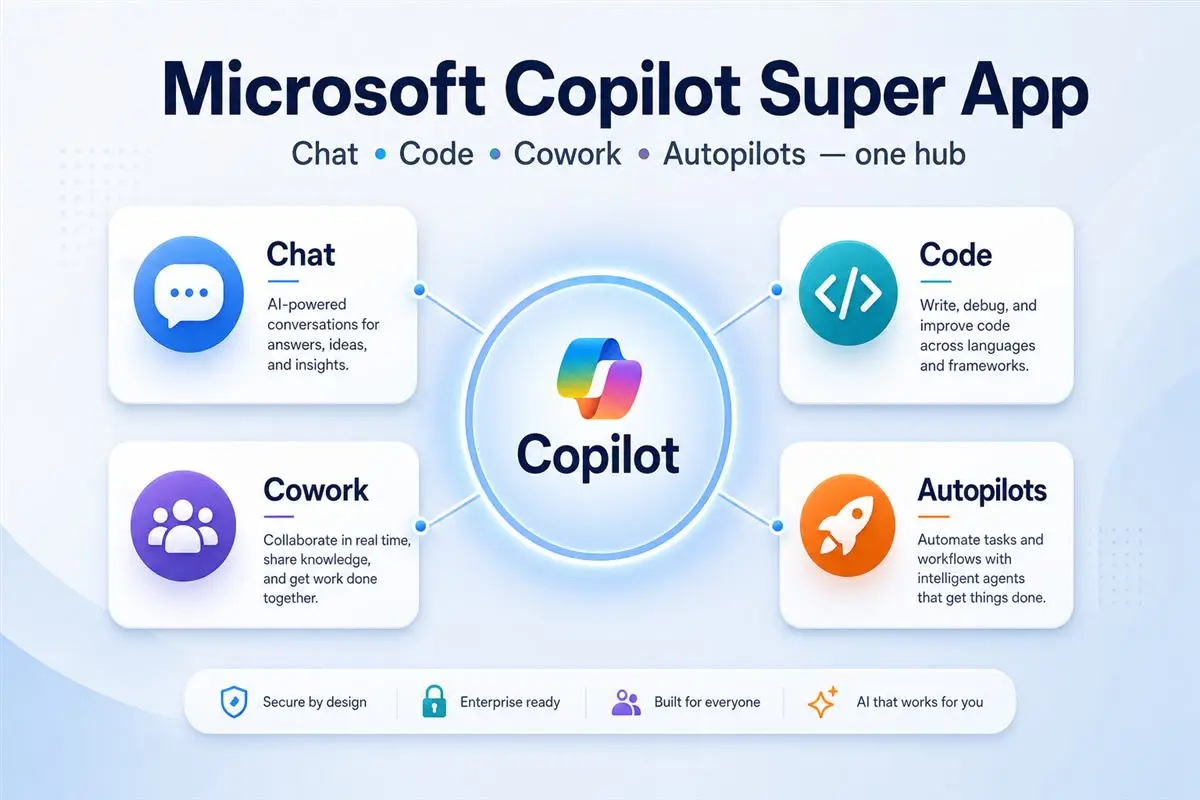
Quick answer: Treat the Super App as one Copilot hub. Start in Chat for writing and Q&A, switch to Code for software help, use Cowork for multi-step research and drafting, and reserve Autopilots for longer handoffs you still review before anything is sent or published.
Microsoft has confirmed it is bringing these experiences together across consumer and commercial surfaces. Packaging, pricing, and rollout timing can still change by account, region, and admin policy—so use this as a practical guide to the product direction and the habits that work once it lands for you.
What Is Microsoft Copilot Super App?
For years, “Copilot” meant different things in different places: Windows chat, Microsoft 365 document help, coding assistance, and newer agent-style workflows. That ecosystem is powerful, but it creates friction if you just want one place to start.
The Microsoft Copilot Super App is Microsoft’s unified Copilot workspace. In plain English, it combines four lanes users already recognize:
Chat — conversation, drafting, rewriting, summarization
Code — writing, explaining, and debugging software
Cowork — structured, multi-step collaboration with AI
Autopilots — longer agent-style tasks with less constant prompting
The strategic idea is consistency: one front door for a student writing an essay, a marketer summarizing research, a developer cleaning up a function, or a team handing off a longer workflow.
Why Microsoft is building a “super app”
Tool-switching fatigue. Re-explaining context across chat, code, and agents wastes time.
Competition in AI workspaces. Other platforms are also consolidating chat, coding, and agents into fewer surfaces.
Enterprise governance. Longer agent jobs need clearer identity, permissions, and audit trails—easier to communicate from one hub.
Caveat: confirmed direction is not the same as “every feature is live on every account today.” During rollout, you may still enter through Windows Copilot, the web experience, or Microsoft 365 while Super App packaging finishes shipping.
The Four Building Blocks Explained
1. Chat: your everyday starting point
Chat is the mode most people already understand. Use it to brainstorm outlines, rewrite emails, summarize notes or transcripts, and turn rough bullets into a first draft.
Weak prompt: “Make this better.” Strong prompt: “Rewrite this for a busy manager in under 120 words, keep the Friday deadline, and remove jargon.”
2. Code: help for builders and technical workflows
Code is Copilot’s software lane—useful even if you are not a full-time engineer. Typical jobs: explain a function in plain English, generate a starter script or test, suggest safer validation patterns, or refactor messy code.
Treat Code output like a junior teammate’s pull request: useful, but not automatically trusted. Run it, review edge cases, and keep secrets out of prompts.
3. Cowork: multi-step work with more structure
Cowork fits tasks bigger than one prompt that still need your judgment along the way—for example, research three vendors and draft a recommendation memo, expand an outline section by section, or turn meeting notes into decisions, owners, and follow-up emails.
The difference from Chat is process: you walk through stages with checkpoints, not just one Q&A turn.
4. Autopilots: longer handoffs with less babysitting
Autopilots point toward agent-style work: you set a goal, the system keeps moving, and you review the result. Use them when “done” is clear, you can provide the needed files/context, and you still have time to review before anything is shared or published.
Do not use Autopilots as a substitute for accountability. If output goes to a client, a regulator, or production, a human still owns the final call.
What You Can Use It For Day to Day
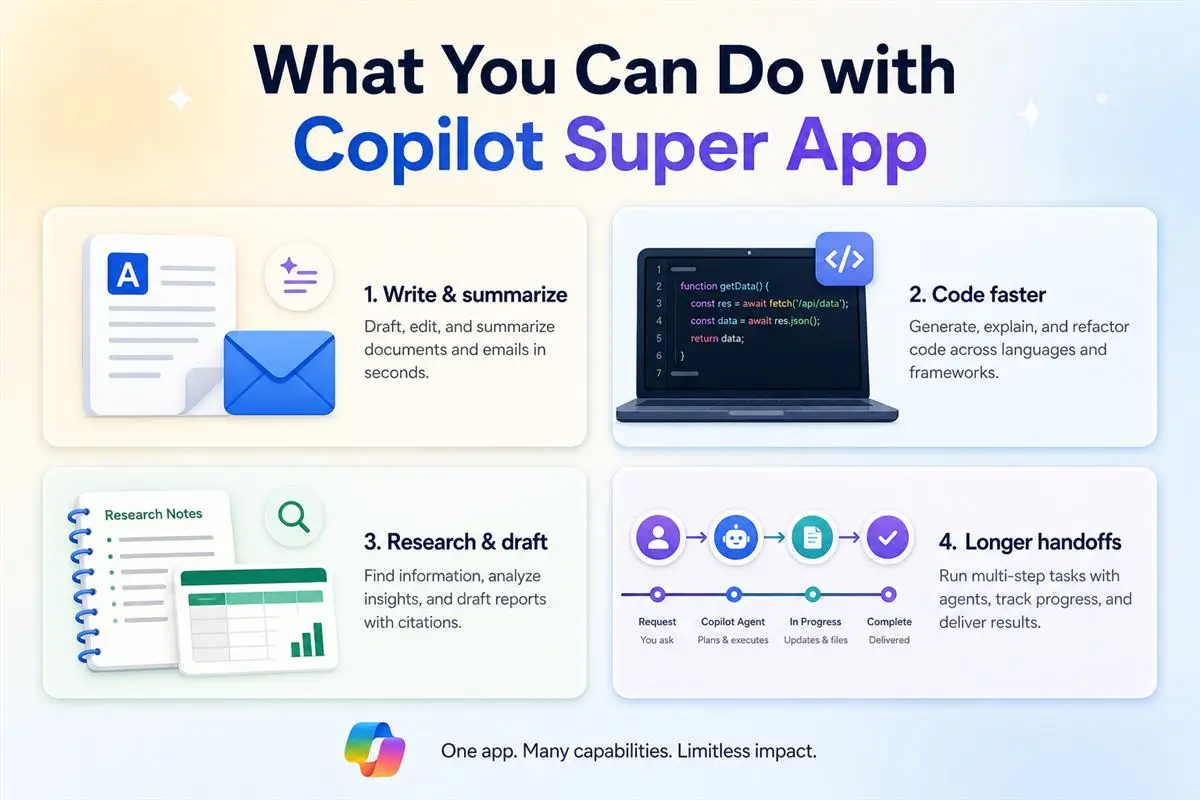
Knowledge work: summarize research, draft briefs, create FAQs, clean up long email threads
Meetings: turn transcripts into decisions, owners, risks, and next steps
Software delivery: explain legacy code, generate boilerplate, draft test cases
Operations: convert messy notes into checklists, SOPs, or status updates
Learning: ask for step-by-step explanations, then request a short cheatsheet
Mental model: Chat for speed, Code for technical depth, Cowork for structured projects, Autopilots for longer delegated runs.
How to Use Microsoft Copilot Super App
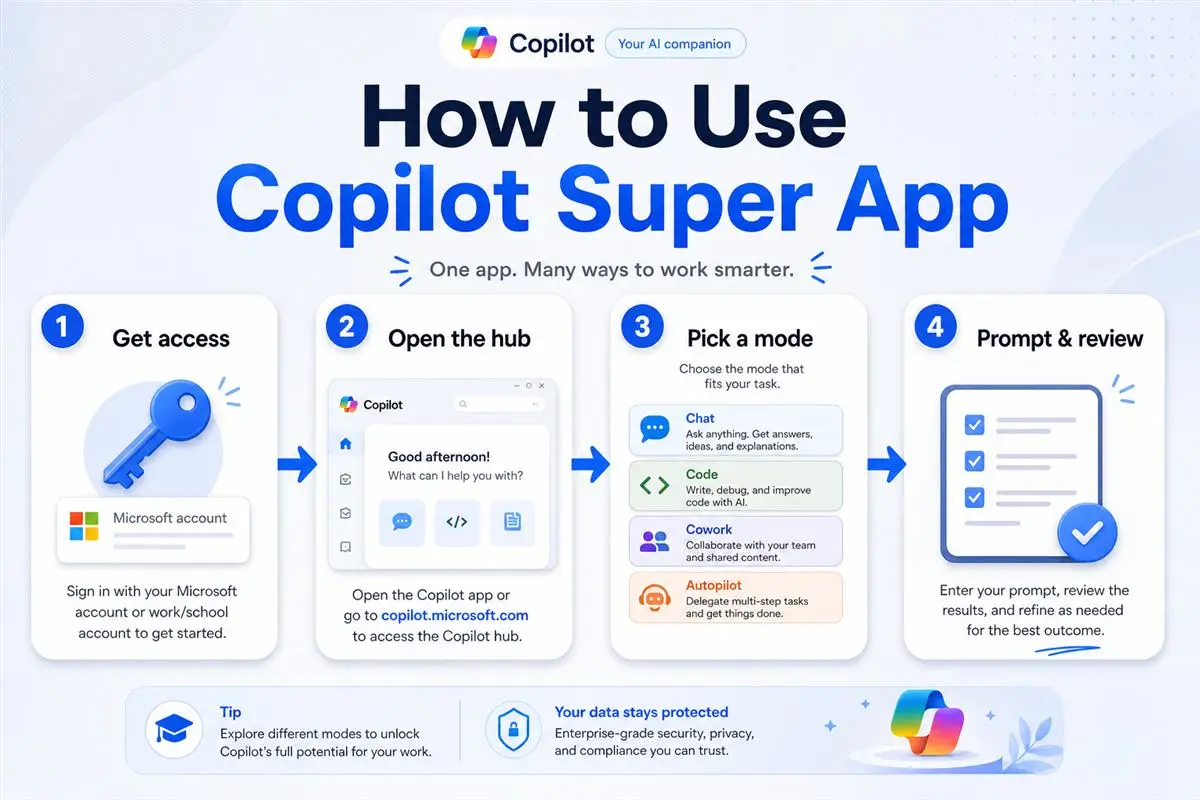
Step 1: Get the right access
Sign in with the Microsoft account that matches the work you are doing. Personal and work identities can unlock different features. On a company tenant, confirm with IT whether you have Microsoft 365 Copilot or related entitlements—availability often depends on license, region, and admin policy.
Step 2: Open the hub
When the Super App is available, launch it as your default Copilot entry point. During transition periods you may still start from Windows Copilot, the web, or Microsoft 365. The habit that matters: open one hub, then choose the mode that matches the job.
Step 3: Pick the right mode before you prompt
Rewrite or summary → Chat
Software help → Code
Research + drafting across stages → Cowork
Longer handoff with checkpoints → Autopilots
Step 4: Write a prompt that defines “done”
Strong prompts usually include four parts: goal, audience, constraints (length, tone, format), and inputs (text, files, errors, context).
Example: “Create a one-page recommendation for our ops lead comparing Tool A and Tool B. Use a table for cost, setup time, and risks. End with a clear recommendation and three open questions. Keep the tone direct and non-technical.”
Step 5: Review, edit, and only then ship
Check facts, names, dates, and numbers
Remove sensitive data you did not mean to include
Test code in a safe environment
Make sure the tone matches your brand or team voice
Copilot can accelerate a first draft. It should not become the final authority on accuracy or judgment.
Prompt Patterns That Work Especially Well
Rewrite: “Rewrite this email to be shorter and more direct for a busy manager. Keep the ask and the Friday deadline.”
Summarize: “Summarize this meeting transcript into 5 decisions, 5 owners, and 3 risks.”
Code: “Explain what this function does, then suggest a safer version with input validation.”
Compare: “Compare these three options in a table by cost, speed, and risk, then recommend one.”
Multi-step: “Research topic X, list the top five findings with sources, then draft a one-page brief for executives.”
Agent handoff: “Gather the inputs from these notes, draft the first version, flag anything uncertain, and stop before sending.”
Who It Is For (and Who Should Be Careful)
Good fit: people already in Windows / Microsoft 365 who want one AI starting point; teams that mix writing, research, and light technical work; organizations exploring agent workflows with governance in mind.
Be careful if: your company has strict data policies and has not approved Copilot for your workload; you need offline-only workflows; or you expect every advanced feature to be free on every account.
Practical Tips Before You Rely on It
Licensing differs by feature. Advanced workplace Copilot often needs paid Microsoft 365 Copilot or related plans—check entitlements instead of guessing from screenshots.
Separate personal and work contexts. Keep client and internal data on the identity path your company approves.
Expect UI change during rollout. Labels and entry points may shift as Microsoft finishes shipping.
Build a review habit. Faster drafts make it easier to skip editing—don’t.
Save your best prompts. Reusable templates often matter more than hunting for one “perfect” model setting.
Need AI Inside Everyday Office Files?
If your day is mostly Word, Excel, PowerPoint, or PDF editing and you want AI help while you stay inside the document window, WPS AI is a lightweight option to keep alongside Microsoft’s Copilot hub.
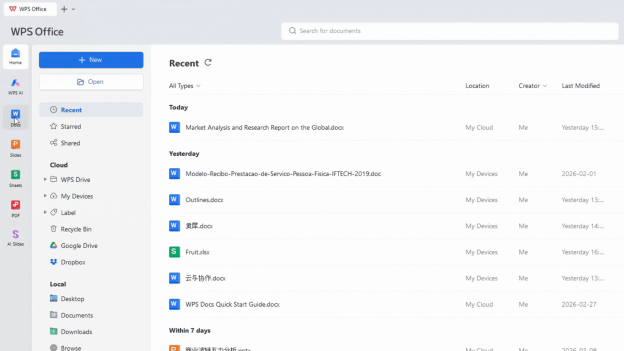
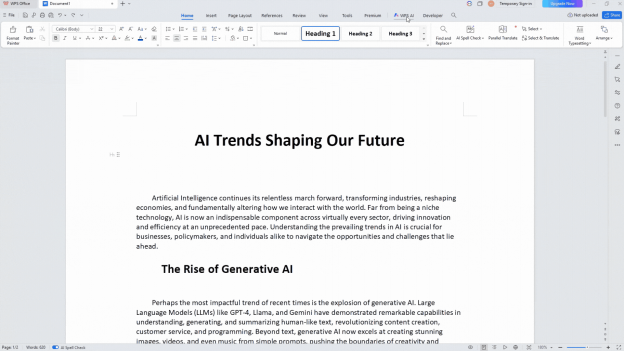
Use Microsoft Copilot Super App when you want one place for chat, coding, multi-step work, and longer agent tasks. Use WPS AI when you want quick rewrite/summarize help without leaving your office files.


FAQ
What is Microsoft Copilot Super App in one sentence?
It is Microsoft’s unified Copilot hub meant to combine Chat, Code, Cowork, and Autopilots for consumer and commercial users.
Is Microsoft Copilot Super App available today?
Microsoft has confirmed it is bringing these experiences together; exact availability can vary by account, region, and admin policy during rollout. Check Microsoft’s official Copilot / Windows updates for your device.
How do I use Copilot Super App for daily work?
Open the Copilot hub, choose Chat / Code / Cowork / Autopilot for the task, give a clear goal with constraints, then review before sending or publishing.
Do I need a paid license?
Basic Copilot experiences may be available depending on your account, but advanced workplace features often require paid licensing. Confirm in your Microsoft account or with IT.
What is the difference between Chat and Autopilots?
Chat is best for turn-by-turn Q&A and drafting. Autopilots aim at longer agent-style jobs with less constant prompting—still review every important output.
Should I replace all current Copilot shortcuts with the Super App?
Not overnight. Keep entry points that already work, then move your default habit to the Super App as it becomes available and stable on your account.
Conclusion
The Microsoft Copilot Super App is less about a brand-new AI model and more about one front door for Chat, Code, Cowork, and Autopilots. Pick the mode that matches the job, write prompts that define “done,” and keep a human review step before anything ships. For day-to-day document rewriting inside Word-like files, keep WPS AI as a lightweight companion.

'%3e%3cpath%20d='M19.9911%204.11386V6.471H18.5894C18.0775%206.471%2017.7322%206.57814%2017.5536%206.79243C17.3751%207.00671%2017.2858%207.32814%2017.2858%207.75671V9.44421H19.9019L19.5536%2012.0871H17.2858V18.8639H14.5536V12.0871H12.2769V9.44421H14.5536V7.49779C14.5536%206.39064%2014.8632%205.53201%2015.4822%204.92189C16.1013%204.31177%2016.9257%204.00671%2017.9554%204.00671C18.8304%204.00671%2019.509%204.04243%2019.9911%204.11386Z'%20fill='%23333333'/%3e%3c/g%3e%3cdefs%3e%3cclipPath%20id='clip0_2938_8199'%3e%3crect%20width='16'%20height='16'%20fill='white'%20transform='translate(8%204.00671)'/%3e%3c/clipPath%3e%3c/defs%3e%3c/svg%3e)
'%3e%3cpath%20d='M17.5237%2010.7813L23.4811%204H22.0699L16.8949%209.88693L12.7648%204H8L14.2469%2012.9029L8%2020.0133H9.4112L14.8725%2013.7952L19.2352%2020.0133H24M9.92053%205.04213H12.0885L22.0688%2019.0224H19.9003'%20fill='%23333333'/%3e%3c/g%3e%3cdefs%3e%3cclipPath%20id='clip0_2938_8200'%3e%3crect%20width='16'%20height='16.0134'%20fill='white'%20transform='translate(8%204)'/%3e%3c/clipPath%3e%3c/defs%3e%3c/svg%3e)


