A few years ago, the question in most offices was whether anyone would use AI at all. Now the question is what happens to the work afterward. Reports get drafted with a chatbot, slide decks fill up with generated images, and the receipts, photos, and PDFs that land in your inbox may or may not be what they claim to be.
That creates two separate jobs. One is using AI well to make your own documents better. The other is checking what comes in, and what goes out, so nobody is misled. Both are easier with a simple routine. Here is one built around three kinds of tools: one to create visuals, one to check text, and one to verify images and files.
Use Word, Excel, and PPT for FREE
Why a routine beats a pile of tools
Most people pick up AI tools one at a time, when a specific problem shows up. That works until you realize there is no consistent order to any of it. Some drafts get checked. Some do not. Some images are generated, then pasted in without a second look.
A routine fixes that. Create the material, review the text before it goes out, and verify anything you did not make yourself. It takes a few extra minutes per document, and it catches problems that are expensive to fix later, like a report that reads as obviously machine-written or a supplier photo that turns out to be fabricated.
If you already work in one place for docs, slides, sheets, and PDFs, keep the routine inside your office suite when you can. AnAI office suite workflow reduces tab-switching and makes create-check-verify feel like normal document work, not a side project.
Create: visuals for slides, reports, and social posts
Documents are more persuasive with a strong visual, but stock libraries get repetitive, and commissioning custom art is not realistic for every deck. AI image tools earn their place when you need a clean chart concept, a banner, or a scene that matches your message.
Morphic is one practical example. ItsAI image generator puts several leading image models in one workspace, so you can run the same prompt through two of them and keep the better result. That matters more than it sounds, because models differ. Some are stronger at photorealism, some handle text inside an image better, and some are built for logos and brand assets. A free account starts with credits and does not always require a card, though a few models and commercial-use cases need a paid plan. Always read the terms before you put generated art in client-facing material.
A few habits make the results far more useful at work:
● Be specific in the prompt. Describe the subject, style, lighting, and composition. "A clean flat illustration of a team reviewing a chart, blue and white palette" will beat "business meeting."
● Edit instead of regenerating. If one object is wrong, inpainting tools let you swap just that part rather than starting over.
● Match the format. Extend or resize for a wide banner or a square post instead of cropping awkwardly.
● Check usage rights before the asset goes into a proposal, social post, or published report.
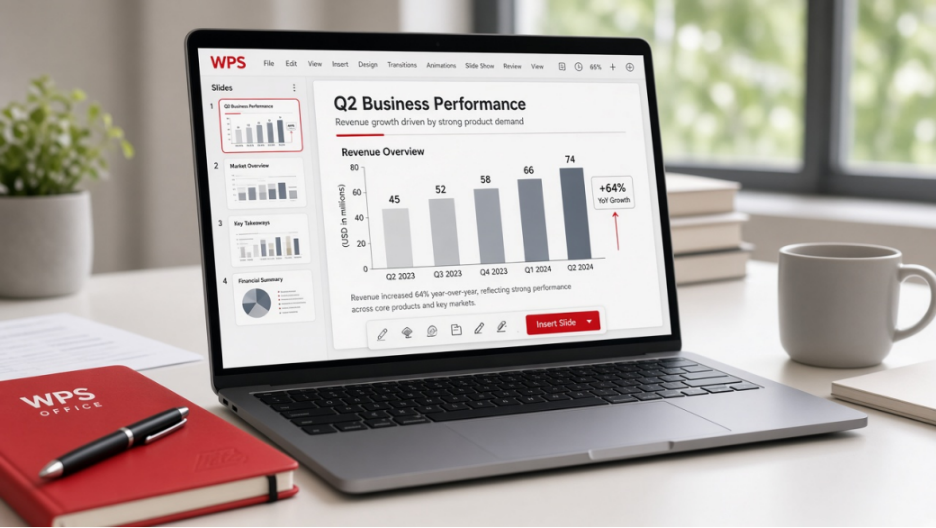
Once you have the visual, finish the layout where you present. InWPS Presentation, you can drop the image into a slide, tighten the copy with AI writing help, and keep the deck editable for the next review cycle.
Check: reviewing text before it goes out
AI drafts are useful, but they have a recognizable flavor. Sentences fall into the same rhythm, phrases repeat, and everything sounds a little too smooth. Readers notice. In schools, publishing, and some client workflows, the text may also be run through a detector before anyone reads it carefully.
Undetectable.ai'sAI detector is free and does not require a signup. You can paste text or upload a file, and it is built to recognize writing patterns from models like ChatGPT, Claude, and Gemini. It supports more than 50 languages, though English usually gets the strongest results, and the company says submitted text is not stored or used for training. Treat the score as a prompt to revise, not a verdict.
● Look at what is flagged. Passages that sound generic or padded are usually the ones to rewrite.
● Add what only you know. Specific numbers, names, examples from your own work, and clear opinions make text read as human far more than synonym swaps do.
● Read it aloud. If a sentence feels stiff out loud, it will feel stiff on the page.
Be honest about the limits. Detectors produce probabilities, not proof. Different tools can disagree, and genuinely human writing is sometimes flagged, especially when it is formal or very uniform. Treat any score as one input, particularly if the stakes involve someone's grades or job.
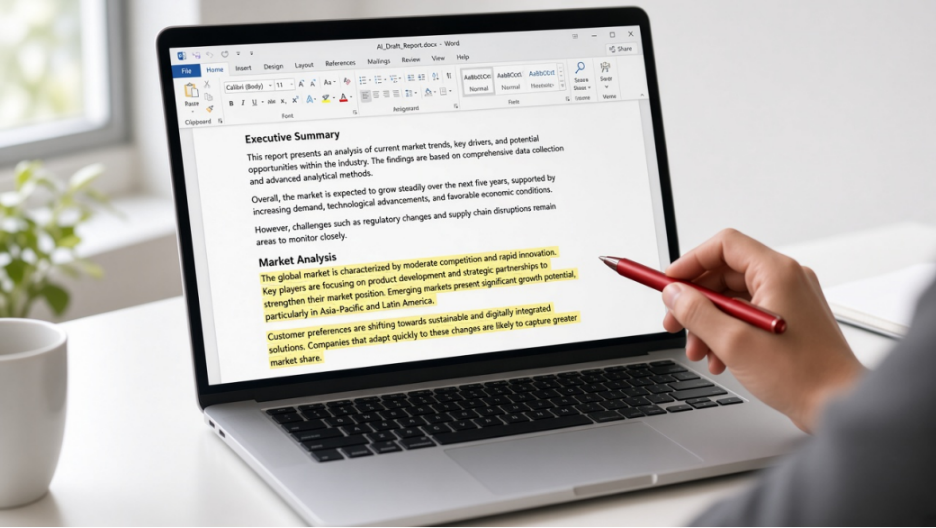
After the check, revise in a real document editor so facts, tone, and formatting stay under your control.WPS Writer and AI drafting tools are useful when you need a structured first draft, then want to polish headings, examples, and citations before you send.
100% secure
Verify: checking images and files you did not make
The other half of the routine points in the opposite direction. It is about what other people send you. Generated images have become convincing enough that the eye test no longer works, and that has real consequences for ordinary office tasks.
Think about the situations where a photo or document triggers a decision: an expense report with a receipt attached, a supplier sending shipment photos, a freelancer delivering artwork, or a customer submitting a picture of a damaged product. In each case, someone approves something based on an image, and a fabricated one is easy to make.
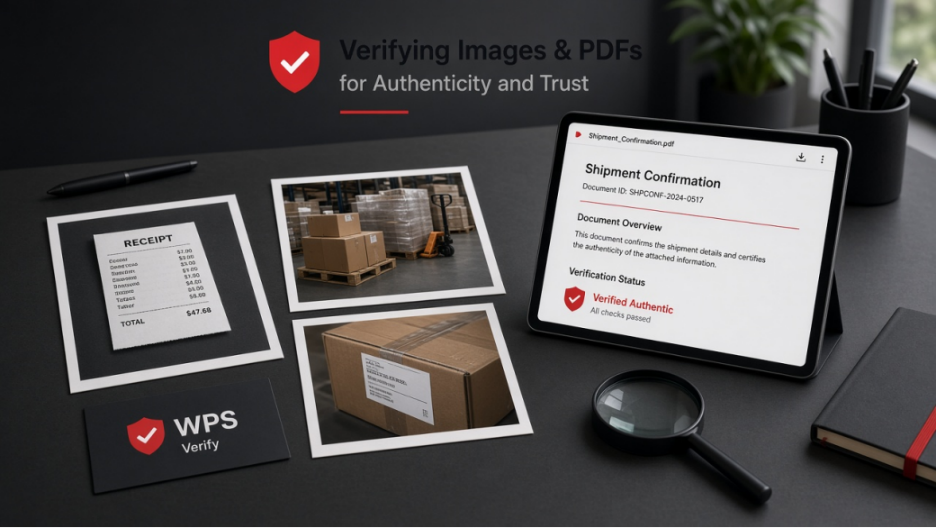
TruthScan'sAI image detector analyzes an uploaded image and returns a confidence score along with a plain-language explanation and a heatmap that highlights which regions look generated or edited. That visual evidence is the useful part. It turns a vague suspicion into something you can point to when you follow up. There is a free tier for occasional checks, a browser extension for checking images as you browse, and a separate tool for PDFs when the document itself is the thing in question.
As with text, a flag is not a conviction. A heavily edited but genuine photo can score oddly, and a clever fake can slip through. If something looks off, use the result to start a conversation: ask for the original file, request a fresh photo, or confirm the details through another channel.
When the file arrives as a PDF, open and inspect it locally before you approve anything.WPS PDF helps you review, annotate, convert, and ask questions about long PDFs in the same suite you already use for Word and slides.
Putting the routine together
In practice, this looks like three quick passes around any document that matters:
● Before you build: generate or refine visuals so the document looks polished.
● Before you send: run your own text through a check, revise anything that sounds generic, and add your own specifics.
● Before you approve: verify any outside image or PDF that a decision depends on.
None of this needs to slow you down. Most checks take a minute or two, and once it is a habit it runs in the background. The payoff is that your documents sound like you, look professional, and rest on material you have actually confirmed.
A few ground rules worth keeping
● Follow your organization's policy on AI use, and disclose it where disclosure is expected.
● Keep original source files so you can show how an image or draft was made.
● Do not paste confidential material into any online tool without checking how it handles data.
● Remember that every one of these tools makes mistakes. They work best as a second pair of eyes, not a final authority.
The bottom line
AI has made it faster to produce good-looking work and easier to produce convincing fakes. The fix is not to avoid it. It is to build a small routine around it: create with intention, check what you are about to send, and verify what you have received. Do that consistently, and AI becomes something that helps your documents instead of something that quietly undermines them.
Ready to run the routine in one workspace?Download WPS Office and keep drafting, presenting, and PDF review connected from create to final send.
Free Office Download
Use Word, Excel, and PPT for FREE, No Ads.
Edit PDF files with the powerful PDF toolkit.
Microsoft-like interface. Easy to learn. 100% Compatibility.
Boost your productivity with WPS's abundant free Word, Excel, PPT, and CV templates.
15 years of office industry experience, tech lover and copywriter. Follow me for product reviews, comparisons, and recommendations for new apps and software.


'%3e%3cpath%20d='M8%200C12.4183%200%2016%203.58172%2016%208C16%2012.4183%2012.4183%2016%208%2016C3.58172%2016%200%2012.4183%200%208C0%203.58172%203.58172%200%208%200ZM11.6162%204.38379C11.2257%203.99337%2010.5927%203.99338%2010.2021%204.38379L8%206.58594L5.79785%204.38379C5.40732%203.99334%204.77429%203.99329%204.38379%204.38379C3.99331%204.77429%203.99335%205.40733%204.38379%205.79785L6.58594%208L4.38379%2010.2021C3.99348%2010.5927%203.99341%2011.2257%204.38379%2011.6162C4.77426%2012.0066%205.40734%2012.0065%205.79785%2011.6162L8%209.41406L10.2021%2011.6162C10.5927%2012.0066%2011.2257%2012.0067%2011.6162%2011.6162C12.0067%2011.2257%2012.0066%2010.5927%2011.6162%2010.2021L9.41406%208L11.6162%205.79785C12.0066%205.40735%2012.0066%204.77429%2011.6162%204.38379Z'%20fill='%23080E17'%20fill-opacity='0.46'/%3e%3c/g%3e%3cdefs%3e%3cclipPath%20id='clip0_3761_713'%3e%3crect%20width='16'%20height='16'%20fill='white'/%3e%3c/clipPath%3e%3c/defs%3e%3c/svg%3e)



'%3e%3cpath%20fill-rule='evenodd'%20clip-rule='evenodd'%20d='M21.4999%2010.9993C21.4999%205.20009%2016.7986%200.498901%2010.9993%200.498901C5.19994%200.498901%200.498657%205.20009%200.498657%2010.9993C0.498657%2016.2404%204.33858%2020.5844%209.35855%2021.3722V14.0346H6.69238V10.9993H9.35855V8.68594C9.35855%206.05427%2010.9262%204.60062%2013.3248%204.60062C14.4736%204.60062%2015.6753%204.80571%2015.6753%204.80571V7.38979H14.3512C13.0468%207.38979%2012.64%208.19921%2012.64%209.0296V10.9993H15.5523L15.0867%2014.0346H12.64V21.3722C17.66%2020.5844%2021.4999%2016.2404%2021.4999%2010.9993Z'%20fill='%231568EA'/%3e%3c/g%3e%3c/svg%3e)


'%3e%3cpath%20d='M2.42045%2022.1876H6.31818V12.7217L0.75%208.54553V20.5171C0.75%2021.4414%201.49892%2022.1876%202.42045%2022.1876Z'%20fill='%234285F4'/%3e%3cpath%20d='M19.682%2022.1876H23.5797C24.5041%2022.1876%2025.2502%2021.4387%2025.2502%2020.5171V8.54553L19.682%2012.7217'%20fill='%2334A853'/%3e%3cpath%20d='M19.682%205.48293V12.7216L25.2502%208.54543V6.31816C25.2502%204.25236%2022.8921%203.07469%2021.2411%204.31361'%20fill='%23FBBC04'/%3e%3cpath%20d='M6.31824%2012.7217V5.48303L13.0001%2010.4944L19.6819%205.48303V12.7217L13.0001%2017.733'%20fill='%23EA4335'/%3e%3cpath%20d='M0.75%206.31816V8.54543L6.31818%2012.7216V5.48293L4.75909%204.31361C3.10534%203.07469%200.75%204.25236%200.75%206.31816Z'%20fill='%23C5221F'/%3e%3c/g%3e%3cdefs%3e%3cclipPath%20id='clip0_2954_7305'%3e%3crect%20width='24.5'%20height='18.375'%20fill='white'%20transform='translate(0.75%203.8125)'/%3e%3c/clipPath%3e%3c/defs%3e%3c/svg%3e)






'%3e%3cpath%20d='M19.9911%204.11386V6.471H18.5894C18.0775%206.471%2017.7322%206.57814%2017.5536%206.79243C17.3751%207.00671%2017.2858%207.32814%2017.2858%207.75671V9.44421H19.9019L19.5536%2012.0871H17.2858V18.8639H14.5536V12.0871H12.2769V9.44421H14.5536V7.49779C14.5536%206.39064%2014.8632%205.53201%2015.4822%204.92189C16.1013%204.31177%2016.9257%204.00671%2017.9554%204.00671C18.8304%204.00671%2019.509%204.04243%2019.9911%204.11386Z'%20fill='%23333333'/%3e%3c/g%3e%3cdefs%3e%3cclipPath%20id='clip0_2938_8199'%3e%3crect%20width='16'%20height='16'%20fill='white'%20transform='translate(8%204.00671)'/%3e%3c/clipPath%3e%3c/defs%3e%3c/svg%3e)
'%3e%3cpath%20d='M17.5237%2010.7813L23.4811%204H22.0699L16.8949%209.88693L12.7648%204H8L14.2469%2012.9029L8%2020.0133H9.4112L14.8725%2013.7952L19.2352%2020.0133H24M9.92053%205.04213H12.0885L22.0688%2019.0224H19.9003'%20fill='%23333333'/%3e%3c/g%3e%3cdefs%3e%3cclipPath%20id='clip0_2938_8200'%3e%3crect%20width='16'%20height='16.0134'%20fill='white'%20transform='translate(8%204)'/%3e%3c/clipPath%3e%3c/defs%3e%3c/svg%3e)


