

'%3e%3cpath%20d='M8%200C12.4183%200%2016%203.58172%2016%208C16%2012.4183%2012.4183%2016%208%2016C3.58172%2016%200%2012.4183%200%208C0%203.58172%203.58172%200%208%200ZM11.6162%204.38379C11.2257%203.99337%2010.5927%203.99338%2010.2021%204.38379L8%206.58594L5.79785%204.38379C5.40732%203.99334%204.77429%203.99329%204.38379%204.38379C3.99331%204.77429%203.99335%205.40733%204.38379%205.79785L6.58594%208L4.38379%2010.2021C3.99348%2010.5927%203.99341%2011.2257%204.38379%2011.6162C4.77426%2012.0066%205.40734%2012.0065%205.79785%2011.6162L8%209.41406L10.2021%2011.6162C10.5927%2012.0066%2011.2257%2012.0067%2011.6162%2011.6162C12.0067%2011.2257%2012.0066%2010.5927%2011.6162%2010.2021L9.41406%208L11.6162%205.79785C12.0066%205.40735%2012.0066%204.77429%2011.6162%204.38379Z'%20fill='%23080E17'%20fill-opacity='0.46'/%3e%3c/g%3e%3cdefs%3e%3cclipPath%20id='clip0_3761_713'%3e%3crect%20width='16'%20height='16'%20fill='white'/%3e%3c/clipPath%3e%3c/defs%3e%3c/svg%3e)



'%3e%3cpath%20fill-rule='evenodd'%20clip-rule='evenodd'%20d='M21.4999%2010.9993C21.4999%205.20009%2016.7986%200.498901%2010.9993%200.498901C5.19994%200.498901%200.498657%205.20009%200.498657%2010.9993C0.498657%2016.2404%204.33858%2020.5844%209.35855%2021.3722V14.0346H6.69238V10.9993H9.35855V8.68594C9.35855%206.05427%2010.9262%204.60062%2013.3248%204.60062C14.4736%204.60062%2015.6753%204.80571%2015.6753%204.80571V7.38979H14.3512C13.0468%207.38979%2012.64%208.19921%2012.64%209.0296V10.9993H15.5523L15.0867%2014.0346H12.64V21.3722C17.66%2020.5844%2021.4999%2016.2404%2021.4999%2010.9993Z'%20fill='%231568EA'/%3e%3c/g%3e%3c/svg%3e)


'%3e%3cpath%20d='M2.42045%2022.1876H6.31818V12.7217L0.75%208.54553V20.5171C0.75%2021.4414%201.49892%2022.1876%202.42045%2022.1876Z'%20fill='%234285F4'/%3e%3cpath%20d='M19.682%2022.1876H23.5797C24.5041%2022.1876%2025.2502%2021.4387%2025.2502%2020.5171V8.54553L19.682%2012.7217'%20fill='%2334A853'/%3e%3cpath%20d='M19.682%205.48293V12.7216L25.2502%208.54543V6.31816C25.2502%204.25236%2022.8921%203.07469%2021.2411%204.31361'%20fill='%23FBBC04'/%3e%3cpath%20d='M6.31824%2012.7217V5.48303L13.0001%2010.4944L19.6819%205.48303V12.7217L13.0001%2017.733'%20fill='%23EA4335'/%3e%3cpath%20d='M0.75%206.31816V8.54543L6.31818%2012.7216V5.48293L4.75909%204.31361C3.10534%203.07469%200.75%204.25236%200.75%206.31816Z'%20fill='%23C5221F'/%3e%3c/g%3e%3cdefs%3e%3cclipPath%20id='clip0_2954_7305'%3e%3crect%20width='24.5'%20height='18.375'%20fill='white'%20transform='translate(0.75%203.8125)'/%3e%3c/clipPath%3e%3c/defs%3e%3c/svg%3e)


You have an article that needs to sound different: a blog post you want to spin into a second version, an essay paragraph that repeats the same phrasing, or a marketing copy that has to pass a similarity check. Rewriting it by hand takes time, and pasting it into a word processor to retype every sentence is not much faster.
Duplichecker Article Rewriter handles this in a browser: paste your text, confirm you are human, click one button, and get a rephrased version you can copy back into your document. This guide walks through the exact steps, the limits you should know before you start, and a free WPS Office alternative when you need rewriting inside your document.
How to Use Duplichecker Article Rewriter: A Complete Guide
What You Need to Know About Duplichecker Article Rewriter?
Duplichecker is a free online writing toolkit, and its Article Rewriter is the tool most people use it for. It takes the text you paste in and rephrases it sentence by sentence, swapping wording for synonyms and restructuring sentences while trying to keep the original meaning. The service at duplichecker.com also bundles a plagiarism checker, grammar checker, and word counter on the same site.
A few facts worth knowing before you commit a long document to it:
2,000 words per run. The free Article Rewriter accepts up to about 2,000 characters per submission, and paid plans raise the ceiling, so a long article usually has to be split into sections and rewritten one at a time.
Multiple languages. The tool supports rewriting in several languages besides English, including Spanish, French, Portuguese, Italian, Dutch, Russian, Indonesian, and Chinese.
No account needed for basic use. You can rewrite short texts without registering; the Pro plan (around $5 per week, $25 per month, or $110 per year) unlocks larger limits and removes ads.
It is a convenient fix for quick rephrasing, but because it works on pasted text in a browser tab, your formatting, headings, and citations stay behind in your document while the rewriting happens outside it.
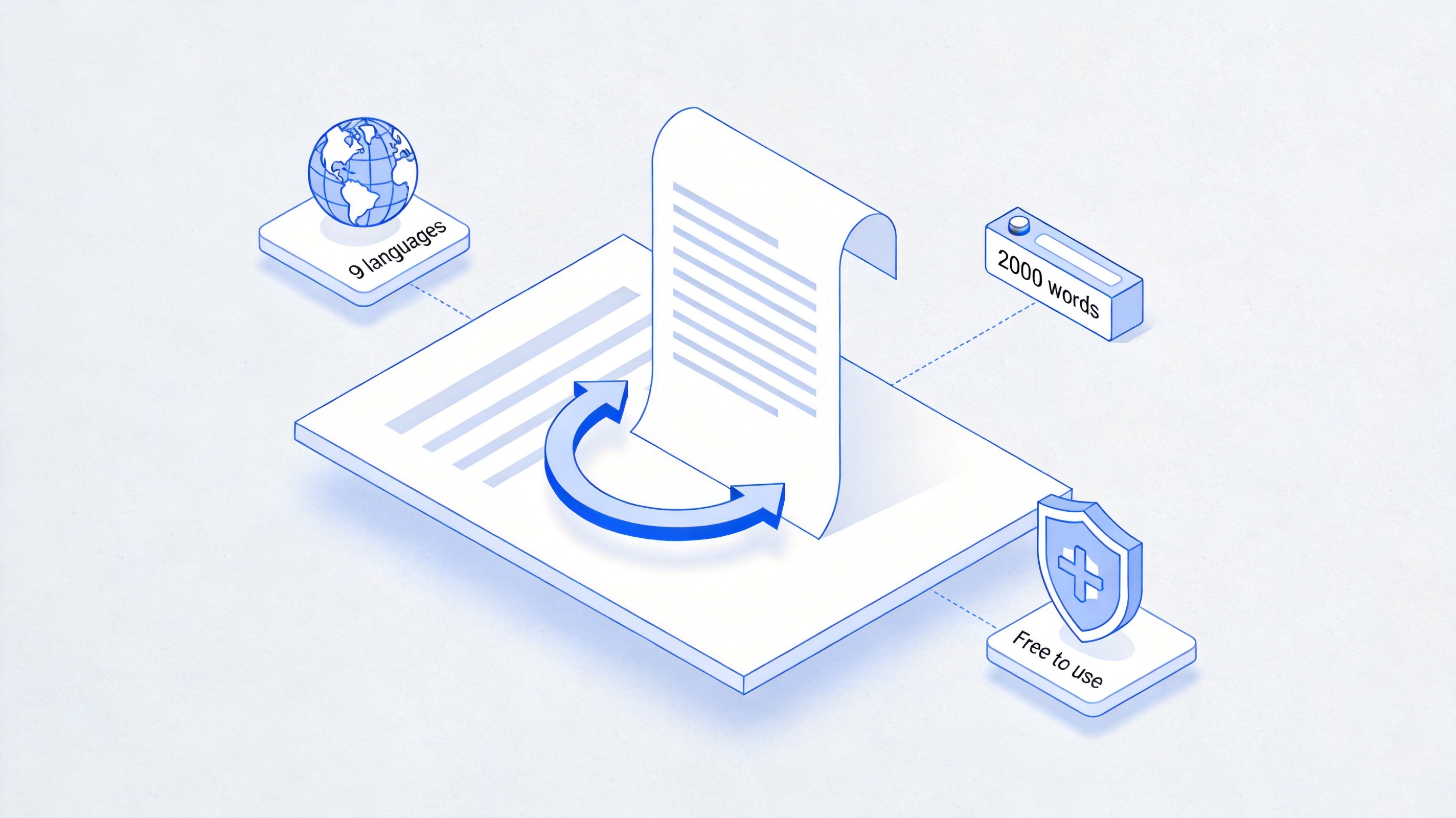
Duplichecker word limit and languages


How to Use Duplichecker Article Rewriter
The whole process takes a couple of minutes once your text is ready. Follow these steps:
Open the Article Rewriter. Go to Duplichecker and open the Article Rewriter tool from the top menu.
Paste or upload your text. Paste the article into the input box, or click the upload icon to load a file from your computer. The counter shows how close you are to the per-run limit.
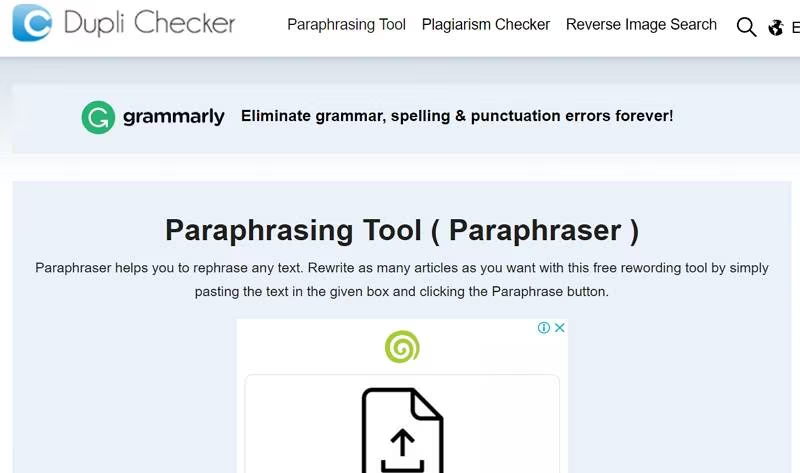
upload your file Choose the language. Leave the dropdown on English, or pick another supported language for your text.
Confirm the human check. Tick the I'm not a robot box so the submit button will work.
Click Rewrite Article. Press the green Rewrite Article button and wait a few seconds while the tool rephrases your text.
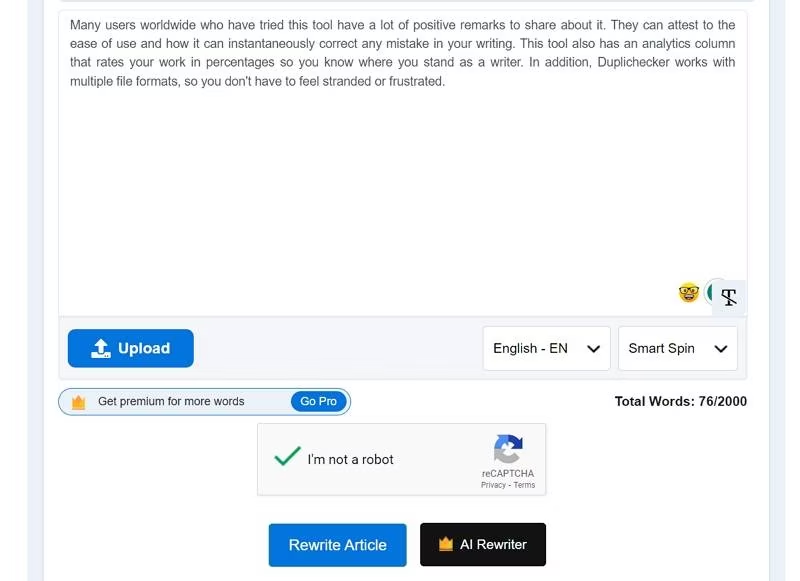
Click Rewrite Article Review the output. Scroll to the Output Section, read the rewritten version carefully, and use Copy to clipboard or Download to take the result back into your document.
Always proofread the result before publishing. An automatic rewriter can swap a word that changes the meaning, drop a citation marker, or produce an awkward phrase, so read the output against the original paragraph by paragraph.
The Best Free Alternative: WPS Office
Duplichecker moves your text out of the document and back in again. WPS Office keeps the whole rewriting loop inside the file you are working on, which matters when your article has headings, images, and citations that a plain text box cannot carry. If your goal is to rewrite an essay or a long draft while keeping the structure intact, this essay rewriter guide walks through the same workflow inside the editor.
AI Rewrite in place. Rewrite paragraphs with WPS AI directly in WPS Writer, so headings, footnotes, and reference lists never leave the file.
Familiar interface. A Microsoft-like layout opens .docx files with formatting intact, and it is free for personal use on desktop, web, and mobile.
More than rewriting. AI Spell Check, AI Summary, and a full PDF toolkit sit in the same suite, so one download covers writing, checking, and exporting.
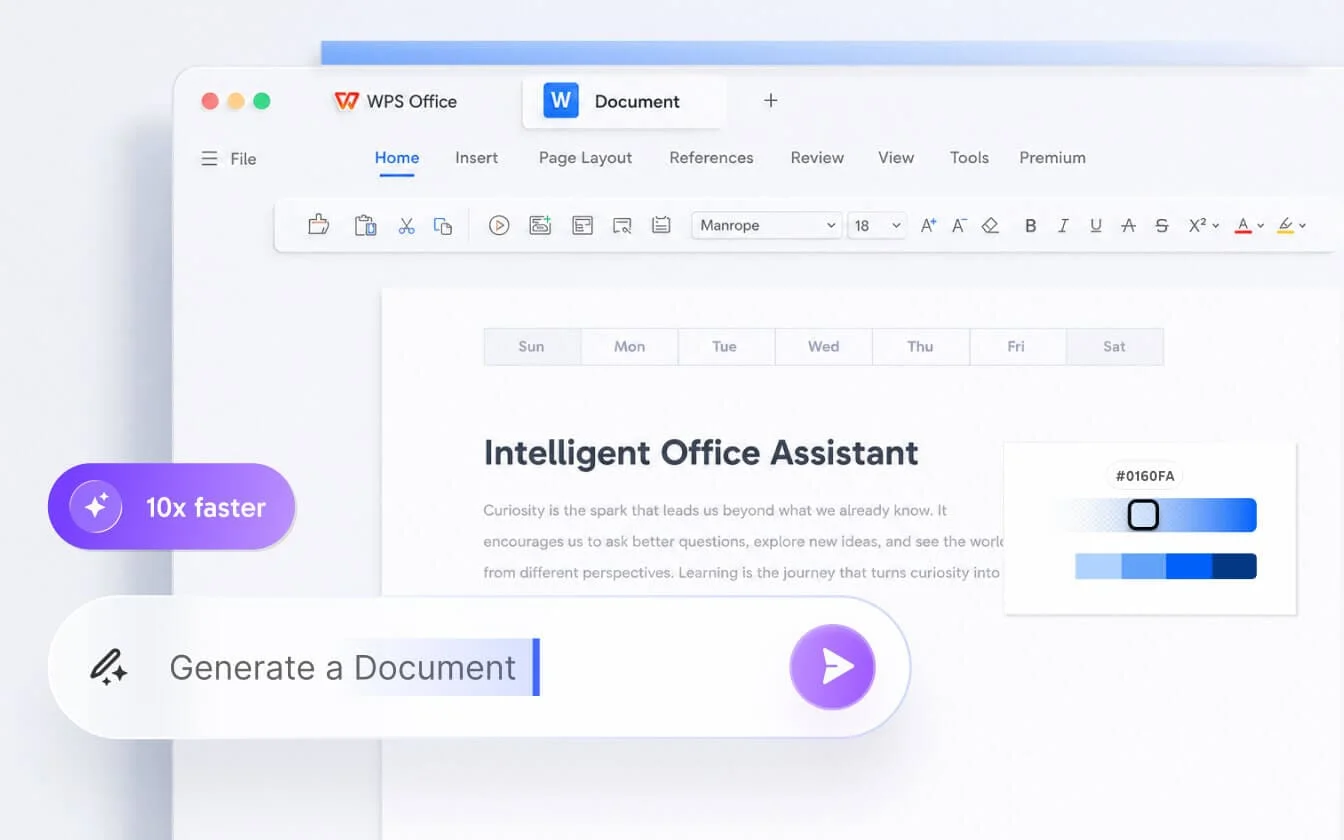
WPS Writer document editing interface
FAQs
Is Duplichecker Article Rewriter free to use?
Yes, the basic version is free and needs no registration for short texts. The free run has a size limit, and the Pro plan raises it if you rewrite long articles regularly.
How many words can I rewrite at a time?
A single run accepts up to about 2,000 characters on the free tier. For a full article, split it into sections, rewrite each section, and reassemble the results in your document.
Is the rewritten content plagiarism-free?
Not automatically. Rewording reduces surface similarity, but the ideas and any unattributed sources are still yours to handle. Run the result through a plagiarism checker and add citations where the underlying ideas came from someone else.
Does Duplichecker keep my text private?
The site states that submitted content is processed securely and deleted after rewriting. Still, avoid pasting confidential business documents or unpublished personal data into any free online tool.
Can I rewrite an article without losing its formatting?
Not with a browser-based tool, since it only handles plain pasted text. To keep headings, images, and citations in place, rewrite inside the document with WPS AI Rewrite in WPS Writer.


'%3e%3cpath%20d='M19.9911%204.11386V6.471H18.5894C18.0775%206.471%2017.7322%206.57814%2017.5536%206.79243C17.3751%207.00671%2017.2858%207.32814%2017.2858%207.75671V9.44421H19.9019L19.5536%2012.0871H17.2858V18.8639H14.5536V12.0871H12.2769V9.44421H14.5536V7.49779C14.5536%206.39064%2014.8632%205.53201%2015.4822%204.92189C16.1013%204.31177%2016.9257%204.00671%2017.9554%204.00671C18.8304%204.00671%2019.509%204.04243%2019.9911%204.11386Z'%20fill='%23333333'/%3e%3c/g%3e%3cdefs%3e%3cclipPath%20id='clip0_2938_8199'%3e%3crect%20width='16'%20height='16'%20fill='white'%20transform='translate(8%204.00671)'/%3e%3c/clipPath%3e%3c/defs%3e%3c/svg%3e)
'%3e%3cpath%20d='M17.5237%2010.7813L23.4811%204H22.0699L16.8949%209.88693L12.7648%204H8L14.2469%2012.9029L8%2020.0133H9.4112L14.8725%2013.7952L19.2352%2020.0133H24M9.92053%205.04213H12.0885L22.0688%2019.0224H19.9003'%20fill='%23333333'/%3e%3c/g%3e%3cdefs%3e%3cclipPath%20id='clip0_2938_8200'%3e%3crect%20width='16'%20height='16.0134'%20fill='white'%20transform='translate(8%204)'/%3e%3c/clipPath%3e%3c/defs%3e%3c/svg%3e)


