

'%3e%3cpath%20d='M8%200C12.4183%200%2016%203.58172%2016%208C16%2012.4183%2012.4183%2016%208%2016C3.58172%2016%200%2012.4183%200%208C0%203.58172%203.58172%200%208%200ZM11.6162%204.38379C11.2257%203.99337%2010.5927%203.99338%2010.2021%204.38379L8%206.58594L5.79785%204.38379C5.40732%203.99334%204.77429%203.99329%204.38379%204.38379C3.99331%204.77429%203.99335%205.40733%204.38379%205.79785L6.58594%208L4.38379%2010.2021C3.99348%2010.5927%203.99341%2011.2257%204.38379%2011.6162C4.77426%2012.0066%205.40734%2012.0065%205.79785%2011.6162L8%209.41406L10.2021%2011.6162C10.5927%2012.0066%2011.2257%2012.0067%2011.6162%2011.6162C12.0067%2011.2257%2012.0066%2010.5927%2011.6162%2010.2021L9.41406%208L11.6162%205.79785C12.0066%205.40735%2012.0066%204.77429%2011.6162%204.38379Z'%20fill='%23080E17'%20fill-opacity='0.46'/%3e%3c/g%3e%3cdefs%3e%3cclipPath%20id='clip0_3761_713'%3e%3crect%20width='16'%20height='16'%20fill='white'/%3e%3c/clipPath%3e%3c/defs%3e%3c/svg%3e)



'%3e%3cpath%20fill-rule='evenodd'%20clip-rule='evenodd'%20d='M21.4999%2010.9993C21.4999%205.20009%2016.7986%200.498901%2010.9993%200.498901C5.19994%200.498901%200.498657%205.20009%200.498657%2010.9993C0.498657%2016.2404%204.33858%2020.5844%209.35855%2021.3722V14.0346H6.69238V10.9993H9.35855V8.68594C9.35855%206.05427%2010.9262%204.60062%2013.3248%204.60062C14.4736%204.60062%2015.6753%204.80571%2015.6753%204.80571V7.38979H14.3512C13.0468%207.38979%2012.64%208.19921%2012.64%209.0296V10.9993H15.5523L15.0867%2014.0346H12.64V21.3722C17.66%2020.5844%2021.4999%2016.2404%2021.4999%2010.9993Z'%20fill='%231568EA'/%3e%3c/g%3e%3c/svg%3e)


'%3e%3cpath%20d='M2.42045%2022.1876H6.31818V12.7217L0.75%208.54553V20.5171C0.75%2021.4414%201.49892%2022.1876%202.42045%2022.1876Z'%20fill='%234285F4'/%3e%3cpath%20d='M19.682%2022.1876H23.5797C24.5041%2022.1876%2025.2502%2021.4387%2025.2502%2020.5171V8.54553L19.682%2012.7217'%20fill='%2334A853'/%3e%3cpath%20d='M19.682%205.48293V12.7216L25.2502%208.54543V6.31816C25.2502%204.25236%2022.8921%203.07469%2021.2411%204.31361'%20fill='%23FBBC04'/%3e%3cpath%20d='M6.31824%2012.7217V5.48303L13.0001%2010.4944L19.6819%205.48303V12.7217L13.0001%2017.733'%20fill='%23EA4335'/%3e%3cpath%20d='M0.75%206.31816V8.54543L6.31818%2012.7216V5.48293L4.75909%204.31361C3.10534%203.07469%200.75%204.25236%200.75%206.31816Z'%20fill='%23C5221F'/%3e%3c/g%3e%3cdefs%3e%3cclipPath%20id='clip0_2954_7305'%3e%3crect%20width='24.5'%20height='18.375'%20fill='white'%20transform='translate(0.75%203.8125)'/%3e%3c/clipPath%3e%3c/defs%3e%3c/svg%3e)


A generated image can look impressive and still be awkward to use: the headline overlaps the subject, the background clashes with your slide, or a small edit changes details you wanted to keep. If you searched for chatgpt image 2.5, this guide helps you move from a rough idea to an image you can actually place in a report or presentation.
OpenAI calls the experience ChatGPT Images 2.5. Start by describing the composition, refine one part at a time, and save the result. Then use WPS Office to add editable headings, captions, and page layout around the image. The examples below are reusable starting points; generated results will vary.
ChatGPT Image 2.5: Create, Edit, and Use Images
How to Start Creating with ChatGPT Image 2.5
For everyday work, open ChatGPT and ask for an image in a conversation, or choose More → Images. Images is available across ChatGPT tiers on web, iOS, and Android; usage limits and advanced options depend on your account.
The API has separate model names, including GPT Image 2.5 Sunburst and GPT Image 2.5 Flare. An API model ID is not a button you need to locate in the ChatGPT interface. This walkthrough uses the conversational workflow and does not require coding.
Step 1: Decide where the image will go. Choose a slide, square post, or document cover before writing the prompt. For a title slide, plan where the headline will sit and keep the main subject out of that space.
Step 2: Describe the visual and its boundaries. Include the subject, style, colors, aspect ratio, and anything that should stay empty. Try this simple starting prompt:
Create a 16:9 botanical illustration. Pale blue background. Leave the left third empty. No text.
Step 3: Generate and inspect. Send the request, then check whether the leaves stay on the right and the left third is usable for a heading. Evaluate the composition before spending time on decorative details.
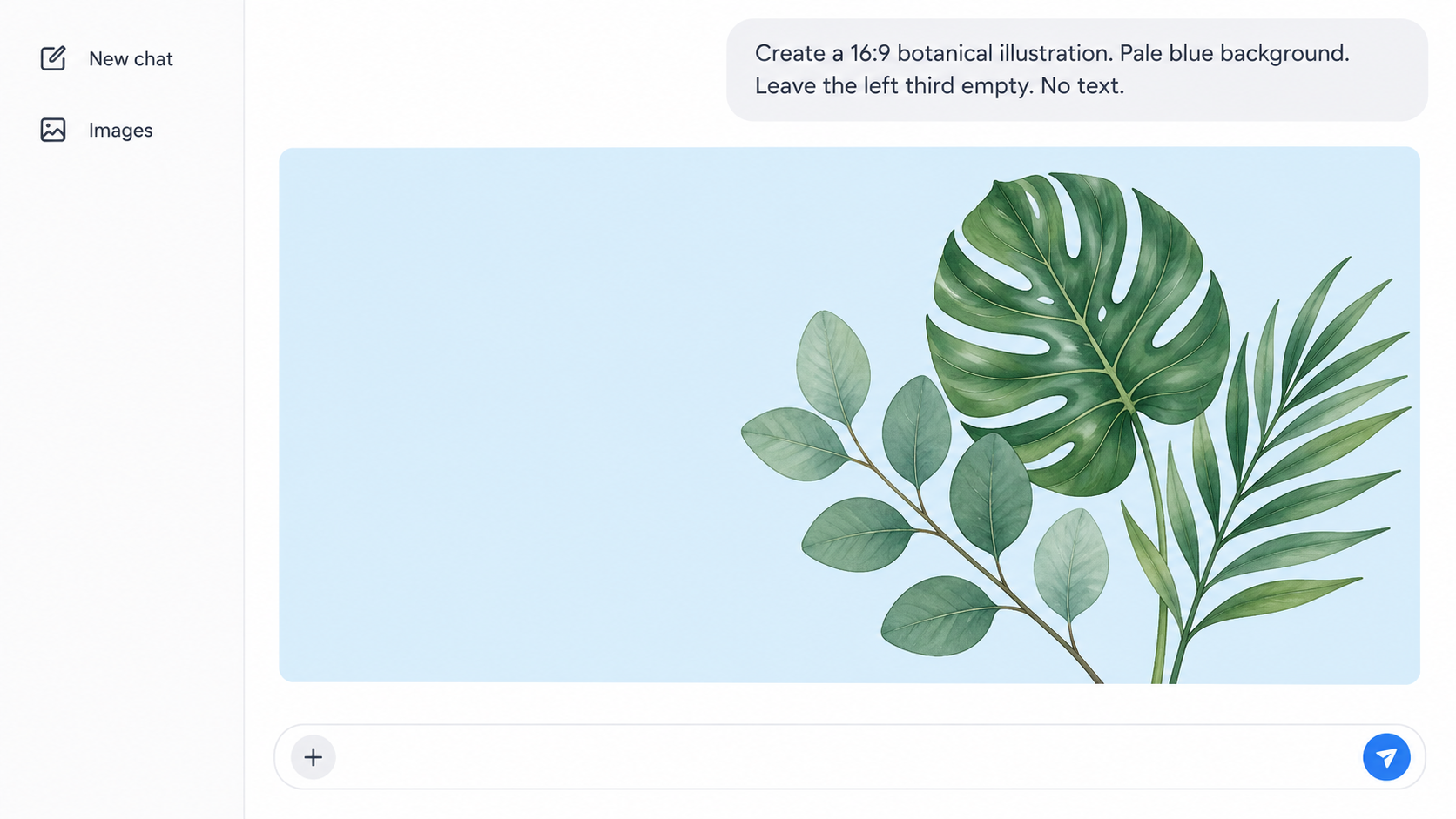
Botanical image generation interface mockup
If the result feels too busy, ask for fewer elements instead of adding another long style description. For example: “Keep the same colors and layout. Show only three leaves, remove all decorative dots, and leave the left third completely empty.” A narrow correction makes it easier to assess whether the next version solves the actual problem.


How to Edit and Save a ChatGPT Image 2.5 Result
Select a generated image, or upload an existing one, and describe the change. You can highlight a region with Select or state the location in your message. Selection boundaries are not exact, so edits can affect nearby areas. Review the whole image afterward.
Step 1: Name one change. Start with the most visible issue: background, crop, an unwanted object, or room for text. Avoid requesting a new composition, a new style, and a tiny correction in the same message.
Step 2: State what must stay. For the botanical example, use: “Change only the background to warm cream. Keep the leaves and layout unchanged.” If you use a selection, include the same written constraint.
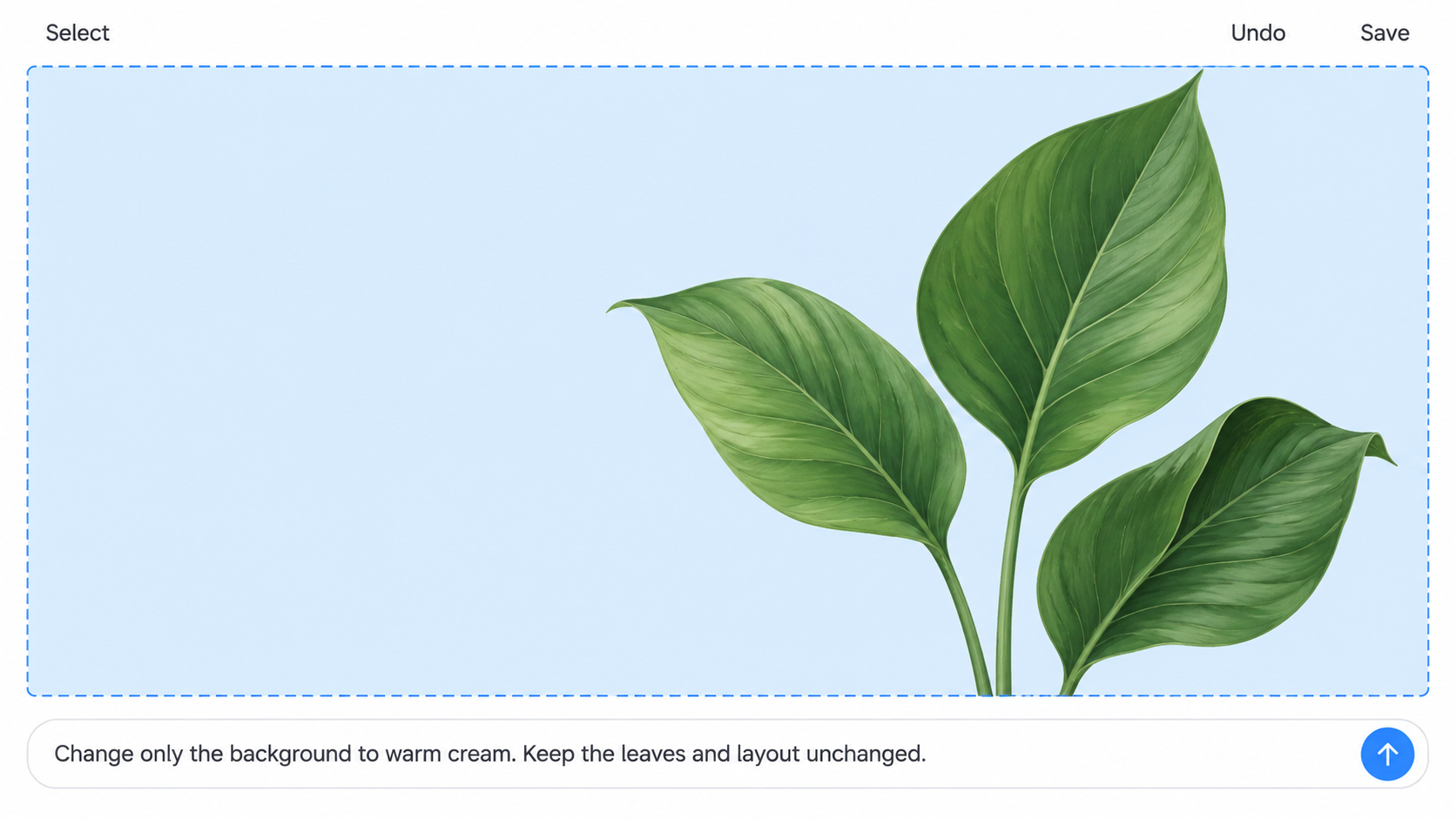
Botanical background editing interface mockup
Step 3: Compare before saving. Inspect the silhouette, spacing, colors, and any text against the previous version. If an important detail drifted, return to the preferred version and make a smaller request.
Step 4: Download the chosen version. Open the image and use Save. Images you create are also available under Images. Keep the original download and a separate working copy for your document.
Use descriptive filenames such as botanical-slide-cream-v2. When a teammate asks for a revision, the file name and saved prompt help you identify the exact version instead of recreating it from memory.
ChatGPT Image 2.5 Prompts for Slides, Covers, and Product Visuals
A useful prompt describes the final placement as well as the artwork. Start with purpose + subject + composition + style + constraints. Replace the bracketed details below with your own brief. These are original prompt templates, not promises of identical output.
A slide background with room for your heading
Create a 16:9 illustration for a presentation about [sustainable packaging]. Place [three folded cardboard packages] on the right half. Use thin navy outlines, muted green accents, and a warm white background. Leave the left half empty for an editable heading. No text, logos, or watermark.
Paste your real heading into a WPS text box afterward. That keeps spelling, font size, and line breaks editable when the deck changes.
A report cover that leaves space for the details
Create a portrait illustration for the cover of [a community garden report]. Show [simple botanical shapes] in the lower third. Use a restrained blue and green palette with plenty of white space. Keep the top half empty for the report title, date, and author. No lettering or numbers.
Check the cover at its intended page size. Fine detail that looks attractive when enlarged may become distracting or disappear on a printed page.
A product visual built around a reference
Use the uploaded product photo as the reference. Place the product against a soft neutral background with even lighting. Preserve its visible shape, color, and label placement. Use a square composition with generous margins. Do not invent extra accessories or promotional claims.
Compare the output with the original photo before using it. If an exact label matters, retain the original product photo in the final layout rather than relying on generated lettering.
Fix the prompt when the result misses the brief
| Problem | Next request | What to check |
|---|---|---|
| The subject covers the headline area | Move the subject to the right third; keep the left half empty. | Enough uninterrupted space for your actual heading |
| The style changes between images | Use the same reference, palette, line weight, and background as the approved image. | Visual consistency across the full set |
| Small text is wrong | Remove the lettering and preserve the surrounding artwork. | Add the correct words as editable text in WPS |
| The composition is too crowded | Keep one focal object and remove the secondary decorations. | A clear focal point at the final display size |
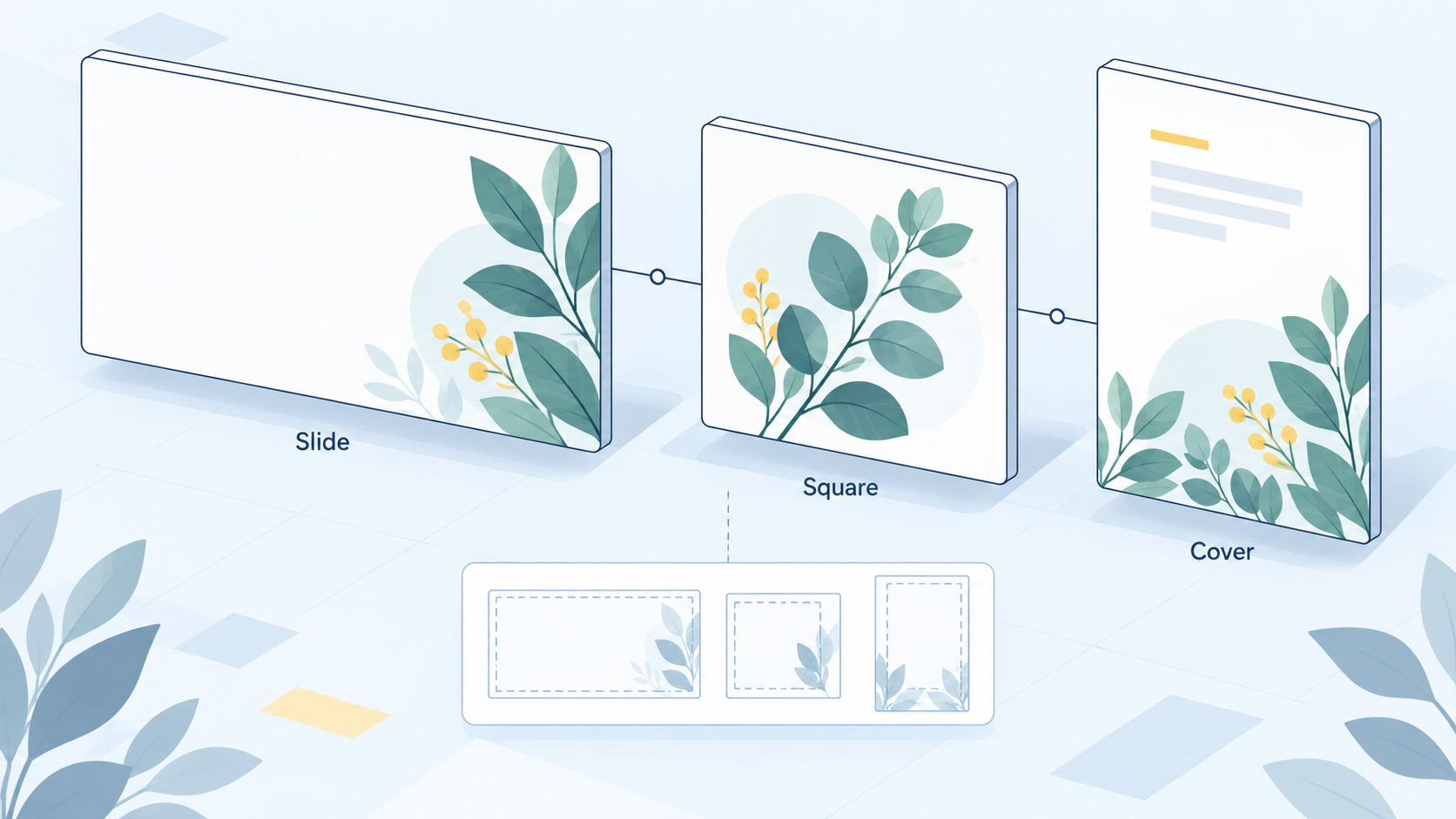
Image compositions for different document layouts
Finish Your Visuals with WPS Office
The image is only part of the deliverable. WPS Office brings documents, spreadsheets, presentations, and PDF tools together, so you can place a ChatGPT Image 2.5 result alongside editable text and the rest of your work. It is a practical companion for assembling a report or deck; the image-generation steps above happen in ChatGPT.
In WPS Writer, place the cursor where the image belongs and use Insert → Picture to choose the saved file. The WPS picture insertion guide provides the menu walkthrough. Add captions as document text so you can revise them without generating the image again.
For a presentation, keep the artwork and headline as separate objects. Match the slide layout to the image’s composition, leave space around the edges, and check the result in slideshow view. A useful arrangement is artwork on one side, a short heading on the other, and supporting text below it.
Keep copy editable. Put dates, names, prices, and headings in text boxes or paragraphs.
Check the full layout. Review margins, contrast, and cropping at the size your audience will see.
Save an editable master. Keep the document or presentation as well as the image file for later revisions.
Start with the free WPS Office download for everyday office work. Some advanced PDF and AI features may require a subscription; you do not need to activate them merely to plan the image-and-text layout described here.
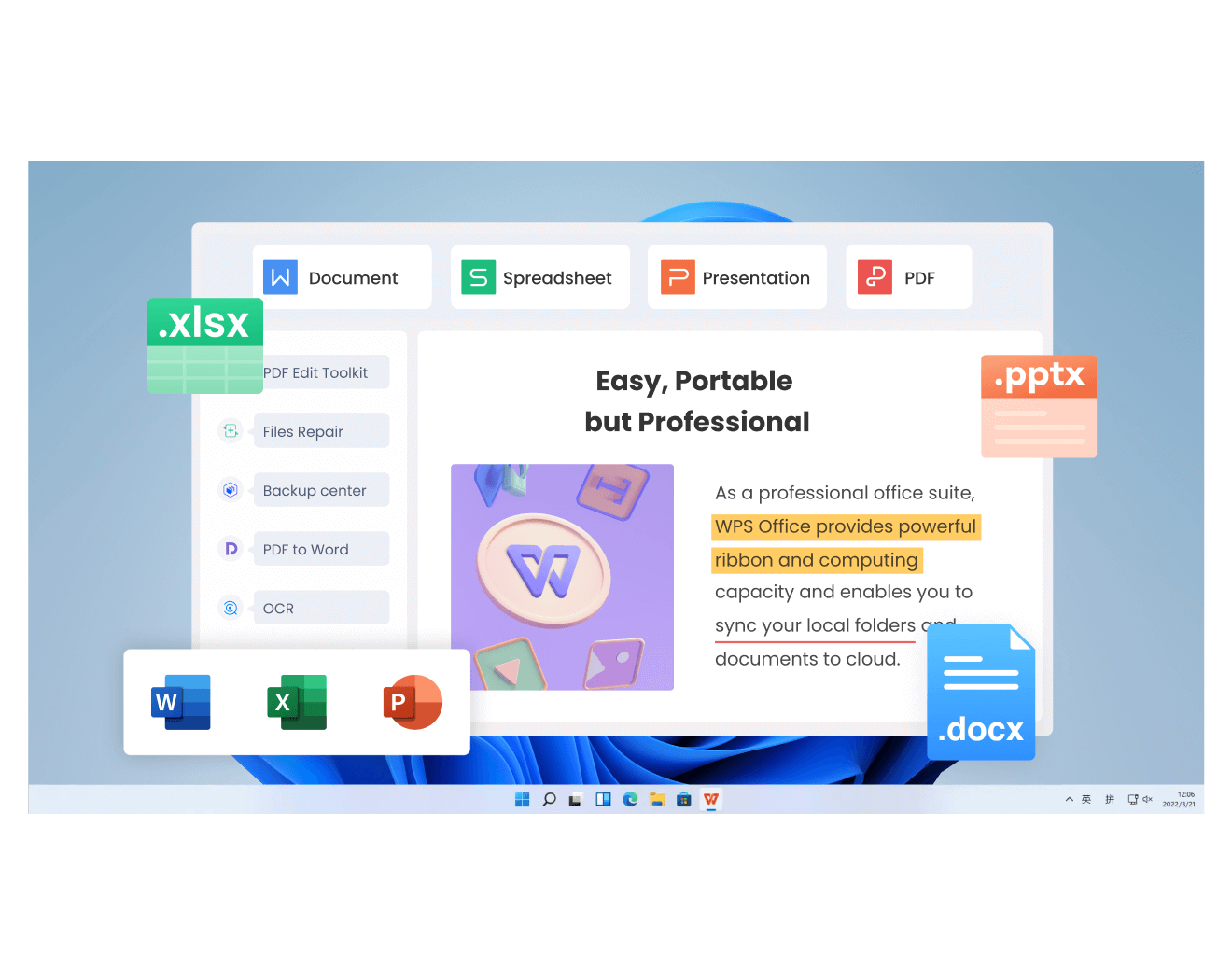
WPS Office shows four document components
FAQs
Is ChatGPT Image 2.5 the same name as GPT Image 2.5?
“ChatGPT image 2.5” is the search phrase used in this guide. OpenAI calls the ChatGPT experience ChatGPT Images 2.5, while its API catalog lists GPT Image 2.5 Sunburst and Flare. Use ChatGPT for the conversational workflow; developers use API model IDs.
Can I try ChatGPT Images without a paid plan?
Images is available across ChatGPT tiers, but availability does not mean unlimited generation. Check the allowance shown in your account rather than assuming a fixed daily quota from an older tutorial.
Why did an edit change more than the selected area?
Selections are approximate. Try a smaller request, name the features that must stay unchanged, and compare the revised image with the version you already approved.
Which prompt works best for a presentation?
Specify a wide composition and reserve space for the heading. Describe the intended audience and visual subject, but keep the final slide text editable in your presentation instead of embedding every word in the artwork.
Can I edit words inside the downloaded image in WPS?
Inserting an image does not turn its lettering into editable text. For reliable revisions, generate artwork without the headline and add the headline separately in WPS Writer or Presentation.

Summary
For a useful ChatGPT Image 2.5 result, define the destination first, write a clear composition brief, and make focused edits. Inspect the finished image before saving it. Then use WPS Office to add editable copy and assemble the document or presentation, keeping the artwork and source files for future revisions.
'%3e%3cpath%20d='M19.9911%204.11386V6.471H18.5894C18.0775%206.471%2017.7322%206.57814%2017.5536%206.79243C17.3751%207.00671%2017.2858%207.32814%2017.2858%207.75671V9.44421H19.9019L19.5536%2012.0871H17.2858V18.8639H14.5536V12.0871H12.2769V9.44421H14.5536V7.49779C14.5536%206.39064%2014.8632%205.53201%2015.4822%204.92189C16.1013%204.31177%2016.9257%204.00671%2017.9554%204.00671C18.8304%204.00671%2019.509%204.04243%2019.9911%204.11386Z'%20fill='%23333333'/%3e%3c/g%3e%3cdefs%3e%3cclipPath%20id='clip0_2938_8199'%3e%3crect%20width='16'%20height='16'%20fill='white'%20transform='translate(8%204.00671)'/%3e%3c/clipPath%3e%3c/defs%3e%3c/svg%3e)
'%3e%3cpath%20d='M17.5237%2010.7813L23.4811%204H22.0699L16.8949%209.88693L12.7648%204H8L14.2469%2012.9029L8%2020.0133H9.4112L14.8725%2013.7952L19.2352%2020.0133H24M9.92053%205.04213H12.0885L22.0688%2019.0224H19.9003'%20fill='%23333333'/%3e%3c/g%3e%3cdefs%3e%3cclipPath%20id='clip0_2938_8200'%3e%3crect%20width='16'%20height='16.0134'%20fill='white'%20transform='translate(8%204)'/%3e%3c/clipPath%3e%3c/defs%3e%3c/svg%3e)


