AI Image Editor

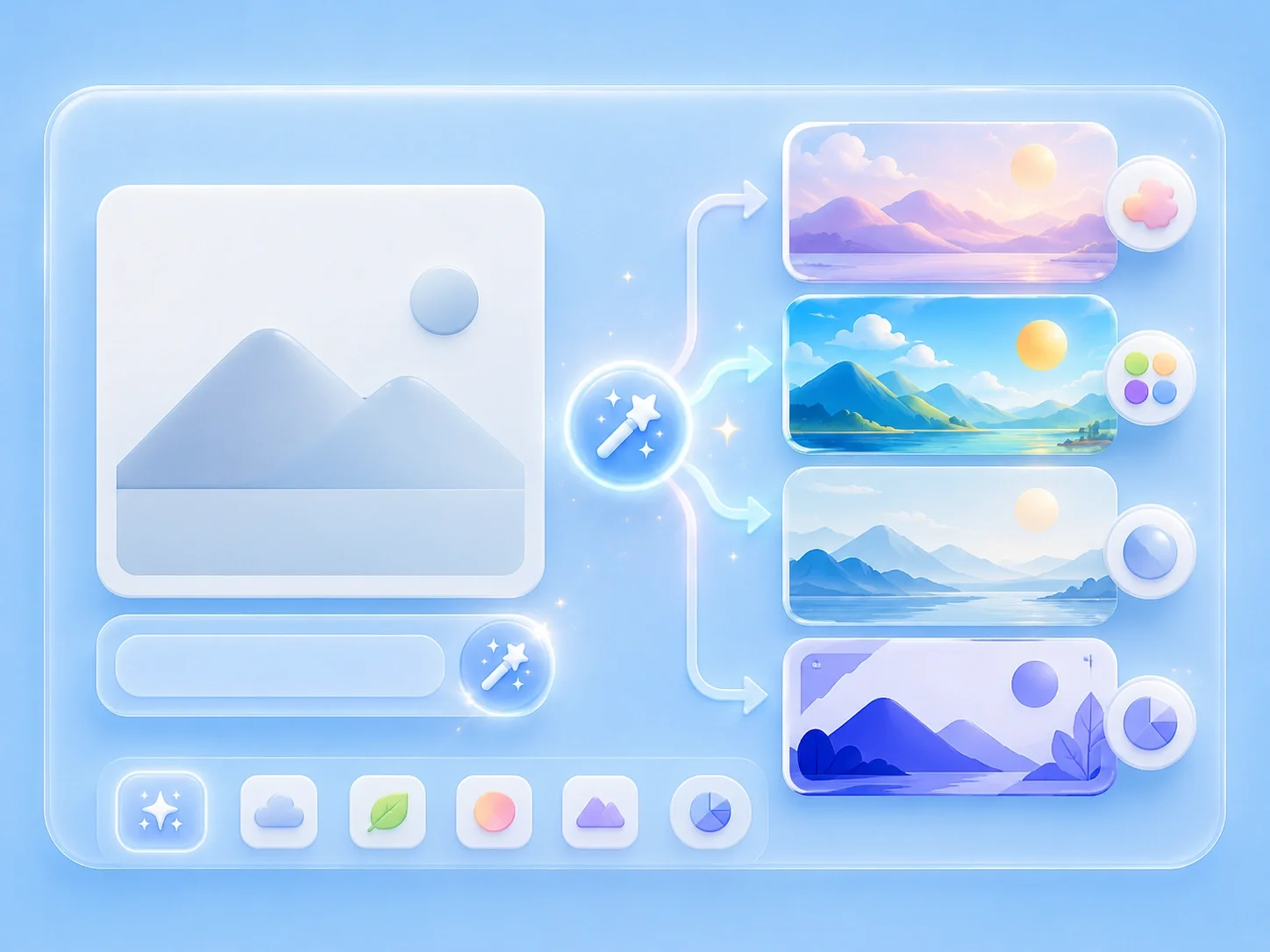
Use this AI photo editor to edit photos with simple text instructions for full-image or selected-area changes in seconds.

or drag and drop a file here

Switch between full-image editing and brushed local edits. Local brush mode only changes the painted area.

Source preview

Paint over the area you want to modify, then describe the exact change in the instruction box.

Source file details will appear here after upload.

Brush size28 px
Describe the exact visual change you want to make.0 / 500

0%

Processing...

Free and Unlimited
No Signup Required
Save Time
No Ads
Free to Use
No Sign-Up
No Ads
Any Browser

How to Edit Images in 3 Steps with AI Image Editor

  1. Step 1: Upload Your Image

    If your photo needs changes before you can use it, start by adding it to AI Image Editor. The tool checks the image format, size, and dimensions before editing begins.

  2. Step 2: Describe the Edit

    To edit photo with AI, type a request to remove an object, change a background, or retouch one area. You can also select a specific part of the image for local edits.

  3. Step 3: Regenerate and Download

    If the first result is close but not right, use AI Image Editor to regenerate the image. When the edit looks correct, download the new version for class, work, or personal use.

Change Photo Backgrounds with AI Image Editor

Change Photo Backgrounds with AI Image Editor

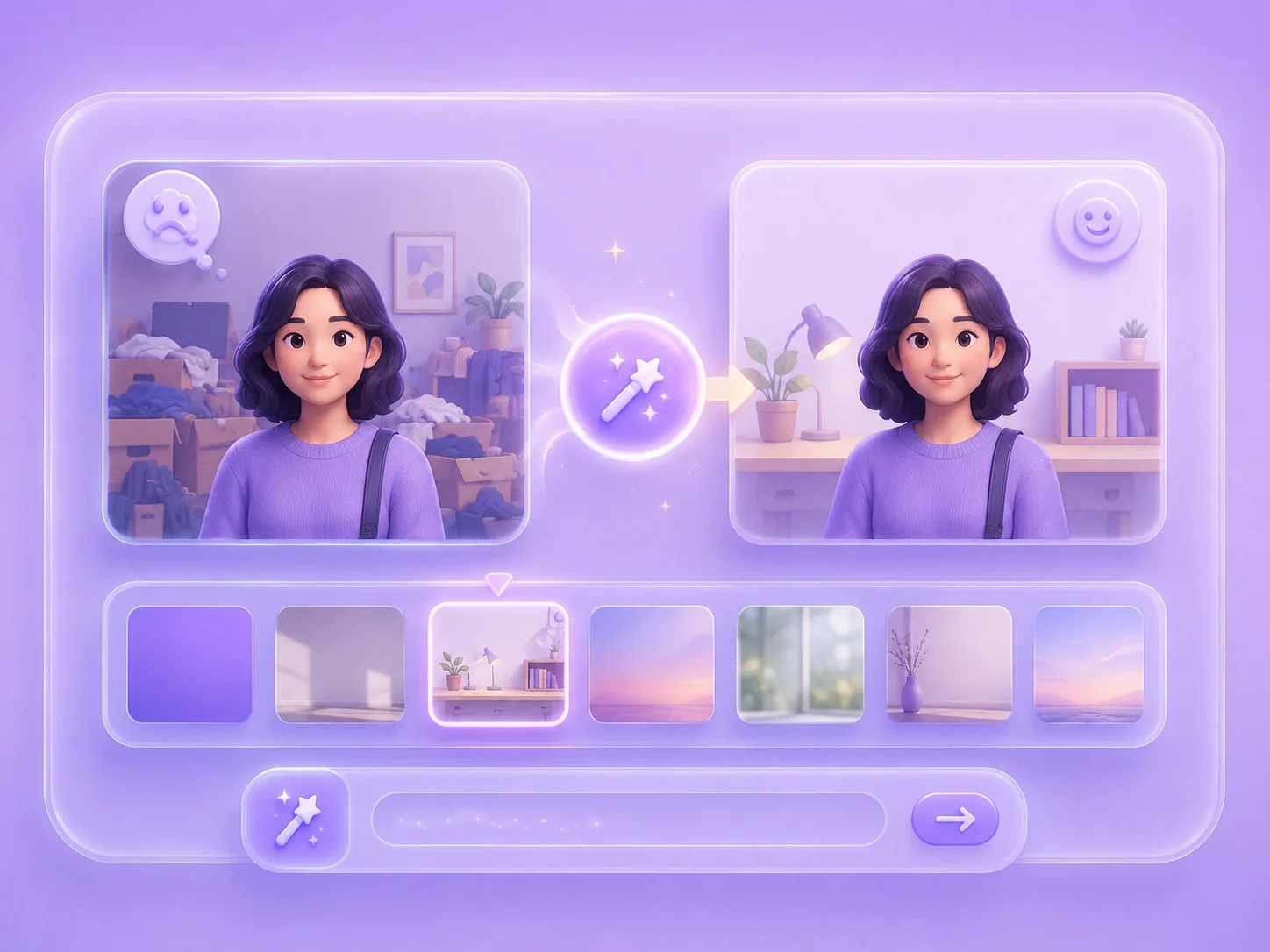
If a photo has a distracting or wrong background, it can look unusable for school, work, or sharing. AI Image Editor lets students, office workers, and general users replace the background by typing a simple instruction and generating a new version.

Replace Background
Remove Unwanted Objects with AI Photo Editor

Remove Unwanted Objects with AI Photo Editor

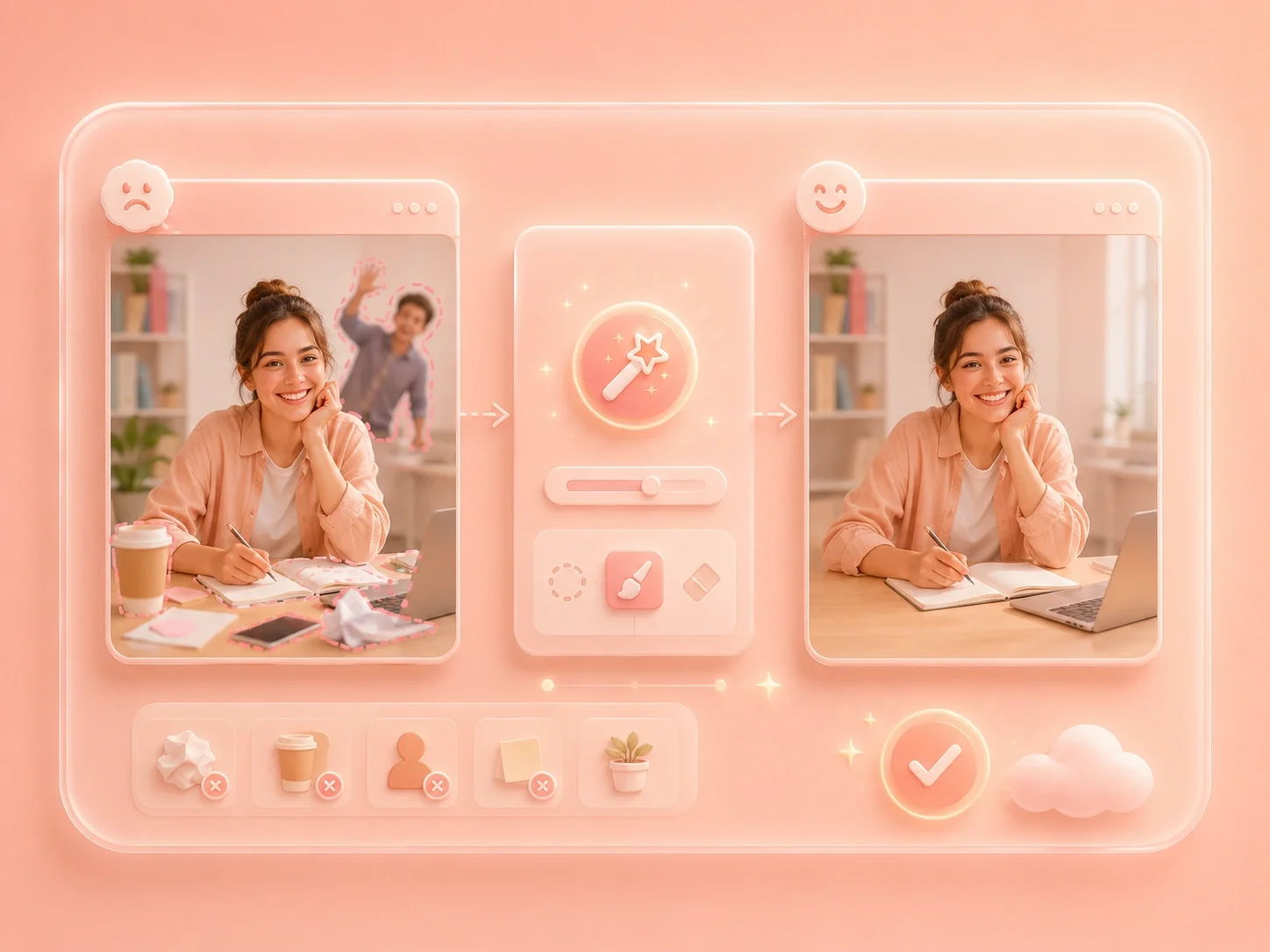
If a photo includes clutter, strangers, or small mistakes, manual editing can take too long. This AI photo editor helps students, office workers, and general users remove objects through text instructions and selection-based editing.

Remove Objects
Retouch Selected Areas with an AI Image Editor Free to Use

Retouch Selected Areas with an AI Image Editor Free to Use

If only one part of an image needs fixing, editing the whole photo can create extra problems. The AI image editor free to use helps students, office workers, and general users select one area, retouch it, and keep the rest of the image unchanged.

Retouch Area
Edit Photo with AI to Adjust Image Style

Edit Photo with AI to Adjust Image Style

If an image looks too plain or does not match the tone you need, restyling it by hand is hard. You can edit photo with AI using short prompts, apply style changes, and regenerate results in seconds.

Change Style

AI Image Editor Use Cases

Practical ways to edit photos with text prompts, selected areas, and AI-assisted changes

Profile photos

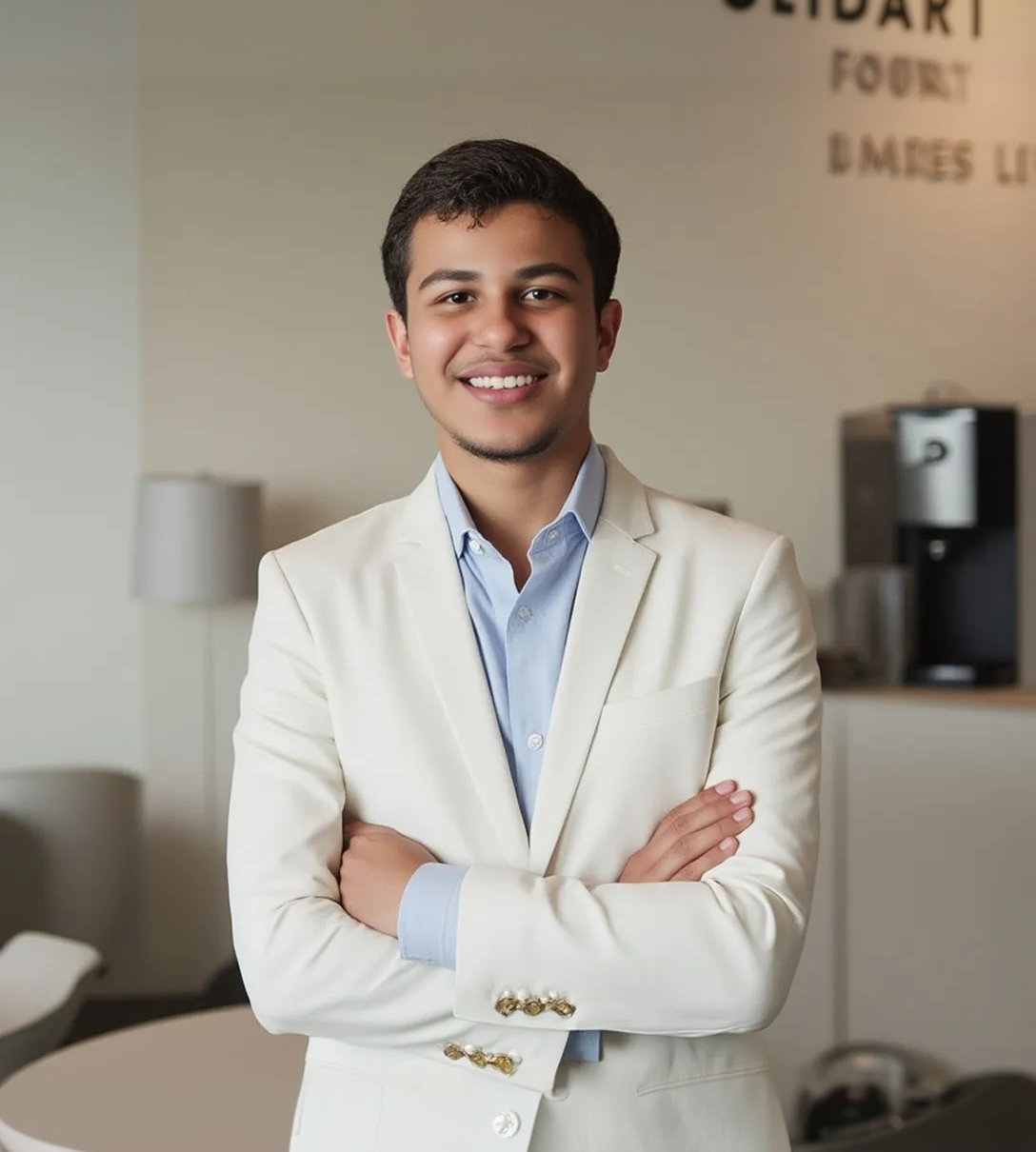
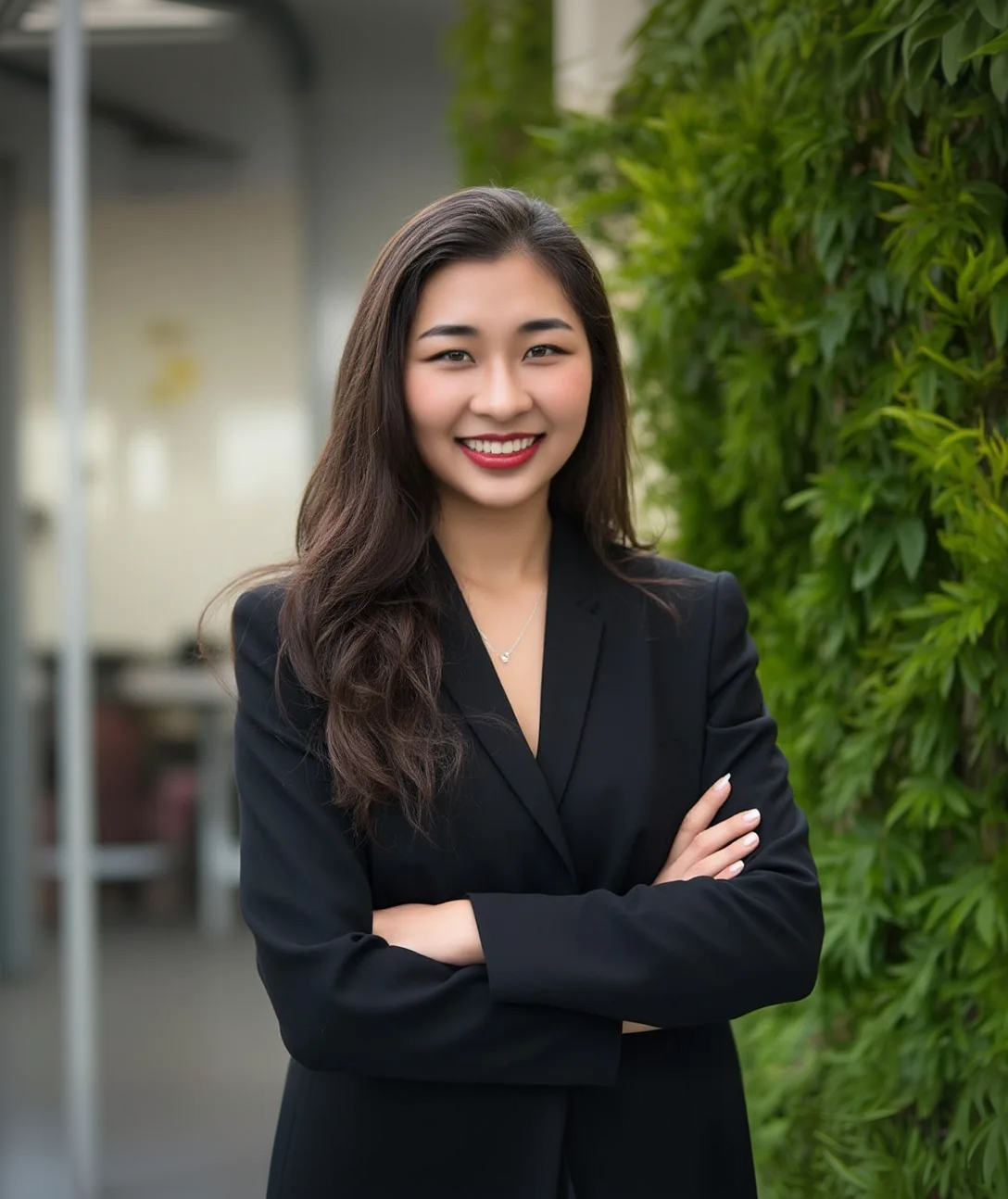
Clean up a profile photo, class image, or presentation visual by describing the background or object change you want AI Image Editor to apply.

Profile photos

Use case

Object removal

Remove a distracting object from a product slide, social image, or work document while keeping the rest of the picture focused on the main subject.

Object removal

Use case

Style changes

Try style changes, background ideas, or local retouch prompts when a photo needs a different look before sharing, presenting, or saving.

Style changes

Use case

AI Image Editor FAQ

01

What is AI Image Editor?

If you need to edit a photo without learning complex software, AI Image Editor is an online tool that changes images from text instructions. It can replace backgrounds, remove objects, retouch selected areas, and apply style changes for school, office, and personal tasks.

02

Is AI Image Editor with Prompt free to use?

Yes. Upload an image, type the change you want, generate the edit, and review or download the result without learning complex editing software.

03

Can AI Image Editor remove backgrounds and objects in one image?

If your image needs more than one change, AI Image Editor can handle background replacement and object removal as part of the editing workflow. This is useful for presentation images, assignment visuals, profile photos, and online posts.

04

How can I retouch only part of a photo with AI Image Editor?

If only one area looks wrong, select that part of the image and enter the change you want. AI Image Editor supports local editing, which helps when fixing faces, signs, product details, or small background sections.

05

What should I review after editing an image with AI?

Review the edited image for changed details, unwanted artifacts, subject accuracy, text readability, and background consistency before using it in class, work, ecommerce, or social posts.

06

What image files work best in AI Image Editor?

If an upload fails, the issue is often the file format, dimensions, or size. AI Image Editor validates these details before processing so students, office workers, and general users can correct the file and try again.