

'%3e%3cpath%20d='M8%200C12.4183%200%2016%203.58172%2016%208C16%2012.4183%2012.4183%2016%208%2016C3.58172%2016%200%2012.4183%200%208C0%203.58172%203.58172%200%208%200ZM11.6162%204.38379C11.2257%203.99337%2010.5927%203.99338%2010.2021%204.38379L8%206.58594L5.79785%204.38379C5.40732%203.99334%204.77429%203.99329%204.38379%204.38379C3.99331%204.77429%203.99335%205.40733%204.38379%205.79785L6.58594%208L4.38379%2010.2021C3.99348%2010.5927%203.99341%2011.2257%204.38379%2011.6162C4.77426%2012.0066%205.40734%2012.0065%205.79785%2011.6162L8%209.41406L10.2021%2011.6162C10.5927%2012.0066%2011.2257%2012.0067%2011.6162%2011.6162C12.0067%2011.2257%2012.0066%2010.5927%2011.6162%2010.2021L9.41406%208L11.6162%205.79785C12.0066%205.40735%2012.0066%204.77429%2011.6162%204.38379Z'%20fill='%23080E17'%20fill-opacity='0.46'/%3e%3c/g%3e%3cdefs%3e%3cclipPath%20id='clip0_3761_713'%3e%3crect%20width='16'%20height='16'%20fill='white'/%3e%3c/clipPath%3e%3c/defs%3e%3c/svg%3e)



'%3e%3cpath%20fill-rule='evenodd'%20clip-rule='evenodd'%20d='M21.4999%2010.9993C21.4999%205.20009%2016.7986%200.498901%2010.9993%200.498901C5.19994%200.498901%200.498657%205.20009%200.498657%2010.9993C0.498657%2016.2404%204.33858%2020.5844%209.35855%2021.3722V14.0346H6.69238V10.9993H9.35855V8.68594C9.35855%206.05427%2010.9262%204.60062%2013.3248%204.60062C14.4736%204.60062%2015.6753%204.80571%2015.6753%204.80571V7.38979H14.3512C13.0468%207.38979%2012.64%208.19921%2012.64%209.0296V10.9993H15.5523L15.0867%2014.0346H12.64V21.3722C17.66%2020.5844%2021.4999%2016.2404%2021.4999%2010.9993Z'%20fill='%231568EA'/%3e%3c/g%3e%3c/svg%3e)


'%3e%3cpath%20d='M2.42045%2022.1876H6.31818V12.7217L0.75%208.54553V20.5171C0.75%2021.4414%201.49892%2022.1876%202.42045%2022.1876Z'%20fill='%234285F4'/%3e%3cpath%20d='M19.682%2022.1876H23.5797C24.5041%2022.1876%2025.2502%2021.4387%2025.2502%2020.5171V8.54553L19.682%2012.7217'%20fill='%2334A853'/%3e%3cpath%20d='M19.682%205.48293V12.7216L25.2502%208.54543V6.31816C25.2502%204.25236%2022.8921%203.07469%2021.2411%204.31361'%20fill='%23FBBC04'/%3e%3cpath%20d='M6.31824%2012.7217V5.48303L13.0001%2010.4944L19.6819%205.48303V12.7217L13.0001%2017.733'%20fill='%23EA4335'/%3e%3cpath%20d='M0.75%206.31816V8.54543L6.31818%2012.7216V5.48293L4.75909%204.31361C3.10534%203.07469%200.75%204.25236%200.75%206.31816Z'%20fill='%23C5221F'/%3e%3c/g%3e%3cdefs%3e%3cclipPath%20id='clip0_2954_7305'%3e%3crect%20width='24.5'%20height='18.375'%20fill='white'%20transform='translate(0.75%203.8125)'/%3e%3c/clipPath%3e%3c/defs%3e%3c/svg%3e)


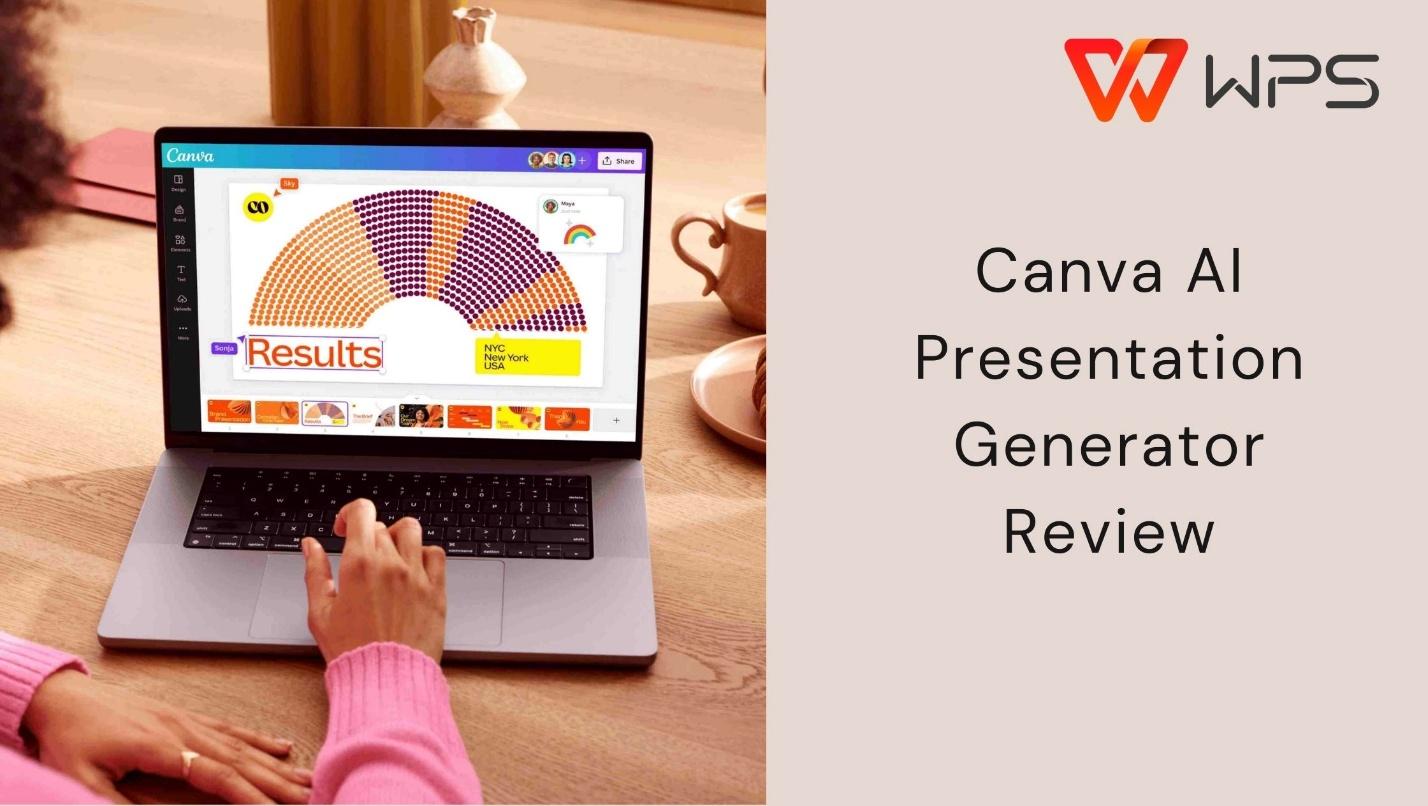
Creating a presentation often feels more stressful than it should. Tools like Canva AI Presentation Generator promise to fix that by generating slides automatically from text. For many users, that sounds like the perfect shortcut.
But once you start using it, questions come up quickly. Is it flexible enough? Is the free version practical? And does it really save time for serious work? This article breaks down how Canva AI Presentation Generator works, where it shines, where it falls short, and why some users end up looking for alternatives like WPS AI Slides.


Part 1: What Is Canva AI Presentation Generator?
The Canva AI presentation generator is an AI-powered feature built into Canva that helps users create slide decks automatically using text prompts. Instead of designing slides from scratch, you describe your topic, and Canva generates a structured presentation with layouts, text, and visuals.
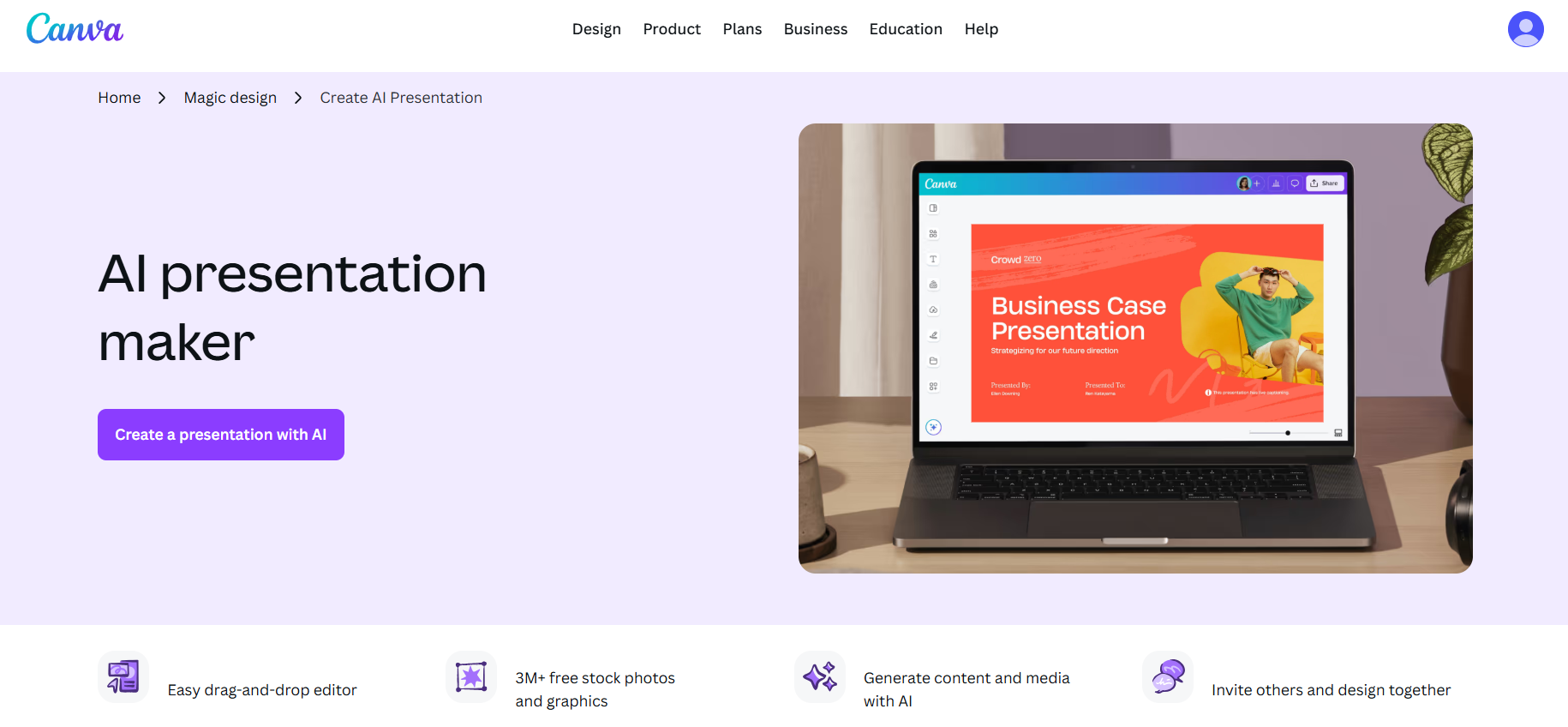
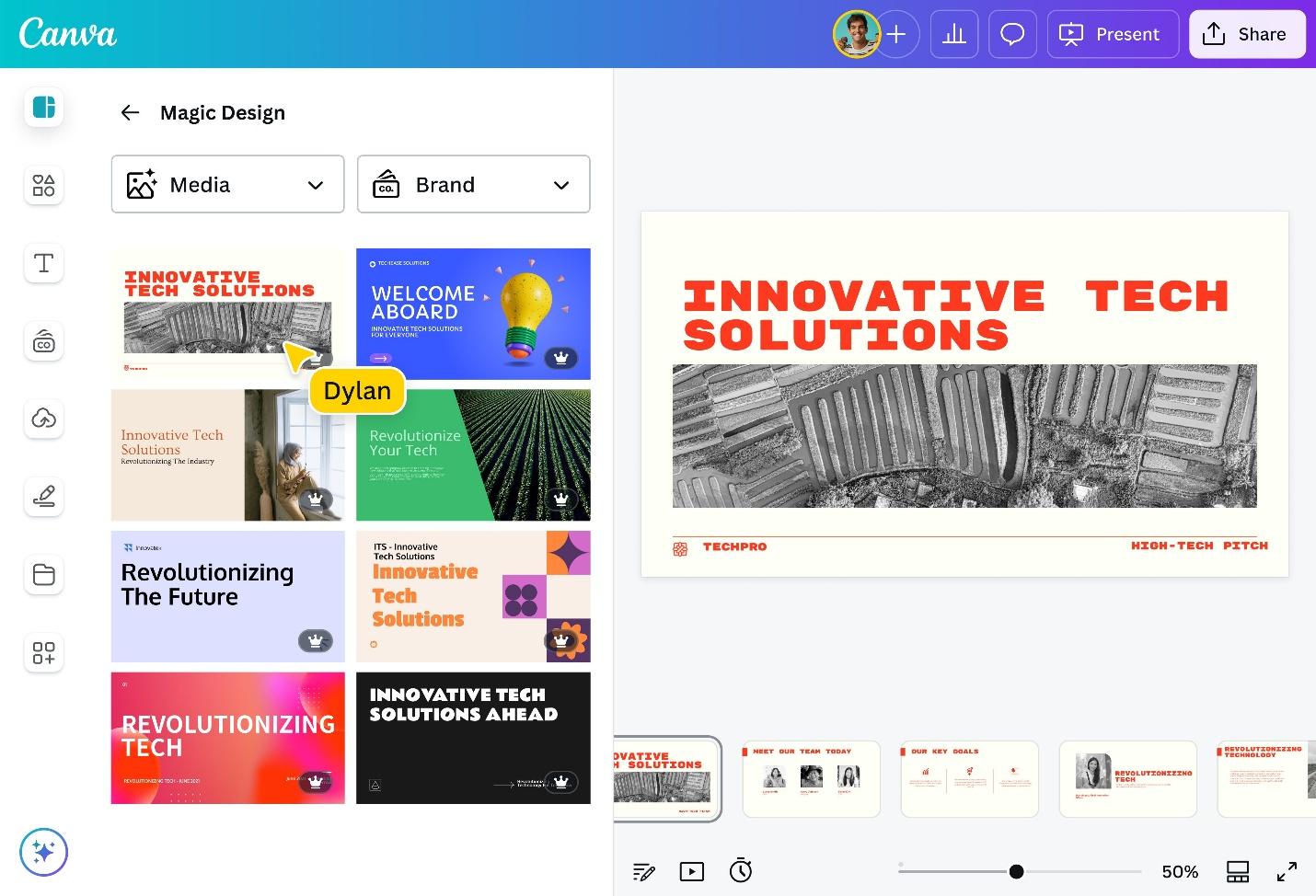
This tool is part of Canva’s broader AI ecosystem, which includes Magic Design and AI-assisted content creation. It works directly inside Canva’s editor, meaning users can continue editing their slides using Canva’s drag-and-drop interface after the AI generates the initial draft.
At its core, a Canva AI presentation is designed to speed up the early stages of presentation creation. The AI handles slide structure, basic copy, and design consistency, while users refine the final output manually.
How It Fits into Canva’s Platform
Canva AI Presentation Generator is not a standalone product. It functions as an extension of Canva’s design platform, which already supports:
Templates for Canva, PowerPoint, and Canva PPT
Brand kits and shared team designs
Web-based editing without software installation
This integration makes it easy for existing Canva users to experiment with AI-generated slides without learning a new tool.
Who Is It For?
The tool is mainly built for:
Students creating class presentations
Marketers preparing quick pitch decks
Professionals who need visually clean slides fast
Users are already comfortable with Canvas presentation workflows
For users asking how to create a presentation in Canva, the AI generator acts as a shortcut rather than a full replacement for manual design.
Key Features and Usability Notes
Text-to-slide generation based on prompts
Automatic layout and visual styling
Editable slides inside Canva’s editor
Access to Canva’s template and media library
While the Canva AI presentation generator is easy to use, it focuses more on speed and visual appeal than deep structural or content control. This trade-off becomes important in later sections.
Part 2: Pros and Cons of Canva AI Presentation Generator
The Canva AI presentation generator is popular because it lowers the effort needed to create visually appealing slides. However, speed and convenience come with trade-offs. Below is a balanced look at what it does well and where it can frustrate users.
Pros of Canva AI Presentation Generator
Fast slide creation
The biggest strength of a Canva AI presentation is speed. You can generate a full draft in minutes by entering a short prompt or topic. This is useful when deadlines are tight or when you need a starting point quickly.
Strong visual design by default
Canva is known for clean, modern layouts, and the AI follows that design language well. Slides look polished without much effort, making it suitable for marketing decks, student projects, and internal presentations.
Large template variety
Because it sits inside Canva, the AI generator pulls from an extensive library of templates. Users can switch styles easily, which helps when creating Canva PowerPoint or Canva PPT files for different audiences.
Beginner-friendly interface
If you already use Canva for posters or social media, creating aCanvas presentation with AI feels familiar. There is almost no learning curve, even for first-time users.
Cons of Canva AI Presentation Generator
Limited customization control
While editing is possible, users cannot fully control slide structure or AI-generated content. Rearranging logic, adjusting spacing precisely, or redesigning complex layouts often feels restrictive.
Internet dependency
Canva works entirely online. If your connection is unstable, working on a Canva AI presentation becomes difficult. Offline editing is not supported, which can be a deal-breaker for some professionals.
Pricing restrictions on advanced features
Although there is a Canva AI presentation generator free option, many templates, assets, and AI features are locked behind paid plans. For frequent users, these limits become noticeable fast.
Generic content output
The AI focuses heavily on design, not depth. Text often feels surface-level and needs manual rewriting, especially for professional or technical presentations.
Personal Use Insight
From practical use, Canva AI works best as a visual starting point, not a finished solution. It saves time in layout creation but still requires effort to refine content and structure. For users who need full control, advanced editing, or offline access, these limitations can add friction instead of removing it.
Part 3: Canva AI Presentation Generator Pricing
Understanding the cost of using the Canva AI presentation generator is important before committing to it long-term. Canva has several pricing options, ranging from a free tier with limits to paid plans that unlock more advanced features.
Canva AI Presentation Generator Free Plan
Canva offers a free plan that lets users access its design tools, templates, and many basic AI features at no cost. This includes a limited number of AI presentation generations per month through Canva’s Magic Design tool.
However, the free plan typically comes with restrictions such as:
A cap on the number of AI-generated presentations you can create.
Export limitations (for example, free users may not be able to download Canva AI presentation maker from pdf or export full PPTX files).
Canva branding on the final output.
This plan is suitable for occasional users, students, or anyone who wants to try out how the Canva AI presentation generator free experience feels before upgrading.
Canva Paid Plans: Pro and Teams
For more frequent or professional use, Canva’s paid tiers unlock broader access to AI features, including unlimited AI slides and advanced templates.
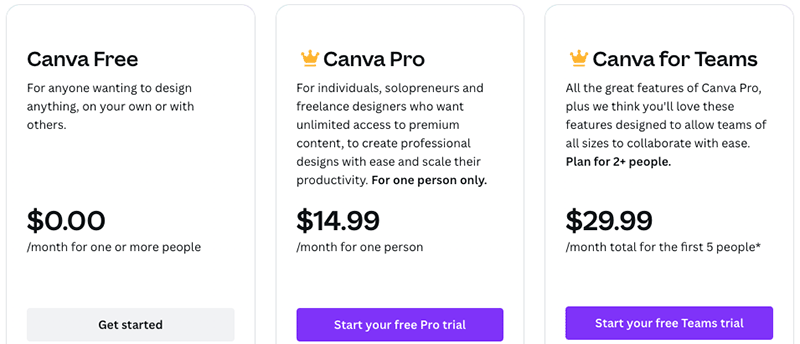
This plan is ideal for individual professionals, freelancers, and small business owners who create presentations regularly.
This tier is useful for teams that need shared access to assets and workflow controls while using Canva, PowerPoint, and similar formats.
How Pricing Affects AI Presentation Access
Across these plans, there are a few patterns worth noting for users focusing on AI-generated slides:
The free version gives you a taste of AI-powered creation, but limits usage and export options, which can be frustrating for recurring needs.
Paid plans like Pro and Teams remove most caps on AI features and offer more export flexibility.
Some advanced AI-centric features, including newer capabilities, may still require a Pro or higher subscription even if basic generation is free.
Who Should Consider Each Plan
Free plan – good for students, casual users, or first-time testers of AI slide tools.
Canva Pro – great for individual professionals, regular creators, and anyone who frequently relies on Canva AI presentation maker tools.
Canva for Teams – best for collaborative environments where multiple users work on presentations or share brand assets.
Overall, the pricing structure reflects Canva’s balance between broad accessibility and premium feature access, especially around AI-assisted design.
Part 4: How to Use Canva AI Presentation Generator
Using the Canva AI presentation generator is straightforward, especially if you are already familiar with Canva’s interface. The tool is designed to reduce the time spent on layout and structure, while still allowing manual edits afterward.
Below is the typical workflow most users follow.
Step 1: Start a New AI Presentation in Canva
Log in to Canva and choose the AI presentation option from the dashboard. This is where the Canva AI presentation maker prompts you to describe what your presentation is about.
You can enter:
A topic (for example, a business pitch or school project)
A short description of your content
A rough outline, if you want more control
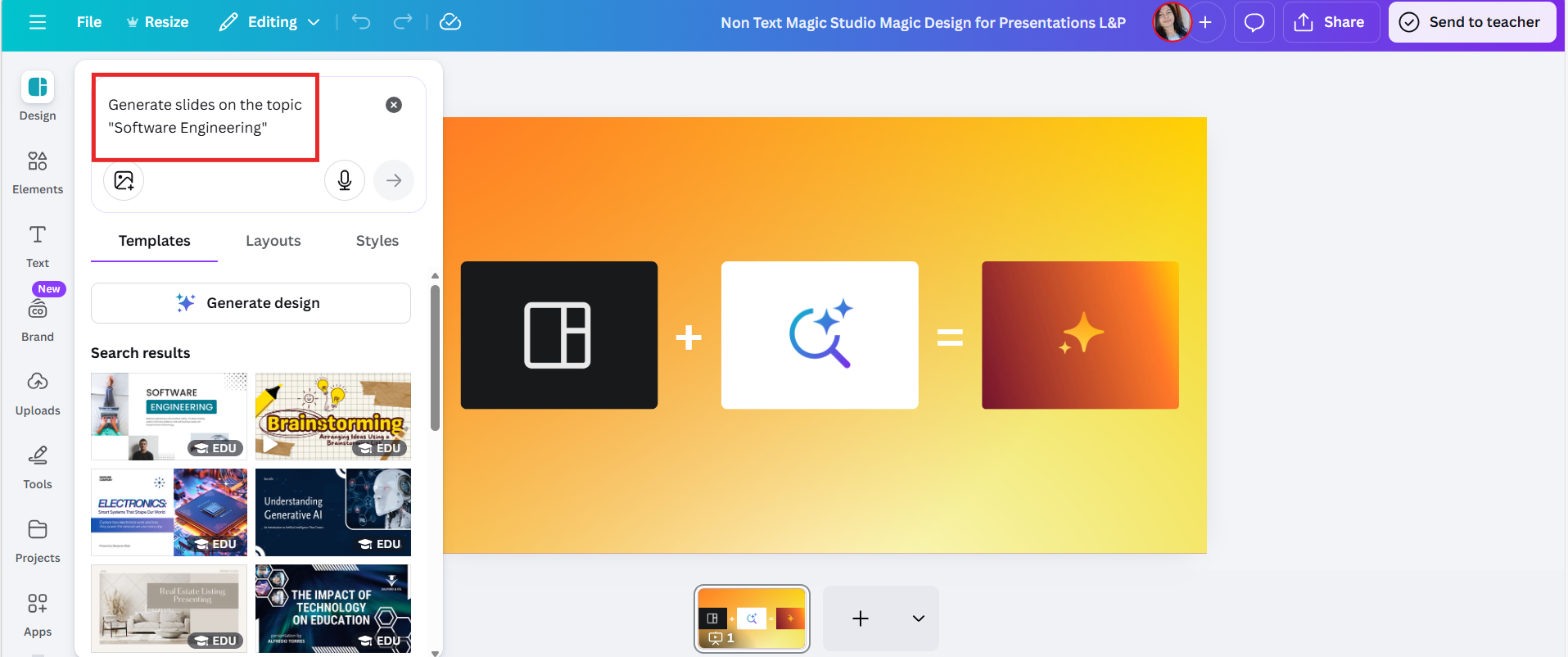
This step is crucial because the quality of the prompt directly affects the slide structure and content.
Step 2: Let the AI Generate Slides
After submitting your prompt, Canva’s AI generates a complete draft presentation. This usually includes:
A title slide
Several content slides with headings and bullet points
Visual elements pulled from Canva’s design library
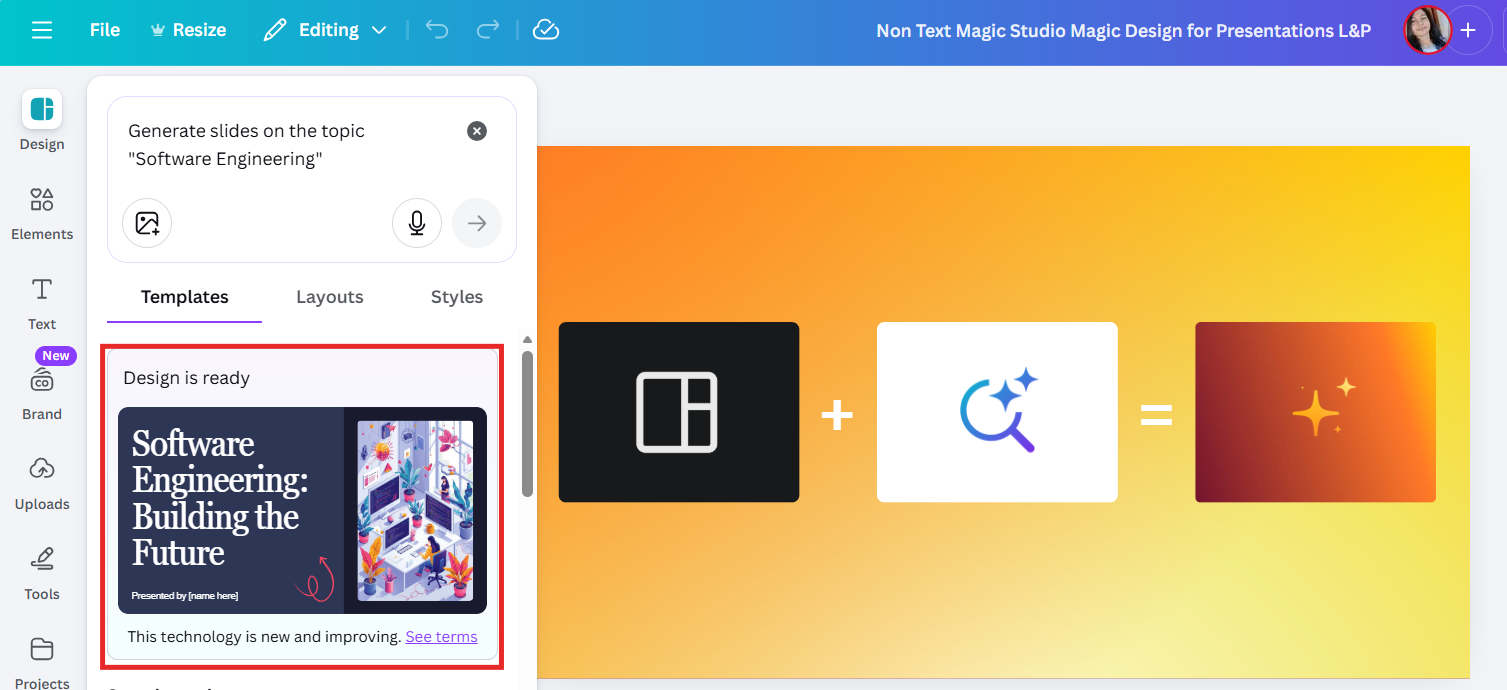
At this stage, you essentially get a ready-made Canvas PowerPoint that can be edited immediately.
Step 3: Edit and Customize the Presentation
Once the AI draft is created, you can:
Edit text and headings
Swap layouts or themes
Replace images and icons
Adjust fonts and colors
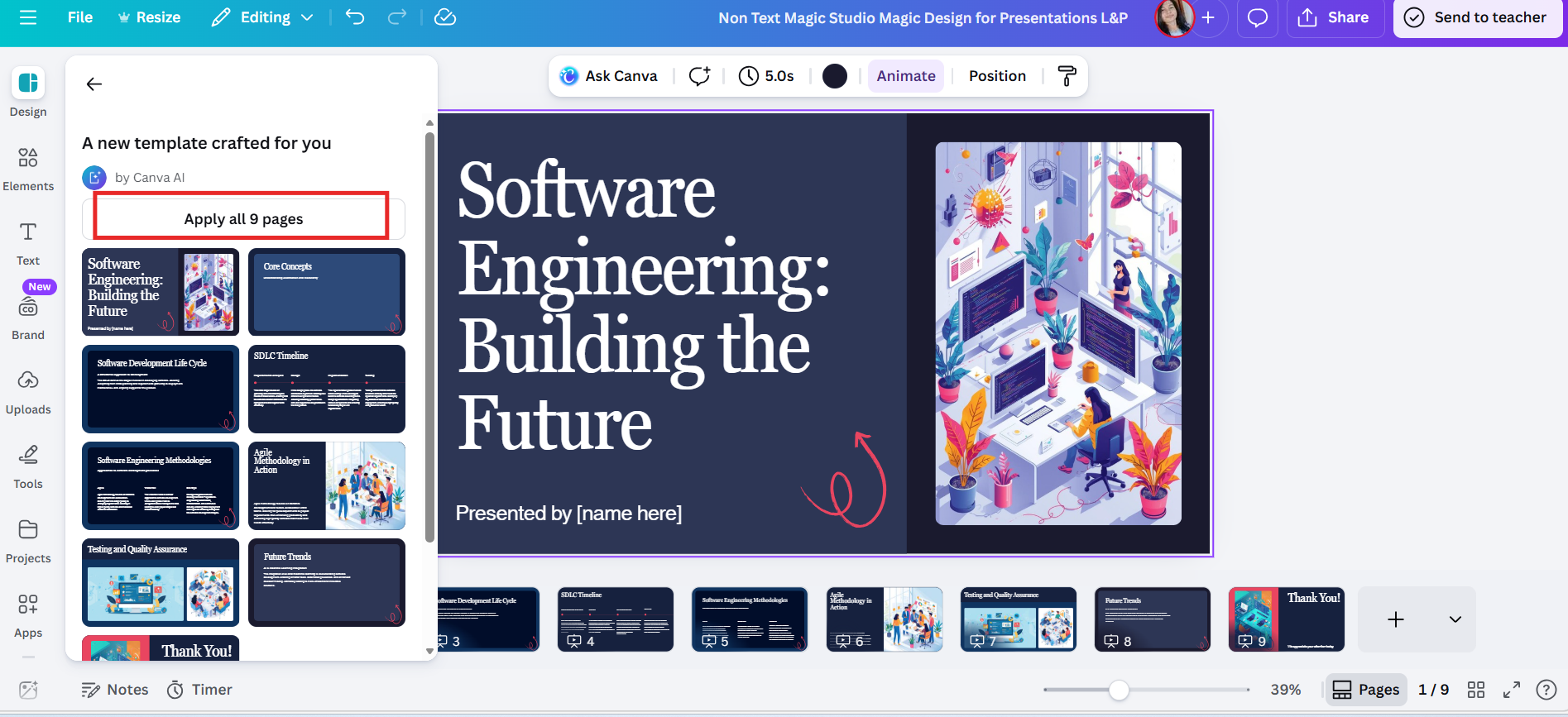
This is where users working on a Canva PPT often realize both the convenience and the limits. Basic edits are easy, but deeper layout control can feel constrained compared to desktop tools.
Step 4: Export or Share Your Slides
After editing, you can export your presentation as:
PPTX
PDF
Canva’s native shareable format
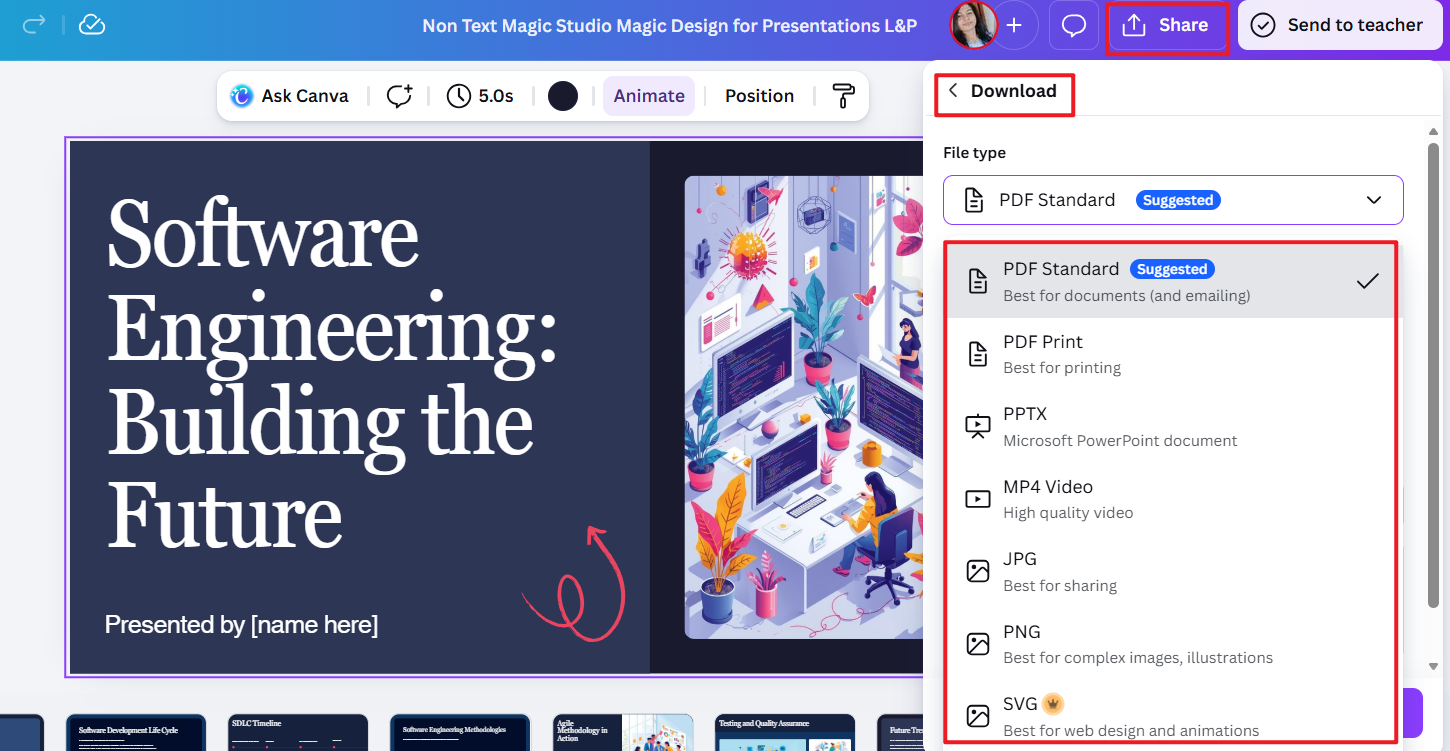
Export options may vary depending on whether you are using the free or paid plan. This step is especially important for users who need to share slides outside the Canva ecosystem.
Tips for Better Results
Be specific with prompts.
Vague inputs lead to generic slides. Clear instructions improve both structure and content relevance.
Expect to rewrite text.
The AI focuses on layout first. For professional use, you will likely need to refine the wording.
Check formatting carefully
Some spacing and alignment issues may appear when converting AI-generated slides into Canva PowerPoint files.
From hands-on use, Canva AI works best when treated as a fast draft generator rather than a final solution. It helps you move quickly, but quality still depends on human editing.
Part 5: Why WPS AI Slides Is the Best Alternative
Some users enjoy the speed of the Canva AI presentation generator, but eventually run into limits. These usually appear when deeper editing, offline access, or more professional control becomes necessary. This is where WPS AI Slides stands out as a practical alternative.
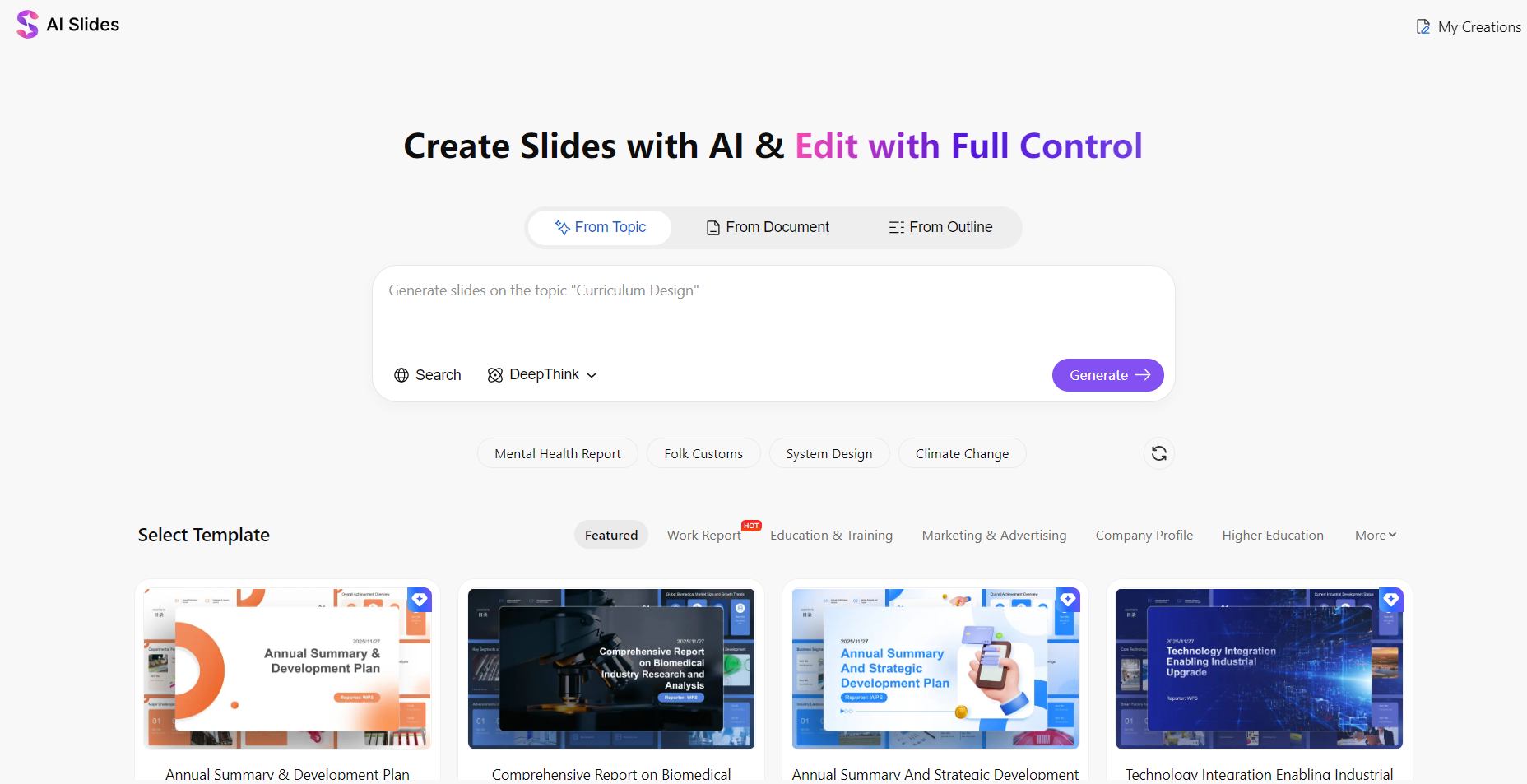
WPS AI Slides is built specifically for presentation creation, not just visual design. It focuses on helping users generate structured, professional slides that remain fully editable across devices and formats.
What Makes WPS AI Slides Different
Unlike a web-only Canva AI presentation builder, WPS AI Slides works across desktop and mobile platforms. This matters for users who need reliability, offline access, or consistent formatting when opening files on different systems.
For users who find Canva’s AI too template-driven, WPS offers a more document-first workflow.
AI Presentation Creation from Multiple Sources
This makes it especially useful for professionals repurposing reports, notes, or articles into presentations. Compared to a Canva AI presentation maker from text, the output feels more structured and presentation-ready.
Professional Templates with Full Control
WPS provides clean, business-focused templates that prioritize clarity over decoration. While Canva emphasizes visual creativity, WPS leans toward usability and consistency.
This level of control is difficult to achieve in a Canva AI presentation creator, especially on the free plan.
How to Create Slides with WPS AI Slides
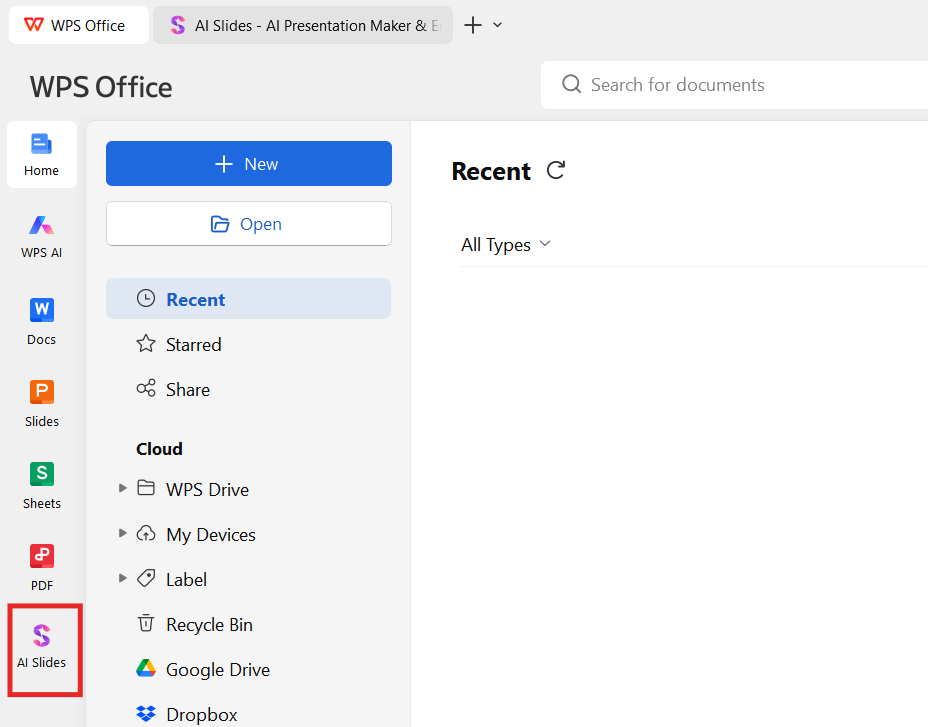
Step 1: Open WPS Presentation and select AI Slides
Launch WPS Presentation on desktop or web and choose the AI slide generation option.
Step 2: Enter your topic or content
You can paste text, upload a document, or enter a topic description.
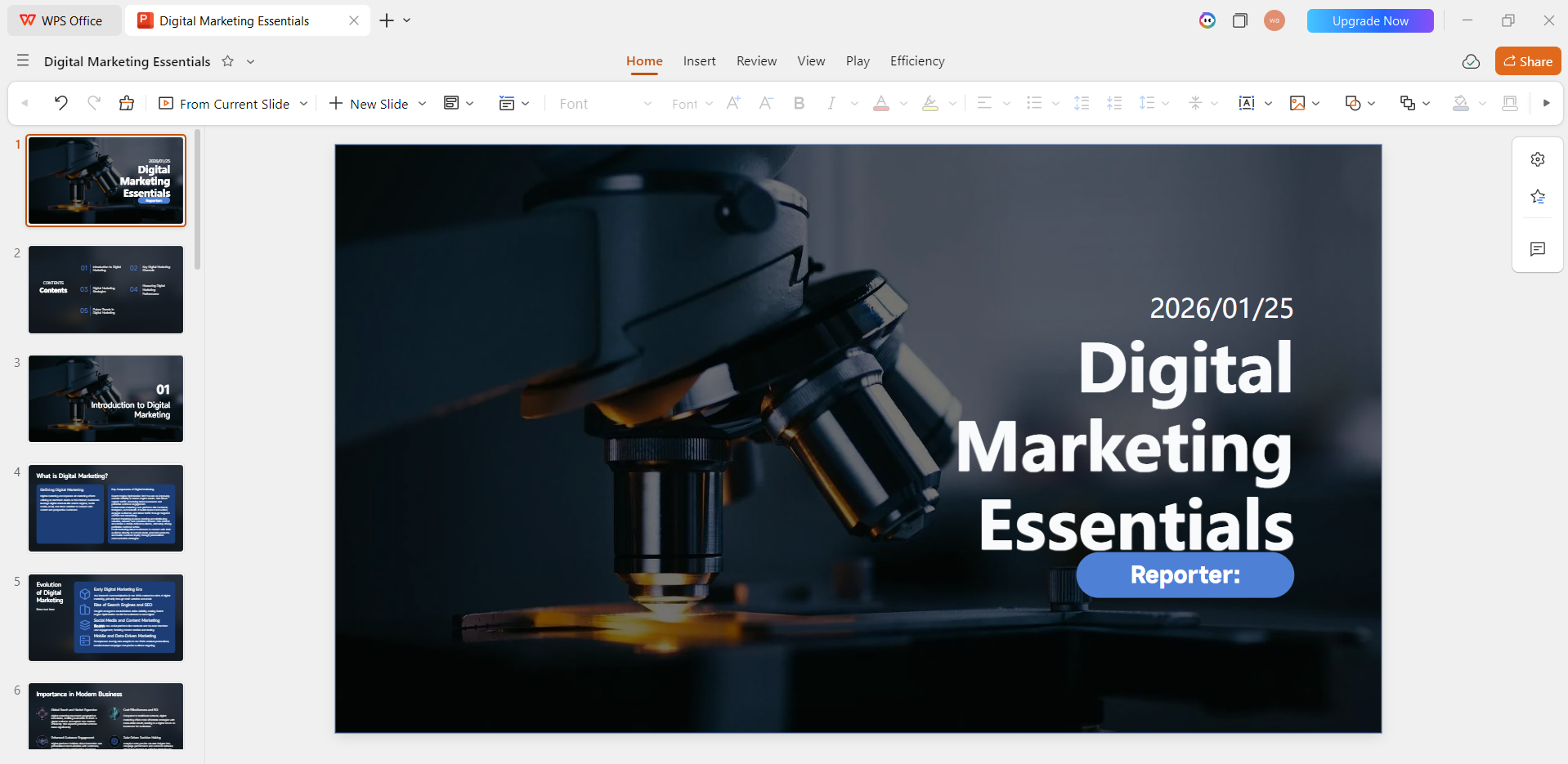
Step 3: Generate and edit instantly
The AI creates a complete slide deck that remains fully editable in PPT format.
Step 4: Export without restrictions
Export your presentation as PPTX, PDF, or other supported formats with full compatibility.
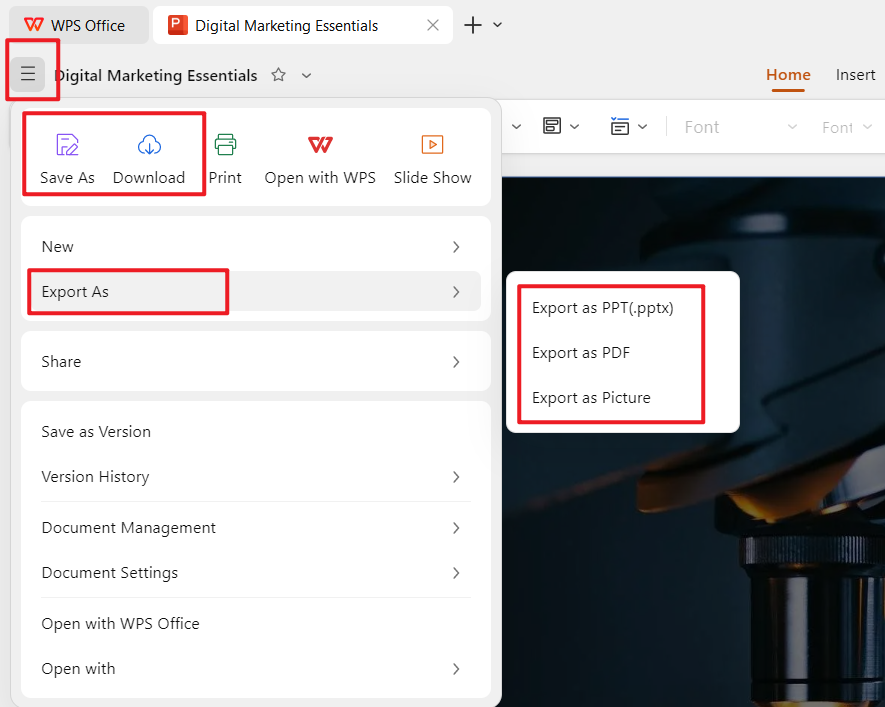
This workflow feels closer to a professional slide-building process than a visual-first Canva AI presentation maker.
Why Many Users Switch from Canva
From experience, users often move to WPS AI Slides when they:
Need offline access
Want deeper control over slide structure
Work heavily with PowerPoint files
Prefer faster editing with fewer design limits
WPS AI Slides is not just an alternative. For many use cases, it becomes a more reliable long-term solution than a Canva AI presentation template generator.
Part 6: Comparing WPS AI Slides and Canva AI Presentation Generator
Both tools aim to reduce the time spent creating presentations, but they are built with different priorities. Below is a direct comparison based on real usage and common user expectations.
| Comparison Factor | Canva AI Presentation Generator | WPS AI Slides |
|---|---|---|
| AI Slide Quality & Structure | Strong visual layouts, but the content is often generic and needs rewriting | Focuses on logical flow, clearer structure, and presentation-ready content |
| Creativity & Design Style | Design-first, visually polished templates | Professional, business-oriented templates with cleaner layouts |
| Platform Compatibility | Web-only (browser-based) | Windows, Mac, Web, and Mobile |
| Offline Access | Not supported | Fully supported on desktop |
| Customization Control | Basic editing with layout restrictions | Full control over layouts, text hierarchy, charts, and spacing |
| AI Input Methods | Text prompts only | Topics, outlines, and document-based generation |
| Workflow Efficiency | Fast for visual drafts | Faster for complete, fully editable presentations |
| Free Plan Limits | Limited AI usage and locked assets | More generous free AI slide generation |
| Export Formats | PDF, PPTX, Canva format | PPTX, PDF, and broader professional export options |
| PowerPoint Compatibility | PPTX exports may need adjustment | Native PPT compatibility with minimal formatting issues |
| Best For | Students, marketers, and quick visual presentations | Professionals, educators, teams, and long-term presentation work |
FAQs
1. What is Canva AI Presentation Generator, and who should use it?
Canva AI Presentation Generator is an AI-powered tool that creates slides automatically from prompts within Canva’s design platform. It’s ideal for students, marketers, and professionals who want quick, visually appealing presentations, though it may be limited for those needing advanced customization or offline editing.
2. Can I fully customize presentations generated by Canva AI?
While Canva allows some editing of AI-generated slides, customization options are limited compared to desktop-based tools. Users seeking full layout control, professional templates, and advanced design adjustments may find WPS AI Slides a more flexible option.
3. How does Canva AI Presentation Generator’s pricing compare to other AI slide tools?
Canva offers a free plan with basic AI features, while premium tiers unlock more templates and functionalities. Heavy users or teams may find the paid plan restrictive. WPS AI Slides provides a robust free version with advanced AI slide generation, making it more cost-effective for long-term use.
4. Can Canva AI-generated slides be exported to multiple formats?
Export options are generally limited to PDF, PPTX, or Canva’s native format. For users needing broader export flexibility and full editability, WPS AI Slides offers more options and smoother integration with professional workflows.

'%3e%3cpath%20d='M19.9911%204.11386V6.471H18.5894C18.0775%206.471%2017.7322%206.57814%2017.5536%206.79243C17.3751%207.00671%2017.2858%207.32814%2017.2858%207.75671V9.44421H19.9019L19.5536%2012.0871H17.2858V18.8639H14.5536V12.0871H12.2769V9.44421H14.5536V7.49779C14.5536%206.39064%2014.8632%205.53201%2015.4822%204.92189C16.1013%204.31177%2016.9257%204.00671%2017.9554%204.00671C18.8304%204.00671%2019.509%204.04243%2019.9911%204.11386Z'%20fill='%23333333'/%3e%3c/g%3e%3cdefs%3e%3cclipPath%20id='clip0_2938_8199'%3e%3crect%20width='16'%20height='16'%20fill='white'%20transform='translate(8%204.00671)'/%3e%3c/clipPath%3e%3c/defs%3e%3c/svg%3e)
'%3e%3cpath%20d='M17.5237%2010.7813L23.4811%204H22.0699L16.8949%209.88693L12.7648%204H8L14.2469%2012.9029L8%2020.0133H9.4112L14.8725%2013.7952L19.2352%2020.0133H24M9.92053%205.04213H12.0885L22.0688%2019.0224H19.9003'%20fill='%23333333'/%3e%3c/g%3e%3cdefs%3e%3cclipPath%20id='clip0_2938_8200'%3e%3crect%20width='16'%20height='16.0134'%20fill='white'%20transform='translate(8%204)'/%3e%3c/clipPath%3e%3c/defs%3e%3c/svg%3e)


