

'%3e%3cpath%20d='M8%200C12.4183%200%2016%203.58172%2016%208C16%2012.4183%2012.4183%2016%208%2016C3.58172%2016%200%2012.4183%200%208C0%203.58172%203.58172%200%208%200ZM11.6162%204.38379C11.2257%203.99337%2010.5927%203.99338%2010.2021%204.38379L8%206.58594L5.79785%204.38379C5.40732%203.99334%204.77429%203.99329%204.38379%204.38379C3.99331%204.77429%203.99335%205.40733%204.38379%205.79785L6.58594%208L4.38379%2010.2021C3.99348%2010.5927%203.99341%2011.2257%204.38379%2011.6162C4.77426%2012.0066%205.40734%2012.0065%205.79785%2011.6162L8%209.41406L10.2021%2011.6162C10.5927%2012.0066%2011.2257%2012.0067%2011.6162%2011.6162C12.0067%2011.2257%2012.0066%2010.5927%2011.6162%2010.2021L9.41406%208L11.6162%205.79785C12.0066%205.40735%2012.0066%204.77429%2011.6162%204.38379Z'%20fill='%23080E17'%20fill-opacity='0.46'/%3e%3c/g%3e%3cdefs%3e%3cclipPath%20id='clip0_3761_713'%3e%3crect%20width='16'%20height='16'%20fill='white'/%3e%3c/clipPath%3e%3c/defs%3e%3c/svg%3e)



'%3e%3cpath%20fill-rule='evenodd'%20clip-rule='evenodd'%20d='M21.4999%2010.9993C21.4999%205.20009%2016.7986%200.498901%2010.9993%200.498901C5.19994%200.498901%200.498657%205.20009%200.498657%2010.9993C0.498657%2016.2404%204.33858%2020.5844%209.35855%2021.3722V14.0346H6.69238V10.9993H9.35855V8.68594C9.35855%206.05427%2010.9262%204.60062%2013.3248%204.60062C14.4736%204.60062%2015.6753%204.80571%2015.6753%204.80571V7.38979H14.3512C13.0468%207.38979%2012.64%208.19921%2012.64%209.0296V10.9993H15.5523L15.0867%2014.0346H12.64V21.3722C17.66%2020.5844%2021.4999%2016.2404%2021.4999%2010.9993Z'%20fill='%231568EA'/%3e%3c/g%3e%3c/svg%3e)


'%3e%3cpath%20d='M2.42045%2022.1876H6.31818V12.7217L0.75%208.54553V20.5171C0.75%2021.4414%201.49892%2022.1876%202.42045%2022.1876Z'%20fill='%234285F4'/%3e%3cpath%20d='M19.682%2022.1876H23.5797C24.5041%2022.1876%2025.2502%2021.4387%2025.2502%2020.5171V8.54553L19.682%2012.7217'%20fill='%2334A853'/%3e%3cpath%20d='M19.682%205.48293V12.7216L25.2502%208.54543V6.31816C25.2502%204.25236%2022.8921%203.07469%2021.2411%204.31361'%20fill='%23FBBC04'/%3e%3cpath%20d='M6.31824%2012.7217V5.48303L13.0001%2010.4944L19.6819%205.48303V12.7217L13.0001%2017.733'%20fill='%23EA4335'/%3e%3cpath%20d='M0.75%206.31816V8.54543L6.31818%2012.7216V5.48293L4.75909%204.31361C3.10534%203.07469%200.75%204.25236%200.75%206.31816Z'%20fill='%23C5221F'/%3e%3c/g%3e%3cdefs%3e%3cclipPath%20id='clip0_2954_7305'%3e%3crect%20width='24.5'%20height='18.375'%20fill='white'%20transform='translate(0.75%203.8125)'/%3e%3c/clipPath%3e%3c/defs%3e%3c/svg%3e)


A good background remover tool is something that can effortlessly detect outlines, separate objects, and give you a clean, professional cutout in seconds. I need it. You need it. A videographer needs it. Even someone just trying to make a funny sticker of their friend needs it (possibly most direly of all). With so many options out there, it's ever so more difficult now to find the one catering to your specific needs. So, I did the search for you and compiled the best transparent picture maker tools, all worth your time, built to make clean background removal effortless.


Remove.bg – Fast & Fully Automated
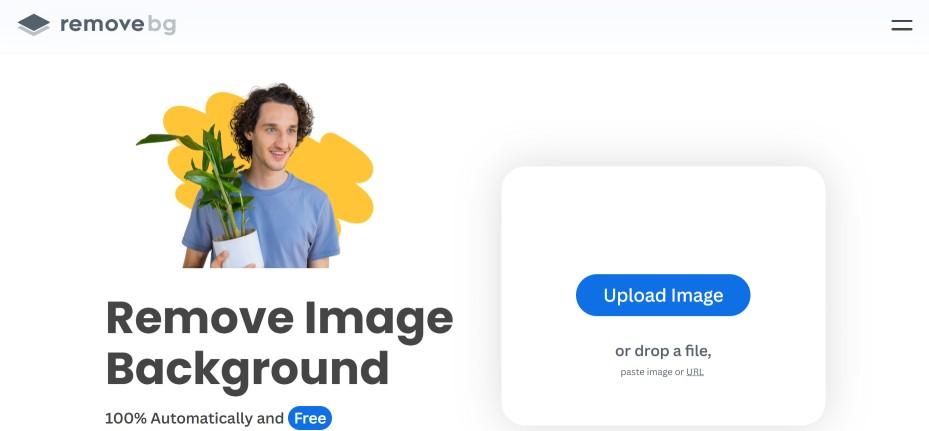
Remove.bg is probably the most famous tool in this category, and it's built for pure speed. It's an online tool that’s fully automated, meaning you just upload your picture and it gives you a cutout seconds later. Its AI is impressively good at detecting the main subject, whether it's a person, a product, or a car. It even has a "Magic Brush" tool that lets you quickly fix any little spots the AI might have missed. It’s incredibly popular because it’s fast and the results are consistently good for most standard images.
Step-by-Step Tutorial:
Using this tool is very simple; just follow the steps below, and you’ll be good to go within seconds.
Step 1: First, head over to the Remove.bg website.
Alt text: Remove bg homepage
Step 2: On the Remove.bg website, click 'Upload Image' or drag and drop it onto the page.
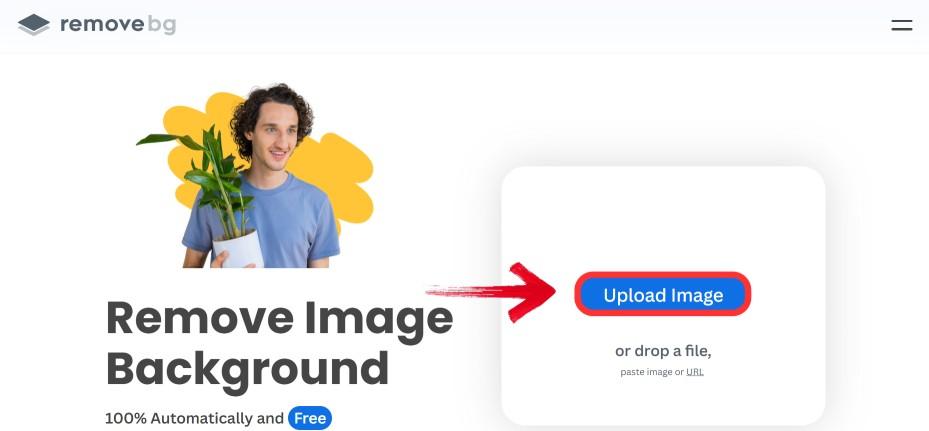
Alt text: Upload image
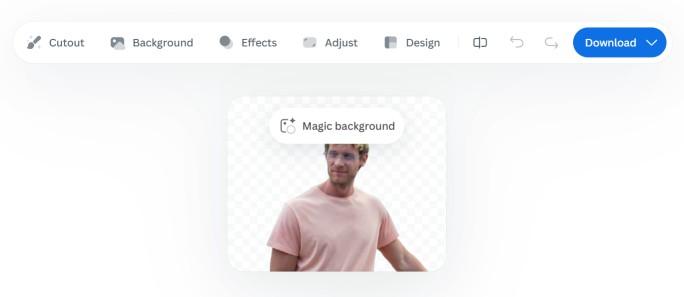
Step 3: The tool will automatically detect the subject and remove the background. This usually takes about five seconds.
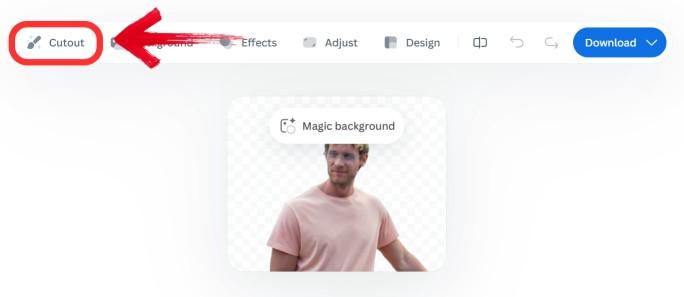
Step 4: You can click the “Cutout” option if you need to make minor adjustments, like erasing or restoring parts of the image.
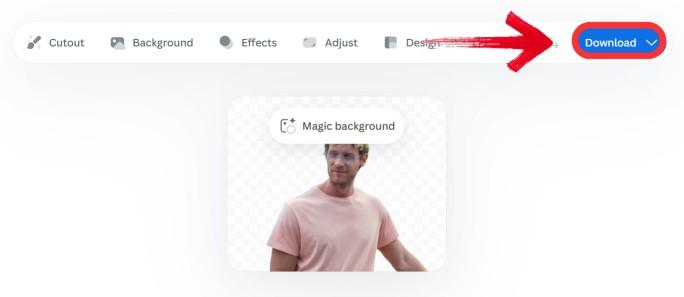
Step 5: Click ‘Download' to save the transparent PNG file.
Pros:
Cons:
Toolsmart – Simple & Free Online Tool
Now, if you’ve used the previous tool, you might be experiencing certain issues, especially if it's a more complicated picture. Toolsmart Background Remover solves that. It's a very beginner-friendly, single-task tool that’s designed to do one thing and do it well. It’s an AI backed tool, so you can expect it to make accurate cutouts, even if it has tricky edges on product photos.
Overview:
Toolsmart Background Remover is a free online tool that removes image backgrounds with precision and speed. Users can upload any photo, process it instantly, and download a transparent result without registration or watermarks. Its advanced edge-detection captures fine details like hair and complex shapes, delivering clean, high-quality cutouts for e-commerce, social media, and marketing visuals.
You can even replace the background with a pure white (#FFFFFF) color to meet Amazon’s product photo requirements or customize it with any color or gradient for a polished finish.
Features:
Key Steps:
Here’s how I typically use Toolsmart when I want fast, polished results without micromanaging the process:
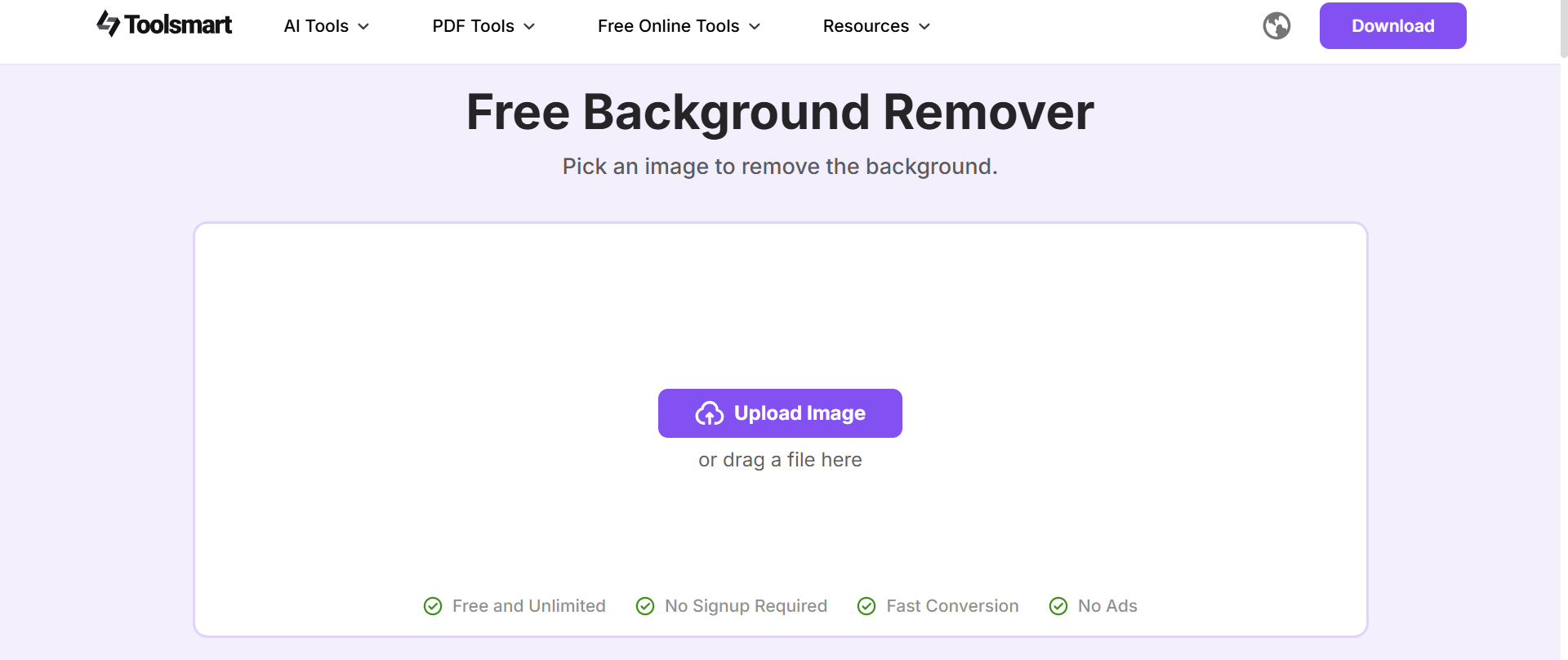
Step 1: First, head over to Toolsmart Background Remover. Don’t worry, you don’t need to create an account or sign in to get started.
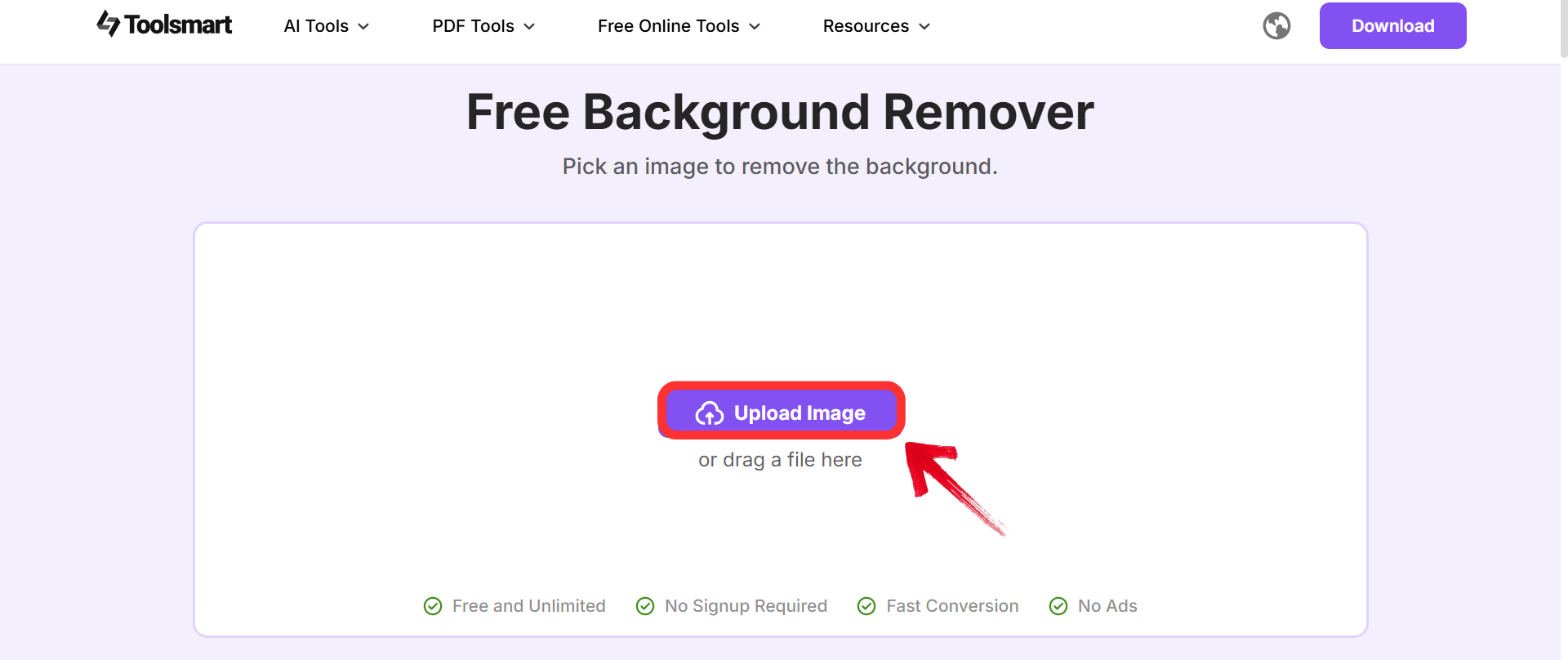
Step 2: Once you're there, click on the “Upload image” option or drag your image directly onto the screen
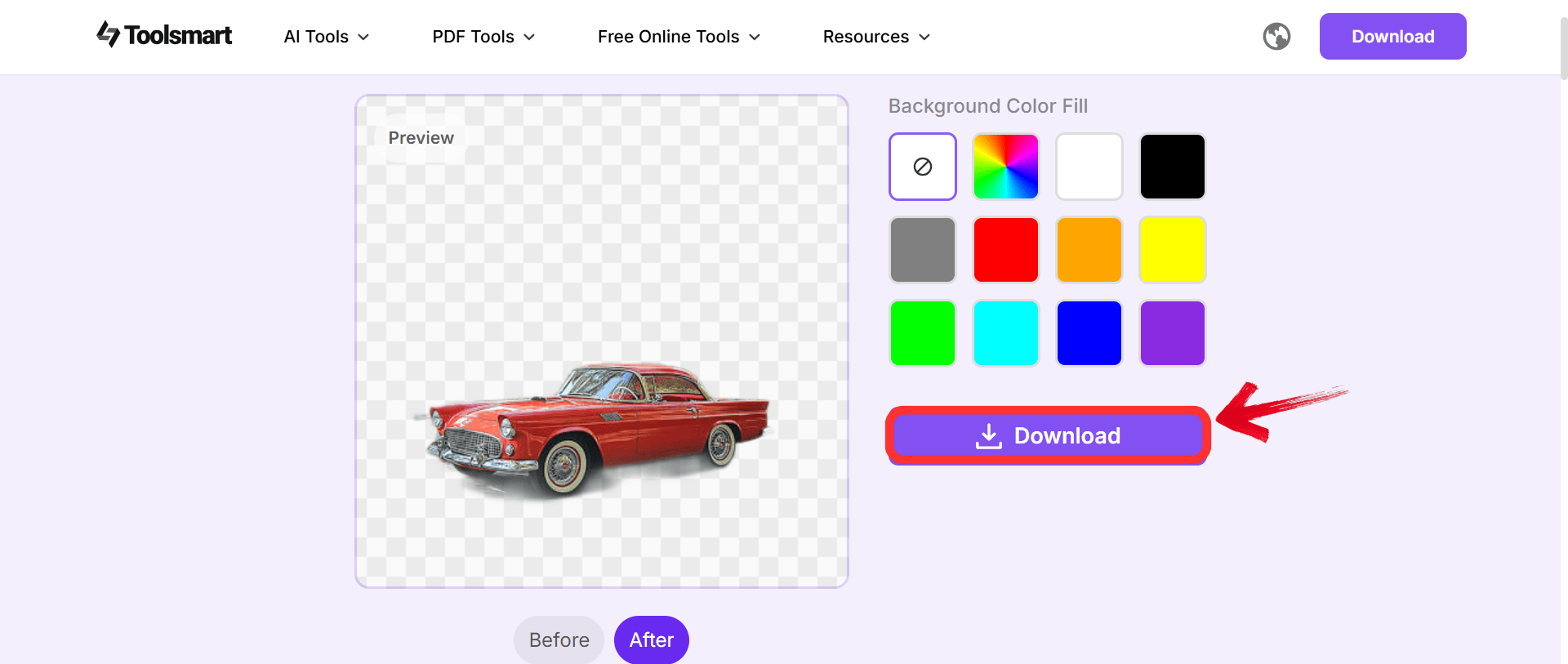
Step 3: Once you’re done, download your image to export it.
Pros:
Cons:
WPS Photos – Best All-in-One AI Photo Editor (Editor’s Pick)
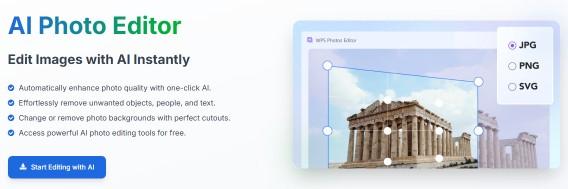
This one is my personal favorite, and I say this because it's helped me a lot. WPS Photos Editor is a full, all-in-one AI photo editor, not just a single-task website. It's a versatile desktop tool that’s part of the WPS Office suite, and it handles all common image formats. But what I love the most is that it gives me a single, integrated workspace to edit, enhance, and export my images. It's the easiest method I've found for how to make image transparent without losing quality.
Advantages:
Steps to Make a Background Transparent in WPS Photos:
Unlike other Photo editors that might feel too complicated, WPS Photo Editor makes it very simple to remove your backgrounds.
Step 1: Go to the folder where your image is saved, and open it with WPS Photos.
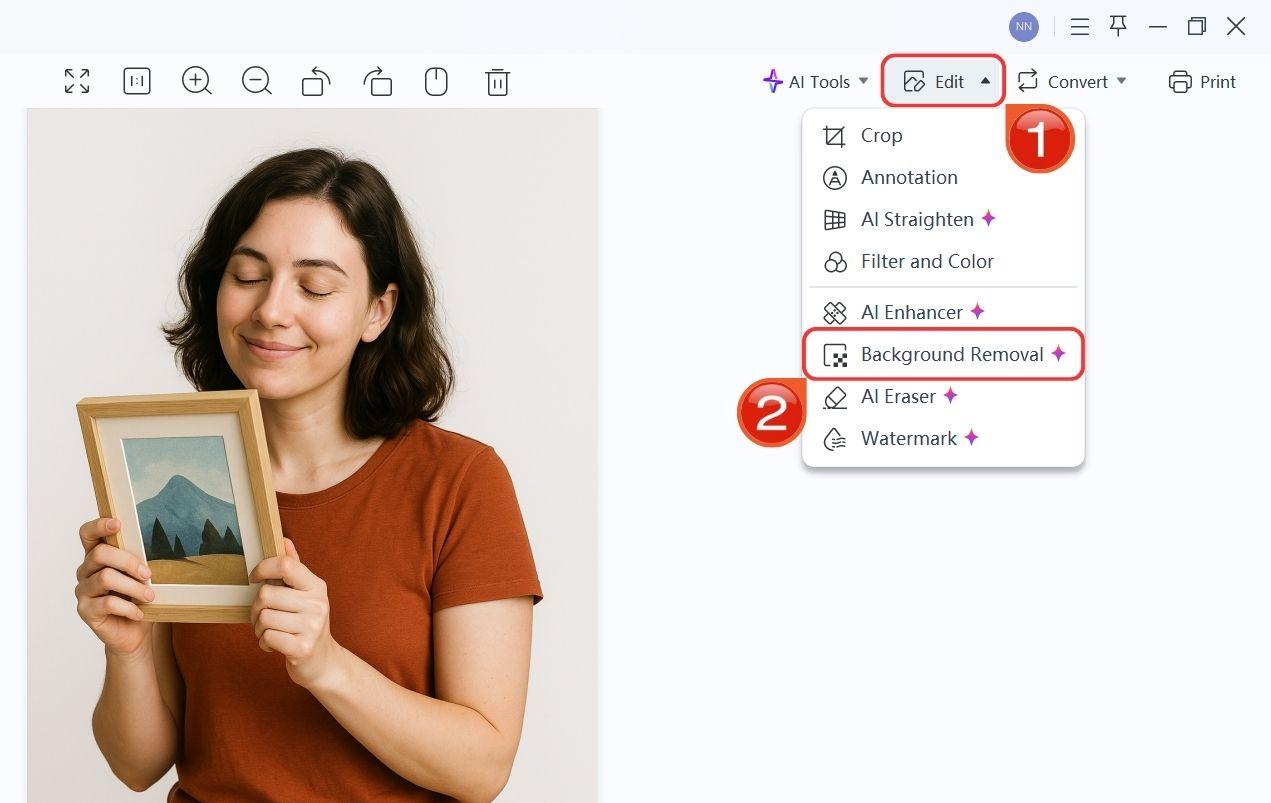
Step 2: In WPS Photos, hover over the “Edit” tab on the top right, then select “Background Removal” from the dropdown menu.
Step 3: This will open the WPS Photos Editor, where you can make edits to your image, including removing the background.
Step 4: Under the AI Auto BG Removal section, choose any of the four available options to remove the background automatically.
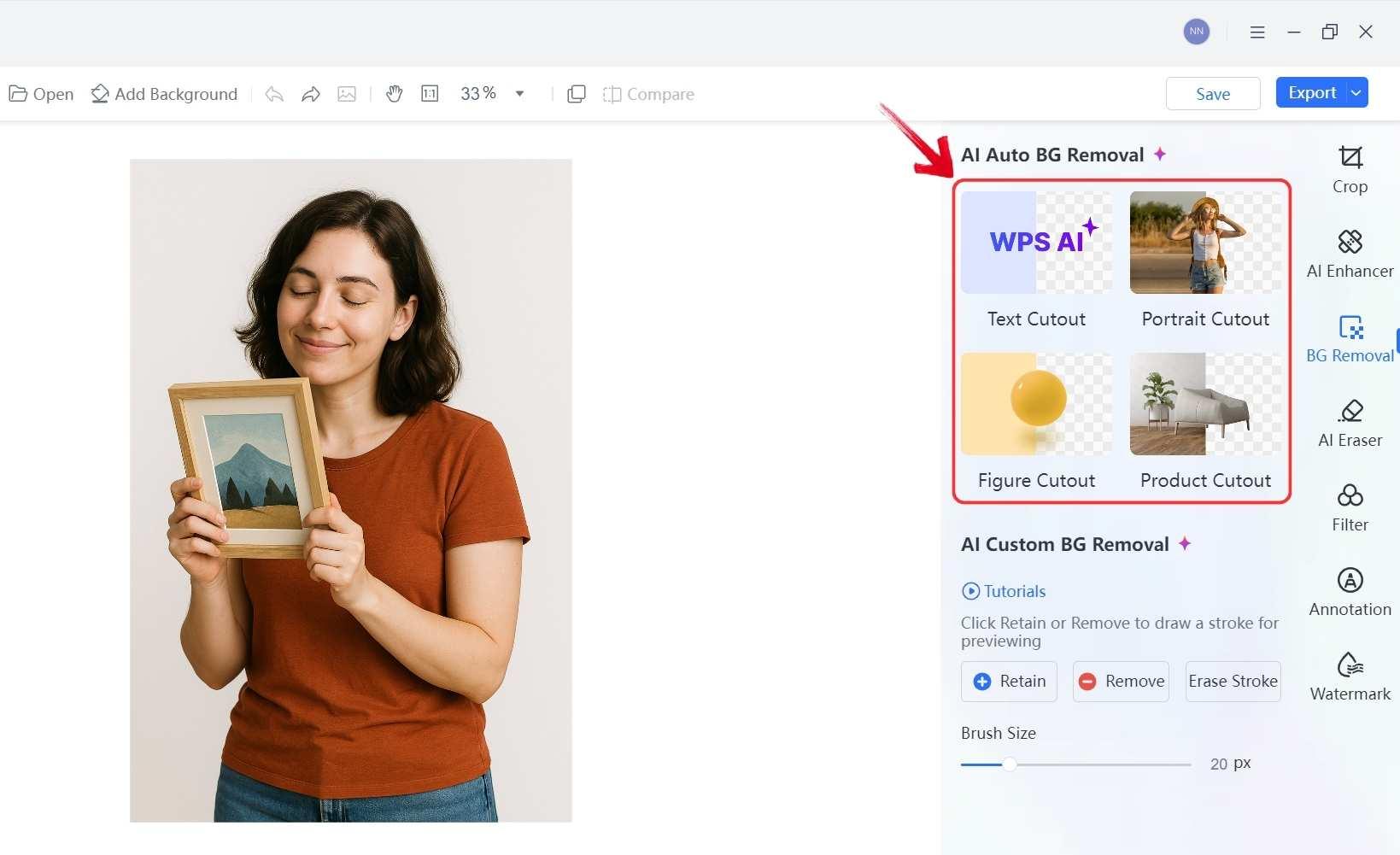
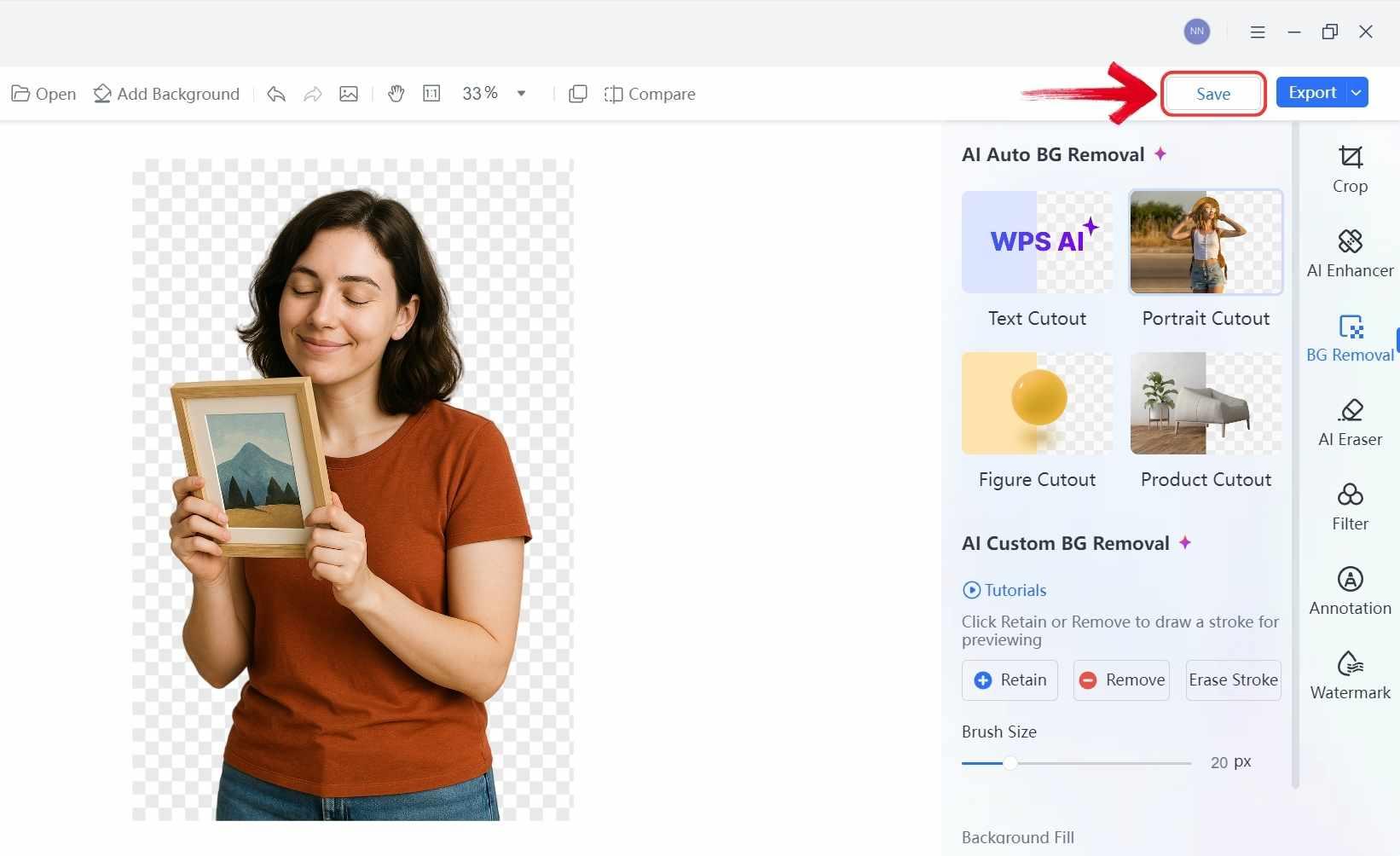
Step 5: Once the background is removed, click the “Save” button. Your image without a background will now be saved.
Pros:
Cons:
Canva – Quick Online Editing tool, free for only once
Canva is known as the go-to platform for social media graphics, presentations, and marketing-related content. But Canva Background Remover isn't any less. Although it isn't a standalone tool, it does the job better than most transparent picture makers out there. The background Remover is a feature within its design editor. This is its greatest strength. It's incredibly easy to use and lets you remove a background and then immediately drop that clean image into a new design, add text, and post it online in minutes.
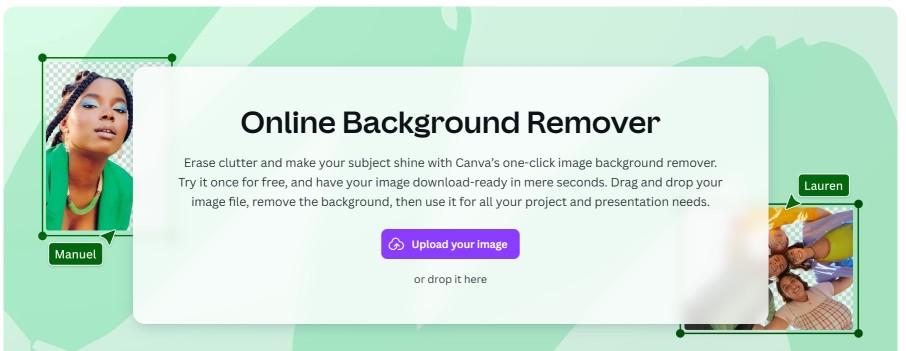
Steps to Make a Background Transparent in Canva:
Now, let’s see how to make background transparent in Canva in simple steps.
Step 1: First, you need to launch Canva on the app or in your web browser.
Step 2: Next, get your file. You can click ‘Upload your image' or just drag and drop it right onto the page.
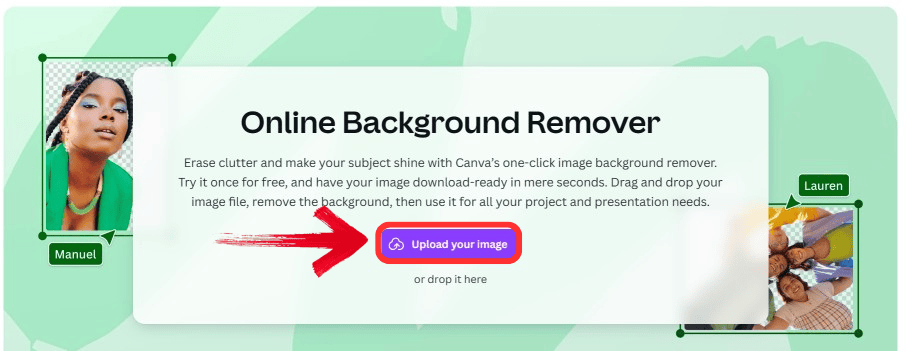
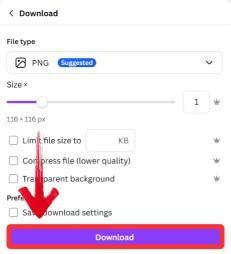
Step 3: As soon as you upload your image, the AI will remove the background. When you're all done, just click 'Download'. Make sure to choose 'PNG' to keep the background transparent.
Pros:
Cons:
Adobe Photoshop – Professional-Grade Background Removal
Lastly, we have to talk about the industry giant, Adobe Photoshop. This is what the professionals use, and for good reason. It offers the absolute best-in-class precision and control. With the new 2025 updates, its AI tools have gotten incredibly powerful. You can now use a "Remove Background" quick action that uses cloud processing for amazing accuracy. You can also use new Firefly AI features to generate an entirely new background on the spot.
Features:
Key Steps:
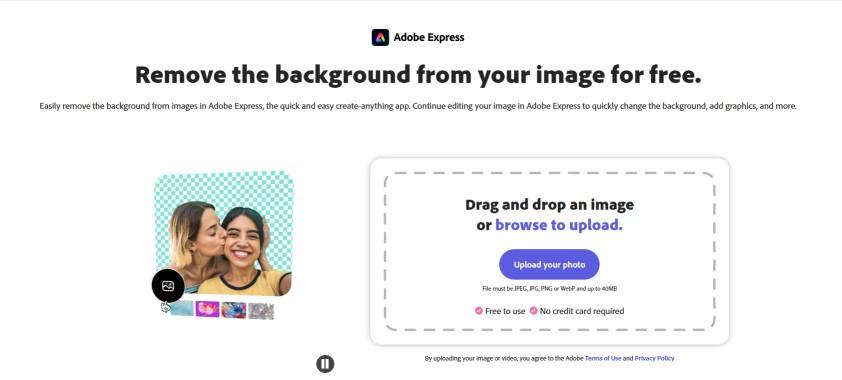
Step 1: First, head on over to the Adobe Background Remover website.
Step 2: Then click ‘Upload your photo’ or drag and drop your image onto the interface. The AI will automatically remove the Background.
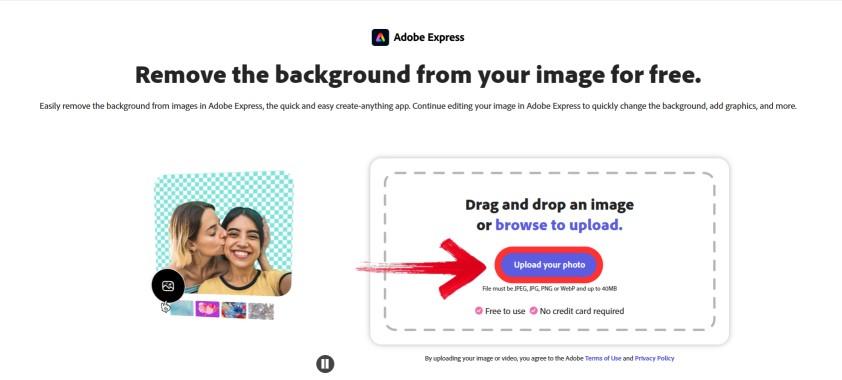
Alt text: Upload Image
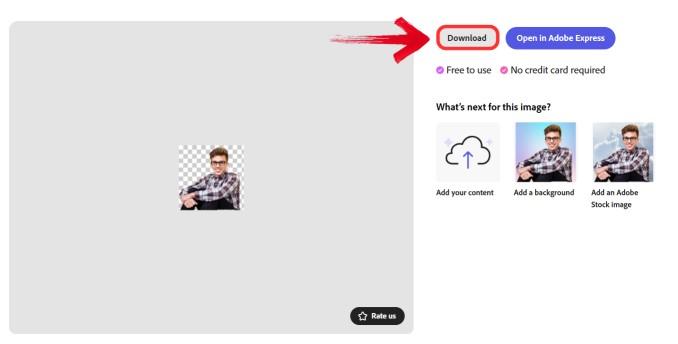
Step 3: Finally, click ‘Download’ to export the image, or alternatively, you can open it in Adobe Express to continue editing the image.
Pros:
Cons:
Comparison Table: Best 5 Background Transparent Makers in 2025
If you’re still confused about choosing one of the 5 tools, then I’ve put together a simple comparison table of all the tools to make the decision easier.
| Tool | Accuracy | Ease of Use | Free Version | AI-Powered | Best For |
|---|---|---|---|---|---|
| Remove.bg | High | Excellent | Yes (Low-res) | Yes | Quick edits, personal use |
| Toolsmart | Medium | Excellent | Yes | Yes | Beginner-friendly, simple tasks |
| WPS Photos | Excellent | Excellent | Yes (Free tier) | Yes | All users, professional-quality edits |
| Canva | High | Excellent | No (Pro only) | Yes | Marketing visuals, social media |
| Adobe Photoshop | Professional | Low | No | Yes | Professionals, complex images |
Why WPS Photos Stands Out
WPS Photos is so much more than a standard Background Remover. It's powerful enough for professionals without being too complex, unlike Adobe Photoshop. It has a range of intelligent features that have been helping me consistently since I first discovered this tool. The best part is that every function can be used with a simple click; there’s nothing extra that needs to be done, as the AI handles the rest. So it's very simple to create image with transparent background using WPS Photos.
Functions:
With all these tools, WPS Photos really lets you handle everything in one place. You can go from the initial background removal to the final advanced photo enhancement, all within that single, intuitive platform.
FAQs
1. What file formats support transparency?
You should always use PNG or WebP to save your image if you want a transparent background. A JPEG file does not support transparency and will just add a white background to your image.
2. Do I need design experience to remove backgrounds?
No, not at all. Most modern tools are very beginner-friendly. Anonline tool like Toolsmart or a desktop app like WPS Photos uses AI to do all the hard work for you in just a few seconds.
3. Are there any truly free background remover tools?
Yes, some online tools like Toolsmart are completely free without registration. Remove.bg is free for low-resolution images. WPS Photos also has a very generous free tier that includes background removal.
4. Will the transparent images retain quality?
Yes, as long as you use a good tool. A professional-grade tool like WPS Photos or Adobe Photoshop will preserve the high resolution of your original image, making it perfect for any use.
5. How can I choose the best background remover software for my needs?
It really depends on your needs. If you need a quick, one-time edit, a free online tool is fine. If you are a creative professional, you might need Photoshop. For most people, I recommend a tool that balances power and ease of use, like WPS Photos.
6. What's the difference between an online tool and desktop software?
An online tool runs in your web browser, so you don't need to install anything, but you always need an internet connection. Desktop software (like WPS Photos or Photoshop) is installed on your computer, is often more powerful, and works offline.
7. What image format should I use to save a transparent picture?
Always choose PNG or WebP formats when saving your image. JPEG doesn’t support transparency and will fill the background with white.

'%3e%3cpath%20d='M19.9911%204.11386V6.471H18.5894C18.0775%206.471%2017.7322%206.57814%2017.5536%206.79243C17.3751%207.00671%2017.2858%207.32814%2017.2858%207.75671V9.44421H19.9019L19.5536%2012.0871H17.2858V18.8639H14.5536V12.0871H12.2769V9.44421H14.5536V7.49779C14.5536%206.39064%2014.8632%205.53201%2015.4822%204.92189C16.1013%204.31177%2016.9257%204.00671%2017.9554%204.00671C18.8304%204.00671%2019.509%204.04243%2019.9911%204.11386Z'%20fill='%23333333'/%3e%3c/g%3e%3cdefs%3e%3cclipPath%20id='clip0_2938_8199'%3e%3crect%20width='16'%20height='16'%20fill='white'%20transform='translate(8%204.00671)'/%3e%3c/clipPath%3e%3c/defs%3e%3c/svg%3e)
'%3e%3cpath%20d='M17.5237%2010.7813L23.4811%204H22.0699L16.8949%209.88693L12.7648%204H8L14.2469%2012.9029L8%2020.0133H9.4112L14.8725%2013.7952L19.2352%2020.0133H24M9.92053%205.04213H12.0885L22.0688%2019.0224H19.9003'%20fill='%23333333'/%3e%3c/g%3e%3cdefs%3e%3cclipPath%20id='clip0_2938_8200'%3e%3crect%20width='16'%20height='16.0134'%20fill='white'%20transform='translate(8%204)'/%3e%3c/clipPath%3e%3c/defs%3e%3c/svg%3e)


