

'%3e%3cpath%20d='M8%200C12.4183%200%2016%203.58172%2016%208C16%2012.4183%2012.4183%2016%208%2016C3.58172%2016%200%2012.4183%200%208C0%203.58172%203.58172%200%208%200ZM11.6162%204.38379C11.2257%203.99337%2010.5927%203.99338%2010.2021%204.38379L8%206.58594L5.79785%204.38379C5.40732%203.99334%204.77429%203.99329%204.38379%204.38379C3.99331%204.77429%203.99335%205.40733%204.38379%205.79785L6.58594%208L4.38379%2010.2021C3.99348%2010.5927%203.99341%2011.2257%204.38379%2011.6162C4.77426%2012.0066%205.40734%2012.0065%205.79785%2011.6162L8%209.41406L10.2021%2011.6162C10.5927%2012.0066%2011.2257%2012.0067%2011.6162%2011.6162C12.0067%2011.2257%2012.0066%2010.5927%2011.6162%2010.2021L9.41406%208L11.6162%205.79785C12.0066%205.40735%2012.0066%204.77429%2011.6162%204.38379Z'%20fill='%23080E17'%20fill-opacity='0.46'/%3e%3c/g%3e%3cdefs%3e%3cclipPath%20id='clip0_3761_713'%3e%3crect%20width='16'%20height='16'%20fill='white'/%3e%3c/clipPath%3e%3c/defs%3e%3c/svg%3e)




'%3e%3cpath%20fill-rule='evenodd'%20clip-rule='evenodd'%20d='M21.4999%2010.9993C21.4999%205.20009%2016.7986%200.498901%2010.9993%200.498901C5.19994%200.498901%200.498657%205.20009%200.498657%2010.9993C0.498657%2016.2404%204.33858%2020.5844%209.35855%2021.3722V14.0346H6.69238V10.9993H9.35855V8.68594C9.35855%206.05427%2010.9262%204.60062%2013.3248%204.60062C14.4736%204.60062%2015.6753%204.80571%2015.6753%204.80571V7.38979H14.3512C13.0468%207.38979%2012.64%208.19921%2012.64%209.0296V10.9993H15.5523L15.0867%2014.0346H12.64V21.3722C17.66%2020.5844%2021.4999%2016.2404%2021.4999%2010.9993Z'%20fill='%231568EA'/%3e%3c/g%3e%3c/svg%3e)


'%3e%3cpath%20d='M2.42045%2022.1876H6.31818V12.7217L0.75%208.54553V20.5171C0.75%2021.4414%201.49892%2022.1876%202.42045%2022.1876Z'%20fill='%234285F4'/%3e%3cpath%20d='M19.682%2022.1876H23.5797C24.5041%2022.1876%2025.2502%2021.4387%2025.2502%2020.5171V8.54553L19.682%2012.7217'%20fill='%2334A853'/%3e%3cpath%20d='M19.682%205.48293V12.7216L25.2502%208.54543V6.31816C25.2502%204.25236%2022.8921%203.07469%2021.2411%204.31361'%20fill='%23FBBC04'/%3e%3cpath%20d='M6.31824%2012.7217V5.48303L13.0001%2010.4944L19.6819%205.48303V12.7217L13.0001%2017.733'%20fill='%23EA4335'/%3e%3cpath%20d='M0.75%206.31816V8.54543L6.31818%2012.7216V5.48293L4.75909%204.31361C3.10534%203.07469%200.75%204.25236%200.75%206.31816Z'%20fill='%23C5221F'/%3e%3c/g%3e%3cdefs%3e%3cclipPath%20id='clip0_2954_7305'%3e%3crect%20width='24.5'%20height='18.375'%20fill='white'%20transform='translate(0.75%203.8125)'/%3e%3c/clipPath%3e%3c/defs%3e%3c/svg%3e)


People often handle photos, drawings, or scanned pages that would look cleaner and more professional in black and white, especially for printing or archiving. However, finding a simple tool that doesn't hide this basic feature behind complex menus or paywalls is surprisingly difficult. Many people struggle with scattered online editors that ruin image quality or complicate the export process. In this guide, we’ll see the best tools to convert color image to black and white and how to use them.
Best 5 Tools to Convert Color Image to Black and White
When looking to convert color image to black and white, the market is flooded with options ranging from simple one-click websites to complex professional software. We have tested and curated the top 5 tools based on their processing speed, ease of access, and output quality to help you avoid pixelated results. Whether you need a quick fix for a single photo or a robust editor for detailed adjustments, the following list breaks down the best solutions available in 2025.
1. BW Converter
BW Converter is best known for being a dedicated, single-purpose utility designed exclusively for grayscale conversion. It differentiates itself from complex editors by removing all extraneous features, making it easy for you to do what you came for. This makes it the perfect tool for users who want an instant result without navigating through editing panels or creating accounts.
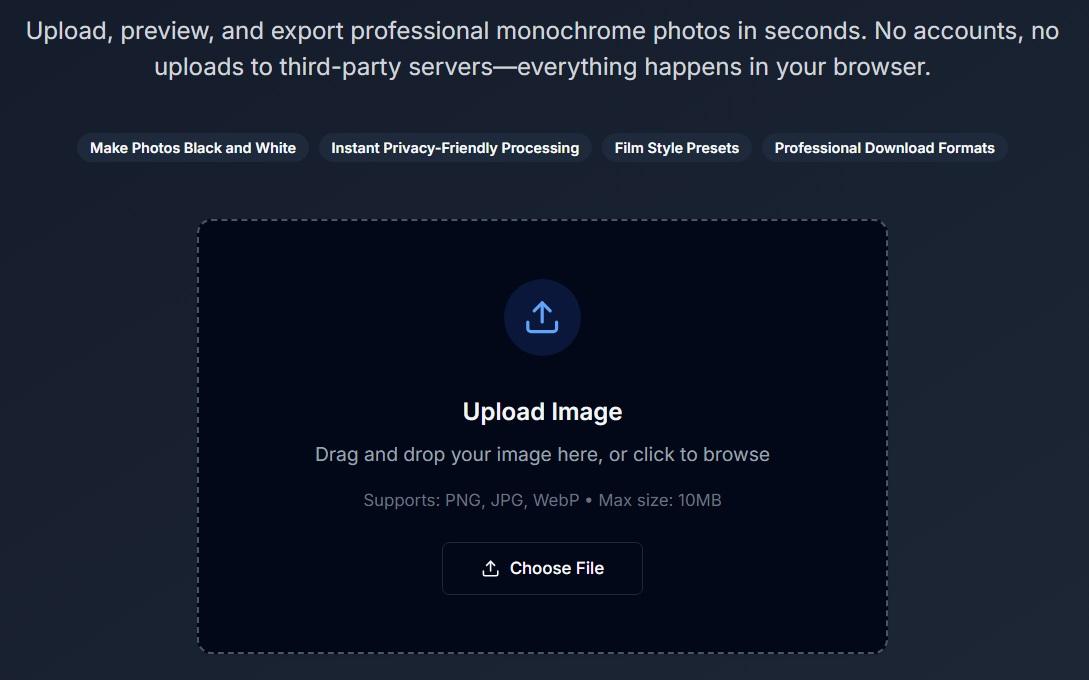
The tool functions entirely in the browser, focusing on speed and privacy by processing images without permanent server storage. It supports standard formats like JPEG and PNG, delivering a clean monochrome output in seconds.
How to Convert:
The process is streamlined to ensure you can convert color image to black and white with minimal friction. Here’s how to convert color image to black and white online in BW Converter:
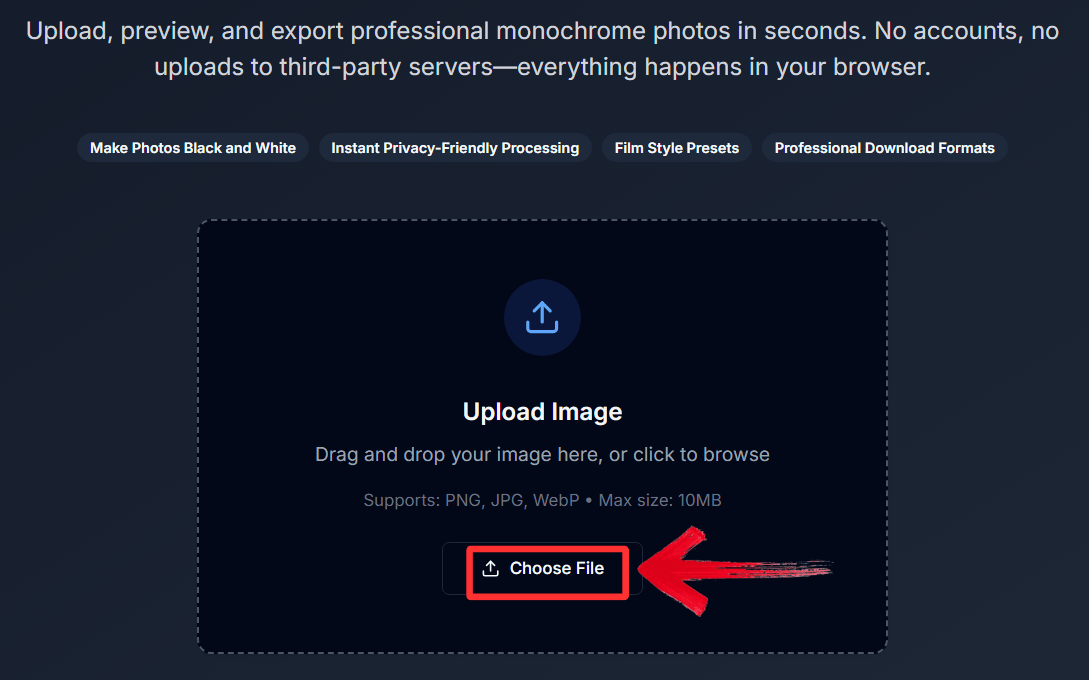
Step 1: First, navigate to the BW Converter website and click "Upload Image".
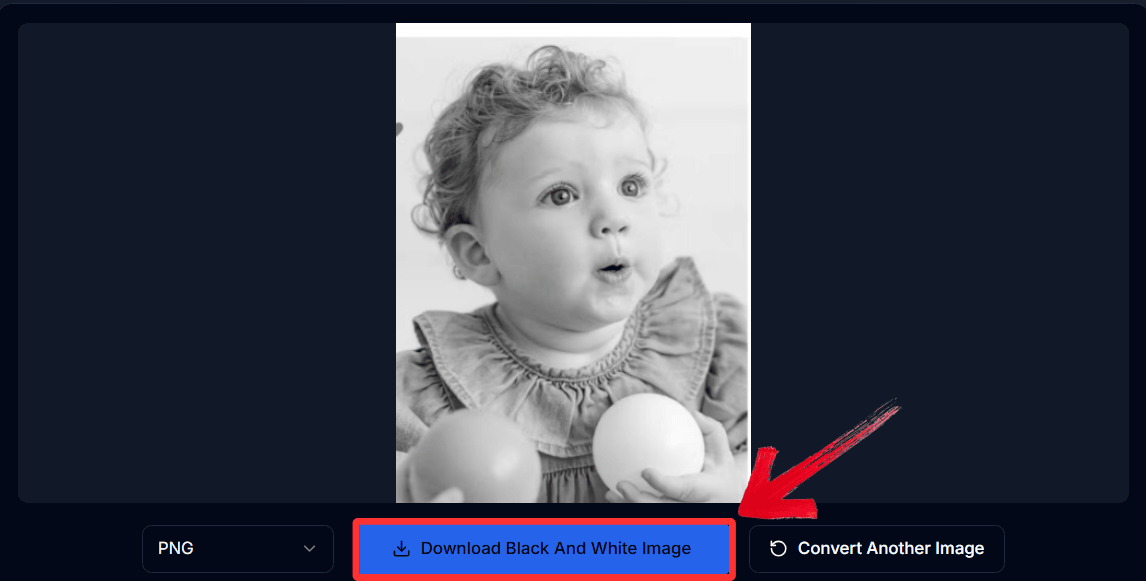
Step 2: Finally, click the "Download Black And White Image" button to save your new black and white image.
Pros:
No account or installation required.
Extremely fast processing speed.
Cons:
No sliders to adjust contrast or brightness.
2. Image Online.co
Image Online.co is best known for its suite of specific browser-based image utilities. It differentiates itself by offering a customizable threshold slider, allowing users to control the intensity of the black and white conversion rather than just accepting a default filter. It is best for users who are working with scanned documents or sketches and need to fine-tune the darkness levels for better legibility.
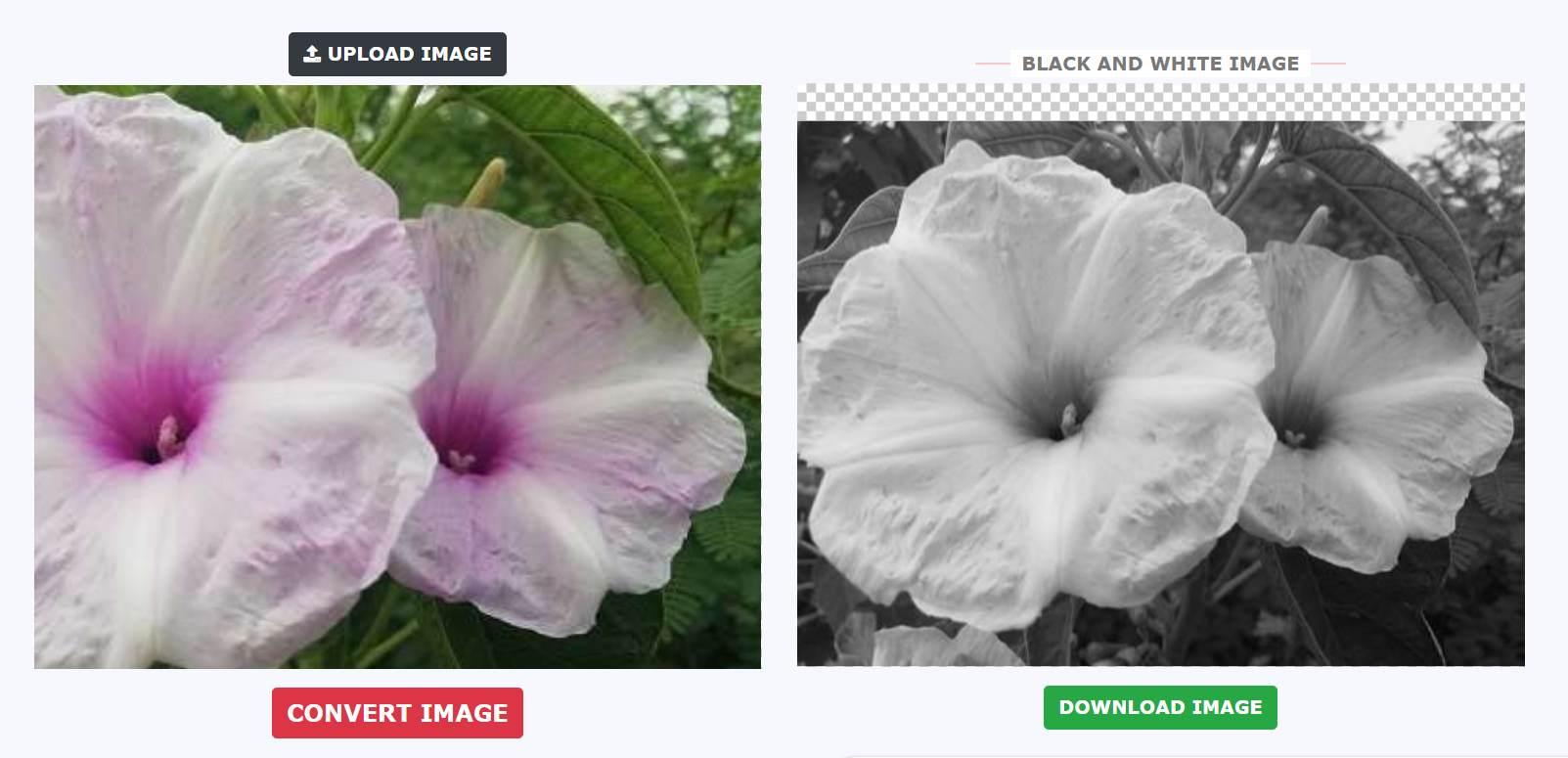
This tool provides a granular approach to conversion, letting you decide which color tones become black and which become white. This is particularly useful for separating text from noisy backgrounds in scanned images.
How to Convert:
This tool allows you to manipulate the grayscale threshold before finalizing the image. Here’s how to convert color image to black and white free using the Image Online tool:
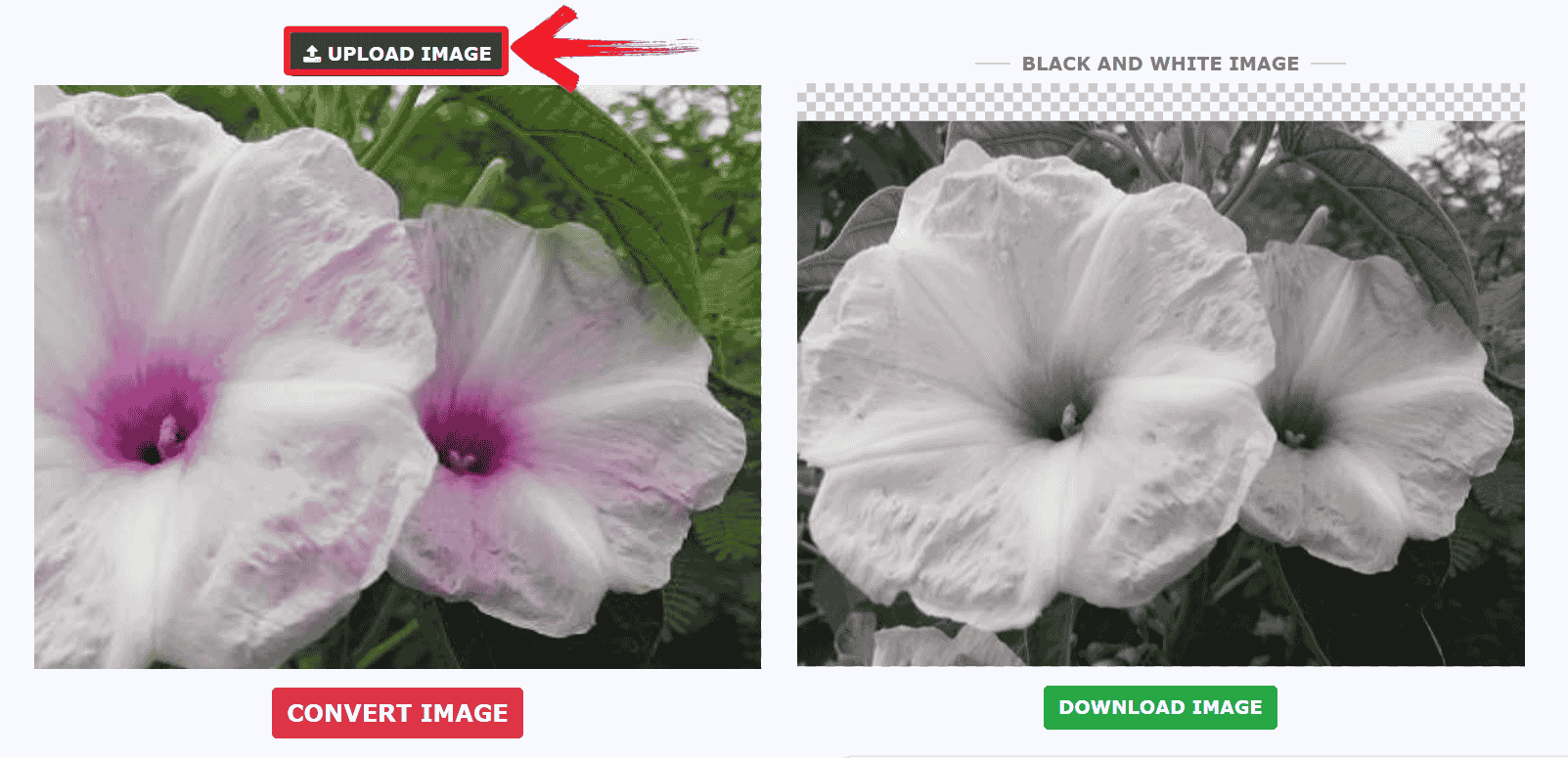
Step 1: First, head on over to the Image Online converter tool, click "Upload Image" to upload your file to the server.
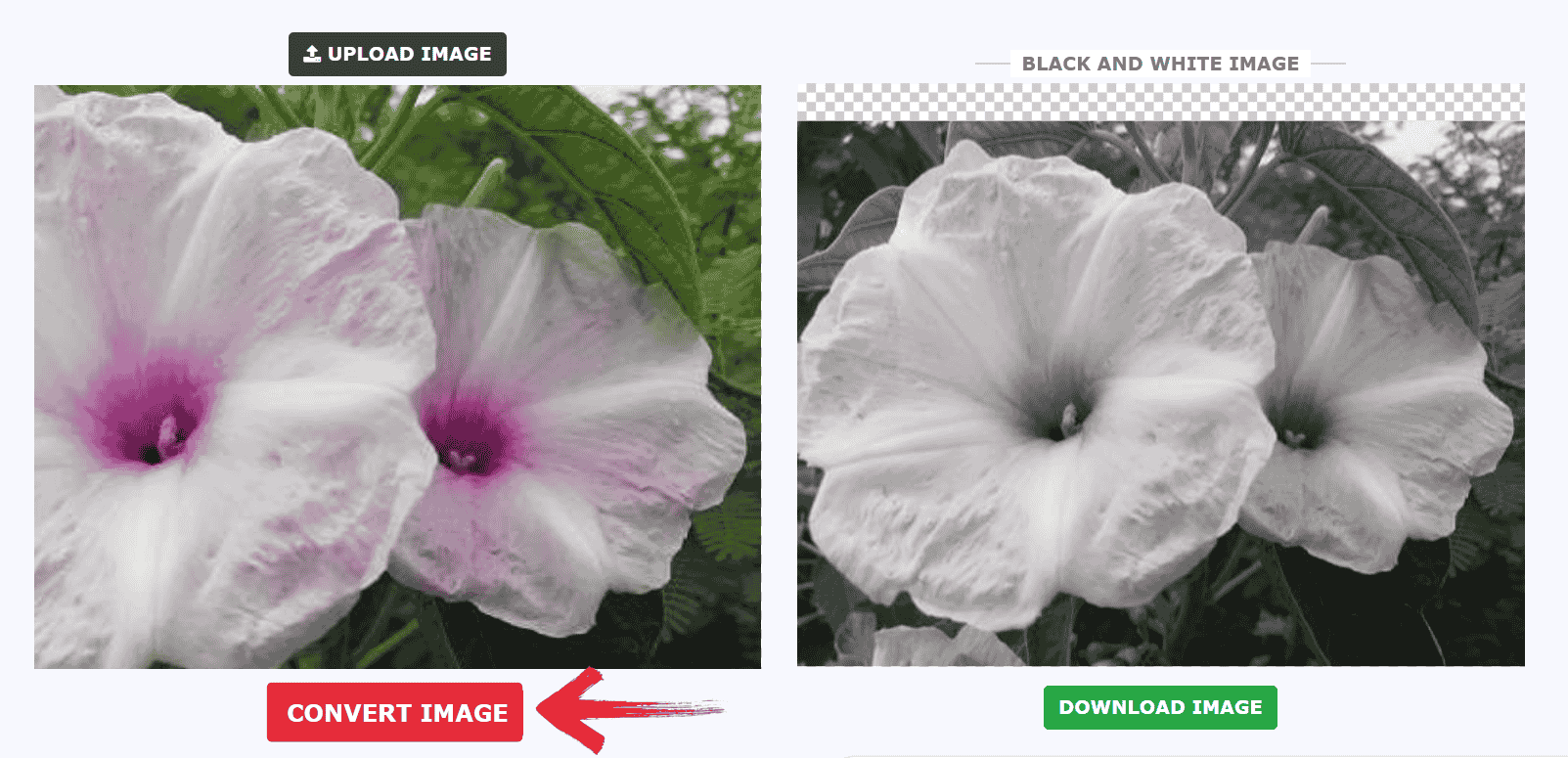
Step 2: Then, adjust the "Convert Image" slider to see real-time changes in the preview.
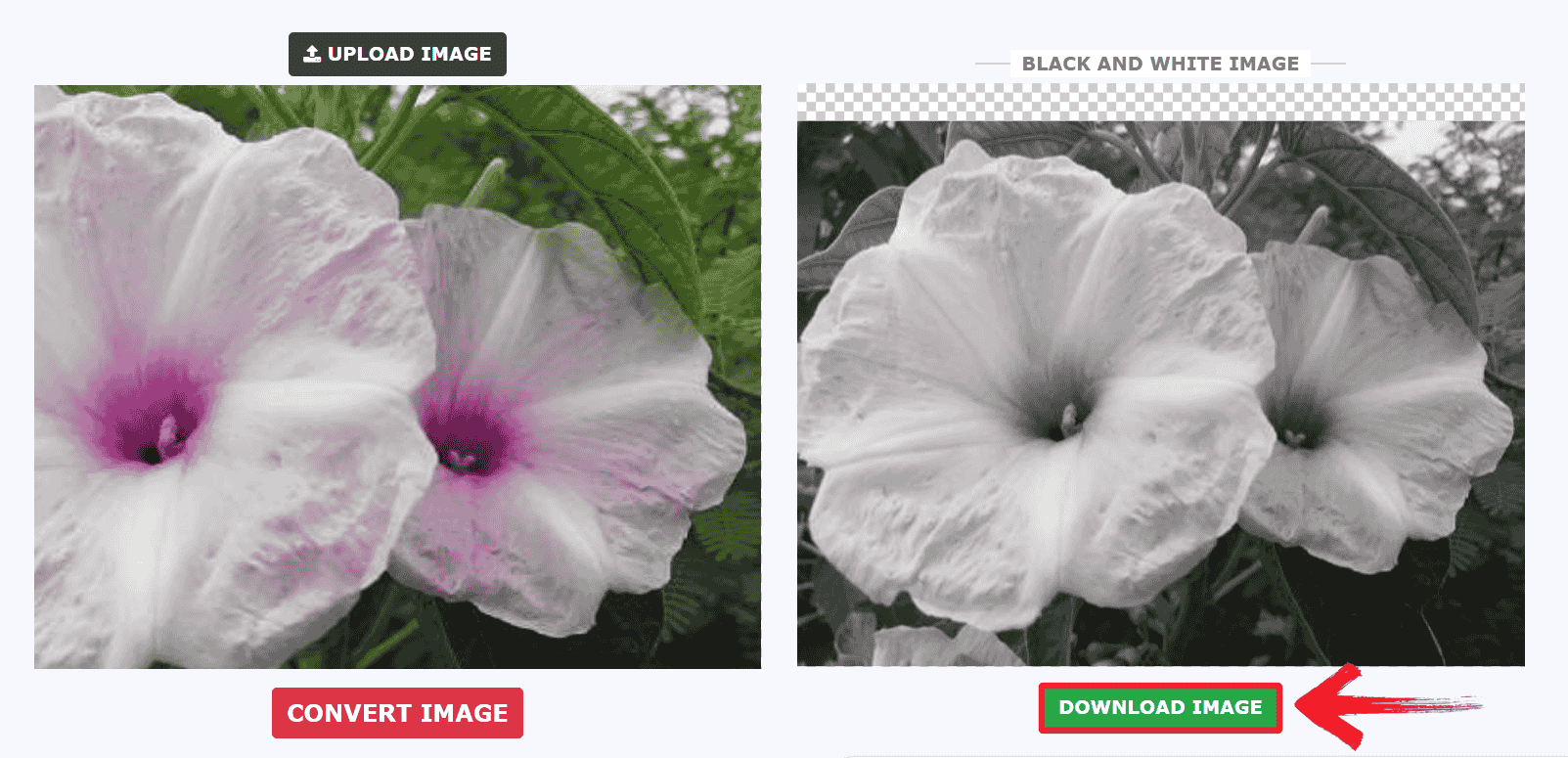
Step 3: Finally, click "Download Image" to save your customized file.
Pros:
Adjustable threshold for precise control.
Great for clarifying text documents.
Cons:
The interface is cluttered with advertisements.
3. BeFunky
BeFunky is best known for its rich library of artistic photo effects and creative filters. It differentiates itself from standard converters by offering multiple variations of black and white, such as Noir, High Contrast, and Silver Screen. This makes it the ideal choice for social media enthusiasts or creatives who want an aesthetic, stylized monochrome look rather than a flat conversion.

The platform combines basic editing with artistic flair, allowing users to apply specific photographic styles that mimic traditional film stocks. It transforms a simple conversion task into a creative editing session.
How to Convert:
BeFunky offers a visual editor where you can apply distinct black and white styles. Here’s how to convert color image to black and white pdf in BeFunky Photo Editor:
Step 1: First, open the BeFunky Photo Editor and drop your image onto the canvas.
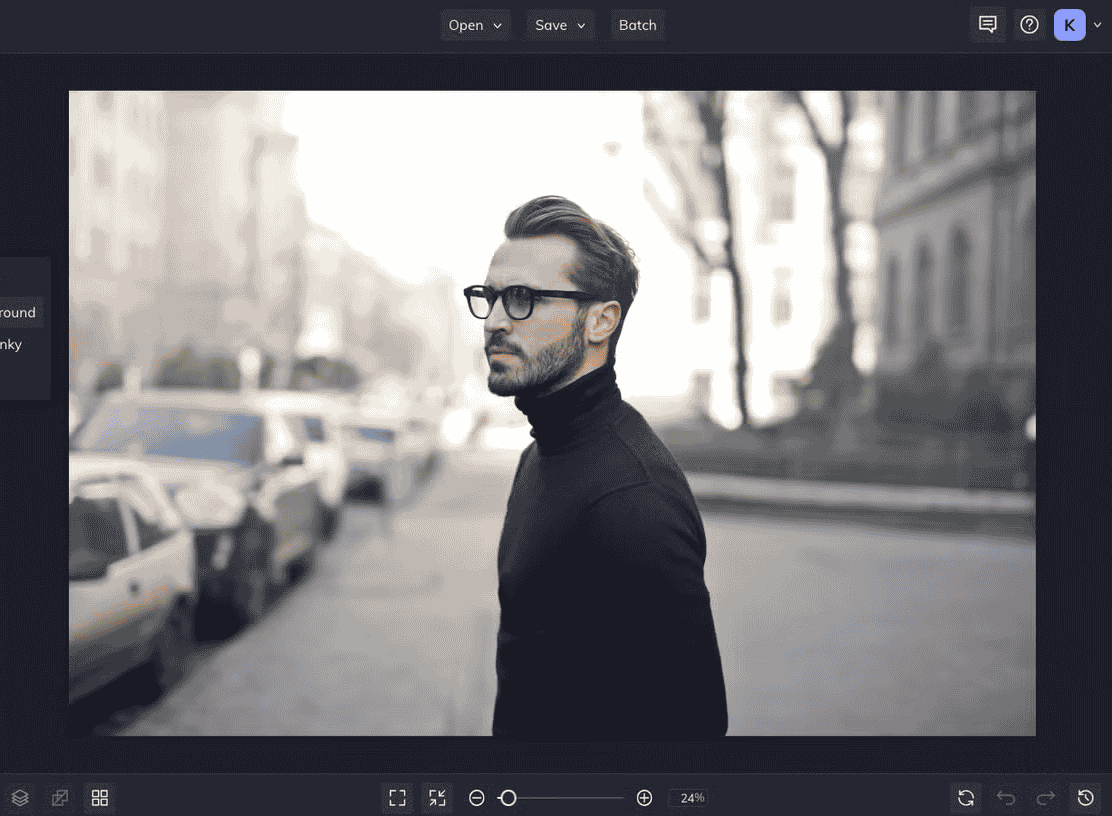
Step 2: Then, navigate to the"Effects" tab and select "Black & White" to choose your specific filter style.
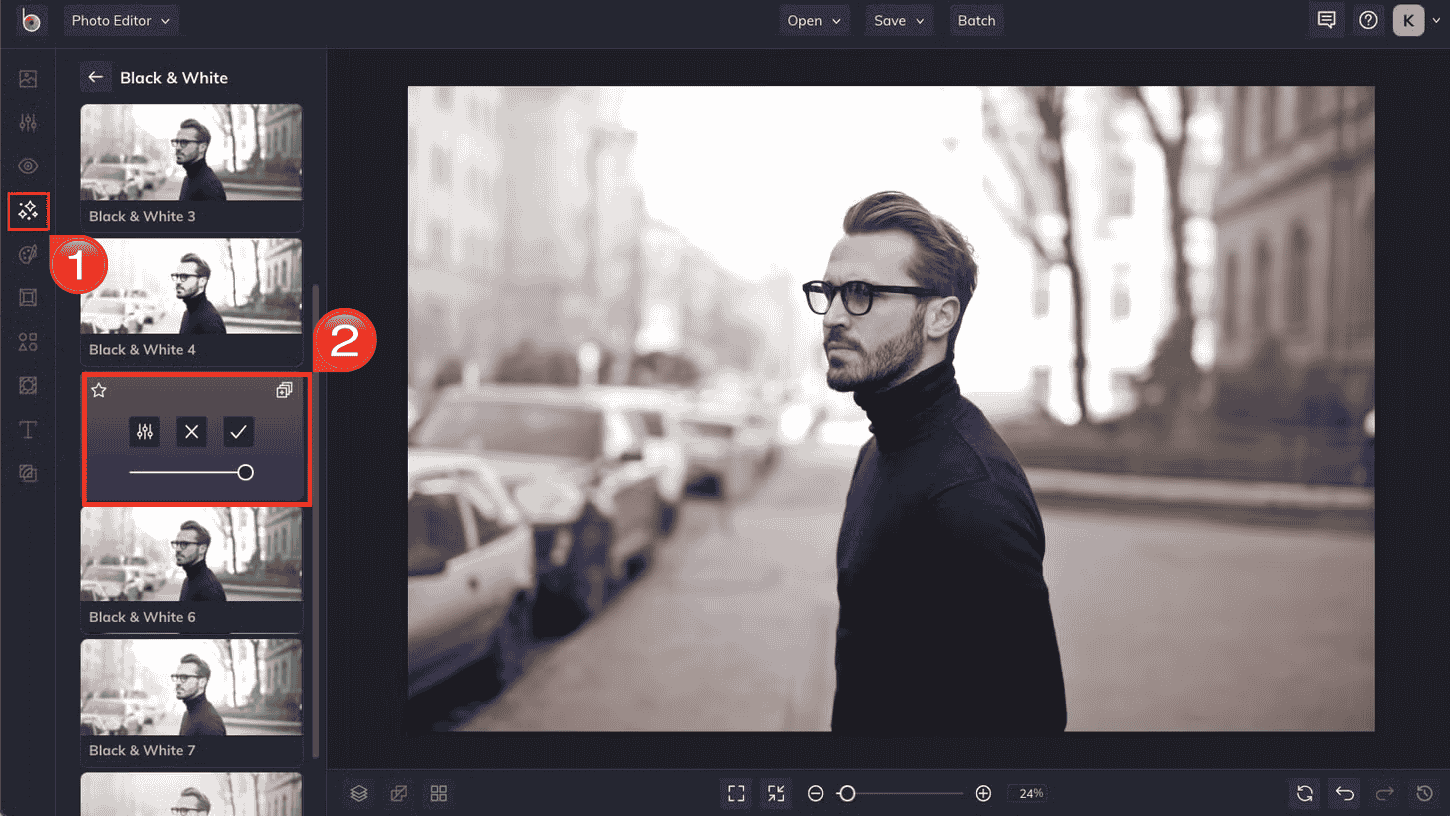
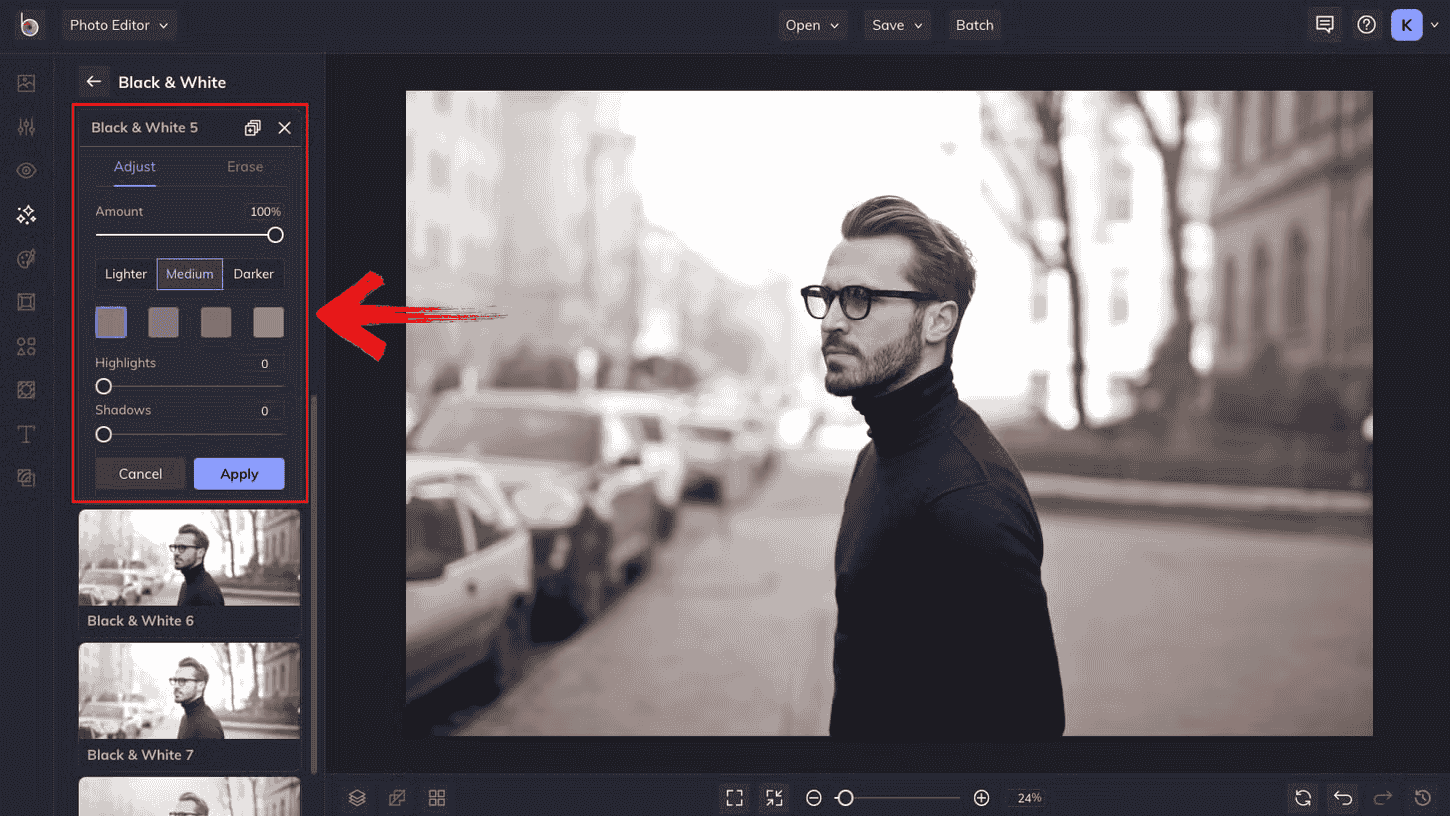
Step 3: Then adjust the settings however you like and click “Apply” when done.
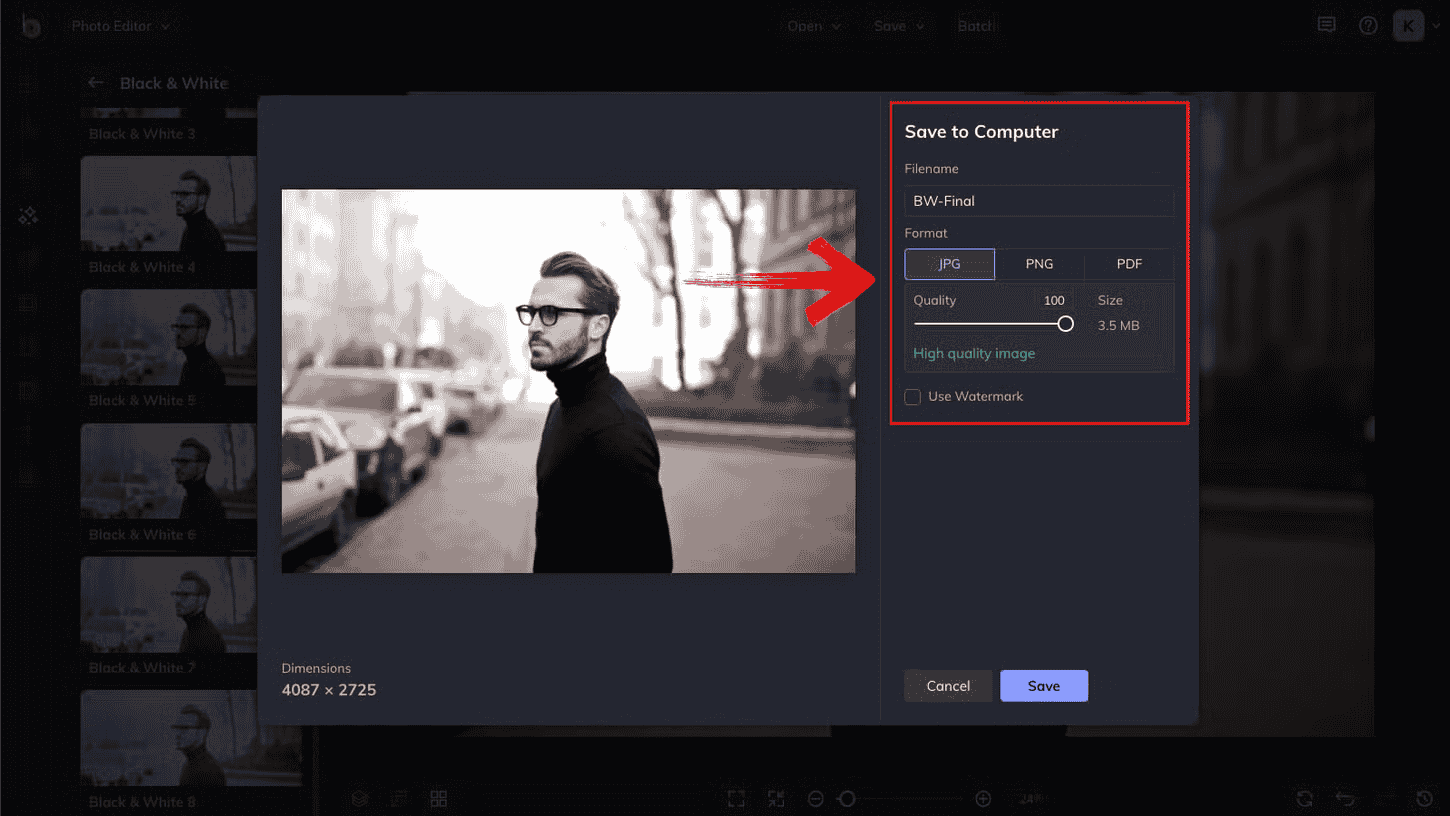
Step 4: Finally, select the format you’d like to export your image, and click "Save" at the top of the screen to export your project.
Pros:
Offers multiple artistic grayscale styles.
Includes additional retouching tools.
Cons:
Many high-quality filters require a paid subscription.
4. Canva
Canvais best known as a drag-and-drop design powerhouse that simplifies complex graphic creation. It differentiates itself by integrating photo editing directly into layout workflows, meaning you can turn a photo black and white while designing a flyer or post. This makes it the perfect solution for marketers and small business owners who need to incorporate grayscale images into larger design projects.
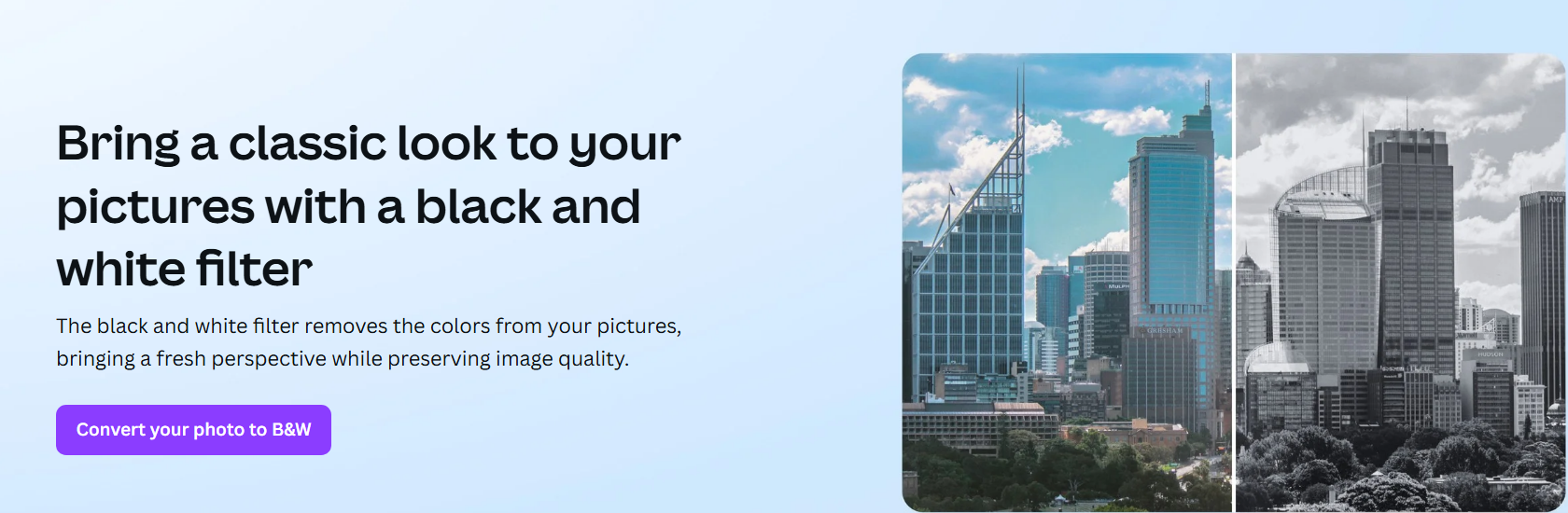
The platform provides an intuitive interface where black and white conversion is treated as a filter application. It allows for further adjustments, such as increasing contrast or adding vignettes, to ensure the monochrome image pops within a design.
How to Convert:
Canva allows you to apply filters instantly within your design board.
Step 1: First, head on over to the Canva black and white filter tool upload your photo to Canva and place it on your design canvas.
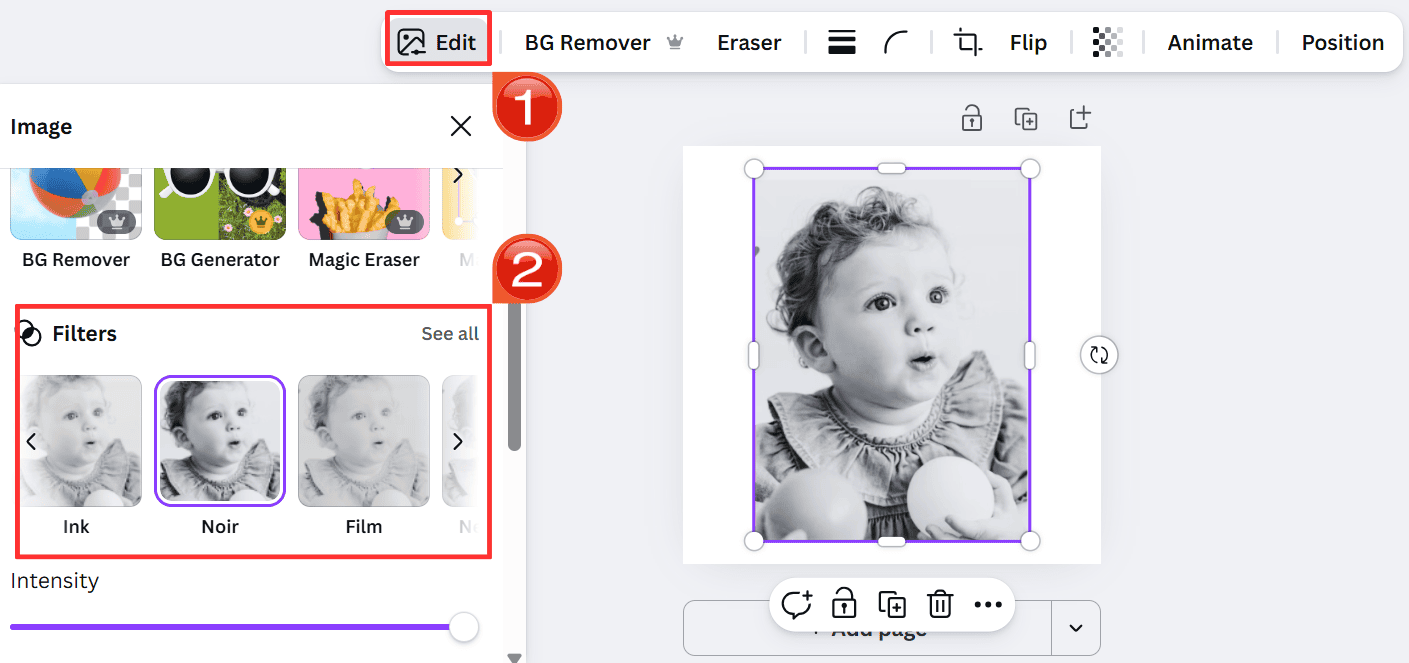
Step 2: Then, click "Edit" and select a filter like "Ink" or "Noir"from the filters menu. You can also adjust the slider to adjust the intensity.
Step 3: To download the image, just click“Share” and then “Download” to export the image.

Pros:
Seamlessly integrates with design templates.
Cloud-based storage for all edits.
Cons:
Requires an account login to use.
5. Fotor
Fotor is best known as an all-in-one photo enhancer that balances ease of use with powerful features. It distinguishes itself by using AI technology to optimize the image quality while converting it, ensuring the photo doesn't look flat or washed out. It is the premier choice for beginners who want a professional-looking black and white photo without learning complex software.
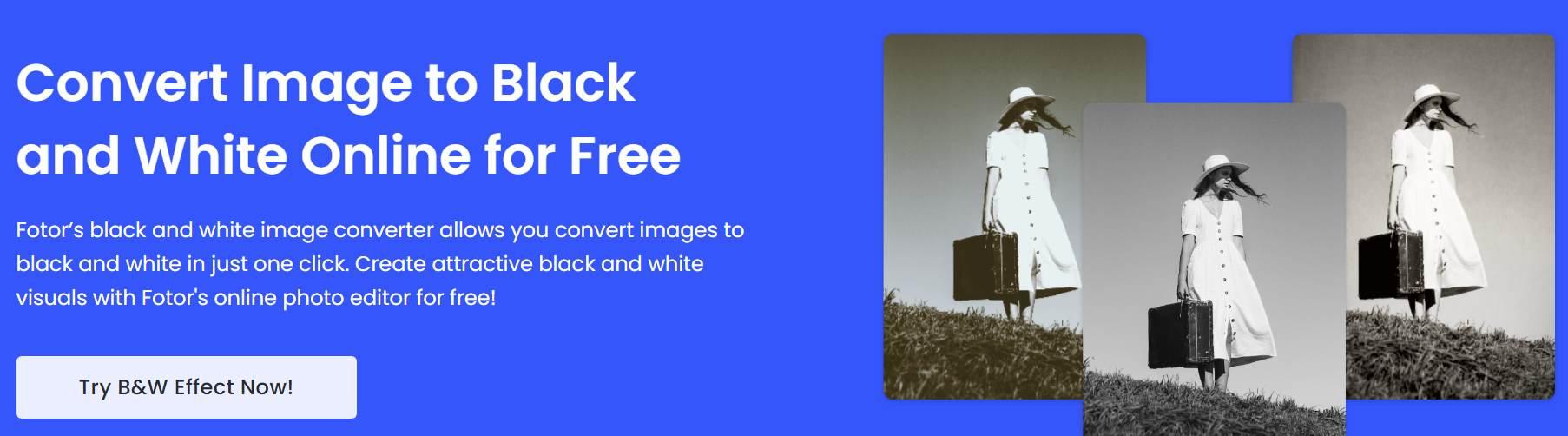
Fotor acts as a bridge between simple converters and professional editors. It offers one-tap filters for grayscale but also allows for manual adjustments of exposure and highlights to recover details that might be lost during conversion.
How to Convert:
Fotor simplifies the process with ready-made effect buttons.
Step 1: First, head on over to Fotor’s online editor and upload your image.
Step 2: Then, click on "Effects" in the left toolbar and select the "B&W" category.
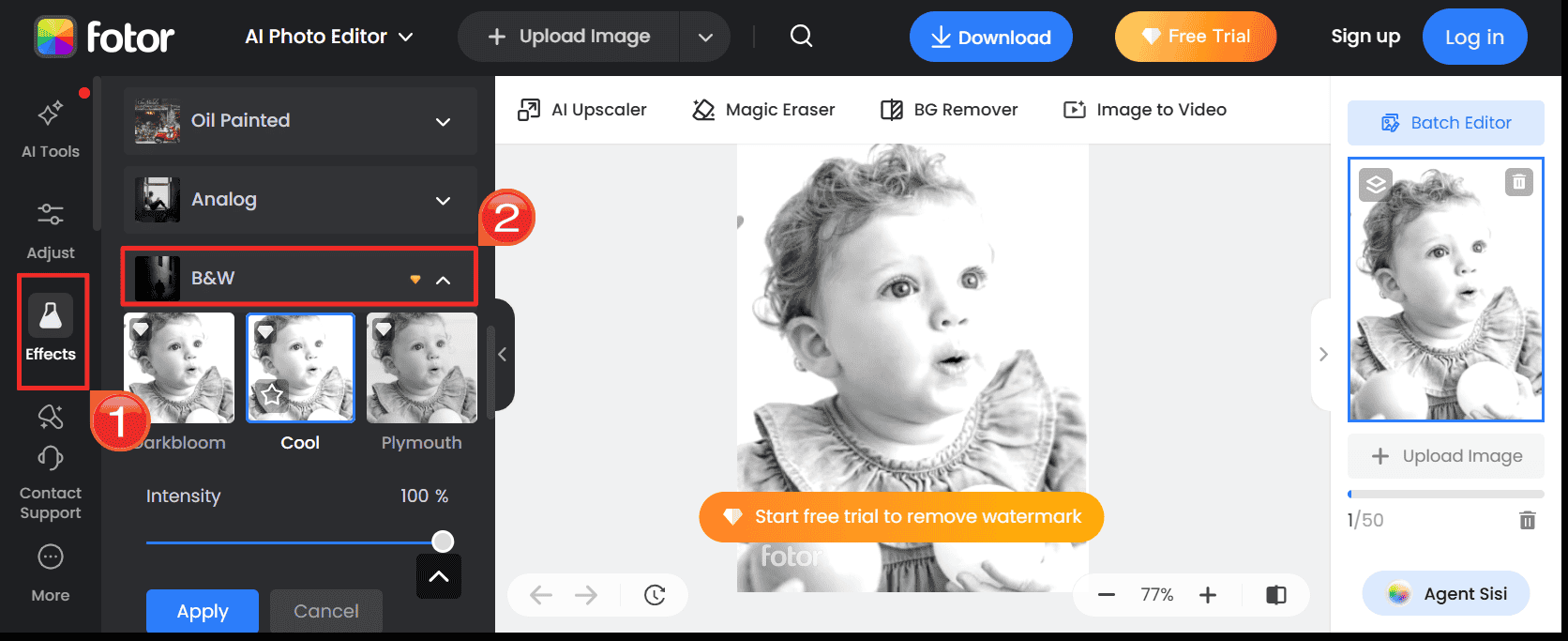
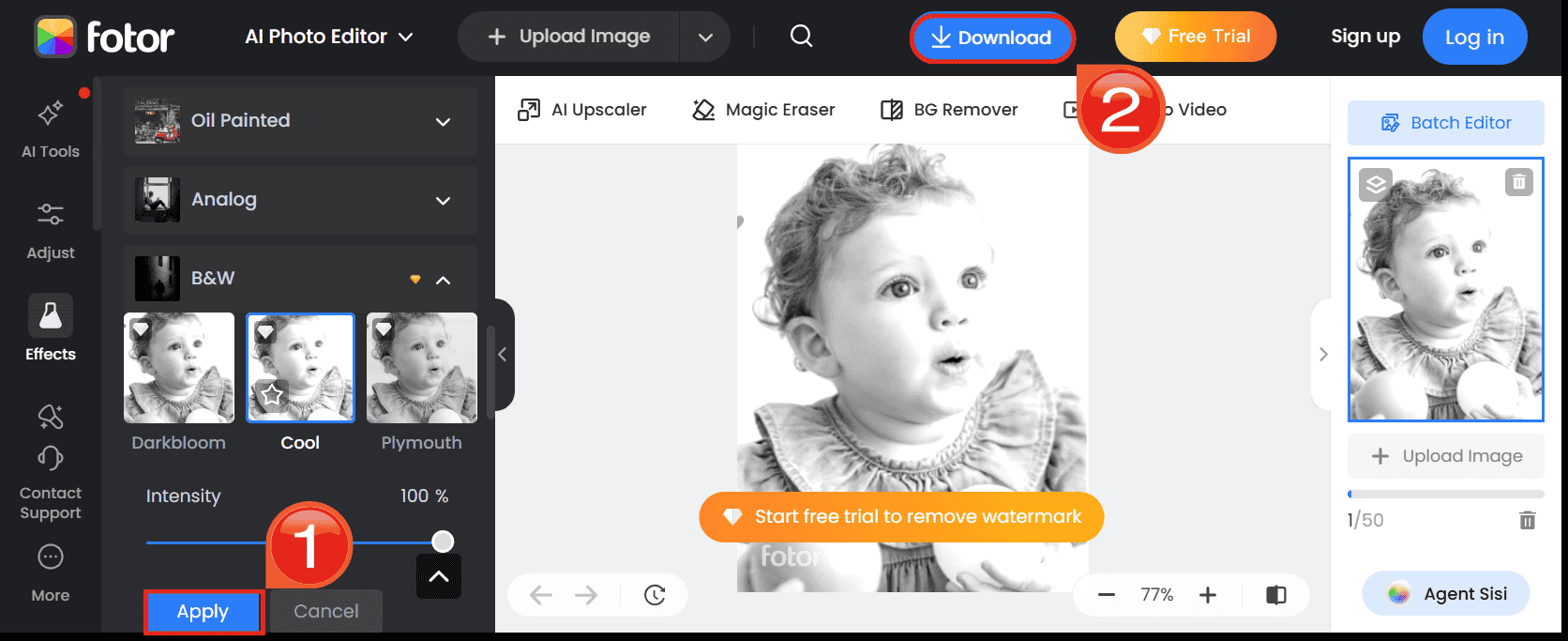
Step 3: Finally, click “Apply”after adjusting the intensity and click "Download" in the top right corner to save your image.
Pros:
High-quality output with AI enhancement.
Very user-friendly interface.
Cons:
Watermarks are applied to downloads in the free version.
Comparison of Black and White Converters
Selecting the right tool depends on whether you need a quick utility, artistic flair, or a design-integrated solution. The comparison below outlines the key differencesto help you decide.
| Tool | Best For | Platform | Cost | Ease of Use |
|---|---|---|---|---|
| BW Converter | Instant Conversion | Online | Free | ⭐⭐⭐⭐⭐ |
| Image Online | Scanned Docs | Online | Free | ⭐⭐⭐⭐ |
| BeFunky | Artistic Styles | Online | Freemium | ⭐⭐⭐⭐ |
| Canva | Marketing Designs | Online | Freemium | ⭐⭐⭐⭐⭐ |
| Fotor | Quick Enhancement | Online | Freemium | ⭐⭐⭐⭐ |
If you simply need a fast file conversion without any fuss, BW Converter is the most efficient choice because it does exactly what it says with zero friction. However, if you are looking to make the image look artistically pleasing, BeFunky offers the best creative filters. For those working on office documents who want to avoid multiple websites, using a built-in tool or WPS Photo is often the superior workflow choice.
WPS Photo: A Helpful Supplement to Convert Color Image to Black and White
While converting color images to black and white is a common task, standard online converters often give flat results that lack depth and contrast. They simply strip the color, often leaving the image looking gray and muddy. WPS Photo acts as a smart companion tool that goes beyond simple conversion because it allows you to enhance, correct, and optimize images directly within your document workflow, ensuring your black and white photos look crisp and professional.
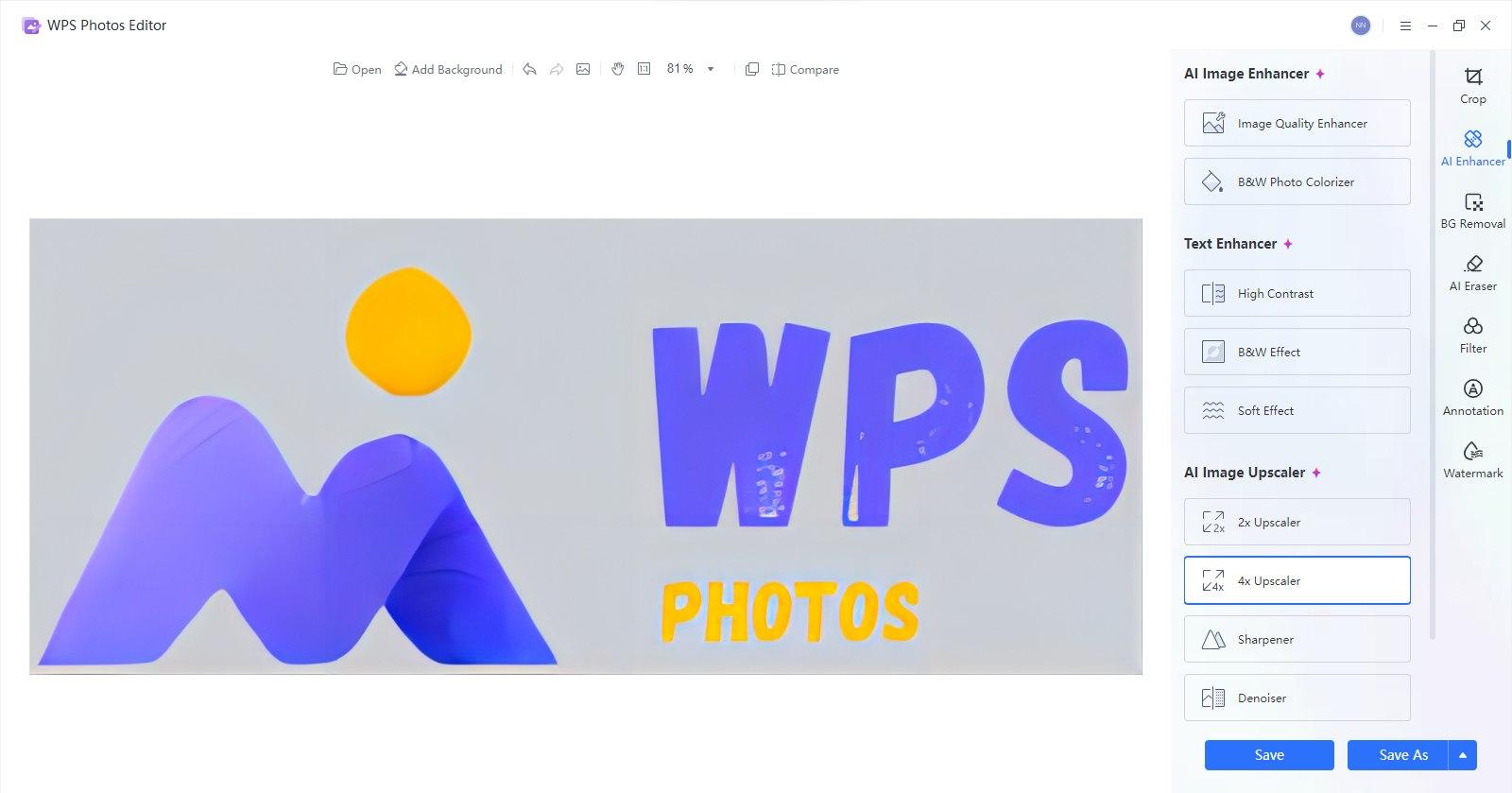
How to Use:
WPS Photo allows you to refine an image after it has been desaturated or to prepare it for a black-and-white document.
Step 1: First, upload your photo to WPS Photos.

Step 2: Then, click the "Filter"icon on the right side and click "B & W" to convert your image to black and white. You can also adjust saturation and other settings to ensure your image has depth and contrast.
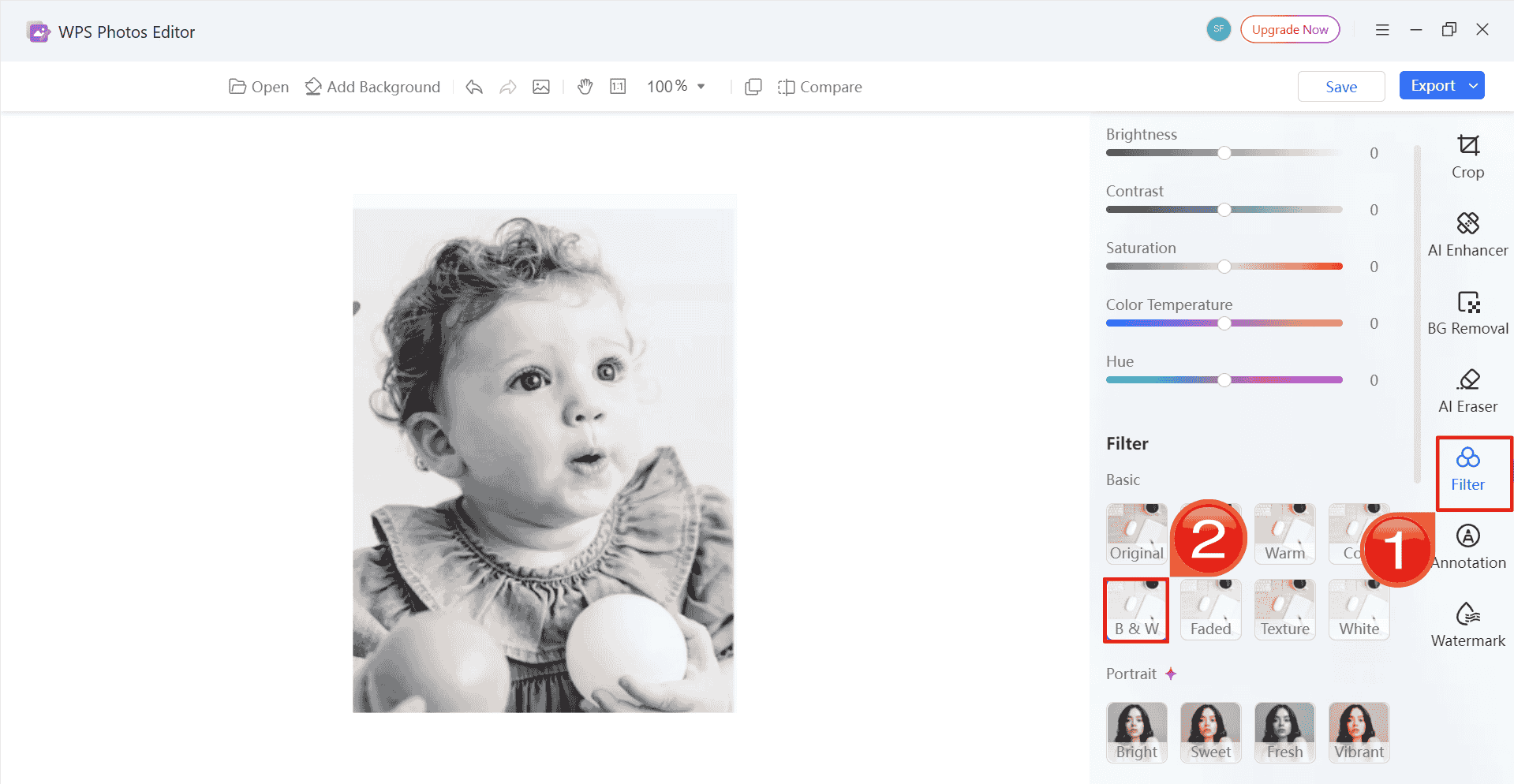
Step 3: Finally, click on “Export”to download and use your enhanced and inverted image.

What Standard BW Converters Usually Miss
Most basic online tools have significant limitations:
Limited Grayscale Control: They rarely allow you to adjust the "tone" of the gray, leading to washed-out images.
No Post-Editing: Once converted, you cannot fix noise or blurriness without switching to another app.
Rigid Output: You get one version of black and white, with no option to customize shadows or highlights.
Disjointed Workflow: You have to leave your document, go to a website, convert, download, and re-upload.
Why WPS Photo Works as the Perfect Supplement
WPS Photo addresses these gaps by bringing control back to the user:
AI-Powered Enhancement: It can sharpen details and fix lighting issues that often become visible when color is removed.
Fine-Grain Control: You can manually adjust brightness and contrast to create a dynamic monochrome image rather than a flat gray one.
Integrated Workflow: It supports multiple file formats and allows you to edit images directly inside your Word or PDF documents, streamlining the creation of black-and-white reports.
FAQs
Q1. What does it mean to convert a color image to black and white?
It means removing all color information, hue, and saturation, and turning the picture into shades of gray, giving it a classic monochrome look suitable for artistic purposes or clear printing.
Q2. How to make image black and white in Photoshop?
To make an image black and white in Photoshop, you can use adjustment layers for a non-destructive edit. First, open the image you want to edit in Photoshop to begin the process. Then navigate to the top menu bar and select Image, followed by Adjustments, and finally Black & White. By moving the sliders, you can adjust how specific colors translate to gray shades. Finally, if you do not need further edits, download or export the black and white picture to your computer.
Q3. Why would someone convert an image to black and white?
People do it for printing clarity to save colored ink, to achieve a timeless artistic style, to reduce visual distractions in documents, or to improve the contrast of scanned text pages.
Q4. How do I convert an image to black and white in Paint?
In Microsoft Paint, you can open your image, click File, then Save As, and select Monochrome Bitmap from the format dropdown. However, this often results in a low-quality pixelated image compared to modern tools.
Q5. Can I convert PDFs to black and white?
Yes, some PDF editors provide a grayscale export option, such as using Print to PDF with Black and White selected, or you can extract the pages as images, convert them, and recompile the PDF.
Q6. How can WPS AI improve my black and white images?
WPS AI can auto-enhance the quality of the photo by reducing noise and sharpening edges. This is crucial for black and white images where texture and contrast are the most important visual elements.
Q7. Can I convert only part of an image to black and white?
Yes, this is called selective desaturation. Advanced editors like Photoshop or specialized apps allow you to mask a subject to keep it in color while turning the background grayscale.
Q8. Will editing an image in WPS affect quality?
No WPS Photo preserves the original image resolution, so your converted or enhanced picture remains clear and printable regardless of the edits you apply.
The Best Tool for Grayscale Conversion
To convert color image to black and white, you generally need either a fast online utility for speed or a robust editor for quality control. While tools like BW Converter offer instant results and BeFunky provides artistic filters, WPS Photostands out as the superior choice for document workflows. It creates a seamless bridge between editing and document creation, allowing you to enhance, adjust, and insert high-quality black and white images without ever leaving your project window.

'%3e%3cpath%20d='M19.9911%204.11386V6.471H18.5894C18.0775%206.471%2017.7322%206.57814%2017.5536%206.79243C17.3751%207.00671%2017.2858%207.32814%2017.2858%207.75671V9.44421H19.9019L19.5536%2012.0871H17.2858V18.8639H14.5536V12.0871H12.2769V9.44421H14.5536V7.49779C14.5536%206.39064%2014.8632%205.53201%2015.4822%204.92189C16.1013%204.31177%2016.9257%204.00671%2017.9554%204.00671C18.8304%204.00671%2019.509%204.04243%2019.9911%204.11386Z'%20fill='%23333333'/%3e%3c/g%3e%3cdefs%3e%3cclipPath%20id='clip0_2938_8199'%3e%3crect%20width='16'%20height='16'%20fill='white'%20transform='translate(8%204.00671)'/%3e%3c/clipPath%3e%3c/defs%3e%3c/svg%3e)
'%3e%3cpath%20d='M17.5237%2010.7813L23.4811%204H22.0699L16.8949%209.88693L12.7648%204H8L14.2469%2012.9029L8%2020.0133H9.4112L14.8725%2013.7952L19.2352%2020.0133H24M9.92053%205.04213H12.0885L22.0688%2019.0224H19.9003'%20fill='%23333333'/%3e%3c/g%3e%3cdefs%3e%3cclipPath%20id='clip0_2938_8200'%3e%3crect%20width='16'%20height='16.0134'%20fill='white'%20transform='translate(8%204)'/%3e%3c/clipPath%3e%3c/defs%3e%3c/svg%3e)


