

'%3e%3cpath%20d='M8%200C12.4183%200%2016%203.58172%2016%208C16%2012.4183%2012.4183%2016%208%2016C3.58172%2016%200%2012.4183%200%208C0%203.58172%203.58172%200%208%200ZM11.6162%204.38379C11.2257%203.99337%2010.5927%203.99338%2010.2021%204.38379L8%206.58594L5.79785%204.38379C5.40732%203.99334%204.77429%203.99329%204.38379%204.38379C3.99331%204.77429%203.99335%205.40733%204.38379%205.79785L6.58594%208L4.38379%2010.2021C3.99348%2010.5927%203.99341%2011.2257%204.38379%2011.6162C4.77426%2012.0066%205.40734%2012.0065%205.79785%2011.6162L8%209.41406L10.2021%2011.6162C10.5927%2012.0066%2011.2257%2012.0067%2011.6162%2011.6162C12.0067%2011.2257%2012.0066%2010.5927%2011.6162%2010.2021L9.41406%208L11.6162%205.79785C12.0066%205.40735%2012.0066%204.77429%2011.6162%204.38379Z'%20fill='%23080E17'%20fill-opacity='0.46'/%3e%3c/g%3e%3cdefs%3e%3cclipPath%20id='clip0_3761_713'%3e%3crect%20width='16'%20height='16'%20fill='white'/%3e%3c/clipPath%3e%3c/defs%3e%3c/svg%3e)




'%3e%3cpath%20fill-rule='evenodd'%20clip-rule='evenodd'%20d='M21.4999%2010.9993C21.4999%205.20009%2016.7986%200.498901%2010.9993%200.498901C5.19994%200.498901%200.498657%205.20009%200.498657%2010.9993C0.498657%2016.2404%204.33858%2020.5844%209.35855%2021.3722V14.0346H6.69238V10.9993H9.35855V8.68594C9.35855%206.05427%2010.9262%204.60062%2013.3248%204.60062C14.4736%204.60062%2015.6753%204.80571%2015.6753%204.80571V7.38979H14.3512C13.0468%207.38979%2012.64%208.19921%2012.64%209.0296V10.9993H15.5523L15.0867%2014.0346H12.64V21.3722C17.66%2020.5844%2021.4999%2016.2404%2021.4999%2010.9993Z'%20fill='%231568EA'/%3e%3c/g%3e%3c/svg%3e)


'%3e%3cpath%20d='M2.42045%2022.1876H6.31818V12.7217L0.75%208.54553V20.5171C0.75%2021.4414%201.49892%2022.1876%202.42045%2022.1876Z'%20fill='%234285F4'/%3e%3cpath%20d='M19.682%2022.1876H23.5797C24.5041%2022.1876%2025.2502%2021.4387%2025.2502%2020.5171V8.54553L19.682%2012.7217'%20fill='%2334A853'/%3e%3cpath%20d='M19.682%205.48293V12.7216L25.2502%208.54543V6.31816C25.2502%204.25236%2022.8921%203.07469%2021.2411%204.31361'%20fill='%23FBBC04'/%3e%3cpath%20d='M6.31824%2012.7217V5.48303L13.0001%2010.4944L19.6819%205.48303V12.7217L13.0001%2017.733'%20fill='%23EA4335'/%3e%3cpath%20d='M0.75%206.31816V8.54543L6.31818%2012.7216V5.48293L4.75909%204.31361C3.10534%203.07469%200.75%204.25236%200.75%206.31816Z'%20fill='%23C5221F'/%3e%3c/g%3e%3cdefs%3e%3cclipPath%20id='clip0_2954_7305'%3e%3crect%20width='24.5'%20height='18.375'%20fill='white'%20transform='translate(0.75%203.8125)'/%3e%3c/clipPath%3e%3c/defs%3e%3c/svg%3e)


A communication plan can make or break the success of any project or organization. Without a clear strategy, messages get lost, updates are missed, and confusion spreads among team members and stakeholders. There are multiple projects that stumble simply because communication wasn’t structured properly. A well-crafted plan changes that by providing clarity, consistency, and accountability at every step. In this guide, I’ll show you how to write a professional communication plan and share 10 free communication plan templates you can easily download, edit, and print using WPS Office tools.


How to Write a Communication Plan
Creating an effective communication plan is all about being clear, organized, and adaptable. If you’re wondering how to write a communication plan, the goal is to ensure everyone involved stays aligned and informed throughout the process. Here’s a simple, structured approach to building one:
Define Objectives and Success Metrics: Set clear goals and measurable outcomes to track how well your plan performs.
Identify Stakeholders: Recognize everyone involved and tailor messages based on their role and influence.
Determine Key Messages: Keep your communication focused, consistent, and aligned with project goals.
Select Communication Channels: Use the right platforms for each audience, emails, meetings, or reports.
Set Frequency and Responsibilities: Decide how often updates will happen and assign clear ownership.
Evaluate and Adjust the Plan: Reviewprogress regularly and tweak your strategy to keep it effective.
When I first created a communication plan for a team project, I realized how essential stakeholder mapping was. Once I categorized people by their influence and interest, coordination became much smoother and outcomes improved.
Top 10 Free Communication Plan Templates
These templates simplify your workflow and provide ready-made layouts tailored for different needs. You can download and edit them easily.
IC Communication Plan (Smartsheet)
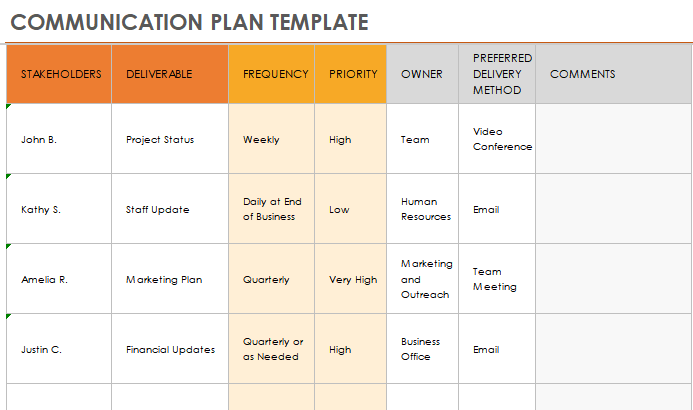
This template helps manage communication in large organizations, allowing you to track stakeholders, timelines, and message ownership. You can download the IC Communication Plan to align your teams effectively. It’s great for ensuring no update slips through the cracks and that everyone remains informed. You can easily adapt it for cross-department collaboration.
IC Strategic Communication Plan
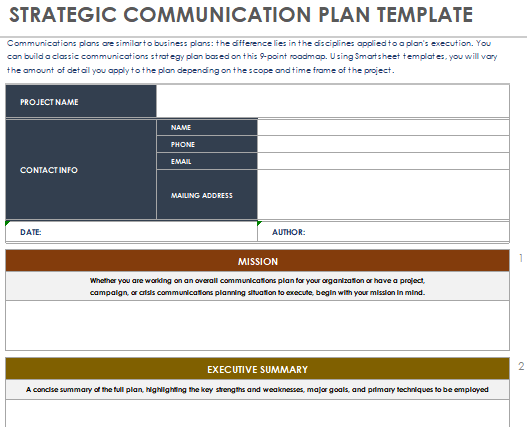
A great choice for corporate environments that require long-term communication roadmaps. The IC Strategic Communication Plan includes predefined sections for objectives, audiences, and metrics. It promotes strategic alignment and ensures your goals are measurable. Ideal for planning major campaigns or organizational transitions.
IC Business Communication Plan
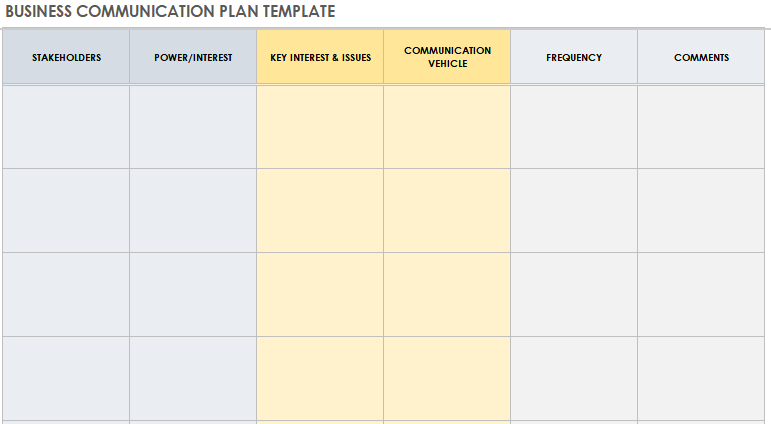
This one’s tailored for businesses aiming to standardize internal communication. Download the IC Business Communication Plan to streamline company-wide updates. It enhances message consistency and accountability across departments. Perfect for growing businesses that need structure.
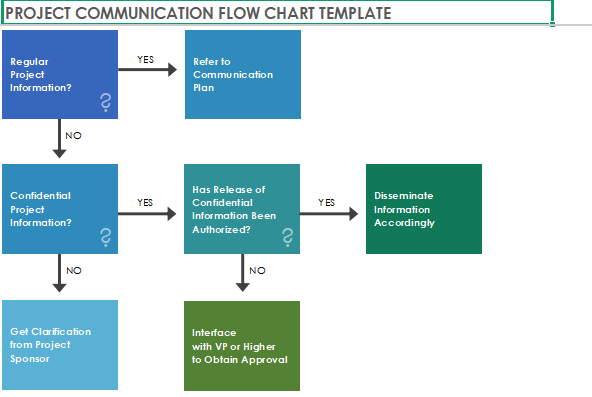
IC Project Communication Flow Chart
Designed for visual thinkers, this template maps the flow of messages across departments. Download IC Project Communication Flow Chart to visualize how information travels. It’s easy to customize and works perfectly for multi-team coordination. Great for keeping everyone on the same page during complex projects.
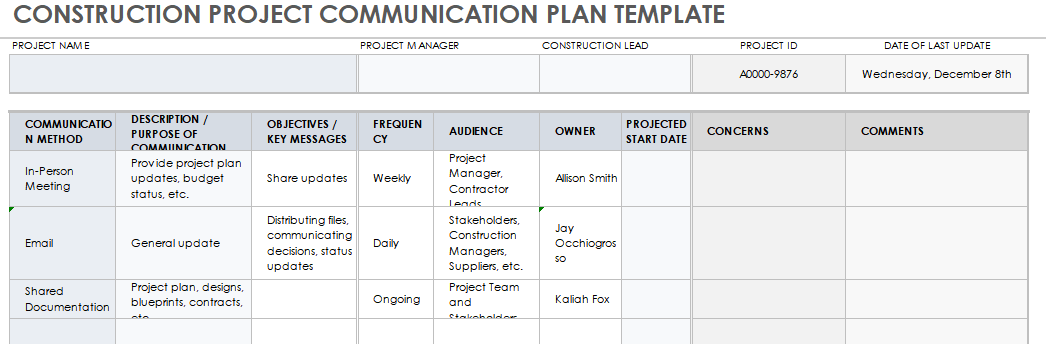
IC Construction Project Communication Plan
Construction projects demand detailed coordination. Download I C Construction Communication Plan to assign roles, manage reports, and ensure safety updates are on time. It’s especially useful for contractors and engineers managing multiple teams. You can also use it for progress tracking and milestone updates.
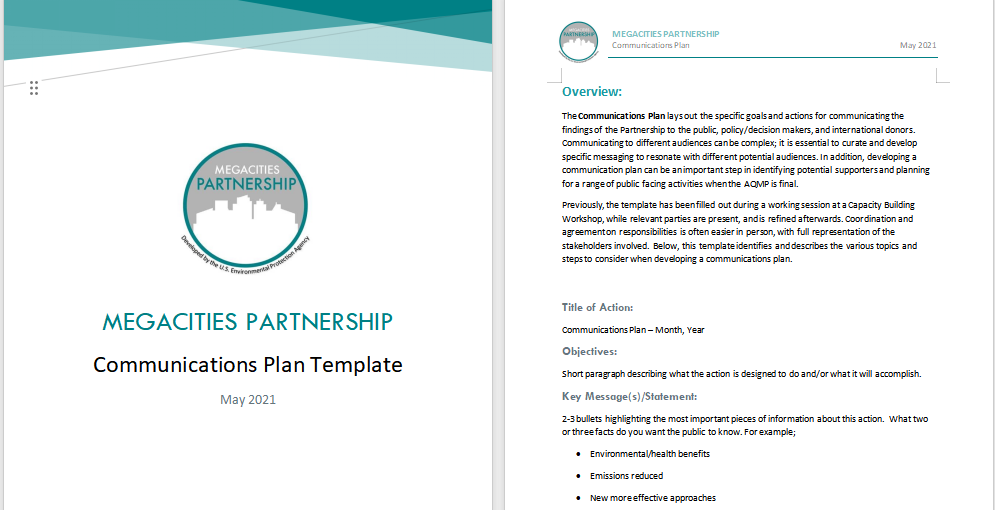
EPA Communication Plan Template (Word)
A government-grade layout that can be customized for nonprofits or agencies. Download EPA Communication Plan Template to adopt a professional structure. It provides a clean layout with sections for audience, purpose, and distribution. Great for structured, policy-based communication.
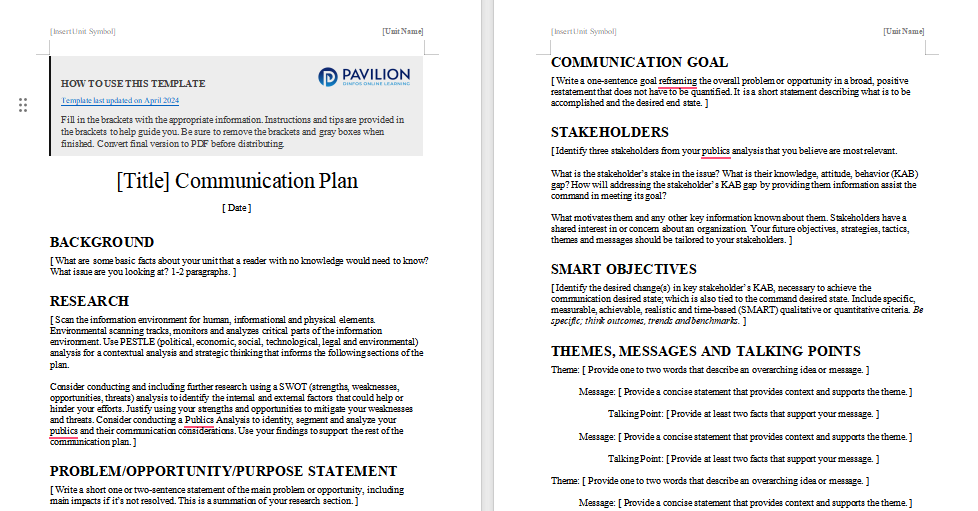
Pavilion Communication Plan (DoD)
This template follows Department of Defense standards, ensuring high-level precision. Download Pavilion Communication Plan for strategic, multi-level communication. It’s ideal for risk management and official reporting. You can also modify it for corporate or NGO settings.
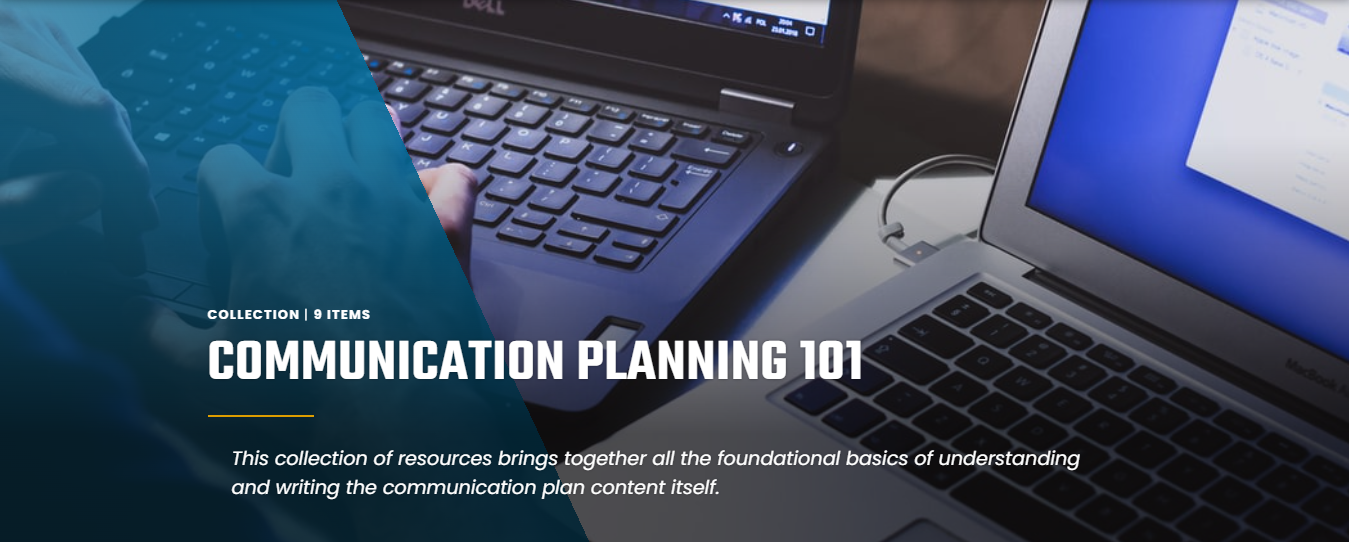
Communication Planning 101 (Pavilion)
If you’re new to planning, this resource breaks everything into digestible parts. View Communication Planning 101 for an easy start. It simplifies communication strategy for beginners and offers practical insights. You can follow it as a learning guide for your first plan.
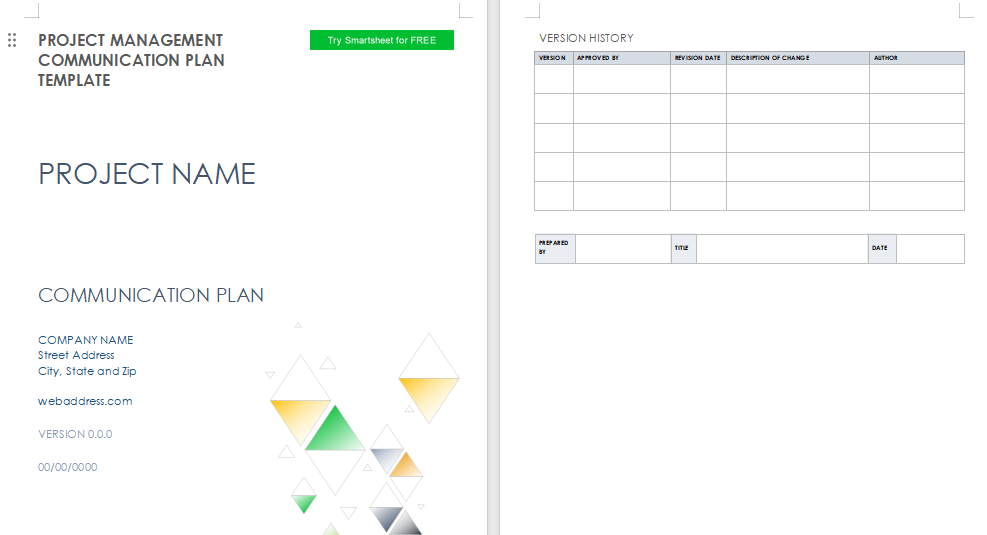
IC Project Management Communication Plan
Ideal for PMs, this template links communication with project milestones. Download IC Project Management Plan to keep timelines transparent. It ensures every phase has clear reporting protocols. Great for large projects with multiple deliverables.
IC Project Communication Matrix
A simple yet powerful Excel-based format that assigns who communicates what and to whom. Download IC Project Communication Matrix for better accountability. It’s easy to update as teams evolve or projects expand. Excellent for ensuring clarity across multiple stakeholders.
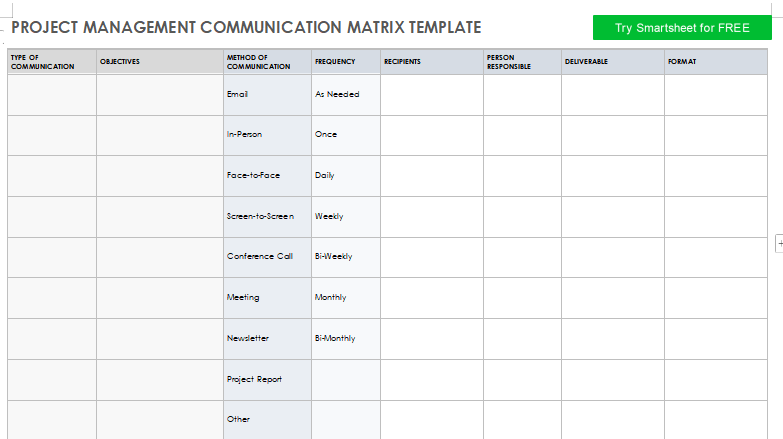
The first time I used the Project Communication Matrix, I could instantly track who was responsible for each report. It eliminated confusion and helped me save hours of follow-up emails.
How to Edit and Print
You can use WPS Office tools to easily modify these templates. Here’s a quick guide to help you get started and make the most of its features for a professional communication plan.
Using WPS Spreadsheet (for Excel Templates)
Before editing, make sure you’ve downloaded WPS Office. It’s light, fast, and free, offering all the essential tools you need to customize and manage your communication plan efficiently.
Steps:
Here’s an easy step by step guide on how to edit such templates.
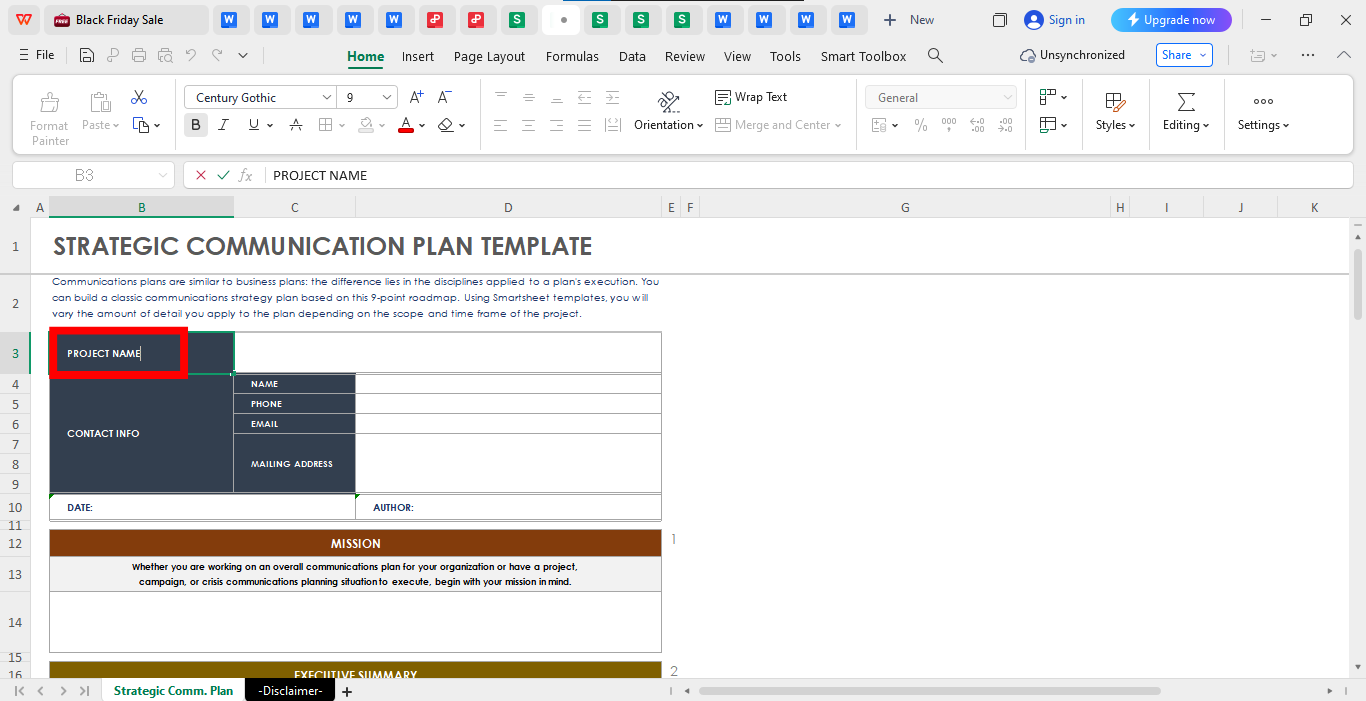
Step 1: Open your downloaded Excel template in WPS Spreadsheet.
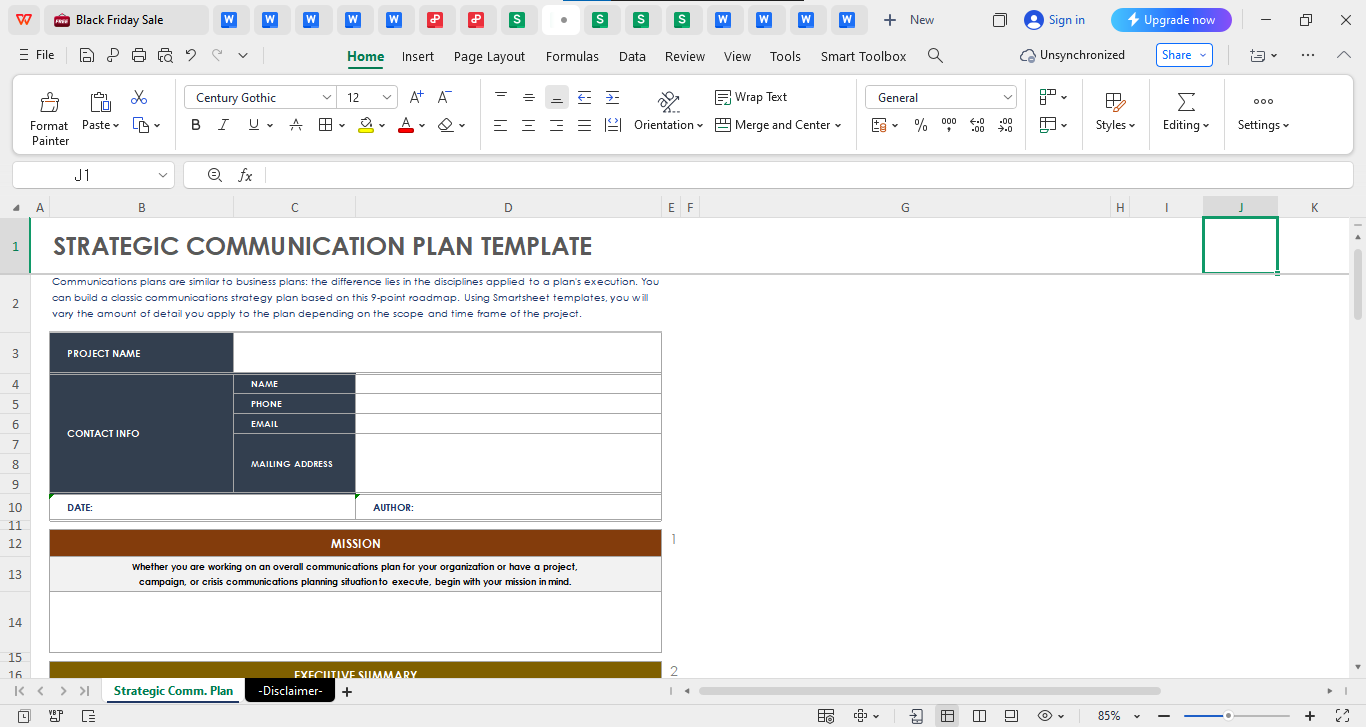
Step 2: Edit fields such as Project names or any kind of text that you’d like be as per your preference.
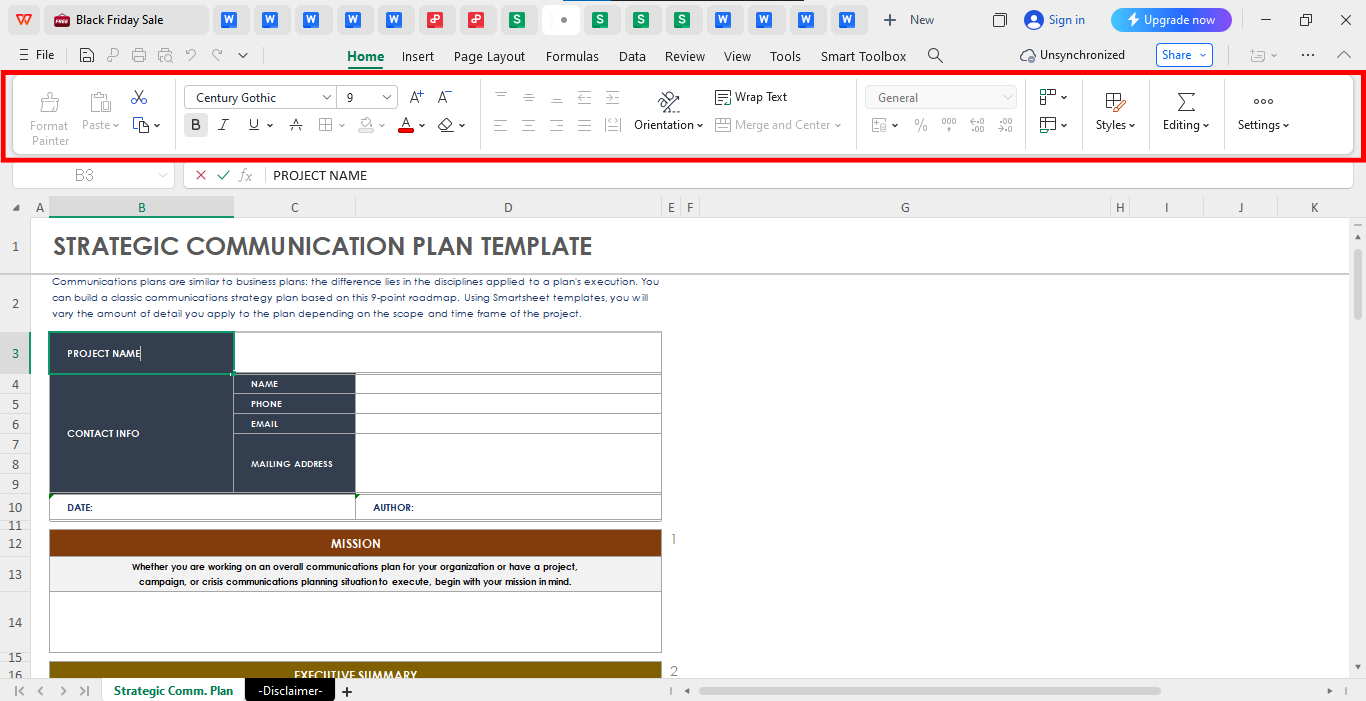
Step 3: Now from the panel above, explore the editing panel and edit the template as per your choice.
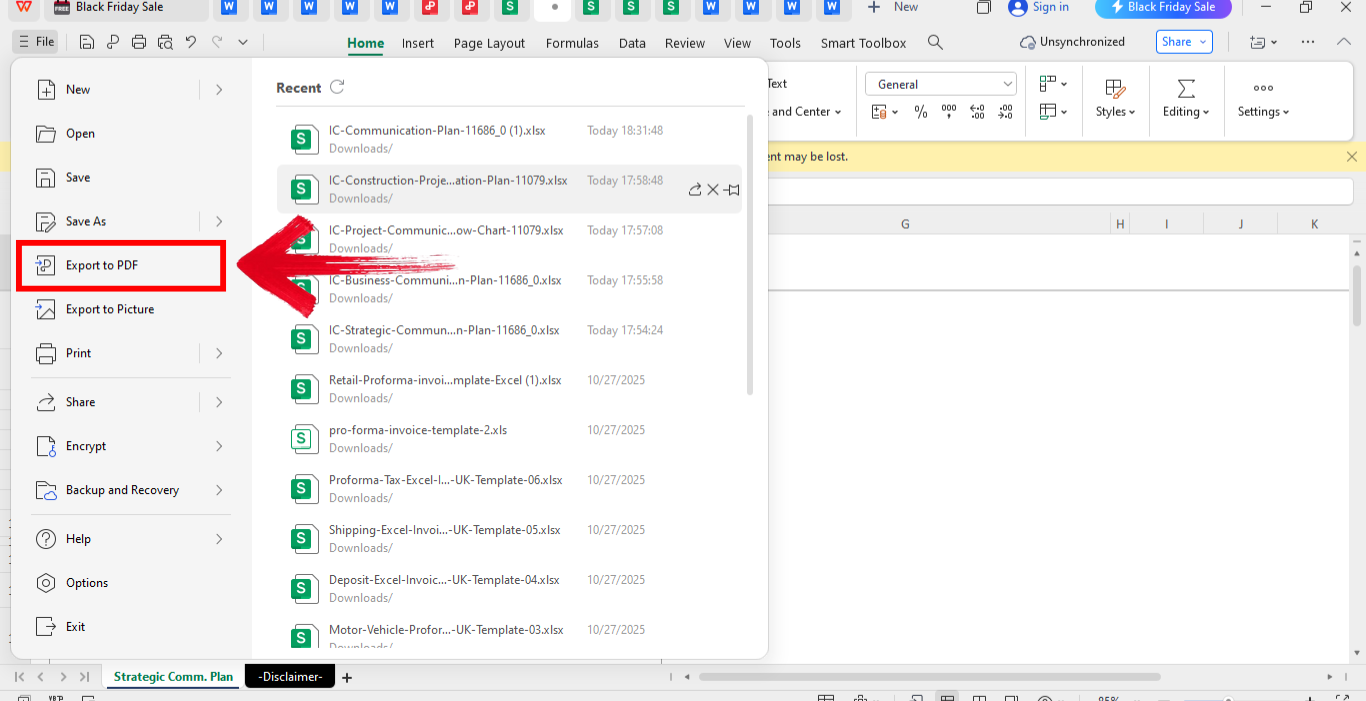
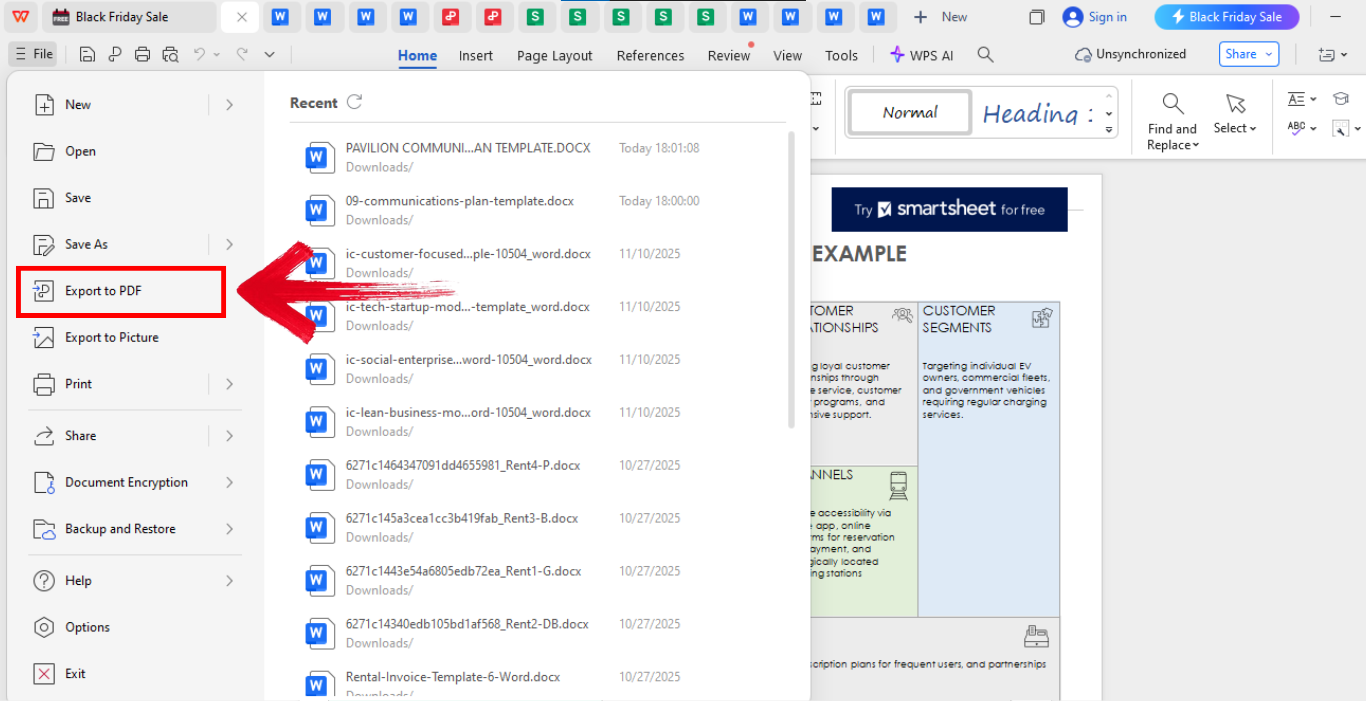
Step 4: Now in order to save your file as a PDF, go the “File” on the top left of your screen and the clock “Export to PDF.”
Using WPS Word (for Word Templates)
For narrative-style templates like the EPA or Pavilion plans, these documents provide a structured format to clearly outline your communication strategy. They’re especially useful when you need to explain objectives, audiences, and processes in detail, making your plan easy to follow for all stakeholders.
Steps:
Here’s an easy step by step guide on how to edit such templates.
Step 1: Open your document in WPS Writer.
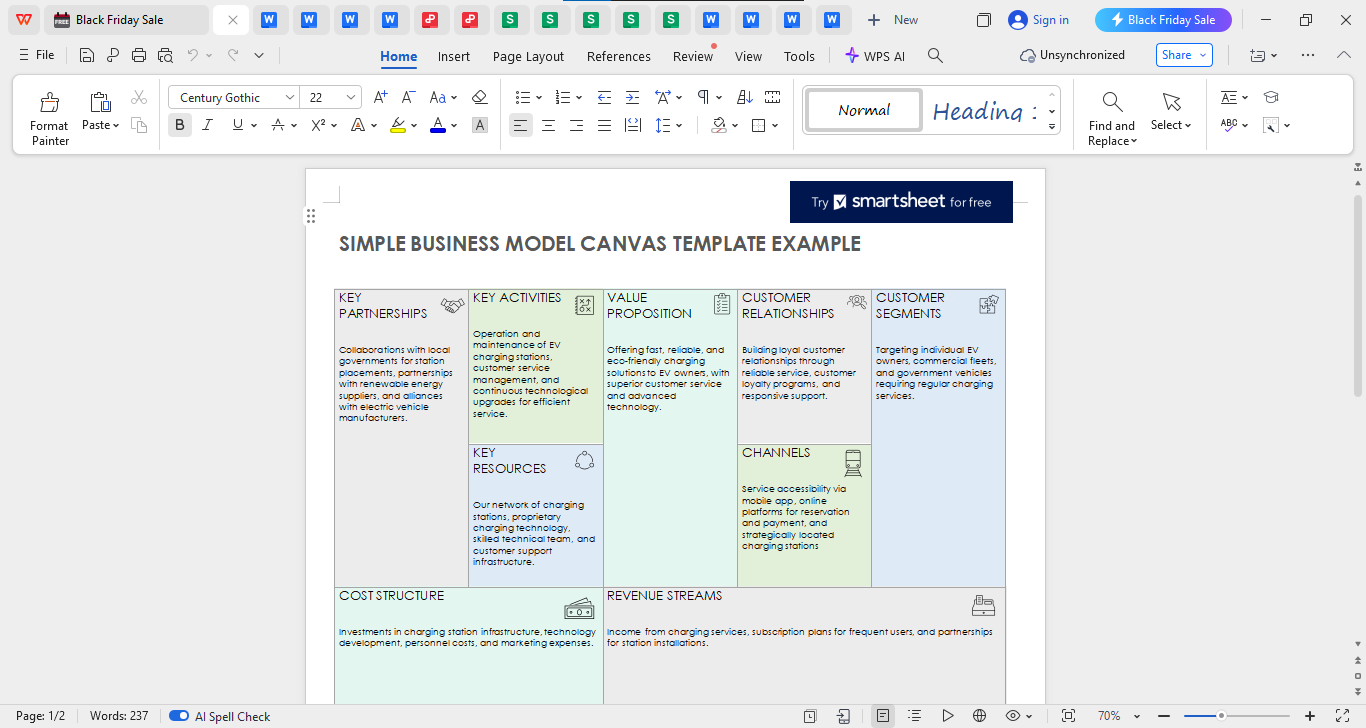
Step 2: Now from the editing panel on the top of your screen, edit the template as your preference. You can also click on the text to edit it like you want it to be.
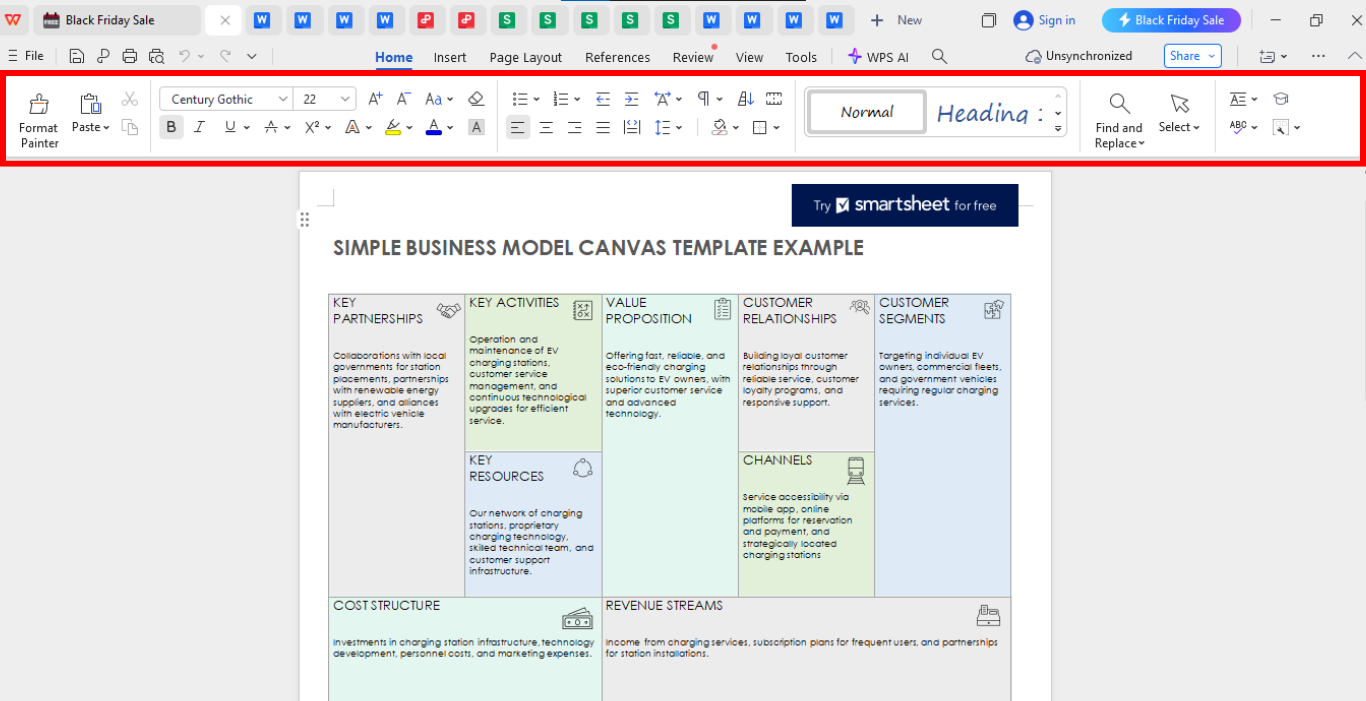
Step 3: Now in order to save your file as a PDF, go the “File” on the top left of your screen and the clock “Export to PDF.”
Using WPS Word for editing saved me a ton of time. Its AI suggestions helped me polish the tone and make my plan sound more professional without needing extra software.
Free Office Suite with Editable Templates & Smart AI
After planning out your communication strategy, the next step is to actually bring it to life, and that’s where the right tools come in. A well-organized workspace can make implementation smoother, especially when you’re managing multiple documents and reports at once. This is where WPS Office really shines. WPS Office is a free, lightweight alternative to Microsoft Office that provides a modern and efficient workspace for editing documents, spreadsheets, and presentations.
It’s known for its smooth compatibility across Word, Excel, and PowerPoint formats. With its cloud integration, you can easily collaborate with teams in real-time and access your files anywhere. The interface is clean, making it easy to switch between tasks without distractions. Plus, it includes tons of free templates that make professional reporting fast and hassle-free.
I’ve tested various office suites, but WPS stands out for being user-friendly and reliable. Its AI writer helps streamline editing, and the integrated cloud system allows me to share my communication plans with ease.
I switched to WPS Office after struggling with MS Office’s licensing issues. The transition was smooth, and the AI integration truly boosted my productivity when refining templates.
FAQs
Q1: How is a communication plan template used?
It’s used to structure and track how messages are delivered across projects, ensuring that everyone stays informed and accountable.
Q2: Which format should I choose: Excel or Word?
Excel is better for visual and tabular data, while Word works best for descriptive and structured communication plans.
Q3: How can I customize a template for my company?
Add your logo, modify fonts, and adjust stakeholder lists according to your project’s size.
Q4: What mistakes should I avoid?
Don’t overcomplicate layouts or skip defining responsibilities. Keep your plan actionable and updated.
Q5: Can I collaborate online on these templates?
Yes. WPS Cloud and Google Drive let you edit and share your documents in real time.
Q6: Can I use WPS Office for free on all devices?
Yes, it’s available across all major platforms, making it ideal for teams that work remotely.
Q7: Is WPS Office secure for business use?
Absolutely. It uses encryption protocols to protect your files, keeping your data safe and private.

'%3e%3cpath%20d='M19.9911%204.11386V6.471H18.5894C18.0775%206.471%2017.7322%206.57814%2017.5536%206.79243C17.3751%207.00671%2017.2858%207.32814%2017.2858%207.75671V9.44421H19.9019L19.5536%2012.0871H17.2858V18.8639H14.5536V12.0871H12.2769V9.44421H14.5536V7.49779C14.5536%206.39064%2014.8632%205.53201%2015.4822%204.92189C16.1013%204.31177%2016.9257%204.00671%2017.9554%204.00671C18.8304%204.00671%2019.509%204.04243%2019.9911%204.11386Z'%20fill='%23333333'/%3e%3c/g%3e%3cdefs%3e%3cclipPath%20id='clip0_2938_8199'%3e%3crect%20width='16'%20height='16'%20fill='white'%20transform='translate(8%204.00671)'/%3e%3c/clipPath%3e%3c/defs%3e%3c/svg%3e)
'%3e%3cpath%20d='M17.5237%2010.7813L23.4811%204H22.0699L16.8949%209.88693L12.7648%204H8L14.2469%2012.9029L8%2020.0133H9.4112L14.8725%2013.7952L19.2352%2020.0133H24M9.92053%205.04213H12.0885L22.0688%2019.0224H19.9003'%20fill='%23333333'/%3e%3c/g%3e%3cdefs%3e%3cclipPath%20id='clip0_2938_8200'%3e%3crect%20width='16'%20height='16.0134'%20fill='white'%20transform='translate(8%204)'/%3e%3c/clipPath%3e%3c/defs%3e%3c/svg%3e)


