

'%3e%3cpath%20d='M8%200C12.4183%200%2016%203.58172%2016%208C16%2012.4183%2012.4183%2016%208%2016C3.58172%2016%200%2012.4183%200%208C0%203.58172%203.58172%200%208%200ZM11.6162%204.38379C11.2257%203.99337%2010.5927%203.99338%2010.2021%204.38379L8%206.58594L5.79785%204.38379C5.40732%203.99334%204.77429%203.99329%204.38379%204.38379C3.99331%204.77429%203.99335%205.40733%204.38379%205.79785L6.58594%208L4.38379%2010.2021C3.99348%2010.5927%203.99341%2011.2257%204.38379%2011.6162C4.77426%2012.0066%205.40734%2012.0065%205.79785%2011.6162L8%209.41406L10.2021%2011.6162C10.5927%2012.0066%2011.2257%2012.0067%2011.6162%2011.6162C12.0067%2011.2257%2012.0066%2010.5927%2011.6162%2010.2021L9.41406%208L11.6162%205.79785C12.0066%205.40735%2012.0066%204.77429%2011.6162%204.38379Z'%20fill='%23080E17'%20fill-opacity='0.46'/%3e%3c/g%3e%3cdefs%3e%3cclipPath%20id='clip0_3761_713'%3e%3crect%20width='16'%20height='16'%20fill='white'/%3e%3c/clipPath%3e%3c/defs%3e%3c/svg%3e)




'%3e%3cpath%20fill-rule='evenodd'%20clip-rule='evenodd'%20d='M21.4999%2010.9993C21.4999%205.20009%2016.7986%200.498901%2010.9993%200.498901C5.19994%200.498901%200.498657%205.20009%200.498657%2010.9993C0.498657%2016.2404%204.33858%2020.5844%209.35855%2021.3722V14.0346H6.69238V10.9993H9.35855V8.68594C9.35855%206.05427%2010.9262%204.60062%2013.3248%204.60062C14.4736%204.60062%2015.6753%204.80571%2015.6753%204.80571V7.38979H14.3512C13.0468%207.38979%2012.64%208.19921%2012.64%209.0296V10.9993H15.5523L15.0867%2014.0346H12.64V21.3722C17.66%2020.5844%2021.4999%2016.2404%2021.4999%2010.9993Z'%20fill='%231568EA'/%3e%3c/g%3e%3c/svg%3e)


'%3e%3cpath%20d='M2.42045%2022.1876H6.31818V12.7217L0.75%208.54553V20.5171C0.75%2021.4414%201.49892%2022.1876%202.42045%2022.1876Z'%20fill='%234285F4'/%3e%3cpath%20d='M19.682%2022.1876H23.5797C24.5041%2022.1876%2025.2502%2021.4387%2025.2502%2020.5171V8.54553L19.682%2012.7217'%20fill='%2334A853'/%3e%3cpath%20d='M19.682%205.48293V12.7216L25.2502%208.54543V6.31816C25.2502%204.25236%2022.8921%203.07469%2021.2411%204.31361'%20fill='%23FBBC04'/%3e%3cpath%20d='M6.31824%2012.7217V5.48303L13.0001%2010.4944L19.6819%205.48303V12.7217L13.0001%2017.733'%20fill='%23EA4335'/%3e%3cpath%20d='M0.75%206.31816V8.54543L6.31818%2012.7216V5.48293L4.75909%204.31361C3.10534%203.07469%200.75%204.25236%200.75%206.31816Z'%20fill='%23C5221F'/%3e%3c/g%3e%3cdefs%3e%3cclipPath%20id='clip0_2954_7305'%3e%3crect%20width='24.5'%20height='18.375'%20fill='white'%20transform='translate(0.75%203.8125)'/%3e%3c/clipPath%3e%3c/defs%3e%3c/svg%3e)


Got a problem that’s a total mess? A fishbone diagram, aka Ishikawa or cause-and-effect chart, is your best friend for nailing down root causes in business, school, or quality control. Hunting for a fishbone diagram template? You probably want something quick, editable, and ready for brainstorms or assignments. Let’s be real, starting from scratch sucks and can look sloppy. How do you get sharp templates fast? Snag free ones and tweak them with WPS Office, a super easy tool for editing and sharing. Here’s my top 10 for 2025 and tips to make them shine for your next report or meeting.


Part 1. 10 Fishbone Diagram Templates
I’ve scoured the web to bring you 10 stellar fishbone diagram templates, each crafted for specific needs like business analysis, quality control, or education. These designs are clean, professional, and ready to help you tackle problems with clarity and a bit of flair.
1. Beige Simple Modern Fishbone Diagram
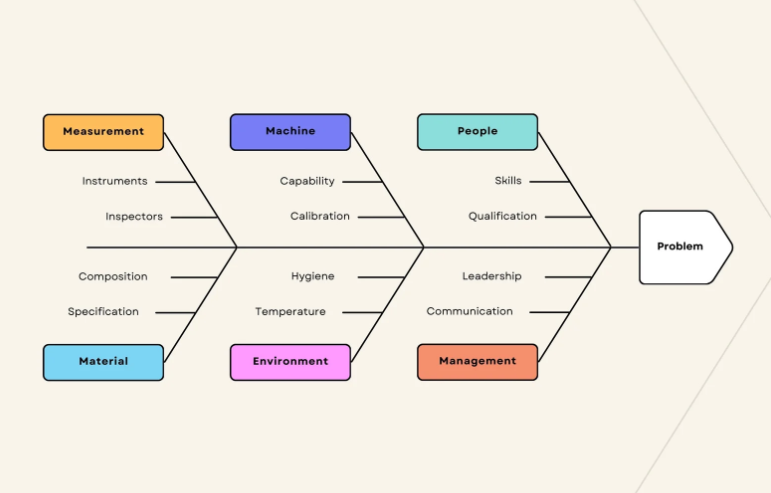
New to fishbone diagrams or just want something no-fuss? This template’s warm beige vibes are friendly yet professional, making it perfect for quick projects or team brainstorms. Its clean, simple layout lets you jot down causes without getting lost in a cluttered design. It’s a solid pick for anyone who wants to keep things easy and effective.
2. Soft Blue Simple Fishbone Diagram
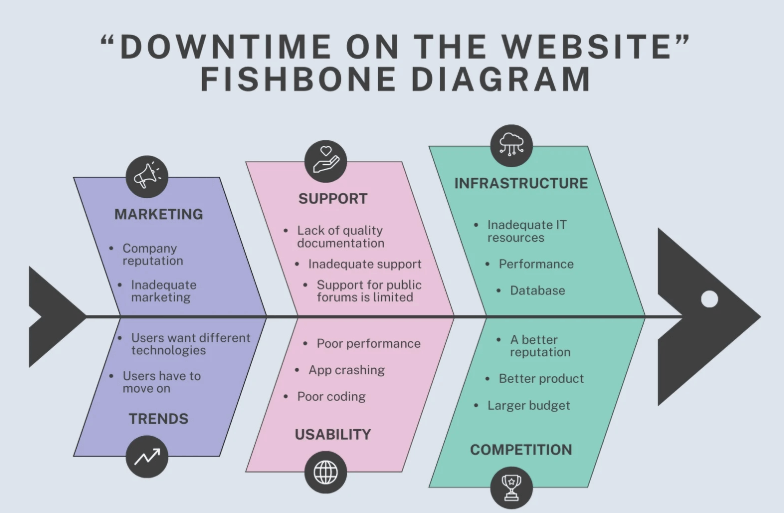
This template’s soft blue tones are like a chill breeze for presentations. It’s clean and soothing, perfect for diving into tough problems during long meetings or client talks. The straightforward setup makes sure everyone gets it, whether you’re tackling business issues or teaching in a classroom.
3. Blue and Orange Customer Delivery Issue Fishbone Diagram
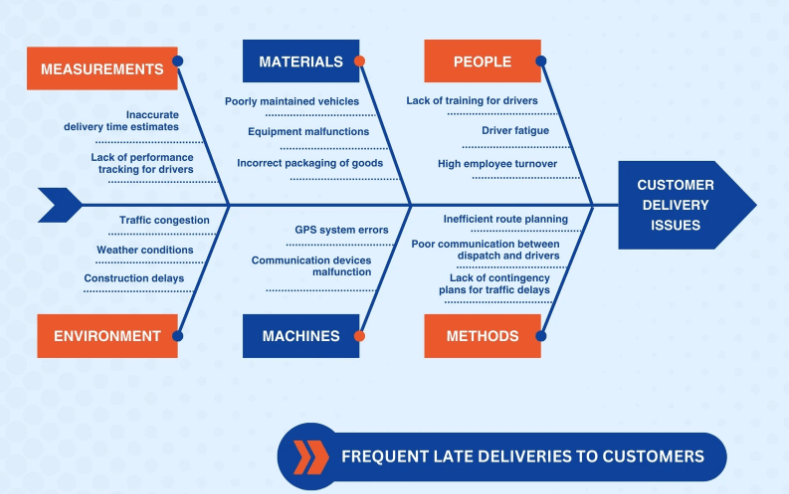
Dealing with delivery drama? This bold template’s blue and orange colors pop, spotlighting issues like late packages or grumpy customers. Its modern vibe is great for fast-moving teams who need to pinpoint bottlenecks and fix them quick.
4. Light Blue Illustrative Flow Fishbone Diagram
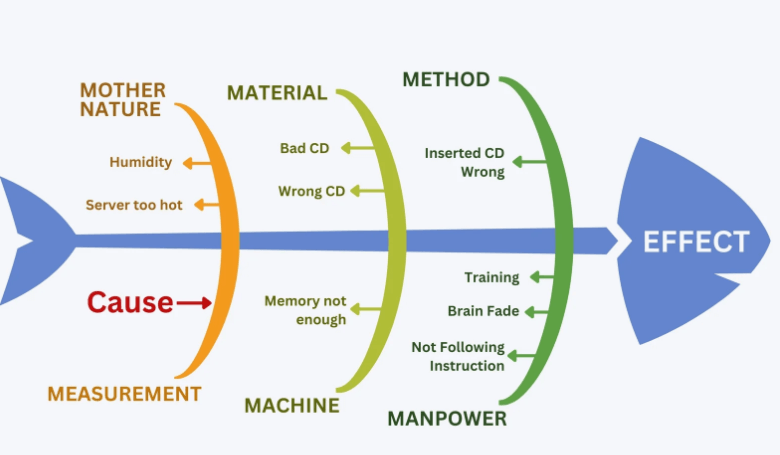
For school projects or quality control, this template’s flowing design and light blue tones are a total win. It’s eye-catching but not overwhelming, making tricky ideas easy to share with students or coworkers. The illustrative style breaks down complex causes in a way that’s super clear.
5. Brown Production Process Fishbone Diagram
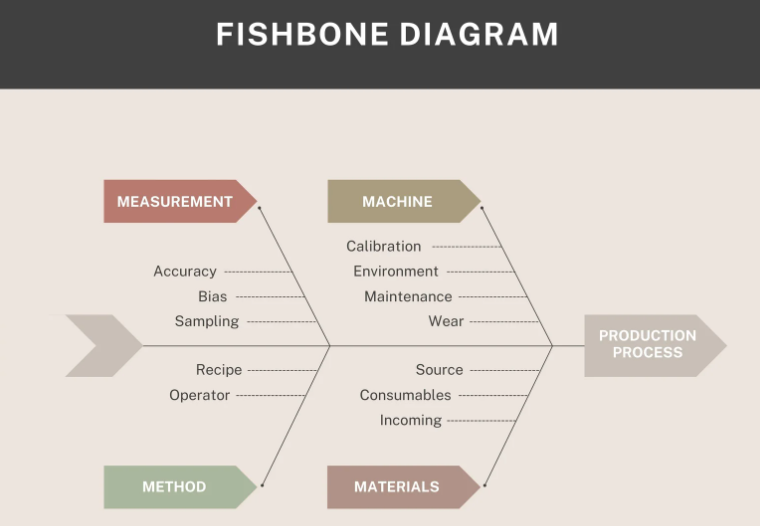
Manufacturing peeps, this one’s got your name on it. Its earthy brown tones keep things pro and grounded, ideal for sorting out production snags like broken machines or slow workflows. The clear layout is perfect for detailed reports or process fix-up meetings.
6. Teal Green Modern Line Fishbone Diagram
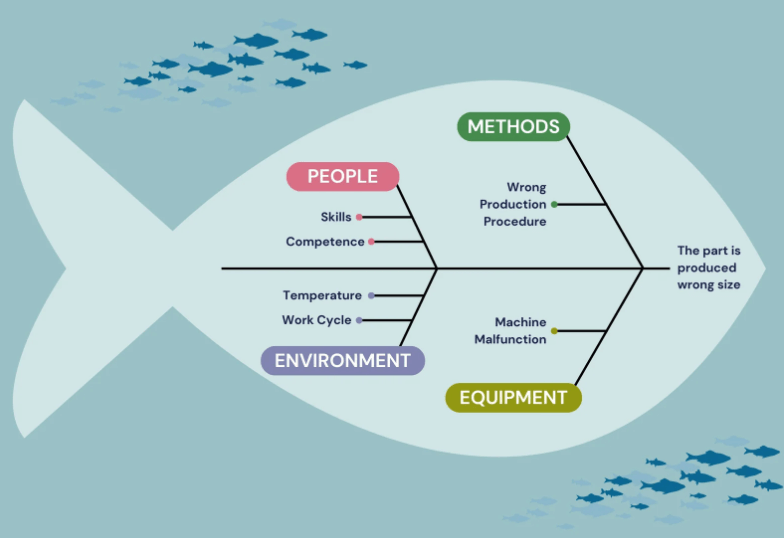
This template’s teal green accents bring a fresh, modern feel, perfect for lively brainstorming. Its linear design keeps your ideas neat, so you can dive into problem-solving without chaos. It’s awesome for teams who want a sharp, creative look to spark solutions.
7. Blue and Navy Product Quality Fishbone Diagram
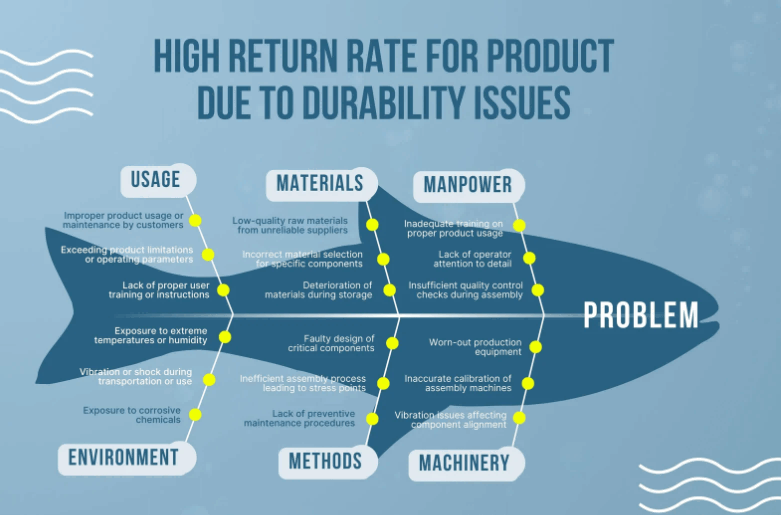
Tackling product quality issues? This bold blue and navy template is made for corporate settings where you need to dig into defects or quality challenges. Its clean, pro layout makes complex data easy to follow, so you can present with total confidence.
8. Beige Cream and Blue Customer Feedback Fishbone Diagram
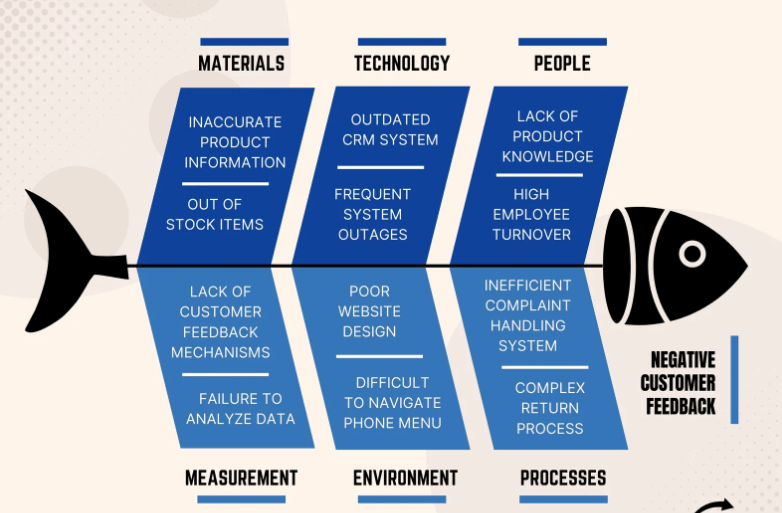
This sleek template is all about making customer feedback actionable. Its beige, cream, and blue mix gives it a polished look, perfect for business reports or stakeholder chats. The layout organizes feedback clearly, so you can spot issues and fix them fast.
9. Soft Blue Minimalist Fishbone Diagram
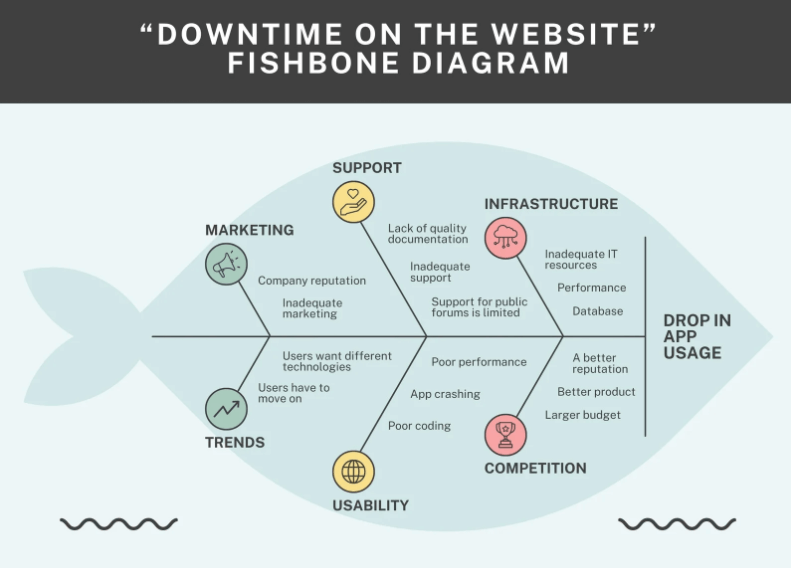
Need a template that works for anything? This minimalist soft blue design is super versatile for business or school. Its clean look keeps your analysis front and center, handling both simple and tricky problems with a pro edge.
10. Orange Beige Simple Fishbone Diagram
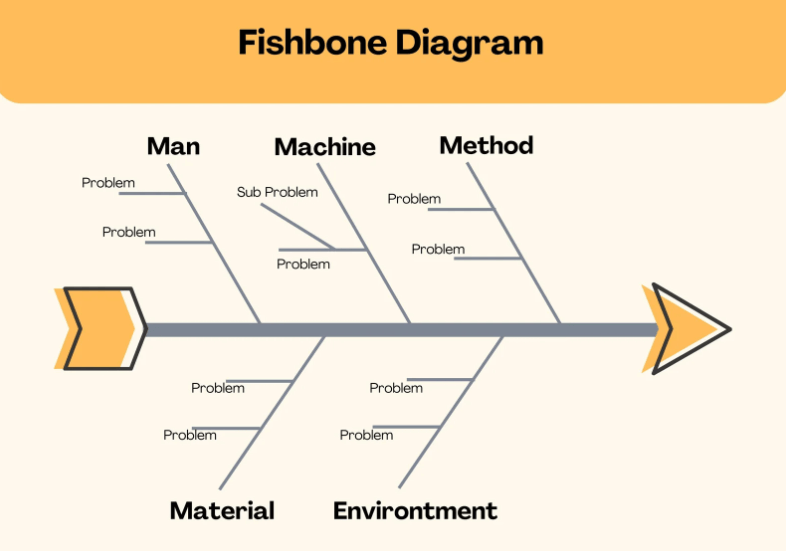
This warm, friendly template with orange and beige tones is great for any project, from team workshops to classroom tasks. Its simple design is a breeze to tweak
Part 2. How to Edit a Fishbone Diagram Template
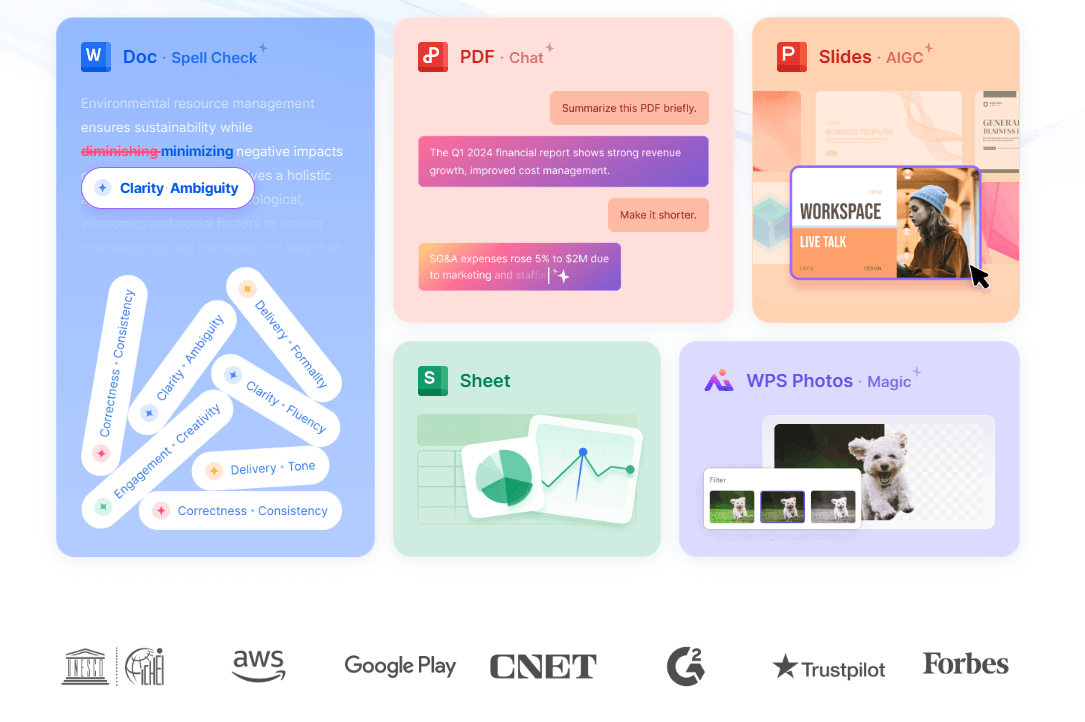
Wanna make a fishbone diagram feel like it’s yours? WPS Office is like your trusty sidekick, making it crazy easy to work with both images and PDFs. Here’s a super chill guide to sprucing up your templates for reports, presentations, or team pow-wows.
Edit Image Templates with WPS Photo
Step 1: Jump into WPS Photo.
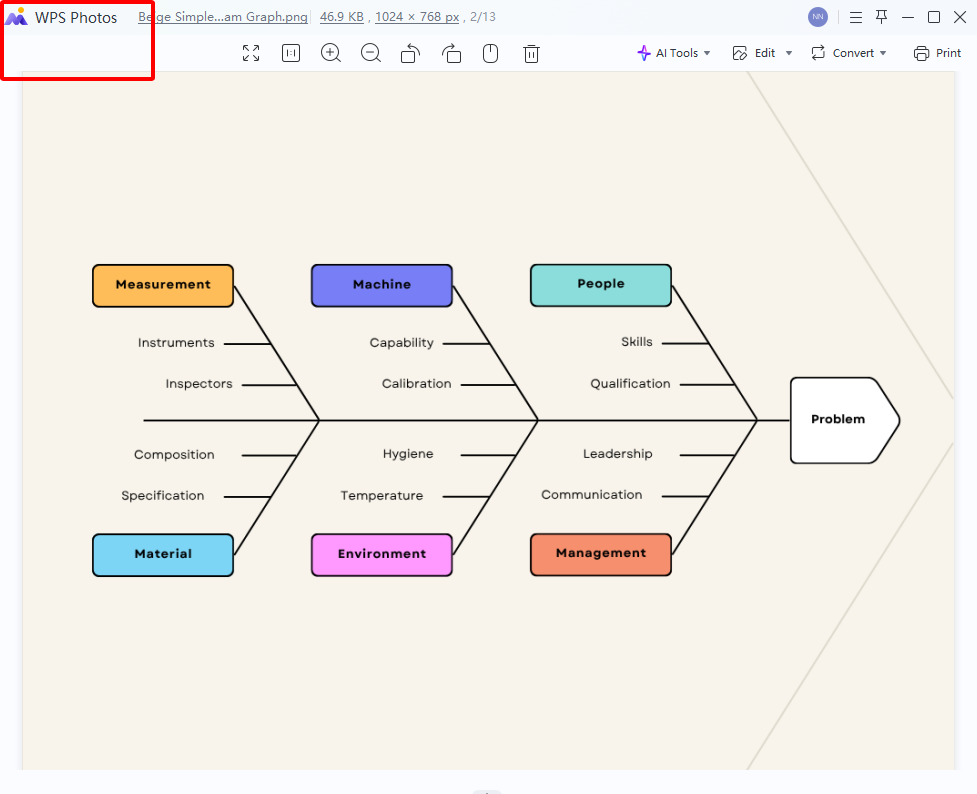
Fire up WPS Photo and drop in your cause and effect diagram template. It’s so user-friendly, you’ll be messing with it in seconds, even if you’re not a tech wizard.
Step 2: Toss in text, labels, or arrows.
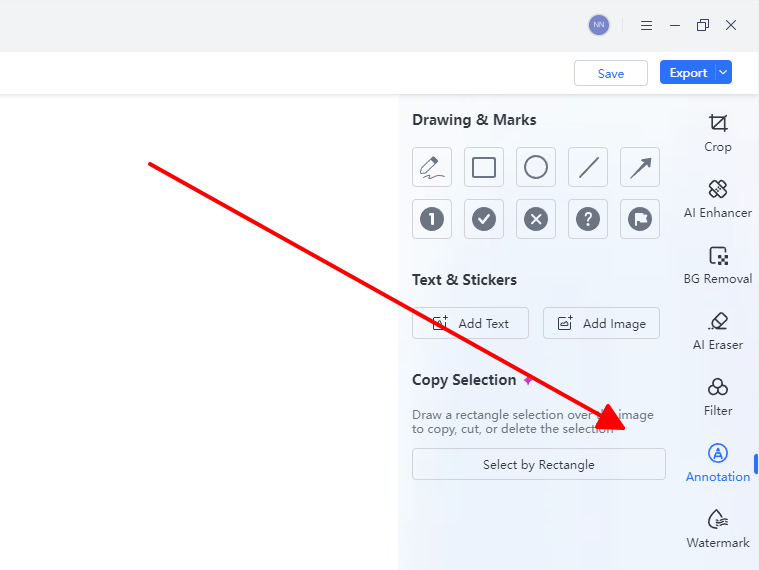
Grab the text tool to add labels for your categories, causes, or the big issue at the fishbone’s head. Throw in some arrows to connect the dots, it’s a quick way to make your diagram crystal clear.
Step 3: Swap colors to match your style.
Pick colors that feel right for your brand or project. Like, if your company’s got a vibe, tweak the diagram’s colors to blend in perfectly with your slides or reports.
Step 4: Save it crisp and clean.
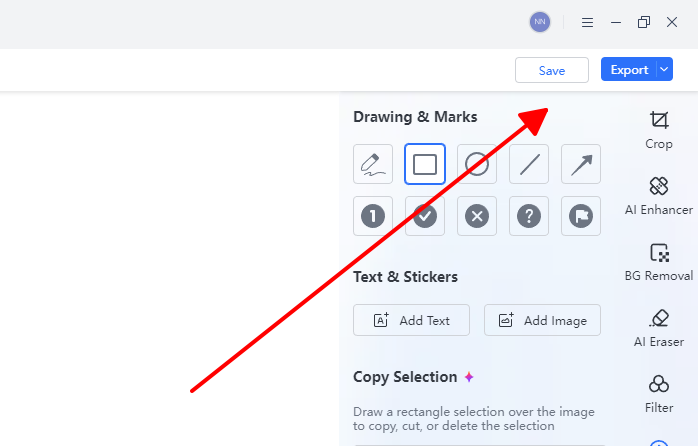
When you’re hyped about your creation, save it as a PNG or JPEG for reports or presentations. WPS Photo keeps it looking super sharp, whether you’re printing or sharing online.
Step 5: Give it a quick look.
Before you wrap it up, check that it’s easy to read. Play with font sizes or nudge arrows to keep things neat, especially if your fishbone chart for problem-solving is a bit intense.
Edit PDF Templates with WPS PDF
Step 1: Open the fishbone diagram PDF in WPS PDF.
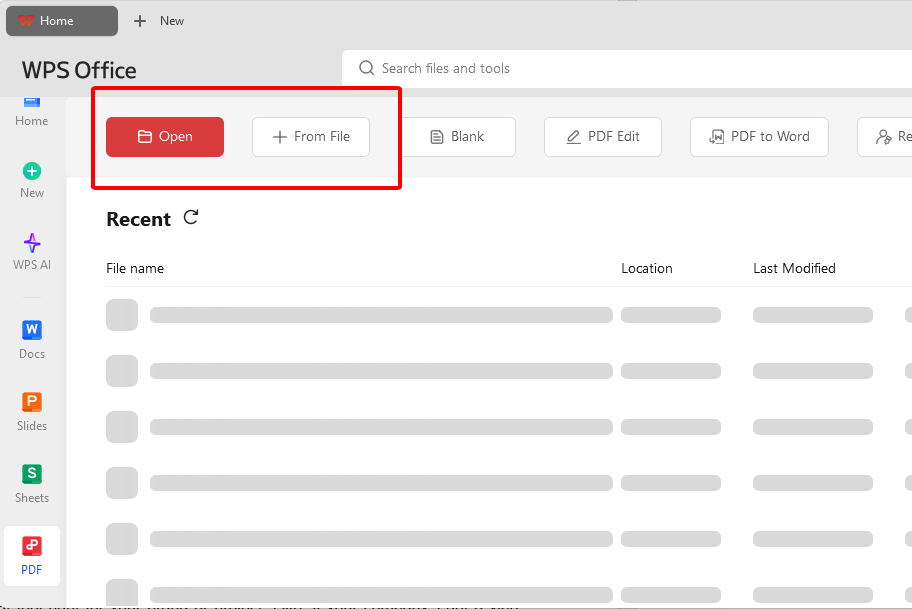
Load your editable fishbone template into WPS PDF. The clean, no-nonsense interface lets you focus on editing without any distractions.
Step 2: Update text for your specific causes or effects.
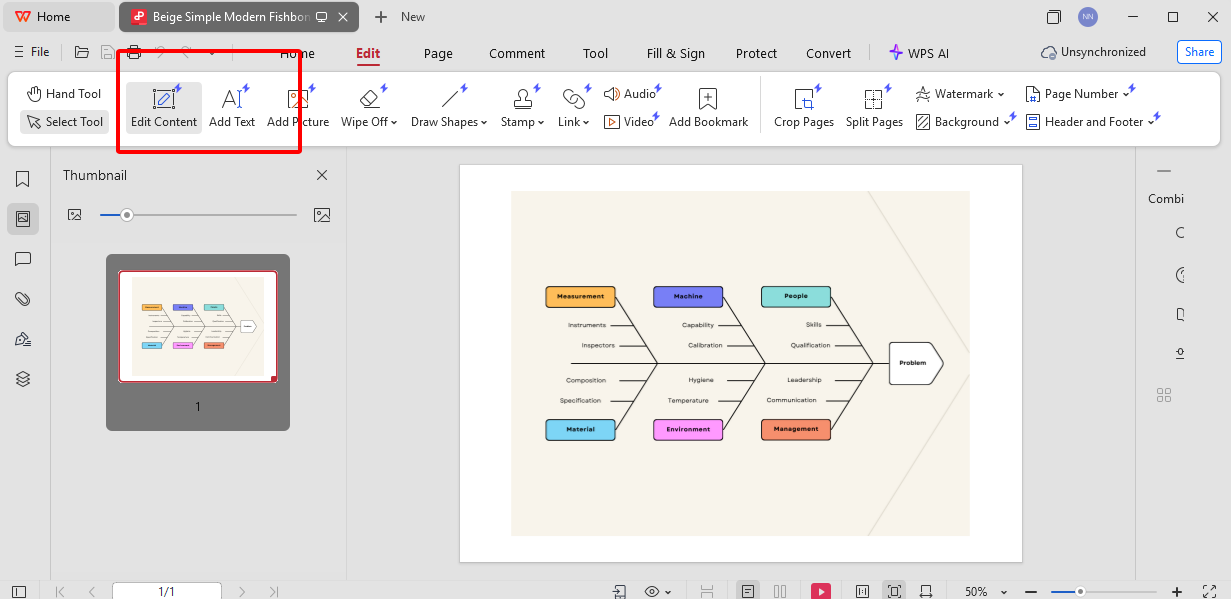
Edit the text to reflect your issue, like customer complaints or production glitches. The text tools are spot-on, so you can make changes without messing up the diagram’s layout.
Step 3: Highlight or annotate for team input.
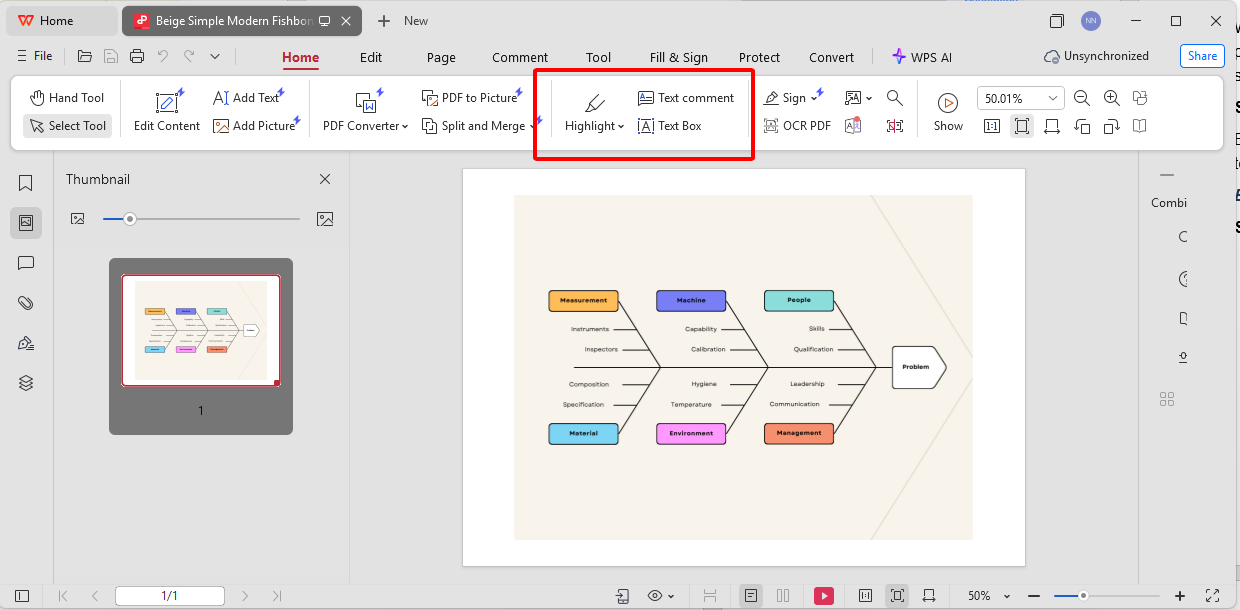
Use highlights to call out key causes or add comments for group discussions. This is a lifesaver for team reviews or brainstorming sessions where everyone’s tossing in ideas.
Step 4: Export the PDF for sharing or printing.
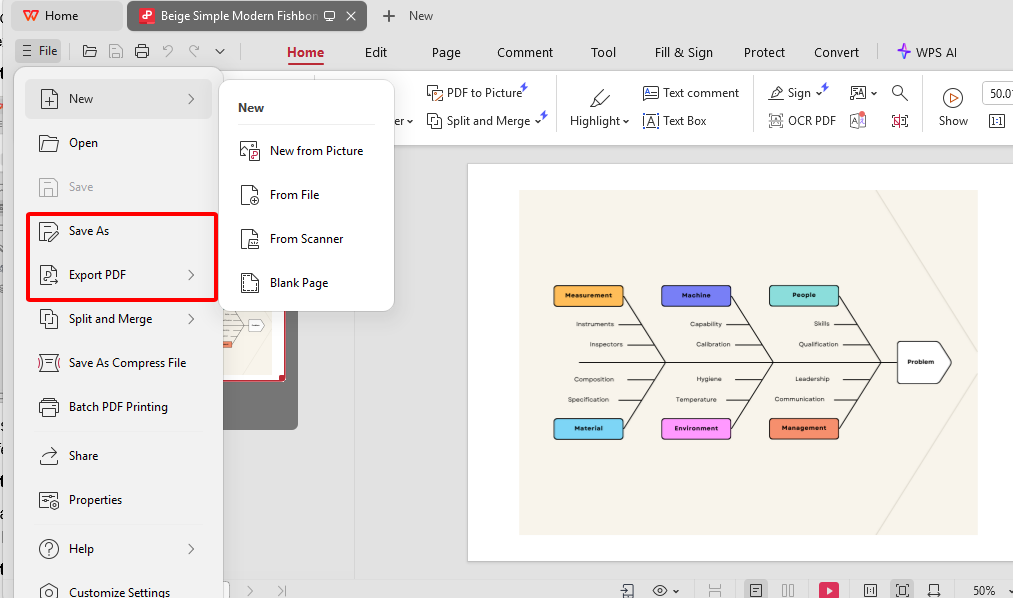
Save your edited diagram as a PDF for easy sharing or printing. WPS PDF makes sure it looks professional and works on any platform.
Step 5: Check it on different devices.
Before sending it out, make sure the PDF looks good on tablets, laptops, or phones, so everyone on your team or audience can view it without a hitch.
Part 3. A Smarter Office Suite to Support Visual Problem-Solving
If you’re juggling fishbone diagrams for reports, presentations, or workshops, WPS Office is like having a superpower. It’s a lightweight, all-in-one suite that makes creating, editing, and sharing visual tools like Ishikawa diagram templates a total breeze, saving you time and making your work look pro.
Key Benefits:
1. Plays Nice with Everything: Works seamlessly with Word, Excel, PowerPoint, and PDF formats, so your fishbone diagram in PDF fits right into your workflow.
2. Loads of Free Templates: Comes with thousands of free templates for business, education, and quality control, including fishbone chart templates for problem-solving.
3. Cloud Superpowers: With its built-in cloud storage, you can toss your Ishikawa diagram template to your crew and work on it together, no matter if you’re at the office or lounging on a beach somewhere. It’s a lifesaver for team brainstorms or remote gigs, keeping everyone in sync like magic.
4. AI That’s Like a Brainy Pal: WPS Office’s AI tools are like having a clever buddy who nudges your layouts into place and throws out text ideas to make your fishbone chart for problem-solving look legit. It saves you from messing with formatting forever, so you can focus on the good stuff.
5. Works Wherever You Are: Whether you’re on a Windows laptop, a Mac, a Linux setup, or just your phone (Android or iOS), WPS Office runs smoother than your favorite playlist. It’s crazy lightweight (only 200MB), super secure, and there’s no annoying ads to ruin your flow.
6. Kind to Your Wallet: The best part? All the core features are free, and even the fancy PDF editing upgrades won’t make your bank account cry. It’s the budget-friendly champ compared to those overpriced office suites, giving you everything you need without the sting.
With WPS Office, you can take a plain ol’ fishbone diagram template and whip it into a pro-level masterpiece that makes solving problems, making decisions, or showing off your ideas feel like a walk in the park. Whether you’re prepping a report or hyping up your team, it’s got your back.
FAQs about Fishbone Diagram Template
1. What’s a fishbone diagram template for?
It’s a tool to map out the root causes of problems in business, quality control, or school projects, making it easier to tackle complex issues.
2. Can I edit a fishbone diagram template in WPS Office?
You bet! WPS Photo handles image templates, and WPS PDF takes care of PDF ones, giving you all the flexibility you need to make it your own.
3. How do I pick the right fishbone diagram template?
Think about what you’re working on, business analysis, quality control, education, or customer feedback, and pick a template that vibes with your project’s goals.
4. Are fishbone diagram templates free?
Yep! You can find plenty of free templates out there, and with WPS Office, you can customize them to look professional in no time.

'%3e%3cpath%20d='M19.9911%204.11386V6.471H18.5894C18.0775%206.471%2017.7322%206.57814%2017.5536%206.79243C17.3751%207.00671%2017.2858%207.32814%2017.2858%207.75671V9.44421H19.9019L19.5536%2012.0871H17.2858V18.8639H14.5536V12.0871H12.2769V9.44421H14.5536V7.49779C14.5536%206.39064%2014.8632%205.53201%2015.4822%204.92189C16.1013%204.31177%2016.9257%204.00671%2017.9554%204.00671C18.8304%204.00671%2019.509%204.04243%2019.9911%204.11386Z'%20fill='%23333333'/%3e%3c/g%3e%3cdefs%3e%3cclipPath%20id='clip0_2938_8199'%3e%3crect%20width='16'%20height='16'%20fill='white'%20transform='translate(8%204.00671)'/%3e%3c/clipPath%3e%3c/defs%3e%3c/svg%3e)
'%3e%3cpath%20d='M17.5237%2010.7813L23.4811%204H22.0699L16.8949%209.88693L12.7648%204H8L14.2469%2012.9029L8%2020.0133H9.4112L14.8725%2013.7952L19.2352%2020.0133H24M9.92053%205.04213H12.0885L22.0688%2019.0224H19.9003'%20fill='%23333333'/%3e%3c/g%3e%3cdefs%3e%3cclipPath%20id='clip0_2938_8200'%3e%3crect%20width='16'%20height='16.0134'%20fill='white'%20transform='translate(8%204)'/%3e%3c/clipPath%3e%3c/defs%3e%3c/svg%3e)


