

'%3e%3cpath%20d='M8%200C12.4183%200%2016%203.58172%2016%208C16%2012.4183%2012.4183%2016%208%2016C3.58172%2016%200%2012.4183%200%208C0%203.58172%203.58172%200%208%200ZM11.6162%204.38379C11.2257%203.99337%2010.5927%203.99338%2010.2021%204.38379L8%206.58594L5.79785%204.38379C5.40732%203.99334%204.77429%203.99329%204.38379%204.38379C3.99331%204.77429%203.99335%205.40733%204.38379%205.79785L6.58594%208L4.38379%2010.2021C3.99348%2010.5927%203.99341%2011.2257%204.38379%2011.6162C4.77426%2012.0066%205.40734%2012.0065%205.79785%2011.6162L8%209.41406L10.2021%2011.6162C10.5927%2012.0066%2011.2257%2012.0067%2011.6162%2011.6162C12.0067%2011.2257%2012.0066%2010.5927%2011.6162%2010.2021L9.41406%208L11.6162%205.79785C12.0066%205.40735%2012.0066%204.77429%2011.6162%204.38379Z'%20fill='%23080E17'%20fill-opacity='0.46'/%3e%3c/g%3e%3cdefs%3e%3cclipPath%20id='clip0_3761_713'%3e%3crect%20width='16'%20height='16'%20fill='white'/%3e%3c/clipPath%3e%3c/defs%3e%3c/svg%3e)




'%3e%3cpath%20fill-rule='evenodd'%20clip-rule='evenodd'%20d='M21.4999%2010.9993C21.4999%205.20009%2016.7986%200.498901%2010.9993%200.498901C5.19994%200.498901%200.498657%205.20009%200.498657%2010.9993C0.498657%2016.2404%204.33858%2020.5844%209.35855%2021.3722V14.0346H6.69238V10.9993H9.35855V8.68594C9.35855%206.05427%2010.9262%204.60062%2013.3248%204.60062C14.4736%204.60062%2015.6753%204.80571%2015.6753%204.80571V7.38979H14.3512C13.0468%207.38979%2012.64%208.19921%2012.64%209.0296V10.9993H15.5523L15.0867%2014.0346H12.64V21.3722C17.66%2020.5844%2021.4999%2016.2404%2021.4999%2010.9993Z'%20fill='%231568EA'/%3e%3c/g%3e%3c/svg%3e)


'%3e%3cpath%20d='M2.42045%2022.1876H6.31818V12.7217L0.75%208.54553V20.5171C0.75%2021.4414%201.49892%2022.1876%202.42045%2022.1876Z'%20fill='%234285F4'/%3e%3cpath%20d='M19.682%2022.1876H23.5797C24.5041%2022.1876%2025.2502%2021.4387%2025.2502%2020.5171V8.54553L19.682%2012.7217'%20fill='%2334A853'/%3e%3cpath%20d='M19.682%205.48293V12.7216L25.2502%208.54543V6.31816C25.2502%204.25236%2022.8921%203.07469%2021.2411%204.31361'%20fill='%23FBBC04'/%3e%3cpath%20d='M6.31824%2012.7217V5.48303L13.0001%2010.4944L19.6819%205.48303V12.7217L13.0001%2017.733'%20fill='%23EA4335'/%3e%3cpath%20d='M0.75%206.31816V8.54543L6.31818%2012.7216V5.48293L4.75909%204.31361C3.10534%203.07469%200.75%204.25236%200.75%206.31816Z'%20fill='%23C5221F'/%3e%3c/g%3e%3cdefs%3e%3cclipPath%20id='clip0_2954_7305'%3e%3crect%20width='24.5'%20height='18.375'%20fill='white'%20transform='translate(0.75%203.8125)'/%3e%3c/clipPath%3e%3c/defs%3e%3c/svg%3e)


Turning chaos into clarity, that’s what flowcharts do best. We’ve all been there: staring at a messy process or an idea that just won’t fit neatly in our heads. That’s where a simple flowchart can flip the game. It takes something complicated and breaks it down into clean, visual steps that actually make sense. But here’s the catch; building one from scratch can be time-consuming and, honestly, a bit overwhelming. So, to save you the hassle, I’ve put together a collection of my favorite 10 flow chart example templates you can instantly download and edit. In this guide, I’ll show you how to use and customize them easily with WPS Office, a lightweight, free editing tool I genuinely love for quick design work. Let’s make your workflows look as smart as they actually are.


10 Flow Chart Example Templates
Each flow chart example listed below is unique in design and purpose. These templates are ready to download, editable, and ideal for personal, academic, or professional use.
1. Beige Minimal Flowchart Infographic Graph
A clean, minimal design with neutral tones, this template is great for presentations or professional reports that require clarity over color. You can explore and edit it directly using the Beige Minimal Flowchart Infographic Graph template. Its layout makes your data easy to follow while keeping the design elegant.
2. Colorful Modern Brand Identity Flow Chart
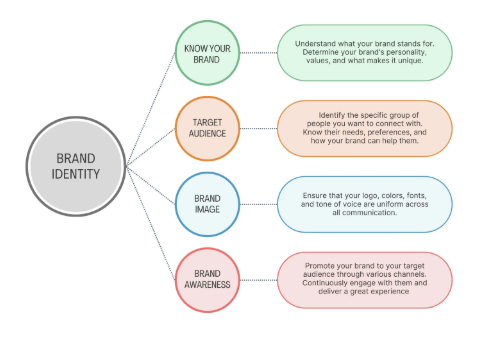
If you’re showcasing your company’s workflow or creative branding process, this colorful, modern design helps you grab attention instantly. Check out the Colorful Modern Brand Identity Flow Chart template to make your visuals more expressive and brand-oriented.
3. Brown Pastel Flowchart Diagram Graph Template
This elegant pastel-toned process flow chart example works best for structured yet soft visual representations, ideal for HR or management workflows. You can customize the Brown Pastel Flowchart Diagram Graph Template to reflect employee onboarding or project tracking visually.
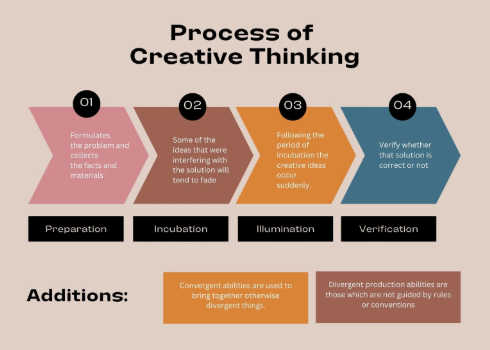
4. Process of Creative Thinking Flowchart Graph
For design or brainstorming sessions, this template visually maps how ideas evolve from concepts to actionable plans. You can use the Process of Creative Thinking Flowchart Graph to document how your team’s creative ideas come to life step-by-step.
5. White Minimalist Modern Recruitment Process Flowchart
This business flow chart example streamlines HR tasks, from job posting to hiring, while keeping visuals professional and organized. Try the White Minimalist Modern Recruitment Process Flowchart to simplify and visualize your recruitment stages in a modern way.
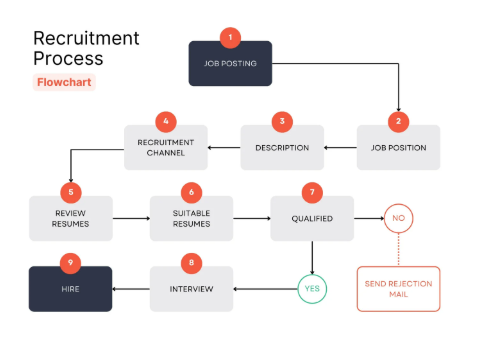
6. Blue and White Modern Clean Sign-up Process Flowchart
Ideal for SaaS or digital products, this flow chart diagram example clearly visualizes the sign-up or onboarding process. The Blue and White Modern Clean Sign-up Process Flowchart template adds a clean and professional look to user experience mapping.
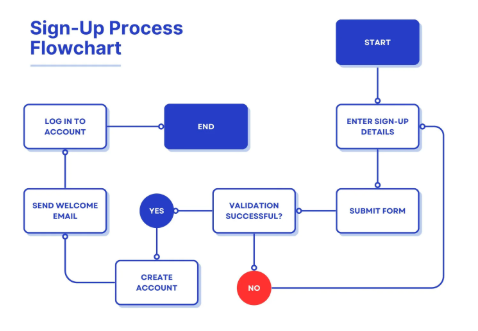
7. Blue and Orange Vibrant Modern Glow Minimalist Business Decision Tree Flow Chart
Perfect for decision-making frameworks, this colorful editable flow chart example brings energy and focus to logical processes. Use the Blue and Orange Vibrant Modern Glow Minimalist Business Decision Tree Flow Chart to organize and analyze complex choices visually.
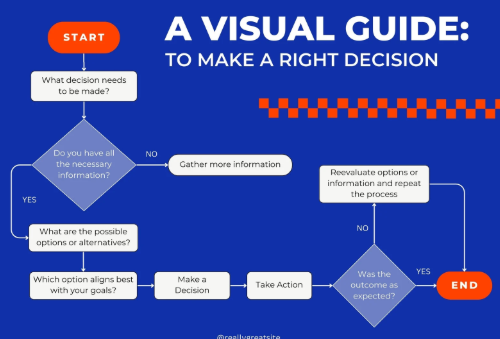
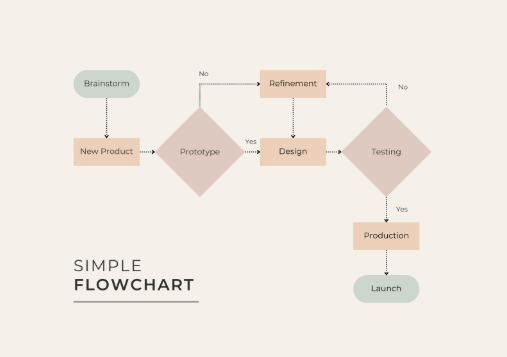
8. Simple Flowchart Infographic Graph
A straightforward and timeless layout that works for almost any topic, school projects, reports, or internal workflows. The Simple Flowchart Infographic Graph template is perfect for quick visual communication without unnecessary clutter.
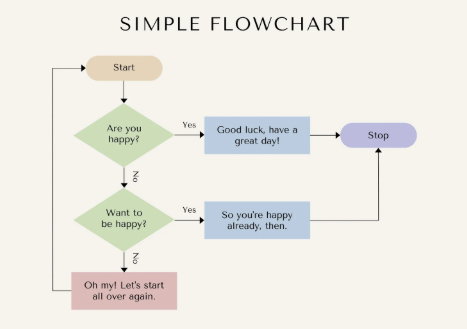
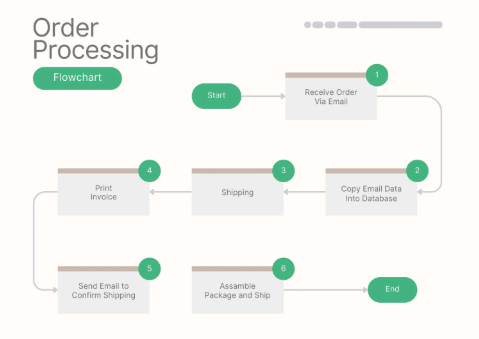
9. Green and Beige Minimalist Clean Order Process Flowchart
With balanced tones and clean lines, this business flow chart example is perfect for retail or e-commerce order tracking systems. Explore the Green and Beige Minimalist Clean Order Process Flowchart to make your order process clear and visually organized.
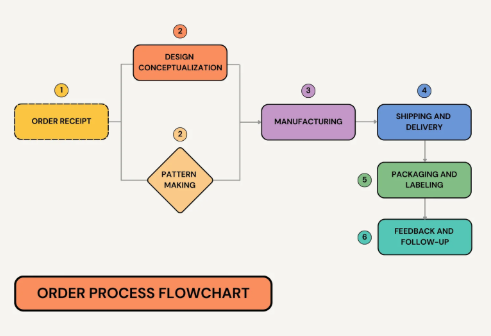
10. Colorful Simple Modern Business Order Process Flowchart
Vivid and dynamic, this one helps make routine workflows pop visually without feeling cluttered. The Colorful Simple Modern Business Order Process Flowchart is best for businesses wanting to make their process presentation lively and understandable.
When I first started organizing project ideas, I used Canva templates just like these. They saved me hours and helped me focus on refining content instead of spending time designing boxes and arrows.
How to Use Flow Chart Example Templates in WPS
Now that you’ve picked your favorite design, let’s talk about editing. I use WPS Office because it offers practical tools like WPS Photo and WPS PDF, both of which make customization effortless.
Edit Image Templates with WPS Photo
If your template is downloaded as an image, WPS Photo is the go-to option. It’s not just another photo editor, it’s designed to help you make quick yet professional edits with ease. From tweaking text to changing layout colors, everything feels smooth and intuitive.
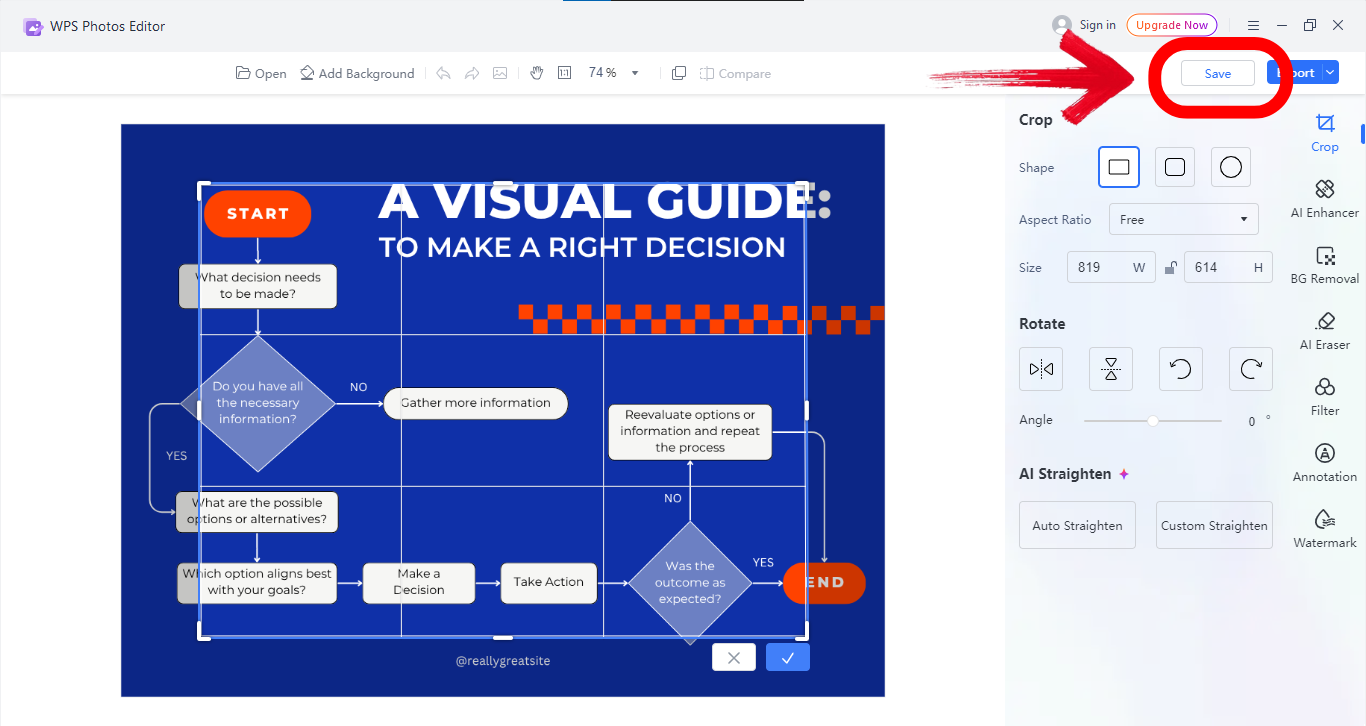
Step 1: Firstly, open your downloaded flow chart image in WPS Photo.
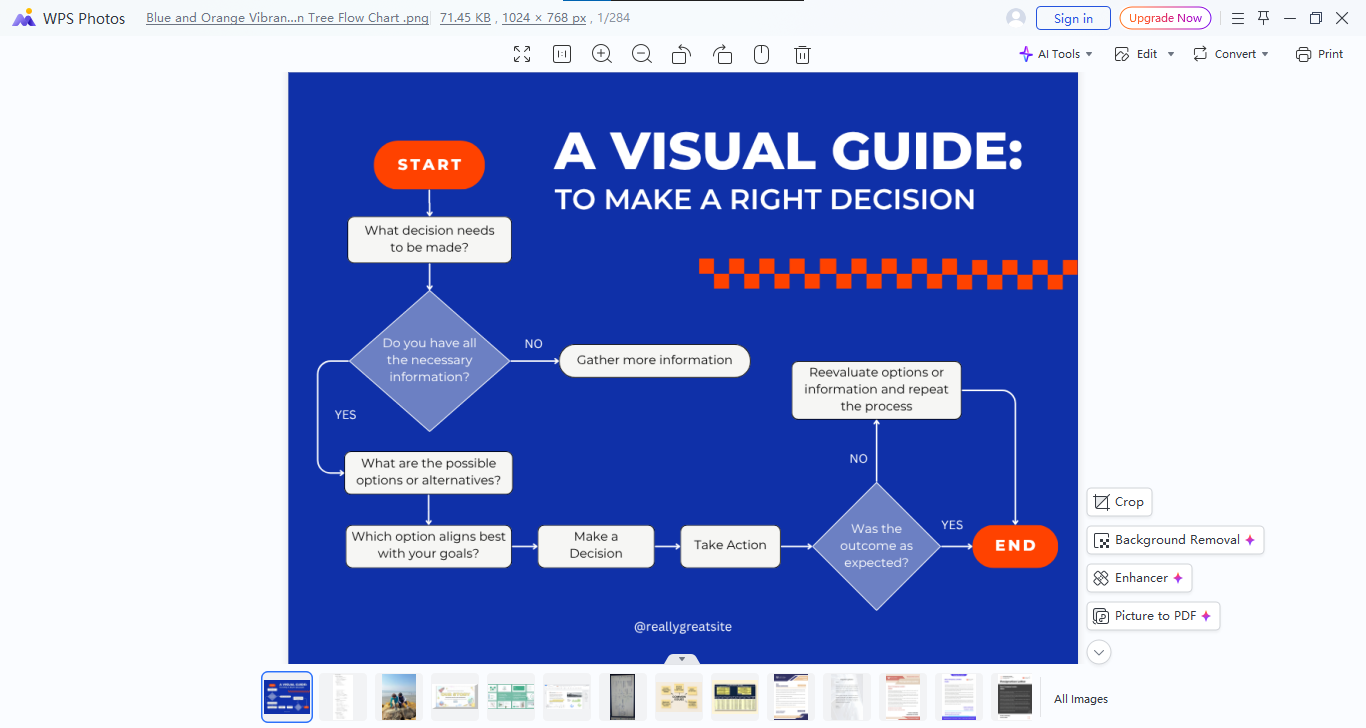
Step 2: Now after clicking “Edit”from the top right of your screen, Adjust shapes, colors, or fonts to match your brand or project theme.
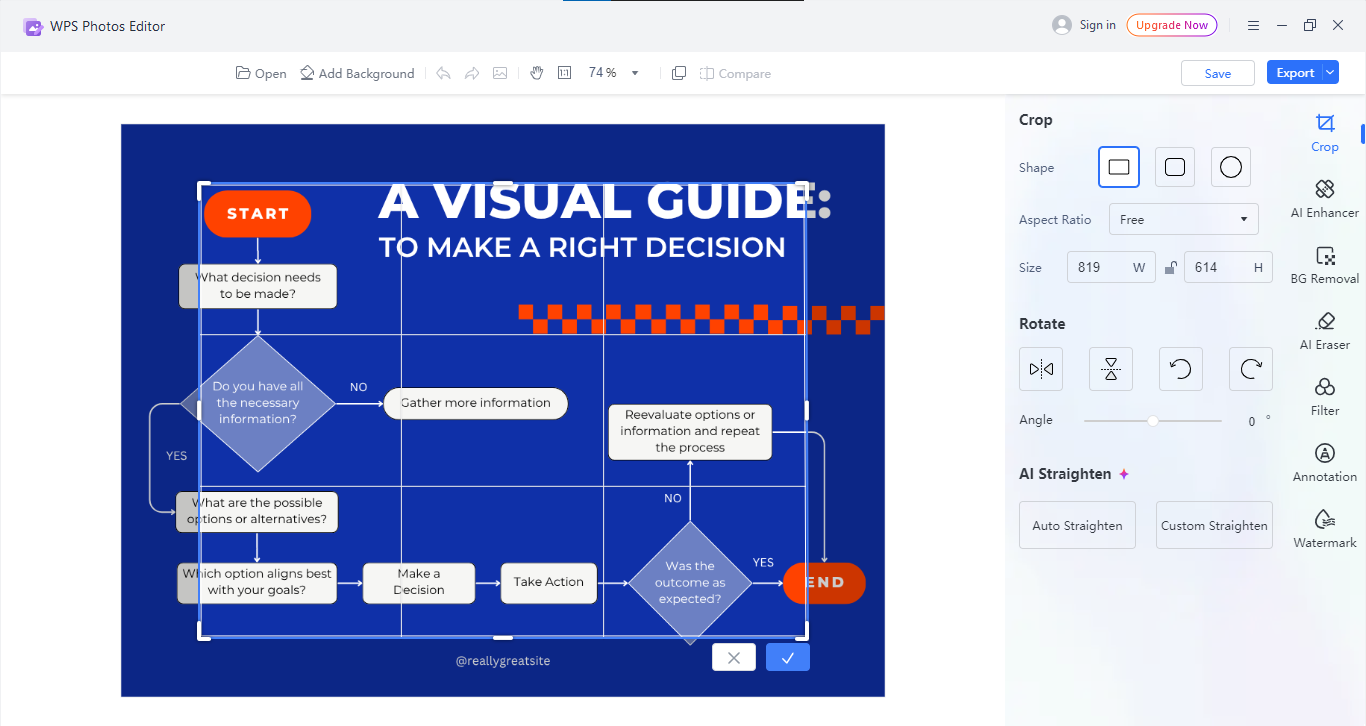
Step 3: Once you’re done with adjusting shapes, colors and once you’re satisfied with your editing, save or export the edited flow chart in PNG or JPG format by simply clicking the“Save” option from the top right of your screen.
Pros:
Cons:
I’ve edited dozens of templates with WPS Photo. It’s perfect for small projects when I need something fast and polished. The AI tools especially save me from repetitive alignment work.
Edit Templates in PDF Format with WPS PDF
If you downloaded a flow chart example in PDF format, WPS PDF will make editing straightforward. It’s built for seamless PDF text, line, and shape modifications.
Step 1: First of all, open your PDF in WPS PDF.
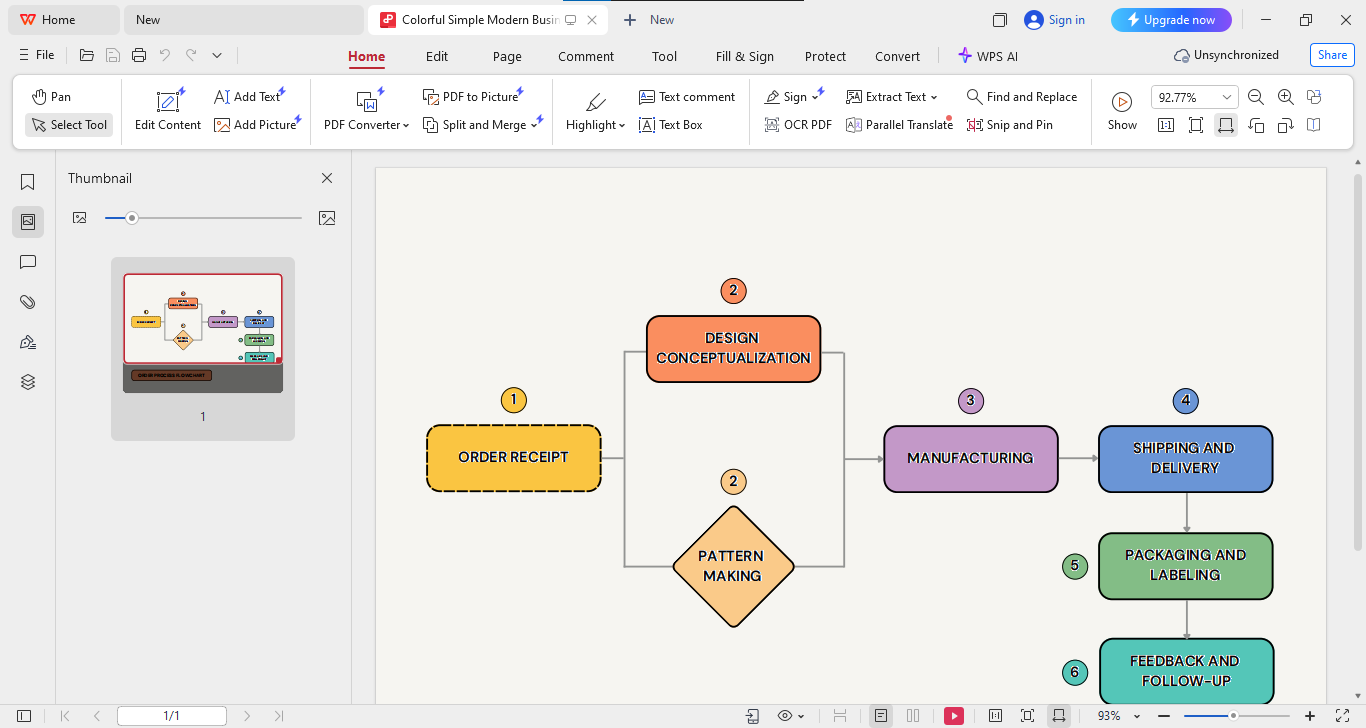
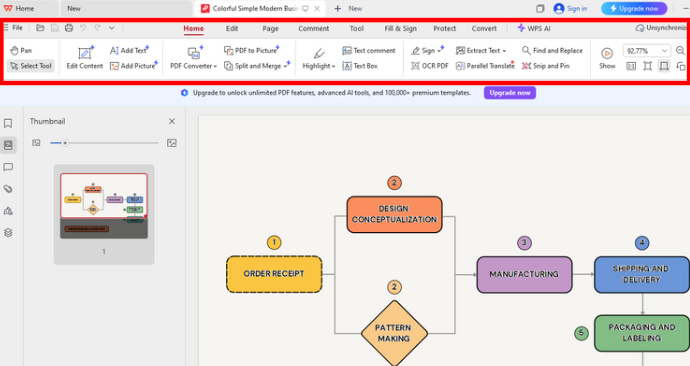
Step 2: Now from the panel on the top of your screen, use built-in tools to edit text, adjust flow lines, or highlight key steps.
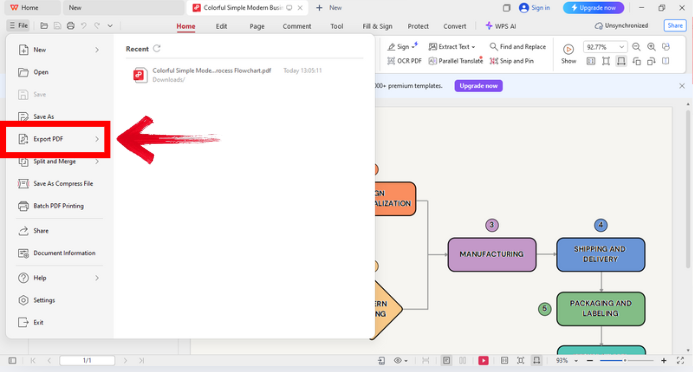
Step 3: After editing, go to the“Files” menu on the top left of your screen and then click “Export PDF” to save it as PDF for easy sharing or embedding in slides.
Pros:
Cons:
Editing with WPS PDF feels efficient. I often use it when preparing workflow documents for students or NGO project reports; it’s clean, accurate, and saves version history automatically.
A Smarter Office Suite to Support Visual Workflow Design
WPS Office isn’t just for editing, it’s a complete office suite designed for people who multitask across different formats. I use it because it combines Word, Excel, PowerPoint, and PDF tools under one roof without weighing down my device.
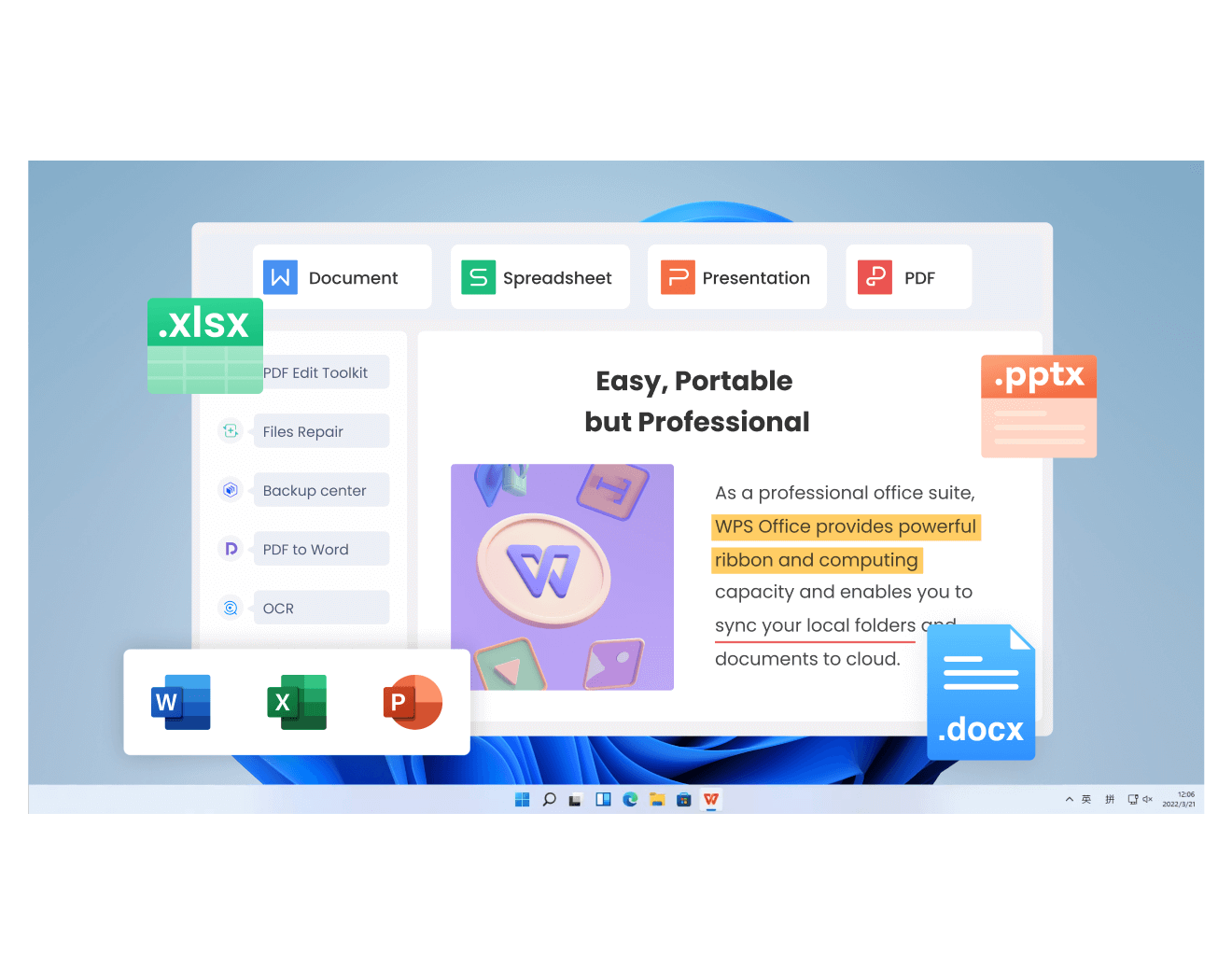
It’s super convenient for students, freelancers, and professionals who need flexibility without switching apps. The interface feels modern and clean, making it easy to focus on your work. Plus, cloud syncing keeps your files accessible anywhere, anytime. And honestly, the built-in AI tools make writing, summarizing, and formatting so much faster. Here’s what makes it shine:
Features
Pros:
I rely on WPS Office daily, it’s reliable, quick to launch, and ideal for handling templates like these. Plus, it’s far more budget-friendly than alternatives.
FAQs
Q1: What is a flow chart example?
A pre-designed visual representation of a workflow, process, or decision-making system.
Q2: Can I edit flow chart examples from Canva?
Yes. Download them in image or PDF format and modify them easily using WPS Photo or WPS PDF.
Q3: Is WPS Office free for editing flow chart examples?
Absolutely. The free version includes editing capabilities for both images and PDFs.
Q4: Which format should I use for flow chart examples?
Images are best for presentations, while PDFs are ideal for printing or formal documents.
Wrapping It All Up: Visuals That Simplify Thinking
Creating and customizing flowcharts doesn’t need to feel like a complicated task anymore. With the right resources, visualizing ideas can become effortless and even enjoyable. Ready-made templates remove the pressure of starting from scratch, allowing full focus on refining the content rather than worrying about design. Among the most effective tools for this purpose are Canva for design flexibility and WPS Office for editing precision. WPS Office offers an all-in-one platform for managing and customizing templates; perfect for students, professionals, and teams who value efficiency. Its lightweight structure, intuitive interface, and built-in tools make it ideal for organizing visuals, refining layouts, and bringing structure to any project. With a few quick edits, clear and professional-looking flowcharts are just minutes away.

'%3e%3cpath%20d='M19.9911%204.11386V6.471H18.5894C18.0775%206.471%2017.7322%206.57814%2017.5536%206.79243C17.3751%207.00671%2017.2858%207.32814%2017.2858%207.75671V9.44421H19.9019L19.5536%2012.0871H17.2858V18.8639H14.5536V12.0871H12.2769V9.44421H14.5536V7.49779C14.5536%206.39064%2014.8632%205.53201%2015.4822%204.92189C16.1013%204.31177%2016.9257%204.00671%2017.9554%204.00671C18.8304%204.00671%2019.509%204.04243%2019.9911%204.11386Z'%20fill='%23333333'/%3e%3c/g%3e%3cdefs%3e%3cclipPath%20id='clip0_2938_8199'%3e%3crect%20width='16'%20height='16'%20fill='white'%20transform='translate(8%204.00671)'/%3e%3c/clipPath%3e%3c/defs%3e%3c/svg%3e)
'%3e%3cpath%20d='M17.5237%2010.7813L23.4811%204H22.0699L16.8949%209.88693L12.7648%204H8L14.2469%2012.9029L8%2020.0133H9.4112L14.8725%2013.7952L19.2352%2020.0133H24M9.92053%205.04213H12.0885L22.0688%2019.0224H19.9003'%20fill='%23333333'/%3e%3c/g%3e%3cdefs%3e%3cclipPath%20id='clip0_2938_8200'%3e%3crect%20width='16'%20height='16.0134'%20fill='white'%20transform='translate(8%204)'/%3e%3c/clipPath%3e%3c/defs%3e%3c/svg%3e)


