Key takeaways slides help your audience quickly understand the most
important points without scanning through dozens of slides. However,
many presenters struggle with structuring a clean and professional key
takeaways PPT.
So, how do you write an effective takeaways PPT slide, and where can
you find a free takeaways PowerPoint template that is easy to edit? In
this guide, I’ll walk you through how to write key takeaways PPT slides,
share 10 free downloadable templates, and explain how to edit, print,
and collaborate on them using WPS Office.
Part 1. Top 10
Takeaways PPT Slide Templates
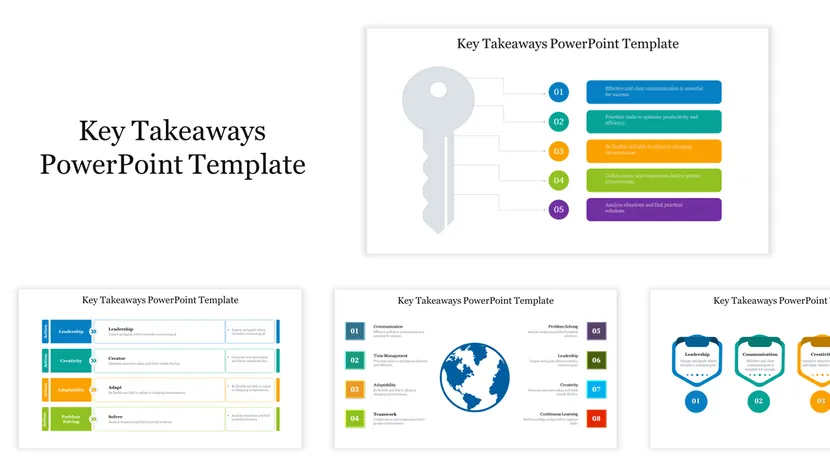
A well-designed takeaways PPT slide template helps your audience
remember what truly matters after your presentation ends. Below are 10
practical and visually clean templates you can use for meetings,
training sessions, reports, and workshops. Each option works well as a
key takeaways PPT and is easy to customize.
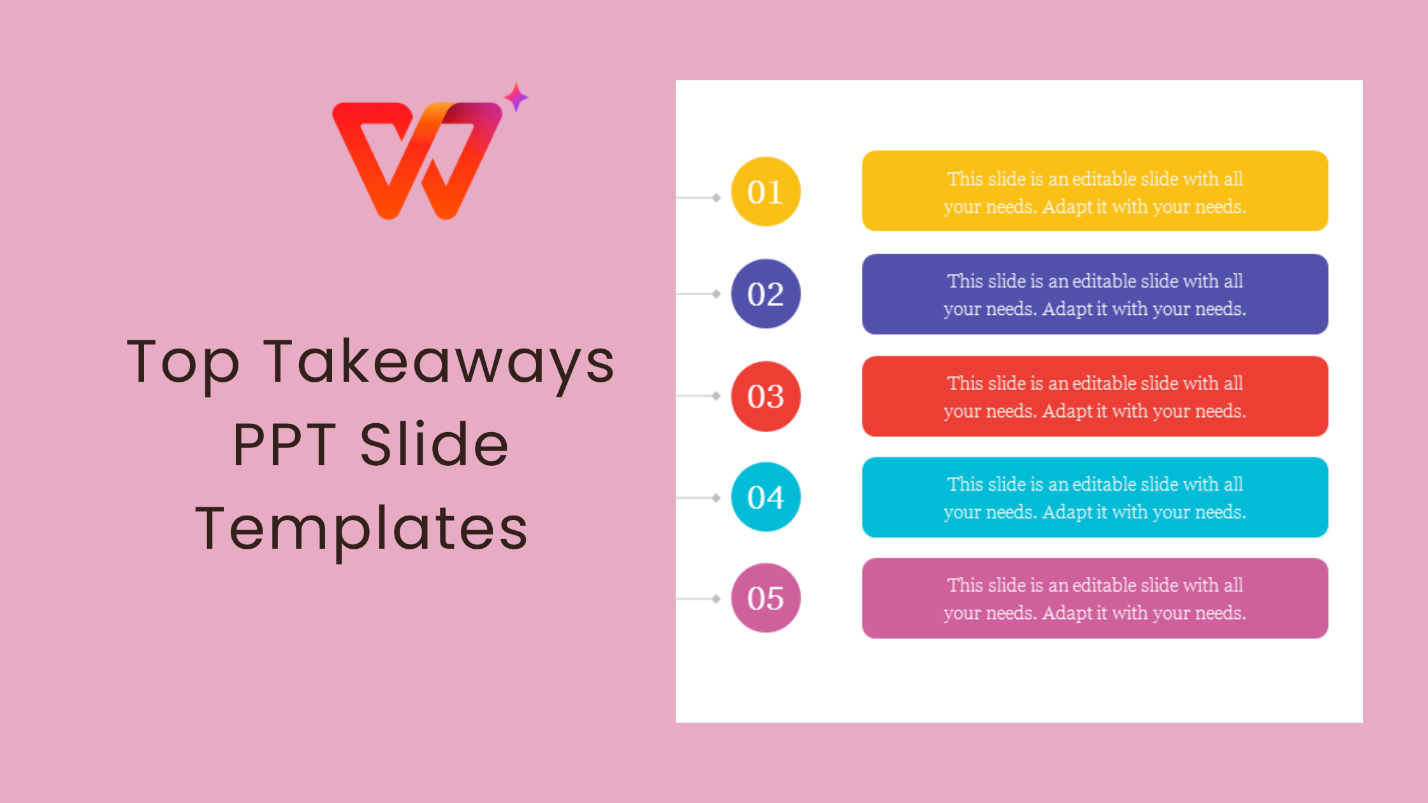
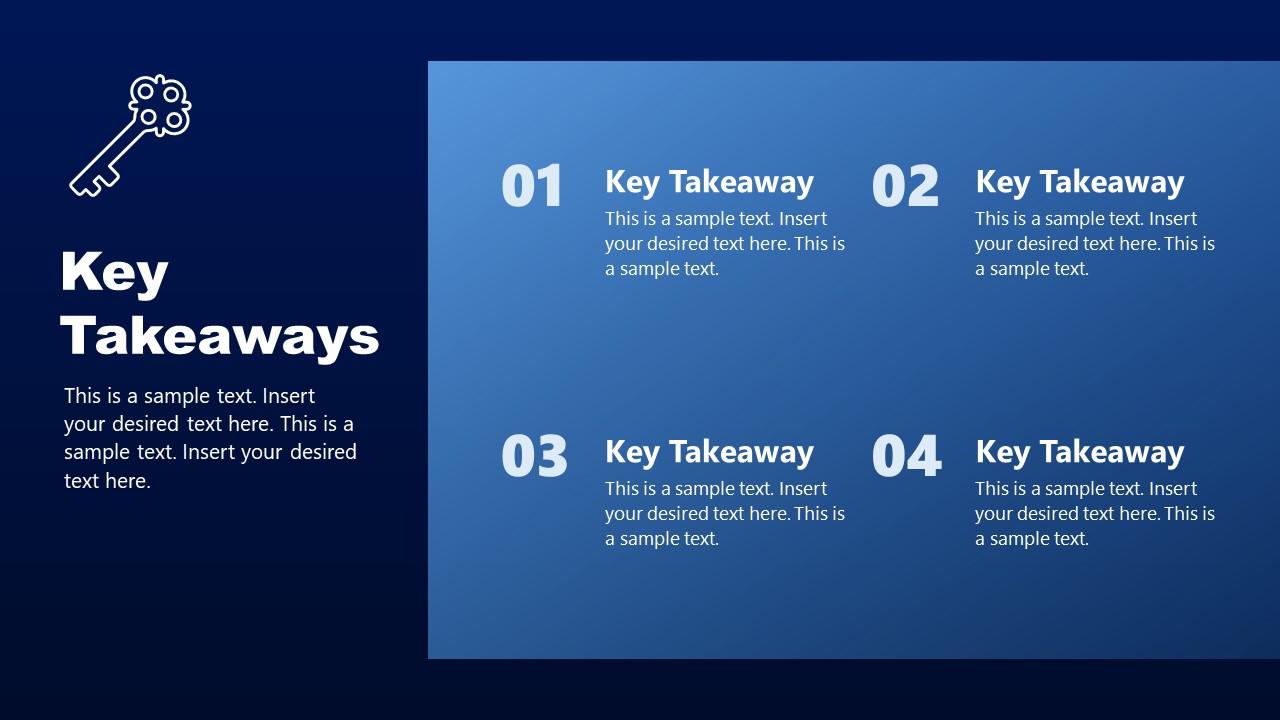
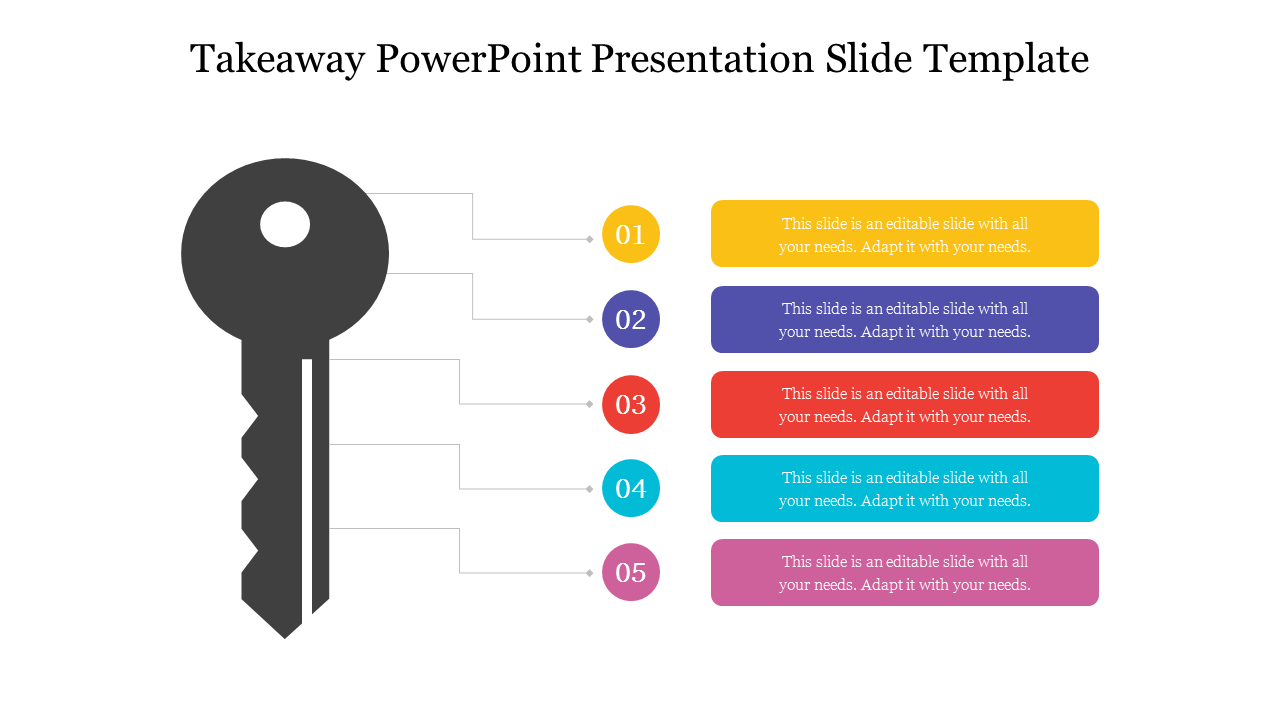
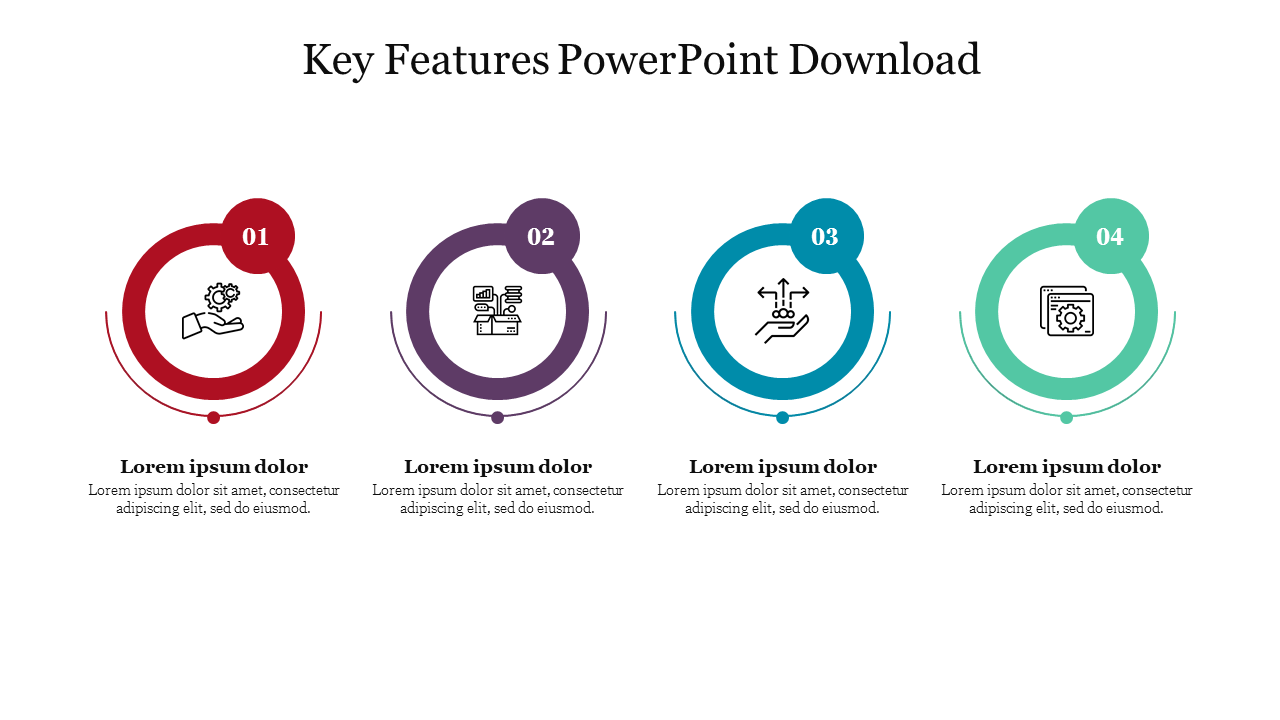
This template is ideal when you want to highlight exactly four main
conclusions. The balanced layout keeps information easy to scan, making
it suitable for executive summaries and client presentations.
Designed for clarity, this slide focuses on text hierarchy and
spacing. It works well for presentations where content accuracy matters
more than heavy visuals.
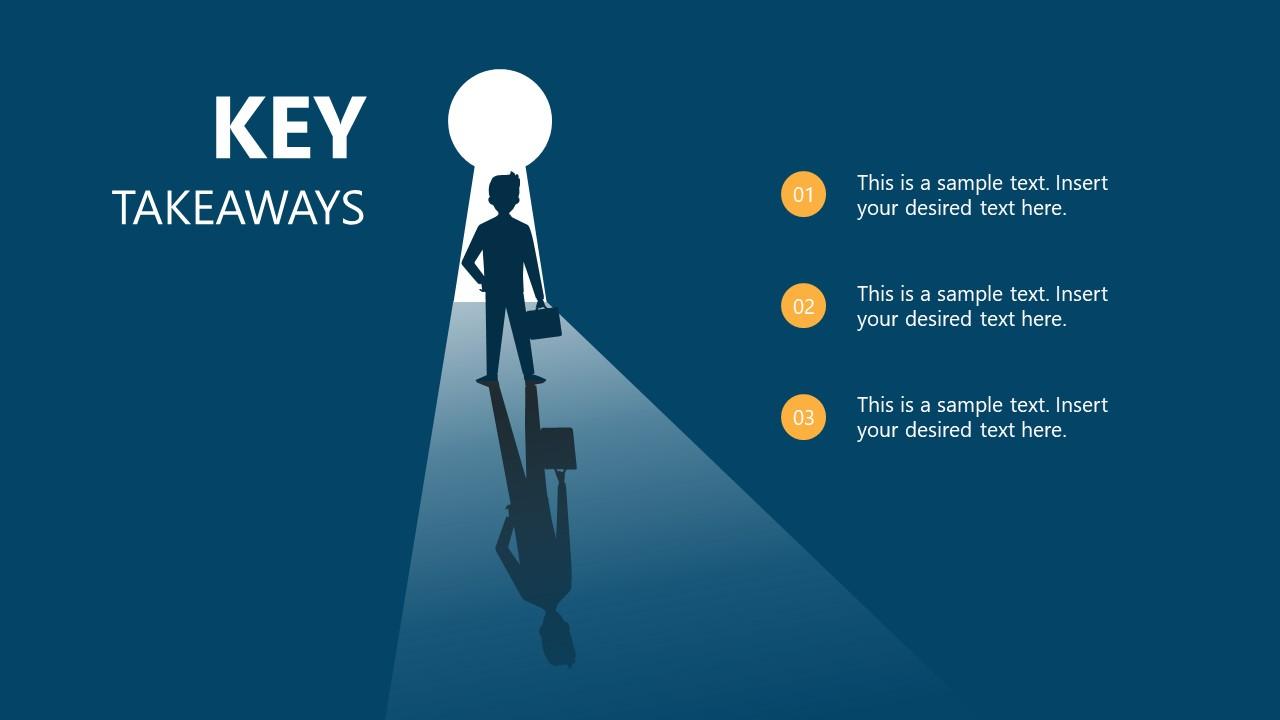
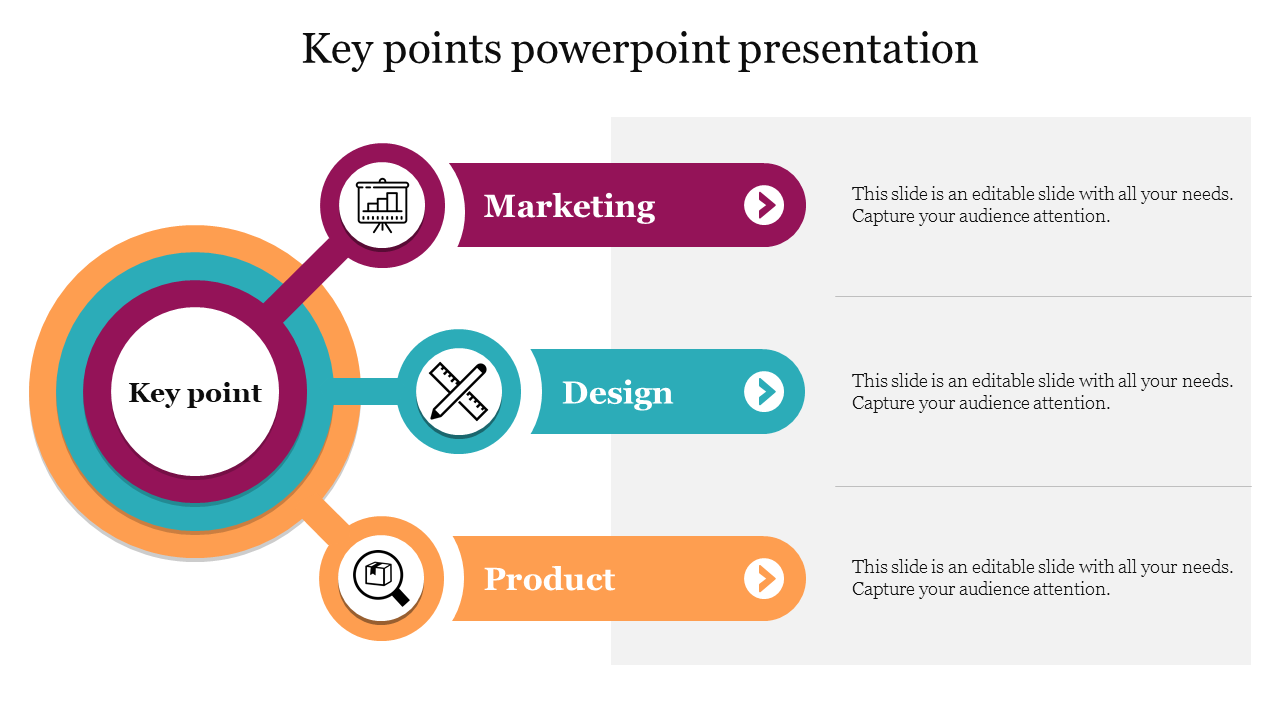
If your presentation involves ideas or frameworks, this concept-based
design helps explain relationships between points. It’s especially
useful for strategy or planning sessions.
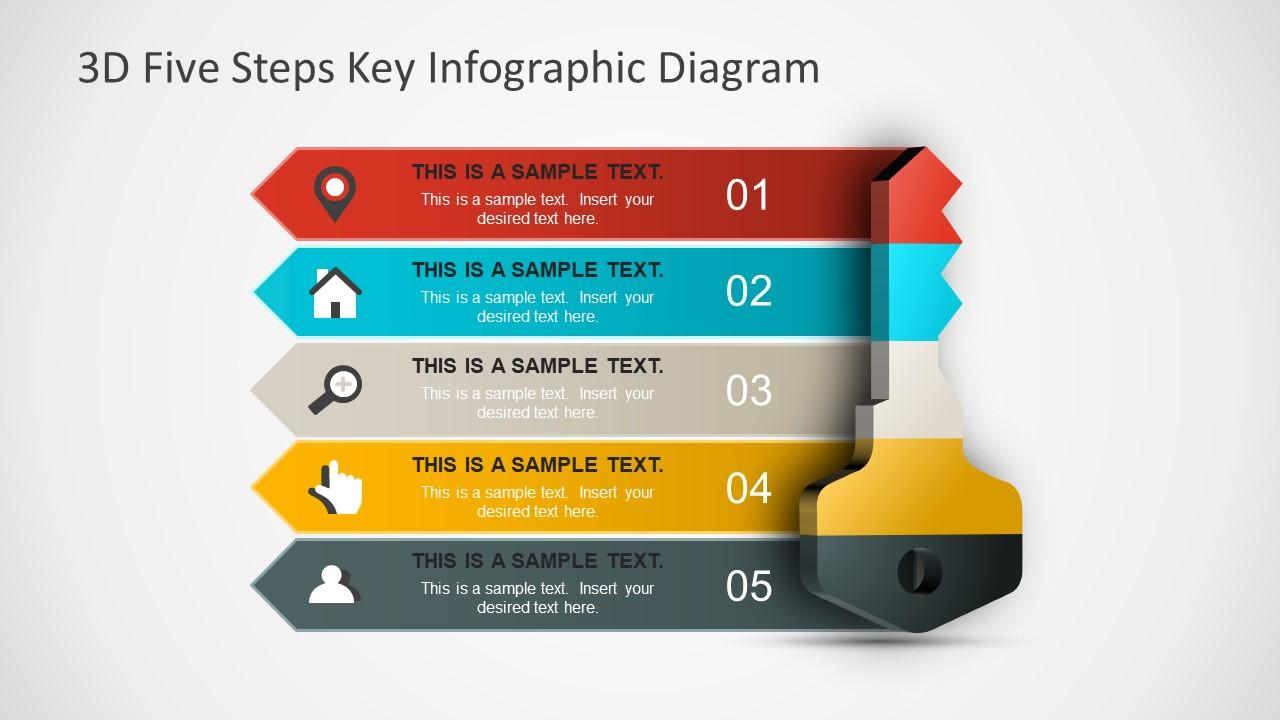
This infographic-style template is suitable for training decks and
process explanations. It also works well as a sample key takeaways from
training, where each step represents a learning outcome.
A flexible design that adapts to different presentation styles. You
can use it for internal reports, webinars, or workshops without major
layout changes.
This version emphasizes contrast and alignment, helping your audience
focus on conclusions instead of decorative elements. It’s effective for
professional and corporate use.
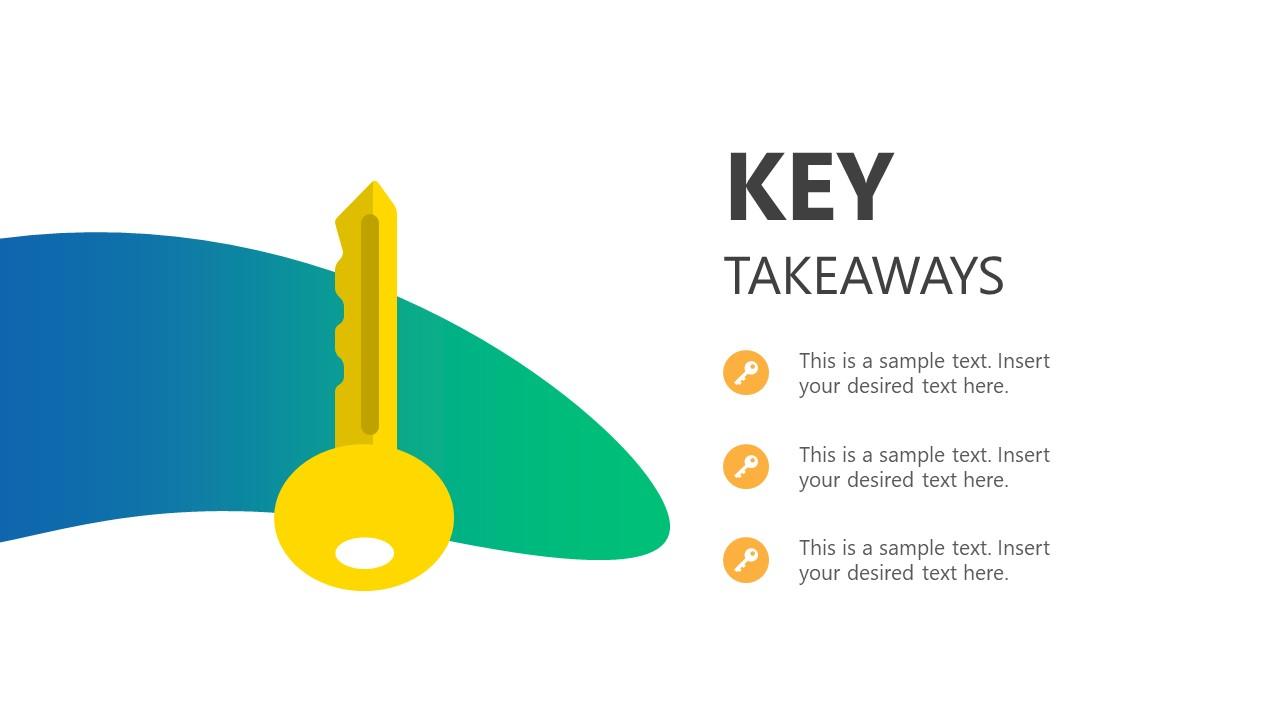
Minimal and modern, this template is best for presenters who prefer a
clean slide with fewer distractions. It pairs well with verbal
explanations during live presentations.
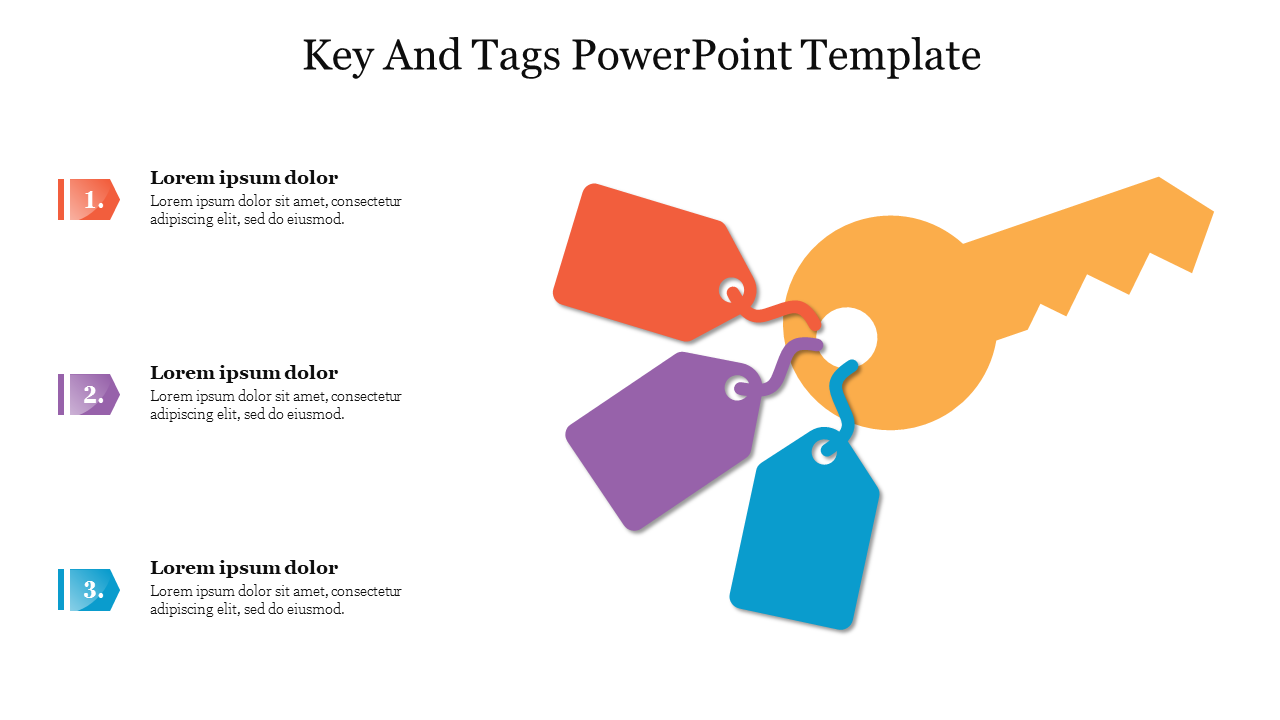
This layout combines keywords with short descriptions, making it
ideal for summarizing themes. It can also be adapted as a key takeaways
and next steps slide by adding action-oriented tags.
Although originally designed for feature summaries, this template
works well for final takeaways. It’s especially helpful when you want to
connect conclusions to product or solution benefits.
In practice, I’ve found that choosing a takeaways PPT slide template
free download option with a simple structure saves more time than
starting from scratch. A clear layout lets you focus on refining the
message rather than fixing alignment or spacing issues.
Part 2. How to
Edit and Print Takeaways Slides
Once you’ve chosen a template, the next step is editing it properly
and preparing it for sharing or printing. This section shows how to
write key takeaways PPT slide content, customize layouts, and export
files using WPS tools. I’ll also point out a few practical details that
often get overlooked.
Step-by-Step:
Edit Takeaways Slides in WPS Presentation
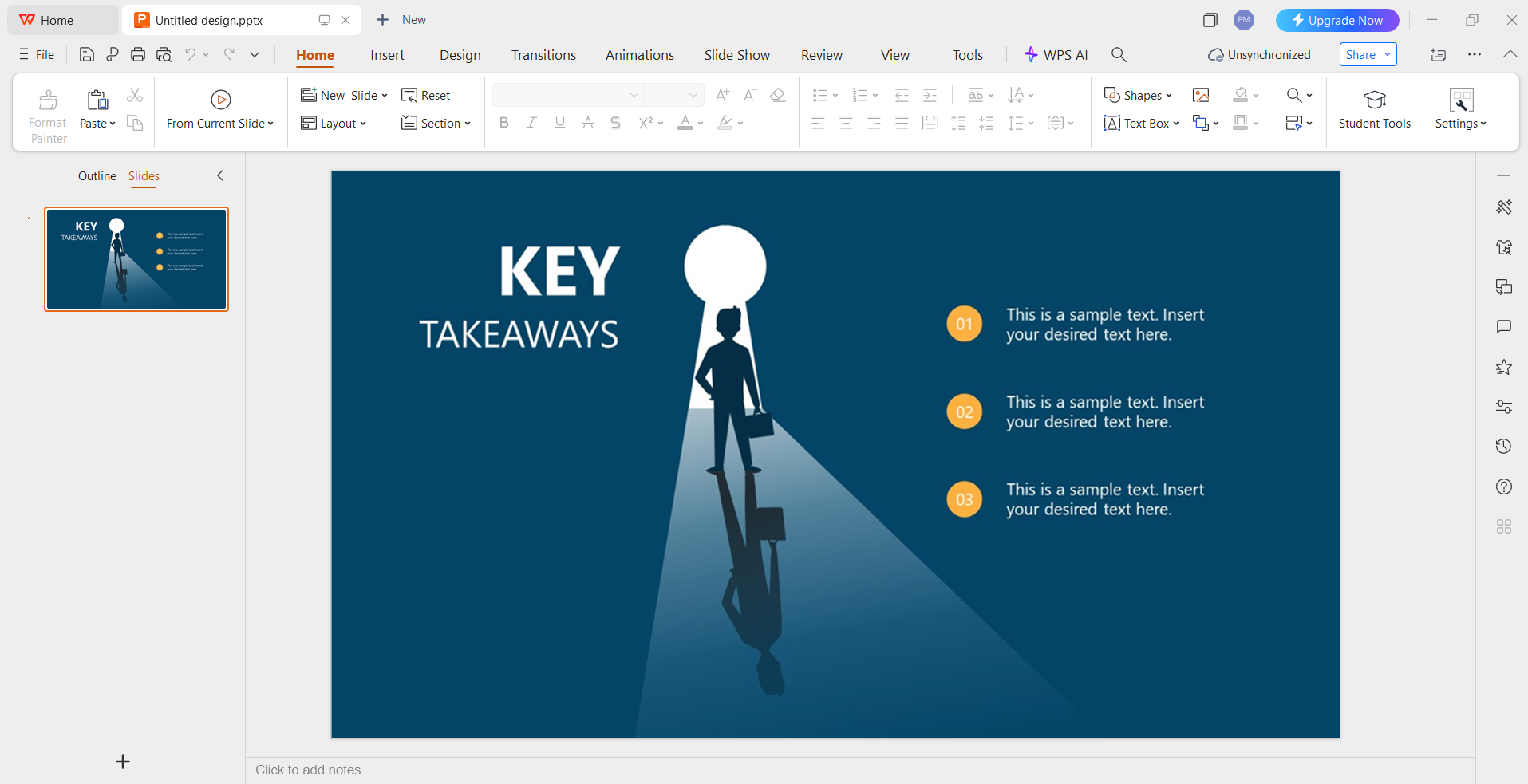
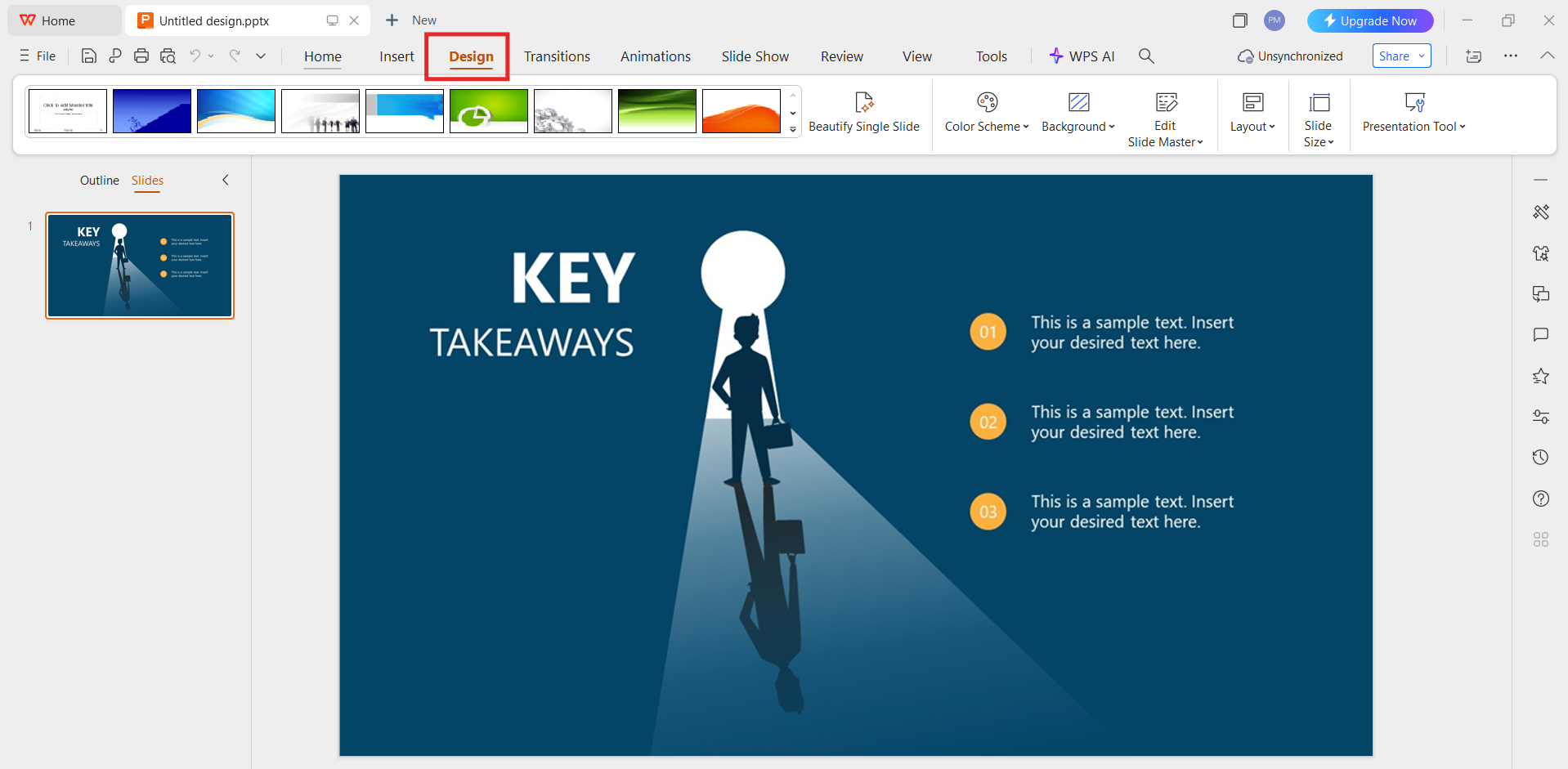
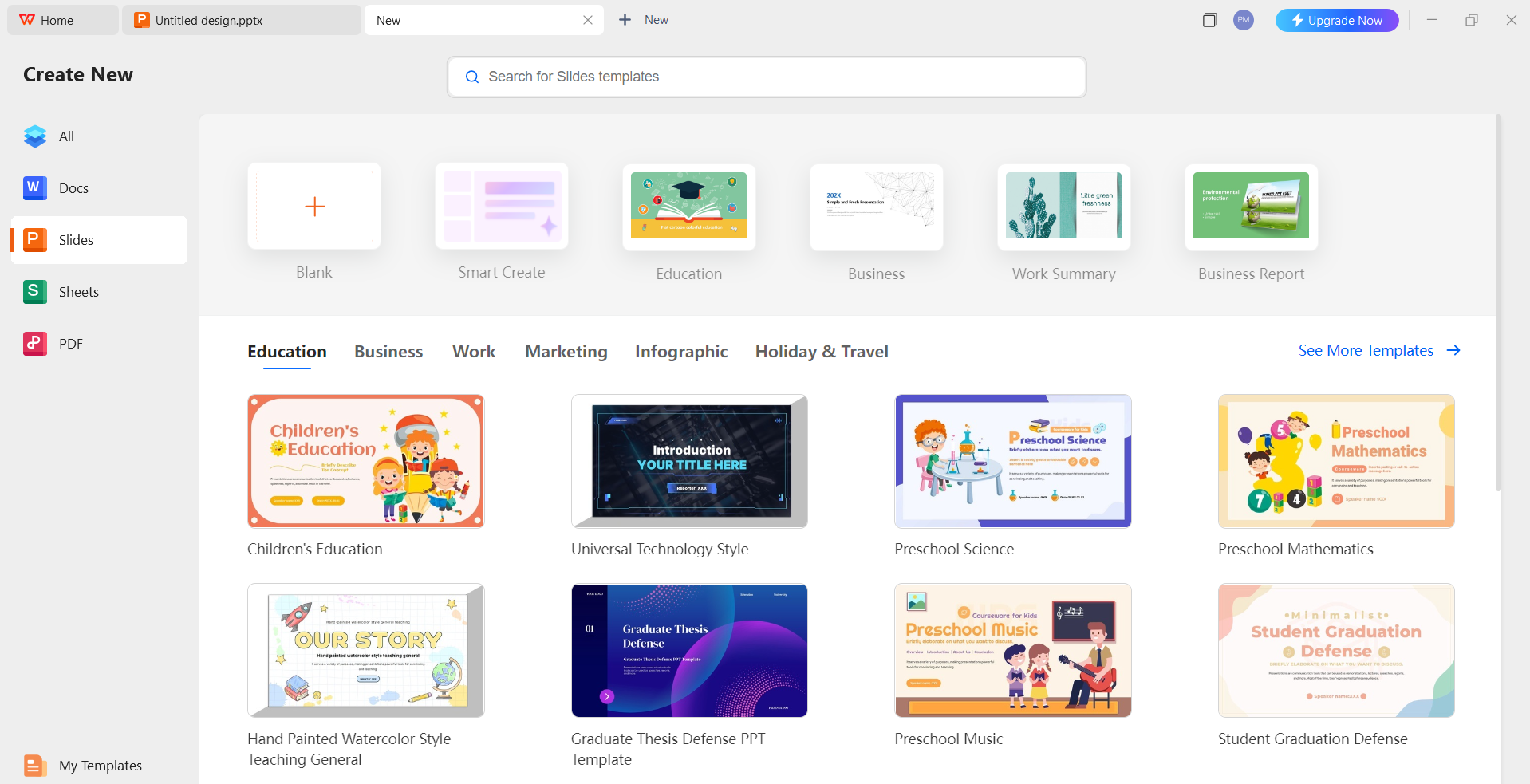
Step 1: Open the template
Launch WPS Presentation and open your selected takeaways slide
template. Most free templates can be edited directly without layout
issues.
Open the template in WPS Office
Step 2: Replace placeholder text with key
takeaways
Focus on clarity. Each takeaway should be one concise sentence. From
experience, limiting each point to one idea improves readability and
audience recall.
Step 3: Adjust layout and alignment
Use built-in alignment tools to keep spacing consistent. Avoid
overcrowding the slide, even if you have more ideas to share
verbally.
Edit the template in WPS Office
Step 4: Add icons or visual markers
Icons help guide attention, but use them sparingly. Too many visuals
can dilute the message instead of strengthening it.
How to Write an
Effective Takeaways Slide
When learning how to write key takeaways PPT slide content, structure
matters more than decoration. A strong slide usually includes:
One short title that reflects the session goal
Three to five bullet points summarizing decisions, insights, or
lessons
Clear wording without supporting explanations
I often review my slide by asking one question: If someone only
sees this slide, will they understand the session’s value? If the
answer is yes, the slide works.
Creating an
Organizational Chart (Optional Use Case)
Some presenters use a simplified organizational or process chart to
explain relationships between takeaways.
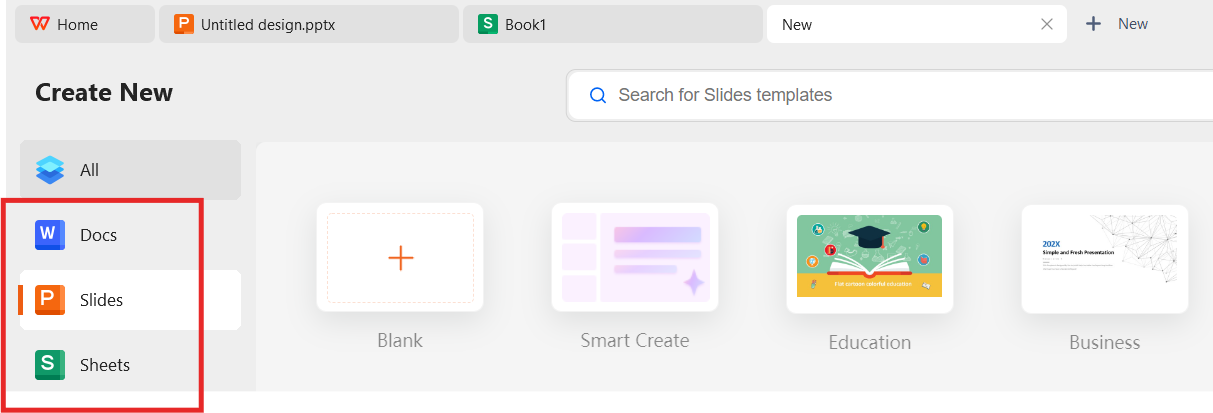
Step 1: Open WPS Spreadsheet, Writer, or
Presentation
Open WPS Spreadsheet, Writer, or Presentation
Step 2: Insert SmartArt or Diagram
tools
Insert SmartArt or Diagram tools
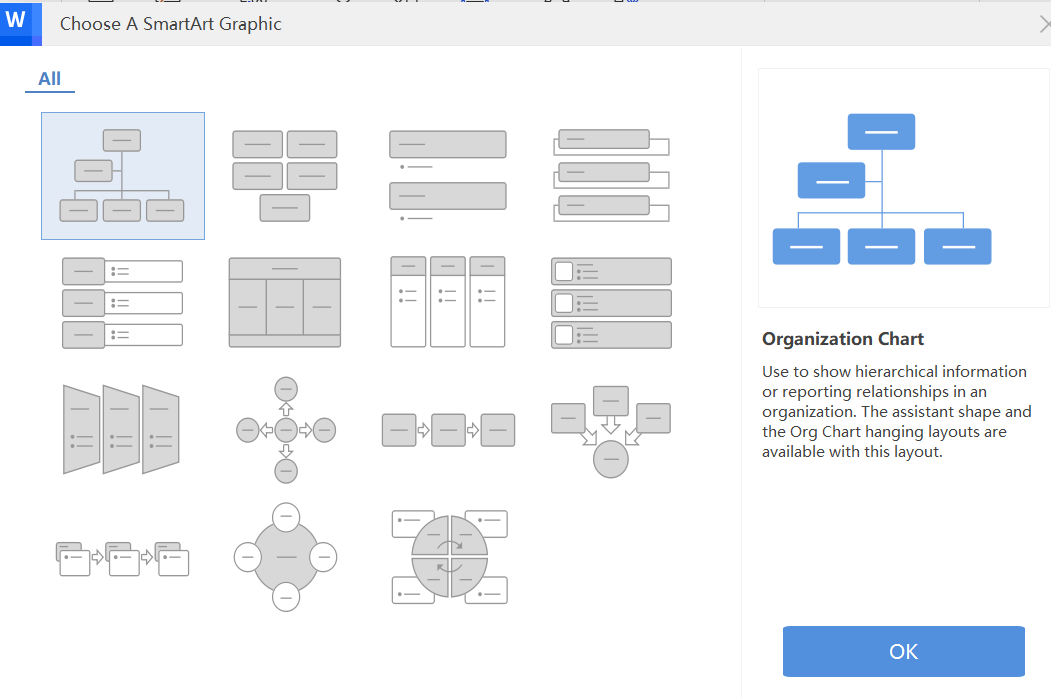
Step 3: Choose an organizational chart
layout
Choose an organizational chart layout
Step 4: Label each section with a key
takeaway
This approach works well for training summaries or internal alignment
meetings.
Save the Takeaways Slide as a
PDF
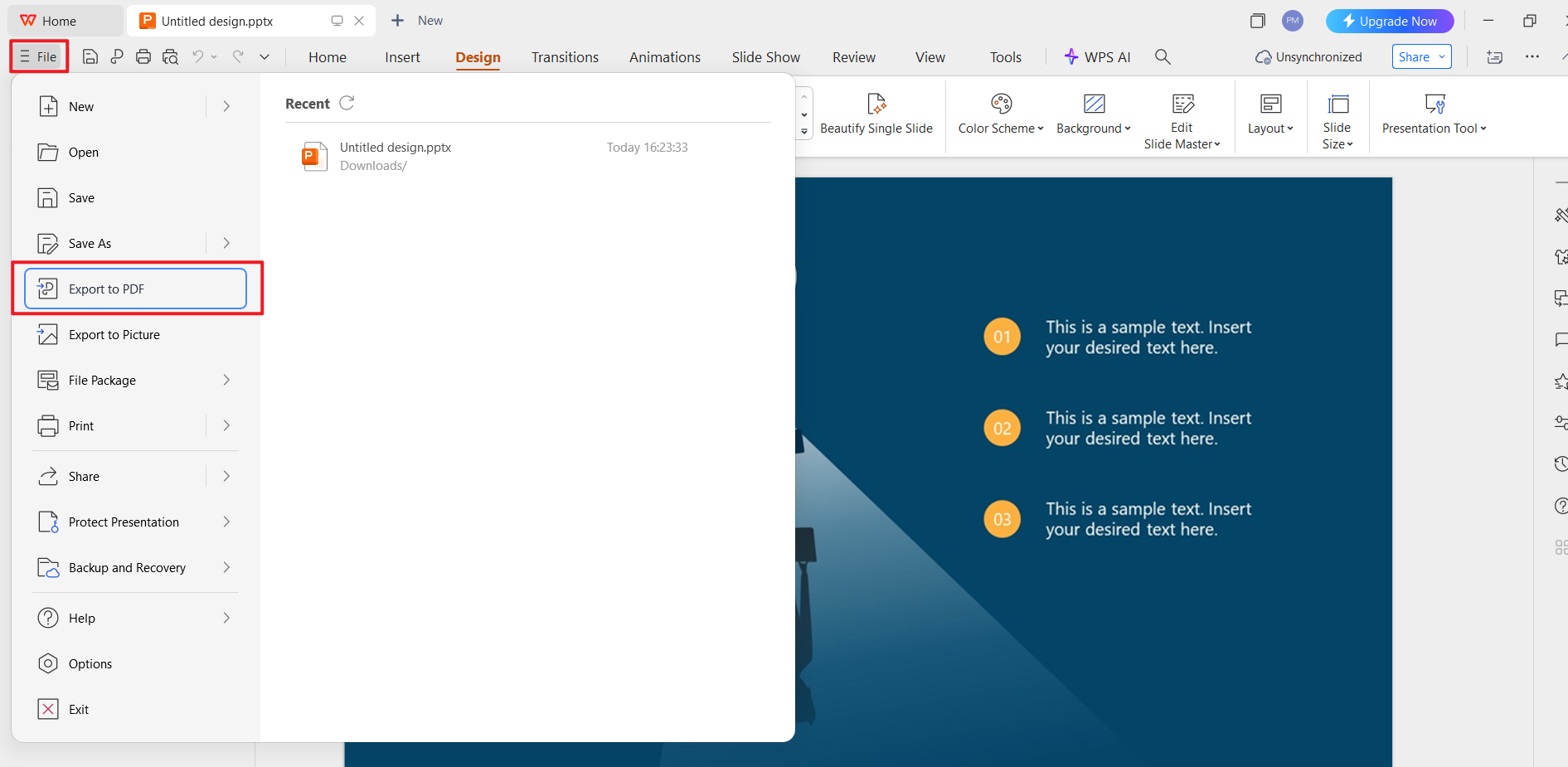
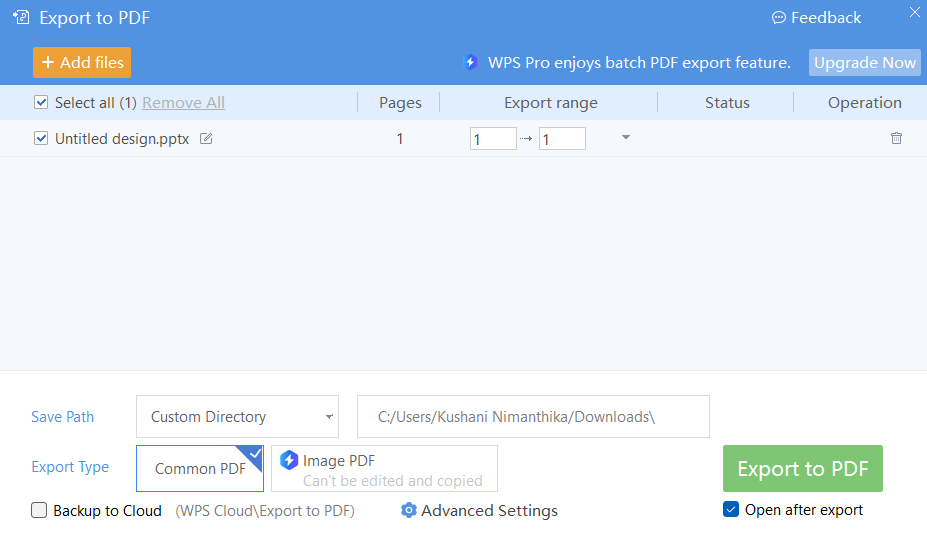
Step 1: Click File → Export to
PDF
Export the template in WPS Office
Step 2: Select page range and
resolution
Step 3: Confirm and save
Export the template as a PDF in WPS Office
PDF export is ideal for printing or sending to stakeholders who
should not edit the file.
Generate an Online
Link for Collaboration
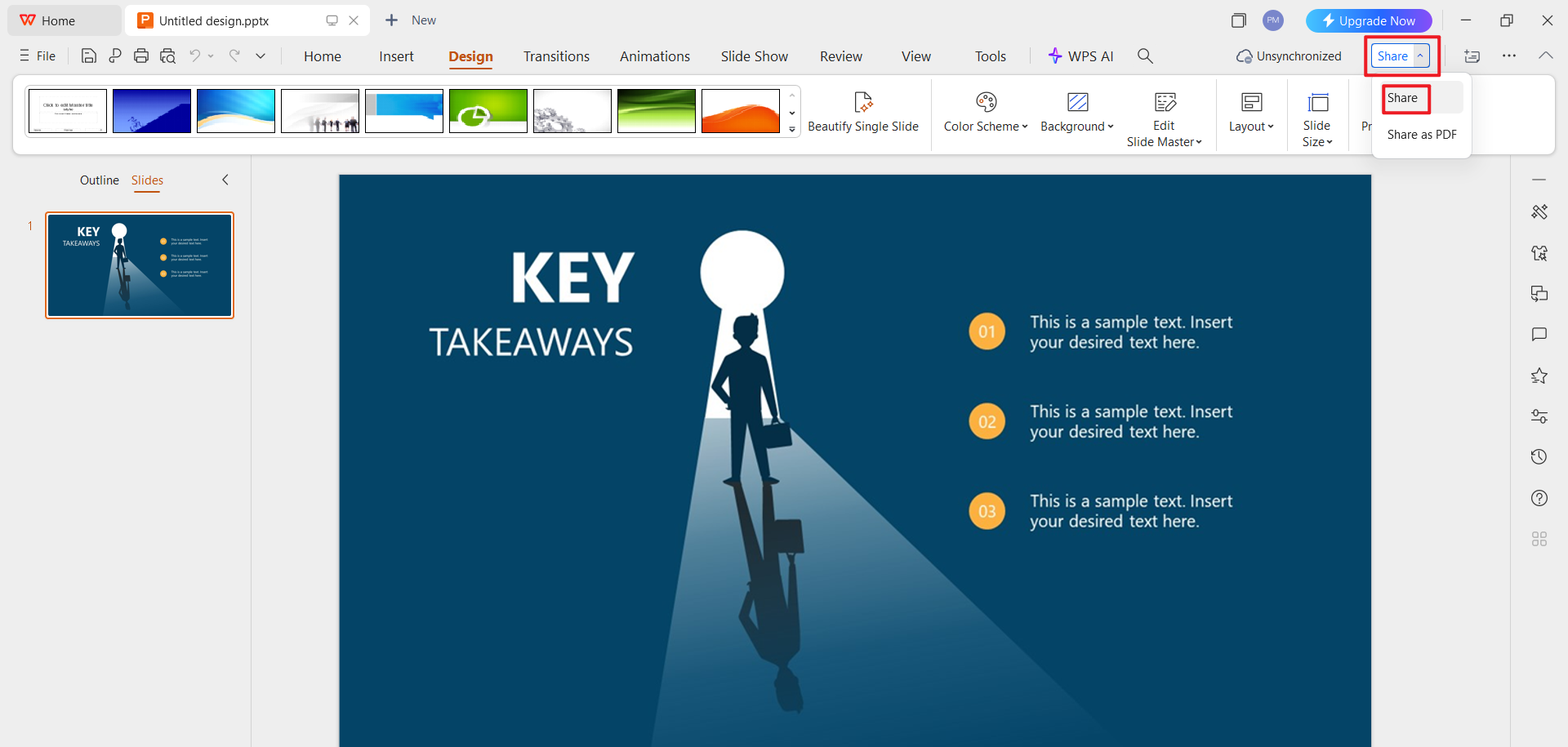
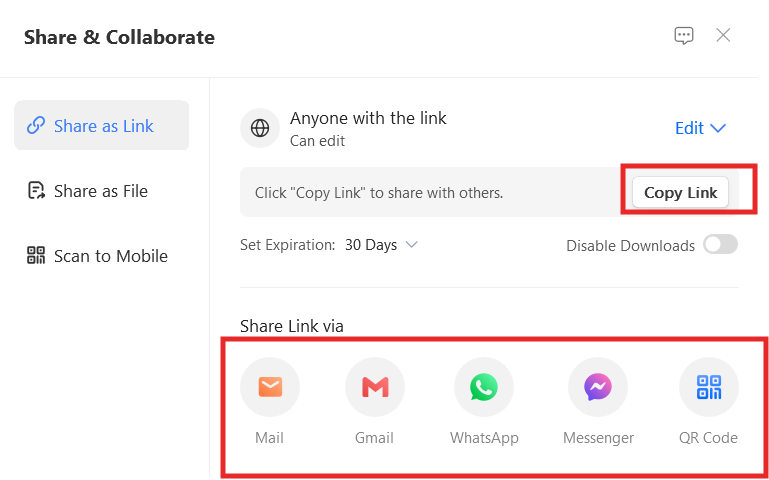
Step 1: Click Share in the top-right
corner
Share the template in WPS Office
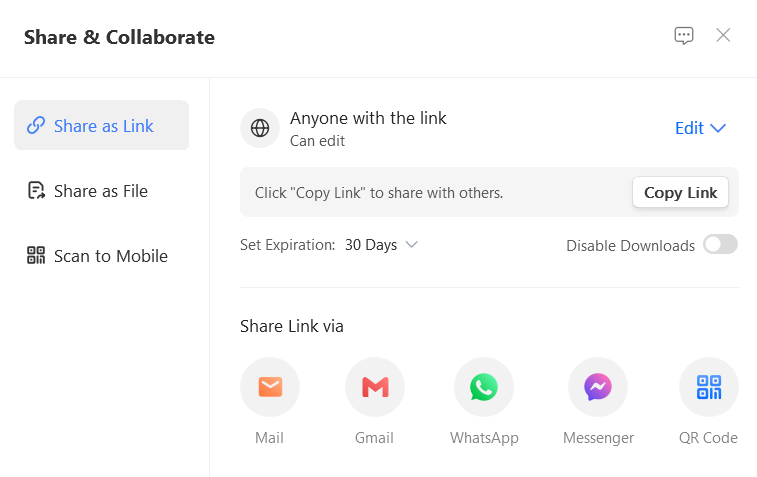
Step 2: Generate an online link
Generate an online link in WPS Office
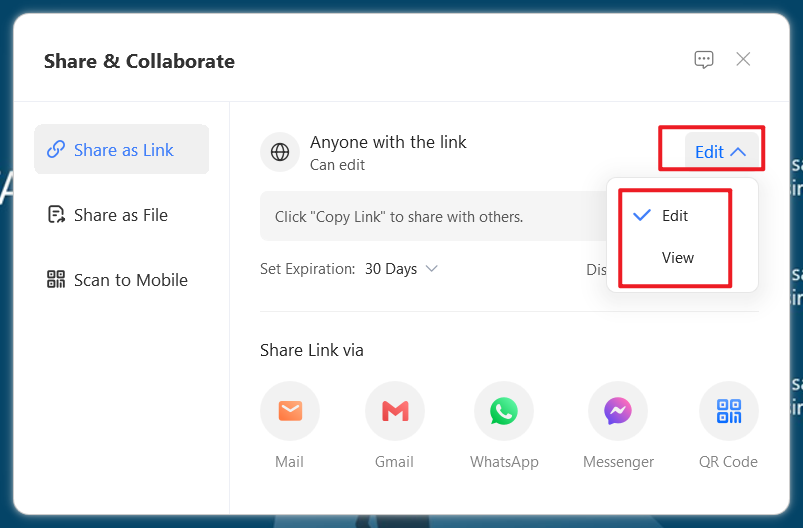
Step 3: Set view or edit permissions
Share permissions in WPS Office
Step 4: Share the link with
collaborators
Share link in WPS Office
This is especially useful when refining a key takeaways PPT with team
input before final delivery.
From my experience, editing a takeaways PPT slide template free
download in WPS saves time compared to reformatting files across
different tools. The ability to edit, export, and collaborate in one
place keeps the workflow smooth.
Part 3. Free
Office Suite with Abundant Templates
If you frequently create presentations, using an office suite with
ready-made templates can save significant time. Instead of designing
layouts from scratch, you can focus on refining your message and key
takeaways.
WPS Office Overview
WPS Office is a free, lightweight office suite designed for document
creation, presentations, spreadsheets, and PDFs. It is widely used for
creating slides, such as a takeaways PPT slide template, especially by
users who want professional results without complex setup.
WPS Office templates
One practical advantage is that WPS Office allows you to open and
edit PowerPoint files directly. This means a free takeaways PowerPoint
template can be customized without formatting issues or file conversion
problems.
Key Advantages of WPS Office
Free and lightweight software
Installs quickly and runs smoothly even on low-spec devices.
Supports multiple formats
Works with DOC, PPT, PDF, and JPG files, making it easy to reuse
presentation content.
Built-in template library
Includes presentation templates suitable for summaries, reports, and
key takeaways PPT slides.
Online and offline versions
Edit files locally or collaborate online without switching tools.
Why WPS Works Well for
Takeaways Slides
From my experience, the built-in templates reduce layout work
significantly. Instead of adjusting margins or font sizes manually, you
can focus on refining points and aligning them with your presentation
goals. For team projects, the online sharing feature also makes it
easier to review and finalize key takeaways and next steps slide
collaboratively.
FAQs
What is a takeaways slide used for?
A takeaways slide is used to summarize the most important messages of
a presentation. It helps the audience quickly recall key insights,
decisions, or lessons after the session ends.
How many points should a takeaways slide have?
Ideally, a takeaways slide should include 3–5 concise points. This
keeps the slide readable and ensures each takeaway is easy to
remember.
Can I use icons and graphics?
Yes. Icons and simple graphics improve visual clarity and guide
attention. However, they should support the message, not distract from
the text.
Are the templates free to use?
Yes. The listed options include takeaways PPT slide template, free
download resources. Some platforms also offer premium versions with
additional design elements.
What should I avoid on a key takeaways slide?
Avoid long sentences, excessive bullet points, and detailed
explanations. A good key takeaways PPT focuses on conclusions, not
supporting data.
Can I reuse the same takeaways slide for different
presentations?
You can reuse the layout, but the content should be tailored to each
presentation. Updating examples or adjusting phrasing keeps the slide
relevant and specific.
Summary
A well-structured takeaways PPT slide template helps your audience
remember the most important points long after the presentation ends.
Instead of overwhelming viewers with details, a clear takeaways slide
highlights conclusions, lessons, and next actions in a simple and
professional way.
In this guide, we covered how to write effective takeaways content,
shared multiple options for a free takeaways PowerPoint template, and
explained how to write key takeaways PPT slide text that is concise and
meaningful. We also looked at practical ways to edit, export, print, and
collaborate on slides without redesigning them from scratch.
Using WPS Office makes this process easier. Its free templates,
strong file compatibility, and built-in sharing features allow you to
create, refine, and distribute takeaways slides efficiently. If you want
a clean workflow and professional results without extra cost, WPS Office is a reliable choice
for building and managing takeaways slides.
With over 13 years of hands-on experience in office software and tech, I help users navigate the digital world with ease. From mastering Excel to exploring cutting-edge productivity tools, I break down complex features into simple, actionable steps.


'%3e%3cpath%20d='M8%200C12.4183%200%2016%203.58172%2016%208C16%2012.4183%2012.4183%2016%208%2016C3.58172%2016%200%2012.4183%200%208C0%203.58172%203.58172%200%208%200ZM11.6162%204.38379C11.2257%203.99337%2010.5927%203.99338%2010.2021%204.38379L8%206.58594L5.79785%204.38379C5.40732%203.99334%204.77429%203.99329%204.38379%204.38379C3.99331%204.77429%203.99335%205.40733%204.38379%205.79785L6.58594%208L4.38379%2010.2021C3.99348%2010.5927%203.99341%2011.2257%204.38379%2011.6162C4.77426%2012.0066%205.40734%2012.0065%205.79785%2011.6162L8%209.41406L10.2021%2011.6162C10.5927%2012.0066%2011.2257%2012.0067%2011.6162%2011.6162C12.0067%2011.2257%2012.0066%2010.5927%2011.6162%2010.2021L9.41406%208L11.6162%205.79785C12.0066%205.40735%2012.0066%204.77429%2011.6162%204.38379Z'%20fill='%23080E17'%20fill-opacity='0.46'/%3e%3c/g%3e%3cdefs%3e%3cclipPath%20id='clip0_3761_713'%3e%3crect%20width='16'%20height='16'%20fill='white'/%3e%3c/clipPath%3e%3c/defs%3e%3c/svg%3e)




'%3e%3cpath%20fill-rule='evenodd'%20clip-rule='evenodd'%20d='M21.4999%2010.9993C21.4999%205.20009%2016.7986%200.498901%2010.9993%200.498901C5.19994%200.498901%200.498657%205.20009%200.498657%2010.9993C0.498657%2016.2404%204.33858%2020.5844%209.35855%2021.3722V14.0346H6.69238V10.9993H9.35855V8.68594C9.35855%206.05427%2010.9262%204.60062%2013.3248%204.60062C14.4736%204.60062%2015.6753%204.80571%2015.6753%204.80571V7.38979H14.3512C13.0468%207.38979%2012.64%208.19921%2012.64%209.0296V10.9993H15.5523L15.0867%2014.0346H12.64V21.3722C17.66%2020.5844%2021.4999%2016.2404%2021.4999%2010.9993Z'%20fill='%231568EA'/%3e%3c/g%3e%3c/svg%3e)


'%3e%3cpath%20d='M2.42045%2022.1876H6.31818V12.7217L0.75%208.54553V20.5171C0.75%2021.4414%201.49892%2022.1876%202.42045%2022.1876Z'%20fill='%234285F4'/%3e%3cpath%20d='M19.682%2022.1876H23.5797C24.5041%2022.1876%2025.2502%2021.4387%2025.2502%2020.5171V8.54553L19.682%2012.7217'%20fill='%2334A853'/%3e%3cpath%20d='M19.682%205.48293V12.7216L25.2502%208.54543V6.31816C25.2502%204.25236%2022.8921%203.07469%2021.2411%204.31361'%20fill='%23FBBC04'/%3e%3cpath%20d='M6.31824%2012.7217V5.48303L13.0001%2010.4944L19.6819%205.48303V12.7217L13.0001%2017.733'%20fill='%23EA4335'/%3e%3cpath%20d='M0.75%206.31816V8.54543L6.31818%2012.7216V5.48293L4.75909%204.31361C3.10534%203.07469%200.75%204.25236%200.75%206.31816Z'%20fill='%23C5221F'/%3e%3c/g%3e%3cdefs%3e%3cclipPath%20id='clip0_2954_7305'%3e%3crect%20width='24.5'%20height='18.375'%20fill='white'%20transform='translate(0.75%203.8125)'/%3e%3c/clipPath%3e%3c/defs%3e%3c/svg%3e)




'%3e%3cpath%20d='M19.9911%204.11386V6.471H18.5894C18.0775%206.471%2017.7322%206.57814%2017.5536%206.79243C17.3751%207.00671%2017.2858%207.32814%2017.2858%207.75671V9.44421H19.9019L19.5536%2012.0871H17.2858V18.8639H14.5536V12.0871H12.2769V9.44421H14.5536V7.49779C14.5536%206.39064%2014.8632%205.53201%2015.4822%204.92189C16.1013%204.31177%2016.9257%204.00671%2017.9554%204.00671C18.8304%204.00671%2019.509%204.04243%2019.9911%204.11386Z'%20fill='%23333333'/%3e%3c/g%3e%3cdefs%3e%3cclipPath%20id='clip0_2938_8199'%3e%3crect%20width='16'%20height='16'%20fill='white'%20transform='translate(8%204.00671)'/%3e%3c/clipPath%3e%3c/defs%3e%3c/svg%3e)
'%3e%3cpath%20d='M17.5237%2010.7813L23.4811%204H22.0699L16.8949%209.88693L12.7648%204H8L14.2469%2012.9029L8%2020.0133H9.4112L14.8725%2013.7952L19.2352%2020.0133H24M9.92053%205.04213H12.0885L22.0688%2019.0224H19.9003'%20fill='%23333333'/%3e%3c/g%3e%3cdefs%3e%3cclipPath%20id='clip0_2938_8200'%3e%3crect%20width='16'%20height='16.0134'%20fill='white'%20transform='translate(8%204)'/%3e%3c/clipPath%3e%3c/defs%3e%3c/svg%3e)


