AVIF to PNG Converter

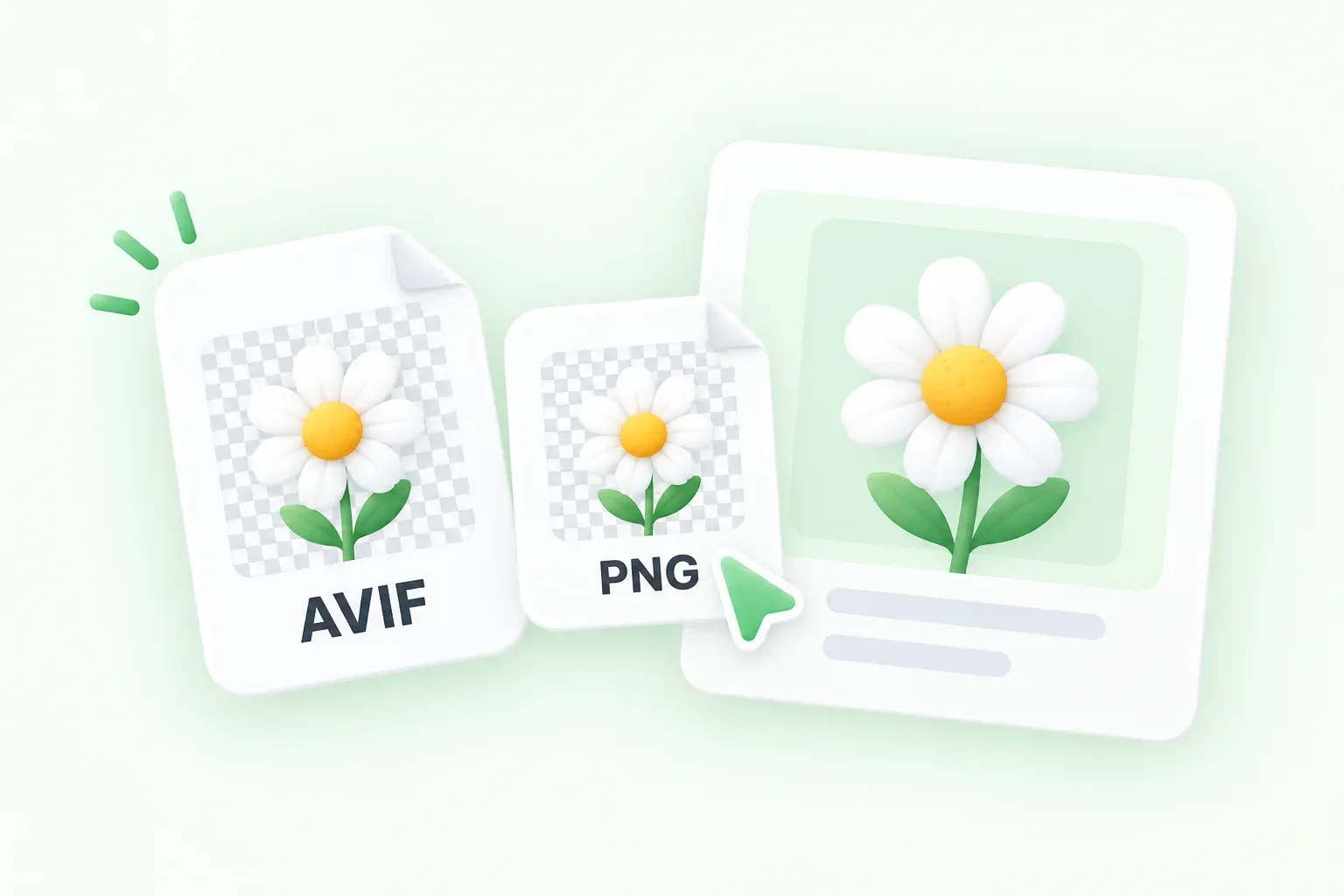
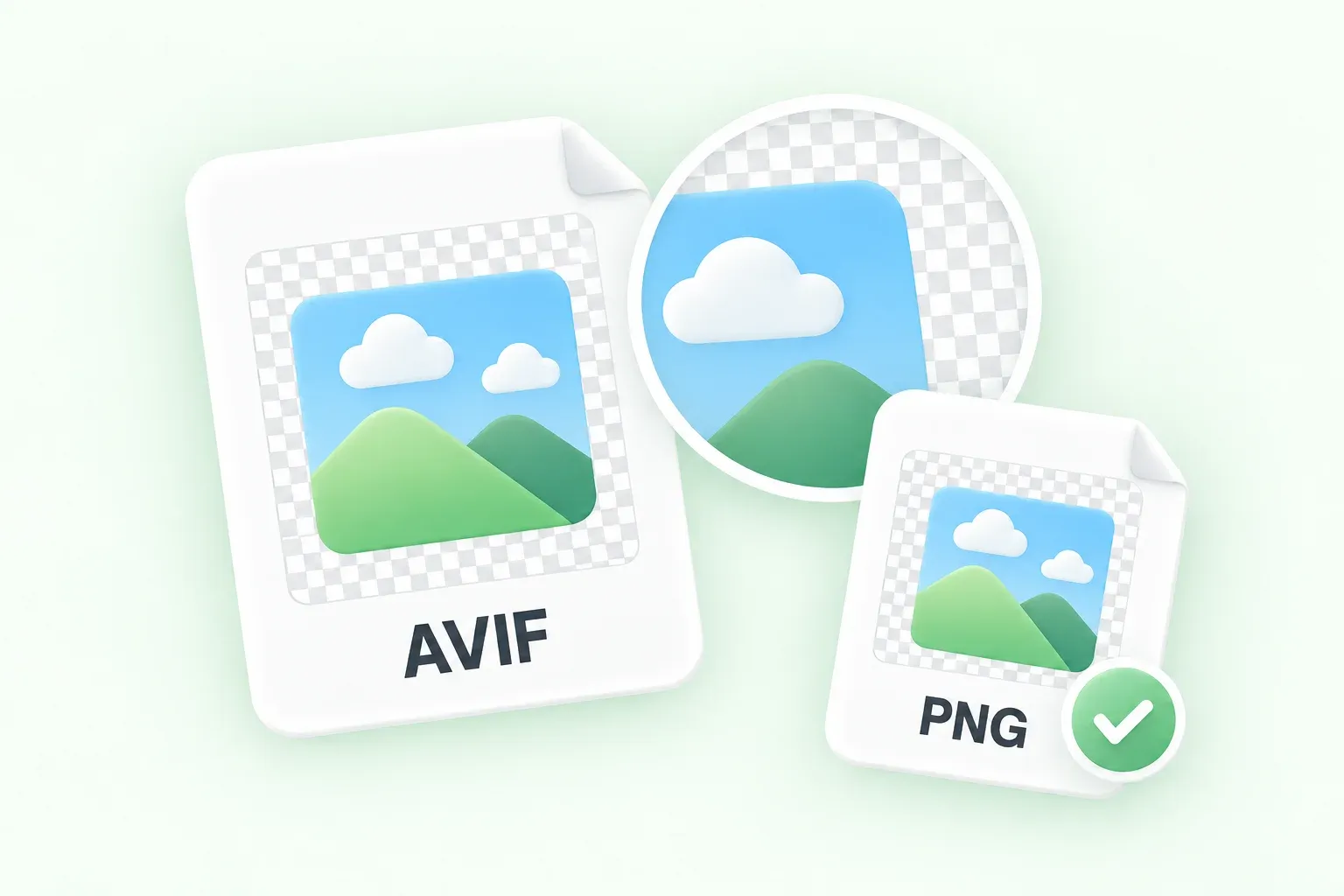
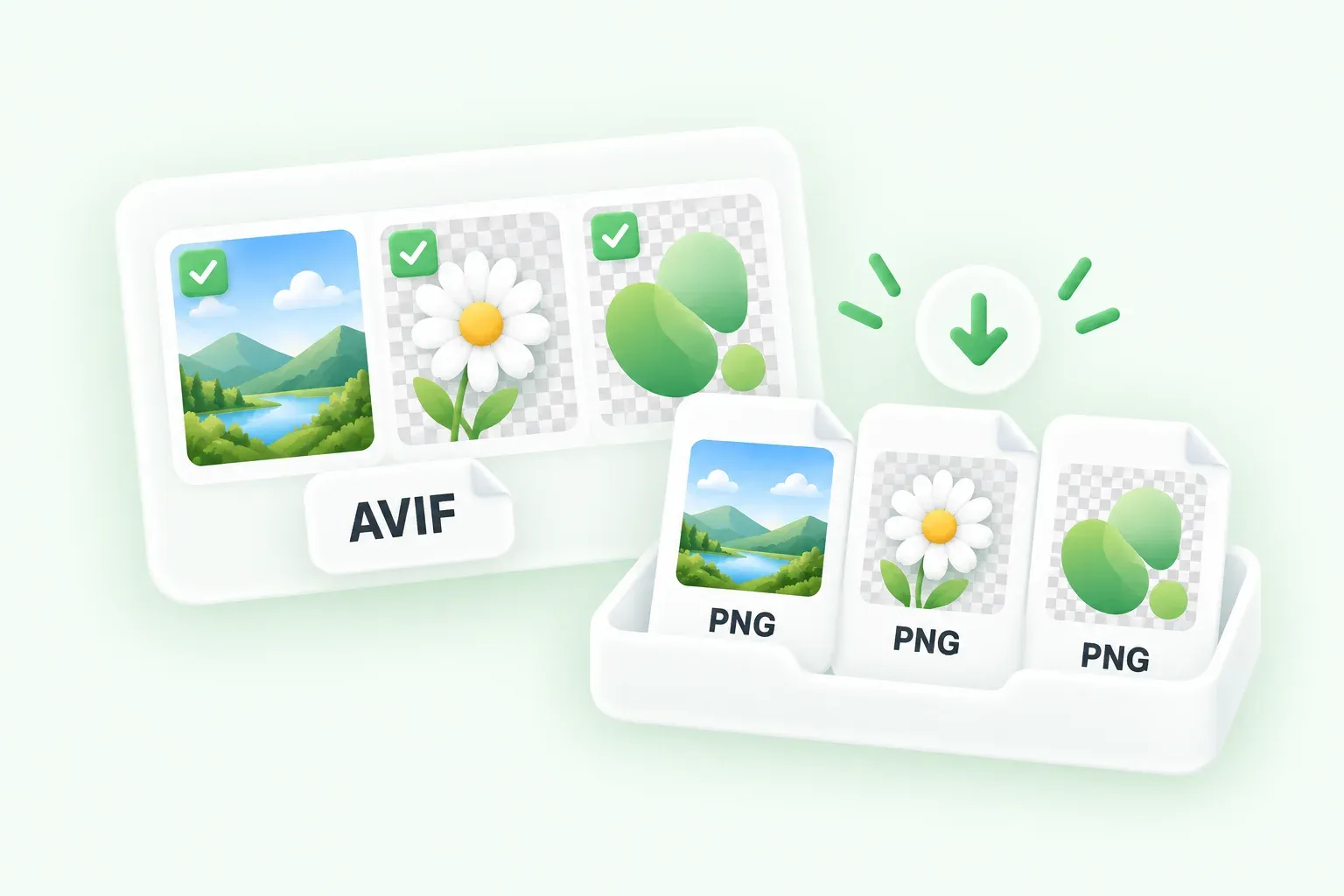
Convert AVIF to PNG online with WPS. Bring an AVIF screenshot or illustration into a workflow that specifies PNG. The AVIF to PNG converter lets you save a working copy for that placement. Keep the AVIF version on hand if you need another size or format later.

or drag and drop an AVIF file

Free and Unlimited
No Signup Required
Save Time
No Ads
Free to Use
No Sign-Up
No Ads
Any Browser

How to Convert AVIF to PNG

  1. Step 1: Upload Your AVIF File

    Upload the AVIF file you want to convert. Open the AVIF and identify details the receiving workflow needs, such as its pixel size, small lettering, or a transparent area.

  2. Step 2: Convert AVIF to PNG

    Run the conversion and wait for the PNG output to finish. Convert the AVIF source as its own file and keep the original for comparison. Verify that the exported file uses the PNG format requested by your next workflow.

  3. Step 3: Check and Save the PNG File

    Download the PNG result, then open it in the app where you plan to use it. Zoom into the parts of the PNG image that matter to your project. Test the output in your layout or form before you replace the AVIF.

AVIF to PNG for Editing and Review

AVIF to PNG for Editing and Review

A website may provide an illustration or screenshot as AVIF. A PNG copy is practical when the next editor or review workflow specifies a static PNG asset. Check the destination size before finalizing the export, especially if the artwork will appear in several placements.
Try It Now
Upload AVIF Directly for Conversion

Upload AVIF Directly for Conversion

Start with the existing AVIF file and convert straight to PNG when you need that output for an upload or handoff. Use the highest-detail source available to you, then compare the parts that the new format will render differently. If the workflow provides a preview, change one setting at a time so you can tell how it affects the image. Use the AVIF file with the content your recipient expects to find in the PNG copy.

Try It Now
Save a PNG Copy for Your Next Step

Save a PNG Copy for Your Next Step

Download the result and keep your original AVIF available if you need to edit or export another version. PNG works well for static images in projects that need clearly rendered edges. Where transparent edges matter, test the exported copy over the actual background instead of judging it on white alone. Put the reviewed PNG in the location where your next step will use it and keep the AVIF master available for further editing.

Try It Now
Check the PNG Result in Context

Check the PNG Result in Context

Open the result where it will be used. Check dimensions, color, and transparency in the downloaded PNG if your design depends on them. Compare edges against a colored background and check pixel dimensions when the picture will be used beside another asset.

Try It Now

Customer Stories

Why Choose WPS for PNG Conversion?

Julian Ramirez

I used the converter to turn my AVIF material into PNG for a presentation. I was working on the presentation itself and wanted to bring the material I already had into the slide workflow in the required format.

Julian Ramirez

Creative Director

Tasha Williams

I was working with a product listing and used the converter to make a PNG version from my AVIF source. I was preparing that file for the listing, so the change I needed was a copy in the image format used for that part of the work.

Tasha Williams

Digital Product Seller

Derek Okonkwo

I was working from a AVIF image and made a PNG copy in the browser. I used the tool for that format change so I could work from a version of the same material in the format I needed at that stage.

Derek Okonkwo

Mobile Developer

Your Questions, Answered

01

How do I convert AVIF to PNG online?

Upload the AVIF file you want to convert. Run the conversion and wait for the PNG output to finish. Download the PNG result, then open it in the app where you plan to use it. Before you begin, check that the AVIF file is the complete version you intend to convert. Keep it available while you verify the PNG copy.

02

What should I check after converting AVIF to PNG?

Check dimensions, color, and transparency in the downloaded PNG if your design depends on them. Check any limits your destination gives for the new PNG file, including size or dimensions if applicable. Open the export separately from the original so you compare the right two versions.

03

Can I use the AVIF to PNG converter for free?

Yes. WPS offers basic online conversion for this format pair. Keep the AVIF source and validate the output in the app or workflow that needs PNG before replacing or handing off any file.

04

Can I use the PNG for an illustration over a colored background?

Check that the result has the transparency your design expects by testing it against the actual color. Check one representative PNG result first if you are preparing material for a larger AVIF project. It is easier to correct a mismatch before adapting more files.

05

What if the AVIF preview looks different after conversion?

Compare the PNG and AVIF in the same display environment. Save the source if the appearance needs further adjustment. Leave the AVIF source unchanged while you compare versions and confirm that the exported PNG has the properties you need.

06

When is PNG a useful format for the exported image?

Use PNG for static graphics in workflows that accept it, especially when you need crisp edges or transparency that is present in the source and output. Inspect the PNG result at the dimensions it will be viewed, and retain the AVIF original if you plan to make further changes.