Word to HTML Converter

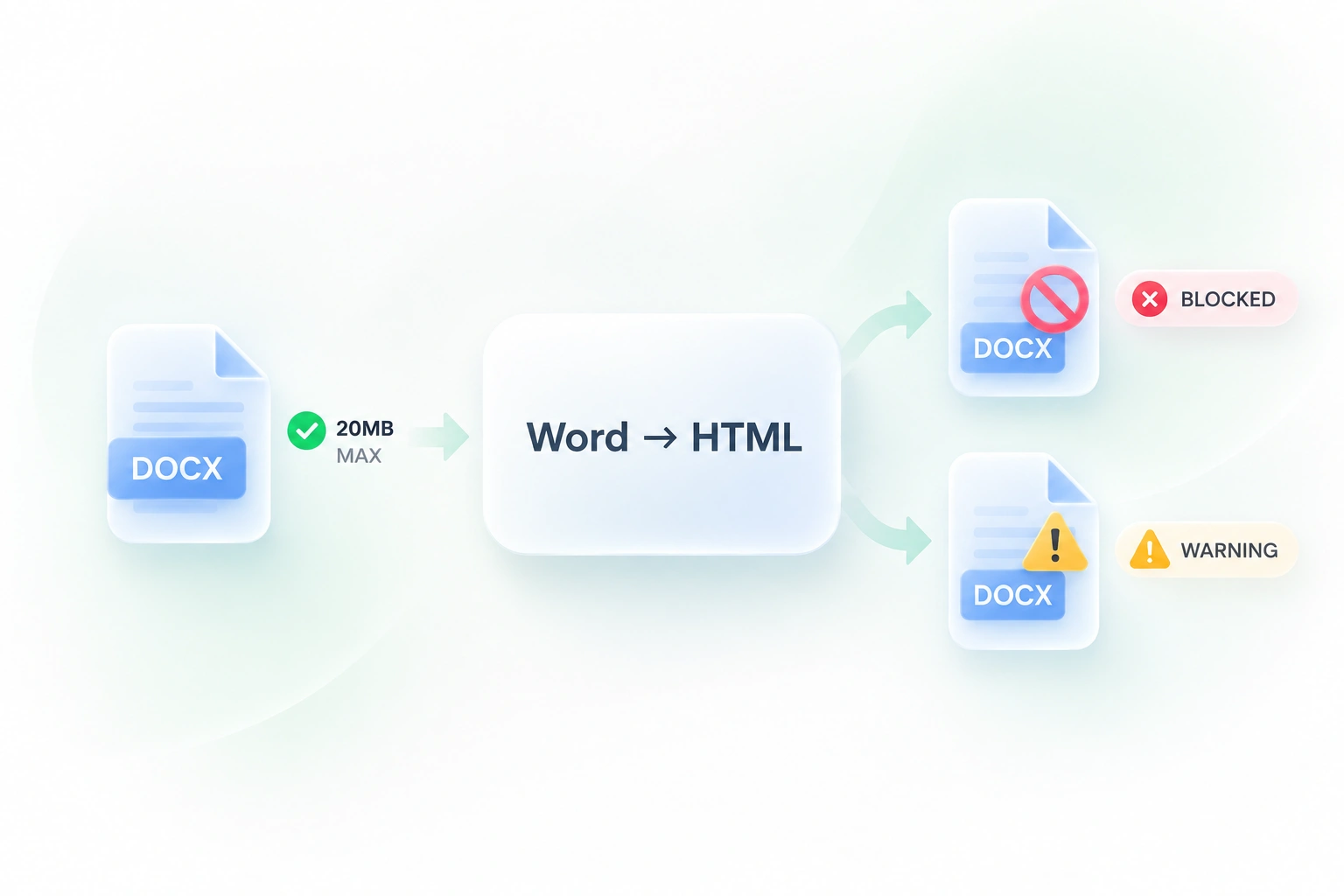
Use WPS’s online Word to HTML converter to prepare DOCX content for a web-publishing workflow. Review the rendered result alongside the HTML, then copy the code or download the output for your next editing step.

or drag and drop files here

DOCX, up to 20 MB

DOCX document ·
Conversion settings
Choose how the HTML should be generated for web publishing.
Auto selects the best available conversion engine.
Output mode
Ready to convert your DOCX file.
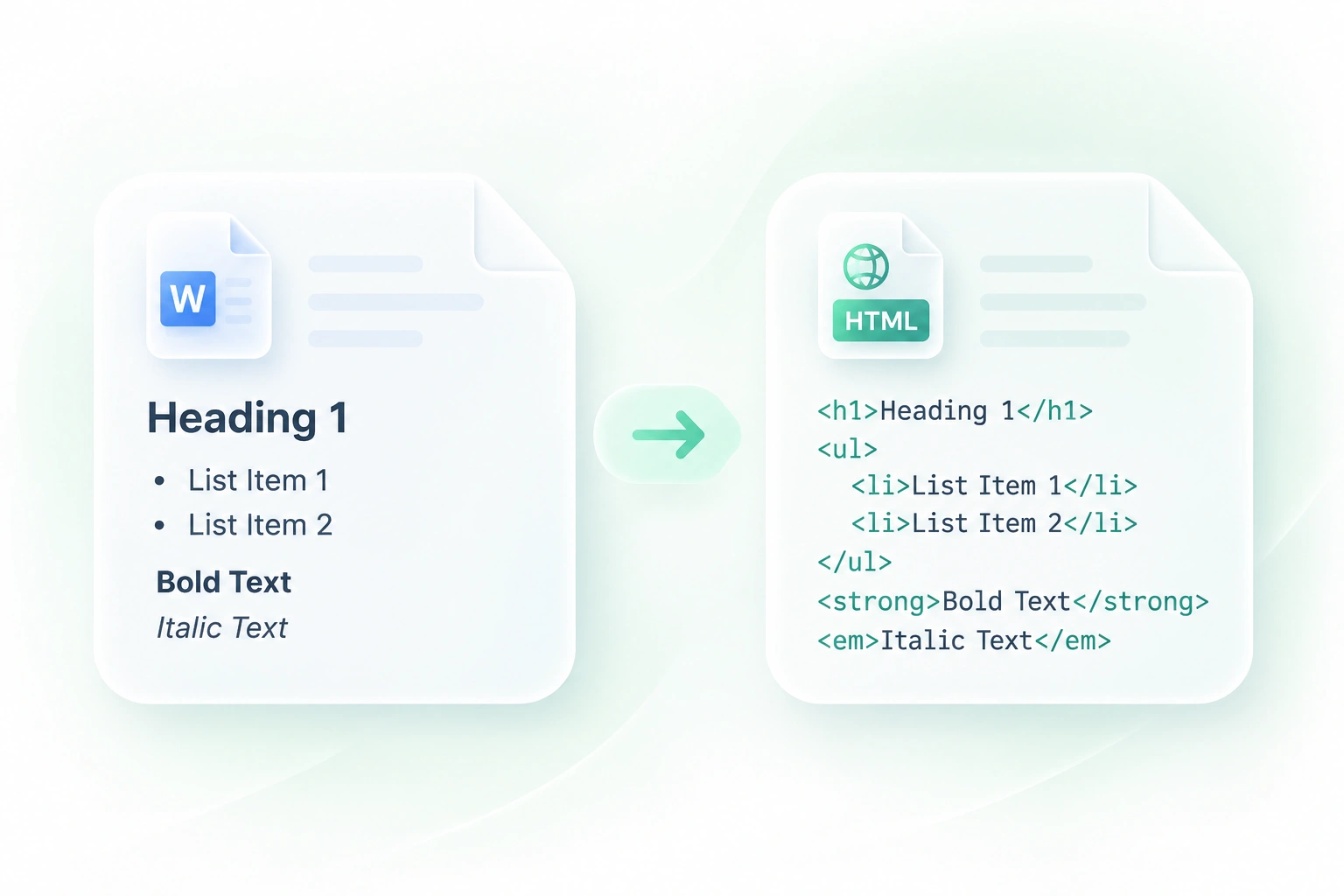
What gets convertedThe converter maps headings, lists, tables, bold, italics, and images into HTML. If your document contains images, a ZIP package may be generated for download.
Preview will appear here
Run the conversion to see the rendered HTML on the left and the source code on the right.
HTML preview ready0 lines
Rendered preview
HTML source
Free to Use
No Sign-Up
No Ads
Any Browser
Free to Use
No Sign-Up
No Ads
Any Browser

How to Convert Word to HTML in 3 Steps

  1. Step 1: Upload a DOCX document

    Choose the Word document you want to convert. Use a .docx source and keep the original for future content edits.

  2. Step 2: Convert and compare

    Select Convert to HTML. Compare the rendered preview with the source content, paying attention to headings, lists, and tables.

  3. Step 3: Copy or download

    Copy the HTML code or download the file. If the result includes assets, use the package option and check file paths before publishing.

Convert DOCX to HTML with Document Structure

Convert DOCX to HTML with Document Structure

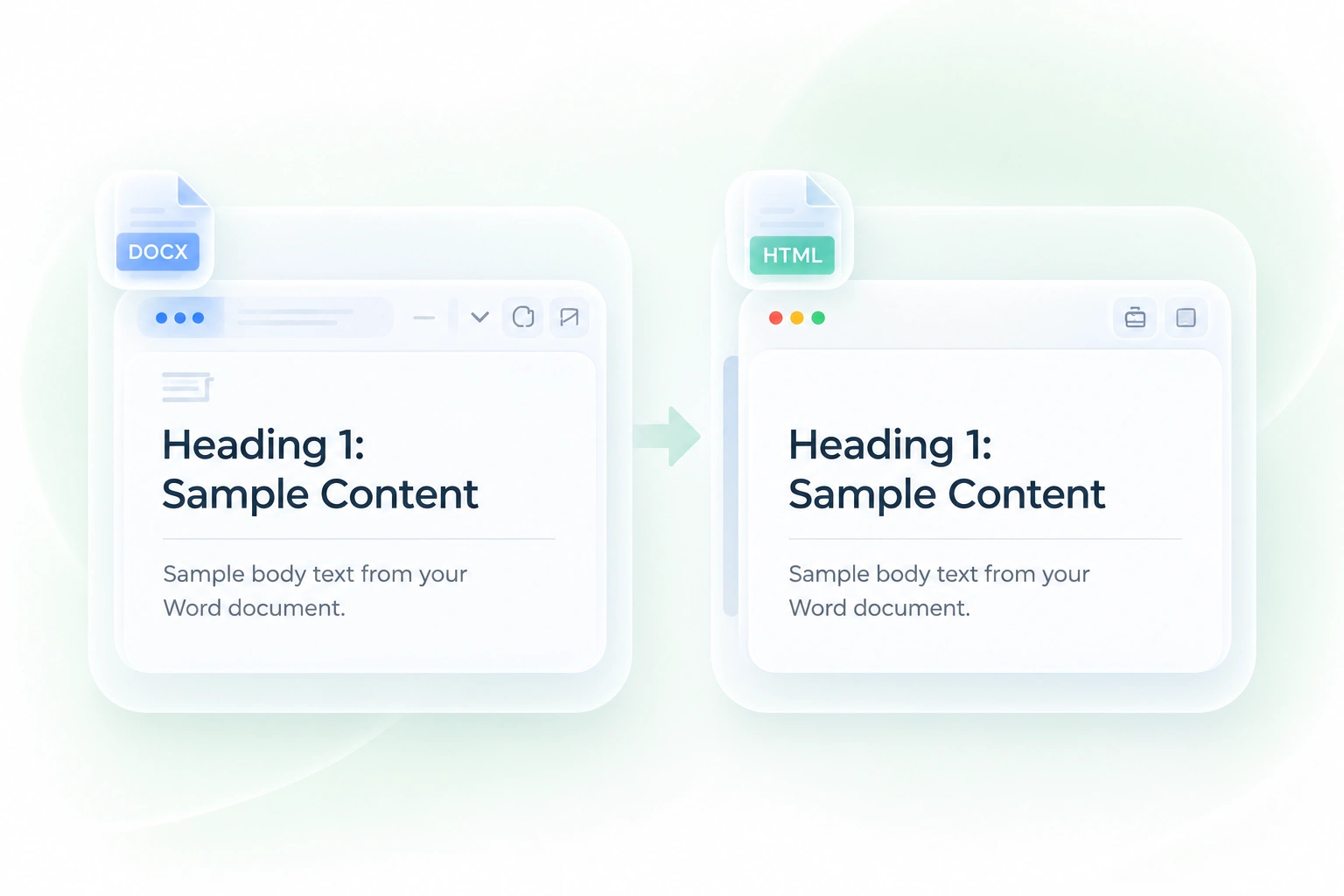
Manually rebuilding headings, lists, and tables adds work to a content handoff. WPS’s Word to HTML converter maps supported document structure into HTML elements, so you have a starting point to review and adapt for the web.
Try It Now
Review Word to HTML Code Beside the Preview

Review Word to HTML Code Beside the Preview

HTML source alone can hide an unexpected visual result. The rendered preview beside the code lets you compare structure and appearance, so you can catch issues before pasting the output into a publishing system.

Try It Now
Copy HTML Code or Download the Files

Copy HTML Code or Download the Files

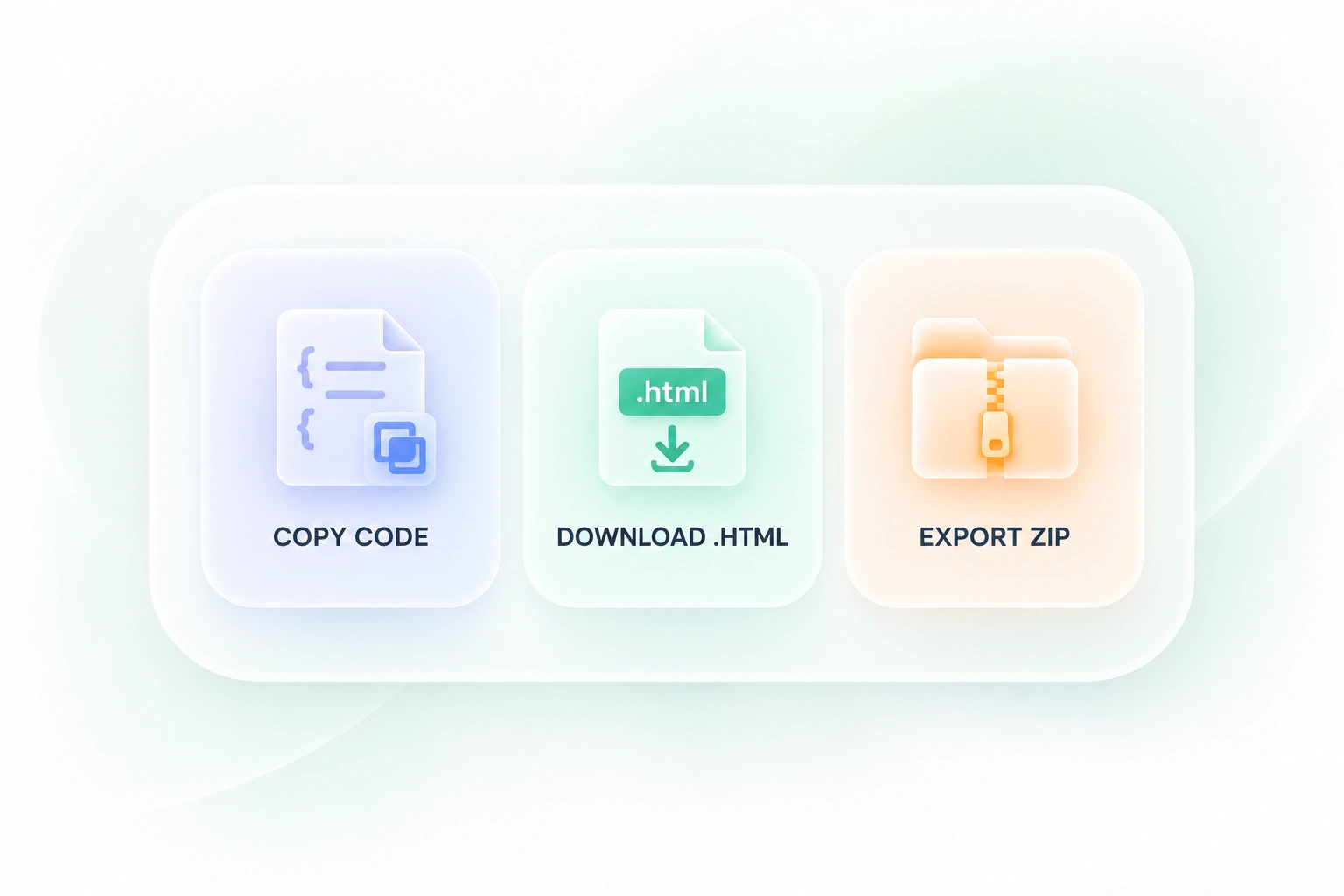
A CMS field and a website handoff may need different forms of output. Code copy, HTML download, and asset packaging give you those choices, so the conversion can fit the way you move content into your next tool.

Try It Now
Export Word to HTML with Images

Export Word to HTML with Images

A document’s text is only part of a page when illustrations are involved. The package option includes generated assets with the HTML output, so you can review the files together and adjust their paths before publication.

Try It Now

Why Users Choose Our Word to HTML Converter

Structured HTML output, code-and-preview review, and image export for web publishing workflows.

Article drafts

Convert Word to HTML online when an article starts in a DOCX document. Review heading levels, links, and lists before moving the content into your CMS.

Article drafts

Editors and content teams

Documentation pages

Use DOCX to HTML for a guide containing tables or step lists. Check the rendered result and adapt it to the documentation site’s styles.

Documentation pages

Support and operations teams

Developer handoffs

Review the Word to HTML code and downloaded assets as an implementation starting point. Check image paths and integrate the output into your page template.

Developer handoffs

Web teams

Word to HTML FAQ

01

How do I convert Word to HTML?

Upload a DOCX file, select Convert to HTML, and review the rendered preview and code. Copy the source or download the HTML and available asset package.

02

Can I upload an old .doc file?

The current uploader is for .docx documents. Save an older Word document as DOCX in an appropriate editor before using this workflow; do not assume .doc support from the tool’s name.

03

What does this DOCX to HTML converter preserve?

The converter maps supported document structures to HTML elements. Review the result because a web layout is different from a paginated Word document.

04

Can I convert Word to HTML with images?

The workflow includes an asset-package option when images are present in the output. Inspect the generated files and update paths as needed for your publishing destination.

05

Will the HTML look exactly like the Word document?

Not necessarily. Browser layout, fonts, styles, and document features can change the appearance. Compare the preview with your source and refine the HTML or site styles where needed.

06

Is the output ready to paste into any website?

No universal compatibility is implied. Check your CMS rules, remove unwanted markup, verify links and assets, and use the destination’s normal sanitization and publishing review before going live.