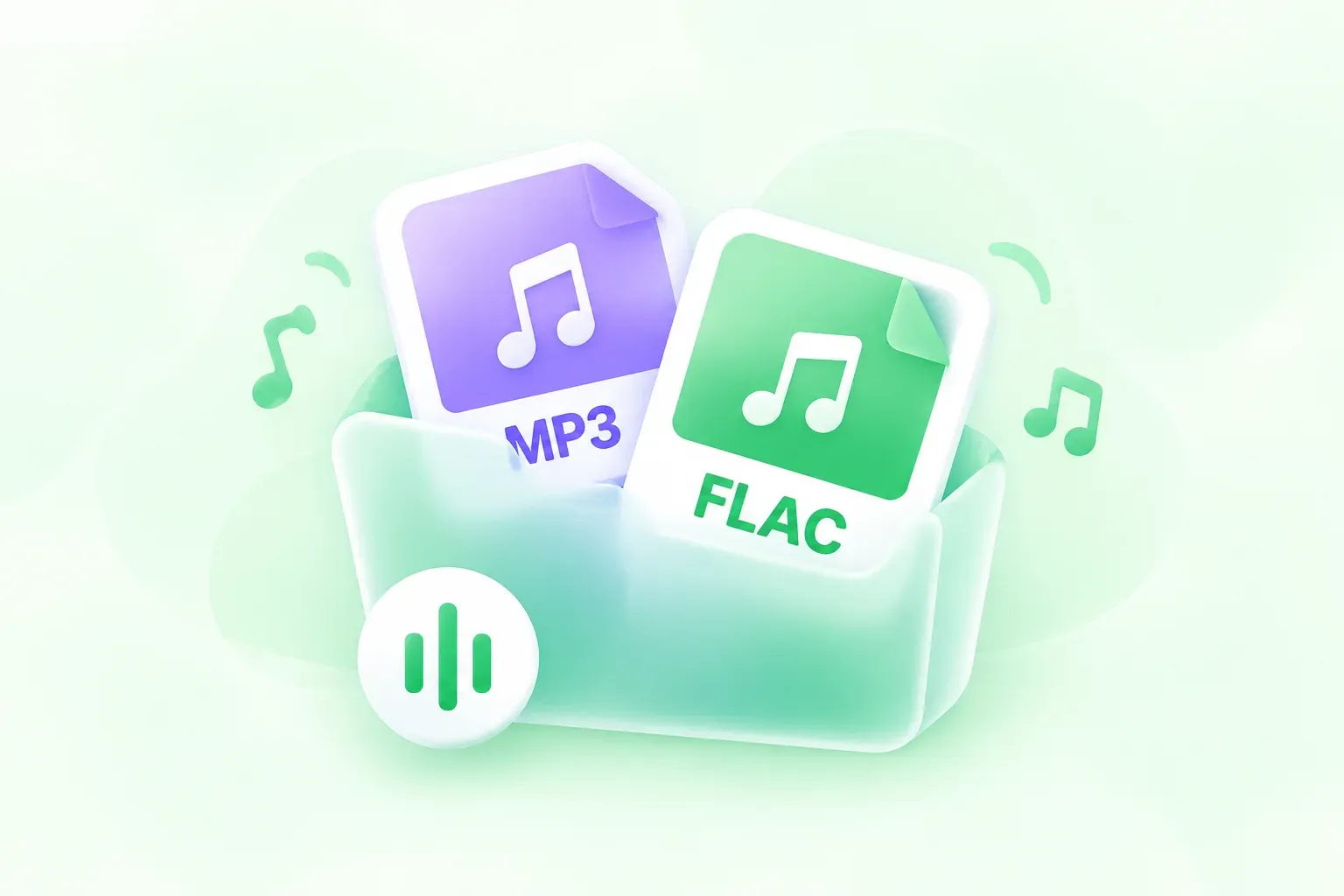
MP3 to FLAC Converter

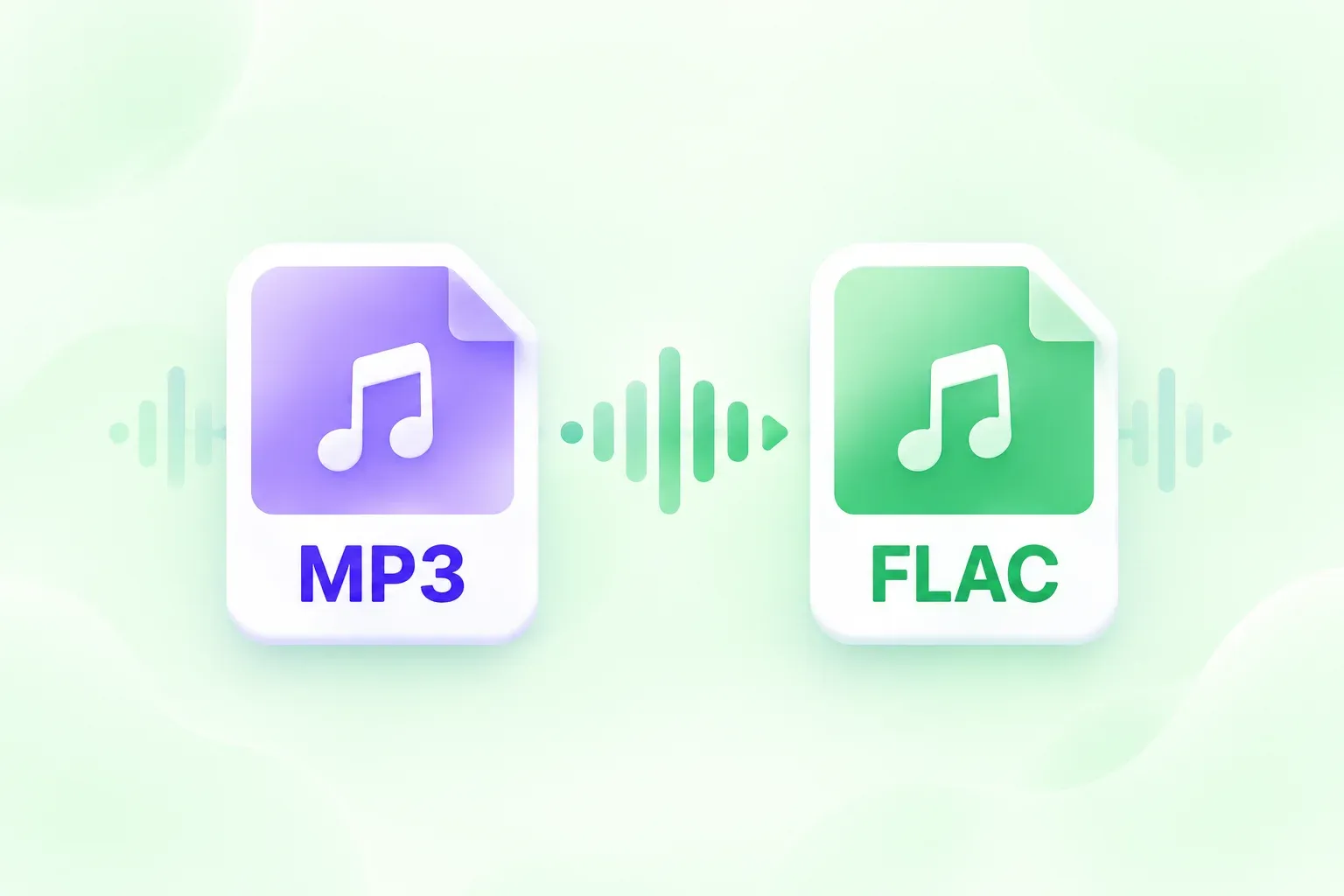
Convert MP3 to FLAC online with WPS. Create FLAC versions for a library whose import workflow requires that format. Use the MP3 to FLAC converter to make a separate file for playback, editing, or delivery. Check the new copy against the original recording before using it.

or drag and drop an MP3 file

Free and Unlimited
No Signup Required
Save Time
No Ads
Free to Use
No Sign-Up
No Ads
Any Browser

How to Convert MP3 to FLAC

  1. Step 1: Upload Your MP3 File

    Upload the MP3 file you want to convert. Start with the copy that contains the complete recording. Play the opening and closing sections before uploading if you are unsure whether it was exported in full.

  2. Step 2: Convert MP3 to FLAC

    Run the conversion and wait for the FLAC output to finish. Check which MP3 recording is selected if your folder has several versions. Save the FLAC result with a filename that identifies the recording and its new format.

  3. Step 3: Check and Save the FLAC File

    Download the FLAC result, then open it in the app where you plan to use it. Play part of the FLAC copy after saving it and give it a name that identifies the recording. Compare its duration if timing matters to the next edit.

Prepare MP3 Tracks for a FLAC Library

Prepare MP3 Tracks for a FLAC Library

Create FLAC versions for a library whose import workflow requires that format. Record the target format in your handoff notes so a teammate can tell which copy to play and which file to keep as the original. Check the first FLAC result in the app you will use to review the track.
Try It Now
Convert MP3 Audio in Your Browser

Convert MP3 Audio in Your Browser

Upload the source and convert it to FLAC when that format is required for playback, editing, or delivery. Keep track of which version you are converting, especially when a folder contains raw audio and an edited version of the same recording. Check the start and end before reusing the converted copy in another project. Note the intended clip length if it has to align with other media.

Try It Now
Keep the MP3 Recording for Future Edits

Keep the MP3 Recording for Future Edits

Download a separate FLAC copy for the handoff and keep your source recording available. FLAC is useful when an archive or library expects the format. If the original is already compressed with loss, the conversion cannot restore information removed from it. Save the FLAC alongside a clearly named source if you need both for the same project.

Try It Now
Check the FLAC Audio Before You Send It

Check the FLAC Audio Before You Send It

Open the result in the intended player or editor. Keep the MP3 source. Converting it to FLAC will not restore missing audio detail. Try the converted FLAC in the intended player. Review tags, artwork, and filename rules if you will import the file into a collection.

Try It Now

Customer Stories

Real results from people converting MP3 to FLAC for practical needs

Daniel Brooks

My starting point was an MP3 recording. I used the converter to prepare a FLAC copy. The useful part for this task was having a version of that same source in the output format I needed for the next step.

Daniel Brooks

Music Collector

Emily Carter

I used the converter in the browser because I needed a FLAC version of an existing MP3 recording. The conversion was the part of the work I used the tool for. I was preparing the material I already had in a different file format.

Emily Carter

Music Editor

Sophia Bennett

I needed to prepare an editing project and made a FLAC copy from the original MP3. I was preparing a copy for that particular use, so FLAC was the format I needed for the next step and MP3 was the original I started with.

Sophia Bennett

DJ & Audio Creator

Your Questions, Answered

01

How do I convert MP3 to FLAC online?

Upload the MP3 file you want to convert. Run the conversion and wait for the FLAC output to finish. Download the FLAC result, then open it in the app where you plan to use it. Before you begin, check that the MP3 file is the complete version you intend to convert. Keep it available while you verify the FLAC copy.

02

What should I check after converting MP3 to FLAC?

Keep the MP3 source. Converting it to FLAC will not restore missing audio detail. Check playback from the new FLAC file, not an already open player tab with the original MP3. If a project specifies audio properties, verify them in the exported copy.

03

Can I use the MP3 to FLAC converter for free?

Yes. WPS offers basic online conversion for this format pair. Keep the MP3 source and validate the output in the app or workflow that needs FLAC before replacing or handing off any file.

04

Can I organize converted MP3 tracks in a FLAC library?

Yes, when the library requires FLAC. Keep a record of which files came from MP3 sources. Listen to a representative passage and check the beginning and end before using the FLAC file in your project.

05

Can I convert just an excerpt of an MP3 track?

Prepare the excerpt as its own MP3 before converting it. The format conversion works from the audio in the file you provide. Note the original filename and the part of the track you need. That makes it easier to match the FLAC export to the right source.

06

Will tags and album artwork appear in the FLAC copy?

Check them after conversion if your library relies on them. Metadata can be handled differently across formats. Keep the MP3 if you need to deliver another copy later. Use the FLAC file you have tested in the actual playback or editing workflow.