I had a useful portrait, but the room behind me looked messy. I described a clean background, generated a new version, and checked the hair edges before using it.
Profile background
User review
Replace distracting photo backgrounds with a prompt and review the edited result before downloading.
or drag and drop your photo here
Choose full-image editing for broad changes, or brush a selected area when only one part needs attention.
Processing...

Choose the image with a background that needs to be replaced or improved. A clear subject makes the edited background easier to review.

Type the setting, color, mood, or scene you want behind the subject. This supports change photo background with ai requests without manual layer work.

Review subject edges, lighting, shadows, and background consistency. Regenerate with a clearer prompt if the new scene does not fit the image.
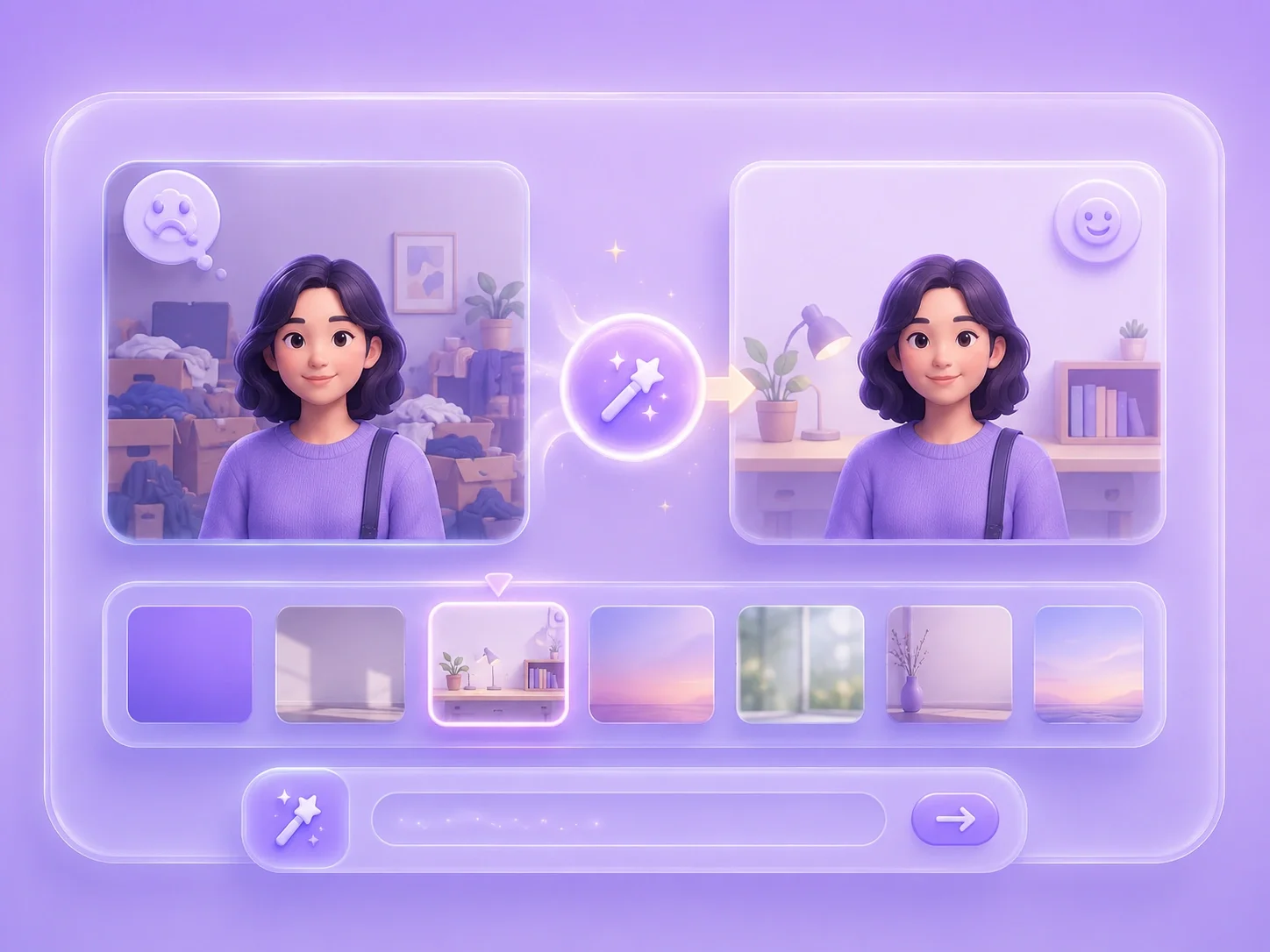
A poor background can make a strong subject look unprofessional, crowded, or out of place. This editor lets you upload the image, describe the background you want, and generate a replacement for review. It fits ai change background free tasks for profile photos, school images, work visuals, and social posts.
Change BackgroundBackground replacement works better when the instruction explains the setting instead of using vague words. Mention the color, environment, lighting, or clean studio look you want. That makes an ai background changer online free workflow easier to judge when the result appears.
Describe the Scene

Different images need different backgrounds depending on where they will be used. You might want a simple background for a product draft, a cleaner wall for a profile photo, or a neutral setting for a presentation image. After ai replace image background generation, check whether the subject still looks natural in the new context.
Match the Use CaseA changed background can look wrong if edges, hair, shadows, or reflections do not match. Review these details before using the image in a document, listing, or post. This final check keeps free ai photo background editor use grounded in the actual result.
Review the Fit

Convert WEBP images to high-quality PNG format quickly and securely.

Easily change Apple HEIC photos to standard JPG format for universal viewing.

Transform WEBP graphics into universally supported JPG images in seconds.

Convert next-gen AVIF image files into widely compatible JPG format.

Convert iPhone HEIC images to transparent and high-resolution PNGs.

Change AVIF files to PNG format while preserving image quality and transparency.

Compile your HEIC photos into a secure and shareable PDF document.

Extract tabular data from JPG images and convert them into editable Excel spreadsheets.

Save your MP3 tracks as compact M4A files for clear online playback.

I had a useful portrait, but the room behind me looked messy. I described a clean background, generated a new version, and checked the hair edges before using it.
Profile background
User review

I needed a product draft to look less cluttered for a client review. Changing the background helped me focus attention on the item instead of the table behind it.
Product draft
User review

I wanted a presentation image to feel consistent with the rest of my slides. The online background workflow gave me a quick version to compare.
Slide visual
User review