DNG to PNG Converter

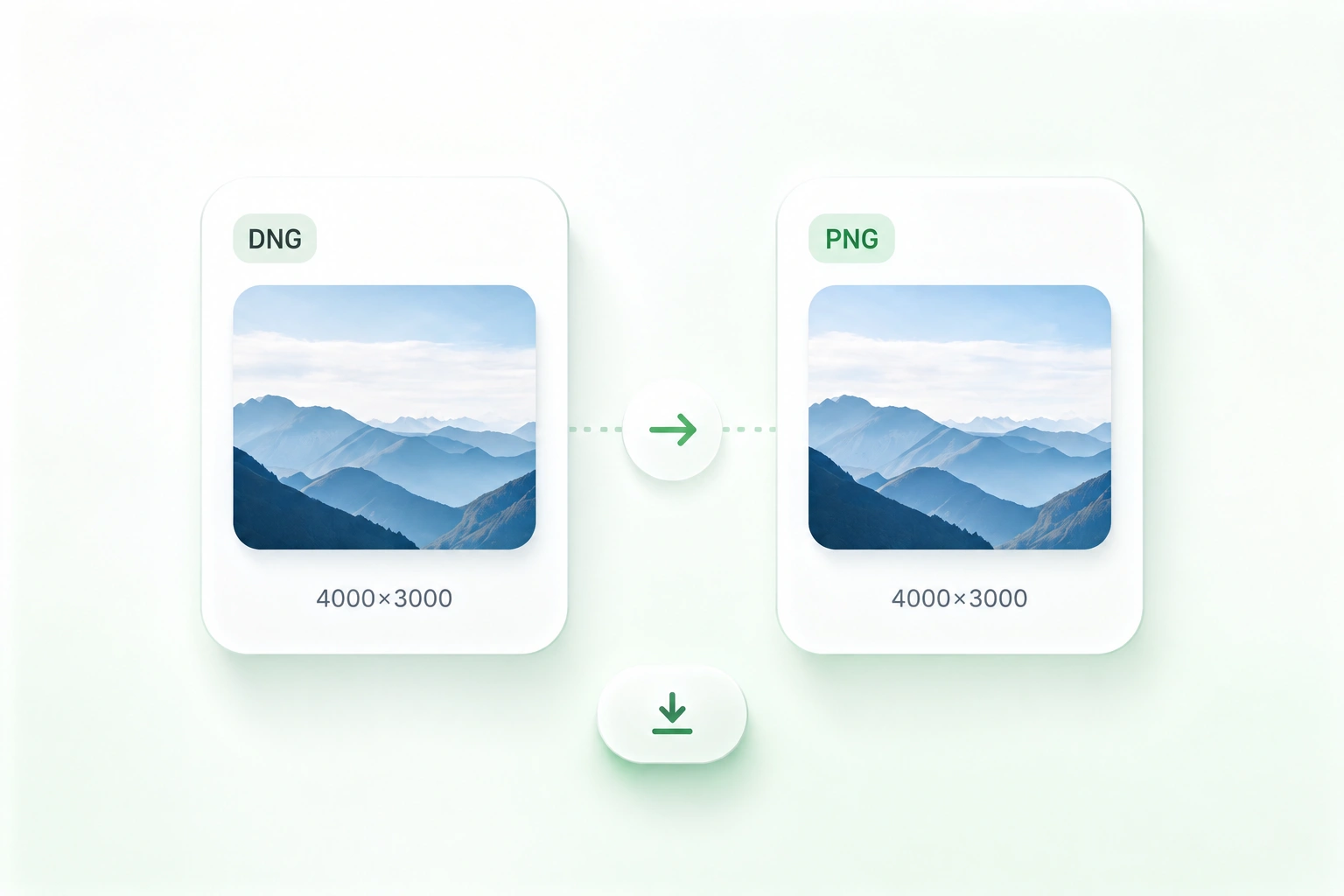
Use WPS’s online DNG to PNG converter to prepare a rendered copy of a camera RAW image. Choose the available color settings, inspect the preview and output dimensions, and save the PNG while keeping your DNG original.

or drag and drop files here

DNG, up to 200 MB

—
DNGUnknownFull RAW data

Conversion settings

White balance
Apply camera, daylight, or auto white balance before PNG export.
EV
Adjust brightness before tone mapping. Range: -4 to +4 EV.
Output bit depth
Choose standard 8-bit output or keep 16-bit precision when supported.
Control gamma and tone mapping used during RAW to PNG conversion.
Ready to process 1 DNG file.

PNG result

Converted PNG result
Full-size PNG will appear here after conversion.
Output file—
PNG size—
Source dimensions—
Output dimensions—

Conversion complete

Download your PNG, or start over with another DNG.

Free to Use
No Sign-Up
No Ads
Any Browser
Free to Use
No Sign-Up
No Ads
Any Browser

How to Convert DNG to PNG in 3 Steps

  1. Step 1: Upload a DNG photo

    Choose a .dng file and keep a separate copy of the RAW original. Review the file information after it loads.

  2. Step 2: Choose the rendering settings

    Review white balance, bit depth, and gamma options. Select Convert to PNG and inspect the rendered result.

  3. Step 3: Check and download

    Compare the preview and dimensions with your intended use. Download the PNG after reviewing color and visible detail.

Convert DNG to PNG for Everyday Viewing

Convert DNG to PNG for Everyday Viewing

A DNG camera file may not suit a document or image-sharing workflow. WPS’s DNG to PNG converter creates a rendered image copy, so you can prepare a conventional raster asset while retaining the RAW source for further work.
Try It Now
Choose White Balance for DNG Rendering

Choose White Balance for DNG Rendering

A RAW photograph needs interpretation before it becomes a displayed image. Camera, daylight, and automatic white-balance options let you choose the rendering approach, so you can review a version that suits the scene rather than accept one setting without checking.

Try It Now
Set PNG Bit Depth and Gamma

Set PNG Bit Depth and Gamma

A single set of output settings does not suit every photo handoff. Bit-depth and gamma options let you choose the available PNG rendering settings, so you can inspect the result against the requirements of your next workflow.

Try It Now
Preview DNG Photo Detail Before Sharing

Preview DNG Photo Detail Before Sharing

A RAW-to-image conversion can look different from the preview in a camera or editor. The result preview and dimension information let you inspect the PNG first, so you can spot differences before sending or inserting the image.

Try It Now

Why Users Choose Our DNG to PNG Converter

White balance controls, PNG output settings, and clear previews for a straightforward photo workflow.

Photo review

Convert DNG to PNG for a rendered review copy. Check white balance and tone before using the image to discuss edits with a collaborator.

Photo review

Photographers and collaborators

Document illustrations

Prepare a PNG image for a document workflow that does not use RAW files. Review orientation and displayed dimensions before placing the photo.

Document illustrations

Office teams and students

DNG-based image handoffs

Use this RAW to PNG workflow specifically for DNG source files. Keep the original DNG with your project so later edits can start from the RAW data.

DNG-based image handoffs

Creative teams

DNG to PNG FAQ

01

How do I convert DNG to PNG?

Upload the DNG, choose the available rendering settings, and select Convert to PNG. Inspect the preview and dimensions, then download the result.

02

Does PNG preserve all the original RAW data?

No. DNG stores camera RAW information, whereas the exported PNG is a rendered image. Keep the DNG when you need the original data for future processing.

03

Can I convert DNG to PNG without losing quality?

The formats represent different stages of the photo workflow. PNG can store its rendered pixels losslessly, but that does not preserve all RAW editing latitude or original camera information. Review the output and keep the DNG.

04

Why can the PNG look different from my camera preview?

White balance, gamma, and other rendering choices affect the displayed photo. A camera or RAW editor may use a different interpretation. Compare the image and adjust the available settings as needed.

05

Does this support every RAW camera format?

The current input workflow is for DNG. Do not assume that other camera RAW formats are accepted simply because they are also RAW files.

06

Which white-balance setting should I choose?

Start with the camera-metadata option when you want that reference, then compare the available alternatives if needed. Inspect the actual photo; no single option is appropriate for every scene.