GIF to JPG Converter

Use WPS’s online GIF to JPG converter to save a still image or export separate animation frames. Choose the frame output and background color, then review and download the JPG results for your next task.

or drag and drop files here

GIF, up to 100 MB

—0 frames—
Conversion Mode
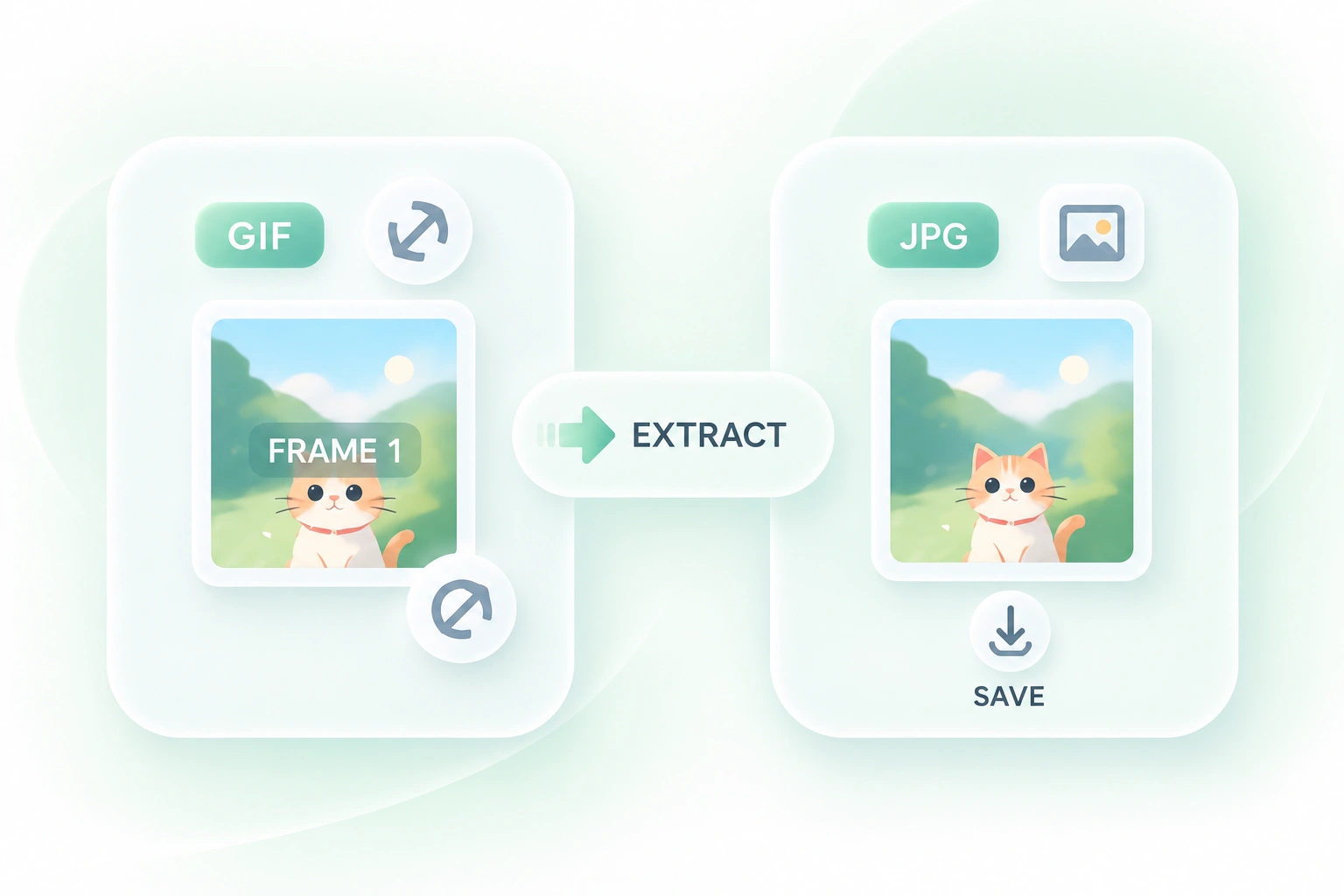
Extract the first frame and convert it to a single JPG file.
85%
10%100%
Transparency handlingTransparent GIF areas are filled with the selected background color before encoding to JPG.
0%
Converting GIF to JPG
Preparing conversion…
Conversion complete
1 JPG file ready for download.
Free to Use
No Sign-Up
No Ads
Any Browser
Free to Use
No Sign-Up
No Ads
Any Browser

How to Convert GIF to JPG in 3 Steps

  1. Step 1: Upload the GIF

    Choose the source file and review its frame information. Decide whether you need the first frame or a full sequence.

  2. Step 2: Choose output and background

    Select the frame option and background color, then choose Convert to JPG. Check the output before saving.

  3. Step 3: Save the frame images

    Download the JPG output or the ZIP of frame images. Keep the original GIF if you need a motion or timing reference.

Convert GIF to JPG as a Single Still

Convert GIF to JPG as a Single Still

An animation is not always appropriate for a document or slide. First-frame extraction in WPS’s GIF to JPG converter creates a still image, so you can prepare a static version without exporting every moment in the sequence.
Try It Now
Export Animated GIF Frames as JPG Images

Export Animated GIF Frames as JPG Images

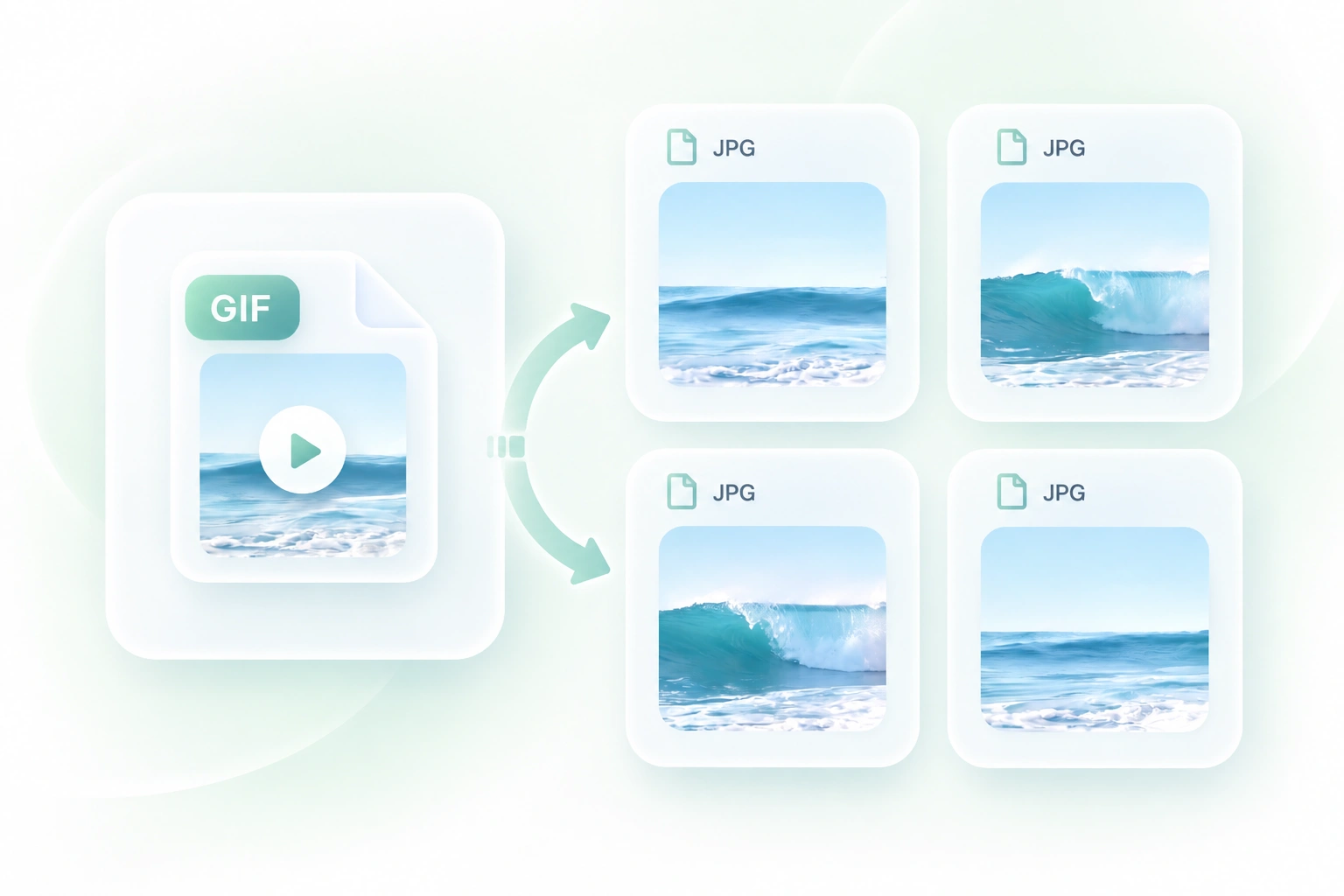
A moving GIF can make a particular visual change hard to inspect. Frame-sequence export produces separate JPG images, so you can compare moments and select the images relevant to your task.

Try It Now
Choose a Background for GIF to JPEG Output

Choose a Background for GIF to JPEG Output

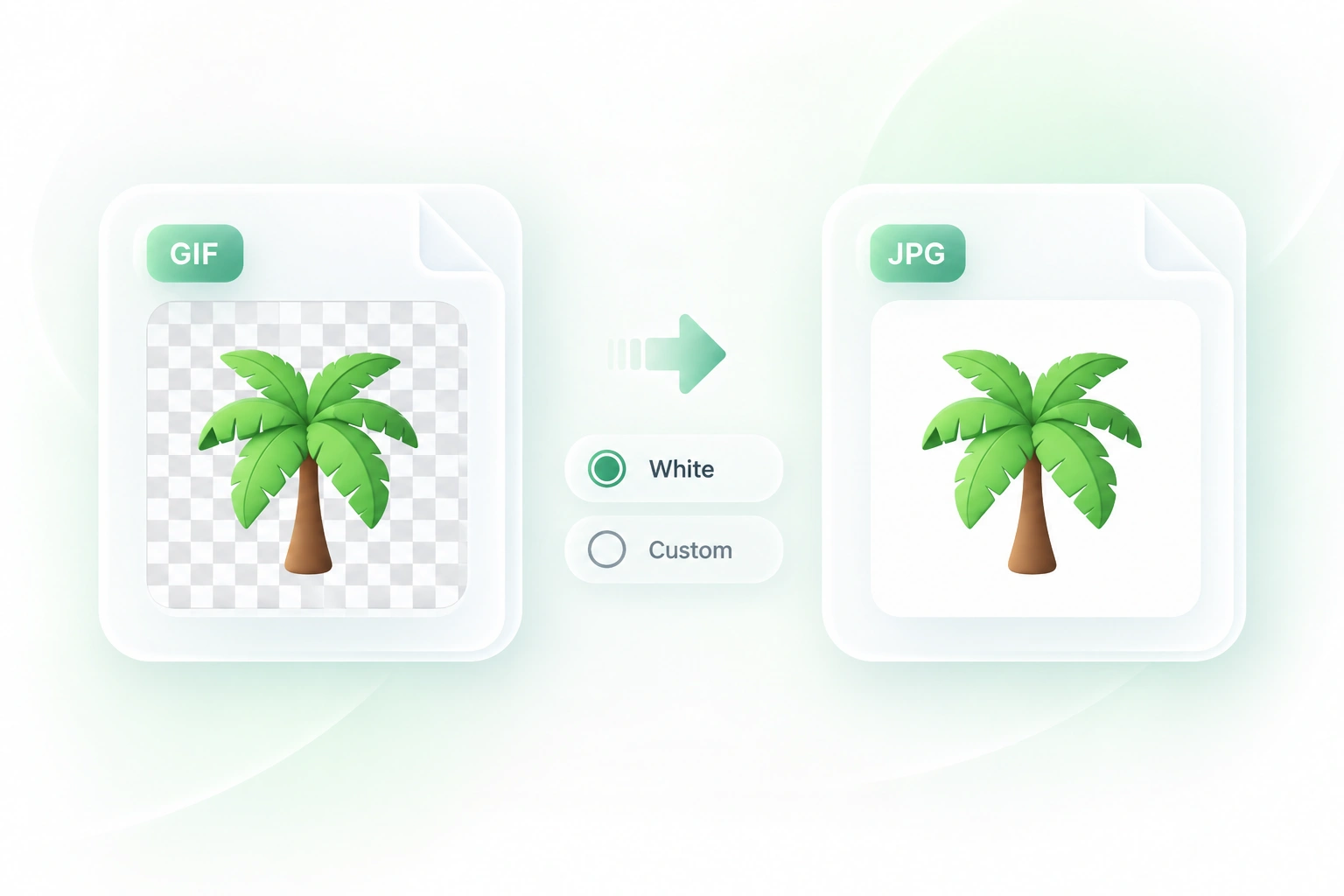
A transparent GIF region cannot remain transparent in JPEG. The background control lets you choose the fill color, so the still output can match the intended composition more deliberately.

Try It Now
Download GIF Frame Images Together

Download GIF Frame Images Together

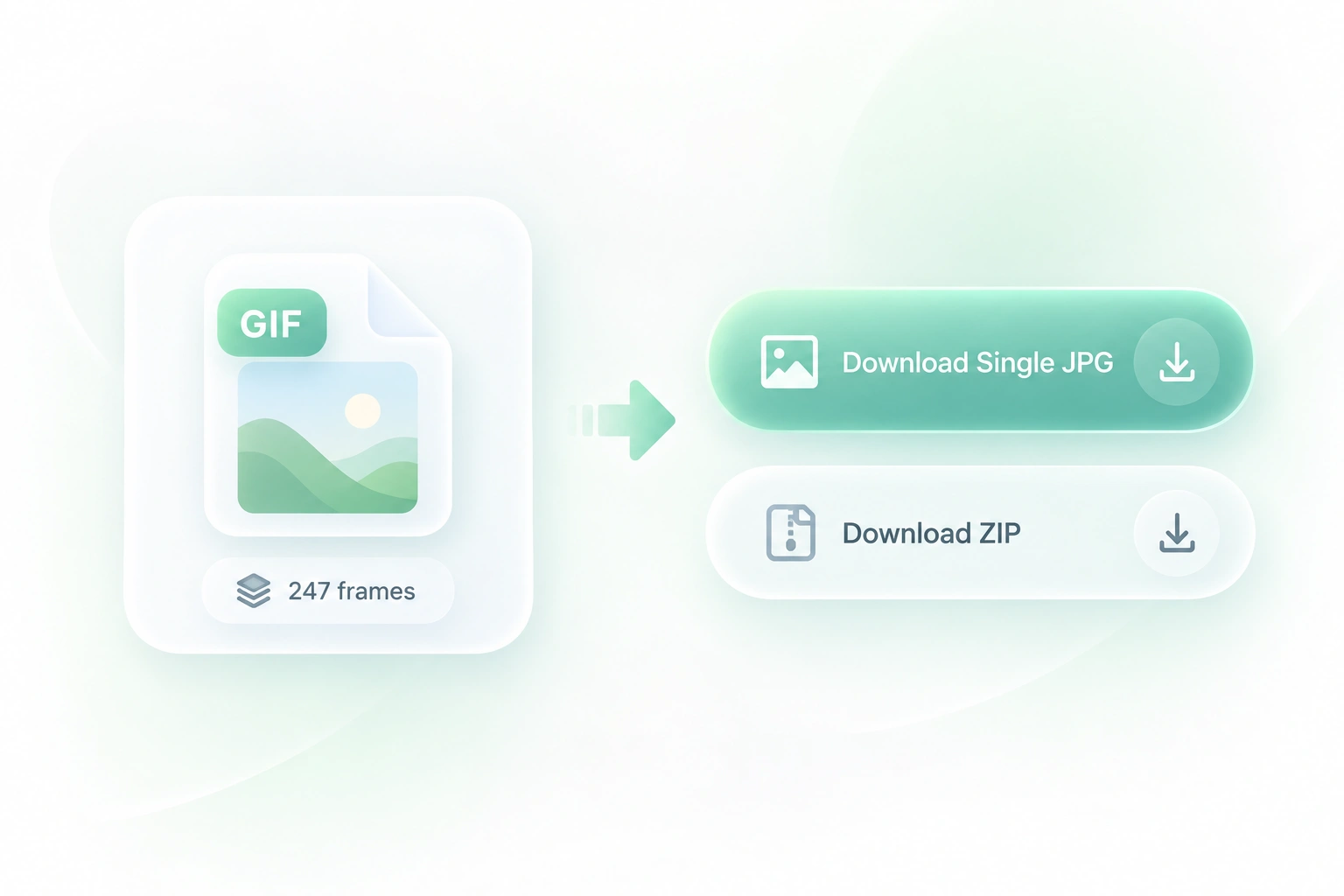
Exporting an animation can create many still images. Frame-count information and ZIP download help you review and collect the output, so the files are easier to manage as one conversion job.

Try It Now

Why Users Choose Our GIF to JPG Converter

Single-frame or full-sequence export, background controls, and convenient downloads for everyday image tasks.

Instructional screenshots

Convert an animated GIF to JPG frames for a written guide. Choose images that represent meaningful steps rather than every small change.

Instructional screenshots

Educators and support teams

Presentation stills

Convert GIF to JPEG when a slide requires a static image. Review the selected moment and background at the final presentation size.

Presentation stills

Office teams

Frame-by-frame review

Use GIF to JPG online to inspect a short animation as stills. Retain the GIF alongside the images when timing or movement matters to the review.

Frame-by-frame review

Creative teams

GIF to JPG FAQ

01

How do I convert GIF to JPG?

Upload the GIF, choose a first-frame or sequence output, set the background, and convert. Review the result and download the JPG files.

02

Can I convert an animated GIF to JPG?

Yes, as still images. Choose the first frame or export a sequence of separate JPG frames. A JPG file does not retain the GIF animation.

03

How can I get GIF to JPG frames instead of one image?

Use the frame-splitting option before conversion. Review the exported sequence and use the ZIP download when you need the full set.

04

Why does a transparent area become a solid color?

JPEG does not support transparency. The converter fills transparent areas with the selected background color, so check that choice before exporting.

05

Are GIF to JPEG and GIF to JPG different conversions?

No. JPG and JPEG are extensions for the same output format. Both refer to creating JPEG still images from the GIF.

06

Does this improve the GIF’s original quality?

No. Conversion does not restore missing colors or detail, and JPEG compression can introduce further changes. Keep the original and review important edges in the output.