JPG to BMP Converter

Use WPS’s online JPG to BMP converter for a workflow that requires bitmap files. Add JPG or JPEG images, choose the available bit depth, and review the larger output sizes before downloading your results.

or drag and drop files here

JPG, up to 20 MB · max 5 files

JPG to BMP conversion

Choose BMP color depth for exported files.
Files ready to convert
0 files

BMP conversion results

0 files converted
24-bit BMP
Free to Use
No Sign-Up
No Ads
Any Browser
Free to Use
No Sign-Up
No Ads
Any Browser

How to Convert JPG to BMP in 3 Steps

  1. Step 1: Add your JPG images

    Upload JPG or JPEG source files. Check the format and bit-depth requirement of the application that will receive the BMP.

  2. Step 2: Choose a bit depth

    Select the required output setting and choose Convert to BMP. Review any size warnings and conversion messages.

  3. Step 3: Review and save

    Check the result details, then download individual files or the ZIP package. Keep the JPEG originals if storage size matters.

Convert JPEG to Bitmap for Required Workflows

Convert JPEG to Bitmap for Required Workflows

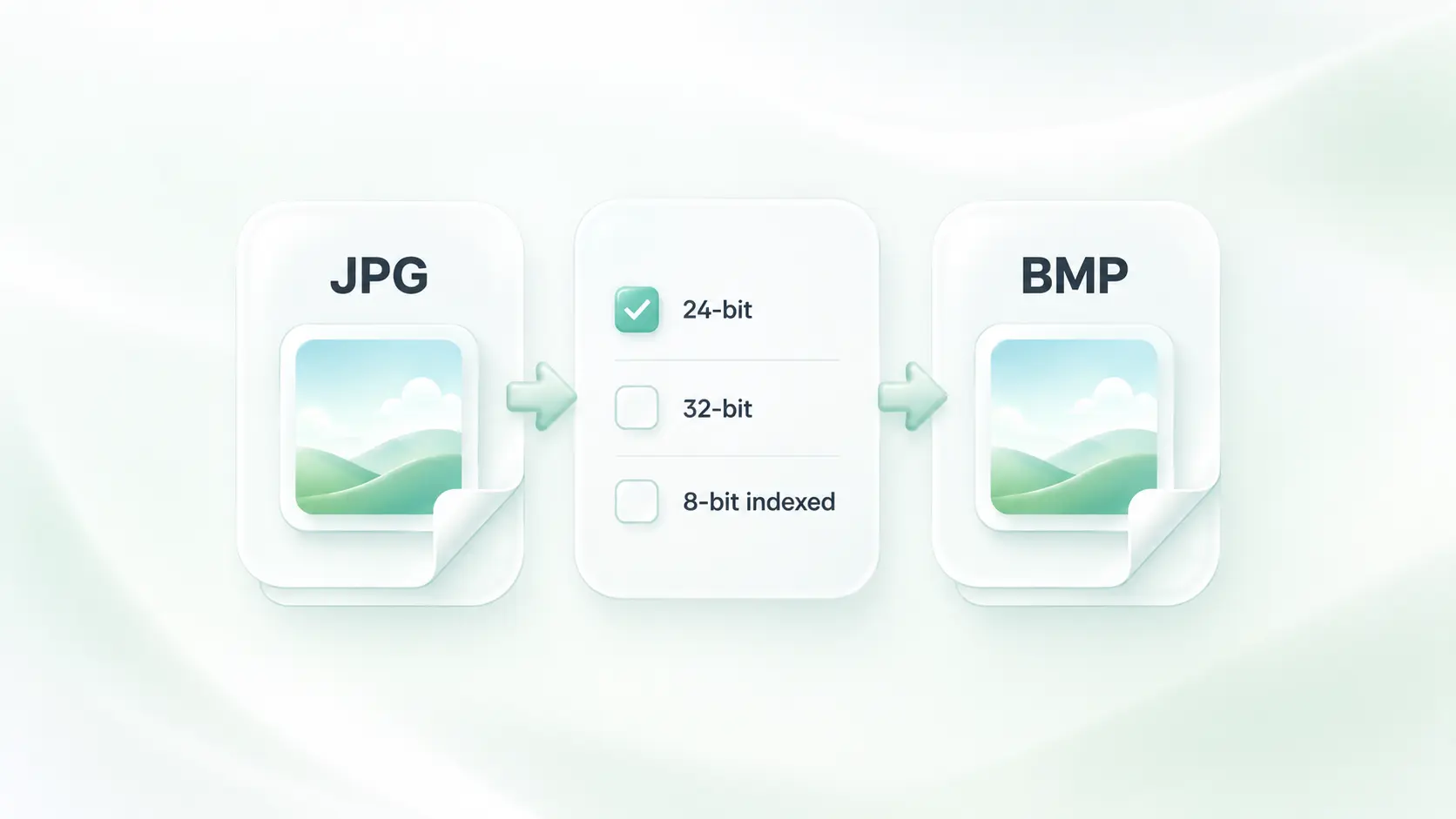
An older application or specific import process may request BMP instead of JPEG. WPS’s JPG to BMP converter creates bitmap output, so you can prepare the requested format without mistaking conversion for an image-quality upgrade.
Try It Now
Choose 24-Bit BMP or Another Color Depth

Choose 24-Bit BMP or Another Color Depth

A receiving application may accept only a particular BMP color format. The 24-bit, 32-bit, and 8-bit options let you choose the supported output setting, so you can align the file with the stated import requirement.

Try It Now
Batch Convert JPG to BMP in One Job

Batch Convert JPG to BMP in One Job

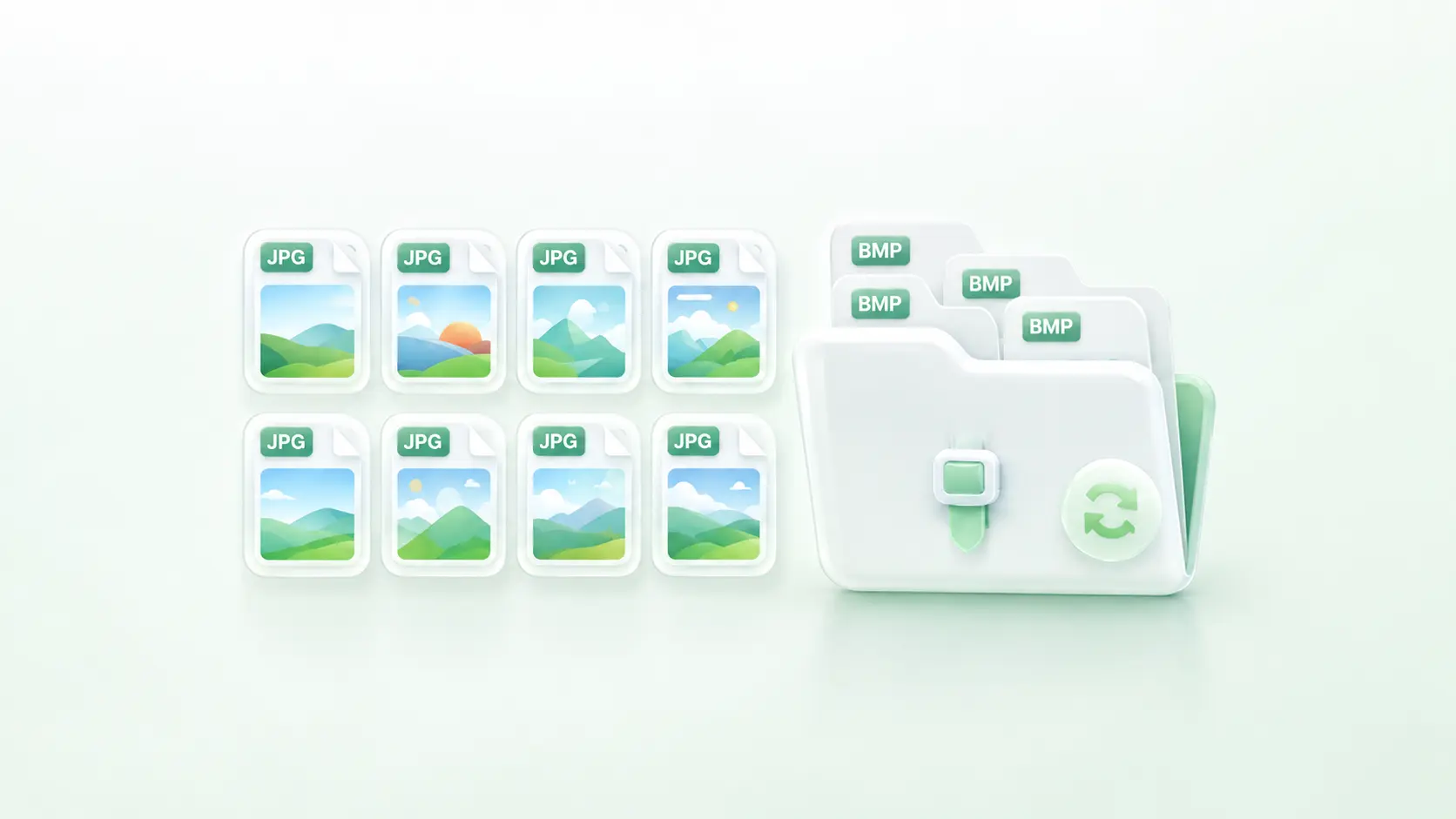
Repeating the same conversion for several files adds manual work. Batch conversion and ZIP download keep the images in one job, so a small asset set is easier to collect for a handoff.

Try It Now
Check BMP File Size Before Handoff

Check BMP File Size Before Handoff

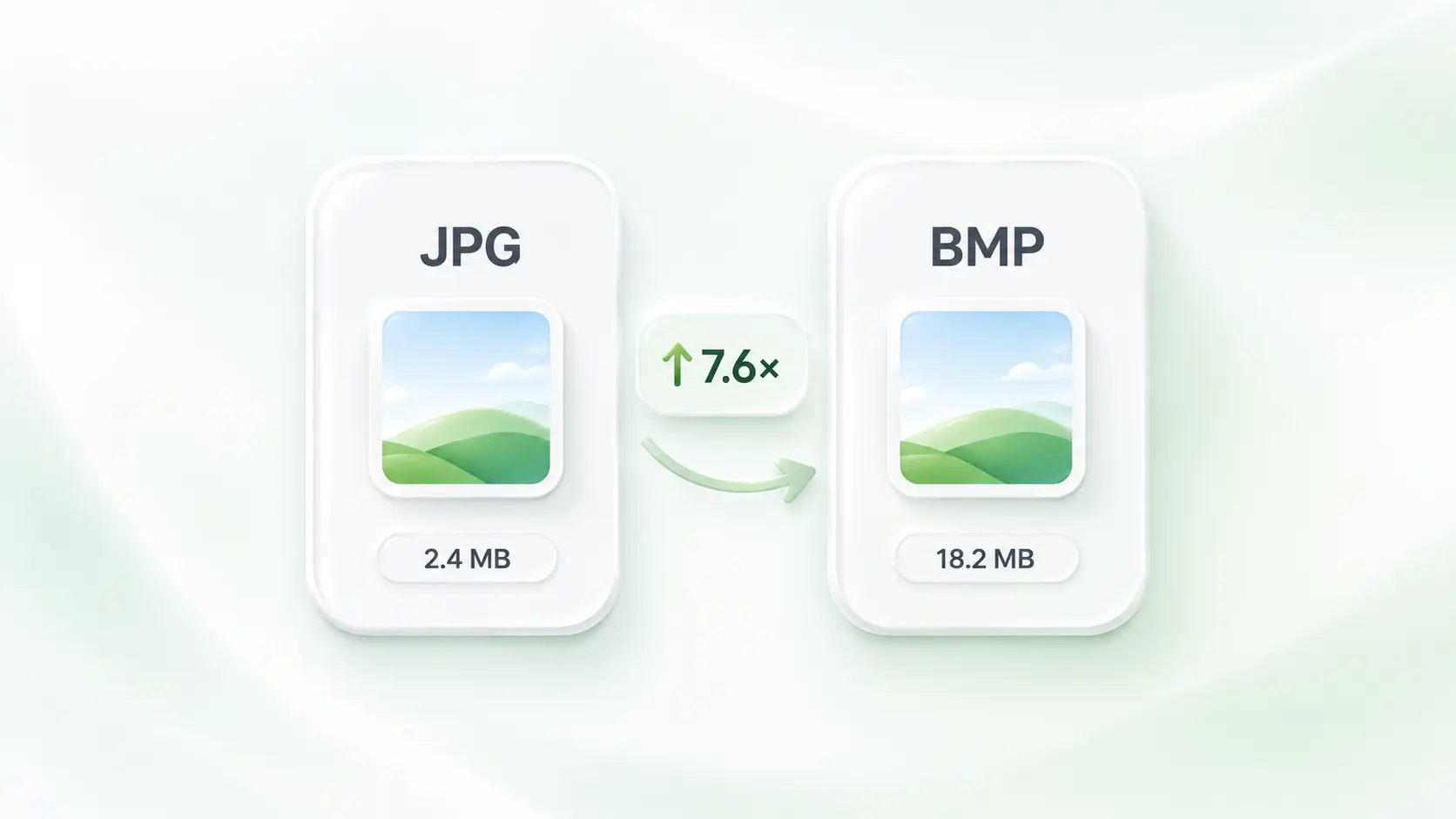
An uncompressed bitmap can be much larger than its source JPEG. Output-size and increase-ratio details show the actual result, so you can check storage or transfer needs before passing the BMP files on.

Try It Now

Why Users Choose Our JPG to BMP Converter

Flexible color depths, batch conversion, and practical file checks for bitmap workflows.

Legacy imports

Convert JPEG to BMP when an established import workflow requires bitmap data. Check bit depth, dimensions, and the accepted BMP variant before use.

Legacy imports

Software and operations teams

Color-format exercises

Compare 24-bit and indexed-color outputs using the same source. Review the visible changes and file sizes rather than assuming more bytes mean more recovered detail.

Color-format exercises

Students and educators

Small asset handoffs

Use JPG to BMP online to prepare a group of images for a specified workflow. Keep conversion outputs and original JPEGs clearly separated.

Small asset handoffs

Technical teams

JPG to BMP FAQ

01

How do I convert JPG to BMP?

Upload JPG or JPEG files, choose the required bit depth, and select Convert to BMP. Review the result details, then download the files or ZIP.

02

Can I create JPG to BMP 24-bit output?

Yes. Choose 24-bit in the bit-depth selector before converting. Confirm that the destination requests that format and inspect the resulting image.

03

When should I use the 8-bit option?

Use it when the receiving workflow requires indexed-color BMP output. A limited palette can change the appearance of gradients and photographs, so review the result.

04

Why is the BMP much larger than the JPEG?

JPEG is a compressed format, while this workflow produces uncompressed bitmap output. The size increase does not recover source detail that JPEG compression has already removed.

05

Is JPEG to bitmap conversion the same as JPG to BMP?

JPG and JPEG refer to the same source format. BMP is a bitmap output format; choose the same conversion workflow for either JPEG extension.

06

Will the BMP work in every legacy application?

No universal compatibility is implied. Applications can have specific bit-depth, dimension, or BMP-variant requirements. Check those requirements and test the exported file in the destination.