Turn a PNG Sequence into a GIF
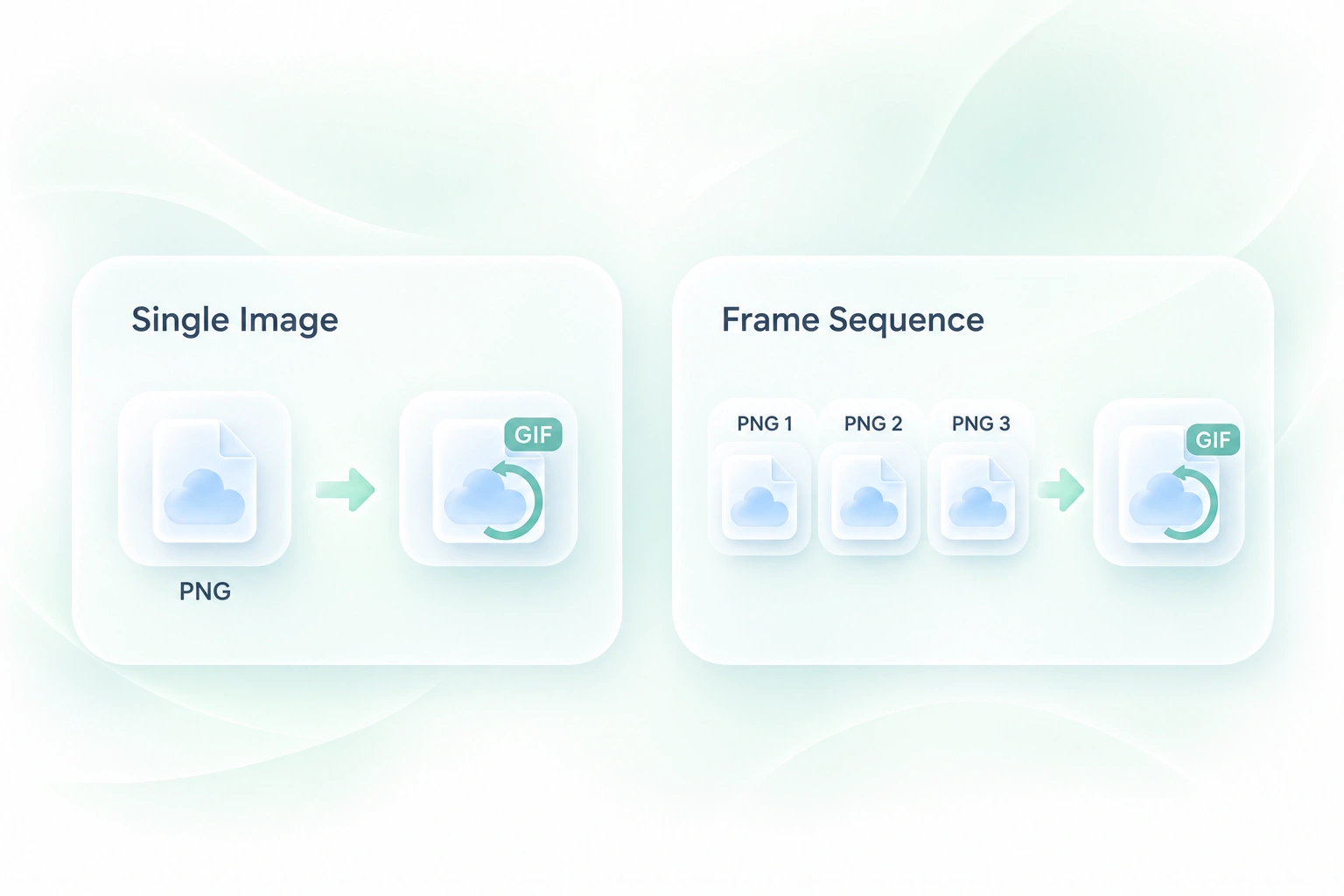
A set of exported PNG images is not yet a playing animation. WPS’s PNG to GIF maker combines the frames into a sequence, so you can turn an existing set of drawings or screenshots into one GIF.
Use WPS’s online PNG to GIF converter for a single image or a sequence of PNG frames. Arrange the order, adjust timing and canvas fit, and preview your animation before downloading the GIF.
or drag and drop files here
PNG only · up to 30 images
Frames
Single-frame GIF. Add more PNGs to create an animation.
Generating your GIF
We’re uploading frames, building the palette, and encoding the final animation.
Upload one PNG for a still GIF or add several frames for an animation. Keep source files in the order you intend to review them.
Arrange the frames and choose delay, loop, and canvas settings. Check the fit when the source images have different dimensions.
Select Generate GIF. Review the loop, duration, and output size, then download the result when it suits your task.
A set of exported PNG images is not yet a playing animation. WPS’s PNG to GIF maker combines the frames into a sequence, so you can turn an existing set of drawings or screenshots into one GIF.
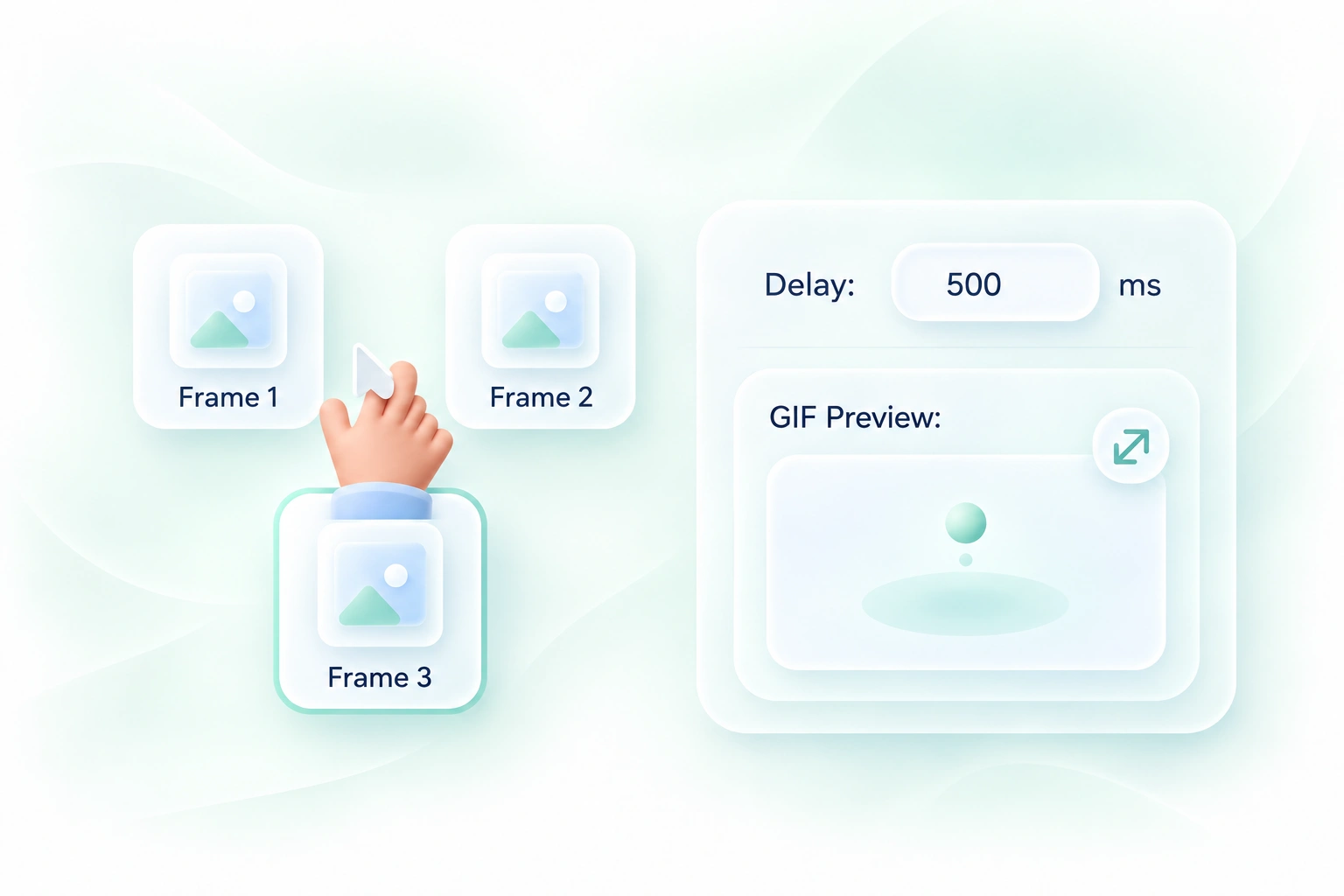
Out-of-order frames or an unsuitable delay can make an animation hard to follow. Frame reordering and timing controls let you shape the sequence, so you can make the intended progression easier to read.
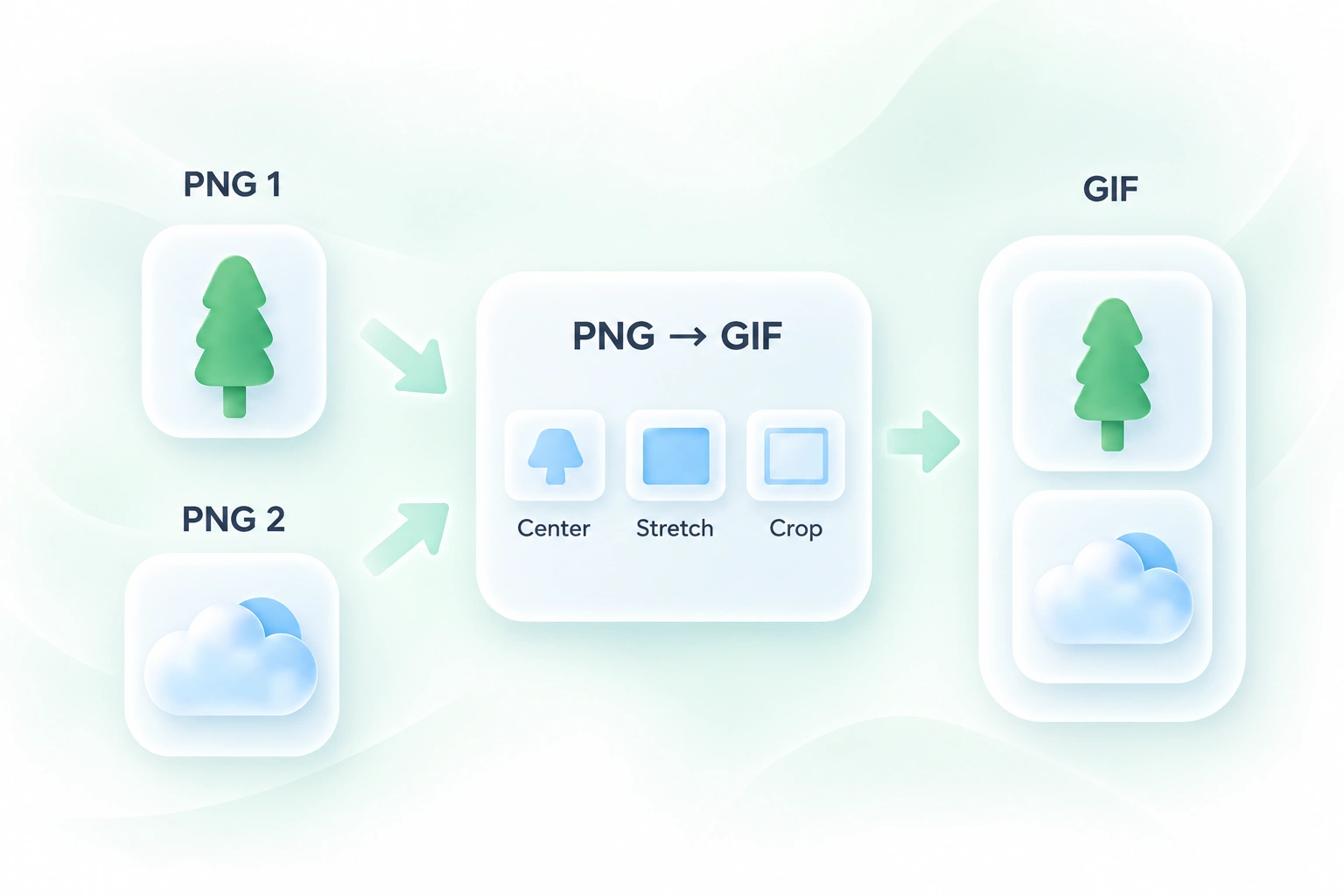
Images with different dimensions can produce an uneven-looking sequence. Canvas fitting options let you choose how frames fit the output area, so you can keep the focus on the action rather than unexpected cropping or stretching.
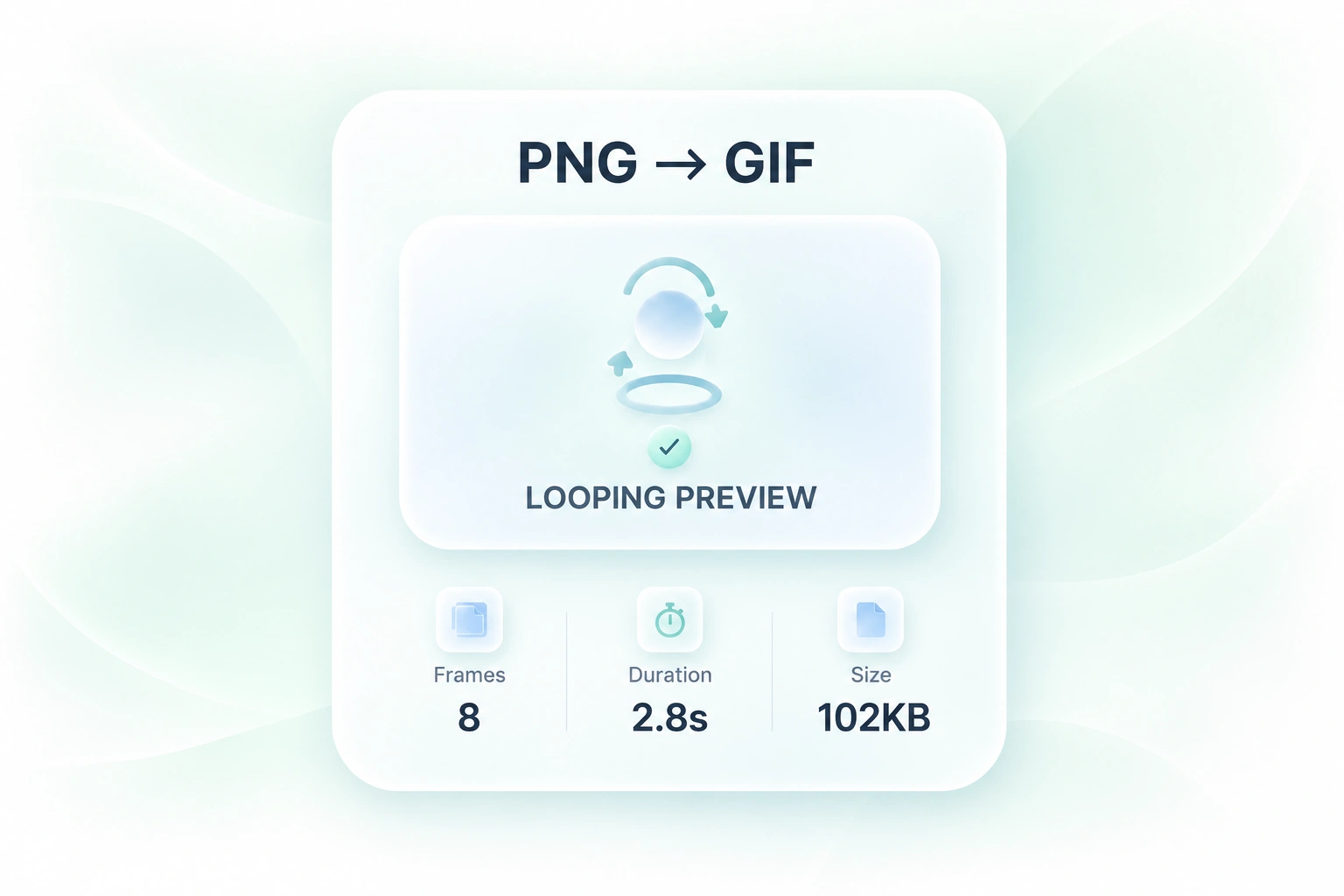
A sequence can look different in motion than as separate thumbnails. The looping preview, duration, and size details let you inspect the GIF as a whole, so you can revise timing or frame choices before sharing it.
Flexible frame ordering, timing controls, and animation previews for everyday GIF tasks.

Convert multiple PNG to GIF frames to show a short interface sequence. Keep each step distinct and leave enough time for viewers to follow the change.
Product and support teams

Review a PNG to GIF animation made from exported drawings or sprite frames. Check the loop transition and spacing before using it as a preview.
Artists and game teams

Alternate a small set of PNG images to illustrate a change. Use consistent framing and inspect the color detail after GIF conversion.
Content creators

Extract tables from JPG images and turn them into editable Excel spreadsheets.
Convert HEIC photos to JPG for use in documents, uploads, and everyday sharing.

Turn HTML files or pasted code into PowerPoint presentations for your next deck.

Convert WebP images to JPG for use in documents, presentations, and image uploads.
Turn JPG images and slide screenshots into PPTX files for presentation work.
Convert JPG images to PNG for your next design, document, or image editing task.
Convert PNG images to JPG for photo uploads, document images, and daily sharing.

Convert Word documents to HTML for website content, publishing, and web projects.

Convert WebP images to PNG for use in graphics, documents, and image editing.
Upload one or more PNG images, arrange the frames, and choose timing and canvas settings. Generate the GIF, review the preview, and download the file.
Yes. Add the images as frames, arrange their order, and set the delay. This PNG sequence to GIF workflow uses the supplied frames rather than generating new movement.
A single source image produces a still result unless you provide additional frames. The tool does not invent motion within a photograph or drawing.
GIF uses a limited color palette. Detailed gradients or photographs can look different from their PNG originals. Review the output before deciding whether GIF is appropriate for the artwork.
Use the canvas fitting options and inspect the preview. Cropping, fitting, and stretching have different effects on the composition, so choose the one that keeps the intended content visible.
The described workflow combines individual PNG images as frames. Do not assume an animated PNG or APNG will retain its full animation; use separate frames for this workflow.

