PNG to PDF Converter

Turn screenshots, scans, and PNG artwork into a document you can share or submit. Use WPS’s online PNG to PDF converter to combine images, arrange the pages, and choose a layout and background before exporting.

or drag and drop files here

PNG only · merge multiple images into one PDF

0PNG pages ready

Drag cards to reorder pages before export.

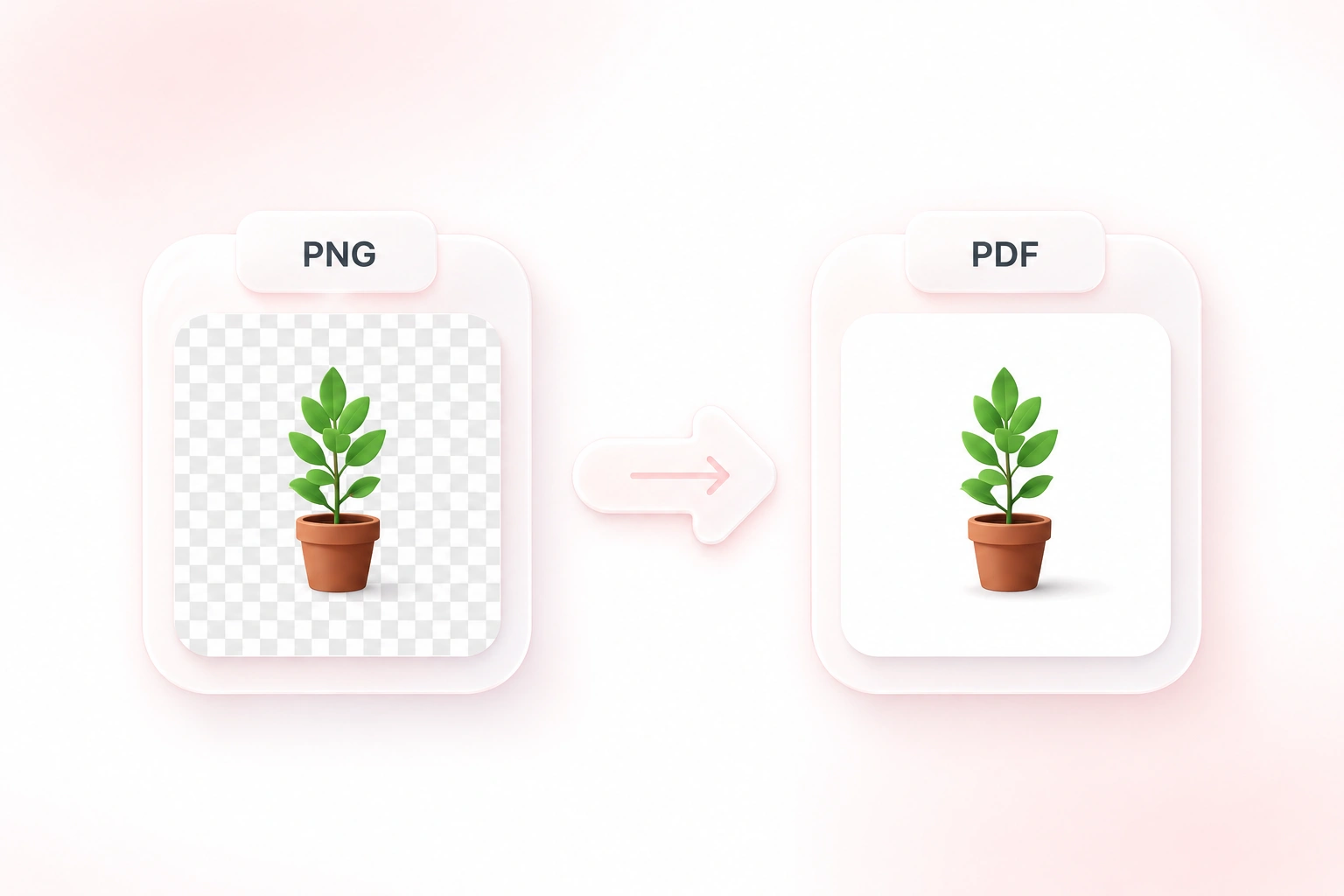
Transparency detectedSome PNGs contain transparent areas. The selected background color will be used when creating the PDF.

Pages

Current order = PDF page order

No pages yet

Add one or more PNG images to start building your PDF.

Export settings

Adjust layout before conversion

PDF export settings
Choose how each image fits the PDF page.
Applies to fixed paper sizes.
px
Set page margin around each image.

Large image detected

One or more PNGs exceed 50 million pixels. Choose whether to downsample before conversion.

0%

Creating PDF

Preparing files…

0 pages

File size unavailable

Preview shows the first page layout used for export.

If you change order, files, or settings, the current result will be hidden until you convert again.

Free to Use
No Sign-Up
No Ads
Any Browser

How to Convert PNG to PDF in 3 Steps

  1. Step 1: Add your PNG images

    Upload one PNG or select several images for a multi-page document. Check that every screenshot or scan you need is included.

  2. Step 2: Arrange the document

    Drag images into reading order and remove extras. Choose page size, orientation, margins, and the background for transparent areas.

  3. Step 3: Create and review the PDF

    Convert PNG to PDF, then check page order and image placement in the preview. Download the document once the pages look right.

Combine Multiple PNG Images into One PDF

Combine Multiple PNG Images into One PDF

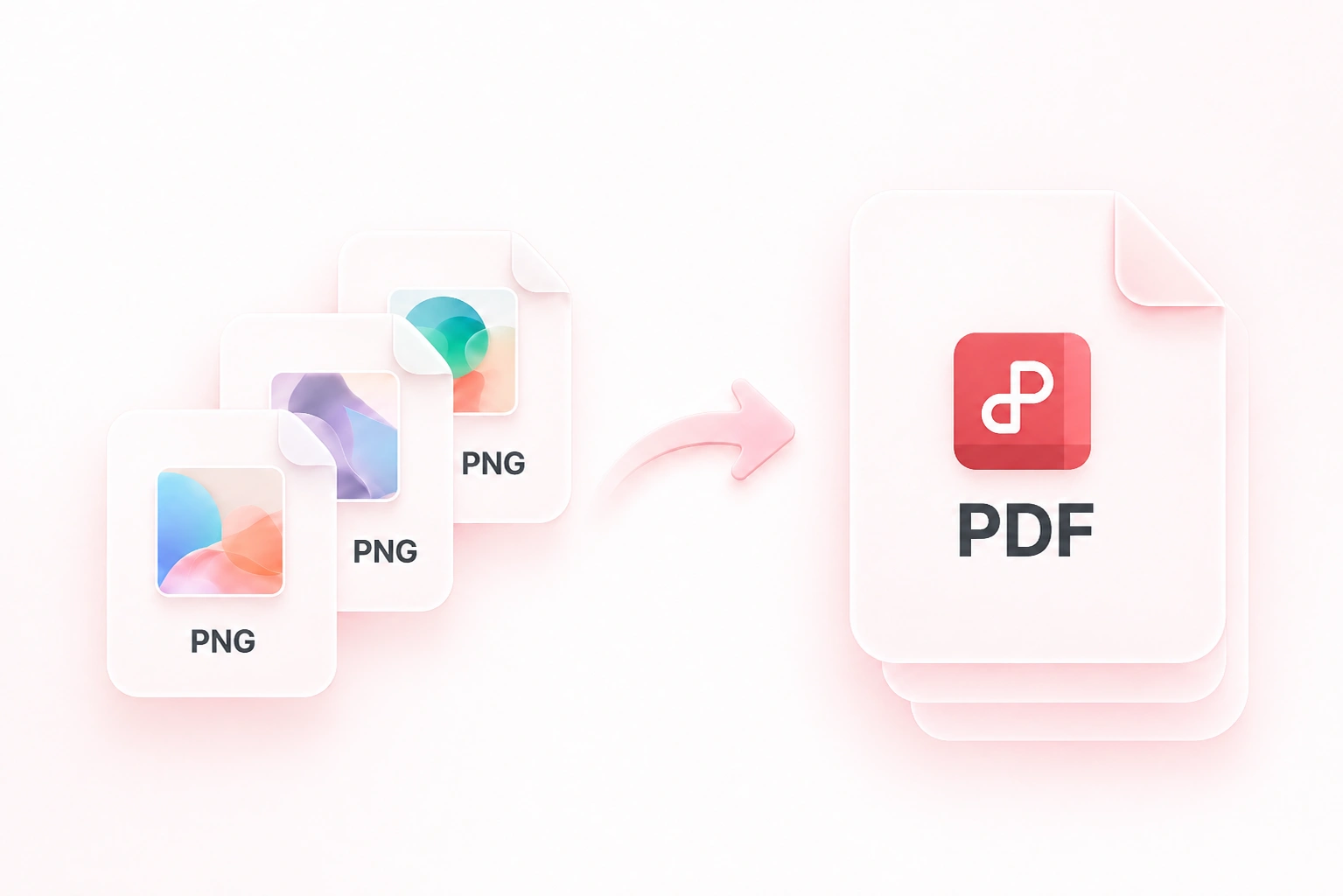
Separate screenshots make a report harder to follow. WPS’s PNG to PDF converter combines images into a multi-page document, so the reader receives one file with the material together. Use a single image when you only need one page.
Try It Now
Arrange PNG Images Before PDF Conversion

Arrange PNG Images Before PDF Conversion

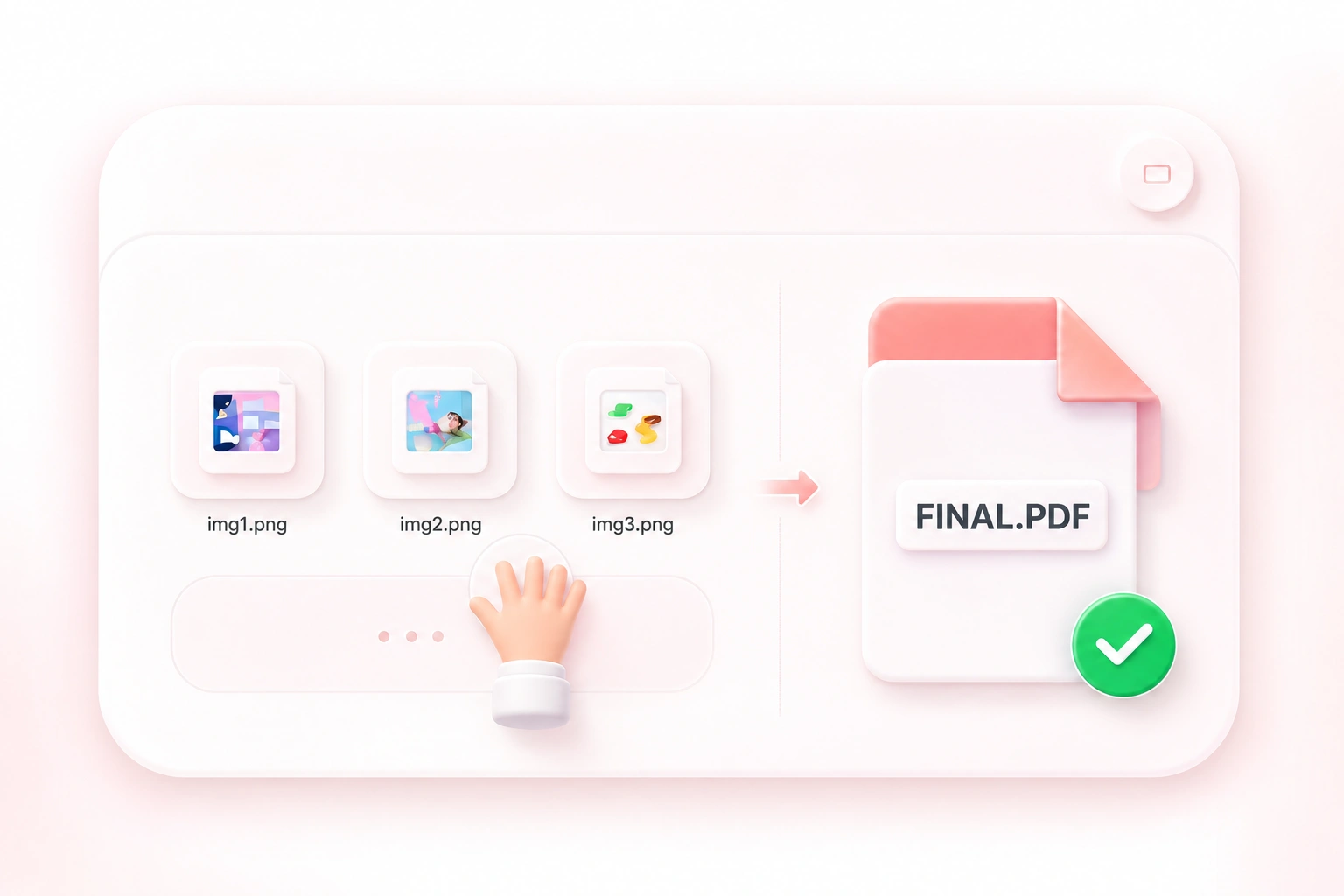
Upload order is not always the order your reader needs. Drag-to-reorder controls let you merge PNG to PDF in a deliberate sequence, so instructions, scans, and examples follow the right progression. Remove duplicates before exporting.

Try It Now
Convert PNG to PDF with a Custom Page Layout

Convert PNG to PDF with a Custom Page Layout

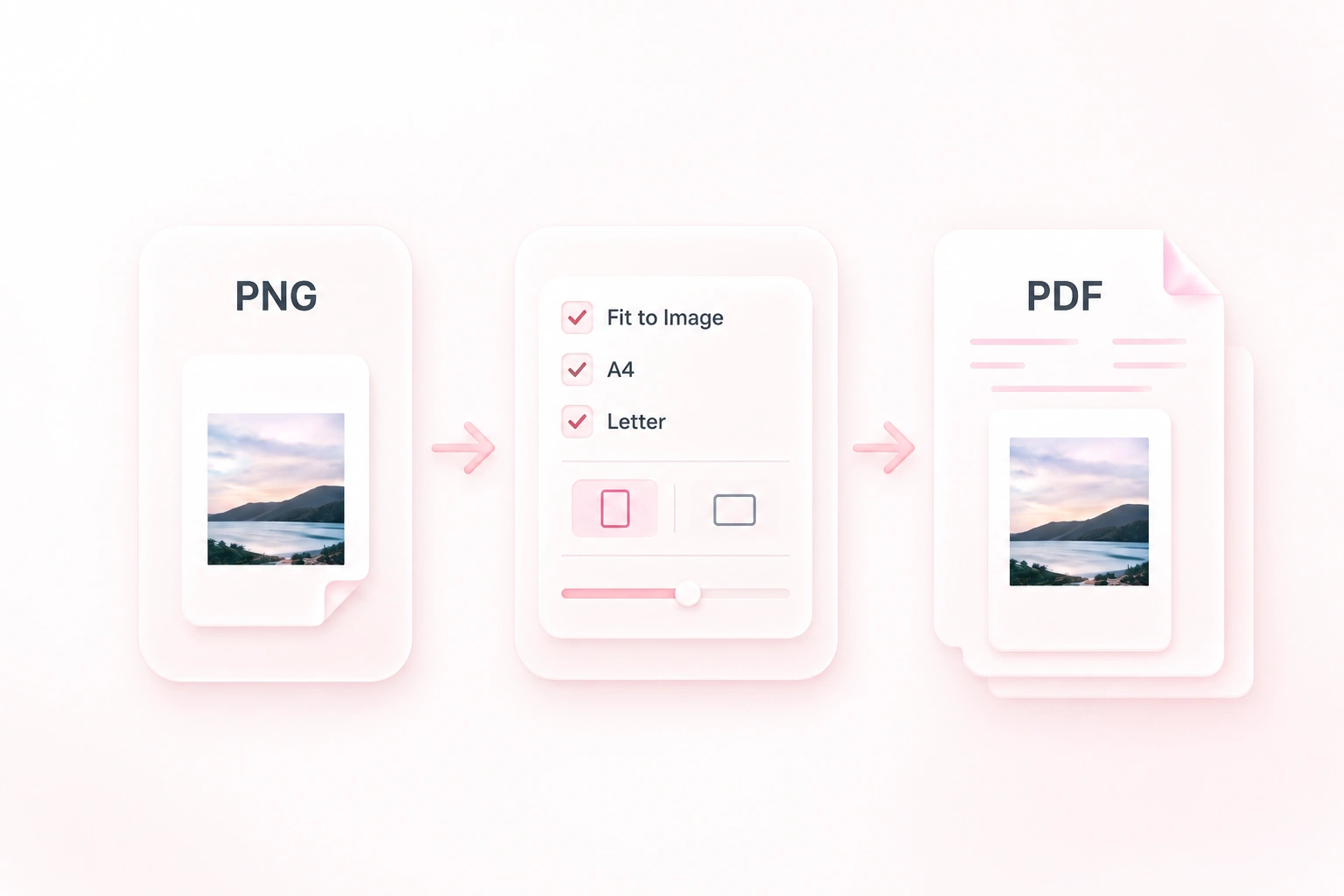
A screenshot and a scanned worksheet need different page layouts. Choose fit-to-image, A4, or Letter with orientation and margins, so the document suits a screen review or a paper handout. Check small text at the intended reading size.

Try It Now
Choose Background Colors for Transparent PNGs

Choose Background Colors for Transparent PNGs

Transparent edges can disappear against the wrong page color. The tool places transparent PNG areas on white or a custom background, so logos and diagrams have an intentional backdrop. Review pale lines and shadows before sharing.

Try It Now

Screenshot instructions

Combine PNG to PDF for a step-by-step guide. Arrange screenshots in task order and keep the original images for later updates.

Screenshot instructions

Team documentation

Worksheet bundle

Convert multiple PNG to PDF for a homework submission or handout. Check that every scan is upright and the writing is readable.

Worksheet bundle

Study and teaching

Artwork review

Place exported PNG diagrams on a chosen page background for review. A PDF copy does not turn the artwork into editable vector paths.

Artwork review

Design handoffs

PNG to PDF FAQ

01

How do I convert PNG to PDF?

Upload your PNG images, arrange their order, and choose the page settings. Run the conversion, review the preview, and download the PDF.

02

Can I combine several PNG images into one PDF?

Yes. Add the images together and select a merged PDF output. Their order in the tool determines the reading order of the document.

03

What happens to transparent PNG areas?

The tool fills transparent areas with white by default or with a custom background color. Check that the chosen color does not obscure light artwork.

04

Which paper size should I choose?

Fit-to-image follows the image proportions. A4 or Letter is useful when the document needs a standard paper size; review margins and orientation before export.

05

Does converting a screenshot make its text editable?

Placing a screenshot in a PDF does not by itself turn the pictured text into editable document text. Text recognition is a separate task.

06

Will the PDF improve a low-resolution image?

Conversion does not recreate missing image detail. Start with a clear original and check readability at the size at which the PDF will be used.