PNG to SVG Converter

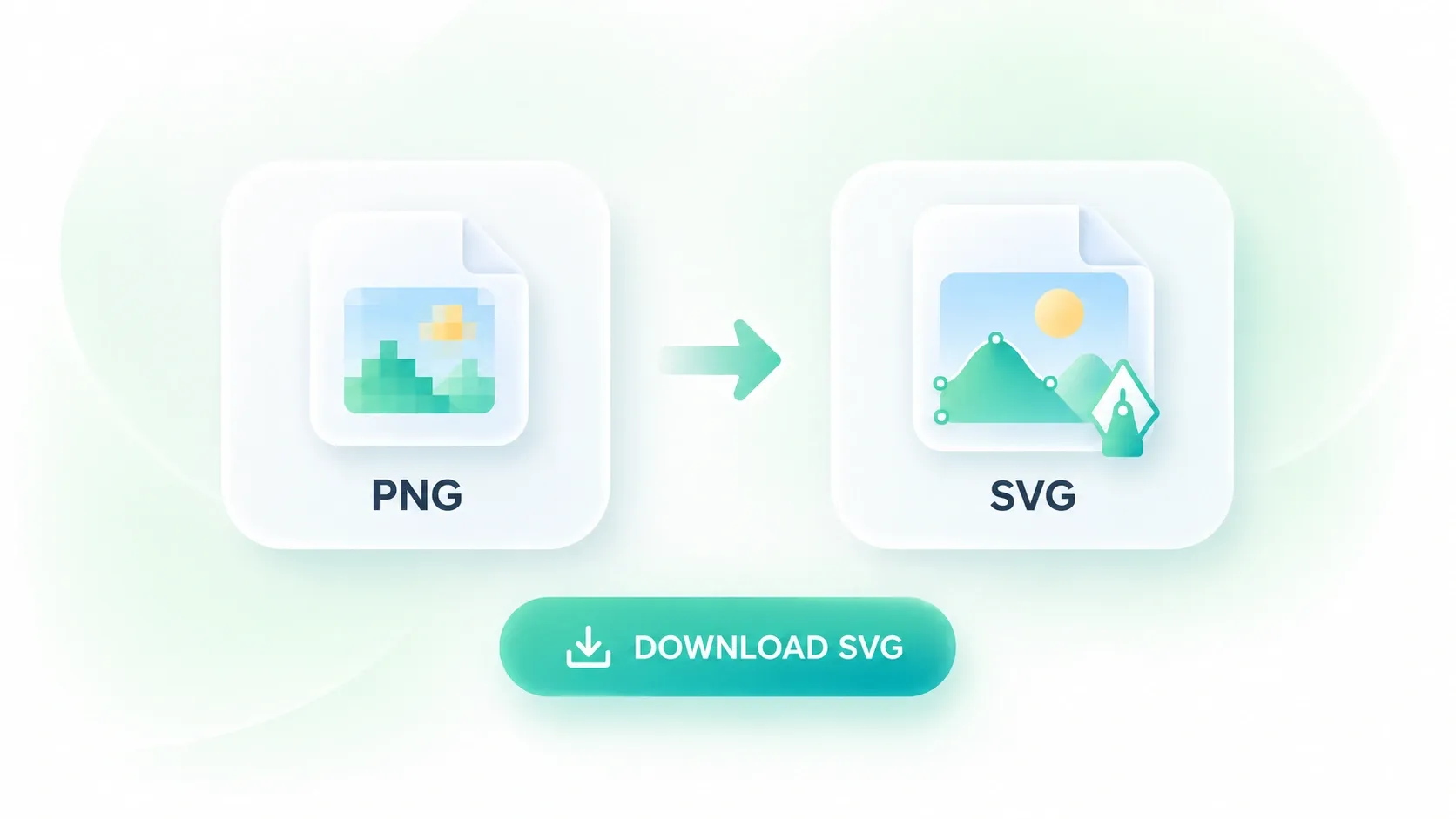
Use WPS’s online PNG to SVG converter to turn pixel-based logos, icons, and line art into vector paths. Adjust the tracing settings, compare the result with your original, and download the SVG for your next design.

or drag and drop files here

PNG, up to 5 MB

Uploaded PNG preview
Best for logos, icons, and line artPhoto-like PNGs can be converted, but they usually produce many paths and less clean vector results.
Tracing settings
Adjust the vector output before converting.
6
232
4.0
3.510
4
0128
16
1255
60
0180
45
0180
8
016
Ready to convert this PNG into editable SVG paths.
Vector result
0paths0nodes0colors
Original PNG
100%
Original PNG preview
SVG preview
100%
SVG code
Free to Use
No Sign-Up
No Ads
Any Browser
Free to Use
No Sign-Up
No Ads
Any Browser

How to Convert PNG to SVG in 3 Steps

  1. Step 1: Upload your PNG

    Choose a PNG image with clear shapes. A clean logo or icon is a useful starting point when learning how to convert PNG to SVG.

  2. Step 2: Adjust the trace

    Choose a color mode, color count, and path simplification setting. Select Convert to SVG, then inspect the generated shapes.

  3. Step 3: Review and export

    Compare the original and SVG previews. Refine the settings if needed, then download the file or copy its SVG code.

Convert PNG to Vector Paths for Editing

Convert PNG to Vector Paths for Editing

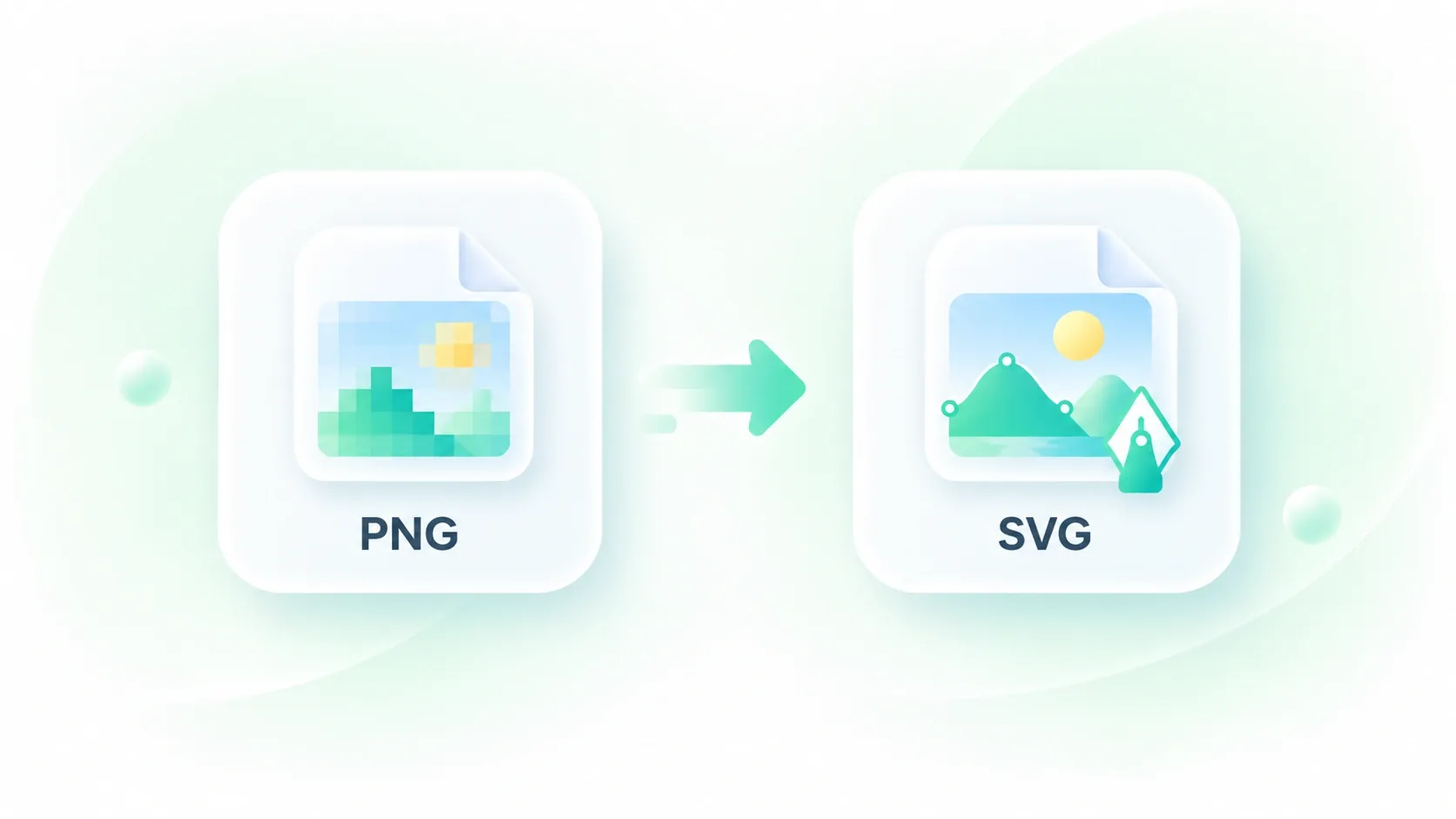
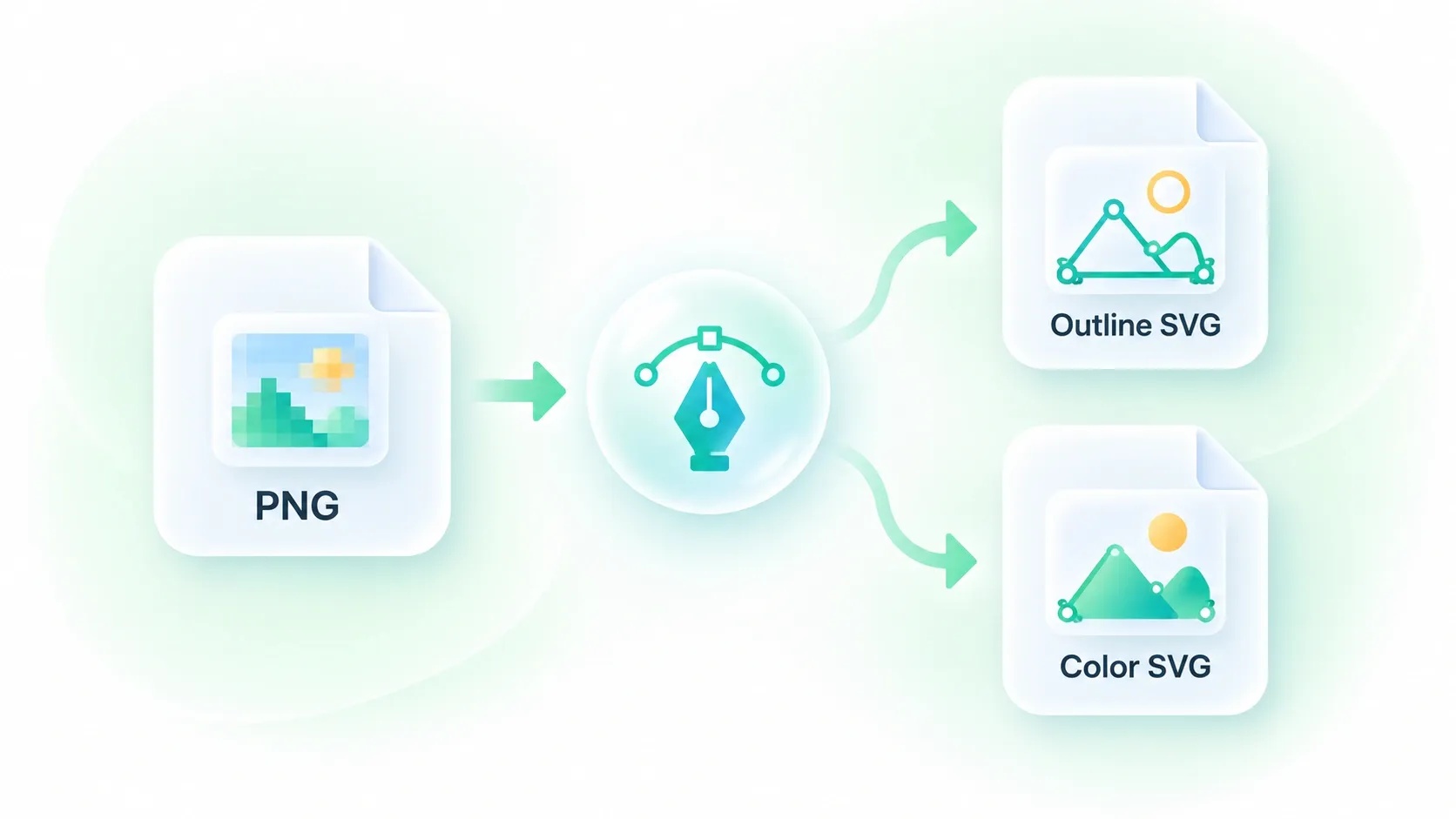
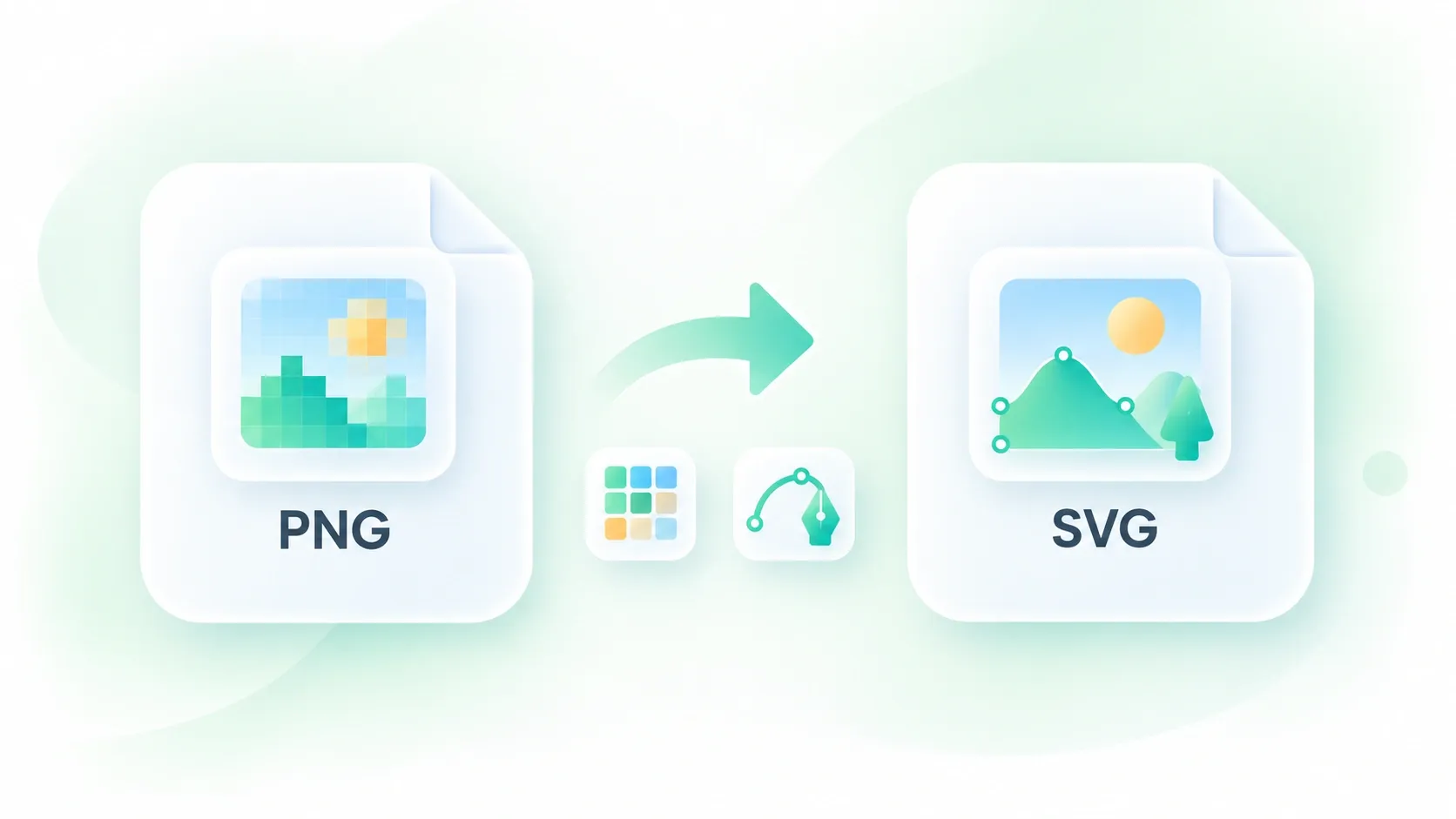
A small bitmap logo can become visibly pixelated when enlarged. WPS’s PNG to SVG converter traces image shapes into paths, giving you a vector starting point for resizing and further editing. Review the trace before using it as final artwork.
Try It Now
Vectorize PNG Artwork with Fewer Colors

Vectorize PNG Artwork with Fewer Colors

Extra color variations can make simple artwork harder to work with. Adjustable color count lets you vectorize PNG images with a palette suited to the design, so you can balance recognizable detail with a simpler result.

Try It Now
Simplify SVG Paths for Cleaner Outlines

Simplify SVG Paths for Cleaner Outlines

Busy contours can make traced artwork cumbersome to edit. Path simplification gives you control over contour detail, so you can compare smoother outlines with the original shape. Check small gaps and thin lines after each adjustment.

Try It Now
Compare the SVG Trace with Your PNG

Compare the SVG Trace with Your PNG

Tracing can change edges, gradients, and small details. Side-by-side previews let you compare the PNG to vector output before downloading, so you can spot areas that need another pass instead of discovering them in your next project.

Try It Now

Why Users Choose Our PNG to SVG Converter

Flexible color settings, cleaner vector paths, and clear comparisons for everyday tracing tasks.

Logo artwork

Convert a PNG logo to SVG as a starting point for a brand asset. Check lettering and edges in a vector editor before placing the logo at a new size.

Logo artwork

Designers and brand teams

Interface icons

Trace a simple PNG icon for an interface design. Review narrow strokes and cutouts at the size where the icon will actually appear.

Interface icons

Product and web teams

Line-art projects

Use PNG to SVG online for flat illustrations or line drawings. Start with clear boundaries and keep the original image for comparison during refinement.

Line-art projects

Illustrators and students

01

How do I convert PNG to SVG?

Upload the PNG, adjust the tracing settings, and select Convert to SVG. Compare the preview with the source, then download the SVG file or copy its code.

02

Does changing the file extension create a vector image?

No. Renaming .png to .svg does not turn pixels into paths. This converter traces image shapes to create SVG path data; the resulting shapes can differ from the source.

03

Which images are suitable for tracing?

Simple logos, icons, line drawings, and flat illustrations are useful starting points. Photographs and gradients contain more variation and can produce complex or visibly simplified traces.

04

Will the SVG look exactly like the PNG?

Not necessarily. Tracing approximates raster shapes. Color choices and simplification can change edges or remove detail, so inspect the result before publishing or printing it.

05

How can I make the SVG less complex?

Try a lower color count or a stronger simplification setting, then compare the new preview. Fewer paths and colors can also mean less detail, so choose a balance that suits the artwork.

06

Can I edit the SVG after conversion?

You can download the generated SVG paths and open them in an editor that supports SVG. Check the imported artwork and refine it there; conversion does not recreate the original design layers.