PNG to WebP Converter

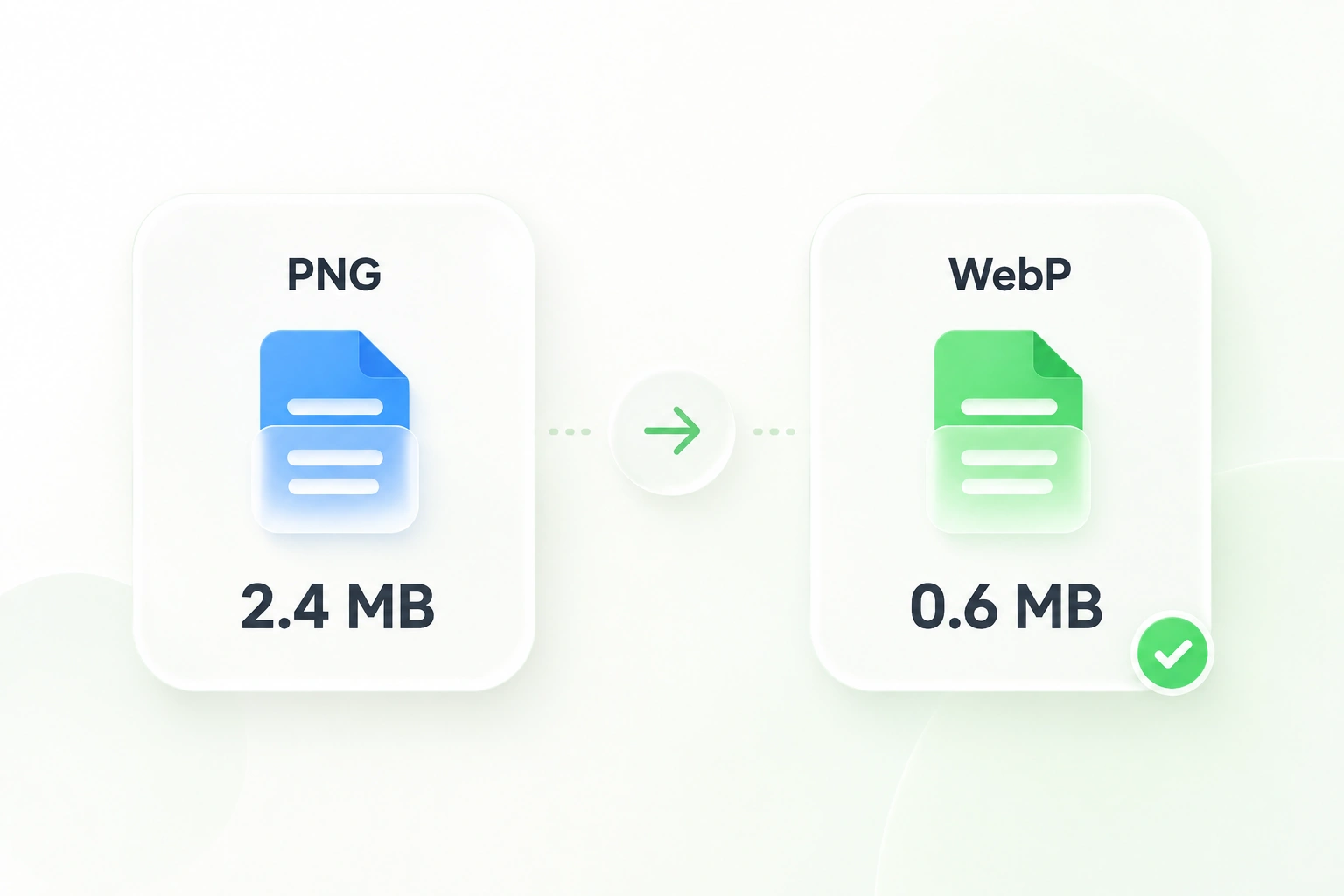
Use WPS’s online PNG to WebP converter to prepare image assets for the web. Choose compression settings, retain existing transparency, and review the converted images before saving individual files or a ZIP.

or drag and drop files here

PNG, up to 20 files, 50 MB each

PNG to WebP workspace

Your selected PNG files will appear here with previews and file sizes.
0 PNG files selectedTransparency is preserved in the converted WebP output.

Converting your PNG files

0%
Preparing conversion…

Preparing conversion…

Multiple files are processed in sequence and alpha transparency is preserved.

Files0
Quality80%
Resize modeFit
Max size4096 × 4096 px

Conversion results

Processed files0
Original total0 B
Converted total0 B
Overall savings0%
Download all converted WebP files together or save individual files below.
Free to Use
No Sign-Up
No Ads
Any Browser
Free to Use
No Sign-Up
No Ads
Any Browser

How to Convert PNG to WebP in 3 Steps

  1. Step 1: Add your PNG images

    Upload the source PNG files. Group related assets when you want to review and download them together.

  2. Step 2: Choose compression settings

    Select the available compression mode and quality settings, then convert. Compare the result with your source before choosing the final version.

  3. Step 3: Review and download

    Inspect transparent areas and fine detail. Save individual WebP files or download the converted set as a ZIP.

Choose Lossy or Lossless PNG to WebP Conversion

Choose Lossy or Lossless PNG to WebP Conversion

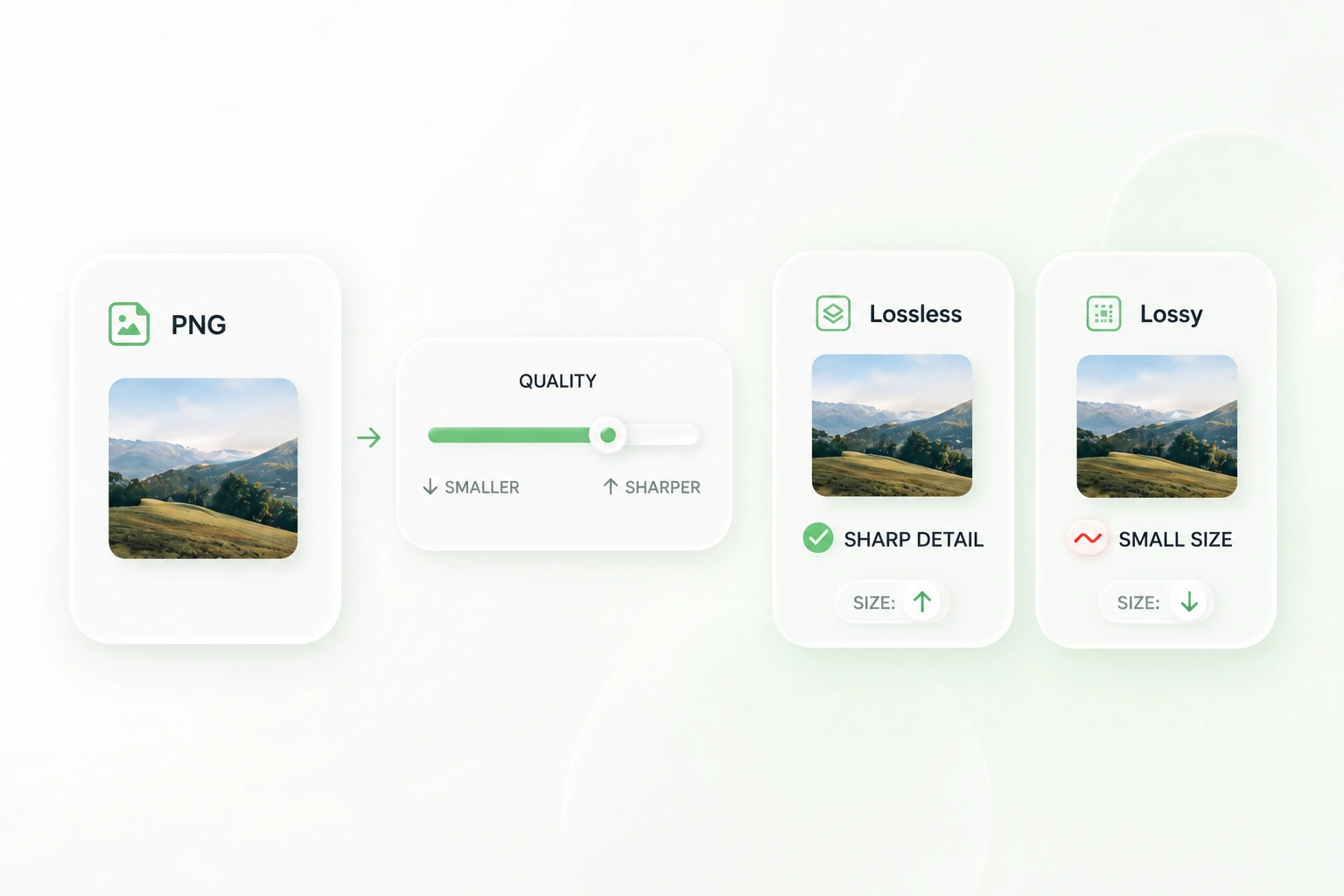
A detailed illustration and a simple logo may need different compression choices. Lossy and lossless modes give WPS’s PNG to WebP converter different ways to encode the output, so you can choose a setting that fits the image rather than relying on one default.
Try It Now
Keep Transparent PNG Backgrounds in WebP

Keep Transparent PNG Backgrounds in WebP

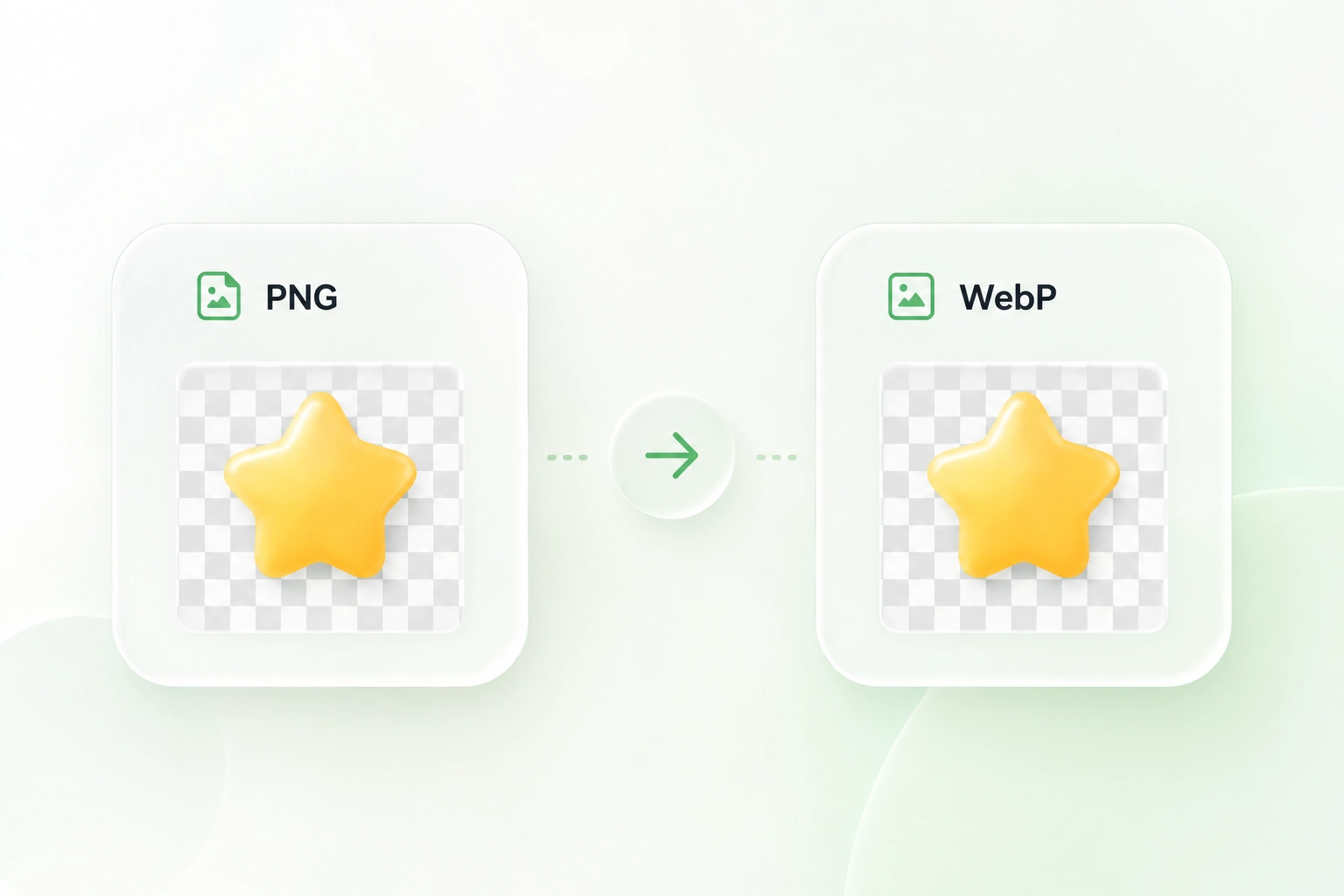
Logos and cutout graphics often need to sit over different backgrounds. Alpha-channel support carries existing transparency into WebP, so you can prepare those assets without intentionally adding a solid background. Check edges in the preview.

Try It Now
Bulk Convert PNG to WebP in One Job

Bulk Convert PNG to WebP in One Job

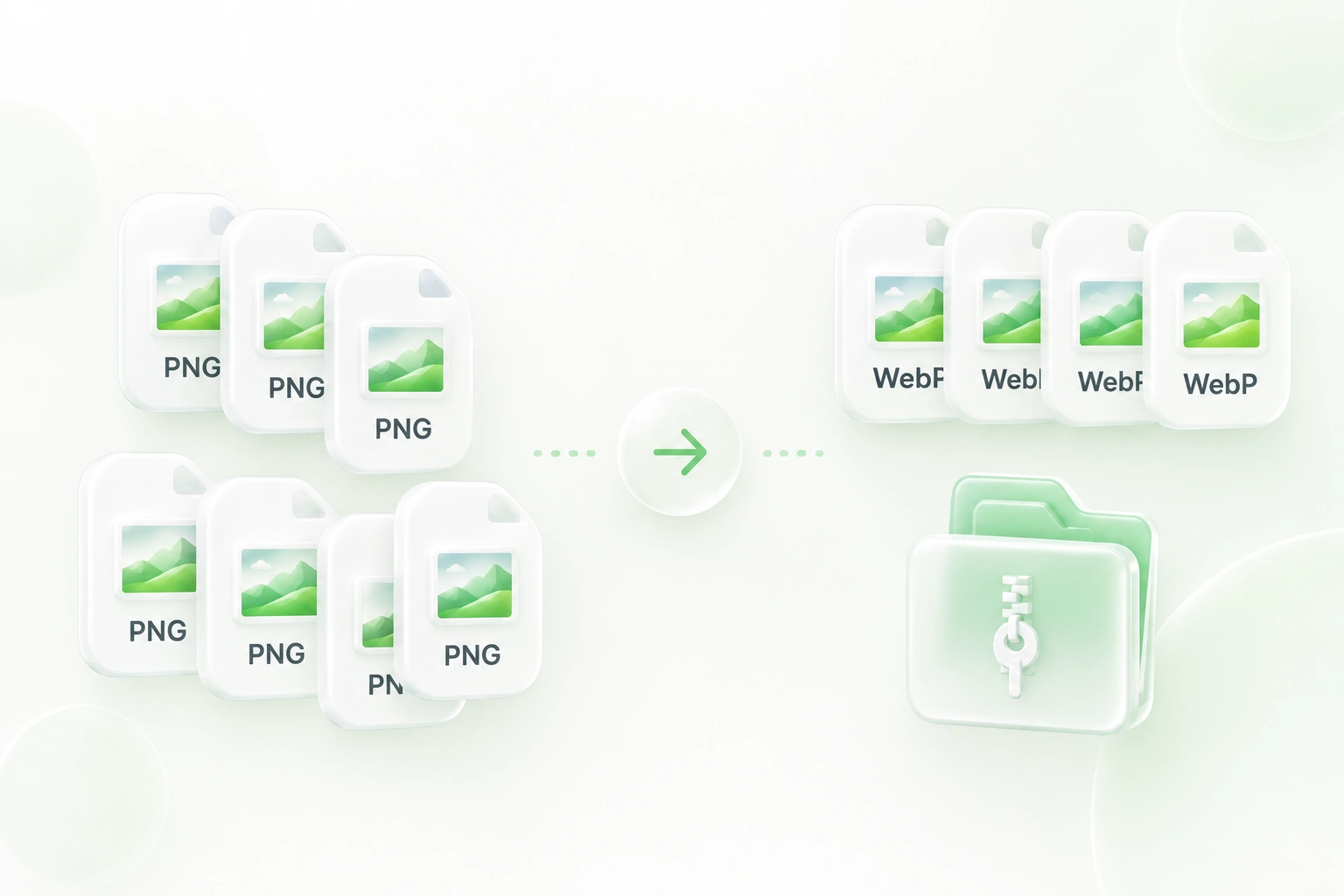
Processing each image separately adds repeated upload and download steps. Batch conversion and ZIP export keep related assets in one workflow, so PNG to WebP bulk conversion is easier to organize for a website update.

Try It Now
Preview WebP Detail Before Replacing Images

Preview WebP Detail Before Replacing Images

A smaller file is not useful if important detail changes too much. Output previews let you inspect the image after conversion, so you can revisit the quality setting before replacing a source asset in your content workflow.

Try It Now

Why Users Choose Our PNG to WebP Converter

Lossy or lossless conversion, transparency support, and batch processing for website image workflows.

Product cutouts

Convert PNG to WebP for product graphics with existing transparent backgrounds. Compare edge detail and confirm that your storefront accepts the exported format.

Product cutouts

Ecommerce content teams

Website graphics

Use PNG to WebP online for illustrations or interface assets. Compare the actual file size and appearance before replacing the PNG in your site.

Website graphics

Web designers

Asset-library updates

Keep related banners and graphics in one conversion batch. Download the ZIP, review the results, and retain the PNG masters for later changes.

Asset-library updates

Marketing teams

PNG to WebP FAQ

01

How do I convert PNG to WebP?

Add your PNG files, choose the compression settings, and select Convert to WebP. Review the output, then download individual images or the ZIP package.

02

Can I use this for PNG to WebP bulk conversion?

Yes. Add multiple source images and convert them together. Use ZIP download to keep the results in one package, following the current upload guidance displayed in the tool.

03

Will my transparent background stay transparent?

The tool supports existing PNG alpha transparency in WebP output. Check the preview after conversion. This is not background removal: opaque areas in the source are not automatically cut out.

04

Should I choose lossy or lossless output?

Choose based on the image and your next use. Lossy compression can change visual detail; lossless encoding is useful when you want to avoid that compression trade-off. Compare the actual results rather than assuming one mode is always best.

05

Is a PNG to WebP compressor guaranteed to make a smaller file?

No. Output size depends on the source image and settings. Compare file sizes and visual detail before deciding which format and settings to publish.

06

Does converting the file guarantee a faster website?

No. Image format is only one part of page performance. Dimensions, delivery, caching, layout, and the rest of the page also matter. Test the published page after replacing an asset.