PSD to PNG Converter

Use WPS’s online PSD to PNG converter to prepare a flattened design or selected layer images for a handoff. Review the rendered preview and layer list, then choose the PNG output you need.

or drag and drop files here

PSD or PSB, up to 100 MB

—
PSD—Canvas: — × —Layers: —
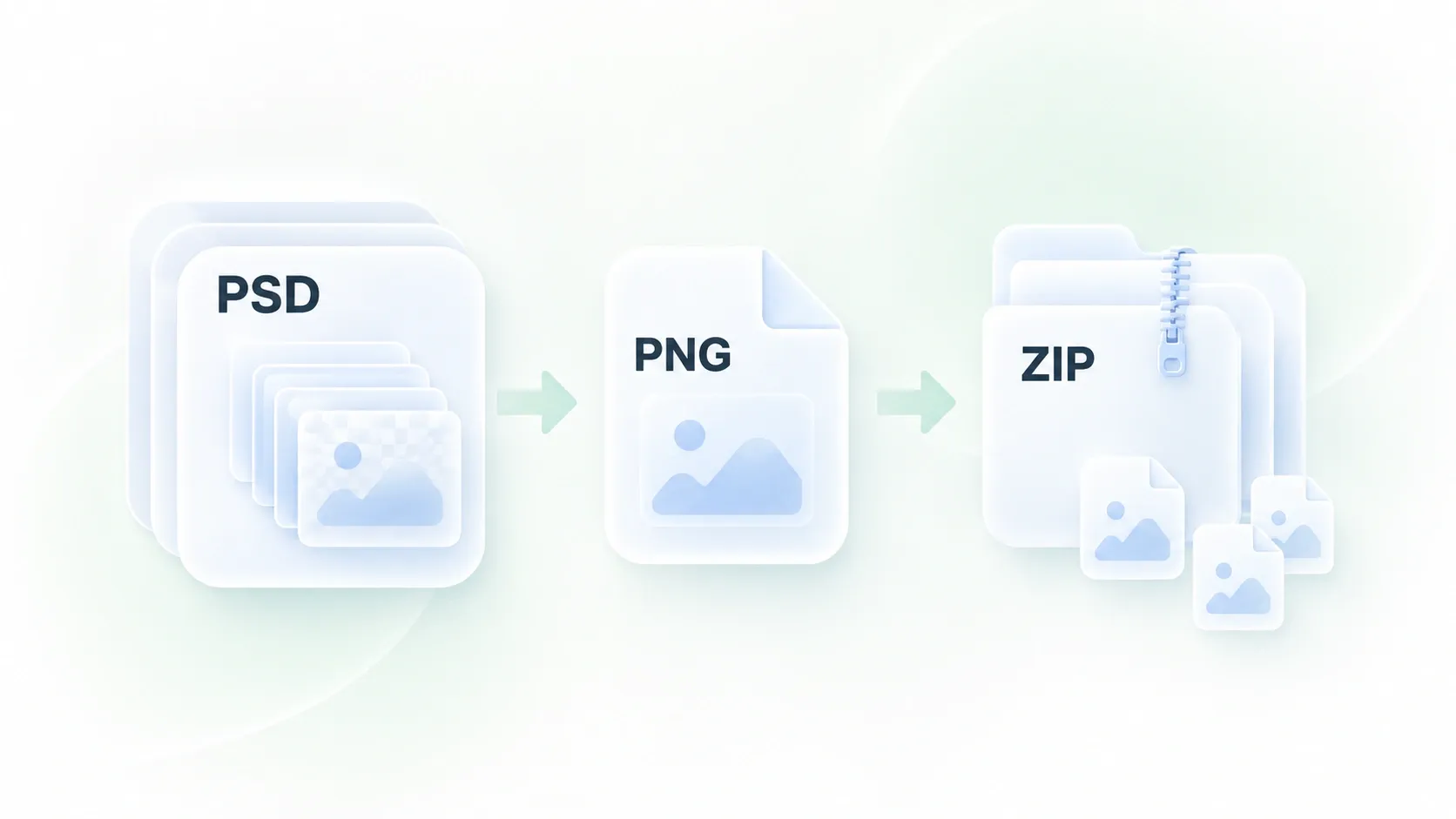
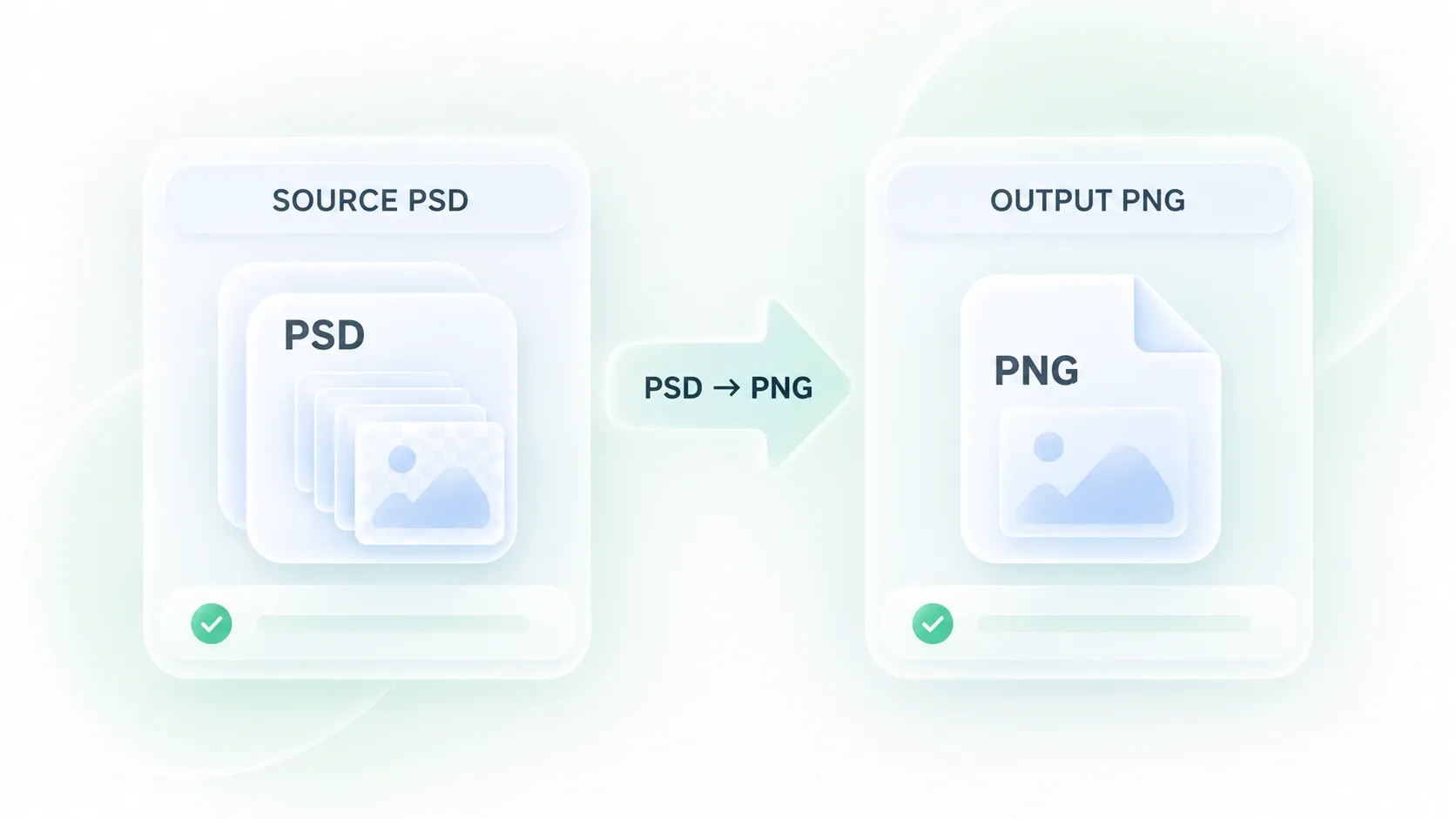
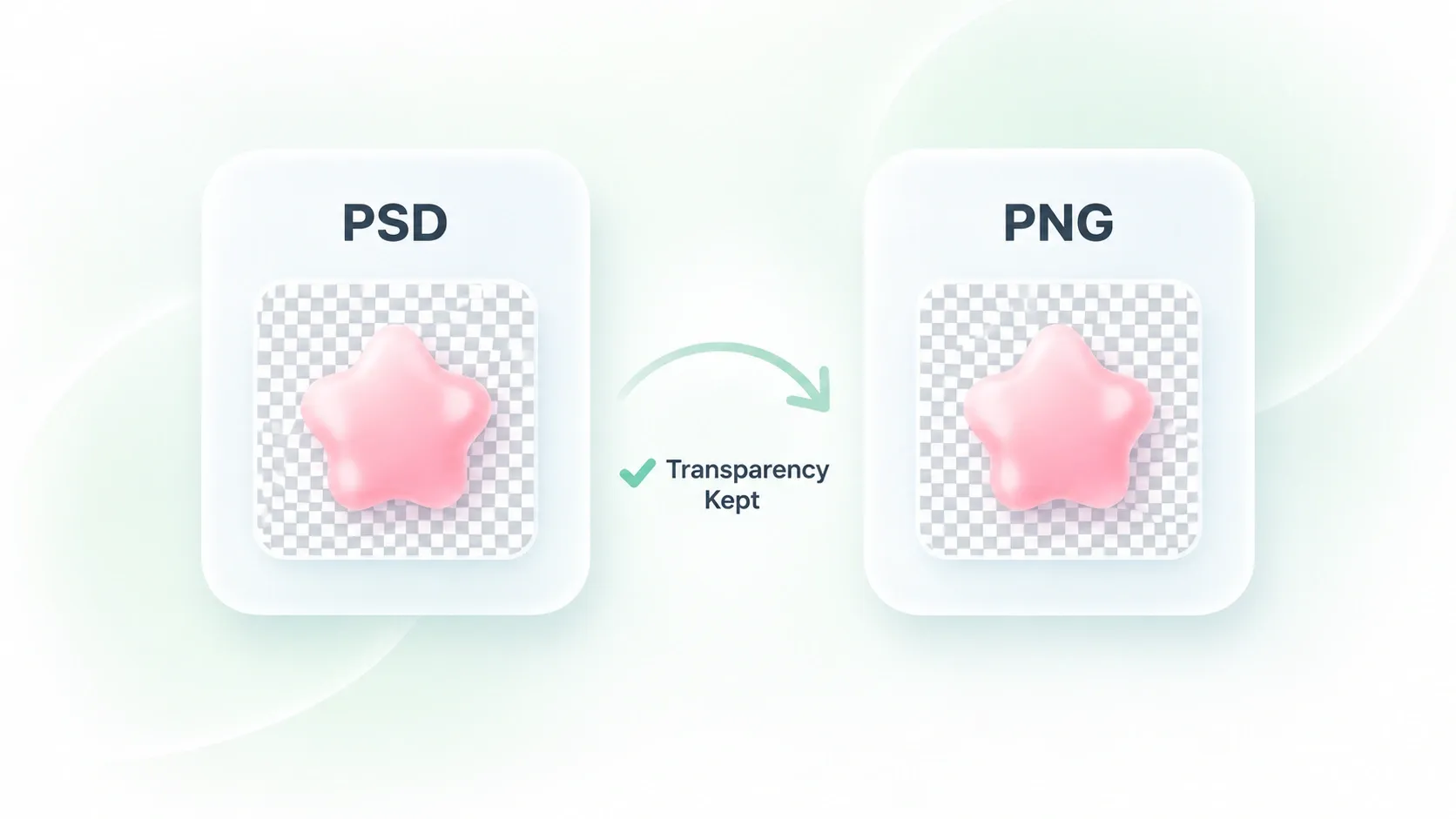
How conversion worksVisible layers are flattened with transparency preserved. You can also export selected layers as separate PNG files.
Export settings
0 layers selected
Choose which layers to export
Layers
No layers were found in this file.
Preview and download
Flattened PNG is ready
Flattened PNG preview
Output format
PNG
Canvas
—
Visible layers
0
Selected exports
0
Free to Use
No Sign-Up
No Ads
Any Browser
Free to Use
No Sign-Up
No Ads
Any Browser

How to Convert PSD to PNG in 3 Steps

  1. Step 1: Upload the design file

    Add your PSD or PSB file and wait for it to load. Keep the original design file for future edits.

  2. Step 2: Review the rendering

    Select Convert to PNG and inspect the preview and layer list. Check visible layers, opacity, and the appearance of important effects.

  3. Step 3: Export the output you need

    Download the flattened PNG or select layers for export. Use the ZIP option when exporting a collection of layer images.

Convert PSD to PNG for Design Reviews

Convert PSD to PNG for Design Reviews

A collaborator may need to see a design without working with its layered source. WPS’s PSD to PNG export gives you a flattened image copy, so you can prepare a review asset while retaining the PSD as the editable master.
Try It Now
Select PSD Layers for PNG Export

Select PSD Layers for PNG Export

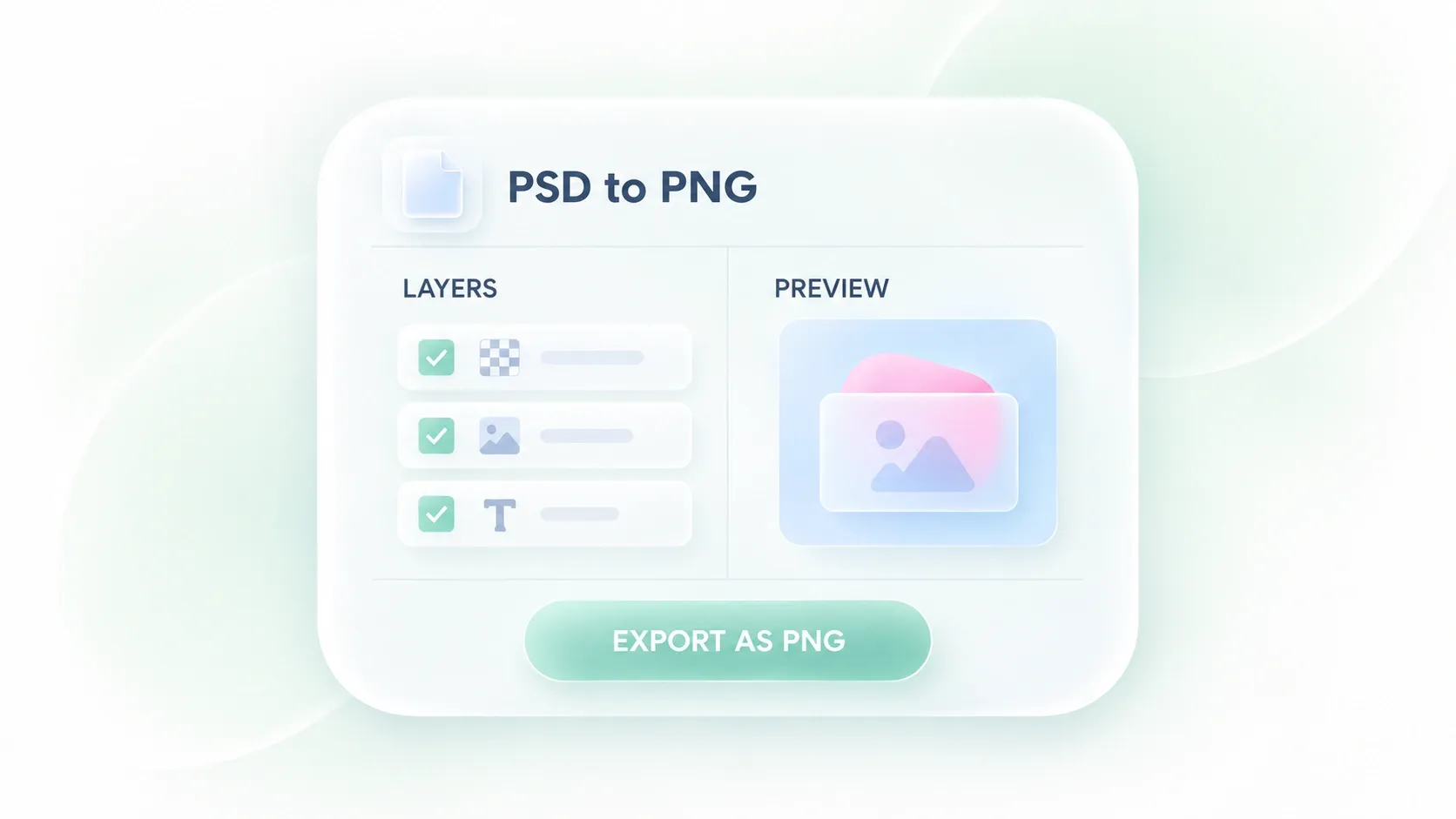
A design file can hold several assets that are not all needed together. The layer list and selection controls let you choose the relevant content, so you can prepare focused exports instead of handing over every layer.

Try It Now
Preview PSD Transparency and Layer Effects

Preview PSD Transparency and Layer Effects

Transparent edges, opacity, and blending affect how a design appears. The rendered preview lets you check the combined result before saving, so you can identify elements that need review rather than assuming every Photoshop effect will reproduce identically.

Try It Now
Export PSD Layers to PNG in a ZIP

Export PSD Layers to PNG in a ZIP

Saving each needed asset separately can make a handoff repetitive. Selected-layer export and ZIP packaging let you collect multiple PNG outputs, so the chosen assets stay together for review and organization.

Try It Now

Design review

Convert PSD to PNG for a visual review copy. Compare the rendered image with the source before treating the export as an approved design.

Design review

Designers and collaborators

Layer asset handoffs

Export PSD layers to PNG when a handoff needs separate assets. Review the selected layers, filenames, and transparency before sharing the package.

Layer asset handoffs

UI and content teams

Transparent graphics

Use PSD to PNG online for artwork that already contains transparent areas. Inspect the exported edges on the background where the image will be placed.

Transparent graphics

Brand and creative teams

PSD to PNG FAQ

01

How do I convert PSD to PNG?

Upload the design, run the conversion, and inspect the preview. Download the flattened PNG or select individual layers for the appropriate export option.

02

Can I export PSD layers to PNG?

Yes. Use the layer list to choose the content you need. The workflow supports selected-layer output and a ZIP package for multiple layer exports.

03

Does a PNG keep the PSD’s editable layers?

No. A PNG image does not retain a Photoshop layer stack. Separate layer exports are separate images, so keep the PSD or PSB as your working source.

04

Can I keep a PSD to PNG transparent background?

The tool supports transparent output from source artwork with transparency. Check the preview and downloaded image; a visible background layer is still part of the design unless excluded through the available layer workflow.

05

Will every Photoshop effect look identical?

Do not assume that. Inspect blending, opacity, text, and effects in the preview and compare important artwork with its original rendering before using it as final output.

06

Can I use a PSB file?

The uploader accepts PSD and PSB files. Rendering depends on the document content; review any warnings and inspect the result before exporting.