Free Screen Recorder

Record your screen, app window, or browser tab with optional microphone and system audio for tutorials, demos, presentations, and feedback videos.

00:00:00
Recording…
Recording: Entire Screen
Duration: 0:00Size: 0.0 MB
Free and Unlimited
No Signup Required
Save Time
No Ads
Free to Use
No Sign-Up
No Ads
Any Browser

How to Use Screen Recording Software

  1. Step 1: Select What to Record

    Choose the entire screen, an application window, or a browser tab from the screen recorder interface.

  2. Step 2: Set Audio Options

    Turn microphone and system audio options on or off based on what your recording needs.

  3. Step 3: Start, Stop, and Save

    Start recording, stop when finished, then review the result and download the video if it matches your needs.

Screen Recording Software for Tutorials and Demos

Screen Recording Software for Tutorials and Demos

When screenshots do not show enough context, a screen recording can explain a process more clearly. This recording software lets users choose a capture area and add optional audio for tutorials, demos, presentations, and feedback videos.

Start Recording
How to Screen Record on Windows with Flexible Capture Modes

How to Screen Record on Windows with Flexible Capture Modes

If you are learning how to screen record, start by choosing the right capture boundary. Select the full desktop for a complete walkthrough, one application window for a focused demonstration, or a browser tab for web-based content.

Choose Capture Area
Screen Recording Record Audio

Screen Recording Record Audio

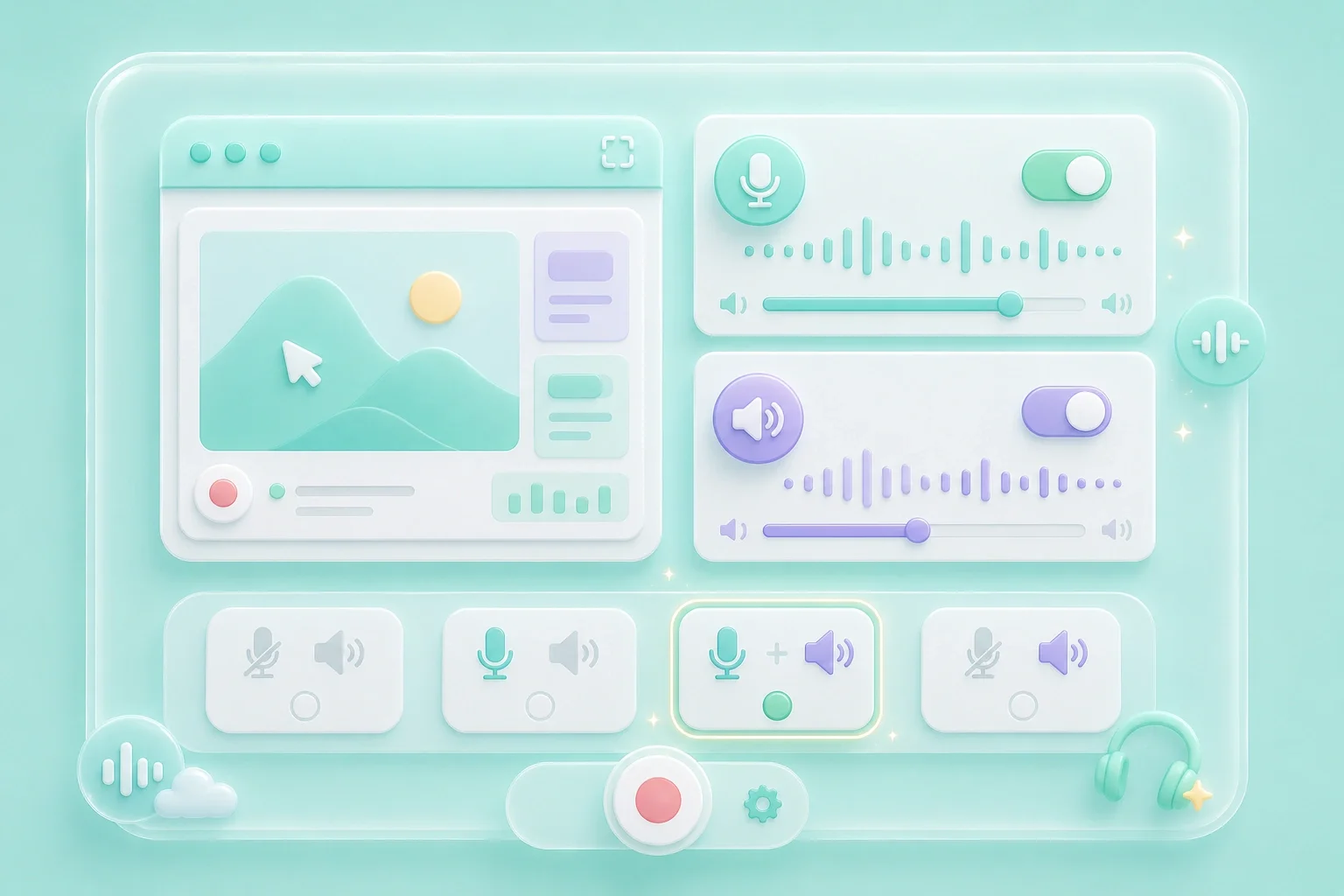
A narrated recording can make a workflow easier to follow. This screen recorder includes visible microphone and system audio controls, so users can decide whether the recording needs voice, internal sound, both, or neither.

Set Audio
How to Screen Record on PC and Review the Video

How to Screen Record on PC and Review the Video

A recording should be checked before it is sent to classmates, clients, teammates, or support staff. Preview the result, confirm that the right screen and audio were captured, and re-record if something important is missing.

Review Video

Screen Recording Software Use Cases

Practical recordings for work, study, support, and presentation tasks.

Tutorial Walkthroughs

Record steps on screen so viewers can follow the exact clicks, fields, and pages involved in a workflow.

Tutorial Walkthroughs

Use case

Presentation Practice

Capture a slide walkthrough or browser demo with optional narration before sharing it with a class or team.

Presentation Practice

Use case

Bug and Feedback Videos

Show the issue on screen instead of describing it only in text, then share the recording with a support or development team.

Bug and Feedback Videos

Use case

Free Screen Recorder Questions, Answered

01

What is screen recording software?

Screen recording software captures activity from your screen, an application window, or a browser tab and turns it into a video recording.

02

Can I record only one browser tab?

Yes. The visible tool options include a browser tab mode, which is useful when you do not want to record the full desktop.

03

Can I include microphone audio?

Yes. Turn on the microphone option before recording and grant permission when the browser asks.

04

Can I record system audio?

The interface includes a system audio option. Availability can depend on browser and operating system support.

05

What should I check before sharing a screen recording?

Preview the video, confirm the selected screen area is correct, check audio, and make sure no private information appears in the recording.

06

Why might screen recording permissions appear?

Browsers ask for permission before sharing screen or audio sources. Choose only the screen, window, or tab you intend to record.