Convert SVG to JPG for Image Uploads
A form or publishing workflow may ask for JPG rather than SVG. WPS’s SVG to JPG converter creates a raster copy, so you can prepare the required file format while keeping the vector source for later changes.
Use WPS’s online SVG to JPG converter when your next task calls for a raster image. Set the output dimensions, choose a background color and JPEG quality, then preview and download your JPG copy.
or drag and drop files here
SVG, up to 5 MB
Choose your SVG artwork. Keep the vector original if you may need to resize or edit its shapes later.
Choose output dimensions or a scale option, set the background, and adjust JPEG quality before converting.
Check the raster preview and file details. Download the JPG after reviewing edges, text, and the selected background.
A form or publishing workflow may ask for JPG rather than SVG. WPS’s SVG to JPG converter creates a raster copy, so you can prepare the required file format while keeping the vector source for later changes.
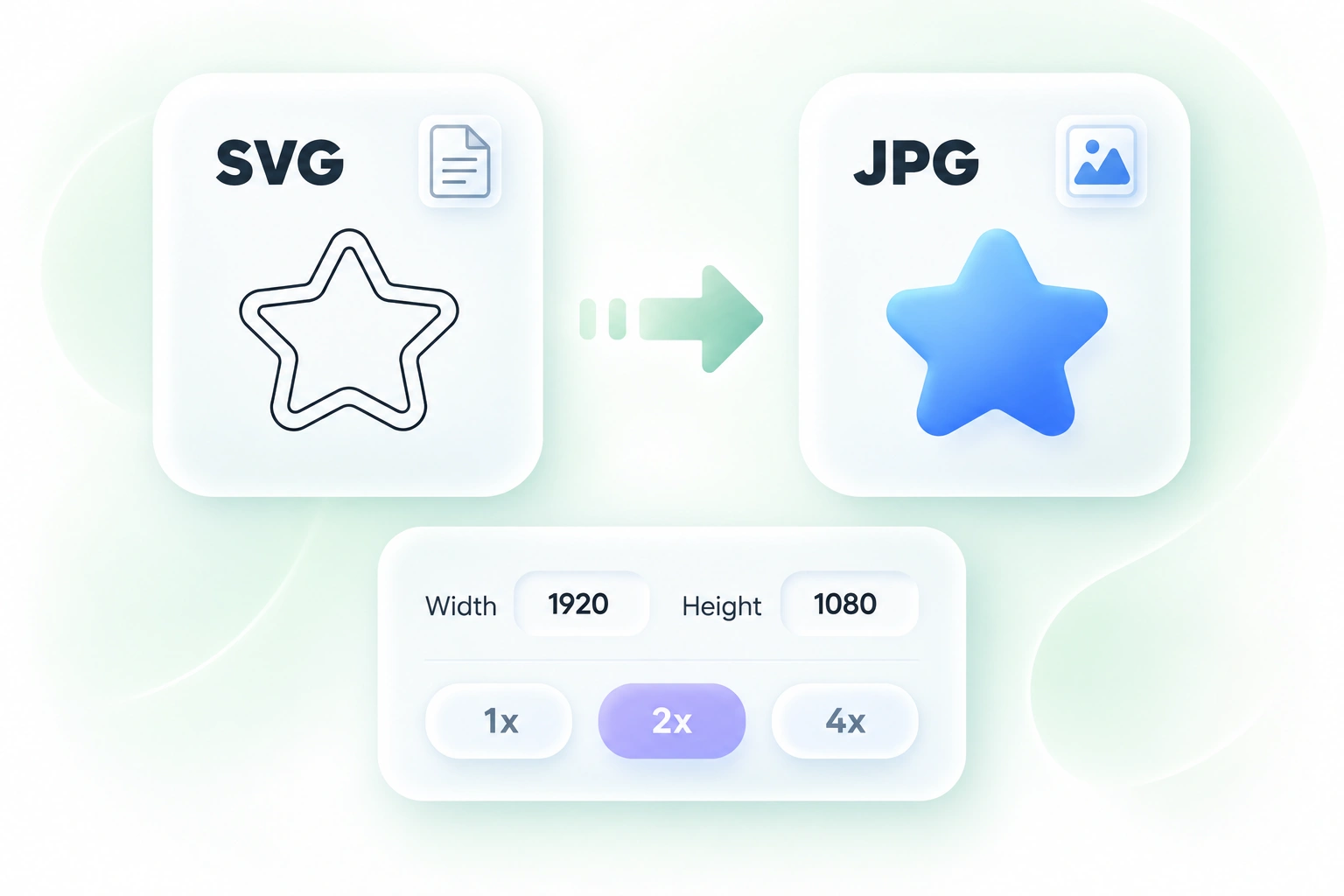
A vector source does not have to stay tied to one display size, but a JPG does. Width, height, and scale controls let you choose the output dimensions, so you can prepare a copy for the space where it will appear.
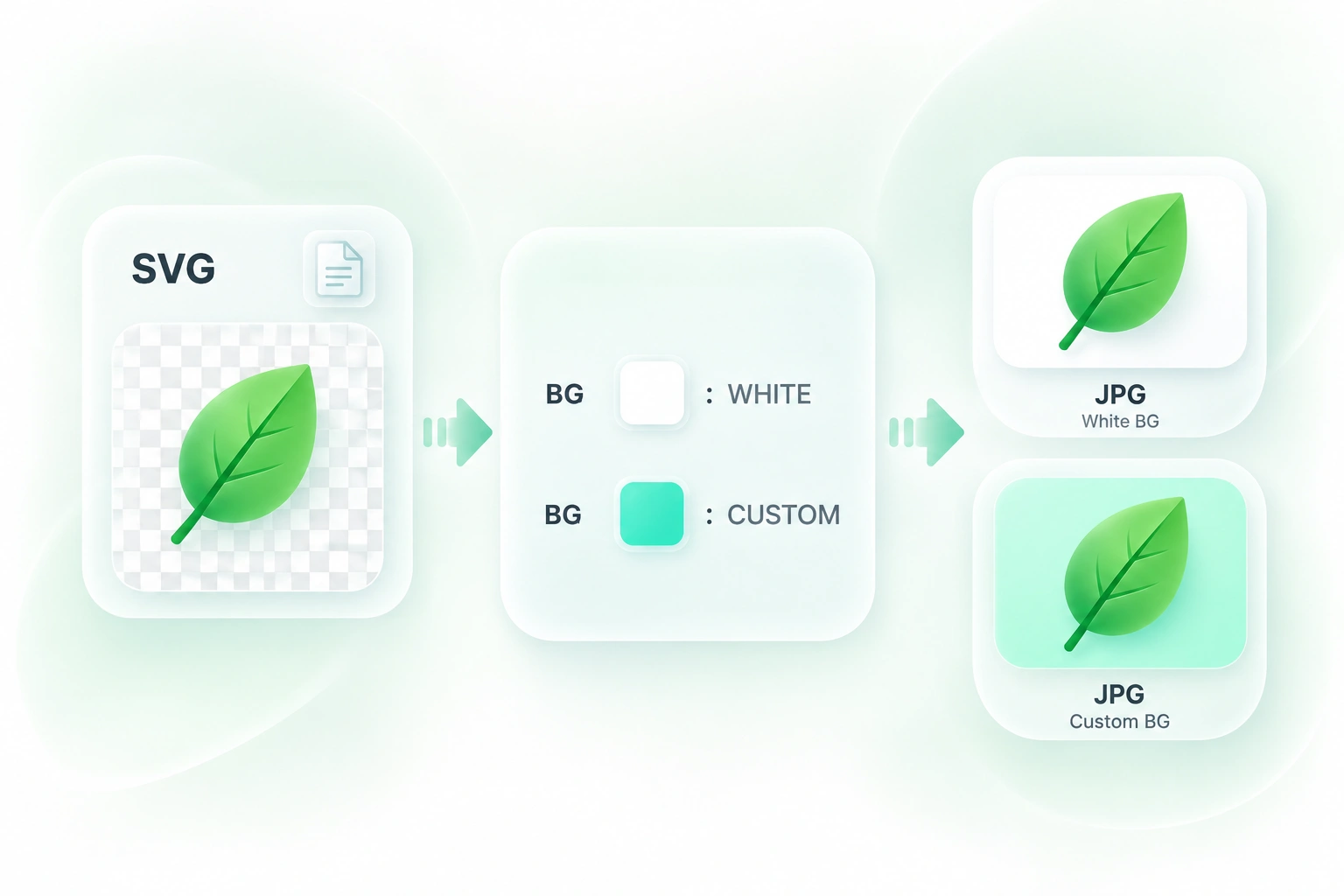
JPG cannot retain a transparent background. Background-color controls let you choose how transparent SVG areas are filled, so the raster output can suit its intended page or document rather than leave the choice implicit.
Compression and rasterization can change fine text or edges. JPEG quality controls and the output preview let you compare the result, so you can choose a usable balance before downloading the image.
Flexible image dimensions, background controls, and practical quality settings for JPG export.

Convert SVG to JPG for an illustration slot that requests JPEG. Set an appropriate size and inspect small labels before inserting the image.
Office teams and educators

Use SVG to JPG online to create a review copy of vector artwork. Keep the editable SVG separately and distinguish the JPG from the design master.
Designers and collaborators

Choose a background color that suits the intended composition. Review the edge where the artwork meets the fill before sharing the JPG.
Content teams

Convert WEBP images to high-quality PNG format quickly and securely.

Easily change Apple HEIC photos to standard JPG format for universal viewing.

Transform WEBP graphics into universally supported JPG images in seconds.

Convert next-gen AVIF image files into widely compatible JPG format.

Convert iPhone HEIC images to transparent and high-resolution PNGs.

Change AVIF files to PNG format while preserving image quality and transparency.

Extract tabular data from JPG images and convert them into editable Excel spreadsheets.

Save your MP3 tracks as compact M4A files for clear online playback.
Upload the SVG, set the size, background, and quality, then select Convert to JPG. Review the preview and download the resulting image.
JPG and JPEG refer to the same image format. An SVG to JPG converter creates a JPEG raster image rather than another vector file.
No. JPEG does not support an alpha channel. Choose the background fill before conversion and check that it suits the destination.
Use the available width, height, or scale controls. Larger dimensions create more output pixels, but embedded raster images inside an SVG may still lack detail when enlarged.
No. Converting SVG to JPEG rasterizes the artwork into pixels. Keep the SVG if you need to edit shapes, text, or vector paths later.
Fonts, embedded images, effects, output dimensions, and JPEG compression can influence the appearance. Inspect the preview and compare important details before using the result.

